BlogScreenshots on your device
How to Capture a Scrolling Screenshot on a PC
Capture an entire webpage or a scrollable app window on a PC. Choose the right built-in browser or desktop tool, and fix common stitching problems.
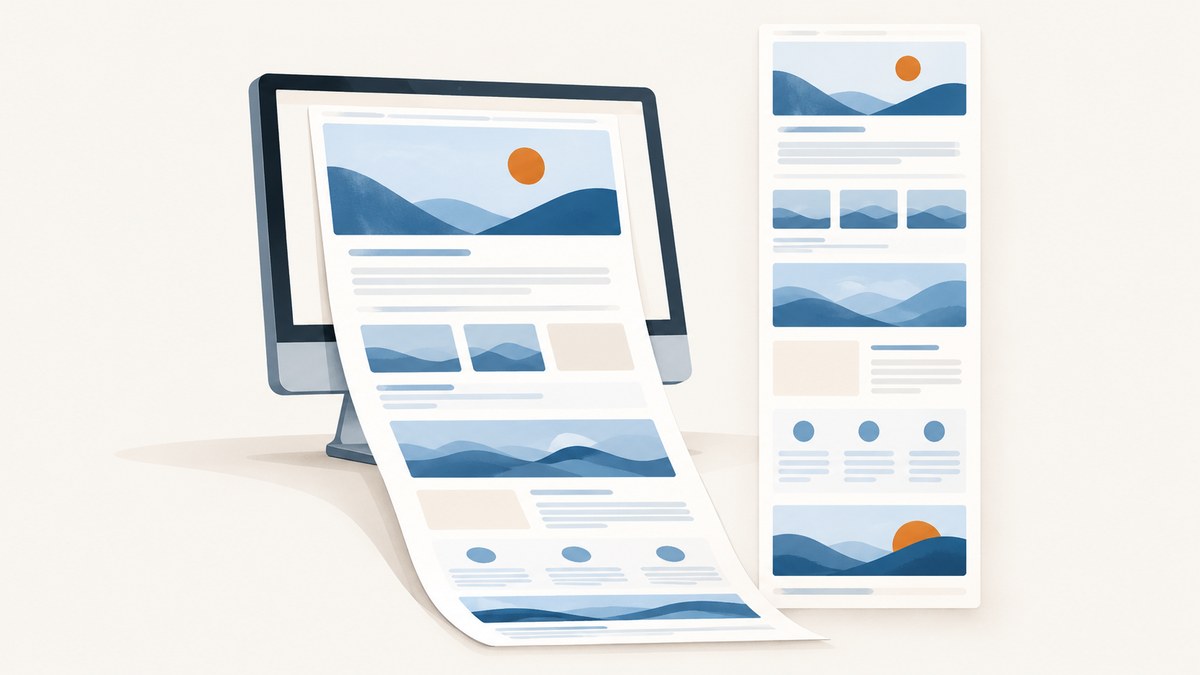
A scrolling screenshot captures content that extends below the visible screen. If you need a whole webpage, start with the browser’s full-page screenshot feature in Microsoft Edge or Firefox. If you need a document, list, panel, or other scrollable application window, use a scrolling-capture utility such as ShareX or PicPick. Windows Snipping Tool documents visible-screen capture modes, not a scrolling mode.
The distinction matters: a browser can capture a page as a page, while a desktop utility usually scrolls a selected region and stitches multiple screen captures together. That stitching can be affected by sticky elements, animation, and hover effects.
1. Choose the right capture method
| What you need | Recommended starting point | Why |
|---|---|---|
| The full contents of a website page | Edge Screenshot or Firefox Screenshot | Both document a browser-level full-page capture. |
| A long document or a scrollable app window | ShareX or PicPick | Both document scrolling capture beyond a browser page. |
| Only the part currently on screen | Snipping Tool or a browser’s visible-area option | A regular screen snip captures a visible screen or selected region. |
| A webpage image generated as part of a developer workflow | ScreenshotNeo | A screenshot API can capture a URL without setting up a desktop browser workflow. |
For a webpage, prefer the browser’s full-page action before trying a frame-stitching utility. For an arbitrary window, use a scrolling-capture tool and select only the content area where possible. These are feature-based recommendations, not a claim that every page or application works perfectly.
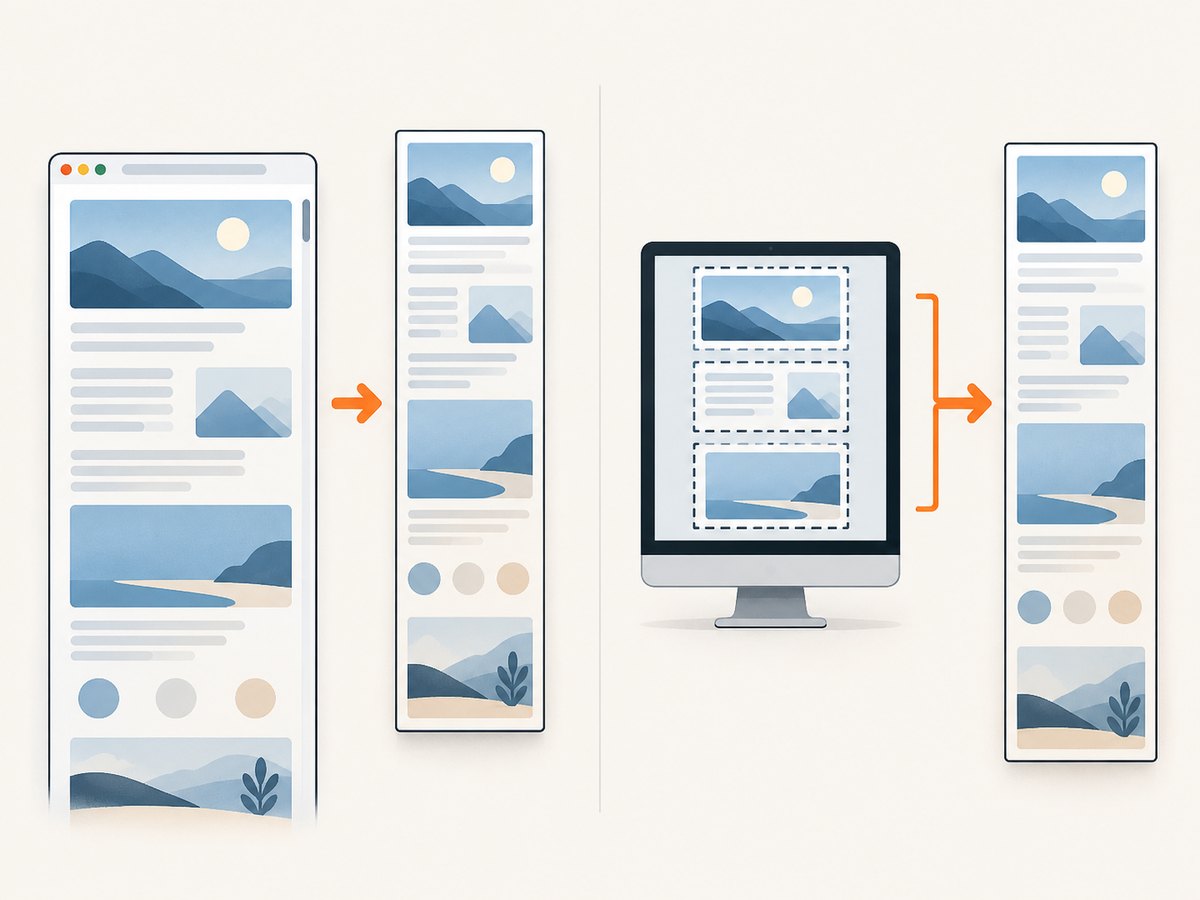
2. Capture a full webpage in Microsoft Edge
- Open the webpage in Edge and wait for its main content to load.
- Open Screenshot. You can press Ctrl+Shift+S, use the page’s right-click menu, or find Screenshot in Settings.
- Choose the full-page capture option.
- Review the resulting capture, then copy it or save it as an image.
Edge describes its Screenshot feature as capturing a full webpage, including content that would otherwise require scrolling. The exact entry point, availability, and functionality can vary by device type, market, and browser version, so the menu may differ from these steps. If the shortcut or menu is absent, check the current browser version and look for Screenshot in the available page or Settings menus.
Use this method for an ordinary webpage when you want the browser to produce one full-page result. It does not turn Snipping Tool into a scrolling utility, and it is not a general capture command for every application window.
3. Capture a full webpage in Firefox
- Open the target page in Firefox.
- Open the Screenshot tool from the page controls or context menu.
- Select Save full page.
- Save the downloaded image or copy the screenshot to the clipboard.
Choose Save visible when you need only the current viewport. That option is not a substitute for the full-page action. Firefox’s documented screenshot workflow saves screenshots as image files and also supports copying them.
If the page has content that appears only after scrolling, allow it time to load before capturing. A browser’s full-page capture is still a snapshot: content that is gated, not yet loaded, or dependent on an interaction may not appear as you expect. For a page whose content changes while being captured, repeat the capture after the page has settled and compare the result.
4. Capture a scrollable window with ShareX
ShareX documents scrolling capture for content beyond the visible screen, including web pages and documents. Its workflow selects a region, scrolls through it, and combines the resulting captures.
- Open ShareX from its main window or tray menu.
- Choose Capture → Scrolling capture.
- Select the region containing the content you want to capture.
- Let ShareX scroll and combine the captures, then review the result.
ShareX displays a status for the result: green indicates success, yellow partial success, and red a failure to combine the initial captures. A partial or failed result is a signal to adjust the selected region or the page state and try again; it does not establish that the target content is impossible to capture.
5. Capture a scrollable window with PicPick
PicPick calls its scrolling mode Scrolling Window. Its documented examples include web pages, documents, lists, and panels. Select this mode for content that extends beyond the screen, then choose how the result should be handled: PicPick documents opening it in PicPick Editor, saving automatically, or copying it to the clipboard.
The exact steps can depend on the installed version and configuration. Find the capture-mode menu, choose Scrolling Window, select the intended window or region, and use the output behavior configured for your workflow. If the result is too wide or includes unrelated controls, narrow the selection and capture again.
6. Why scrolling captures can be incomplete or distorted
Desktop scrolling capture generally has to match successive screen frames. ShareX warns that static page elements, animated elements, and hover effects can interfere with stitching. A fixed header may appear repeatedly, an animation can shift between frames, or a pointer-hover state can change content as the capture runs.
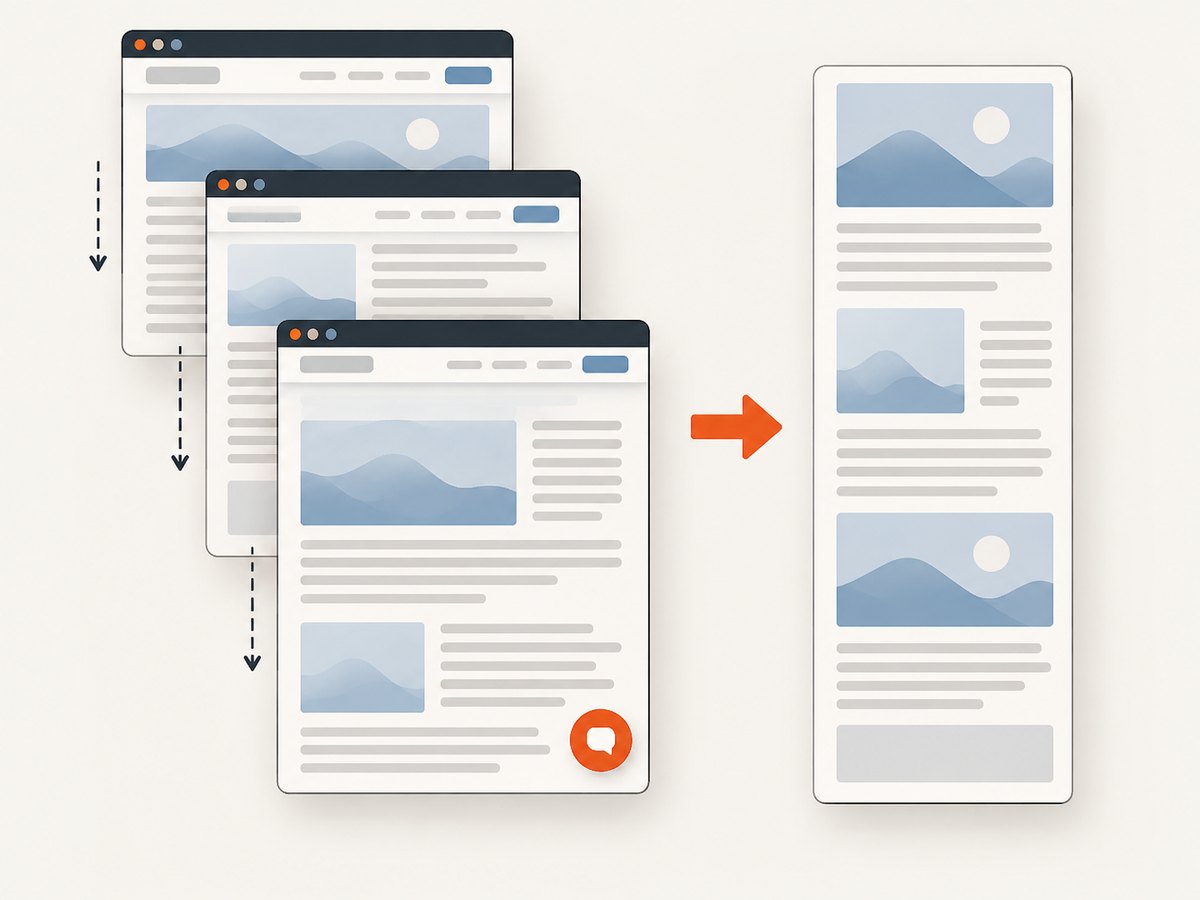
- Repeated or split fixed elements: select the content column and exclude a sticky sidebar or fixed footer if possible.
- Misaligned joins: wait for motion to stop, move the pointer away from hover-sensitive content, and try a narrower region.
- Missing lazy content: scroll through the page once to prompt content to load, return to the start, and capture again.
- Unexpected overlays: dismiss menus, tooltips, and dialogs before starting; they can obscure or alter the captured region.
- Different content between runs: dynamic feeds and pages that update during capture may not form a stable single image. Capture after the content settles, or use a page-specific export when the application provides one.
These adjustments can improve a capture, but no utility promises perfect stitching on every dynamic page or app. The source documentation describes the tools’ features and known issues; it does not establish a universal reliability ranking.
7. When Windows Snipping Tool is the wrong choice
Microsoft documents Snipping Tool image modes for freeform, rectangular, window, and full-screen captures. Windows+Shift+S opens the screenshot overlay. Those documented modes capture screen content or a selected visible area; the reviewed documentation does not list a scrolling mode.
Use Snipping Tool for a visible portion of a page or window. For content below the screen, use Edge or Firefox when the target is a webpage, and a dedicated scrolling-capture utility when it is another scrollable window.
8. Or skip the browser setup
If the target is a public webpage and the goal is an image file in a script or service, ScreenshotNeo takes a URL in one API request and returns an image or PDF. See the API documentation for parameters and options.
curl -G "https://api.screenshotneo.com/v1/shot" -d access_key=YOUR_API_KEY --data-urlencode url=https://stripe.com -o shot.webpimport requests
r = requests.get(
"https://api.screenshotneo.com/v1/shot",
params={"access_key": "YOUR_API_KEY", "url": "https://stripe.com"},
timeout=90,
)
open("shot.webp", "wb").write(r.content)const q = new URLSearchParams({ access_key: 'YOUR_API_KEY', url: 'https://stripe.com' });
const res = await fetch(`https://api.screenshotneo.com/v1/shot?${q}`);Replace the sample URL with the page you are authorized to capture and provide your API key. ScreenshotNeo removes cookie banners, newsletter popups, and chat widgets before capture. Bot checks, blank pages, failed loads, timeouts, and cache hits are not billed; response headers identify the page verdict and billing status. Its MCP server gives AI agents tools for screenshots, page information, and PDF capture. The free plan includes 1,000 screenshots a month with no card, and paid plans start at $5 for 3,000 screenshots.
Sign up for 1,000 free screenshots a month, with no card required.
9. Troubleshooting checklist
| Symptom | Likely cause | What to try |
|---|---|---|
| Screenshot command is missing in Edge | Feature availability or menu placement differs by version, device, or market. | Try Ctrl+Shift+S, the page context menu, or Settings; check the browser version. |
| Only the visible viewport was saved | The visible-area option was selected. | Repeat and choose Edge’s full-page option or Firefox’s Save full page. |
| ShareX reports partial or failed stitching | Frames did not match well enough, possibly due to fixed, animated, or hover-sensitive content. | Reduce the selected area, move the pointer away, and retry after content settles. |
| Some lower sections are blank | Content may load only when scrolled into view. | Scroll through once to load it, return to the top, then capture. |
| Capture includes menus or tooltips | An overlay or hover state was active. | Dismiss the overlay and move the pointer away before capture. |
| Snipping Tool captures only what is visible | Its documented modes are screen or region captures, with no documented scrolling mode. | Use a browser full-page feature or a scrolling-capture utility. |
10. Performance, reliability, and file handling
A full-page capture can be much taller and larger than a normal screen grab. Before sharing or attaching it, check whether the receiving service has image dimensions or file-size limits. If it is too large, crop to the relevant content or use an image editor to resize it. Keep an untouched original when the image is evidence or needs to remain legible at full resolution.
For repeatable captures, keep the page at a consistent zoom and window state, wait for loading to finish, and avoid interacting with the page during capture. These steps reduce accidental variation. Browser full-page capture avoids the frame-to-frame stitching stage used by desktop scrolling utilities, but page behavior can still affect the output. The documentation reviewed does not provide a fair speed or reliability comparison among Edge, Firefox, ShareX, and PicPick, so choose by the type of content and inspect important results.
Desktop methods have no per-capture API price described in the cited product documentation; they require using the relevant browser or utility. ScreenshotNeo pricing is explicit: Free is 1,000 shots per month; Starter is $5 for 3,000; Growth is $15 for 15,000; Pro is $39 for 60,000; Scale is $99 for 250,000; Business is $249 for 1,000,000. Yearly billing gives two months free, and every feature is on every plan. Choose local capture for a one-off screenshot on your PC; consider the API when captures belong in scripts, batches, or an agent workflow.
11. Frequently asked questions
Can I take a scrolling screenshot with a keyboard shortcut?
In Edge, Ctrl+Shift+S opens Screenshot where available; choose the full-page option. The shortcut alone does not capture a scrolling window in every app.
Can I capture a PDF or document that is open in a browser?
If it behaves as a webpage, try the browser’s full-page capture. For a document viewer or another app window, use a scrolling-capture mode and inspect the joins.
What should I use for a long webpage I need in an automated pipeline?
A screenshot API can take a URL directly and return an image or PDF, avoiding a manual desktop capture workflow. ScreenshotNeo also provides bulk capture and async jobs; consult its docs for configuration.
Why does my screenshot have repeated headers?
A fixed header may have been captured in multiple stitched frames. Restrict the capture region to the page content or use the browser’s full-page capture for a website.


