BlogScreenshots on your device
How to Capture a Scrolling Screenshot in Windows 10
Capture a full webpage in Edge, or use ShareX for a scrollable Windows app. Learn the steps, limitations, fixes, and a browser-free API option.

For a webpage, open it in Microsoft Edge, press Ctrl+Shift+S, choose Capture full page, then review and save or copy the result. For a PDF viewer or another scrollable Windows app, use a scrolling-capture utility such as ShareX. Windows 10’s Snipping Tool captures the visible screen, a window, or a selected region; Microsoft’s guidance does not document a built-in scrolling mode.
This distinction matters: browser full-page capture can collect a webpage beyond the visible viewport, while a desktop scrolling capture stitches successive screen views together. Pick the method based on where the content lives.
1. Capture an entire webpage in Microsoft Edge
Edge is the simplest choice when the target is a webpage. Microsoft describes its Screenshot feature as capturing the parts of a webpage that would otherwise require scrolling. The exact command availability can vary by browser version, device, and market, so update Edge if you cannot find it. See Microsoft Edge Screenshot documentation and the Microsoft Web Capture guide.
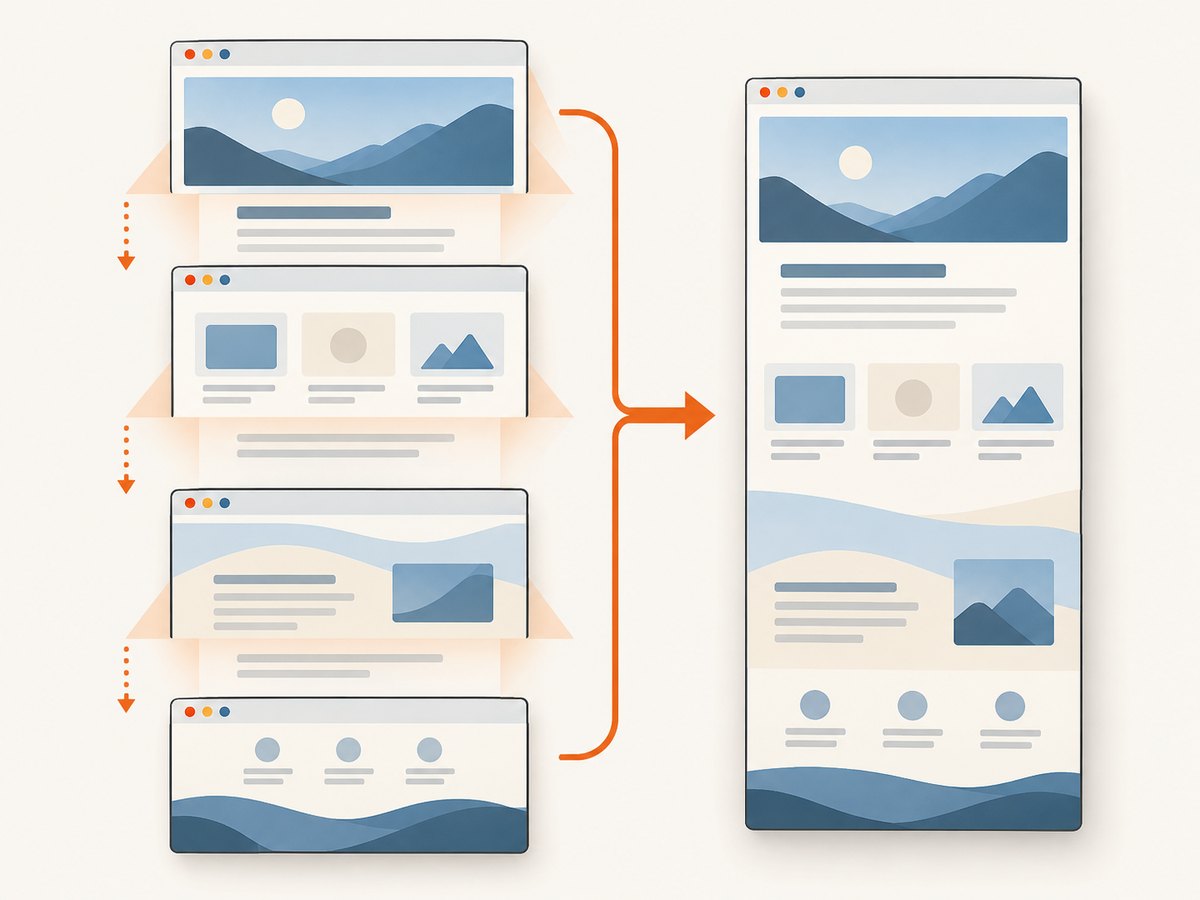
Steps
- Open the page in Edge and wait for its main content to finish loading.
- Press Ctrl+Shift+S. You can also open Edge’s menu and choose its Screenshot or Web Capture command; wording may differ by version.
- Choose Capture full page. Avoid the selection option if you need content beyond what is currently visible.
- Inspect the long capture in the preview. Check the top, bottom, sticky navigation, and any interactive or lazy-loaded sections.
- Use the preview’s save or copy control. Save the image somewhere easy to find, then open it to confirm it is complete and readable.
Full-page capture is for the rendered webpage, not a guarantee that every element of every site will appear. A page that loads sections only after interaction, requires authentication, or changes while you capture may need extra preparation. Scroll through the page first when it uses lazy loading, then return to the top and capture again. If the page has a print layout, saving or printing to PDF may produce a more practical document than a very tall image.
2. Capture a scrollable app or document with ShareX
Use ShareX when the target is outside a browser page, such as a document in a desktop application, a PDF viewer, or another scrollable window. ShareX’s official instructions describe selecting a capture region, then scrolling and combining the screen portions into one image. The result depends on the target content lining up reliably between scrolls; inspect the finished image for repeated or missing bands. See ShareX’s scrolling screenshot instructions.
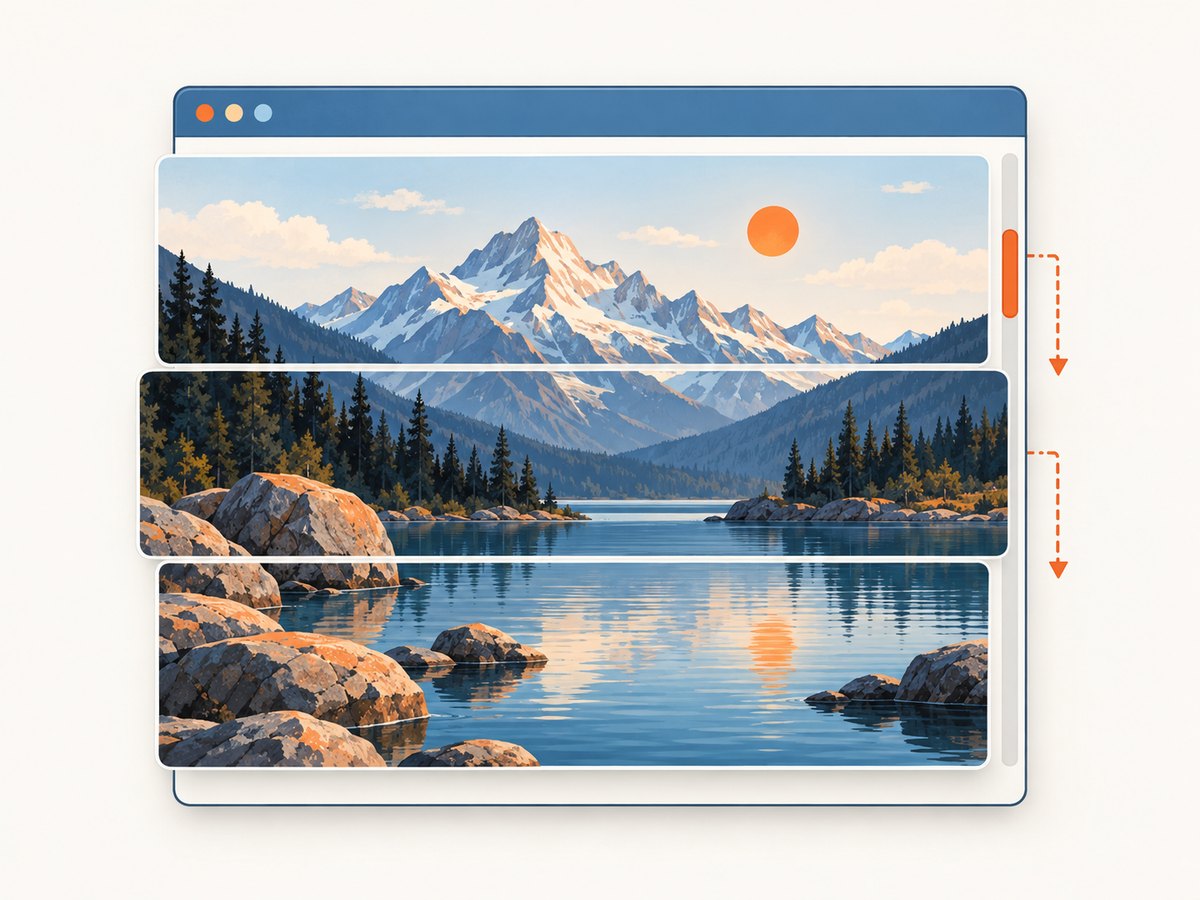
Steps
- Install and open ShareX, then bring the target document or app to the foreground.
- Open Capture → Scrolling capture from the main window or tray menu.
- Select the scrollable area. Keep the selection focused on the content that moves; fixed sidebars, toolbars, and sticky elements can confuse stitching.
- Let ShareX scroll and capture until it reaches the end. Do not interact with the target while capture is running.
- Review the result, especially where one segment joins the next. Save the image when the joins and page boundaries look correct.
ShareX indicates whether its capture completed cleanly, partially, or could not combine the initial images. A partial result means the utility had trouble matching one or more screen portions; narrow the selection or remove moving and fixed elements from the selected region, then retry.
3. Use PicPick’s Scrolling Window mode
PicPick is a GUI alternative for people who want a dedicated capture menu and image editor. Its help lists Scrolling Window for content that extends beyond the visible screen. Open the scrolling-window capture command, follow its on-screen selection guidance, and check the resulting image for stitching gaps or repeated content. Consult the PicPick help pages for current instructions and check the current license and supported applications before using it commercially.
As with any scrolling utility, support for the particular application matters. A technique that works on a static document may fail in a window with fixed controls, animated content, or unusual scrolling behavior.
4. What Windows 10’s built-in screenshot tool can and cannot do
Snipping Tool is useful for capturing what is visible now. Microsoft documents rectangular, free-form, window, and full-screen snips, plus editing, saving, and sharing. Its cited guidance does not list a scrolling capture mode. That makes it a poor fit for capturing the unseen lower portion of a long page in one image. See Microsoft’s Snipping Tool instructions.
For a normal screen capture, press Windows+Shift+S, choose a mode, and select the visible area. That shortcut starts a snip; it does not automatically scroll down the page. You can also open Snipping Tool from Start or use the Print Screen key, depending on your settings.
| Target | Recommended method | What to check |
|---|---|---|
| Webpage in Edge | Edge: Capture full page | Lazy content, sticky elements, preview completeness |
| Scrollable desktop document or app | ShareX scrolling capture | Correct region and clean joins |
| GUI-oriented scrolling capture | PicPick Scrolling Window | Current app support and license |
| Visible area only | Snipping Tool | Choose region, window, or full-screen mode |
5. Make a long screenshot easier to read and share
A full-page image can be technically complete but hard to use. Before capture, decide whether the reader needs one continuous image, a searchable document, or just a particular section. Very tall images can be awkward to view, attach, print, and load in other tools. A PDF or a few focused captures may be better for a long report.
- Prepare the page: close menus, dismiss dialogs, and wait for visible content to settle. If images load as you scroll, visit the bottom of the page first, then return to the top.
- Choose a useful width: maximize the browser or app if the content is cramped. Avoid changing zoom midway through a scrolling capture.
- Control moving content: pause video or animation if possible. Move the pointer away from hover-sensitive items during desktop stitching.
- Protect private information: sign in only when needed, and check account names, email addresses, and other sensitive details before sharing a screenshot.
- Review the complete output: verify the top and bottom are present, text is legible at normal zoom, and repeated or missing strips have not appeared.
- Keep the original: save a clean copy before cropping, annotating, or compressing it.
6. Troubleshooting common scrolling-capture problems
| Problem | Likely cause | What to try |
|---|---|---|
| Edge has no Capture full page option | Feature command unavailable in that version or context. | Update and restart Edge; open the browser’s Screenshot/Web Capture command from its menu. If unavailable, try a scrolling utility for the webpage. |
| Only the visible area was captured | The user selected a region or ordinary snip rather than a full-page command. | In Edge, select Capture full page. In a desktop utility, start its scrolling capture workflow. |
| Some images or sections are blank | Content may load on scroll, after a delay, or after interaction. | Scroll through the page once to trigger lazy loading, wait for images, then recapture. Expand collapsed sections if they must be included. |
| ShareX output repeats or skips content | Successive views did not align cleanly, or fixed elements interfered with matching. | Capture a narrower region containing only moving content. Exclude static sidebars and footers; retry without moving the cursor over hover effects. |
| Capture stops immediately or is marked partial | The utility could not match successive frames or the selected area was unsuitable. | Confirm the target actually scrolls, select the content pane rather than the whole window, and remove animated or changing content from the region. |
| The lower part is missing | The capture ended early, the page had not loaded, or the selected scrolling pane was not the page. | Wait for loading indicators, scroll to the end once, and make sure you selected the correct content area before recapturing. |
| Text is too small in the final image | The page is much taller than a normal screen and the image is being viewed scaled down. | Open the image at full size, capture a narrower column, or save/print as PDF when the content is document-like. |
| Menus disappear before capture | The capture shortcut or selection changes focus and closes transient UI. | Use Snipping Tool’s delay for a visible-area capture, or capture the relevant menu separately. A full-page webpage capture may not preserve transient menus. |
7. Or skip the browser setup
If you need webpage screenshots as part of a script or service, ScreenshotNeo provides a website screenshot API and MCP server. One GET request returns an image or PDF. See the ScreenshotNeo API documentation for parameters and response behavior.
curl -G "https://api.screenshotneo.com/v1/shot" \
  -d access_key=YOUR_API_KEY \
  --data-urlencode url=https://stripe.com \
  -o shot.webp
import requests
r = requests.get(
"https://api.screenshotneo.com/v1/shot",
params={"access_key": "YOUR_API_KEY", "url": "https://stripe.com"},
timeout=90,
)
r.raise_for_status()
open("shot.webp", "wb").write(r.content)const q = new URLSearchParams({
access_key: 'YOUR_API_KEY',
url: 'https://stripe.com'
});
const res = await fetch(`https://api.screenshotneo.com/v1/shot?${q}`);
if (!res.ok) throw new Error(`Screenshot request failed: ${res.status}`);
const image = Buffer.from(await res.arrayBuffer());
await import('node:fs/promises').then(fs => fs.writeFile('shot.webp', image));Replace the example URL with the page you are allowed to capture, and keep your access key private. ScreenshotNeo accepts cookie and consent banners before capture and removes 60+ known consent platforms, newsletter popups, and chat widgets; each step can be turned off. Bot checks and CAPTCHAs, blank pages, timeouts, failed loads, and cache hits are not billed. Responses identify the page verdict and billing status in headers. Its MCP server provides take_screenshot, get_page_info, and capture_pdf for Claude, Cursor, and other MCP clients. The free plan includes 1,000 shots a month with no card; paid plans start at $5 for 3,000 shots.
Get 1,000 free screenshots a month with no card.
8. Performance, reliability, and cost considerations
Manual capture has no per-request API charge, but it takes a person to open the target, trigger the capture, inspect the result, and save it. Edge avoids installing a separate capture utility for webpages. A stitching tool involves more setup and may require retries when the target does not scroll predictably. None of the cited documentation establishes a universal maximum image height, capture duration, or success rate, so treat the actual page or app as the deciding factor.
For repeatable developer workflows, an API can reduce manual steps, but it introduces a service plan and request handling. ScreenshotNeo’s listed plans are Free (1,000/month), Starter ($5 for 3,000), Growth ($15 for 15,000), Pro ($39 for 60,000), Scale ($99 for 250,000), and Business ($249 for 1,000,000); yearly billing gives two months free. Every feature is available on every plan. Its billing rules mean failed loads and cache hits do not consume billable shots, which can matter for automated capture volume. Check current documentation before building an integration around any service’s request parameters.
For reliable results, keep the capture inputs stable: use the same viewport and browser state, wait for the page’s important content, and preserve the response or image when a workflow needs an audit trail. For a desktop app, confirm that the correct pane is scrollable and avoid changing zoom or window size between segments. For a webpage, check that the expected page is loaded and authenticated before capturing.
9. Frequently asked questions
Can I take a scrolling screenshot with Print Screen?
Print Screen captures the visible screen or starts a configured screenshot workflow. It does not itself scroll through a page. Use Edge’s full-page feature for a webpage or a scrolling capture utility for a document window.
Can I capture a long PDF?
If the PDF is open in Edge, try Capture full page, then inspect the result. If it is open in a desktop PDF viewer, use ShareX or PicPick scrolling capture. For a document intended to remain readable and searchable, keep or export the PDF rather than flattening every page into one tall image.
Will full-page capture include content behind collapsed sections?
Usually, a capture records what the page has rendered. Expand sections or trigger content that must appear, then inspect the preview. A full-page command should not be treated as an instruction to interact with every control on the site.
Which method is best for a webpage?
Start with Edge’s Capture full page because it is a browser command designed for webpage content. Use ShareX or PicPick when you need to capture a scrollable desktop window or Edge is unavailable for the target.
Why can’t a screenshot tool capture absolutely every page?
Pages and apps can render content dynamically, use nested scroll panes, animate, or keep controls fixed while the content moves. Those behaviors affect what appears in a capture and how well stitched segments align. Inspecting the saved output is part of the process.


