BlogScreenshots on your device
How to Capture Scrolling Screenshots with Snagit
Capture an entire webpage, document, or spreadsheet in Snagit with automatic or manual scrolling, plus fixes for common failures.
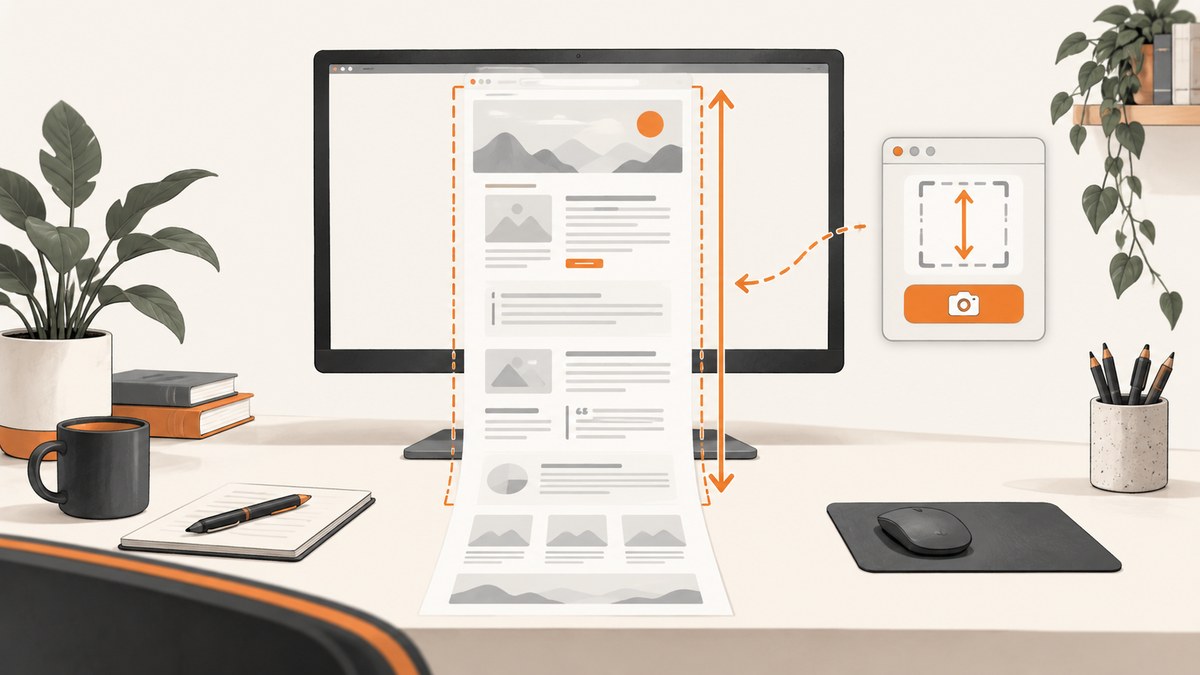
Short answer: In Snagit, open All-in-One capture, start a capture, move over the window, then click the orange scrolling arrow for the direction you need. Snagit scrolls through the content and opens one tall image in Snagit Editor. Use Manual Scrolling Capture when automatic scrolling misses content or you need to control the exact range.
Snagit supports vertical and horizontal scrolling capture. Menu names vary by release; Snagit changed scrolling option names in version 2023.2.0, so use the closest current label in your installation. [TechSmith confirms vertical and horizontal scrolling support.]
Automatic scrolling capture
- Open the webpage, document, spreadsheet, or other content you want to capture. Resize the window so the useful content is visible.
- Open Snagit’s Capture window and select All-in-One.
- Click Capture. The 2023 help lists Print Screen on Windows and Control+Shift+C on Mac; shortcuts can be changed and may differ by release.
- Move the crosshairs over the target window. Wait for Snagit to show an orange scrolling arrow.
- Click the arrow for the direction you need: down for a tall page or right/left for a wide document or spreadsheet. Let Snagit scroll until it reaches the end.
- Review the result in Snagit Editor. Crop unwanted margins, annotate, copy, save, or share the capture.
TechSmith describes the basic interaction as clicking an orange arrow and scrolling horizontally or vertically until everything is captured. [Snagit website screenshot guide.]

Manual Scrolling Capture
Automatic capture controls the window’s scrolling for you. Manual Scrolling Capture gives you control over how far the page moves and which portions are included. Choose it when a page has sticky elements, animated sections, unusual scrolling behavior, or an automatic capture that stops early.
- Start an All-in-One capture and choose the manual scrolling option shown by your Snagit release.
- Select the content area to capture, keeping the scrollbar outside the selection when possible.
- Scroll smoothly in one direction. Pause briefly when content loads, then continue.
- Stop at the exact endpoint and finish the capture in Snagit Editor.
Manual Scrolling Capture is listed by TechSmith for Snagit 13 and later. [Troubleshooting guidance.]
Prepare the page for a clean, complete result
- Maximize the window: A larger viewport reduces the number of scroll steps and gives Snagit more stable geometry.
- Keep the scrollbar outside the selection: This avoids repeating or including the scrollbar in the stitched image.
- Use 100% browser or app zoom: Nonstandard zoom can change layout while the capture is scrolling.
- Hide floating toolbars: Chat bubbles, developer toolbars, cookie prompts, and sticky controls can overlap the page or move during capture.
- Exclude irrelevant margins and ads: Select only the content that should appear in the final image.
- Scroll in one smooth direction: Zigzagging can produce duplicated or missing sections.
- Wait for lazy content: Let images, tables, and expandable sections finish loading before continuing.
Parallax websites may not stitch accurately, and the page’s browser behavior can affect the result. [TechSmith notes parallax limitations.]
Webpage-specific workflow
- Open the page in a supported browser and dismiss consent dialogs or overlays that cover the content.
- Set browser zoom to 100% and disable extensions that inject or reposition page elements.
- Choose automatic scrolling first. If the page uses custom scrolling, sticky navigation, or animations, switch to manual capture.
- Inspect the stitched image at several points, especially around lazy-loaded images, tables, and fixed headers.
If the page does not respond, try another browser or a private/incognito window to rule out extensions and cached state.
Excel and other documents
Excel can hide scrollbars or expose panes that automatic capture cannot interpret. TechSmith lists chart sheets, custom views, Print Preview, and individual worksheet panes among unsupported automatic-capture cases. Try manual scrolling, or copy the required selection to the clipboard and paste it into Snagit Editor. [Excel-specific guidance.]
macOS requirements and edition limits
Accessibility permissions
In Snagit, open Settings > Capture > Fix Capture Permissions. Enable Scrolling Capture and approve Accessibility access for both Snagit and Snagithelper. Restart Snagit if the permission change is not recognized. [macOS permission instructions.]
Chrome on Mac
TechSmith documents a version-specific workaround for Chrome 68 and later involving View > Developer > Allow JavaScript from Apple Events. Chrome’s menus can change, so verify the current setting in your release before relying on it. [Chrome troubleshooting article.]
Mac App Store edition
Apple sandboxing prevents full Scrolling Capture in the App Store edition. TechSmith’s URL-dragging alternative is limited to standard HTTP pages and does not work for secure-login sites or some dynamic pages. [App Store edition limitations.]
Remove Snagit controls from the result
For Snagit 2024.1.0 and later, enable Hide Snagit during capture and remove Snagit controls from completed captures in Capture Preferences. This prevents the preview window or control bar from appearing in the final image. [TechSmith’s control-bar fix.]
Troubleshooting checklist
| Symptom | Likely cause | Fix |
|---|---|---|
| No orange scrolling arrow | The app, browser, selection, or driver is not supported, or an extension/security utility interferes. | Try another browser, an incognito window, a larger window, or Manual Scrolling Capture. Temporarily check extensions and conflicting utilities. |
| Capture stops before the bottom | Lazy content, a custom scroll container, or a page that changes layout while scrolling. | Wait for content to load, capture the inner scroll container, switch to manual mode, or capture in shorter sections. |
| Repeated or missing sections | Scrollbar included in the selection, zoom differs from 100%, or scrolling was irregular. | Keep the scrollbar outside the selection, restore 100% zoom, and scroll smoothly in one direction. |
| Sticky header appears repeatedly | The site fixes the header while the page moves. | Hide the header with the site’s controls or use Manual Scrolling Capture and crop repeated regions in Editor. |
| Parallax page is distorted | Moving backgrounds change position during stitching. | Disable parallax effects if the site allows it, use manual sections, or capture a static print/PDF view. |
| macOS capture permission error | Snagit or Snagithelper lacks Accessibility permission. | Use Settings > Capture > Fix Capture Permissions, approve both apps, then restart Snagit. |
| Chrome on Mac does not scroll | Apple Events JavaScript permission is disabled or the workaround does not match the current Chrome release. | Check Chrome’s current Developer settings and try another browser or manual capture. |
| Excel capture is incomplete | Hidden scrollbars, panes, chart sheets, custom views, or Print Preview. | Use manual capture or copy the range to the clipboard and paste it into Snagit Editor. |
| Snagit controls appear in the image | The capture preference is disabled. | On Snagit 2024.1.0+, enable the preference that hides Snagit during capture and removes controls. |
Quality, performance, and reliability
- Keep the page stable: Close animated overlays, pause auto-refreshing dashboards, and avoid resizing during capture.
- Reduce stitching work: Capture only the necessary column or panel instead of the entire desktop.
- Protect readability: Use 100% zoom and inspect text at 100% after capture. Very tall images may be inconvenient to edit or share; split them into logical sections when needed.
- Repeat difficult captures: Record the browser, zoom level, page state, and Snagit version so another attempt uses the same conditions.
- Prefer manual control for dynamic pages: It takes longer but lets you wait for content and avoid incorrect automatic scroll events.
Snagit’s scrolling capture is local desktop software, so reliability depends on the target application, browser, permissions, extensions, drivers, and page behavior. The official help does not publish a universal accuracy rate or completion benchmark.

Or skip the browser setup
If you need repeatable screenshots in a script, CI job, or backend, ScreenshotNeo returns a screenshot from one GET request. Its full-page mode loads lazy images, and it can also capture a CSS-selected element, set a viewport or device preset, use retina scale, wait for a selector, delay, or network idle, run custom JavaScript, hide selectors, block ads or resource types, and set headers, cookies, user agent, timezone, or geolocation. See the ScreenshotNeo documentation for the complete option list.
cURL
curl -G "https://api.screenshotneo.com/v1/shot" -d access_key=YOUR_API_KEY --data-urlencode url=https://stripe.com -o shot.webpPython
import requests

r = requests.get(
    "https://api.screenshotneo.com/v1/shot",
    params={"access_key": "YOUR_API_KEY", "url": "https://stripe.com"},
    timeout=90,
)
r.raise_for_status()
open("shot.webp", "wb").write(r.content)
Node.js
const q = new URLSearchParams({ access_key: 'YOUR_API_KEY', url: 'https://stripe.com' });
const res = await fetch(`https://api.screenshotneo.com/v1/shot?${q}`);
if (!res.ok) throw new Error(`Screenshot failed: ${res.status}`);
const fs = await import('node:fs/promises');
await fs.writeFile('shot.webp', Buffer.from(await res.arrayBuffer()));
ScreenshotNeo removes cookie and consent banners, newsletter popups, and chat widgets before capture. Bot checks, blank pages, timeouts, failed loads, and cache hits are not billed; response headers identify the page verdict and whether the request was billed. It also provides an MCP server with take_screenshot, get_page_info, and capture_pdf tools for Claude, Cursor, and other MCP clients. The Free plan includes 1,000 shots per month with no card; paid plans start at $5 for 3,000 shots. Create a free ScreenshotNeo account.
FAQ
Can Snagit capture horizontally scrolling content?
Yes. Click the horizontal scrolling arrow when Snagit offers it, or use Manual Scrolling Capture for precise control.
Why does my Snagit menu look different?
Scrolling option names changed in Snagit 2023.2.0, and shortcuts can be customized. Match the current labels in your release.
Can I capture a secure login page with the Mac App Store edition?
TechSmith’s documented URL-dragging alternative is limited and does not work for secure-login sites. Use the full Snagit edition or another capture method.
What should I do when a page has a chat bubble?
Close or hide it before capture. For automated captures, ScreenshotNeo can remove known chat widgets before the shot.
Is a scrolling screenshot the same as a PDF?
No. A scrolling screenshot is one long raster image. A PDF can paginate content and preserve a document-oriented layout; choose the format required by your workflow.


