BlogScreenshots on your device
How to Capture a Scrolling Web Page with Snipping Tool
Snipping Tool captures what is visible; use Microsoft Edge’s Capture full page for a scrolling webpage, or ScreenshotNeo for automated screenshots.

Short answer: Windows Snipping Tool does not document a scrolling-page mode. It captures a rectangular area, freeform area, window, or full screen. To capture one complete webpage that extends below the viewport, open it in Microsoft Edge, press Ctrl+Shift+S, and choose Capture full page. Microsoft documents this as Edge Screenshot, separate from the Snipping Tool overlay.
If you need a repeatable, automated capture for a script, CI job, CMS, or AI agent, use the ScreenshotNeo API after the manual instructions below.
What Snipping Tool can and cannot capture
Microsoft’s Snipping Tool documentation lists four image modes:
- Rectangular snip: drag around a visible region.
- Freeform snip: draw an irregular outline around visible content.
- Window snip: capture a selected window.
- Full-screen snip: capture the visible desktop screens.
None of those modes is documented as a scrolling or full-webpage capture. If you repeat a rectangular snip after scrolling, you get separate images. You do not get one continuous image automatically.
See Microsoft’s Snipping Tool instructions for the supported modes and shortcuts.
Capture the visible part of a page with Snipping Tool
- Open the webpage and scroll until the content you need is visible.
- Press Windows logo key + Shift + S.
- Choose rectangular, freeform, window, or full-screen snip.
- Select the visible area, or select the browser window.
- Open the notification thumbnail to edit, copy, save, or share the capture.
This method is appropriate when you need a single viewport, a menu, an error message, or a small section of a page.
Capture a complete scrolling webpage in Microsoft Edge
- Open the target page in Microsoft Edge.
- Wait for the page to finish loading. Expand accordions or load content that must appear in the result.
- Press Ctrl+Shift+S.
- Choose Capture full page.
- Review the long capture, add markup if needed, then copy or save it.
Edge Screenshot is designed to capture content beyond the visible screen, including below-the-fold sections. Microsoft also provides a selected-area option when you need only part of a page. Read Microsoft’s Edge Screenshot documentation for the current interface and availability notes.
When Edge’s full-page option is missing
- Update Edge and restart it.
- Check whether your organization manages or disables browser features.
- Try the command from a normal webpage rather than a browser settings page, PDF viewer, or extension page.
- Availability and behavior can vary by device type, market, and browser version.
- If the page is restricted or requires a login, sign in first and confirm the content is visible before starting the capture.
Prevent missing content in long pages
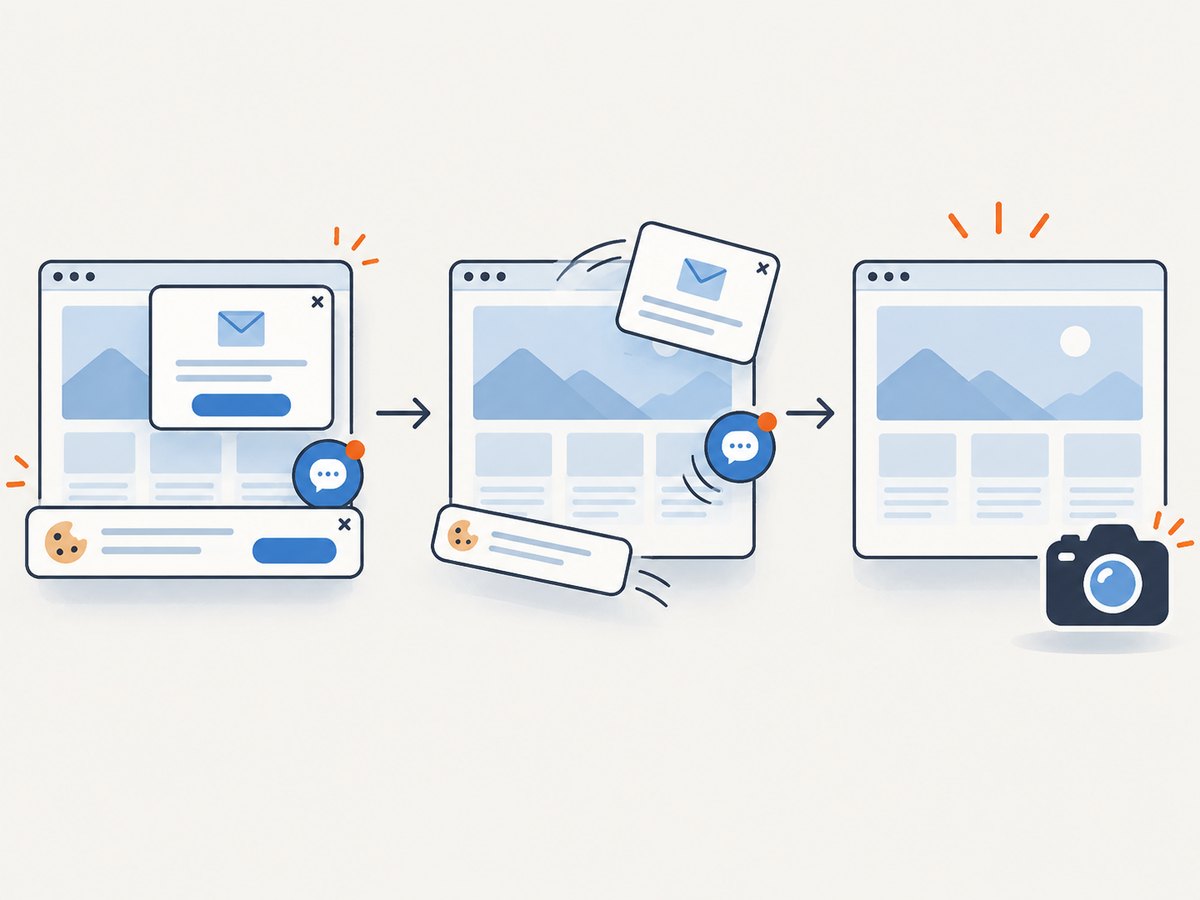
Full-page capture tools must render content that is not currently visible. Pages that use lazy loading, animations, cookie dialogs, sticky headers, or infinite scrolling can produce unexpected results.
- Scroll through the page once before capturing if images load only near the viewport.
- Accept or dismiss consent dialogs when they obscure content.
- Expand tabs, accordions, and “show more” controls that should appear.
- Pause video or animation when a stable frame matters.
- Close chat widgets and newsletter popups before invoking the capture.
- For an infinite-scroll feed, stop loading at the point you want; there may be no finite “full page.”
Snipping Tool versus Edge Screenshot
| Need | Use | Result |
|---|---|---|
| One visible region | Snipping Tool rectangular or freeform snip | Image of the selected on-screen pixels |
| One application window | Snipping Tool window snip | Image of the visible window |
| All visible monitors | Snipping Tool full-screen snip | Image of the visible desktop |
| One webpage including below-the-fold content | Edge Screenshot, Capture full page | One long webpage capture |
The deciding question is whether the output must extend beyond the current viewport. Snipping Tool is screen-oriented; Edge Screenshot adds a webpage full-page mode.
Or skip the browser setup
ScreenshotNeo provides a website screenshot API and MCP server. A GET request returns PNG, JPEG, WebP, or PDF output. The simplest call is:
curl -G "https://api.screenshotneo.com/v1/shot" -d access_key=YOUR_API_KEY --data-urlencode url=https://stripe.com -o shot.webpSee the ScreenshotNeo API documentation for all parameters and response details.
Python
import requests

r = requests.get(
    "https://api.screenshotneo.com/v1/shot",
    params={"access_key": "YOUR_API_KEY", "url": "https://stripe.com"},
    timeout=90,
)
r.raise_for_status()
open("shot.webp", "wb").write(r.content)
Node.js
const q = new URLSearchParams({ access_key: 'YOUR_API_KEY', url: 'https://stripe.com' });
const res = await fetch(`https://api.screenshotneo.com/v1/shot?${q}`);
if (!res.ok) throw new Error(`Screenshot failed: ${res.status}`);
const data = Buffer.from(await res.arrayBuffer());
require('fs').writeFileSync('shot.webp', data);
Useful ScreenshotNeo settings for long pages
- Full-page capture: include content below the viewport, with lazy images loaded.
- Output: choose PNG, JPEG, WebP, or PDF when your workflow needs a document.
- Viewport and device: use a device preset or any custom viewport; set retina scale when sharper output is needed.
- Wait controls: wait for a selector, a delay, or network idle before the capture.
- Page cleanup: accept the cookie or consent banner, then remove more than 60 known consent platforms, newsletter popups, and chat widgets. Each cleanup step can be turned off.
- Targeted capture: capture one element by CSS selector instead of the entire page.
- Interaction: click an element before capture, apply custom CSS or JavaScript, or hide selectors.
- Access: send custom headers, cookies, a user agent, or an Authorization header; set timezone and geolocation when page output depends on them.
- Network control: block ads, trackers, requests, or resource types.
- Delivery: resize images, cache with a TTL you choose, create signed links for public
<img>tags, submit asynchronous jobs with signed webhooks, or capture up to 100 URLs per bulk call.
ScreenshotNeo bills only clean shots. Bot checks or CAPTCHAs, blank pages, timeouts, failed loads, and cache hits cost nothing, and the response identifies the result with X-Page-Verdict and X-Billed headers. Its MCP server exposes take_screenshot, get_page_info, and capture_pdf for Claude, Cursor, and other MCP clients.
There is a free plan with 1,000 shots per month and no card. Paid plans start at $5 for 3,000 shots; every feature is available on every plan. Create a free ScreenshotNeo account.
Troubleshooting
The shortcut does nothing
Press the Windows logo key, Shift, and S together. If another application owns the shortcut, open Snipping Tool from the Start menu and choose a mode manually. On managed devices, an administrator policy may restrict the tool.
The result contains only the visible viewport
That is expected from Snipping Tool’s documented modes. Use Edge’s Capture full page command or an API such as ScreenshotNeo.
Images or sections are missing
Lazy-loaded assets may not have rendered before capture. Scroll through the page first, expand hidden sections, wait for network activity to settle, and capture again. For automation, use a selector wait, delay, or network-idle wait.
A cookie banner or chat bubble covers the page
Dismiss it before using Edge Screenshot. ScreenshotNeo can accept consent and remove known consent platforms, newsletter popups, and chat widgets before capture.
The page is extremely long
Long captures can consume substantial memory and produce large files. Capture a specific element or section when a whole-page image is unnecessary, choose WebP or JPEG for smaller images, or produce a PDF when a paginated document is more useful.
The page requires authentication
Sign in to Edge before capturing. For automation, pass the required cookies, custom headers, user agent, or Authorization header to ScreenshotNeo, and avoid placing secrets in a publicly shared URL.
ScreenshotNeo returns an unexpected verdict
Inspect X-Page-Verdict and X-Billed. A bot check, CAPTCHA, blank page, timeout, failed load, or cache hit is not billed. Adjust waits, access headers, cookies, viewport, or blocking rules, then retry.
Performance, reliability, and cost notes
- For a one-off Windows capture, Edge Screenshot is the shortest path and has no API setup.
- For repeat jobs, automation avoids manual scrolling and produces consistent viewport, device, wait, and cleanup settings.
- Wait for the page state you actually need. A fixed delay is simple; a selector or network-idle condition is usually more precise.
- Cache stable pages with a chosen TTL when repeated captures do not need fresh content.
- Use bulk capture for up to 100 URLs per call and asynchronous jobs with signed webhooks when the workflow should not block on a long request.
- Only clean ScreenshotNeo shots are billed; failed loads and cache hits are not billed.

FAQ
Can Snipping Tool stitch screenshots while I scroll?
Microsoft’s documented Snipping Tool modes do not include automatic scrolling or stitching. Each manual snip remains a separate image.
What is the Edge shortcut for a full-page capture?
Press Ctrl+Shift+S, then choose Capture full page.
Can I capture only one element?
Edge supports a selected-area capture. ScreenshotNeo can target an element by CSS selector for repeatable automation.
Should I use PNG, JPEG, or WebP?
PNG preserves sharp text and transparency, JPEG is suitable for photographs, and WebP is often a compact choice for web delivery. ScreenshotNeo supports all three, plus PDF.
Is an API necessary for a single screenshot?
No. Use Edge Screenshot for a one-off full-page capture. An API becomes useful for scheduled, bulk, authenticated, or application-driven captures.


