BlogScreenshots on your device
How to Capture Scrolling Web Pages as MP4, WebM, or GIF
Record a page as it scrolls, stitch a full-page capture, and export the result as MP4, WebM, or GIF with the right workflow.
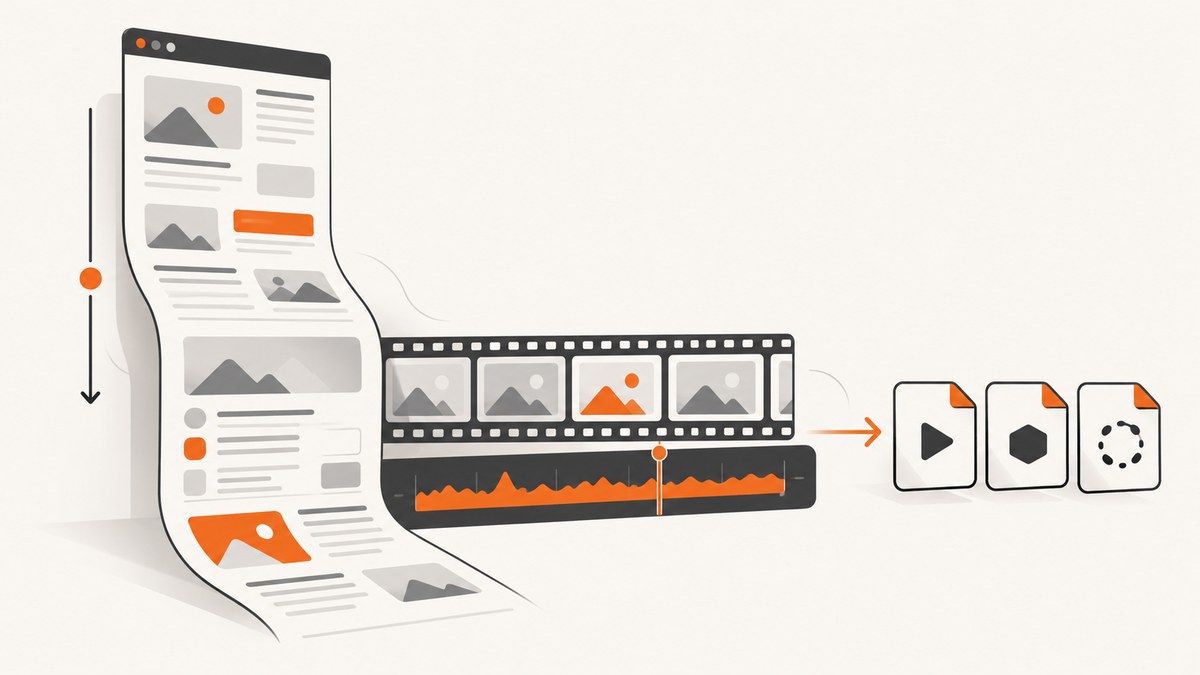
Short answer: To make a video of a long webpage, either record the browser tab while you scroll it or capture successive viewport images and stitch them together. Use MP4 for the widest playback support, WebM for browser-first delivery, and GIF only for short, silent loops. On Windows, ShareX provides an automated scrolling capture and a video converter. In a browser extension or web app, use getDisplayMedia() (or chrome.tabCapture after a user gesture), then encode the stream with MediaRecorder or FFmpeg.
This guide covers both approaches, including full-page scrolling, dynamic pages, audio, conversion commands, browser permissions, extension requirements, quality settings, troubleshooting, and an API option when you do not want to maintain browser automation.
Choose a capture method first
| Need | Best method | Why |
|---|---|---|
| A silent image of a long page | Scrolling screenshot stitch | Produces one complete, sharp image without video compression. |
| A video showing natural scrolling | Tab or screen recording | Preserves timing, cursor movement, hover states, and audio when available. |
| A short loop for documentation | MP4/WebM first, then GIF if required | Video keeps better quality and a smaller file for the same duration. |
| Automated captures in a service | Screenshot API or headless browser | Runs without a person selecting a window each time. |
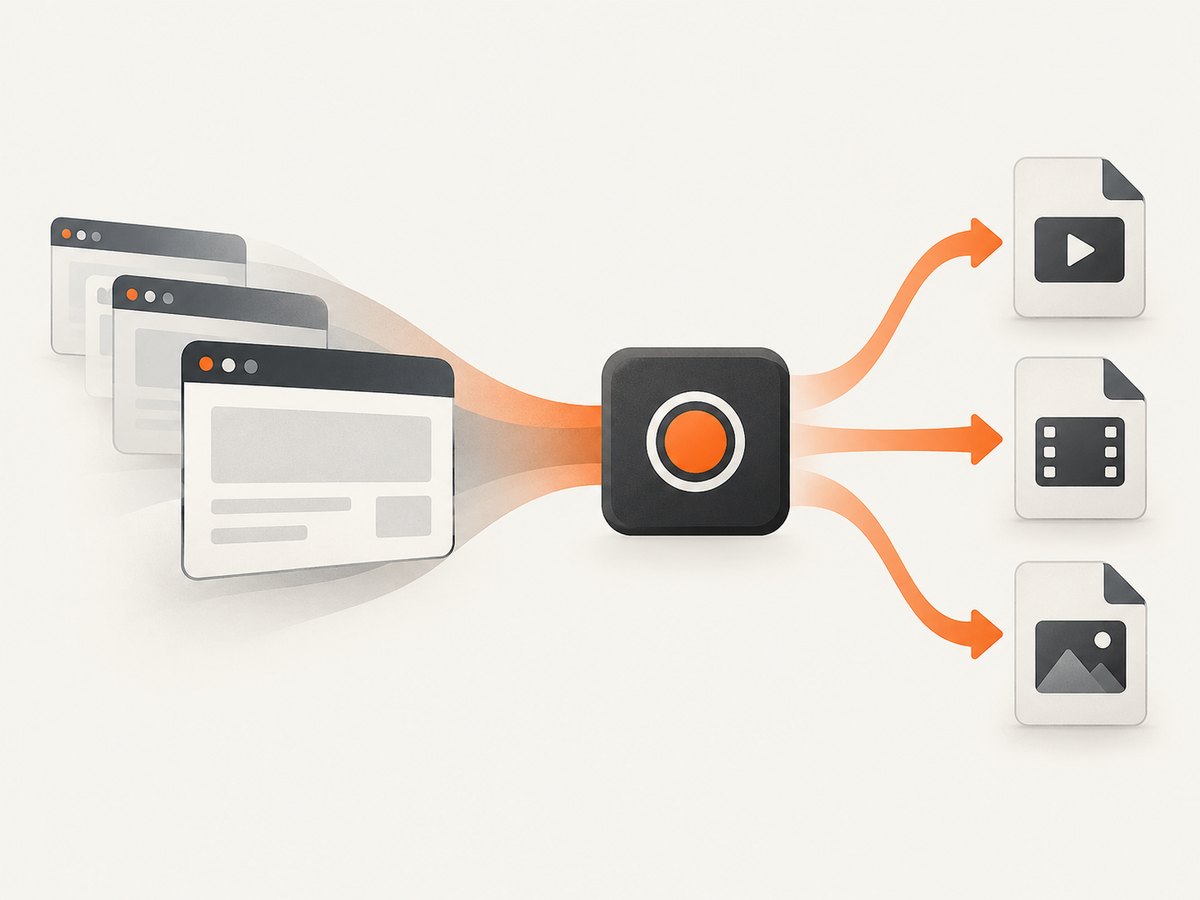
A scrolling capture must either compare and append successive viewport images or record the tab/screen as it moves. These are different outputs: stitching creates a tall still image, while recording creates a time-based video. If you need a video, record the scroll; do not expect a stitched PNG to contain motion.
Windows: record a scrolling page with ShareX
ShareX documents scrolling capture as a way to capture an entire webpage or document that extends beyond the visible screen. Its workflow repeatedly screenshots the selected region, removes the overlapping top portion, and appends the newly revealed bottom portion.
- Open the page in your browser and set the zoom and viewport size you want viewers to see.
- In ShareX, choose Capture → Scrolling capture.
- Select the page region. Exclude browser chrome, sidebars, and unrelated windows.
- Let ShareX scroll to the end. Keep the pointer away from content that changes on hover.
- Review the result for repeated sections, jumps, or missing lazy-loaded images.
- If you need motion, use a tab or screen recorder for the same region, then convert the recording with ShareX’s video converter.
Fixed headers, sticky sidebars, animated banners, carousels, and hover effects can change between frames and create visible seams. A tighter selection often improves the match. For pages with heavy animation, pause the animation or use a browser recording instead of stitching.
When ShareX scrolling capture is the right choice
- You need a complete visual reference rather than a timed demonstration.
- The page is mostly static and can be captured in repeatable viewport slices.
- You want a Windows desktop workflow with a reviewable result before export.
For a Windows desktop workflow, start with ShareX scrolling capture, then use its ShareX video converter for format output. The converter uses FFmpeg encoders; the selected encoder determines the output extension.
Record the browser tab with the Screen Capture API
For a web app or extension, navigator.mediaDevices.getDisplayMedia() asks the user to choose a tab, window, or screen. The browser displays a permission dialog and an active-recording indicator. A basic recording flow is:
const stream = await navigator.mediaDevices.getDisplayMedia({
  video: true,
  audio: true
});

const recorder = new MediaRecorder(stream, {
  mimeType: 'video/webm;codecs=vp9,opus'
});

const chunks = [];
recorder.ondataavailable = event => {
  if (event.data.size > 0) chunks.push(event.data);
};

recorder.onstop = () => {
  const blob = new Blob(chunks, { type: recorder.mimeType });
  const url = URL.createObjectURL(blob);
  const link = document.createElement('a');
  link.href = url;
  link.download = 'scrolling-page.webm';
  link.click();
  URL.revokeObjectURL(url);
};

recorder.start();
// Scroll the page here, or let the user scroll it.
// Call recorder.stop() when the page reaches the end.
The exact MIME type varies by browser. Check support before constructing the recorder:
const candidates = [
  'video/webm;codecs=vp9,opus',
  'video/webm;codecs=vp8,opus',
  'video/webm'
];

const mimeType = candidates.find(type => MediaRecorder.isTypeSupported(type));
if (!mimeType) throw new Error('No supported WebM recording format');
const recorder = new MediaRecorder(stream, { mimeType });
Call getDisplayMedia() from a user action such as a button click. Browsers can reject calls made without a user gesture, and users can cancel the picker. Handle both cases and always stop tracks when recording ends:
try {
  const stream = await navigator.mediaDevices.getDisplayMedia({
    video: { frameRate: 30 },
    audio: true
  });
  stream.getVideoTracks()[0].addEventListener('ended', () => recorder.stop());
} catch (error) {
  if (error.name === 'NotAllowedError') {
    console.error('The user cancelled capture or permission was denied.');
  } else {
    console.error('Capture failed:', error);
  }
}
Extension-controlled tab capture
Chrome’s chrome.tabCapture API can obtain a stream from the active tab after a user gesture. Chrome documents service-worker and offscreen-document support for this background path beginning with Chrome 116. A typical extension architecture is:
- A popup button receives the user gesture.
- The extension requests a tab stream with
chrome.tabCapture. - An offscreen document owns the
MediaRecorder. - The popup sends a stop message when scrolling reaches the bottom.
- The offscreen document returns a WebM Blob or saves chunks incrementally.
Keep the stream lifecycle explicit. If the user switches tabs, closes the page, or presses the browser’s stop control, the track can end before your own stop button runs.
Make the page scroll predictably
Recording quality depends as much on the page state as on the encoder. Use this checklist before capture:
- Wait for fonts, images, and data-driven components to finish loading.
- Dismiss cookie dialogs, newsletter popups, chat launchers, and sticky promotions.
- Set a fixed browser window size and zoom level.
- Disable extensions that inject toolbars or change page layout.
- Move the pointer away from elements with hover menus.
- Scroll at a steady speed; abrupt jumps make text harder to follow.
- Decide whether audio is needed before choosing the recording source.
Lazy-loaded images may not exist until their region is near the viewport. Scroll slowly enough to trigger loading, and pause briefly after each major section when recording a page with images or charts. If the page uses infinite scroll, define a stopping rule such as a known footer, a maximum duration, or a maximum number of scroll steps.
Manual scroll automation in the page
If your recorder is controlled by page JavaScript, a small helper can advance the viewport in fixed increments. This does not bypass browser permission prompts; it only controls scrolling after capture has started.
async function scrollToEnd({ step = 600, pause = 500, maxSteps = 200 } = {}) {
  for (let i = 0; i < maxSteps; i += 1) {
    const before = window.scrollY;
    window.scrollBy({ top: step, behavior: 'smooth' });
    await new Promise(resolve => setTimeout(resolve, pause));
    const atBottom = window.innerHeight + window.scrollY >= document.documentElement.scrollHeight - 2;
    if (atBottom || window.scrollY === before) break;
  }
}

await scrollToEnd();
For deterministic recordings, replace smooth scrolling with instant scrolling and add a fixed delay for rendering. Smooth scrolling looks natural but can produce different frame counts across machines.
Convert a recording to MP4, WebM, or GIF
ShareX’s converter is backed by FFmpeg. Its documented mapping is H.264/H.265 to MP4, VP8/VP9 to WebM, and animated encoders to GIF, WebP, or APNG. Animated GIF, WebP, and APNG do not contain audio.
MP4 for broad playback
ffmpeg -i scrolling-page.webm \
  -c:v libx264 -pix_fmt yuv420p -movflags +faststart \
  -c:a aac -b:a 128k scrolling-page.mp4
yuv420p improves compatibility with players and services. +faststart moves metadata to the beginning so progressive playback can start sooner. If the source has no audio, omit the audio option or add -an.
WebM for browser delivery
ffmpeg -i scrolling-page.webm \
  -c:v libvpx-vp9 -crf 32 -b:v 0 \
  -c:a libopus -b:a 96k scrolling-page-vp9.webm
Lower CRF values retain more quality and create larger files. VP8 is a compatibility fallback when VP9 decoding is unavailable:
ffmpeg -i scrolling-page.webm -c:v libvpx -crf 10 -b:v 1M -c:a libvorbis scrolling-page-vp8.webmGIF for short silent loops
GIF is limited to a 256-color palette and has no audio. Create a palette first to reduce banding:
ffmpeg -i scrolling-page.webm -vf "fps=12,scale=900:-1:flags=lanczos,palettegen" palette.png
ffmpeg -i scrolling-page.webm -i palette.png \
  -lavfi "fps=12,scale=900:-1:flags=lanczos[x];[x][1:v]paletteuse" \
  scrolling-page.gif
Keep GIFs short and moderate in width. For a longer demonstration, provide MP4 or WebM and use GIF only as a preview.
Or skip the browser setup
ScreenshotNeo is a website screenshot API and MCP server. It returns a clean PNG, JPEG, WebP, or PDF from one GET request. It produces still captures rather than a scrolling video, so use it when your goal is a complete page image, an element image, or a PDF that you can place beside a recording.
See the ScreenshotNeo API documentation for the complete parameter list. A minimal request is:
curl -G "https://api.screenshotneo.com/v1/shot" -d access_key=YOUR_API_KEY --data-urlencode url=https://stripe.com -o shot.webpimport requests
r = requests.get(
"https://api.screenshotneo.com/v1/shot",
params={"access_key": "YOUR_API_KEY", "url": "https://stripe.com"},
timeout=90,
)
r.raise_for_status()
open("shot.webp", "wb").write(r.content)const q = new URLSearchParams({ access_key: 'YOUR_API_KEY', url: 'https://stripe.com' });
const res = await fetch(`https://api.screenshotneo.com/v1/shot?${q}`);
if (!res.ok) throw new Error(`Screenshot failed: ${res.status}`);
const bytes = new Uint8Array(await res.arrayBuffer());
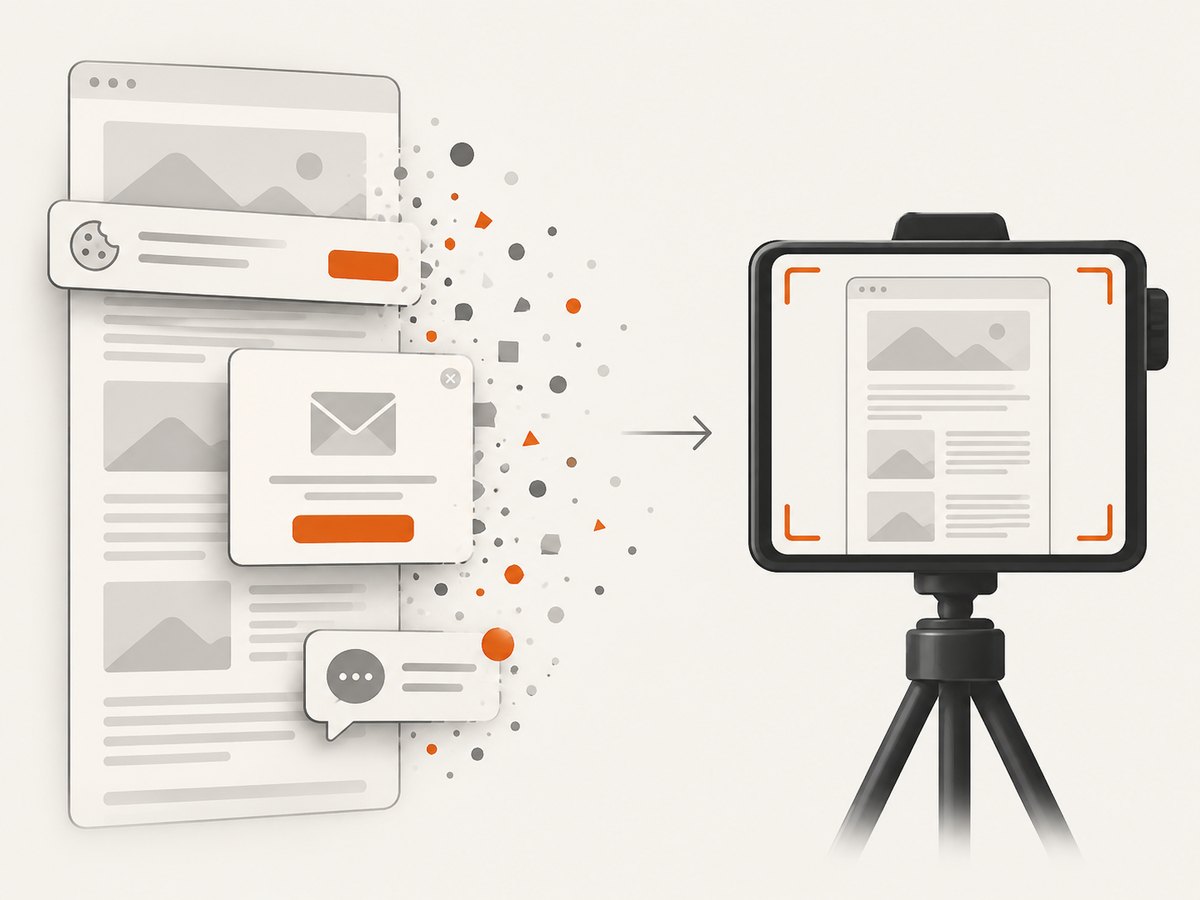
await Bun.write('shot.webp', bytes);Cookie banners, newsletter popups, and chat widgets are removed before the shot. Bot checks, blank pages, failed loads, timeouts, and cache hits are not billed; response headers identify the page verdict and whether the request was billed. The MCP server includes take_screenshot, get_page_info, and capture_pdf tools for Claude, Cursor, and other MCP clients. You can start with 1,000 screenshots per month free with no card; paid plans start at $5 for 3,000 shots. Create a free ScreenshotNeo account.
ScreenshotNeo options for long pages and repeatable captures
When a still capture is enough, configure the request for the page state you need:
| Requirement | Relevant option |
|---|---|
| Capture the whole document | Full-page capture with lazy images loaded. |
| Capture one component | CSS selector element capture. |
| Match a viewer’s display | 12 device presets, custom viewport, dark mode, and retina scale. |
| Stabilize dynamic content | Wait for a selector, delay, or network idle; run custom JavaScript. |
| Remove overlays | Hide selectors, click an element, block ads, trackers, requests, or resource types. |
| Reproduce a session | Custom headers, cookies, user agent, Authorization, timezone, and geolocation. |
| Control delivery | Transparent background, image resizing, chosen cache TTL, signed links, async jobs, signed webhooks, bulk capture for 100 URLs, and a usage API. |
| Make a document | PDF paper size, margins, landscape mode, and page ranges. |
The API accepts parameter names used by other screenshot APIs, which can simplify a migration. Every plan includes every feature. Use caching when a page changes infrequently, and choose a TTL that matches how often your content is updated.
Troubleshooting
The recording is black or captures the wrong window
Cause: The user selected a different source, the browser denied capture, or a protected surface cannot be recorded. Fix: Start from a button click, verify the selected tab in the picker, and handle NotAllowedError. Test tab capture before attempting full-screen capture.
The page has duplicated sections or visible seams
Cause: A sticky element, animation, hover state, or changing sidebar differs between stitched frames. Fix: Select a tighter region, move the pointer away, pause animation, or record a live tab instead of stitching.
Images are missing near the bottom
Cause: Lazy loading has not completed before the viewport advances. Fix: Add a pause after each scroll step, wait for network activity to settle, and confirm the image has loaded before continuing.
There is no audio in the GIF
Cause: GIF has no audio channel. Fix: Publish MP4 or WebM when narration or page audio matters; reserve GIF for silent loops.
The output is huge
Cause: High frame rate, a large viewport, lossless settings, or an unnecessarily long recording. Fix: Use 24–30 fps, crop to the page region, choose H.264 or VP9 with a quality target, and trim idle time.
The extension works in the popup but stops in the background
Cause: The recorder was tied to a popup that closed, or the Chrome version does not support the documented offscreen path. Fix: Move recording into an offscreen document, message it from the popup, and require Chrome 116 or later for that background architecture.
The API response is not a usable image
Cause: The target returned a bot check, blank page, timeout, or another failed verdict. Fix: Inspect X-Page-Verdict and X-Billed, then adjust waits, headers, cookies, blocking rules, or the URL. Failed captures are not billed by ScreenshotNeo.
Performance, reliability, and cost notes
- Capture time: A live recording takes as long as the scroll itself. Stitching can be faster, but each viewport still requires rendering and comparison.
- File size: Resolution, frame rate, duration, and motion determine video size. GIF is often large for its visual quality despite having no audio.
- Repeatability: Fixed viewport, zoom, waits, and a stable page state produce more consistent output than manual scrolling.
- Reliability: Dynamic overlays are the primary source of stitch errors. Tab recording avoids seam artifacts but includes every visual change on screen.
- Automation cost: A desktop workflow consumes a user’s time and requires a running browser. An API removes browser setup and can cache repeat captures.
- ScreenshotNeo billing: Only clean shots are billed. Bot checks, blank pages, timeouts, failed loads, and cache hits cost nothing, and headers state the result.
FAQ
Can I capture an entire webpage as one MP4?
Yes. Record the browser tab while scrolling from top to bottom. A stitched full-page screenshot is a still image, not an MP4.
Which format should I send to a browser?
Use WebM when your target browsers support VP8 or VP9. Offer MP4 as a compatibility fallback.
Can a browser extension record without asking the user?
No. Display capture requires user permission. Extension tab capture also depends on a user gesture.
How do I include narration?
Request audio in the display-capture constraints, select a source that provides audio, and encode to MP4 or WebM. GIF cannot contain it.
Should I use an API for a moving scroll video?
An API is best for automated still screenshots or PDFs. Use browser capture when the timing and motion of scrolling are the deliverable.


