BlogScreenshots on your device
How to Capture a Selected Area in Chrome and Send It to Your Server
Choose the right Chrome capture API, crop the exact area, and upload it safely with runnable extension and web app examples.
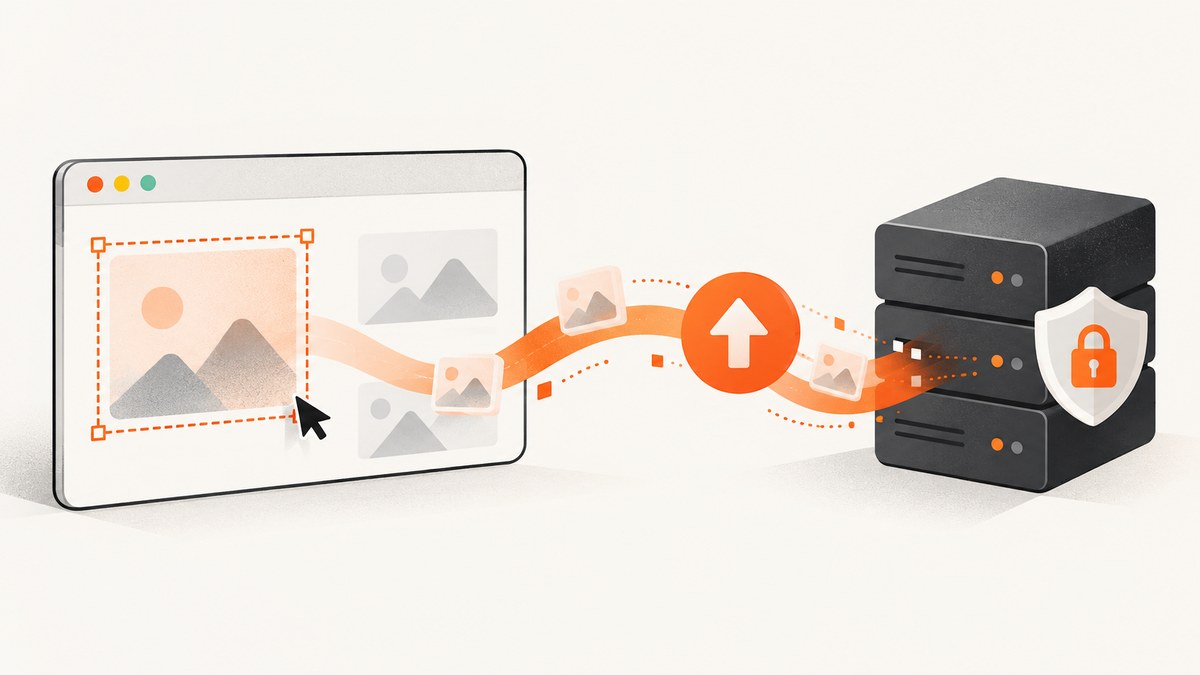
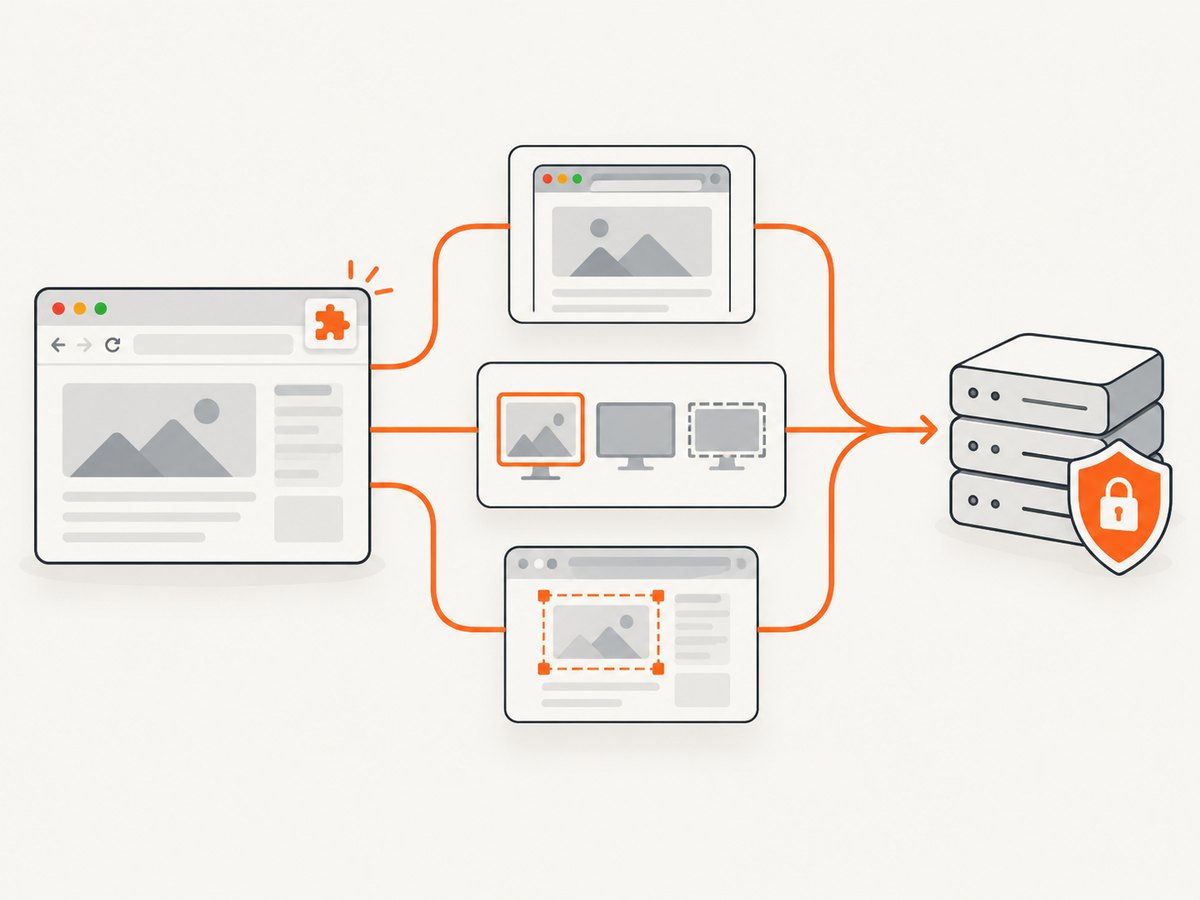
Direct answer: choose the capture API based on what “selected area” means. A Chrome extension can call chrome.tabs.captureVisibleTab(), then crop the returned image with a canvas. A normal website can call navigator.mediaDevices.getDisplayMedia(), render the returned video stream to a canvas, and crop the frame. If the target is a known element in a captured tab, Region Capture can crop the video track to that element with CropTarget.fromElement() and cropTo(). In every case, your application must encode the crop and POST it to an upload endpoint that you define.
1. Pick the correct Chrome capture route
| Route | Best fit | Selection model | Constraints |
|---|---|---|---|
chrome.tabs.captureVisibleTab() |
Chrome extension | Visible area of the active tab; crop a rectangle yourself | Requires activeTab or all_urls; maximum two calls per second |
getDisplayMedia() |
Ordinary website | User chooses a tab, window, or screen in the browser picker | User permission and a MediaStream are required; support varies |
| Region Capture | Known DOM element in a captured tab | Element bounds in the visible viewport | Not a generic drag rectangle; crop follows the element’s geometry |
Chrome documents the extension API and its two-calls-per-second limit in the chrome.tabs API reference. getDisplayMedia() is described by MDN. Region Capture is covered by Chrome’s Region Capture guide and the W3C specification.
2. Chrome extension: capture the visible tab, then crop a rectangle
captureVisibleTab() returns an image data URL for the visible portion of the current tab. It does not accept arbitrary rectangle coordinates, so provide a selection UI after capture and crop the bitmap before uploading.
Manifest
{
  "manifest_version": 3,
  "name": "Area Uploader",
  "version": "1.0.0",
  "permissions": ["activeTab"],
  "action": {"default_popup": "popup.html"}
}
Popup markup
<button id="capture">Capture visible tab</button>
<canvas id="preview"></canvas>
<button id="upload" disabled>Upload selection</button>
<script src="popup.js"></script>
Capture, select, crop, and upload
const captureButton = document.querySelector('#capture');
const uploadButton = document.querySelector('#upload');
const canvas = document.querySelector('#preview');
const context = canvas.getContext('2d');
let image;
let selection = null;

captureButton.addEventListener('click', async () => {
  const dataUrl = await chrome.tabs.captureVisibleTab();
  image = new Image();
  image.onload = () => {
    canvas.width = image.width;
    canvas.height = image.height;
    context.drawImage(image, 0, 0);
    uploadButton.disabled = false;
  };
  image.src = dataUrl;
});

// Replace this demo rectangle with pointer-based drag selection.
function setSelection(x, y, width, height) {
  selection = {x, y, width, height};
}

async function cropSelection() {
  if (!selection) throw new Error('Select an area first');
  const crop = document.createElement('canvas');
  crop.width = selection.width;
  crop.height = selection.height;
  crop.getContext('2d').drawImage(
    image,
    selection.x, selection.y, selection.width, selection.height,
    0, 0, selection.width, selection.height
  );
  return new Promise(resolve => crop.toBlob(resolve, 'image/png'));
}

uploadButton.addEventListener('click', async () => {
  const blob = await cropSelection();
  const form = new FormData();
  form.append('screenshot', blob, 'selection.png');
  const response = await fetch('https://your.example/upload', {
    method: 'POST',
    body: form,
    credentials: 'include'
  });
  if (!response.ok) throw new Error(`Upload failed: ${response.status}`);
});
When mapping a drag rectangle drawn in CSS pixels to bitmap pixels, account for the image’s displayed size, its intrinsic pixel dimensions, and device pixel ratio. Do not assume they are equal. A selection UI should let the user review the crop before transfer because screenshots can contain private or confidential data.
3. Website: let the user choose a tab, window, or screen
getDisplayMedia() opens the browser’s own picker and resolves to a video MediaStream. It requires a secure context and explicit user permission. The browser and user control which surface is shared.
<button id="share">Choose a surface</button>
<video id="source" autoplay playsinline hidden></video>
<canvas id="frame"></canvas>
<button id="send" disabled>Send crop</button>
<script>
const share = document.querySelector('#share');
const video = document.querySelector('#source');
const canvas = document.querySelector('#frame');
const send = document.querySelector('#send');
let stream;

share.onclick = async () => {
  stream = await navigator.mediaDevices.getDisplayMedia({video: true, audio: false});
  video.srcObject = stream;
  await video.play();
  await new Promise(requestAnimationFrame);
  canvas.width = video.videoWidth;
  canvas.height = video.videoHeight;
  canvas.getContext('2d').drawImage(video, 0, 0);
  send.disabled = false;
};

send.onclick = async () => {
  const crop = document.createElement('canvas');
  const x = 100, y = 100, width = 800, height = 500; // use your selection UI
  crop.width = width;
  crop.height = height;
  crop.getContext('2d').drawImage(canvas, x, y, width, height, 0, 0, width, height);
  const blob = await new Promise(resolve => crop.toBlob(resolve, 'image/jpeg', 0.9));
  const form = new FormData();
  form.append('screenshot', blob, 'selection.jpg');
  const response = await fetch('/api/screenshots', {method: 'POST', body: form});
  if (!response.ok) throw new Error(`Upload failed: ${response.status}`);
  stream.getTracks().forEach(track => track.stop());
};
</script>
Stop every track after the one-shot capture or when the user cancels. Treat picker choices, cancellation, and browser support as expected outcomes rather than errors in your product flow.
4. Region Capture: crop to a known element
Use Region Capture when the desired area is a DOM element in the tab being captured. It crops a video track to the element’s bounding rectangle and the intersection of the captured surface’s visible viewport. It does not provide a general drag-to-select rectangle and does not guarantee pixel isolation from overlapping content.
const stream = await navigator.mediaDevices.getDisplayMedia({video: true, audio: false});
const track = stream.getVideoTracks()[0];
const targetElement = document.querySelector('#report');

if (!('CropTarget' in window) || !CropTarget.fromElement || !track.cropTo) {
  throw new Error('Region Capture is unavailable; use canvas cropping instead');
}

const cropTarget = await CropTarget.fromElement(targetElement);
await track.cropTo(cropTarget);

const video = document.createElement('video');
video.srcObject = stream;
await video.play();
await new Promise(requestAnimationFrame);
const canvas = document.createElement('canvas');
canvas.width = video.videoWidth;
canvas.height = video.videoHeight;
canvas.getContext('2d').drawImage(video, 0, 0);
const blob = await new Promise(resolve => canvas.toBlob(resolve, 'image/png'));
stream.getTracks().forEach(track => track.stop());
Chrome’s guidance lists desktop availability beginning with Chrome 104. Feature-detect the API and keep a canvas-crop fallback.
5. Design the upload endpoint
Chrome supplies capture pixels, not your server contract. Define authentication, accepted MIME types, maximum decoded dimensions, request size, retention, and response format.
Example server contract
POST /api/screenshotswith a multipart field namedscreenshot.- Authenticate with a session, short-lived token, or signed upload URL.
- Validate decoded file contents, dimensions, and size; never trust a filename or client MIME type alone.
- Return JSON such as
{"id":"...","url":"..."}only after durable storage succeeds. - Apply malware scanning, access controls, expiration, and deletion rules appropriate to your data.
cURL upload test
curl -X POST https://your.example/api/screenshots \
  -H "Authorization: Bearer YOUR_TOKEN" \
  -F "screenshot=@selection.png;type=image/png"
6. Performance, reliability, and cost considerations
- Capture once, then let the user adjust the crop locally to avoid repeated permission prompts and extension API calls.
- Use PNG for exact UI pixels and transparency; use JPEG or WebP when smaller files matter.
- Resize large crops before upload, but preserve the original dimensions if downstream annotation requires them.
- Throttle extension captures to Chrome’s documented two calls per second.
- Handle picker cancellation, permission denial, tab navigation, hidden or minimized surfaces, and upload retries with idempotency keys.
- Use HTTPS, bounded request bodies, streaming storage where practical, and server-side timeouts.
- Display upload progress and keep the local crop until the server confirms success.
7. Troubleshooting
| Symptom | Cause | Fix |
|---|---|---|
Permission error from captureVisibleTab() |
Missing extension permission or no active-tab grant | Add activeTab or the required host permission and invoke after a user action. |
“User cancelled” from getDisplayMedia() |
The picker was closed or permission denied | Return to the selection button and explain that browser permission is required. |
| Black or blank frame | Video metadata is not ready, or the surface blocks capture | Wait for videoWidth and a rendered frame; report unsupported surfaces clearly. |
| Crop is offset or the wrong size | CSS pixels, bitmap pixels, and device pixel ratio differ | Scale coordinates by intrinsic/displayed dimensions and test at multiple DPR values. |
| Region Capture API missing | Browser or platform does not support it | Feature-detect and fall back to canvas cropping. |
| Capture stops after navigation | Extension capture lifecycle ended with the content script | For flows that must survive navigation, follow Chrome’s offscreen-document guidance and the documented DISPLAY_MEDIA reason. |
| HTTP 413 or rejected MIME type | Server limits do not match client output | Document limits, resize or recompress client-side, and validate decoded content server-side. |
| Duplicate files after retry | Upload was retried without idempotency | Send a client-generated idempotency key and make the server operation safe to repeat. |
8. Or skip the browser setup
ScreenshotNeo provides a website screenshot API when you need a URL captured instead of building a browser permission and upload workflow. See the API documentation.
curl -G "https://api.screenshotneo.com/v1/shot" -d access_key=YOUR_API_KEY --data-urlencode url=https://stripe.com -o shot.webpimport requests
r = requests.get("https://api.screenshotneo.com/v1/shot", params={"access_key": "YOUR_API_KEY", "url": "https://stripe.com"}, timeout=90)
open("shot.webp", "wb").write(r.content)const q = new URLSearchParams({ access_key: 'YOUR_API_KEY', url: 'https://stripe.com' });
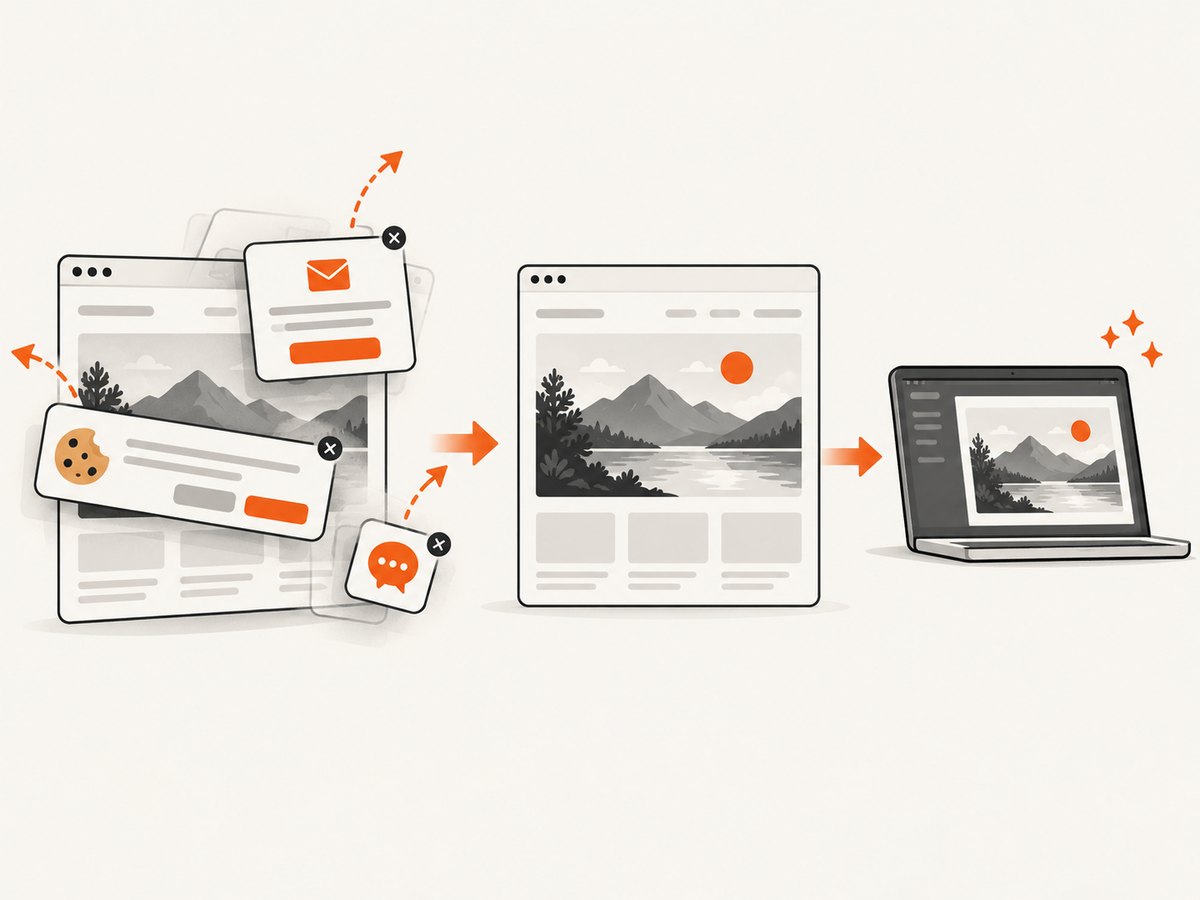
const res = await fetch(`https://api.screenshotneo.com/v1/shot?${q}`);It removes cookie banners, newsletter popups, and chat widgets before the shot. Bot checks, blank pages, and failed loads are never billed. Its MCP server lets AI agents take screenshots, and 1,000 screenshots per month are free with no card; paid plans start at $5 for 3,000. Create a free ScreenshotNeo account.
9. FAQ
Can a website capture a rectangle without asking the user?
No. A normal website must use a user-mediated display capture flow such as getDisplayMedia(). Silent arbitrary screen capture is not provided by these APIs.
Does captureVisibleTab() capture the whole page?
It captures the visible tab area. Build a scrolling or full-page workflow separately if you need content outside the viewport.
Can Region Capture select any pixels?
No. It follows a known element’s bounds in the captured tab and is constrained by the visible viewport.
Where should authentication happen?
Authenticate the upload request at your server, preferably with a short-lived credential or signed upload URL. Do not embed permanent server secrets in extension or browser code.


