BlogScreenshots on your device
How to Capture a Selected Image Area and Extract Its Text
Capture only the part of your screen you need, then copy text from it with Windows, Mac, iPhone, Android, or OCR tools.
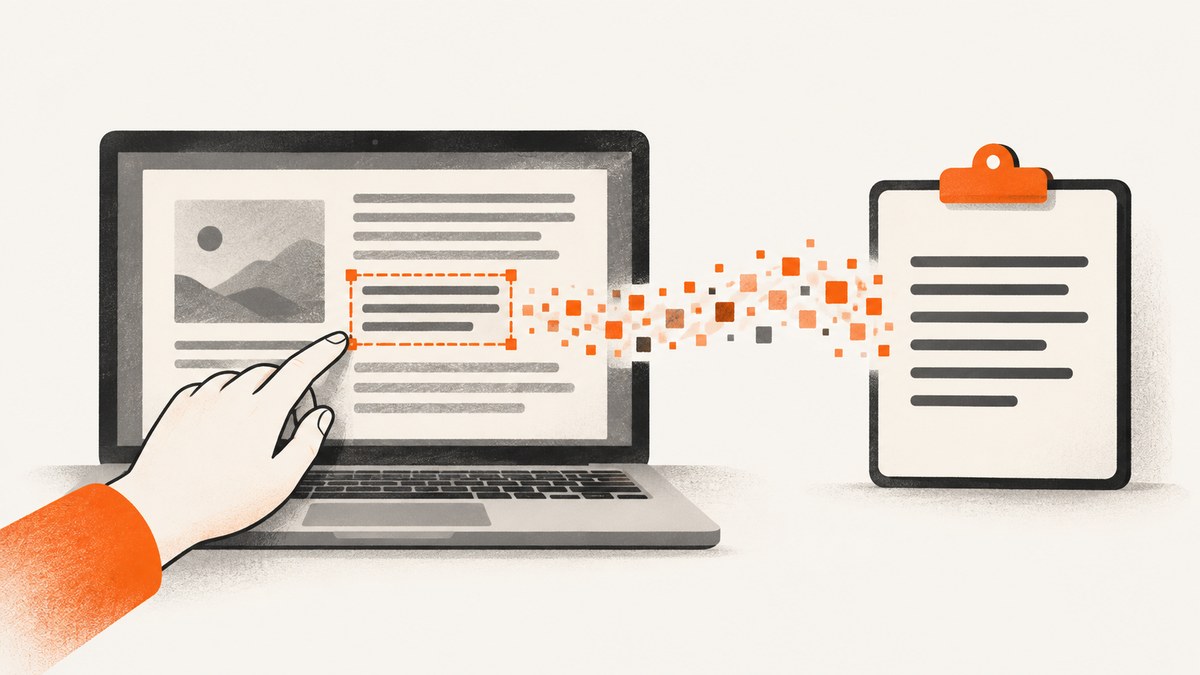
Short answer: capturing a region and extracting its words are two separate steps. First select the pixels you need. Then use an OCR (optical character recognition) tool to recognize the text and copy it. If the words are already selectable in the app or webpage, copy them directly instead of using OCR.
Choose the workflow that matches your device
| Device | Capture a selected area | Extract and copy text |
|---|---|---|
| Windows | Windows + Shift + S opens Snipping Tool | PowerToys Text Extractor (Windows + Shift + T) copies OCR text directly |
| Mac | Take a selected-area screenshot, then open it in Preview or Photos | Live Text lets you select and copy recognized text |
| iPhone | Take a screenshot or use an existing photo | Photos Live Text: select text, then Copy Text |
| Android | Take a screenshot or choose one already saved | Google Lens: select a region, Select text, Copy |
OCR is designed for words embedded in pixels. It can misread punctuation, numbers, URLs, table columns, or characters that look alike, so proofread the result.
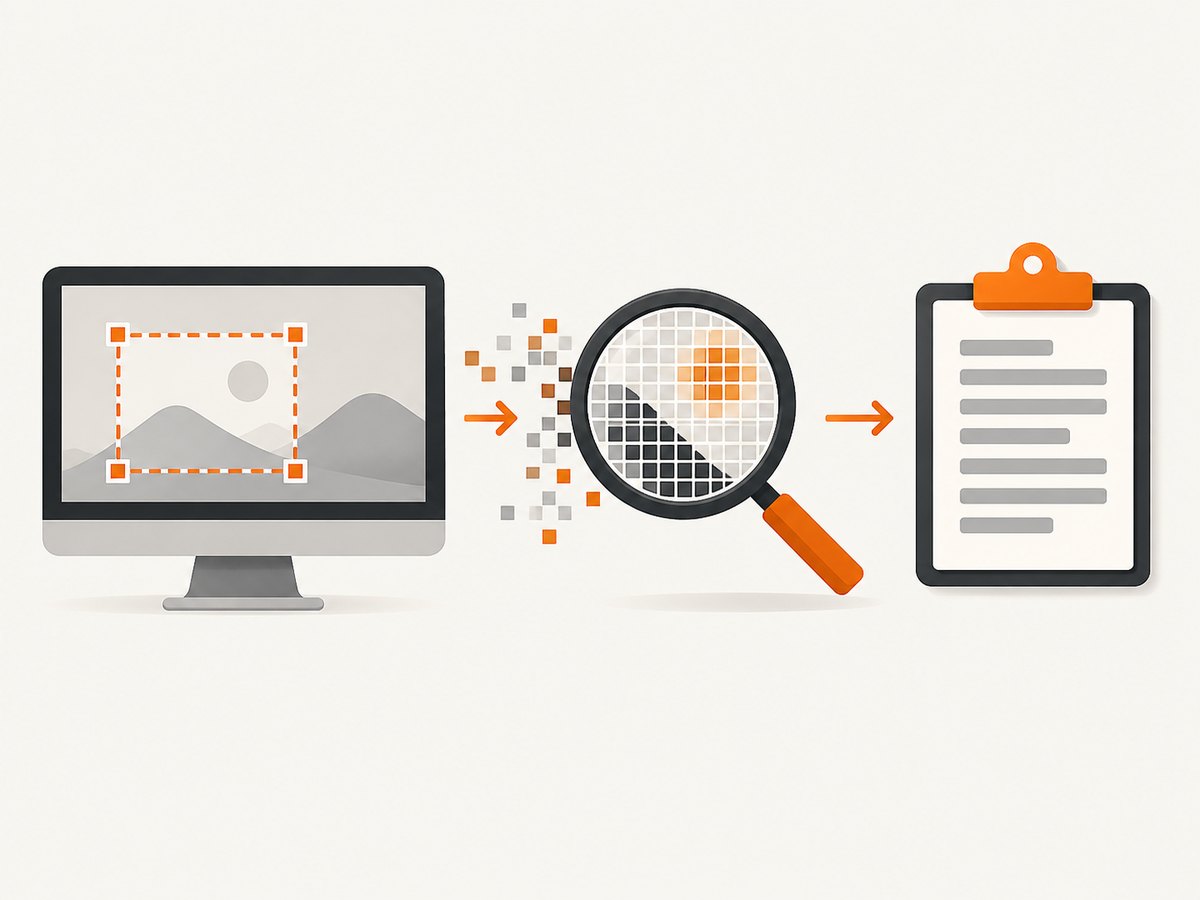
Windows: capture a region and copy its text
Option 1: Snipping Tool, then OCR
- Press Windows + Shift + S.
- When the screen dims, choose Rectangular snip for a box or Free-form snip for an irregular shape. Snipping Tool also supports window and full-screen captures. Microsoft documents these capture modes in its screen-copying guide.
- Drag around the text. The capture is copied to the clipboard.
- Open the notification to edit or save the image in Snipping Tool.
- Open the saved image in an OCR tool. For a direct screen-region workflow, use PowerToys Text Extractor instead.
Official reference: Microsoft Support: Copy the window or screen contents.
Option 2: PowerToys Text Extractor (fastest for screen text)
- Install Microsoft PowerToys and open its settings.
- Confirm that Text Extractor is enabled and note its shortcut, which is Windows + Shift + T by default.
- Press the shortcut, then drag across the text on screen.
- PowerToys recognizes the region and places the result on the clipboard. Paste it into a document, terminal, email, or search box.
The OCR language follows your Windows language settings, and the matching OCR language pack must be installed. Microsoft cautions that the produced text may not be perfect, so proofread it. See Microsoft Learn: PowerToys Text Extractor.
Windows checklist
- Use a tight crop around the words.
- Increase display scaling or zoom before selecting tiny text.
- Install the OCR language pack for multilingual content.
- Check line breaks, punctuation, decimal points, and similar characters such as
O/0andl/1.
Mac: capture a selected area, then use Live Text
- Press Shift + Command + 4 and drag over the screen region. Release to save the screenshot.
- Open the image in Preview or Photos.
- Move the pointer over recognized text. In Preview, drag across the words; in Photos, select the detected text.
- Choose Copy Text or press Command + C, then paste it where needed.
Apple documents copying recognized text in Preview and Photos. These guides describe OCR in image files; take the selected screenshot first when the text exists only on screen.
iPhone: copy text from a screenshot or photo
- Take a screenshot or open an existing image in Photos.
- If needed, tap the Detect Text control.
- Touch and hold a word, then move the selection handles to cover the required passage.
- Tap Copy Text and paste it into Notes, Messages, a browser, or another app.
Live Text works with text in photos, videos, and images found online, but availability varies by language and region. Check Settings > General > Language & Region if the detection control does not appear. Apple’s instructions are at Interact with content in a photo or video on iPhone.
Android: use Google Lens on a selected image region
- Open the Google app and tap the Lens icon.
- Take a new picture or choose an image from the Screenshots collection.
- Tap the text, or drag the region box around the words.
- Tap Select text, adjust the selection if necessary, and tap Copy.
Lens can also translate, listen to, search for, or act on detected content such as contact details. Google recommends a clear, well-lit image. See Google Search Help: Region selection in Lens.
Improve OCR results before you copy
- Crop tightly: remove unrelated icons, borders, and background content.
- Make text larger: zoom the page or image before capturing.
- Prefer sharp pixels: avoid motion blur, compression artifacts, glare, and shadows.
- Keep lines horizontal: rotate a tilted image when possible.
- Match the language: enable the correct OCR language or language pack.
- Review structured text: tables, columns, code, URLs, and receipts often need manual cleanup.
OCR output is an interpretation of pixels, not the original document structure. Preserve the screenshot when the source must be audited later.
When direct copying is better than OCR
If you can place the cursor in the webpage, PDF, terminal, or document and highlight the words, use the app’s normal Copy command. Direct text preserves spelling, links, and structure more reliably. Use a screenshot plus OCR when the content is inside a canvas, image, video frame, remote desktop, scanned page, or other non-selectable surface.

Or skip the browser setup
If the source is a webpage and you need an image of a page or element for a downstream OCR pipeline, ScreenshotNeo provides a screenshot API and MCP server. It can capture a full page or one CSS-selected element, apply custom CSS or JavaScript, wait for a selector, delay, or network idle, and return PNG, JPEG, WebP, or PDF. Cookie and consent banners, newsletter popups, and chat widgets are removed before capture. Bot checks, blank pages, timeouts, failed loads, and cache hits are not billed, and response headers identify the page verdict and billing status.
See the ScreenshotNeo API documentation for all options. The following calls capture a page you can pass to OCR software:
cURL
curl -G "https://api.screenshotneo.com/v1/shot" \
  -d access_key=YOUR_API_KEY \
  --data-urlencode url=https://stripe.com \
  -o shot.webp
Python
import requests

r = requests.get(
    "https://api.screenshotneo.com/v1/shot",
    params={"access_key": "YOUR_API_KEY", "url": "https://stripe.com"},
    timeout=90,
)
r.raise_for_status()
open("shot.webp", "wb").write(r.content)
Node.js
const q = new URLSearchParams({
  access_key: 'YOUR_API_KEY',
  url: 'https://stripe.com'
});
const res = await fetch(`https://api.screenshotneo.com/v1/shot?${q}`);
if (!res.ok) throw new Error(`HTTP ${res.status}`);
const fs = await import('node:fs/promises');
await fs.writeFile('shot.webp', Buffer.from(await res.arrayBuffer()));
For OCR of a specific page component, add the element-capture option documented by ScreenshotNeo and target a stable CSS selector. For repeat captures, use a chosen cache TTL; for public image tags, use signed links. Async jobs with signed webhooks, bulk capture of up to 100 URLs per call, custom headers and cookies, viewport and device presets, retina scale, dark mode, geolocation, timezone, request blocking, image resizing, and PDF controls are available in the API documentation.
An MCP server provides take_screenshot, get_page_info, and capture_pdf tools for Claude, Cursor, and other MCP clients, so an AI agent can capture the source before an OCR step.
There is a free allowance of 1,000 screenshots per month with no card. Paid plans start at $5 for 3,000 shots; every feature is on every plan. Create a free ScreenshotNeo account.
Troubleshooting
| Symptom | Likely cause | Fix |
|---|---|---|
| No OCR text appears | Feature is unavailable for the language or region, or OCR is disabled | Enable Live Text, install the Windows OCR language pack, or update the relevant app and language settings. |
| Text is copied with mistakes | Small, blurry, tilted, low-contrast, or stylized text | Zoom in, recapture tightly, improve lighting or sharpness, and proofread punctuation, numbers, and URLs. |
| Windows shortcut does nothing | PowerToys is not installed, Text Extractor is disabled, or another app owns the shortcut | Open PowerToys settings, enable Text Extractor, and change the shortcut if necessary. |
| iPhone has no Detect Text control | Language or region is unsupported, or Live Text is unavailable on that configuration | Check Settings > General > Language & Region and try a supported image language. |
| Lens selects the wrong area | Busy background or a loose selection | Crop closer to the words and drag the region handles around only the required lines. |
| Some app content cannot be captured | The app or operating system restricts screenshots | Use an allowed export or image source. Do not assume every protected surface supports capture. |
| ScreenshotNeo response is not an image | Invalid credentials, URL, or a failed page load | Check the HTTP status and response headers, verify the URL and API key, and inspect X-Page-Verdict and X-Billed. Failed loads and bot checks are not billed. |
Performance, reliability, and cost considerations
- Local capture: keyboard shortcuts are immediate and keep images on the device, but OCR quality depends on the displayed resolution and installed language support.
- Cloud capture: an API is useful for repeatable webpage screenshots, scheduled jobs, bulk URLs, and agent workflows. Wait for the page state you need and capture only the element or viewport required to reduce work.
- Reliability: retain the original image alongside extracted text. For important records, compare OCR output against the pixels and record the source URL and capture time.
- Cost: device tools generally have no per-image API charge. ScreenshotNeo bills only clean shots; bot checks, blank pages, timeouts, failed loads, and cache hits cost nothing. Use caching for unchanged pages and async jobs or bulk capture for large batches.
- Privacy: avoid sending confidential screenshots to services unless your workflow permits it. Redact secrets, tokens, personal data, and private customer information before OCR or upload.
FAQ
Can I copy text without saving a screenshot?
Yes. Windows PowerToys Text Extractor and Google Lens can recognize a selected screen or image region and copy the result directly. On Mac, first create a selected screenshot, then use Live Text in Preview or Photos.
Why is OCR different from copying webpage text?
Normal copying reads the document’s text layer. OCR guesses characters from rendered pixels, so formatting and punctuation can change.
Does OCR preserve a table’s columns?
Not reliably. Treat tables as a review task and check row and column alignment against the image.
What should I do with code or URLs?
Zoom in and proofread every character. OCR commonly confuses punctuation and similar-looking letters or digits, which can break commands and links.
Can a screenshot API extract the text itself?
ScreenshotNeo returns the captured image or PDF. Pass that output to the OCR tool or library used by your application.


