BlogScreenshots on your device
How to Capture a Specific Screen Area in C#
Capture a precise rectangle of the Windows desktop in C# with CopyFromScreen, handle DPI and errors, or use ScreenshotNeo for web pages.
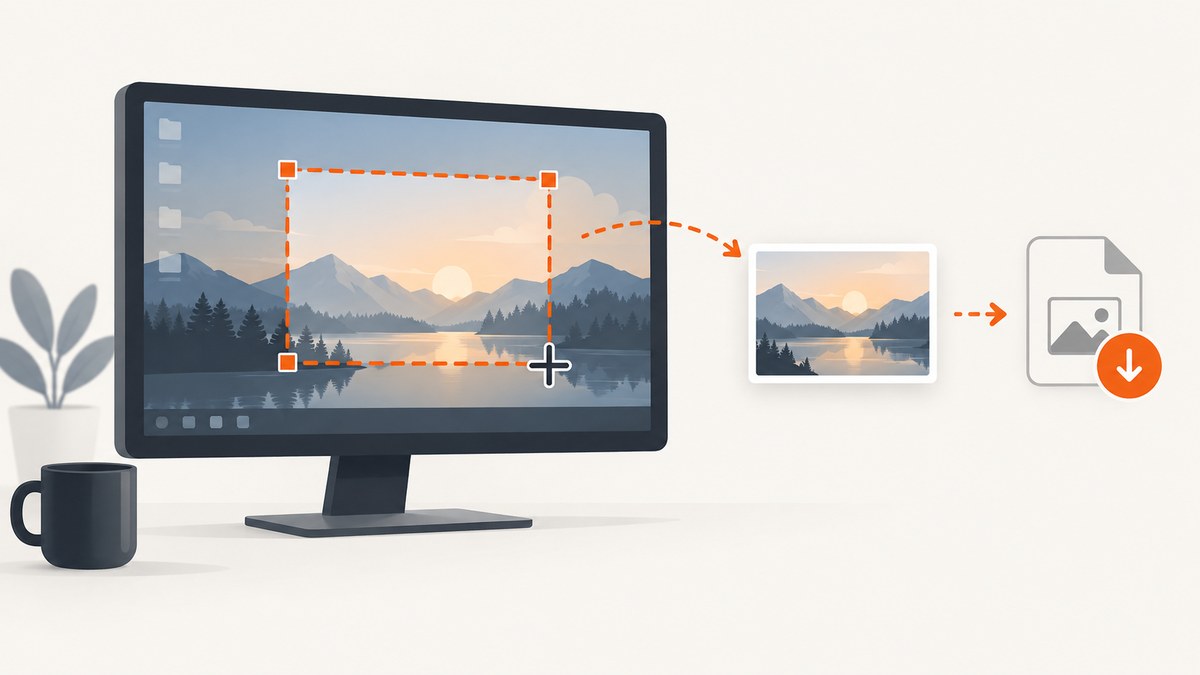
For a fixed rectangle on the visible Windows desktop, create a Bitmap with the required width and height, create a Graphics surface from it, and call Graphics.CopyFromScreen. Pass the rectangle’s screen location as the source point, Point.Empty as the destination point, and the rectangle size as the copy size.
using System;
using System.Drawing;
using System.Drawing.Imaging;

class Program
{
    static int Main(string[] args)
    {
        if (args.Length != 5 ||
            !int.TryParse(args[0], out int x) ||
            !int.TryParse(args[1], out int y) ||
            !int.TryParse(args[2], out int width) ||
            !int.TryParse(args[3], out int height))
        {
            Console.Error.WriteLine("Usage: CaptureArea x y width height output.png");
            return 2;
        }

        if (width <= 0 || height <= 0)
        {
            Console.Error.WriteLine("width and height must be greater than zero");
            return 2;
        }

        string outputPath = args[4];
        var area = new Rectangle(x, y, width, height);

        try
        {
            using var bitmap = new Bitmap(area.Width, area.Height);
            using (var graphics = Graphics.FromImage(bitmap))
            {
                graphics.CopyFromScreen(area.Location, Point.Empty, area.Size);
            }

            bitmap.Save(outputPath, ImageFormat.Png);
            Console.WriteLine($"Saved {width}x{height} pixels from ({x},{y}) to {outputPath}");
            return 0;
        }
        catch (System.ComponentModel.Win32Exception ex)
        {
            Console.Error.WriteLine($"Screen capture failed: {ex.Message}");
            return 1;
        }
        catch (ExternalException ex)
        {
            Console.Error.WriteLine($"Image save failed: {ex.Message}");
            return 1;
        }
    }
}
Run it on Windows with coordinates and dimensions such as CaptureArea.exe 100 80 800 600 shot.png. The source coordinates are desktop screen coordinates; the destination point is relative to the new bitmap and is normally (0, 0). Microsoft documents this source, destination, and size pattern in the CopyFromScreen API reference.
1. Set up the C# project
Create a Windows desktop project, then reference System.Drawing. On modern .NET, System.Drawing.Common is intended for Windows desktop use. Keep the capture code on Windows and validate your target framework and deployment environment before shipping.
dotnet new console -n CaptureArea
cd CaptureArea
dotnet add package System.Drawing.Common
dotnet run -- 100 80 800 600 shot.png
For a project file, a Windows target makes the intent explicit:
<PropertyGroup>
  <TargetFramework>net8.0-windows</TargetFramework>
  <UseWindowsForms>true</UseWindowsForms>
</PropertyGroup>
2. Understand the coordinate system
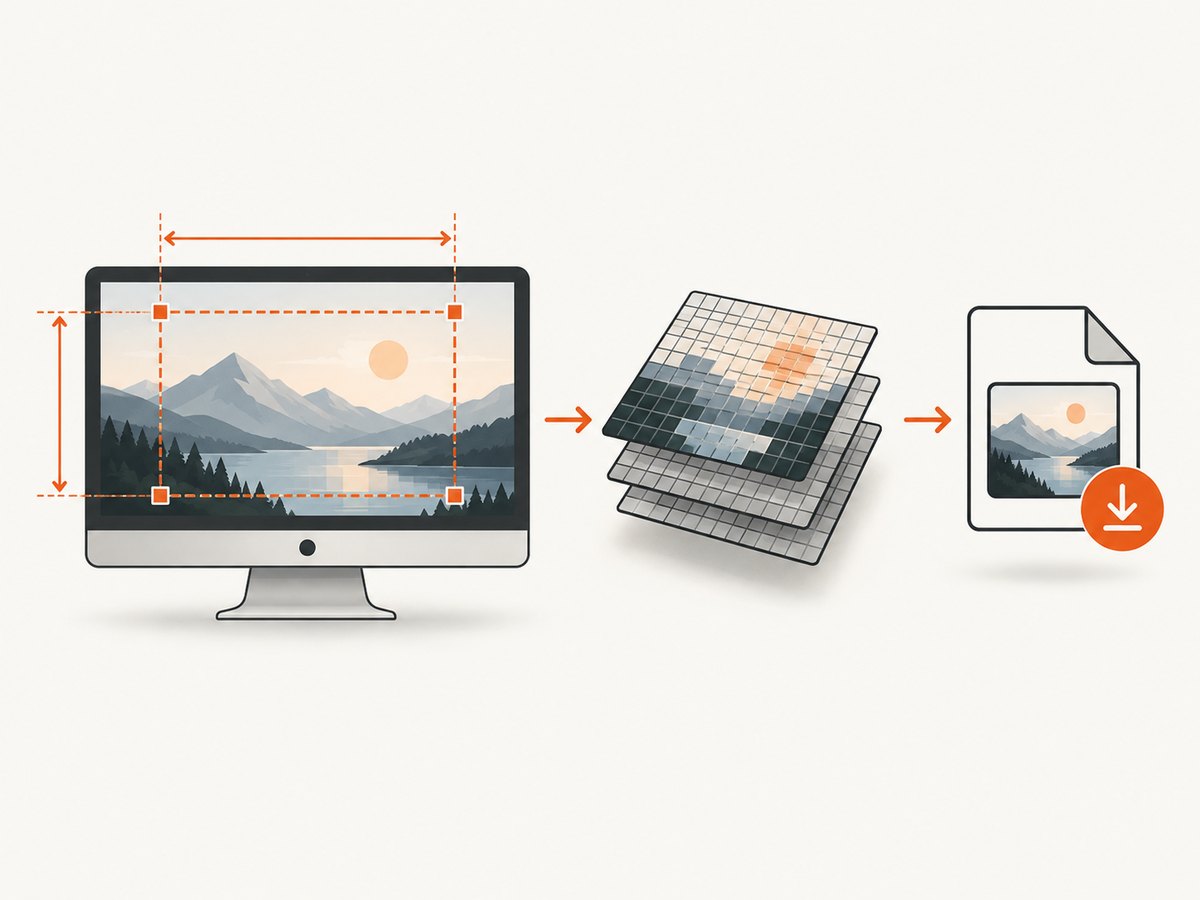
CopyFromScreen reads pixels from the desktop location you provide. x and y identify the rectangle’s upper-left corner, while width and height determine how many pixels are copied.
| Value | Meaning |
|---|---|
area.Location |
Source point on the virtual desktop. |
Point.Empty |
Destination origin inside the bitmap. |
area.Size |
Width and height copied from the screen. |
On a multi-monitor desktop, a monitor positioned to the left or above the primary monitor can produce negative screen coordinates. Treat coordinates as values from the active virtual desktop rather than assuming they start at zero. Mixed-DPI behavior depends on your process DPI-awareness configuration and Windows version; validate it with the displays and scaling settings your application supports.
3. Save PNG, JPEG, or another format
PNG is a good default for text and UI because it preserves sharp edges. JPEG can reduce file size for photographic content but introduces lossy compression. WebP support depends on the image library you choose. The capture API supplies pixels; the encoder determines the output format.
using var bitmap = new Bitmap(area.Width, area.Height);
using (var graphics = Graphics.FromImage(bitmap))
{
    graphics.CopyFromScreen(area.Location, Point.Empty, area.Size);
}
bitmap.Save("shot.jpg", ImageFormat.Jpeg);
Keep the bitmap alive until the save operation finishes. Dispose both Graphics and Bitmap with using statements so repeated captures do not exhaust GDI resources.
4. Capture a user-selected window or display
Use Windows.Graphics.Capture when the user should choose a display or application window, or when you need successive frames instead of one fixed rectangle. The documented flow is:
- Check
GraphicsCaptureSession.IsSupported(). - Open
GraphicsCapturePickerso the user selects a display or window. - Receive a
GraphicsCaptureItem. - Create a frame pool and capture session.
- Read frames for snapshots or a video stream.
Windows draws a yellow border around the actively captured item. Microsoft describes this API in the Windows screen capture guide. Support is limited to supported Windows desktop devices and Windows Mixed Reality immersive headsets, so check support before showing capture controls.
A Microsoft WPF sample lists Windows 10 version 1903 or later, Windows 10 SDK 18362 or later, and .NET Framework 4.7.2 or later for that sample. Treat those as sample prerequisites, not a universal compatibility guarantee. The same sample notes that minimized windows may be enumerated but are not captured.
5. Choose the right method
| Need | Recommended method | Trade-off |
|---|---|---|
| Known rectangle, one image | Graphics.CopyFromScreen |
Simple and direct; your code must know valid coordinates. |
| User chooses a window or display | Windows.Graphics.Capture |
Uses secure system picker and capture-session objects. |
| Continuous frames | Windows.Graphics.Capture |
Requires frame-pool and session lifecycle management. |
| One-off manual image | Windows Snipping Tool | Windows+Shift+S opens rectangle, window, full-screen, and freeform modes; it is not an application automation API. |
6. Reliability and performance checklist
- Validate that width and height are positive before allocating a bitmap.
- Handle
Win32Exception; access to the desktop or requested region can fail. - Dispose every
BitmapandGraphicsobject promptly. - Expect memory use to grow with
width × height × 4bytes before encoder overhead. - Capture only the area you need to reduce memory, encoding time, and file size.
- Do not claim a speed advantage between the two APIs without measuring your own workload; the reviewed Microsoft sources provide no comparative benchmark.
- Test locked sessions, remote desktop, elevated windows, multiple monitors, scaling changes, and minimized windows if those states matter to your product.
7. Troubleshooting common errors
| Symptom | Likely cause | Fix |
|---|---|---|
Win32Exception from CopyFromScreen |
Invalid or unavailable screen region, desktop access problem, or an OS capture restriction. | Log the rectangle, verify the active display layout, reduce the area, and retry with a clear error path. |
| Image is shifted on a second monitor | Coordinates were treated as primary-monitor-relative. | Use virtual-desktop screen coordinates, including negative values where applicable. |
| Image dimensions are wrong | Bitmap size and copy size do not match. | Allocate new Bitmap(area.Width, area.Height) and pass area.Size. |
| Capture is blank or incomplete | Target is minimized, protected, covered, or otherwise unavailable. | Restore the target, test an ordinary desktop window, and document unsupported content rather than assuming a code defect. |
| Process fails on a non-Windows host | System.Drawing desktop capture is Windows-specific. | Run the capture component on Windows or choose a platform-specific API. |
Windows.Graphics.Capture picker cannot open |
Capture is unsupported on the device or support was not checked. | Call GraphicsCaptureSession.IsSupported() and provide a fallback. |
| Repeated captures eventually fail | GDI objects or bitmaps were not disposed. | Use deterministic disposal and avoid retaining completed images. |
8. Or skip the browser setup
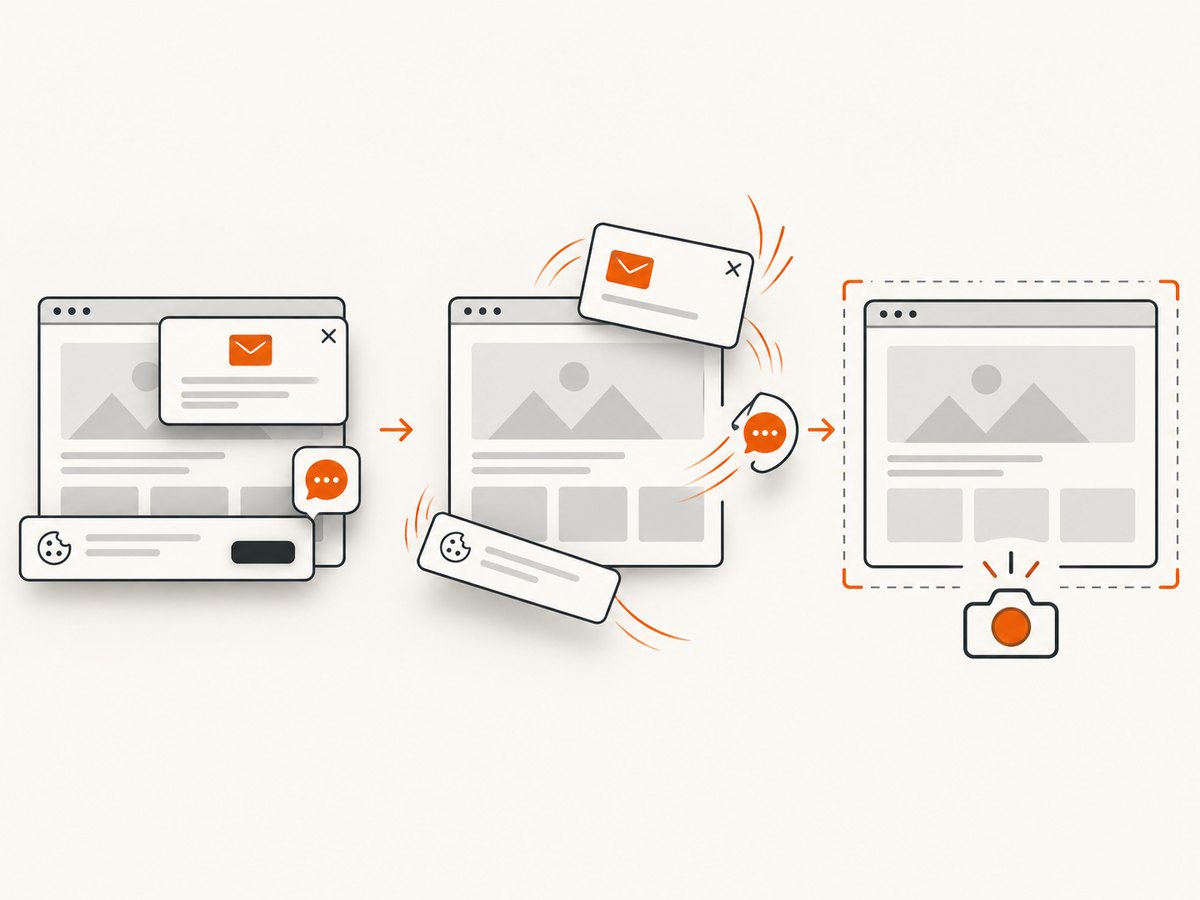
If the target is a web page rather than the Windows desktop, ScreenshotNeo provides a single HTTP request for a PNG, JPEG, WebP, or PDF. Its browser handles cookie and consent banners before capture and removes more than 60 known consent platforms, newsletter popups, and chat widgets. Bot checks, blank pages, timeouts, failed loads, and cache hits are not billed, and response headers identify the page verdict and billing status.
See the ScreenshotNeo API documentation for all options, including full-page and element capture, device presets, retina scale, waits, custom CSS and JavaScript, request blocking, headers, cookies, geolocation, caching, signed links, asynchronous jobs, bulk capture, and PDF settings.
cURL
curl -G "https://api.screenshotneo.com/v1/shot" -d access_key=YOUR_API_KEY --data-urlencode url=https://stripe.com -o shot.webpPython
import requests
r = requests.get("https://api.screenshotneo.com/v1/shot", params={"access_key": "YOUR_API_KEY", "url": "https://stripe.com"}, timeout=90)
r.raise_for_status()
open("shot.webp", "wb").write(r.content)
Node.js
const q = new URLSearchParams({ access_key: 'YOUR_API_KEY', url: 'https://stripe.com' });
const res = await fetch(`https://api.screenshotneo.com/v1/shot?${q}`);
if (!res.ok) throw new Error(`HTTP ${res.status}`);
const fs = await import('node:fs/promises');
await fs.writeFile('shot.webp', Buffer.from(await res.arrayBuffer()));
ScreenshotNeo also includes an MCP server with take_screenshot, get_page_info, and capture_pdf tools for Claude, Cursor, and other MCP clients. The free plan includes 1,000 screenshots per month with no card; paid plans start at $5 for 3,000 shots. Create a free ScreenshotNeo account.
9. FAQ
Can I capture only one control or element?
CopyFromScreen captures pixels, so calculate the control’s screen rectangle first. For a web page, ScreenshotNeo can capture one element by CSS selector.
Does CopyFromScreen capture a minimized window?
Do not rely on it for minimized content. The reviewed Microsoft WPF sample specifically notes that minimized windows are not captured.
Which destination point should I use?
Use Point.Empty when writing into a newly created bitmap. It maps the source rectangle’s upper-left pixel to bitmap coordinate (0, 0).
Is there an official performance comparison?
No performance comparison was provided in the reviewed sources. Measure capture and encoding time on your target hardware and display configurations.


