BlogScreenshots on your device
How to Capture a Specific Windows Application in Java
Capture one Windows application in Java with Robot, understand HWND targeting, high-DPI behavior, permissions, and a simpler API alternative.
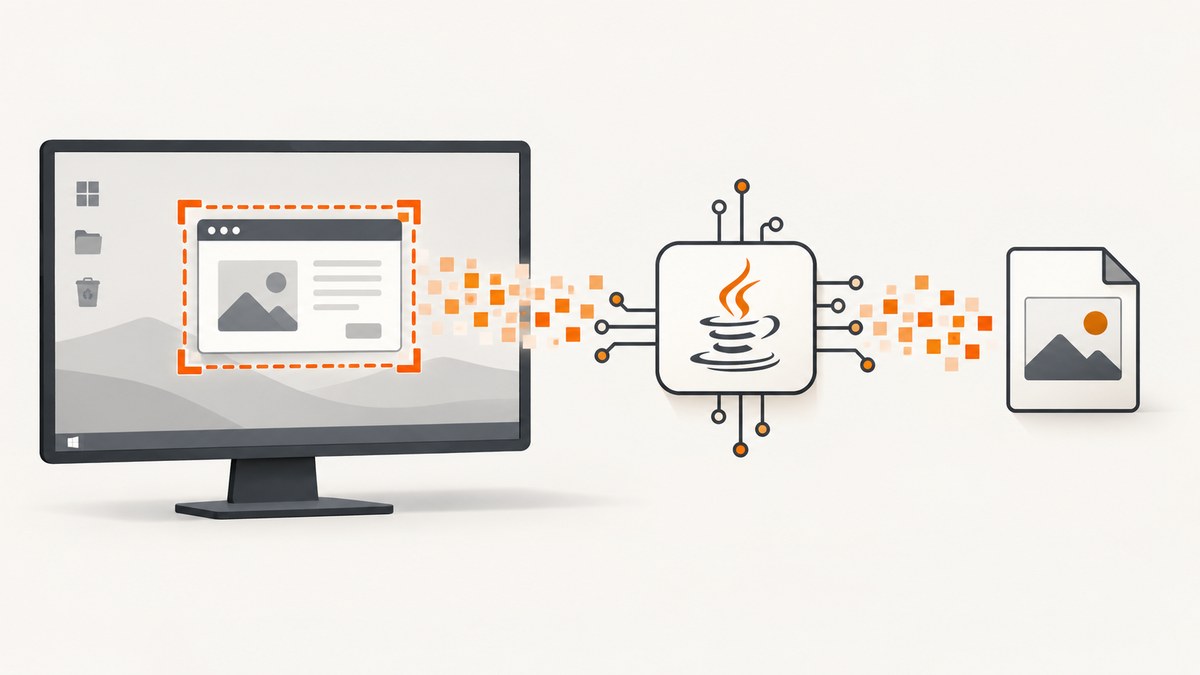
Short answer: Java’s java.awt.Robot can capture a rectangle of screen pixels, but it does not select a Windows application by name or HWND. To capture one visible window, obtain that window’s screen bounds and pass them to Robot.createScreenCapture(Rectangle). If you need Windows to target the window’s graphics surface directly, use Windows.Graphics.Capture through a native or WinRT interop bridge.
This distinction matters. A Robot capture is a screen crop: another window can cover the target, and the covered pixels will be captured. Windows.Graphics.Capture is designed to capture an application window or display as a capture item. Microsoft’s Win32 interop method IGraphicsCaptureItemInterop::CreateForWindow creates an item for a specific HWND.
1. Capture a visible window with Java Robot
Use this approach when the application is visible and a screen-coordinate crop is acceptable.
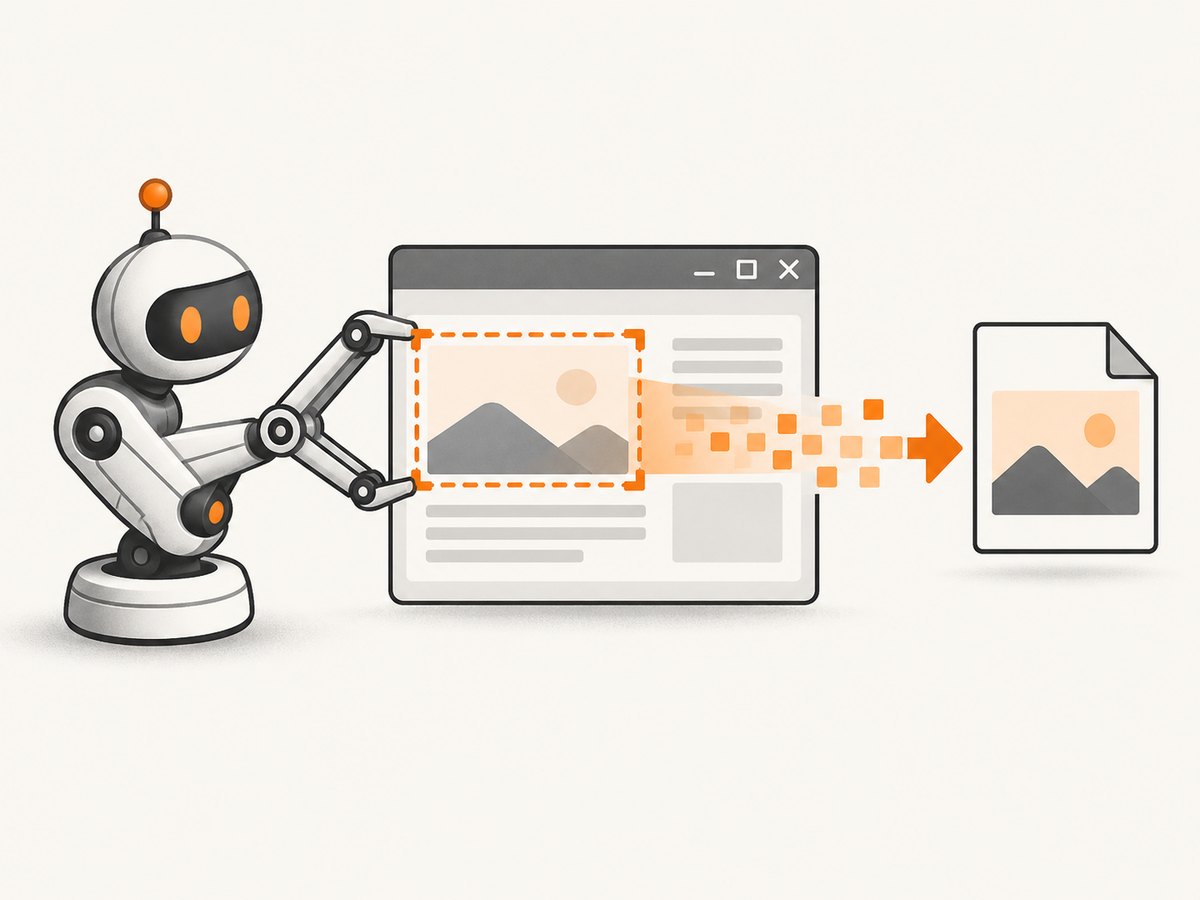
- Find the target window’s bounds using your Windows window-discovery mechanism.
- Convert those bounds to the screen-coordinate system used by Java.
- Construct a
Robot. - Call
createScreenCapturewith aRectangle. - Write the returned
BufferedImageas PNG, JPEG, or another supported format.
Oracle describes createScreenCapture(Rectangle) as creating an image containing pixels read from the screen. The method accepts a rectangle, not an application name or HWND. See the Java Robot API documentation.
Runnable Java example
This program receives the target rectangle as four arguments: x y width height. The coordinates are screen coordinates, so negative values are valid when a monitor is positioned to the left or above the primary display.
import java.awt.AWTException;
import java.awt.Rectangle;
import java.awt.Robot;
import java.awt.image.BufferedImage;
import java.io.File;
import java.io.IOException;
import javax.imageio.ImageIO;

public final class CaptureWindowCrop {
    private CaptureWindowCrop() {}

    public static void main(String[] args) throws IOException {
        if (args.length != 4) {
            System.err.println("Usage: java CaptureWindowCrop <x> <y> <width> <height>");
            System.exit(2);
        }

        int x = Integer.parseInt(args[0]);
        int y = Integer.parseInt(args[1]);
        int width = Integer.parseInt(args[2]);
        int height = Integer.parseInt(args[3]);

        if (width <= 0 || height <= 0) {
            throw new IllegalArgumentException("width and height must be positive");
        }

        Rectangle area = new Rectangle(x, y, width, height);
        try {
            Robot robot = new Robot();
            BufferedImage image = robot.createScreenCapture(area);
            File output = new File("window-capture.png");
            if (!ImageIO.write(image, "png", output)) {
                throw new IOException("No PNG writer is available");
            }
            System.out.println("Wrote " + output.getAbsolutePath());
        } catch (AWTException e) {
            throw new IllegalStateException(
                "The desktop cannot be accessed. Check for a headless environment and permissions.", e);
        }
    }
}
Compile and run it with a rectangle supplied by your window-discovery code:
javac CaptureWindowCrop.java
java CaptureWindowCrop 100 80 1200 800
Getting the target window bounds
Robot does not discover windows. Your application must obtain the bounds separately. Typical choices are:
- Let the user enter or select a rectangle.
- Use a Windows-native window enumeration function to locate a title, process, class, or
HWND, then read its outer bounds. - Use an interop binding to call the Windows APIs from Java.
The research for this guide does not establish a particular Java-to-Win32 library as the best maintained choice, so the discovery layer should be selected and verified for your deployment. Whatever mechanism you use, confirm whether it reports physical pixels, logical pixels, client bounds, or outer window bounds before passing the values to Robot.
2. Why a Robot crop is not a true window capture
| Question | Robot rectangle | Windows.Graphics.Capture |
|---|---|---|
| How is the target selected? | A screen-coordinate rectangle supplied by your code | A display or application capture item; a known window can be targeted from its HWND |
| Does the target need to remain unobscured? | Yes, because it reads visible desktop pixels | It captures the selected graphics item rather than simply cropping the desktop |
| Java implementation effort | Built into desktop Java | Requires Windows-specific native or WinRT interop |
| Platform scope | Desktop Java environments with screen access | Windows.Graphics.Capture on supported Windows desktop devices and Windows Mixed Reality headsets |
| Selection UI | None unless you build one | Microsoft’s picker provides secure system UI for choosing a window or display |
Microsoft’s Screen capture documentation says the Windows.Graphics.Capture namespace acquires frames from a display or application window. The CreateForWindow documentation describes targeting a single window for a graphics capture item.
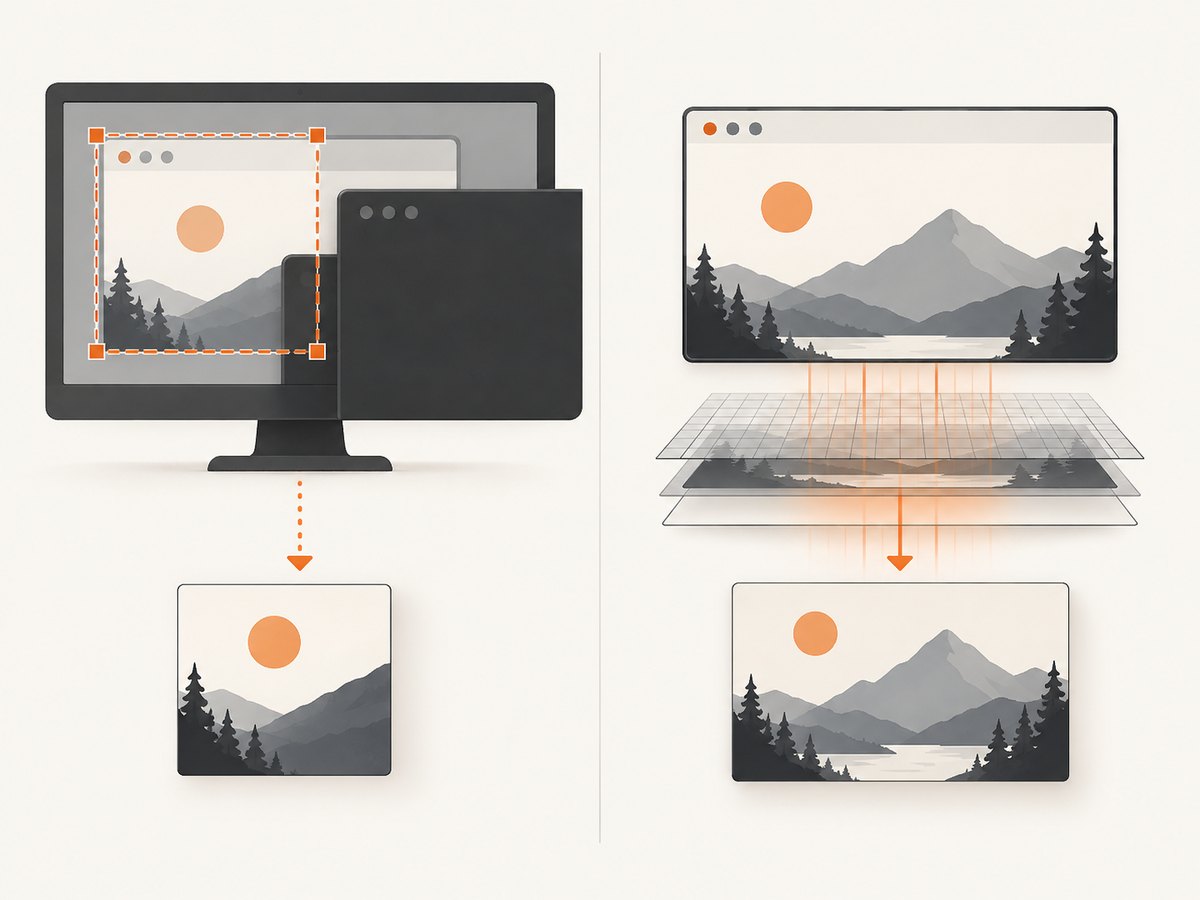
3. Target an HWND with Windows.Graphics.Capture
Choose this route when you need the Windows capture system to target one application window instead of reading whatever pixels happen to be visible in a rectangle.
Requirements and flow
- Obtain the target window’s
HWND. - Check
GraphicsCaptureSession.IsSupported()before starting. - Call
IGraphicsCaptureItemInterop::CreateForWindowwith thatHWND. Microsoft lists Windows 10 version 1903, build 18362, as the minimum supported client for this method. - Create a frame pool and capture session, then consume frames and encode them as images or video.
- Release native resources and stop the session when the window closes.
This is not a Java-only API. A Java application needs a native bridge or WinRT interop layer for the interfaces, types, callbacks, and lifetime management. The official sources describe the Windows API but do not select a specific Java bridge. Treat a bridge choice as a separate compatibility and maintenance decision.
If you use Microsoft’s picker instead of a known HWND, the user selects a window or display through secure system UI. Microsoft documents a yellow border around the actively captured item. In WinUI 3, the picker must be initialized with the app’s window handle before it is invoked.
4. Coordinates, borders, monitors, and high DPI
- Screen origin: A multi-monitor desktop can have negative X or Y coordinates. Do not clamp them to zero.
- Outer versus client bounds: Outer bounds include borders and the title bar. Client bounds contain the application’s content area. Decide which image you need.
- Scaling: Window-discovery APIs and Java display APIs may use different logical-to-device scaling rules. Verify the conversion on every supported DPI configuration.
- Moving windows: Read the bounds immediately before capture if the window can move or resize.
- High-DPI output: Oracle documents
createMultiResolutionScreenCapturefor cases where a user-space to device-space transform exists. Use it when consumers need the available resolution variants; use the regular method when a single logical-size image is sufficient. - Event dispatch thread: Do not perform potentially slow capture and image encoding on the AWT event-dispatch thread. Run it on a worker thread.
5. Permissions and runtime checks
Constructing Robot can throw AWTException in a headless environment. Oracle also documents that screen capture can fail with a SecurityException, or produce undefined image contents, when required desktop access is unavailable.
For Windows.Graphics.Capture, check GraphicsCaptureSession.IsSupported() before creating a session. Also verify your minimum Windows version when using CreateForWindow, and handle a device where graphics capture is unavailable.
Neither method should be treated as a way to bypass protected content or system capture restrictions. The result depends on Windows policy, application behavior, desktop permissions, and the target’s rendering path.
6. Troubleshooting
| Symptom | Likely cause | Fix |
|---|---|---|
AWTException when creating Robot |
The process is headless or has no desktop session | Run in an interactive desktop session, or use a Windows-native capture service designed for your server environment. |
SecurityException or a blank/invalid image |
Desktop capture permission is denied | Review the account, desktop session, and operating-system capture permissions. |
| The image contains another window | Robot captures visible screen pixels and the target was covered | Keep the target unobscured, or move to Windows.Graphics.Capture with an HWND-targeted item. |
| The crop is shifted on a scaled monitor | Logical and physical coordinates were mixed | Make the window-discovery and Java coordinate systems explicit, then test at each display scale. |
| Only part of the app is captured | Client bounds were used when outer bounds were expected, or vice versa | Choose and document the desired bounds and include the title bar and borders only when needed. |
| Capture works on one monitor but not another | Negative origins or per-monitor scaling were ignored | Support negative coordinates and calculate the correct device-space rectangle for each monitor. |
| Windows.Graphics.Capture is unavailable | The device or Windows version does not support it | Check GraphicsCaptureSession.IsSupported() and provide a supported fallback. |
| Native capture session stops unexpectedly | The window closed, resized, or native resources were released too early | Handle frame-pool recreation, window-close events, and native object lifetimes in the interop layer. |
7. Performance, reliability, and cost
- Capture area controls work: Smaller rectangles use less memory and take less time to encode than full-desktop images.
- Encoding is separate work: PNG is lossless but can be CPU-intensive for large screenshots. JPEG is smaller when some loss is acceptable.
- Avoid unnecessary polling: If the window is resized or moved, recalculate bounds on the relevant event instead of repeatedly scanning the desktop.
- Use bounded retries: Retry transient native or file-write failures with a limit, and record the target bounds and display scale for diagnosis.
- Keep capture off UI threads: This prevents the application interface from freezing during capture and encoding.
- Test real deployment conditions: Validate locked sessions, remote desktop sessions, multiple monitors, scaling factors, minimized windows, elevated applications, and protected surfaces.
Java Robot and Windows.Graphics.Capture are local APIs, so there is no per-image service charge from these APIs themselves. Your operational costs come from the machine, storage, encoding, and any native bridge you maintain.
8. Or skip the browser setup
If the thing you need is a screenshot of a web page rather than a native Windows desktop window, ScreenshotNeo provides a single HTTP request for PNG, JPEG, WebP, or PDF output. The API handles browser setup for you.
See the ScreenshotNeo API documentation for the complete option list. Basic calls:
cURL
curl -G "https://api.screenshotneo.com/v1/shot" \
  -d access_key=YOUR_API_KEY \
  --data-urlencode url=https://stripe.com \
  -o shot.webp
Python
import requests

r = requests.get(
    "https://api.screenshotneo.com/v1/shot",
    params={"access_key": "YOUR_API_KEY", "url": "https://stripe.com"},
    timeout=90,
)
r.raise_for_status()
open("shot.webp", "wb").write(r.content)
Node.js
const q = new URLSearchParams({
  access_key: 'YOUR_API_KEY',
  url: 'https://stripe.com'
});
const res = await fetch(`https://api.screenshotneo.com/v1/shot?${q}`);
if (!res.ok) throw new Error(`HTTP ${res.status}`);
const bytes = new Uint8Array(await res.arrayBuffer());
await Bun.write('shot.webp', bytes);
ScreenshotNeo removes cookie and consent banners, newsletter popups, and chat widgets before capture. Bot checks, blank pages, timeouts, failed loads, and cache hits are not billed; response headers identify the page verdict and whether the request was billed. It also offers an MCP server with take_screenshot, get_page_info, and capture_pdf for Claude, Cursor, and other MCP clients. The service includes controls for full-page and element captures, device presets, viewport and retina scale, dark mode, custom CSS and JavaScript, waits, request blocking, headers, cookies, user agent, timezone, geolocation, resizing, caching, signed links, asynchronous jobs, bulk capture, usage reporting, and PDF output.
Free use includes 1,000 screenshots each month with no card. Paid plans start at $5 for 3,000 shots, and every feature is available on every plan. Create a free ScreenshotNeo account.
9. FAQ
Can Java Robot capture a window by title?
No. Robot accepts a screen rectangle. You need a separate window-discovery mechanism to turn a title or process into coordinates.
Will Robot capture a minimized window?
Do not assume it will. Robot reads screen pixels, so a minimized or covered window cannot provide the same result as a visible window surface.
Is an HWND enough for Java to capture the window?
An HWND identifies the target, but Java still needs a Windows interop bridge to call CreateForWindow and consume Windows.Graphics.Capture frames.
Should I capture the client area or the whole window?
Use client bounds for application content only. Use outer bounds when the title bar and borders are part of the screenshot.
Does Windows.Graphics.Capture work on every Windows installation?
No. Check GraphicsCaptureSession.IsSupported(), verify the Windows version requirement for your API path, and handle unsupported devices.


