BlogScreenshots on your device
How to Capture a Still Frame in DaVinci Resolve
Capture the exact frame you need in DaVinci Resolve, export it as PNG or JPG, and troubleshoot missing still commands.
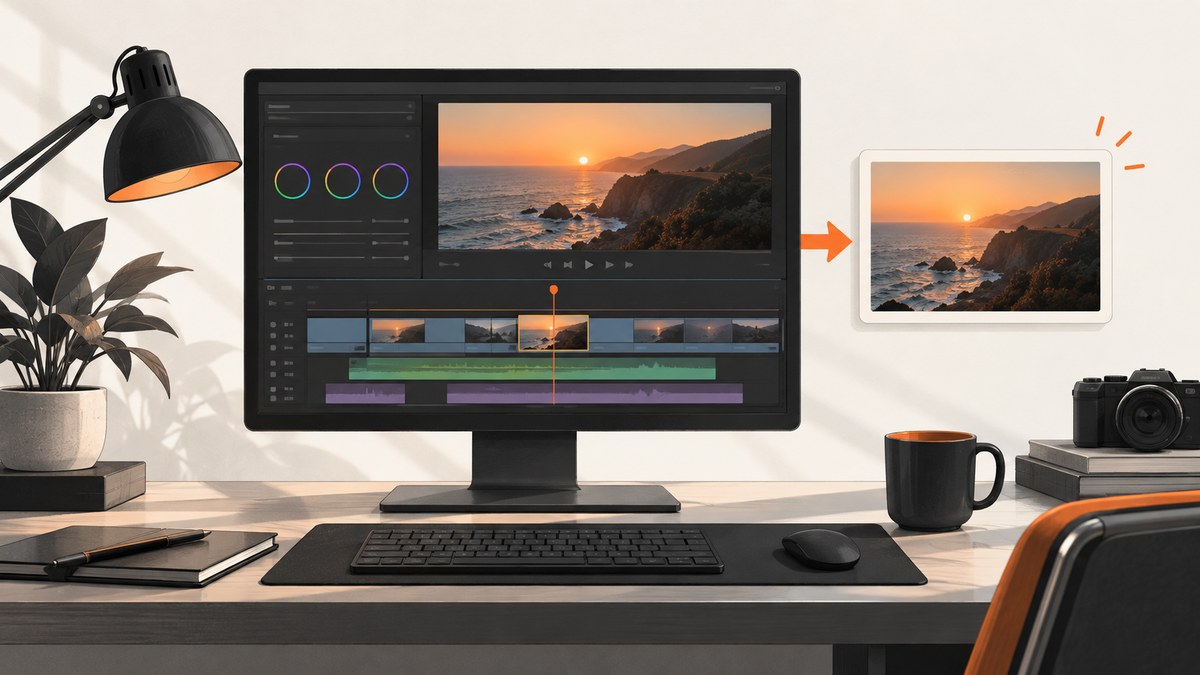
To capture a still frame in DaVinci Resolve: park the playhead on the exact frame, open the Color page, right-click the Viewer, choose Grab Still, then right-click the still in the Gallery and choose Export. Select PNG, JPEG, or another supported format and save the file.
Choose the right capture method
| Method | Best for | Where it saves first |
|---|---|---|
| Grab Still | Color work, references, matching shots, and preserving grading information | Color-page Gallery |
| Current Frame as Still | A quick standalone image export | Directly to an image file |
A Gallery still is a reference image managed by the Color page. It can retain grading metadata with the still. A direct current-frame export is faster when you only need a PNG or JPEG and do not need a Gallery reference.
Method 1: Grab Still from the Color page
- Open the project and select the timeline containing the frame.
- Move the playhead until the Viewer shows the exact frame you want. Use frame-by-frame stepping when precision matters.
- Click the Color page at the bottom of Resolve.
- Right-click inside the Viewer and select Grab Still. You can also use View > Grab Still. On macOS, the documented default shortcut is Option-Command-G.
- Open the Gallery if it is hidden. The captured still appears as a thumbnail.
- Right-click the Gallery thumbnail and choose Export.
- Choose a folder, filename, and format, then confirm the export.
The still captures the frame currently displayed in the Viewer. Check the Viewer after moving the playhead and before grabbing the still so you do not export the adjacent frame.
Supported export formats
Resolve documents DPX, CIN, TIFF, JPEG, PNG, PPM, BMP, and XPM for still export. PNG is a practical choice for lossless graphics and transparency workflows. JPEG is smaller and useful for previews or sharing. DPX, CIN, and TIFF are common choices when a downstream color or finishing workflow requires them.
Method 2: Export the current frame directly
When you do not need a Gallery reference still, use the direct command:
- Park the playhead on the required frame.
- Choose File > Export > Current Frame as Still.
- Set the destination, filename, and image format.
- Save the file.
This route avoids creating a Gallery thumbnail first. If the command is not convenient, Resolve lets you assign a keyboard shortcut to it in the keyboard-customization settings.
Exact-frame checklist
- Confirm the correct timeline and clip are selected.
- Zoom or inspect the timecode so the playhead is on the intended frame.
- Check that the Viewer is showing the image you want, including any color correction or effects.
- Choose PNG for lossless output or JPEG for a smaller file.
- Open the exported file once to verify framing, dimensions, and color.
What changes the exported image?
Color and image processing
A still grabbed from the Color page represents the image shown in that Viewer. Nodes, grades, and other processing visible there affect what you see and therefore what you save. If you need an ungraded source frame, make sure the Viewer is displaying that state before capture.
Viewer overlays
Guides, on-screen controls, and other viewing aids are not the video image. If an overlay appears in the exported file, disable it and capture again. The exact overlay controls depend on the Resolve page and version.
Resolution and aspect ratio
The still follows the displayed frame and project image characteristics. For a deliverable with a particular pixel size, confirm the timeline or source settings before export and inspect the resulting file properties afterward.
Using a control panel
A DaVinci Resolve control panel is optional. Blackmagic’s manual lists pressing GRAB STILL on a compatible Resolve control surface as another way to create a Gallery still. You do not need a control panel for either capture method above.
Common problems and fixes
| Problem | Likely cause | Fix |
|---|---|---|
| There is no “Grab Still” item | You are not on the Color page, or the Viewer context menu is not active. | Switch to Color and right-click directly inside the Viewer. Also check View > Grab Still. |
| The still is not in the Gallery | The Gallery is hidden or a different still was selected. | Show the Gallery, then look for the newest thumbnail. Capture again after confirming the Viewer frame. |
| Export is disabled or unavailable | No Gallery still is selected. | Right-click the captured Gallery thumbnail, not an empty area. |
| The exported image is the wrong frame | The playhead moved, or the Viewer was showing a neighboring frame. | Return to the intended timecode, verify the Viewer, and repeat the capture. |
| The image looks different from the Viewer | Color management, overlays, or display scaling changed what was being viewed. | Disable overlays, verify project color settings, and inspect the saved file in an image viewer. |
| The menu name differs | Resolve versions and operating systems can change menu names and default shortcuts. | Use the command search or keyboard-customization panel, and check the manual for your installed version. |
Performance, reliability, and file-size notes
Still capture is normally a single-frame operation, but complex effects, noise reduction, or clips that are not fully cached can make Resolve take longer to display the final frame. Wait until the Viewer has finished updating before grabbing or exporting. PNG preserves detail but can be larger; JPEG exports faster to share and usually produces a smaller file. For repeated captures, use a consistent naming scheme such as scene_014_frame_002381.png and verify that the destination has enough free space.
Automating screenshots outside Resolve
Resolve’s still tools are for frames inside a Resolve project. If you instead need screenshots of web pages for documentation, previews, or automated workflows, ScreenshotNeo provides a website screenshot API and MCP server.
Or skip the browser setup
For a web page screenshot, make one GET request to ScreenshotNeo’s API. See the ScreenshotNeo documentation for all options.

curl -G "https://api.screenshotneo.com/v1/shot" -d access_key=YOUR_API_KEY --data-urlencode url=https://stripe.com -o shot.webpimport requests
r = requests.get("https://api.screenshotneo.com/v1/shot", params={"access_key": "YOUR_API_KEY", "url": "https://stripe.com"}, timeout=90)
open("shot.webp", "wb").write(r.content)const q = new URLSearchParams({ access_key: 'YOUR_API_KEY', url: 'https://stripe.com' });
const res = await fetch(`https://api.screenshotneo.com/v1/shot?${q}`);ScreenshotNeo removes cookie banners, newsletter popups, and chat widgets before the shot. Bot checks, blank pages, failed loads, timeouts, and cache hits are not billed, and response headers identify the page verdict and billing result. Its MCP server lets AI agents use take_screenshot, get_page_info, and capture_pdf. The Free plan includes 1,000 screenshots per month with no card; paid plans start at $5 for 3,000 screenshots.
Sign up free for ScreenshotNeo and get 1,000 screenshots a month with no card.
FAQ
Do I need the Color page?
You need the Color page for Grab Still. You do not need it for File > Export > Current Frame as Still.
Can I save a still as PNG or JPG?
Yes. PNG and JPEG are documented still-export formats, along with DPX, CIN, TIFF, PPM, BMP, and XPM.
Does Grab Still export a file immediately?
No. Grab Still creates a Gallery reference still first. Export the Gallery thumbnail to write the image file.
Can I assign a shortcut?
Yes. A shortcut can be assigned to the direct Current Frame as Still command through Resolve’s keyboard customization.
Why can’t I find the same menu in my version?
Menu names and default shortcuts can change between Resolve versions and operating systems. Check the documentation for your installed version and try command search.


