BlogScreenshots on your device
How to Capture Transparent Windows with Java on Linux
Use Java Robot for visible pixels, and choose X11 or Wayland native paths when you need a window’s original transparency.

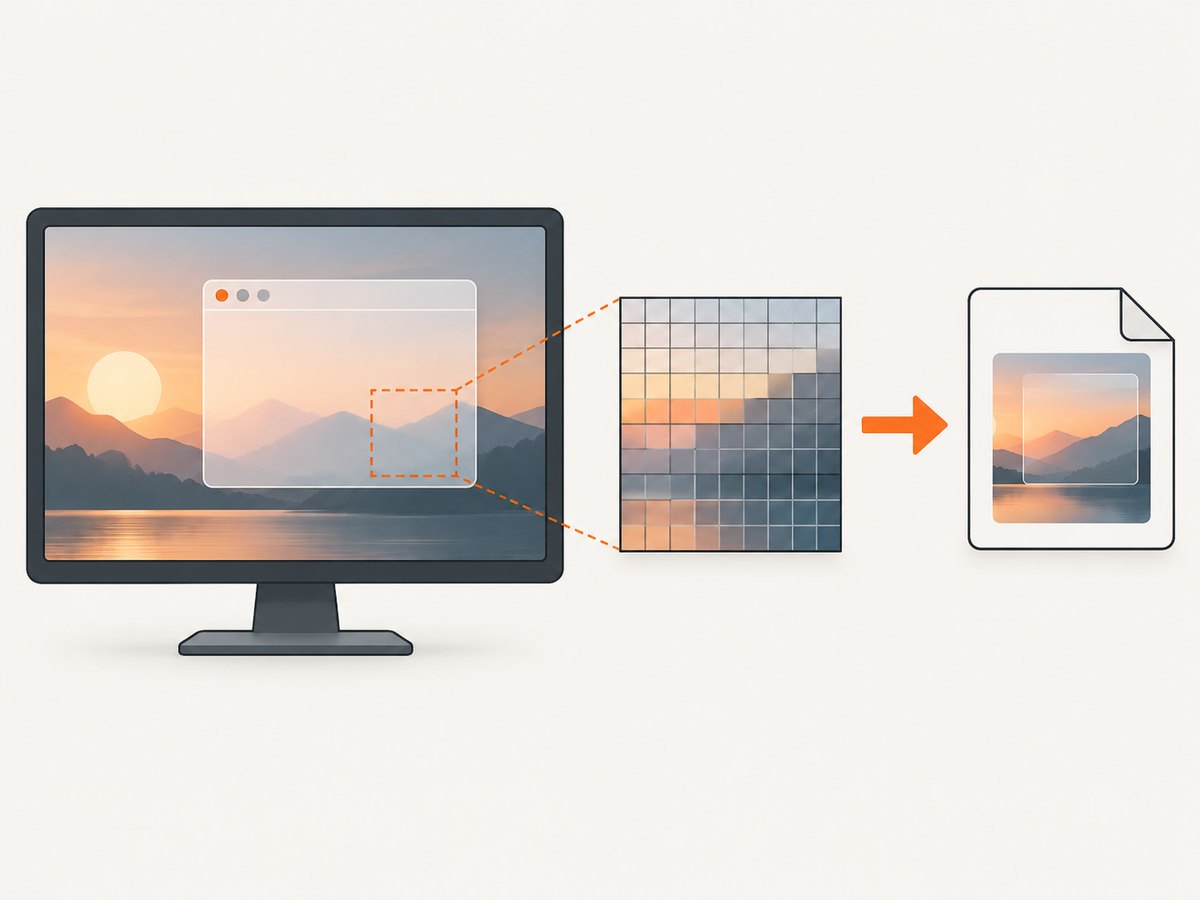
Short answer: Java’s java.awt.Robot captures the pixels currently displayed on screen. Those pixels already include the desktop compositor’s background, so Robot does not provide a portable way to extract a window’s original per-pixel alpha. Use Robot when you need the window as it looks on screen. If you need a transparent PNG-like layer, use a platform-specific window-surface path: native X11 integration on X11, or the XDG desktop portal and PipeWire on Wayland.
Oracle describes Robot.createScreenCapture as creating “an image containing pixels read from the screen.” Read the Java SE API documentation for the exact contract.
1. Decide which transparency you need
| Requirement | Correct interpretation | Likely approach |
|---|---|---|
| How the window looks against its current desktop | Composited screen pixels, including the background behind translucent areas | Robot.createScreenCapture |
| A reusable image with transparent pixels preserved | The window’s uncomposited surface or native backing buffer | Platform-specific native integration; Robot alone is not sufficient |
| A one-off user-approved screenshot on Wayland | Desktop-mediated capture of a screen, window or area | XDG Screenshot portal |
| A stream for ongoing capture on Wayland | PipeWire stream selected through a portal session | XDG ScreenCast portal |
A screenshot of a translucent window is therefore not automatically an image with alpha. Once the compositor has blended the window with the desktop, the background is part of the captured pixels.
2. Capture the visible window with Java Robot
This example captures a rectangle containing a window and writes a PNG. It is a screen capture, so anything composited underneath the window remains in the result.
import java.awt.AWTException;
import java.awt.Rectangle;
import java.awt.Robot;
import java.awt.image.BufferedImage;
import java.io.IOException;
import java.nio.file.Path;
import javax.imageio.ImageIO;

public class CaptureWindow {
    public static void main(String[] args) throws AWTException, IOException {
        // Replace these with the window's screen coordinates.
        int x = 100;
        int y = 100;
        int width = 900;
        int height = 650;

        if (width <= 0 || height <= 0) {
            throw new IllegalArgumentException("Capture dimensions must be positive");
        }

        Robot robot = new Robot();
        Rectangle area = new Rectangle(x, y, width, height);
        BufferedImage image = robot.createScreenCapture(area);
        ImageIO.write(image, "png", Path.of("window.png").toFile());
    }
}
Compile and run it with a desktop session available:
javac CaptureWindow.java
java CaptureWindow
Capture a JFrame’s visible bounds
import java.awt.Rectangle;
import java.awt.Robot;
import java.awt.image.BufferedImage;
import javax.imageio.ImageIO;
import javax.swing.JFrame;

// With an existing frame named frame:
Robot robot = new Robot();
Rectangle bounds = frame.getBounds();
BufferedImage image = robot.createScreenCapture(bounds);
ImageIO.write(image, "png", new java.io.File("frame.png"));
The frame bounds are screen coordinates for the visible desktop capture. They do not turn the frame into an independently transparent layer.
Keep capture work off the AWT event-dispatch thread
Screen reads and image encoding can take time. Run them in a worker thread so painting and input remain responsive.
new Thread(() -> {
    try {
        Robot robot = new Robot();
        BufferedImage image = robot.createScreenCapture(
            new Rectangle(100, 100, 900, 650));
        ImageIO.write(image, "png", new java.io.File("window.png"));
    } catch (Exception e) {
        e.printStackTrace();
    }
}, "screen-capture").start();
3. Linux display-server differences
X11
Robot behavior depends on the JDK, X server, window manager and compositor. An OpenJDK issue documents a composite-X11 failure mode in which the Robot implementation uses the default root window rather than the final composited desktop. In that situation, transparent or translucent regions can appear black. This is a reported implementation path, not proof that every X11 setup fails.
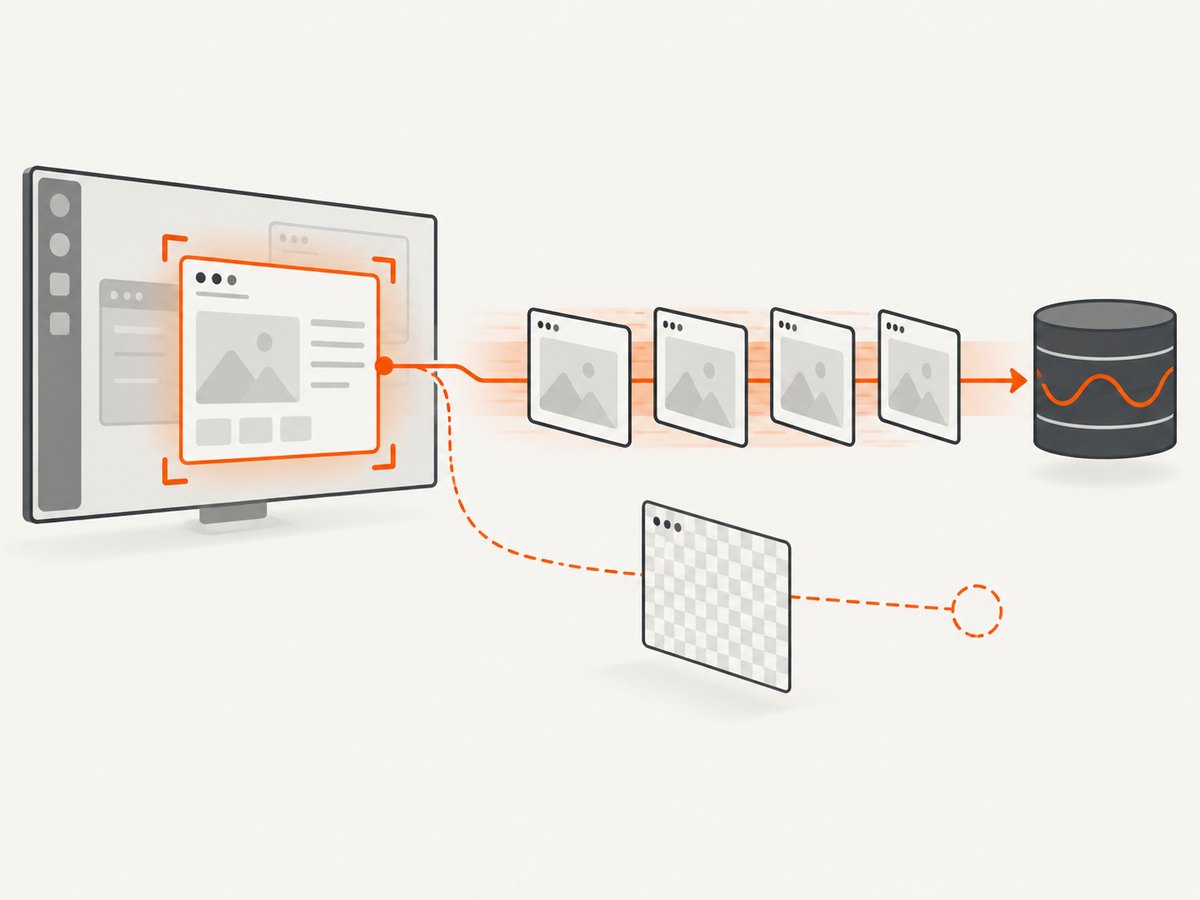
If you need the original window surface or alpha on X11, investigate native X11/compositor integration for the exact environment. The supplied sources do not establish one Java call that works for every X11 compositor and window type.
Wayland
Wayland places capture behind desktop-mediated permissions. The XDG ScreenCast portal creates a session, lets the user select sources, starts the session and returns PipeWire streams. Monitor and window source types are supported. The documentation does not promise that a selected window stream preserves its original alpha channel.
A Java application normally needs a D-Bus/portal and PipeWire integration, a binding, or a native helper. The XDG Screenshot portal is suitable for a user-approved one-off image request and defines screen, window, area and active-window targets. Its interface description does not establish that the returned image contains the source window’s uncomposited alpha.
4. Handle scaling, coordinates and output format
- Coordinate space: pass the rectangle in the screen coordinate system used by the target display and window bounds.
- HiDPI: logical coordinates and device pixels can differ. Robot exposes multi-resolution behavior where a native-device-resolution image may be available when a user-space scaling transform exists.
- Multiple monitors: verify the monitor origin, including negative X or Y coordinates, before constructing the rectangle.
- Image format: PNG preserves the captured image’s color model, but it cannot restore alpha that the compositor already replaced with background pixels.
- Window movement: capture immediately after resolving bounds; a window can move between lookup and capture.
5. Permissions and failure handling
Desktop environments can block reading desktop or window content, including content outside your application. Oracle documents that capture can fail or return undefined content when required permission is unavailable.
try {
    Robot robot = new Robot();
    BufferedImage image = robot.createScreenCapture(area);
    if (image == null) {
        throw new IllegalStateException("The desktop returned no image");
    }
    ImageIO.write(image, "png", output.toFile());
} catch (AWTException e) {
    throw new IllegalStateException("Robot is unavailable in this desktop session", e);
} catch (SecurityException e) {
    throw new IllegalStateException("Screen capture permission was denied", e);
} catch (java.io.IOException e) {
    throw new IllegalStateException("Could not write the screenshot", e);
}
6. Troubleshooting
| Symptom | Cause | Fix |
|---|---|---|
AWTException when constructing Robot |
No usable graphical desktop or capture support | Run inside the intended desktop session and verify the JDK’s AWT environment. |
SecurityException or denied capture |
Desktop or application permission blocks screen reads | Grant the required permission or use the desktop portal’s user-mediated flow. |
| Transparent area is filled with the wallpaper | Robot captured composited screen pixels | Use a native window-surface path if you require original alpha. |
| Black regions on X11 | Reported Robot/default-root behavior on some composite setups | Check the exact JDK, X server and compositor; evaluate native integration. |
| Wayland capture never starts | Portal session or source selection was not completed | Use the ScreenCast/Screenshot portal and handle its user-selection lifecycle. |
| Screenshot is offset or clipped | Logical/device coordinate mismatch or incorrect monitor origin | Log window bounds and display transforms; test each monitor separately. |
| Captured window changed during the shot | Window moved, resized or was occluded | Capture promptly, pause layout changes if possible, and retry when the bounds are stable. |
| Output file is empty or corrupt | Image encoding or filesystem failure | Check the return value from ImageIO.write, destination permissions and available disk space. |
7. Choosing an implementation
| Axis | Robot | Wayland portal/PipeWire | Native window integration |
|---|---|---|---|
| Output | Visible composited pixels | Desktop-approved stream or image | Potential access to a window surface, depending on platform |
| Scope | Any rectangle you can address | User-selected screen, window or area | Platform and compositor dependent |
| Authorization | Desktop capture permissions | Usually an explicit user-selection dialog | Native permissions and integration requirements |
| Integration cost | Java desktop API | D-Bus portal plus PipeWire integration | Java plus native bindings or helper code |
| Alpha guarantee | No | Not established by the cited documentation | Must be verified for the target environment |
8. Performance, reliability and cost considerations
- Capture only the required rectangle to reduce memory use and encoding time.
- PNG encoding is lossless but can be slower and larger than JPEG; choose based on whether edge quality or transfer size matters.
- Do not assume a window is fully visible. Occlusion, minimized state and compositor policy affect screen pixels.
- Retry transient portal or desktop errors, but avoid retry loops when permission is denied.
- Record the JDK version, display server, compositor, scaling factor and capture coordinates with diagnostics.
- For repeated captures, compare image dimensions and color model so display changes do not silently alter downstream processing.
9. Or skip the browser setup
If you need screenshots of web pages rather than the local Linux desktop, ScreenshotNeo returns a PNG, JPEG, WebP or PDF from one GET request. It removes cookie and consent banners, newsletter popups and chat widgets before capture. Bot checks, blank pages, timeouts, failed loads and cache hits are not billed, and response headers identify the page verdict and billing status.
See the ScreenshotNeo API documentation for all options. A minimal request:
curl -G "https://api.screenshotneo.com/v1/shot" -d access_key=YOUR_API_KEY --data-urlencode url=https://stripe.com -o shot.webpimport requests
r = requests.get("https://api.screenshotneo.com/v1/shot", params={"access_key": "YOUR_API_KEY", "url": "https://stripe.com"}, timeout=90)
open("shot.webp", "wb").write(r.content)const q = new URLSearchParams({ access_key: 'YOUR_API_KEY', url: 'https://stripe.com' });
const res = await fetch(`https://api.screenshotneo.com/v1/shot?${q}`);ScreenshotNeo also supports full-page and element capture, dark mode, device presets, custom viewports, retina scale, PDF settings, custom CSS and JavaScript, waits, request blocking, headers, cookies, user agents, geolocation, caching, signed links, asynchronous webhooks, bulk capture and an MCP server for AI agents. The Free plan includes 1,000 screenshots each month with no card; paid plans start at $5 for 3,000. Create a free ScreenshotNeo account.
10. FAQ
Does Robot preserve a transparent window’s alpha channel?
No. It reads the pixels displayed by the screen compositor. Use a native surface route when independent alpha is required.
Can Java Robot capture a window on Wayland?
It depends on the desktop and permissions. For documented Wayland capture, use the XDG Screenshot or ScreenCast portal rather than assuming Robot has unrestricted access.
Why does the screenshot show the wallpaper behind the window?
That is the expected result when the window is translucent: the compositor has already blended the wallpaper into the displayed pixels.
Is an X11 workaround portable?
No universal workaround is established here. Validate the exact JDK, X server, compositor and window type.
What should I test before shipping?
Test X11 and Wayland separately, with and without scaling, on each supported compositor. Verify permissions, multi-monitor coordinates, minimized or occluded windows, output dimensions and whether the required result is composited pixels or original alpha.


