BlogScreenshots on your device
How to Capture Video Playing in a Browser
Record a browser video with Windows, macOS, OBS, or JavaScript. Learn how to capture tab audio, fix black screens, and handle permissions.
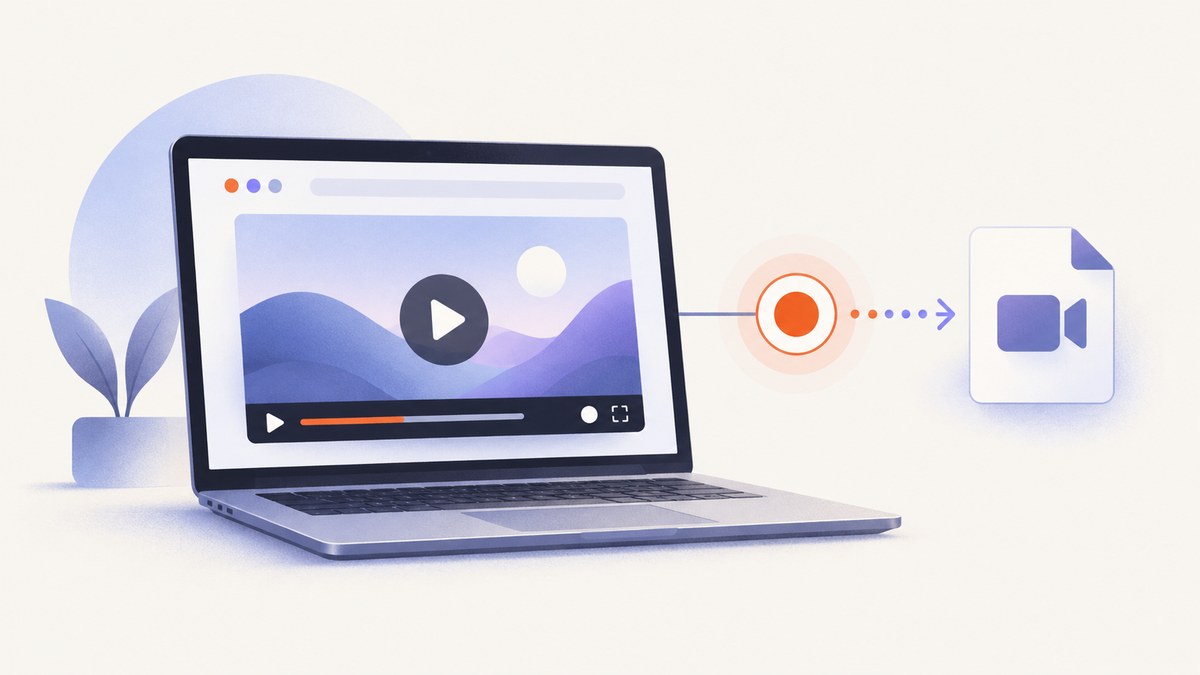
For a one-off recording on the same computer, use the operating system recorder. On Windows, press Win+Shift+R to open Snipping Tool’s video recorder, select the browser area, then start and stop the capture. On macOS, press Shift+Command+5, choose the full screen or a selected portion, select an audio option, and record.
Use OBS Studio when you need repeatable recordings, multiple sources, scenes, or more control over audio. If you are building a web application, getDisplayMedia() asks the user to choose a tab, window, or screen, and MediaRecorder saves the resulting stream. Browser audio support varies, so make a short test recording before relying on it.
Choose the right capture method
| Method | Best for | Audio | Limitation |
|---|---|---|---|
| Windows Snipping Tool | Fast rectangular clip | Depends on system and app configuration | Features vary by Windows build |
| macOS Screenshot or QuickTime | Fast Mac capture | Microphone option; system audio depends on macOS and the source | Some applications refuse window recording |
| OBS Studio | Repeatable jobs, scenes, multiple sources | Flexible source mixing | More setup and source configuration |
getDisplayMedia() |
A recorder you are developing in the browser | Varies by browser and selected source | Requires a user gesture and permission prompt |
| HDMI capture card | Video playing on another HDMI device | Depends on the source and card | Extra hardware; unnecessary for the same computer |
Record a browser video on Windows
- Open the video and pause it at the point where you want to begin.
- Press Win+Shift+R, or open Snipping Tool and choose Record.
- Drag a rectangle around the browser player. Include the controls only if you need them.
- Choose Start, play the video, then choose Stop.
- Save the clip or open it in Clipchamp for trimming.
Make a five-second test first. Play audio during the test and confirm that the saved file contains the expected sound. Windows audio routing and application privacy settings can change what is recorded.
Record a browser video on macOS
- Open the video and resize the browser so the player is easy to select.
- Press Shift+Command+5.
- Choose Record Entire Screen or Record Selected Portion.
- Open Options and select a microphone when you need narration.
- Choose Record. Stop from the menu-bar control when the clip is complete.
QuickTime Player provides another path: choose File → New Screen Recording, select the full screen or a portion, then record. Apple notes that some applications, including Apple TV, may refuse window recording. If a selected window is black, try recording the display or a browser region instead.
Use OBS Studio for repeatable recordings
- Install OBS Studio and create a scene.
- Add Window Capture or the OS-appropriate browser/display capture source.
- Crop the source to the video player if you do not want the rest of the desktop.
- Add the intended audio source. Check the level meter while the video plays.
- Preview for a few seconds, then choose Start Recording.
- Stop the recording and inspect both the picture and audio before creating a long capture.
Window or application capture keeps unrelated desktop content out of the recording when the operating system supports it. On macOS 13 and newer, OBS marks the legacy Display Capture source as deprecated and directs users to macOS Screen Capture; macOS 10.15–12.6 retain the older source path. See the OBS macOS screen-capture documentation.
Build a browser recorder with JavaScript
getDisplayMedia() opens a browser chooser for a tab, window, or screen. The call must happen during a transient user action such as a button click; permission cannot be silently reused. The returned MediaStream can be passed to MediaRecorder. See MDN’s getDisplayMedia reference, MDN’s MediaRecorder reference, and Chrome’s screen-capture guidance.
<!doctype html>
<button id="start">Start recording</button>
<button id="stop" disabled>Stop</button>
<a id="download" hidden>Download recording</a>
<script>
let stream;
let recorder;
const chunks = [];
const start = document.querySelector('#start');
const stop = document.querySelector('#stop');
const download = document.querySelector('#download');

start.addEventListener('click', async () => {
  try {
    stream = await navigator.mediaDevices.getDisplayMedia({
      video: true,
      audio: true,
      // Chrome treats this as a preference, not a guarantee.
      systemAudio: 'include'
    });

    const mime = MediaRecorder.isTypeSupported('video/webm;codecs=vp9,opus')
      ? 'video/webm;codecs=vp9,opus'
      : 'video/webm';
    chunks.length = 0;
    recorder = new MediaRecorder(stream, { mimeType: mime });
    recorder.ondataavailable = event => {
      if (event.data.size > 0) chunks.push(event.data);
    };
    recorder.onstop = () => {
      const blob = new Blob(chunks, { type: recorder.mimeType });
      download.href = URL.createObjectURL(blob);
      download.download = 'browser-video.webm';
      download.hidden = false;
      stream.getTracks().forEach(track => track.stop());
    };
    stream.getVideoTracks()[0].addEventListener('ended', () => {
      if (recorder.state !== 'inactive') recorder.stop();
    });
    recorder.start(1000);
    start.disabled = true;
    stop.disabled = false;
  } catch (error) {
    console.error(error);
    alert(`${error.name}: ${error.message}`);
  }
});

stop.addEventListener('click', () => {
  if (recorder && recorder.state !== 'inactive') recorder.stop();
  start.disabled = false;
  stop.disabled = true;
});
</script>
Serve this page from a secure context such as HTTPS or localhost. The user must choose the browser tab or window in the chooser. If the selected source ends, the stream’s video track emits ended; stop the recorder and release every track.
Audio details
audio: true requests audio; it does not promise that a system-audio track will be returned. Support differs by browser, operating system, recorder, and source. systemAudio: 'include' is a hint. Inspect stream.getAudioTracks().length and make a test recording. If there is no audio track, offer microphone recording or capture audio separately and mix it during editing.
Chrome extension capture
For an extension, Chrome documents a chrome.tabCapture flow that starts after a user gesture. In Chrome 116 and later, a service worker can coordinate with an offscreen document. A content-script recorder ends on navigation, so move the recording work to the offscreen document when the tab may navigate.
Capture a video playing on another device
A capture card is appropriate when the browser is running on a different computer, tablet, console, or other HDMI-output device. Route HDMI from that device into the card, connect the card to the recording computer over USB, add the card as a video source in OBS or the vendor application, and verify the audio input. Elgato describes HD60 X as an external USB-C capture card compatible with Windows, Mac, iPad, and OBS, while marking it discontinued and naming 4K S as its successor. Check the manufacturer’s current models and availability before buying.
You do not need a capture card when the browser and recorder run on the same computer.
Or skip the browser setup
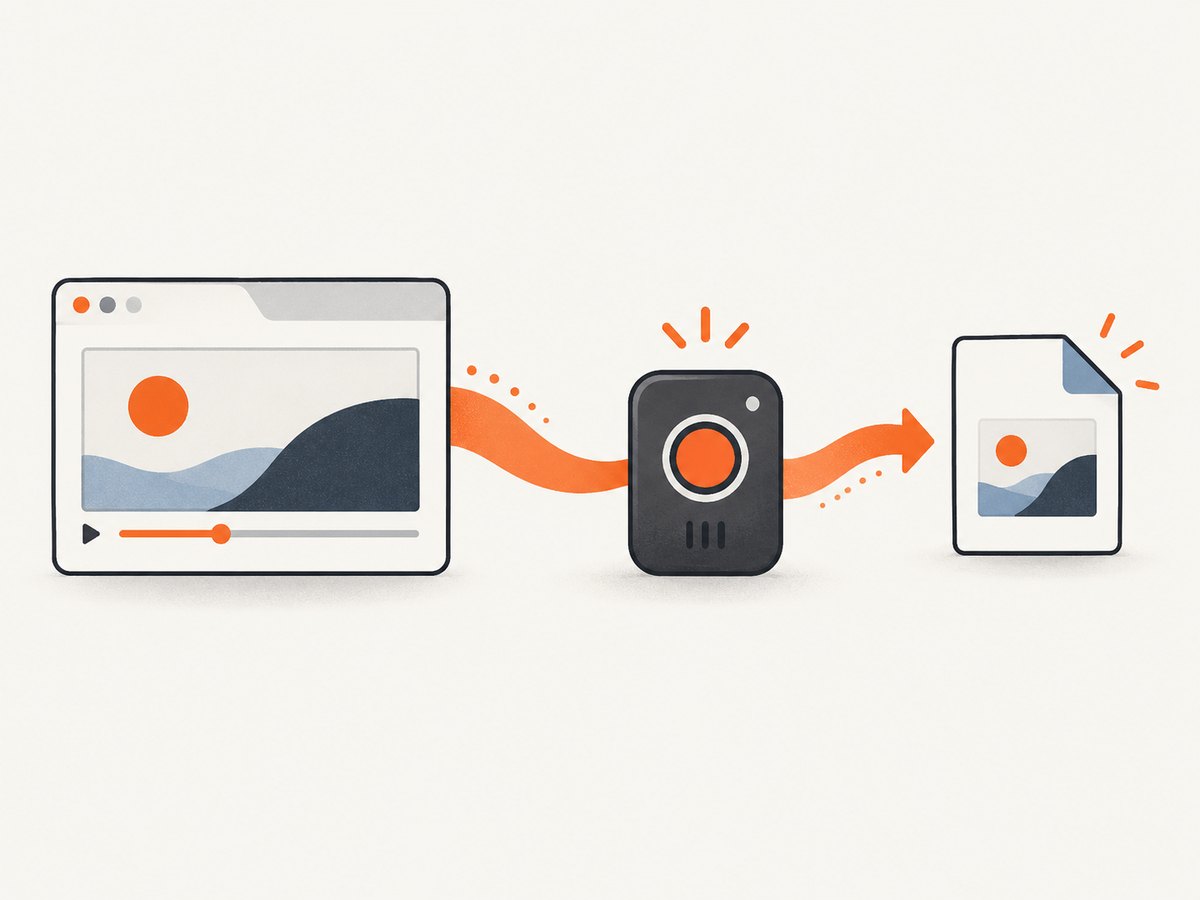
ScreenshotNeo captures a webpage as a PNG, JPEG, WebP, or PDF; it does not record a video’s moving frames. It is useful when you need a still image of the page containing a player, a poster frame, or a repeatable visual snapshot instead of a time-based recording.
curl -G "https://api.screenshotneo.com/v1/shot" -d access_key=YOUR_API_KEY --data-urlencode url=https://example.com/video-page -o shot.webpimport requests
r = requests.get("https://api.screenshotneo.com/v1/shot", params={"access_key": "YOUR_API_KEY", "url": "https://example.com/video-page"}, timeout=90)
open("shot.webp", "wb").write(r.content)const q = new URLSearchParams({ access_key: 'YOUR_API_KEY', url: 'https://example.com/video-page' });
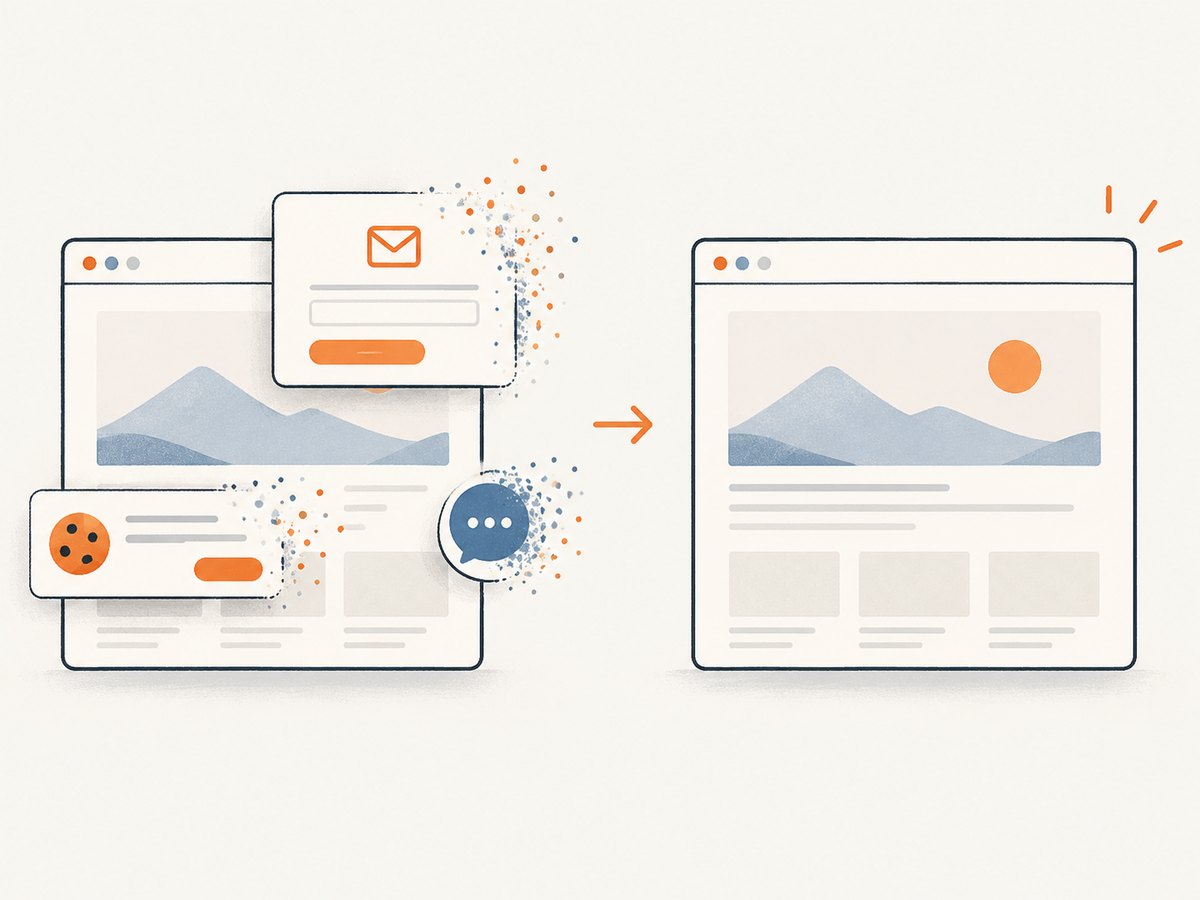
const res = await fetch(`https://api.screenshotneo.com/v1/shot?${q}`);See the ScreenshotNeo API documentation for request options. Before the capture, cookie and consent banners are accepted and more than 60 known consent platforms, newsletter popups, and chat widgets can be removed. Bot checks, blank pages, failed loads, timeouts, and cache hits are not billed; response headers identify the page verdict and whether the request was billed. An MCP server provides take_screenshot, get_page_info, and capture_pdf tools for Claude, Cursor, and other MCP clients. The free plan includes 1,000 screenshots each month without a card; paid plans start at $5 for 3,000 shots. Create a free ScreenshotNeo account.
Troubleshooting
| Symptom | Likely cause | Fix |
|---|---|---|
| Permission prompt never appears | The call was not made from a user gesture, or permission was denied | Call getDisplayMedia() directly inside a click or keyboard handler and retry after restoring site permission. |
NotAllowedError |
User cancelled the chooser or policy blocked capture | Choose a source, check browser and operating-system screen-recording permissions, and retry. |
NotFoundError |
No capture source is available | Use a normal browser tab or display and confirm that the OS exposes a screen. |
NotReadableError |
The selected source is locked by another application or the OS | Close competing recorder software, unlock the source, and try another capture target. |
| Black preview or file | Protected window, unsupported source, or GPU/privacy restriction | Select the browser tab or whole display instead of the protected application window; check OS permissions. |
| Video has no sound | No audio track was returned, or OBS selected the wrong source | Inspect audio tracks, select tab/system audio when offered, verify OBS meters, and make a short test. |
| Recording stops after navigation | Content-script or tab stream ended | For extensions, move recording to an offscreen document and handle the track’s ended event. |
| File is too large or playback is choppy | High resolution, frame rate, or bitrate | Record only the player region, lower output settings, close competing workloads, and split long sessions. |
Performance, reliability, and cost
- Performance: Recording a selected browser region uses fewer pixels than recording the entire display. Keep the player at the resolution you actually need and avoid unnecessary high frame rates.
- Reliability: Test picture and audio for a few seconds, watch for the selected source ending, and save recordings promptly. Long recordings can be lost if the browser or computer crashes.
- Permissions: Screen capture is intentionally user-mediated. There is no reliable silent background capture through
getDisplayMedia(). - Protected content: Some applications and services block window capture. Do not assume every streaming player can be recorded.
- Cost: Built-in recorders and OBS have no per-minute API charge. Hardware capture adds equipment cost. ScreenshotNeo charges only for billable clean screenshots; its free tier includes 1,000 per month.
FAQ
Can I record only a browser tab?
Yes. In the getDisplayMedia() chooser, select the tab when the browser offers tab capture. Desktop recorders can instead record a selected rectangle or browser window.
Can I capture browser audio without microphone narration?
Sometimes. Tab or system audio support depends on the browser, operating system, and selected source. Check for an audio track and test before recording the complete video.
Why is the browser video black?
The player or application may block capture, or the OS may deny screen-recording access. Try the browser tab or whole display source and verify permissions.
Does a capture card improve same-computer recording?
No. It is intended for an external HDMI source. OBS or the built-in recorder is simpler when the browser and recorder share a computer.
Can ScreenshotNeo record the video itself?
No. ScreenshotNeo returns still screenshots or PDFs of webpages. Use it for a poster frame or page snapshot; use a screen recorder for moving video and audio.


