BlogScreenshots on your device
How to Capture Screenshots from a Video Source in Electron
Capture a decoded Electron video frame by drawing it to canvas, then export PNG, JPEG, WebP, or a file with reliable cleanup and timing.
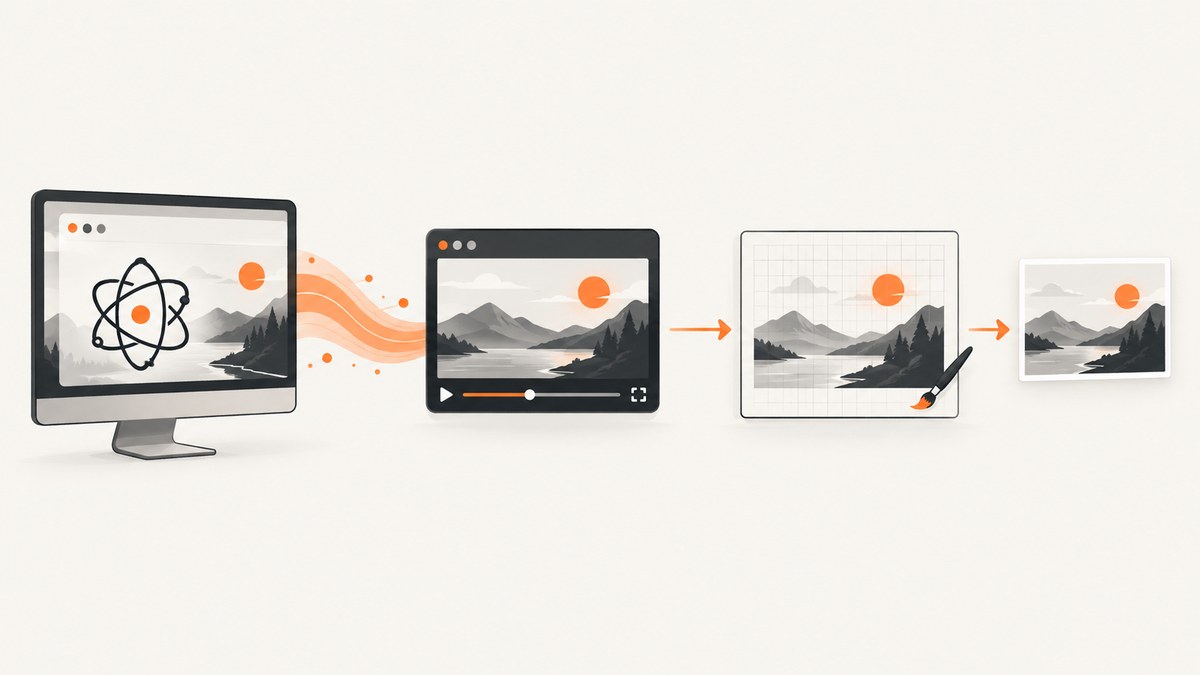
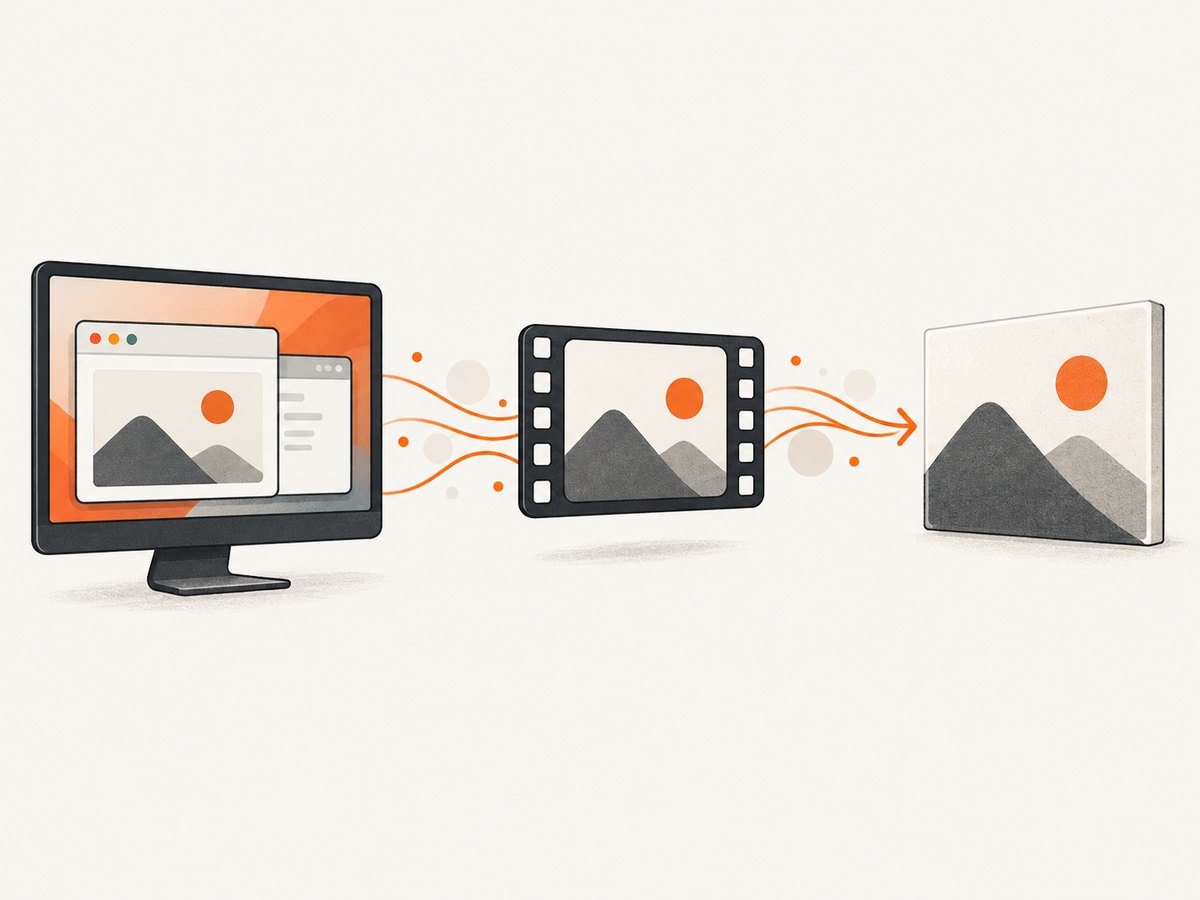
Direct answer: In Electron, obtain a desktop or window MediaStream, attach it to an HTML <video>, wait for a decoded frame, draw that frame into a canvas, and export the canvas as PNG, JPEG, WebP, or a Blob. Electron supplies the stream; the renderer performs the screenshot operation.
The complete flow is: choose a source with desktopCapturer.getSources() or let getDisplayMedia() open the system picker; assign the stream to video.srcObject; call video.play(); wait for usable intrinsic dimensions; call ctx.drawImage(video, 0, 0, width, height); encode the canvas; then stop every video track.
Electron documents the source APIs in its desktopCapturer documentation and display-media request handler documentation. The canvas operation follows MDN guidance for drawImage() and canvas encoding.
1. Complete Electron example
This example uses a preload bridge, context isolation, the system display picker, a video preview, one-frame capture, PNG download, and cleanup.
Project files
electron-video-shot/
  package.json
  main.js
  preload.js
  index.html
  renderer.js
package.json
{
  'name': 'electron-video-shot',
  'version': '1.0.0',
  'main': 'main.js',
  'scripts': { 'start': 'electron .' },
  'devDependencies': { 'electron': 'latest' }
}
main.js
const { app, BrowserWindow, desktopCapturer, session } = require('electron');
const path = require('node:path');

function createWindow() {
  const win = new BrowserWindow({
    width: 1100,
    height: 800,
    webPreferences: {
      preload: path.join(__dirname, 'preload.js'),
      contextIsolation: true,
      nodeIntegration: false
    }
  });
  win.loadFile('index.html');
}

app.whenReady().then(() => {
  // Choose a source automatically. Replace this with a user-facing picker
  // when the application must let users choose a specific window or screen.
  session.defaultSession.setDisplayMediaRequestHandler(async (request, callback) => {
    const sources = await desktopCapturer.getSources({
      types: ['screen', 'window'],
      thumbnailSize: { width: 320, height: 200 }
    });
    const source = sources[0];
    callback(source ? { video: source } : {});
  });

  createWindow();
  app.on('activate', () => {
    if (BrowserWindow.getAllWindows().length === 0) createWindow();
  });
});

app.on('window-all-closed', () => {
  if (process.platform !== 'darwin') app.quit();
});
The request handler lets the main process preselect a source returned by desktopCapturer.getSources(). For an interactive operating-system picker, remove the handler and call navigator.mediaDevices.getDisplayMedia() in the renderer. Electron notes that getDisplayMedia() does not accept a deviceId for silently selecting a display source.
preload.js
const { contextBridge } = require('electron');

contextBridge.exposeInMainWorld('captureAPI', {
  appName: 'Electron video capture'
});
index.html
<!doctype html>
<html lang='en'>
<head>
  <meta charset='utf-8'>
  <title>Electron video screenshot</title>
  <style>
    video { max-width: 800px; background: #111; }
    canvas { display: none; }
    img { max-width: 800px; display: block; margin-top: 1rem; }
  </style>
</head>
<body>
  <button id='start'>Start capture</button>
  <button id='shot' disabled>Capture PNG</button>
  <button id='stop' disabled>Stop</button>
  <a id='download' hidden>Download PNG</a>
  <video id='preview' autoplay muted playsinline></video>
  <canvas id='frame'></canvas>
  <img id='result' alt='Captured frame preview'>
  <script src='renderer.js'></script>
</body>
</html>
renderer.js
const video = document.querySelector('#preview');
const canvas = document.querySelector('#frame');
const result = document.querySelector('#result');
const download = document.querySelector('#download');
const startButton = document.querySelector('#start');
const shotButton = document.querySelector('#shot');
const stopButton = document.querySelector('#stop');
const ctx = canvas.getContext('2d', { alpha: false });
let stream = null;

async function waitForVideoData() {
  if (video.readyState >= HTMLMediaElement.HAVE_CURRENT_DATA) return;
  await new Promise((resolve, reject) => {
    const onData = () => { cleanup(); resolve(); };
    const onError = () => { cleanup(); reject(new Error('Video failed to decode')); };
    const cleanup = () => {
      video.removeEventListener('loadeddata', onData);
      video.removeEventListener('error', onError);
    };
    video.addEventListener('loadeddata', onData, { once: true });
    video.addEventListener('error', onError, { once: true });
  });
}

async function startCapture() {
  stream = await navigator.mediaDevices.getDisplayMedia({
    video: { frameRate: { ideal: 30, max: 60 } },
    audio: false
  });
  video.srcObject = stream;
  await video.play();
  await waitForVideoData();
  if (!video.videoWidth || !video.videoHeight) {
    throw new Error('No decoded video frame is available yet');
  }
  shotButton.disabled = false;
  stopButton.disabled = false;
  stream.getVideoTracks()[0].addEventListener('ended', stopCapture, { once: true });
}

function capturePng() {
  if (!video.videoWidth || !video.videoHeight) {
    throw new Error('No decoded video frame is available yet');
  }
  canvas.width = video.videoWidth;
  canvas.height = video.videoHeight;
  ctx.drawImage(video, 0, 0, canvas.width, canvas.height);
  const dataUrl = canvas.toDataURL('image/png');
  result.src = dataUrl;
  download.href = dataUrl;
  download.download = 'electron-frame.png';
  download.hidden = false;
  return dataUrl;
}

function captureBlob(type = 'image/png', quality) {
  return new Promise((resolve, reject) => {
    canvas.toBlob(blob => blob ? resolve(blob) : reject(new Error('Canvas encoding failed')), type, quality);
  });
}

function stopCapture() {
  if (stream) {
    for (const track of stream.getVideoTracks()) track.stop();
  }
  stream = null;
  video.srcObject = null;
  shotButton.disabled = true;
  stopButton.disabled = true;
}

startButton.addEventListener('click', async () => {
  try { await startCapture(); }
  catch (error) { console.error(error); alert(error.message); stopCapture(); }
});
shotButton.addEventListener('click', () => {
  try { capturePng(); }
  catch (error) { console.error(error); alert(error.message); }
});
stopButton.addEventListener('click', stopCapture);
Run the project with npm install, then npm start. The important ordering is srcObject, play(), wait for data, set canvas dimensions from videoWidth and videoHeight, and only then draw.
2. Capture the exact next video frame
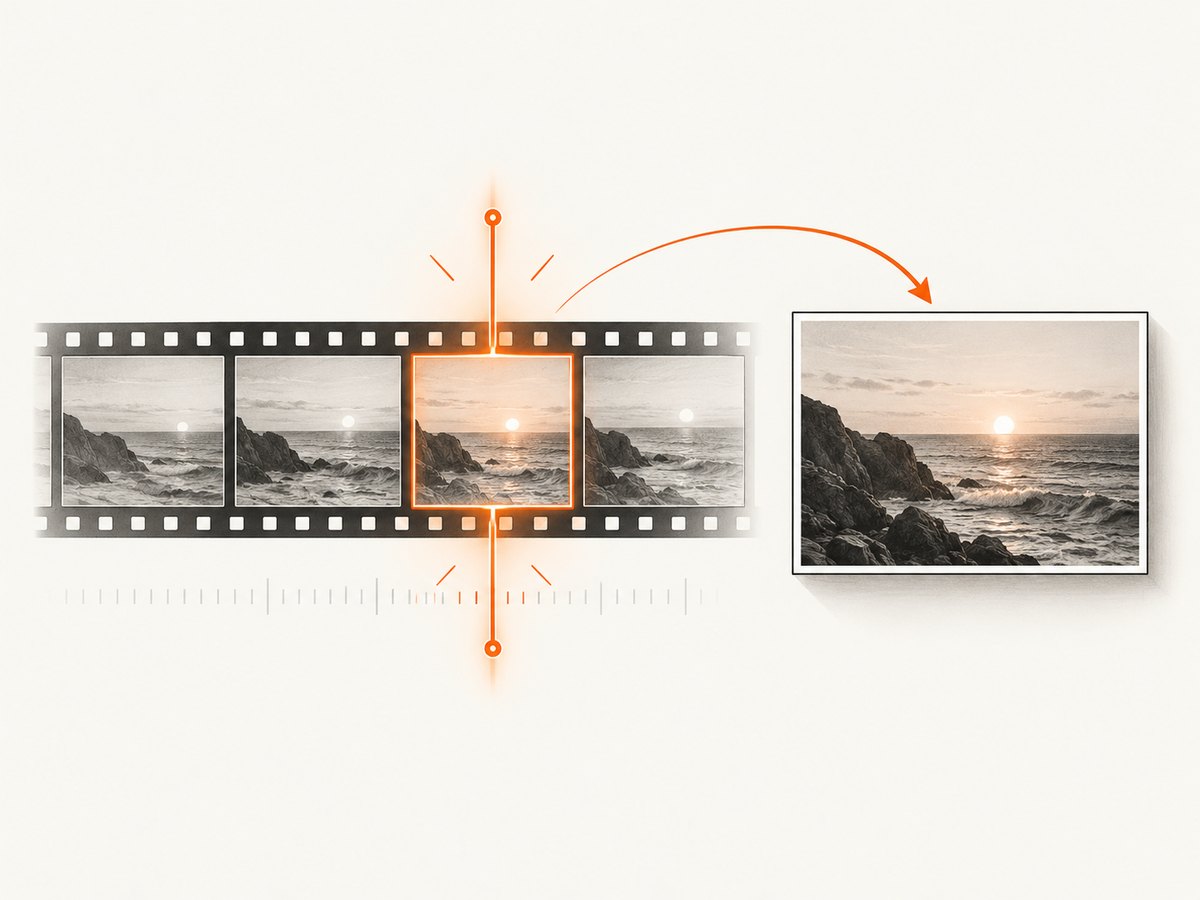
A button click can occur between decoded frames. For frame-timed capture, use requestVideoFrameCallback(). MDN describes it as a callback that runs when a new video frame is sent to the compositor.
function captureNextFramePng() {
  return new Promise((resolve, reject) => {
    const draw = () => {
      try {
        canvas.width = video.videoWidth;
        canvas.height = video.videoHeight;
        ctx.drawImage(video, 0, 0, canvas.width, canvas.height);
        resolve(canvas.toDataURL('image/png'));
      } catch (error) {
        reject(error);
      }
    };

    if (typeof video.requestVideoFrameCallback === 'function') {
      video.requestVideoFrameCallback(draw);
    } else {
      requestAnimationFrame(draw);
    }
  });
}
Use the fallback for older embedded Chromium versions. In a repeated capture loop, schedule the next callback only after processing the current frame, and stop scheduling when the track ends.
3. Export PNG, JPEG, WebP, or a file
const pngDataUrl = canvas.toDataURL('image/png');
const jpegDataUrl = canvas.toDataURL('image/jpeg', 0.9);
const webpDataUrl = canvas.toDataURL('image/webp', 0.9);
PNG is lossless and preserves text. JPEG and WebP can be smaller when some loss is acceptable. A data URL keeps the complete image in memory, so use a blob for large frames or repeated captures.
async function canvasBlob(type = 'image/png', quality) {
  return new Promise((resolve, reject) => {
    canvas.toBlob(blob => {
      if (blob) resolve(blob);
      else reject(new Error('Canvas encoding returned null'));
    }, type, quality);
  });
}

async function downloadBlob() {
  const blob = await canvasBlob('image/png');
  const url = URL.createObjectURL(blob);
  const a = document.createElement('a');
  a.href = url;
  a.download = 'frame.png';
  a.click();
  setTimeout(() => URL.revokeObjectURL(url), 0);
}
For a native save location, send blob bytes through the preload bridge to a main-process IPC handler using Electron’s save dialog and Node filesystem APIs. Keep filesystem access in the main process.
4. Source-selection options
| Approach | Use it when | Trade-off |
|---|---|---|
System picker with getDisplayMedia() |
The user should choose a screen or window interactively. | Selection is controlled by the display-capture flow; a deviceId cannot silently select a display. |
desktopCapturer.getSources() plus request handler |
The application needs a known screen or window. | You must present a safe source choice and handle an empty list. |
getSources() returns sources representing screens or individual windows. Request ['screen'], ['window'], or both according to your product behavior.
5. Permissions and platform behavior
- macOS: Screen capture requires user consent on macOS 10.15 and later. Handle denial and direct the user to Screen Recording permissions in System Settings.
- Linux PipeWire: Requesting both screen and window types can yield only one capture, with the selected source treated as a window capture. Test the deployed compositor.
- All platforms: Users can revoke capture or close the source. Listen for the track’s
endedevent and run the same cleanup as the Stop button.
6. Troubleshooting
| Symptom | Cause | Fix |
|---|---|---|
videoWidth === 0 |
No decoded frame or metadata yet. | Await loadeddata, call play(), and check dimensions before drawing. |
| Black or stale image | The canvas was drawn before playback produced a frame. | Use requestVideoFrameCallback() or wait for current data. |
NotAllowedError |
User denial or missing OS permission. | Handle the rejection, explain the permission, and let the user retry. |
NotFoundError or an empty source list |
No eligible display or window source exists. | Check requested source types and the platform session. |
InvalidStateError |
The media request is not in a usable state. | Start capture from a user gesture and avoid concurrent requests. |
| Canvas export fails | Zero-size canvas, encoding failure, or memory pressure. | Set dimensions from intrinsic video size, reduce scale, and use toBlob(). |
| Only one Linux source appears | PipeWire source semantics. | Request one source type at a time and test on the target compositor. |
| Capture indicator remains active | A video track was not stopped. | Stop every track and set video.srcObject = null. |
7. Performance, reliability, and cost
Performance
- Canvas dimensions determine pixels copied and encoded. Use intrinsic dimensions for fidelity or downscale deliberately for thumbnails.
- CSS resizing changes presentation, not the decoded source dimensions used by
drawImage(). - Repeated PNG encoding is CPU and memory intensive. Prefer WebP or JPEG when lossless output is unnecessary.
- Reuse one canvas and revoke object URLs after downloads.
Reliability
- Start from a user action, handle rejected promises, and treat
endedas a normal shutdown. - Wait for playback and a usable frame.
loadedmetadatagives dimensions;loadeddataor a frame callback indicates drawable data. - Record the source name and timestamp if the image must be audited later.
- Do not assume identical screen and window behavior across operating systems.
Cost
Local Electron capture has no ScreenshotNeo API charge. It uses the user’s machine, permissions, CPU, memory, and storage. A hosted screenshot API introduces plan limits, transfer, retries, and cache considerations.
8. Or skip the browser setup
If the input is a public webpage URL rather than a local desktop stream, ScreenshotNeo returns a screenshot or PDF with one GET request. See the ScreenshotNeo API docs.
curl -G 'https://api.screenshotneo.com/v1/shot' -d access_key=YOUR_API_KEY --data-urlencode url=https://example.com -o shot.webpimport requests
r = requests.get('https://api.screenshotneo.com/v1/shot', params={'access_key': 'YOUR_API_KEY', 'url': 'https://example.com'}, timeout=90)
open('shot.webp', 'wb').write(r.content)const q = new URLSearchParams({ access_key: 'YOUR_API_KEY', url: 'https://example.com' });
const res = await fetch(`https://api.screenshotneo.com/v1/shot?${q}`);Before capture, cookie and consent banners are accepted and removed along with more than 60 known consent platforms, newsletter popups, and chat widgets; each cleanup step can be turned off. Bot checks, blank pages, timeouts, failed loads, and cache hits are not billed, and responses identify the result with X-Page-Verdict and X-Billed headers. ScreenshotNeo also provides an MCP server with take_screenshot, get_page_info, and capture_pdf for Claude, Cursor, and other MCP clients. The Free plan includes 1,000 screenshots per month without a card; paid plans start at $5 for 3,000 shots. Create a free ScreenshotNeo account.
9. FAQ
Can Electron save a screenshot directly from desktopCapturer?
No. It provides a source that becomes a MediaStream. Attach that stream to video and copy a decoded frame to canvas.
Should I use toDataURL() or toBlob()?
Use toDataURL() for a small preview or simple download. Use toBlob() for larger images, uploads, and repeated captures.
How do I capture an element inside a window?
Display capture gives you the selected screen or window. For a DOM element, render the page in a renderer and use a DOM screenshot technique, or capture the window and crop the canvas using known coordinates.
Why does the screenshot differ from the monitor?
Captured pixels reflect decoded dimensions, device scale, compositor state, and platform-specific behavior. Log video.videoWidth and video.videoHeight when diagnosing differences.
How do I stop capture safely?
Stop every video track, clear srcObject, revoke object URLs, and disable controls. Handle ended so closing the source performs the same cleanup.


