BlogScreenshots on your device
How to Capture a VMware Virtual Machine Screen with Java Robot
Capture the visible VMware VM display in Java with Robot, handle coordinates and DPI scaling, troubleshoot failures, and compare VMware’s native command.

Java Robot captures the VMware display by reading visible pixels from the host desktop. Create a Robot, define a Rectangle in host-screen coordinates that covers the VM display, call createScreenCapture, and save the returned BufferedImage with ImageIO.write. The VMware window must be visible and unobscured because Robot captures what the host can currently see.
Oracle documents Robot.createScreenCapture(Rectangle) as creating an image from pixels read from the screen, with the rectangle interpreted in screen coordinates. See the Java Robot API.
Complete Java example
This command-line program accepts the VMware display rectangle as x y width height, validates the dimensions, captures the region, and writes a PNG.
import java.awt.AWTException;
import java.awt.Rectangle;
import java.awt.Robot;
import java.awt.image.BufferedImage;
import java.io.File;
import java.io.IOException;
import javax.imageio.ImageIO;

public class CaptureVmwareScreen {
    public static void main(String[] args) throws AWTException, IOException {
        if (args.length != 4) {
            System.err.println("Usage: java CaptureVmwareScreen <x> <y> <width> <height>");
            System.exit(2);
        }

        int x = Integer.parseInt(args[0]);
        int y = Integer.parseInt(args[1]);
        int width = Integer.parseInt(args[2]);
        int height = Integer.parseInt(args[3]);

        if (width <= 0 || height <= 0) {
            throw new IllegalArgumentException("width and height must be positive");
        }

        Rectangle vmBounds = new Rectangle(x, y, width, height);
        Robot robot = new Robot();
        BufferedImage image = robot.createScreenCapture(vmBounds);
        ImageIO.write(image, "png", new File("vmware-screen.png"));
        System.out.println("Saved vmware-screen.png: " + image.getWidth() + "x" + image.getHeight());
    }
}
Compile and run
javac CaptureVmwareScreen.java
java CaptureVmwareScreen 100 80 1280 720
The four numbers are the VM display’s left coordinate, top coordinate, width, and height on the host desktop. Include only the guest display when possible; excluding VMware’s toolbar and status bar makes the output easier to process.
Finding the correct VMware coordinates
- Open the VM in VMware Workstation and resize or position the window.
- Make the guest display fully visible. Close or move windows that could overlap it.
- Measure the display rectangle using your desktop environment’s window inspection tool or an on-screen ruler.
- Run the Java program with those screen coordinates.
- Open the output and check the first capture before automating repeated runs.
Robot does not ask VMware for the guest framebuffer. It reads the host pixels at the rectangle you provide. A rectangle that starts at the VMware window edge will usually include the title bar or toolbar; a rectangle that is too small will crop the guest display.
Multiple monitors and display coordinates
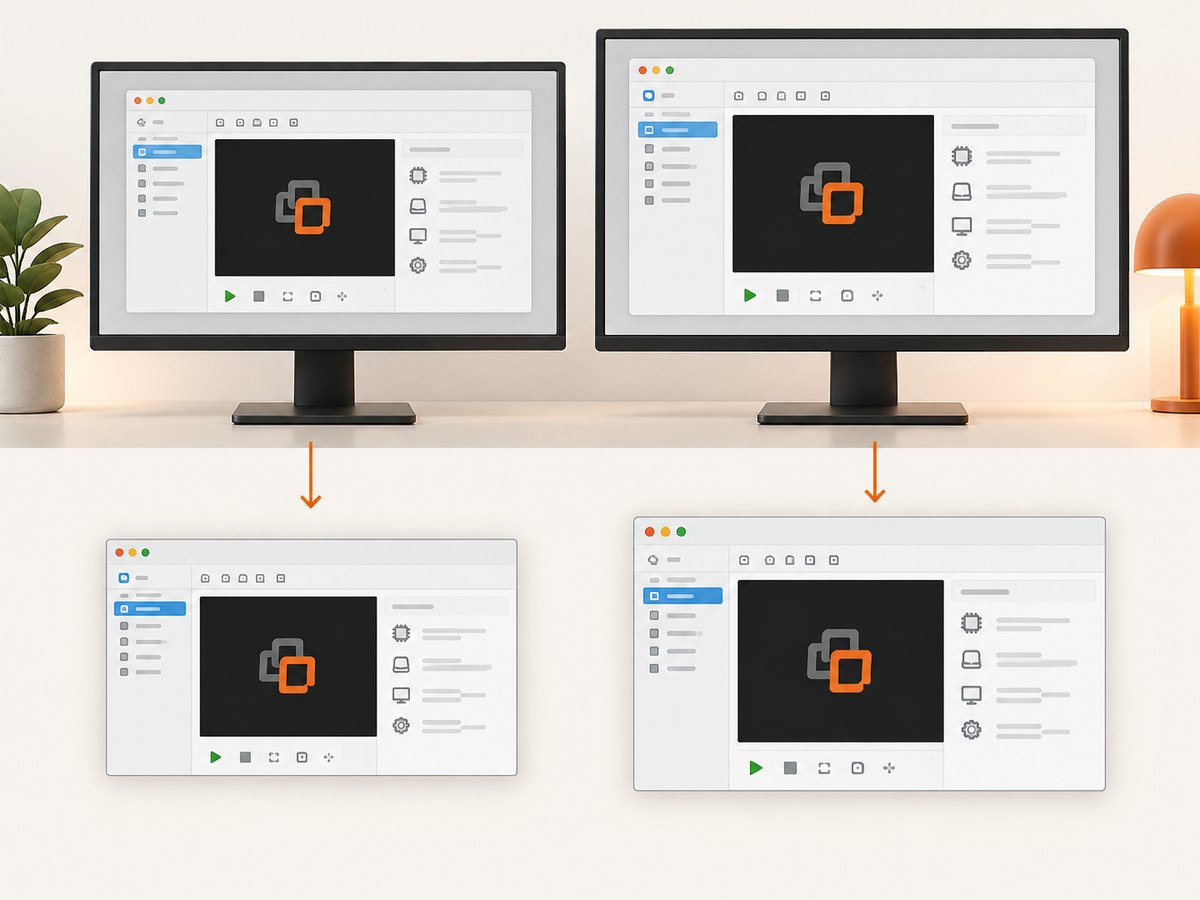
Use new Robot() for the primary display. For a specific monitor, construct the Robot with a GraphicsDevice. Java’s screen coordinates can form one combined virtual desktop, including negative coordinates for a monitor placed to the left of the primary display, or separate coordinate systems depending on the platform.
import java.awt.GraphicsDevice;
import java.awt.GraphicsEnvironment;
import java.awt.Rectangle;
import java.awt.Robot;
import java.awt.image.BufferedImage;
import javax.imageio.ImageIO;
import java.io.File;

GraphicsDevice[] devices = GraphicsEnvironment
        .getLocalGraphicsEnvironment()
        .getScreenDevices();

for (int i = 0; i < devices.length; i++) {
    GraphicsDevice device = devices[i];
    System.out.println(i + ": " + device.getIDstring()
            + " bounds=" + device.getDefaultConfiguration().getBounds());
}

GraphicsDevice selected = devices[0];
Rectangle monitorBounds = selected.getDefaultConfiguration().getBounds();
Robot robot = new Robot(selected);
BufferedImage image = robot.createScreenCapture(monitorBounds);
ImageIO.write(image, "png", new File("monitor.png"));
When the VM crosses monitors, split the capture into rectangles or move the window onto one monitor. Always verify the selected device and its bounds rather than assuming every display starts at (0, 0).
High-DPI and scaled VMware windows
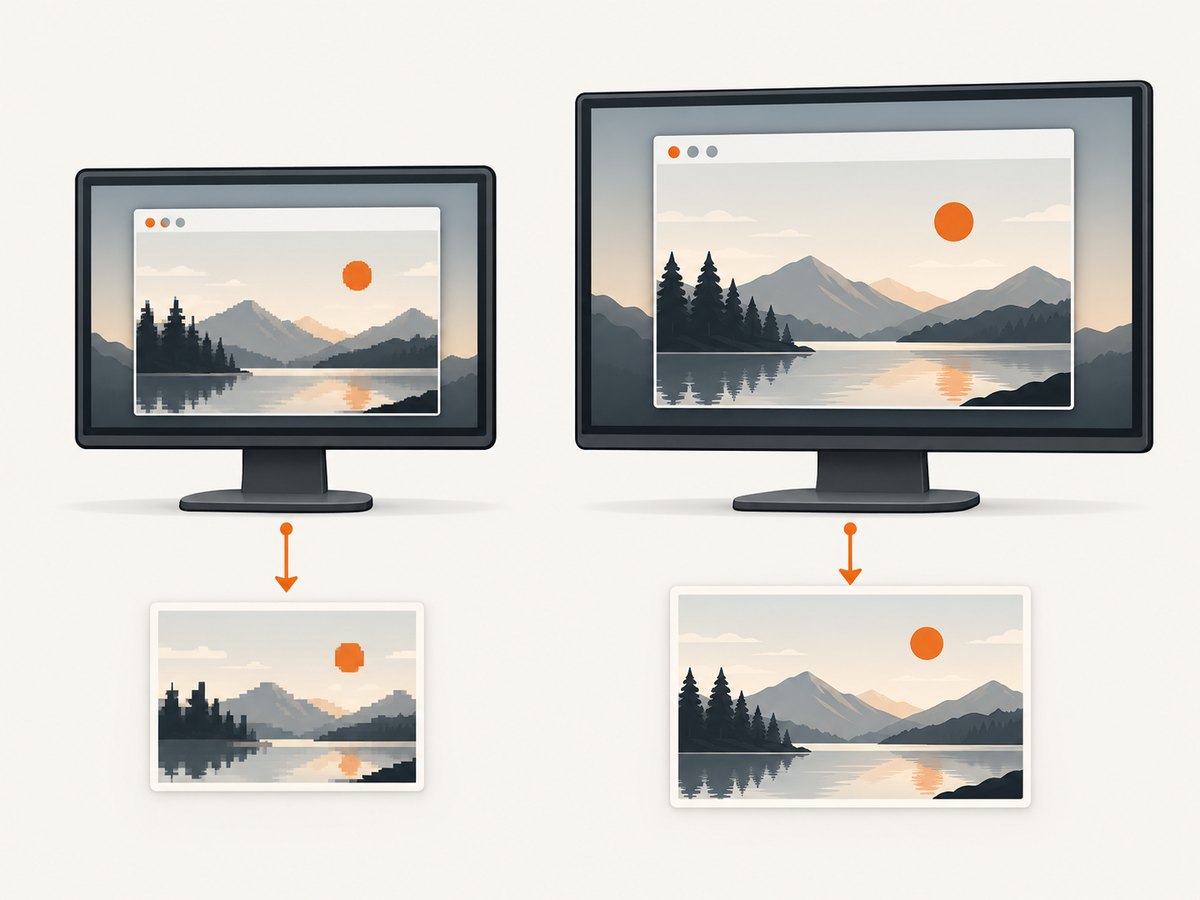
Operating-system display scaling can make logical coordinates differ from native device pixels. A capture may therefore look cropped, soft, or have dimensions different from the rectangle you expected. Oracle provides createMultiResolutionScreenCapture(Rectangle), which can return a base image and a native device-resolution variant when a scaling transform exists.
import java.awt.Rectangle;
import java.awt.Robot;
import java.awt.image.BufferedImage;
import java.awt.image.MultiResolutionImage;

Robot robot = new Robot();
Rectangle bounds = new Rectangle(100, 80, 1280, 720);
MultiResolutionImage capture = robot.createMultiResolutionScreenCapture(bounds);

for (BufferedImage variant : capture.getResolutionVariants()) {
    System.out.println(variant.getWidth() + "x" + variant.getHeight());
}
Choose the variant whose pixel dimensions match your downstream requirement. Keep the VMware window on one display while diagnosing DPI problems, and avoid changing display scaling between coordinate measurement and capture.
Timing, visibility, and repeatable captures
Robot captures immediately. If the guest is still booting, changing resolution, or rendering an animation, the result can be incomplete. Wait for the VM state you need before calling capture, then optionally pause briefly so the desktop has repainted.
Robot robot = new Robot();
robot.delay(500); // allow the visible desktop to settle
BufferedImage image = robot.createScreenCapture(vmBounds);
Do not run screen capture on Swing’s AWT Event Dispatch Thread. Oracle recommends avoiding it there because capture can be lengthy and permission prompts may require interaction. Run the operation on a worker thread or an executor.
new Thread(() -> {
    try {
        Robot robot = new Robot();
        BufferedImage image = robot.createScreenCapture(vmBounds);
        ImageIO.write(image, "png", new File("vmware-screen.png"));
    } catch (Exception e) {
        e.printStackTrace();
    }
}, "vmware-capture").start();
Exceptions and troubleshooting
| Symptom | Cause | Fix |
|---|---|---|
AWTException |
The environment does not support Robot or is headless. | Run with a real graphical desktop session. Do not use a server process without a display and desktop capture support. |
SecurityException |
Screen access was denied by the operating system or security policy. | Grant the Java application screen-recording or accessibility permission where your OS requires it, then restart the application if requested. |
IllegalArgumentException |
Width or height is zero or negative. | Validate both dimensions before constructing the capture and print the rectangle used. |
| Black, blank, or stale image | The VM is minimized, hidden, covered, not repainted, or the capture is running outside an interactive desktop. | Keep the VMware display visible, remove overlapping windows, wait for rendering, and run in the logged-in desktop session. |
| Toolbar or title bar appears | The rectangle includes VMware chrome. | Measure the guest display’s inner bounds and reduce the rectangle’s top and height. |
| Guest display is cropped | The rectangle is too small, coordinates use the wrong monitor, or scaling changed. | Print monitor bounds, remeasure after positioning the window, and test createMultiResolutionScreenCapture on scaled displays. |
| Image is blurry or dimensions are unexpected | High-DPI scaling selected a logical-resolution image. | Inspect the resolution variants and select the native-resolution variant when required. |
| Capture includes notifications or another window | Robot records all visible host pixels in the rectangle. | Move overlays away, disable notifications, or use VMware’s VM-aware capture command. |
VMware’s built-in Capture Screen command
VMware Workstation includes VM > Capture Screen. VMware documentation describes this as a native VM screenshot command. Archived Workstation documentation describes bitmap (.bmp) output on Windows hosts and PNG (.png) output on Linux hosts.
| Requirement | Java Robot | VM > Capture Screen |
|---|---|---|
| Automation | Easy to call from Java tests, scripts, and documentation tools. | Manual unless controlled by separate UI automation. |
| Window dependence | VM display must be visible in a known host rectangle. | VM-aware and less dependent on host coordinate calculations. |
| Monitor and scaling | You must handle GraphicsDevice selection and DPI behavior. | May avoid host-coordinate calculations. |
| Output processing | Use Java image APIs and choose the output format supported by your ImageIO installation. | Formats and destination depend on the Workstation version and host. |
| Host overlays and permissions | Can capture obscuring windows and may require desktop capture permission. | Can be less sensitive to host occlusion because it is VM-aware. |
Choose Robot when the screenshot belongs in an automated Java workflow or must be transformed with Java image APIs. Choose VMware’s command for a quick, VM-aware manual capture or when host window occlusion makes desktop pixels unreliable.
Or skip the browser setup
ScreenshotNeo is a website screenshot API, so it is useful for web pages shown inside the VM rather than for capturing the VMware desktop itself. One GET request returns a PNG, JPEG, WebP, or PDF. Cookie and consent banners, newsletter popups, and chat widgets are removed before the shot. Bot checks, blank pages, failed loads, timeouts, and cache hits are not billed, and the response identifies the result with X-Page-Verdict and X-Billed headers. Its MCP server provides take_screenshot, get_page_info, and capture_pdf tools for Claude, Cursor, and other MCP clients.
See the ScreenshotNeo API documentation for parameters and options.
curl -G "https://api.screenshotneo.com/v1/shot" -d access_key=YOUR_API_KEY --data-urlencode url=https://stripe.com -o shot.webpimport requests
r = requests.get("https://api.screenshotneo.com/v1/shot", params={"access_key": "YOUR_API_KEY", "url": "https://stripe.com"}, timeout=90)
open("shot.webp", "wb").write(r.content)const q = new URLSearchParams({ access_key: 'YOUR_API_KEY', url: 'https://stripe.com' });
const res = await fetch(`https://api.screenshotneo.com/v1/shot?${q}`);Features include full-page capture with lazy images loaded, CSS-selector element capture, dark mode, device presets and custom viewports, retina scale, custom CSS and JavaScript, waits, request blocking, headers, cookies, user agents, authorization, timezone, geolocation, transparent backgrounds, resizing, TTL caching, signed links, asynchronous jobs with signed webhooks, bulk capture for up to 100 URLs per call, a usage API, and an OpenAPI specification. The Free plan includes 1,000 screenshots a month with no card; paid plans start at $5 for 3,000 shots.
Create a free ScreenshotNeo account and get 1,000 screenshots a month with no card.
Performance, reliability, and cost notes
- Capture only the VM rectangle you need; smaller regions require less image memory and produce smaller files.
- PNG preserves sharp text and lossless pixels. JPEG can reduce file size when small compression artifacts are acceptable.
- Keep a single Robot instance for a capture worker instead of constructing one for every frame.
- Serialize captures if multiple jobs target the same visible VM; concurrent jobs can move the mouse or change the desktop state unexpectedly.
- Record the rectangle, monitor, scaling mode, timestamp, and exception details with each automated capture so failures can be reproduced.
- For unattended jobs, verify that a graphical login session exists and that the host will not lock or sleep during capture.
FAQ
Can Robot capture a minimized VMware VM?
No. Robot reads visible host-screen pixels, so a minimized or covered VM cannot provide its normal display pixels.
Can I capture only the guest screen and exclude VMware controls?
Yes. Measure the inner guest display rectangle rather than the complete VMware window.
Does Robot capture the VM framebuffer directly?
No. It captures the host desktop region where the VMware display is visible.
Why does the screenshot size differ from my rectangle?
Display scaling can introduce logical and native pixel dimensions. Inspect the variants returned by createMultiResolutionScreenCapture.
Should I use VMware Capture Screen or Java Robot?
Use VMware’s command for a quick VM-aware manual shot; use Robot when Java automation, custom image handling, or repeatable application workflows are the priority.


