BlogScreenshots on your device
How to Capture Web Pages with PyQt4 and QWebKit
Learn how to load a page, wait for QWebKit, render QWebFrame into QImage, save full-page screenshots, troubleshoot timing, and migrate legacy code.
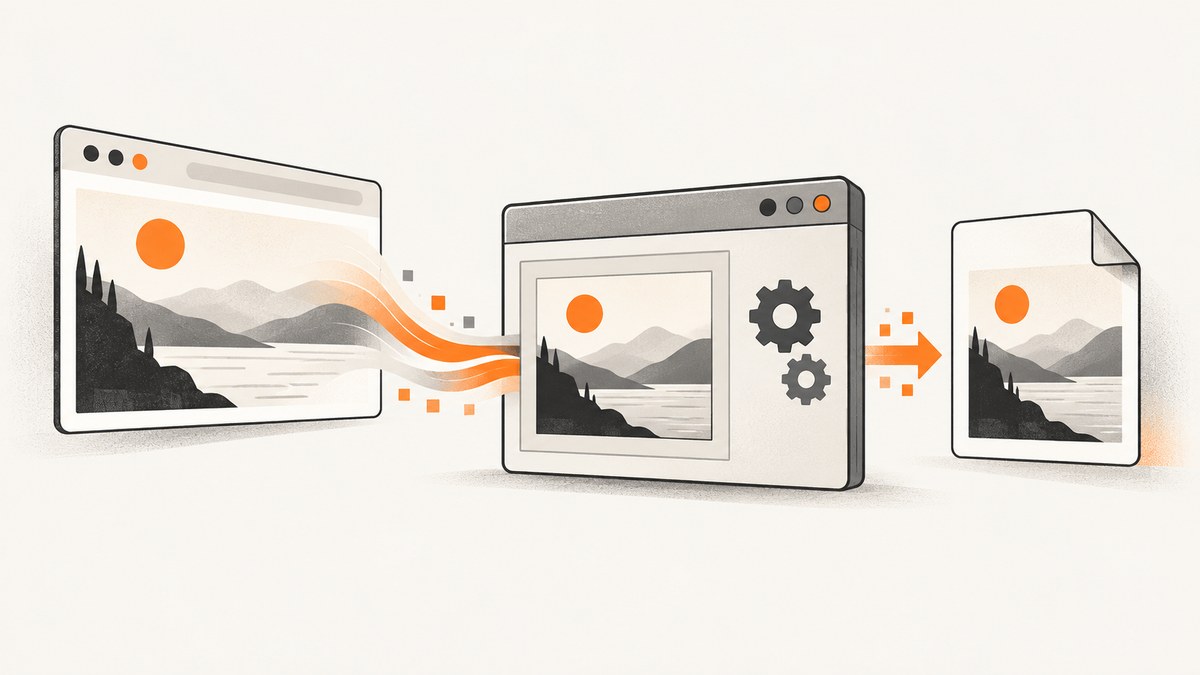
To capture a web page with PyQt4 and QWebKit, load the URL, wait for loadFinished(bool), choose a viewport, render the main QWebFrame into a QImage with QPainter, and save the image. For a full-page screenshot, set the page viewport to the frame’s contentsSize() before creating the image.
This is the Qt WebKit workflow documented for QWebView, QWebPage, and QWebFrame. The code below uses the widget-less route, which is useful for a batch job or service that does not need to display a browser window. The PyQt4 example is adapted from Qt’s C++ rendering example, so check the exact syntax against the PyQt4 and Qt versions installed in your environment.
What the capture pipeline does
Qt WebKit separates the browser document from the optional widget that displays it. QWebView is the convenient visible widget. Its underlying QWebPage owns the document, and the page exposes a main QWebFrame. You can render that frame directly without showing a QWebView. Qt describes this architecture in its Qt WebKit guide and the QWebPage documentation.

- Create a
QWebPageand obtain its main frame. - Connect
loadFinished(bool)before starting navigation. - Load a URL with
QUrl. - When the signal fires successfully, choose a fixed viewport or the frame’s content size.
- Create a
QImage, paint the frame into it, and save the image.
The Boolean passed to loadFinished indicates whether loading succeeded. Qt also cautions that the signal is independent of script execution and page rendering, so it does not guarantee that every asynchronous visual change has settled.
Complete full-page PyQt4 example
This script saves a PNG after the main frame reports a successful load. It runs a Qt event loop because navigation and the signal callback are asynchronous.
#!/usr/bin/env python
from __future__ import print_function

import sys
from PyQt4.QtCore import QCoreApplication, QUrl
from PyQt4.QtGui import QImage, QPainter
from PyQt4.QtWebKit import QWebPage

URL = 'https://example.com/'
OUTPUT = 'capture.png'

app = QCoreApplication(sys.argv)
page = QWebPage()
frame = page.mainFrame()


def save_capture(ok):
    if not ok:
        print('Page load failed', file=sys.stderr)
        app.quit()
        return

    # Use the complete document dimensions for a full-page image.
    page.setViewportSize(frame.contentsSize())
    image = QImage(page.viewportSize(), QImage.Format_ARGB32)
    image.fill(0xffffffff)

    painter = QPainter(image)
    frame.render(painter)
    painter.end()

    if not image.save(OUTPUT):
        print('Could not save {}'.format(OUTPUT), file=sys.stderr)
        app.quit()
        return

    print('Saved {}'.format(OUTPUT))
    app.quit()


page.loadFinished.connect(save_capture)
frame.load(QUrl(URL))
sys.exit(app.exec_())
Run it with the Python interpreter that has PyQt4 and the Qt WebKit bindings installed:
python capture_page.pyThe output is a bitmap whose dimensions match page.viewportSize() at capture time. The call to image.fill gives transparent or unpainted areas a white background; remove it if you explicitly want the image’s default format behavior.
Choose between QWebView and QWebPage
| Route | Use it when | Capture flow |
|---|---|---|
QWebView |
You need an embedded, visible browser widget for a desktop application. | Call view.load(QUrl(...)), wait for the page load signal, then render view.page().mainFrame(). |
QWebPage |
You need a standalone or batch capture without displaying a browser window. | Load through page.mainFrame(), set the viewport, render the frame, and save the image. |
Both approaches use the same page and frame concepts. The sources do not establish a performance winner, so choose based on whether your application needs a widget and how you want to control the viewport.
Viewport size, responsive layout, and capture scope
The viewport controls more than the final bitmap dimensions. Qt notes that it affects layout details such as scrollbar visibility. A full-content viewport follows the documented thumbnail example:
page.setViewportSize(frame.contentsSize())Use a fixed viewport when you want a desktop, tablet, or mobile layout. For example:
from PyQt4.QtCore import QSize

page.setViewportSize(QSize(1440, 900))
Responsive pages can lay out differently at different widths. If you first load at one width and later change it, allow the page to reflow before rendering. A fixed viewport produces a view-sized screenshot; using contentsSize() aims to include the complete frame content in one image.
QWebFrame.render renders the frame contents and its child frames into the painter. That does not promise pixel-perfect output for every modern page, plugin, cross-origin resource, or delayed asset. Qt’s API establishes the rendering flow; the page itself determines what is available when rendering occurs.
Waiting for dynamic pages
loadFinished(True) is a useful navigation checkpoint, but it is not a universal “everything visible is finished” event. A page can change after load through JavaScript, delayed requests, timers, or lazy rendering.
Use a site-specific readiness condition
If the page exposes a DOM marker after it has finished preparing its visible state, inspect it from the frame and render only when it appears. The exact JavaScript and polling strategy depends on the site and on the Qt WebKit version. Keep the load callback connected, then schedule a short check with a Qt timer rather than rendering immediately.
from PyQt4.QtCore import QTimer


def wait_for_marker(ok):
    if not ok:
        app.quit()
        return
    QTimer.singleShot(250, check_marker)


def check_marker():
    marker = frame.findFirstElement('.ready-marker')
    if marker.isNull():
        QTimer.singleShot(250, check_marker)
        return
    save_capture(True)

page.loadFinished.connect(wait_for_marker)
Use a bounded retry count in production so a missing marker cannot keep the process alive forever. If there is no reliable marker, a short site-specific delay is a fallback, but it can still miss late content.
Saving formats and thumbnails
QImage.save infers a format from the filename extension, so capture.png, capture.jpg, and capture.webp request different encoders when available in your Qt build. PNG is a practical choice for text-heavy pages because it preserves sharp edges. JPEG is smaller for photographic pages but introduces lossy compression.
Keep the original render at its intended viewport size and create a separate thumbnail copy if needed:
thumbnail = image.scaled(480, 480, aspectRatioMode=1)
thumbnail.save('capture-thumb.png')
The Qt example scales a separate copy for a thumbnail. Do not overwrite the original unless the reduced dimensions are your actual output requirement.
Frames, scripts, and legacy limitations
The main frame represents the top-level document, and a page can contain child frames. Rendering the main frame is the documented way to include the frame contents and subframes. Site behavior still depends on what Qt WebKit can load and execute. Qt 4 WebKit is a legacy browser engine, so current websites may use APIs, TLS behavior, JavaScript syntax, or rendering features it does not support.
When modernizing, do not mechanically rename classes. Qt’s WebKit-to-WebEngine porting guide explains that WebEngine uses QWebEnginePage and merges frame handling into the page. Calls that used to target QWebFrame, such as load(), become page-level calls. Plan the migration around the new asynchronous API and rendering model.
Troubleshooting
| Symptom | Likely cause | Fix |
|---|---|---|
| No image is written | The load result is false, or the process exits before the event loop runs. | Check the Boolean argument, print an error, connect the signal before loading, and call app.exec_(). |
| Only the visible portion appears | The viewport is fixed to a small window. | Set page.setViewportSize(frame.contentsSize()) after loading for a full-content capture. |
| Bottom content is missing | Images or scripts load after loadFinished. |
Wait for a DOM readiness marker or a bounded delay, then render. |
| Layout looks mobile or desktop unexpectedly | The viewport width changes responsive CSS breakpoints. | Set an explicit width and height before loading when the target layout matters. |
| Blank or partially painted output | The frame was rendered before the document settled, or a resource failed. | Log the load result, inspect the URL independently, wait for readiness, and verify the Qt WebKit build’s support for the page. |
| Image save returns false | The directory is unwritable or the requested image format is unavailable. | Use an absolute writable path and a format supported by the installed Qt image plugins. |
| PyQt import errors | PyQt4 or the Qt WebKit bindings are not installed in the active interpreter. | Run the script with the interpreter where those bindings are installed; verify imports individually. |
| Capture never finishes | A readiness marker never appears or a page keeps requesting resources. | Use a timeout and maximum retry count, then record the URL as failed. |
Performance, reliability, and cost considerations
- Memory: A full-page
QImagecan be large because memory grows with pixel width, height, and color depth. Capture at the smallest required viewport and avoid keeping many full-size images in memory. - Throughput: Reuse a process or page only if your application isolates state correctly. Cookies, JavaScript storage, and page resources can affect later captures. A fresh page per job is simpler to reason about.
- Reliability: Treat
loadFinished(False), missing readiness markers, failed image saves, and timeouts as explicit outcomes. Record the URL and failure stage so batch jobs can retry selectively. - Network behavior: A page can depend on resources outside the main URL. The Qt signal reports the page load result, not a guarantee that every remote asset or script produced the intended visual result.
- Cost: A local PyQt4 capture has no per-request Screenshot API charge, but you operate the browser process, dependencies, memory, and network environment yourself. Budget engineering time for the legacy stack and site compatibility.

Or skip the browser setup
If you need reliable website screenshots without maintaining a legacy Qt browser, ScreenshotNeo provides a single GET request that returns PNG, JPEG, WebP, or PDF. It accepts the cookie or consent banner before capture and removes more than 60 known consent platforms, newsletter popups, and chat widgets; each step can be turned off. Bot checks, CAPTCHAs, blank pages, timeouts, failed loads, and cache hits are not billed, and response headers identify the page verdict and billing result.
Read the full parameter reference in the ScreenshotNeo API documentation. The simplest call is:
curl -G 'https://api.screenshotneo.com/v1/shot' -d access_key=YOUR_API_KEY --data-urlencode 'url=https://stripe.com' -o shot.webpPython
import requests

r = requests.get(
    'https://api.screenshotneo.com/v1/shot',
    params={'access_key': 'YOUR_API_KEY', 'url': 'https://stripe.com'},
    timeout=90,
)
r.raise_for_status()
open('shot.webp', 'wb').write(r.content)
Node.js
const q = new URLSearchParams({ access_key: 'YOUR_API_KEY', url: 'https://stripe.com' });
const res = await fetch(`https://api.screenshotneo.com/v1/shot?${q}`);
if (!res.ok) throw new Error(`HTTP ${res.status}`);
const fs = await import('node:fs/promises');
await fs.writeFile('shot.webp', Buffer.from(await res.arrayBuffer()));
ScreenshotNeo also supports full-page capture with lazy images loaded, CSS selector element capture, dark mode, device presets and custom viewports, retina scale, custom CSS and JavaScript, clicks, selector or network-idle waits, request blocking, headers, cookies, user agents, authorization, timezone, geolocation, transparent backgrounds, resizing, configurable caching, signed links, asynchronous jobs with signed webhooks, bulk capture for up to 100 URLs per call, a usage API, and an OpenAPI specification. Its MCP server provides take_screenshot, get_page_info, and capture_pdf tools for Claude, Cursor, and other MCP clients.
The Free plan includes 1,000 screenshots per month with no card. Paid plans start at $5 for 3,000 shots; yearly billing provides two months free, and every feature is available on every plan. Create a free ScreenshotNeo account.
Frequently asked questions
Does loadFinished mean the screenshot is ready?
No. It reports page loading success, but Qt documents that it is independent of script execution and page rendering. Add a page-specific readiness check when content changes asynchronously.
How do I capture only the browser viewport?
Set a fixed QSize on the page before rendering. The resulting image represents that viewport rather than the entire document.
Can QWebKit capture a modern JavaScript application?
It can capture what the installed Qt WebKit engine loads and renders. Compatibility depends on the page and the legacy engine version; test the target sites and consider Qt WebEngine for modernization.
Should I use QWebView or QWebPage?
Use QWebView when your desktop application needs a visible embedded browser. Use QWebPage for a widget-less capture pipeline and direct control over rendering.
How do I migrate this code to Qt WebEngine?
Follow Qt’s porting guide. WebEngine uses QWebEnginePage and does not preserve the same separate QWebFrame API, so migration requires more than changing import names.


