How to Capture WebGL Canvases in Headless Puppeteer Screenshots
Capture reliable WebGL canvas screenshots with Puppeteer by waiting for the right frame, handling drawing buffers, and configuring headless Chromium safely.

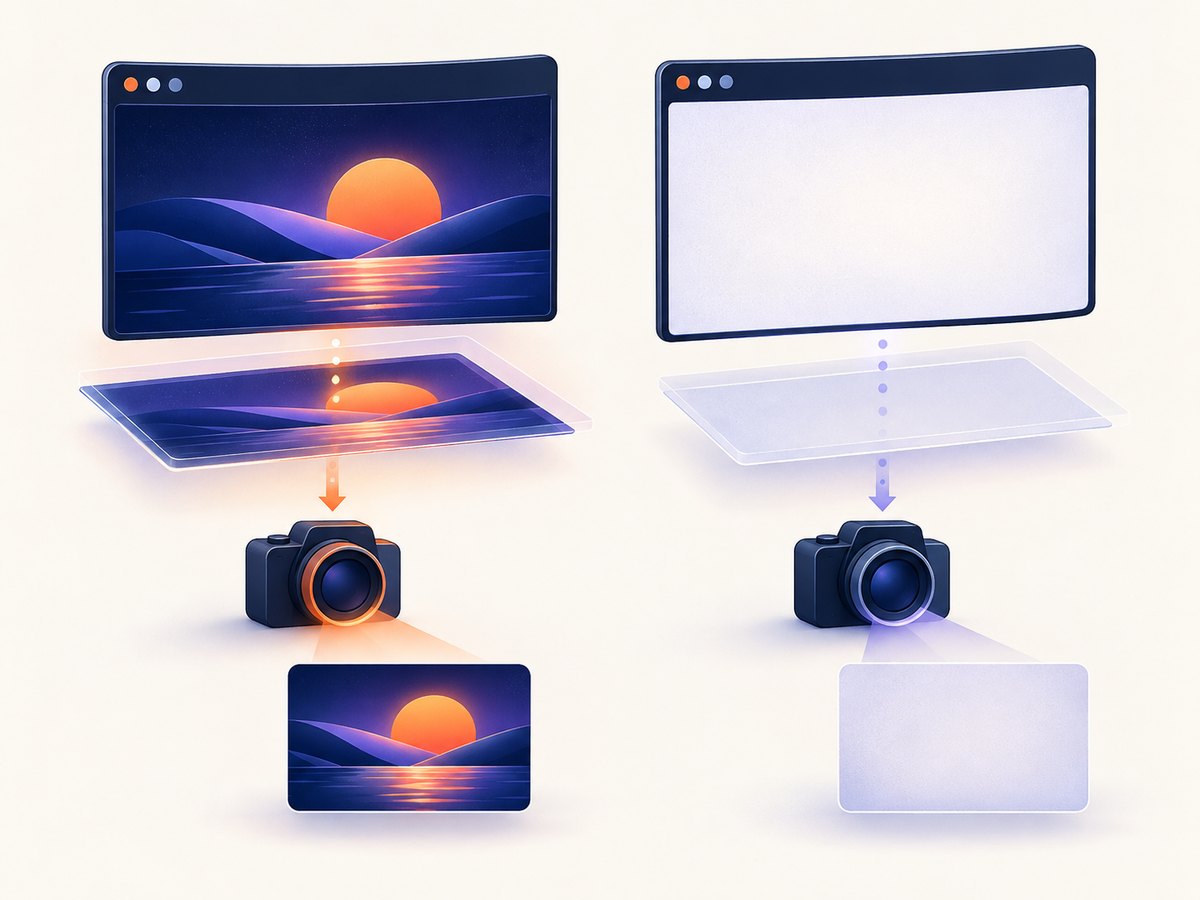
Use Puppeteer’s page.screenshot() only after your WebGL application has created a context and drawn the exact frame you want. Puppeteer captures the browser’s rendered output; it does not enable WebGL, wait for an animation frame, or repair a canvas whose drawing buffer has already been cleared.
A reliable capture therefore has four parts:
- Launch the Chromium build used in production and navigate to the page.
- Verify that the canvas and WebGL context exist.
- Wait for an application-owned “frame ready” signal.
- Capture the page or the canvas element with the appropriate viewport and clipping options.
If the result is blank, diagnose WebGL context creation and drawing-buffer timing before changing image format or screenshot options.
What Puppeteer actually captures
Page.screenshot() captures the page’s compositor output and can return a buffer or write an image file. It supports PNG, JPEG and WebP output, full-page capture, clipping, quality, background handling and a surface-capture mode. For a single canvas or another DOM node, ElementHandle.screenshot() captures the selected element’s rendered pixels. See the Puppeteer screenshot API for the current option names.
A WebGL canvas is a rendered surface. The screenshot call does not know whether your scene has finished loading textures, reached a particular animation frame, or rendered successfully. Navigation completion and networkidle2 only describe network activity; they do not prove that a WebGL frame is ready.
Minimal Puppeteer capture
This example captures a canvas after the application sets an explicit readiness marker. The marker is application code, not a Puppeteer feature.

import puppeteer from 'puppeteer';

const url = 'https://example.com/webgl-demo';
const browser = await puppeteer.launch();

try {
  const page = await browser.newPage();
  await page.setViewport({ width: 1440, height: 900, deviceScaleFactor: 1 });
  await page.goto(url, { waitUntil: 'networkidle2', timeout: 60000 });

  await page.waitForFunction(
    () => window.__webglFrameReady === true,
    { timeout: 30000 }
  );

  await page.screenshot({
    path: 'webgl-page.png',
    type: 'png',
    fullPage: false
  });
} finally {
  await browser.close();
}
In the application, set the marker after the desired frame has drawn:
function render() {
  drawScene();
  // Set this only after textures, uniforms and geometry are ready.
  window.__webglFrameReady = true;
}
requestAnimationFrame(render);
If you control the page, a promise, custom event or deterministic state attribute is often clearer than a global variable. The important property is that the signal represents the frame you want to save.
Capture only the WebGL canvas
Use an element screenshot when surrounding page content is irrelevant. This avoids accidentally including headers, overlays or unrelated layout.
const canvas = await page.waitForSelector('canvas#scene', {
  visible: true,
  timeout: 30000
});

await canvas.screenshot({
  path: 'scene.png',
  type: 'png'
});
For a canvas that is not the first canvas on the page, use a precise selector or inspect the DOM first:
const info = await page.$$eval('canvas', canvases =>
  canvases.map((canvas, index) => ({
    index,
    width: canvas.width,
    height: canvas.height,
    cssWidth: canvas.getBoundingClientRect().width,
    cssHeight: canvas.getBoundingClientRect().height
  }))
);
console.table(info);
Make WebGL context creation observable
A blank image can mean that Chromium never created a WebGL context. Check both WebGL 1 and WebGL 2 explicitly and expose the result for Puppeteer to read.
const contextStatus = await page.evaluate(() => {
  const canvas = document.querySelector('canvas#scene');
  if (!canvas) return { canvas: false, webgl1: false, webgl2: false };

  const webgl2 = canvas.getContext('webgl2');
  const webgl1 = webgl2 || canvas.getContext('webgl') ||
    canvas.getContext('experimental-webgl');

  return {
    canvas: true,
    webgl1: Boolean(webgl1),
    webgl2: Boolean(webgl2),
    width: canvas.width,
    height: canvas.height
  };
});

if (!contextStatus.webgl1) {
  throw new Error(`WebGL context was not created: ${JSON.stringify(contextStatus)}`);
}
Also listen for context loss in the page. A context can be valid at startup and disappear later.
const contextEvents = await page.evaluate(() => {
  const canvas = document.querySelector('canvas#scene');
  if (!canvas) return false;
  canvas.addEventListener('webglcontextlost', event => {
    event.preventDefault();
    window.__webglContextLost = true;
  });
  return true;
});
Drawing-buffer timing and preserveDrawingBuffer
WebGL’s default drawing-buffer behavior is the most common reason a screenshot is inconsistent. When preserveDrawingBuffer is false, the buffer can be cleared to default values after its contents are presented to the compositor. Operations that use the context as an image source after the rendering function returns can therefore have undefined results. The Khronos WebGL specification documents this lifecycle.
Requesting a context with preserveDrawingBuffer: true keeps the contents until you clear or overwrite them:
const gl = canvas.getContext('webgl', {
  alpha: false,
  antialias: true,
  preserveDrawingBuffer: true
});
This is a tradeoff, not a universal fix. The specification warns that preserving the drawing buffer can cause significant performance loss on some platforms. Prefer an application-level capture strategy when possible:
- Read pixels synchronously inside the render function with
readPixels(). - Call
toDataURL()ortoBlob()in the same controlled rendering step. - Render the final scene into an application-managed framebuffer, then copy it for export.
- Set
preserveDrawingBufferonly for pages where the screenshot path needs it.
If you cannot change the application, test whether preserving the buffer makes the output stable, then measure the resulting render time and memory use in your own deployment.
Headless Chromium renderer choices
Headless Chromium uses software rendering defaults for consistency in many environments. Passing --enable-gpu removes the forced SwiftShader choice and restores ordinary driver selection, but it does not guarantee that a usable hardware GPU exists. Containers, virtual machines and CI runners may still lack display access or compatible drivers.
Chromium documents an opt-in SwiftShader fallback with --enable-unsafe-swiftshader. The flag is version-sensitive, lowers security guarantees and should be used only with trusted content in a controlled test environment. Chromium’s SwiftShader documentation describes it as a tool for testing sites on headless systems or systems without a supported GPU.
const browser = await puppeteer.launch({
  args: [
    '--enable-unsafe-swiftshader'
  ]
});
Do not add this flag automatically to every deployment. First record the Chromium version, test normal context creation, and use a clear failure path when WebGL is unavailable.
Choosing screenshot scope and options
| Goal | Method | Useful options |
|---|---|---|
| Viewport image | page.screenshot() |
fullPage: false, explicit viewport |
| Entire document | page.screenshot() |
fullPage: true |
| Canvas only | element.screenshot() |
Precise canvas selector |
| Specific rectangle | page.screenshot() |
clip: { x, y, width, height } |
| Small compressed file | page.screenshot() |
type: 'jpeg', quality: 80 |
| Lossless pixels | page.screenshot() |
type: 'png' |
| Modern smaller image | page.screenshot() |
type: 'webp' |
Set the viewport before navigation so responsive layout and canvas sizing are deterministic. Remember that CSS dimensions and backing-store dimensions can differ when deviceScaleFactor is greater than one.
await page.setViewport({
  width: 1280,
  height: 800,
  deviceScaleFactor: 2
});
For a fixed region, obtain coordinates after layout has settled:
const clip = await page.$eval('canvas#scene', canvas => {
  const rect = canvas.getBoundingClientRect();
  return { x: rect.x, y: rect.y, width: rect.width, height: rect.height };
});
await page.screenshot({ path: 'clip.png', clip });
Waiting for a deterministic frame
Use networkidle2 as a loading aid, then wait for the application’s state. For an animation, freeze it at a known time or expose a frame counter.
await page.waitForFunction(
  () => window.__renderState?.assetsLoaded &&
        window.__renderState?.frameNumber === 120,
  { timeout: 30000 }
);

await page.screenshot({ path: 'frame-120.png' });
If you cannot modify the page, wait for observable conditions such as a nonzero canvas size, a hidden loading element, or a stable pixel sample. These are weaker than an app-owned readiness signal and can still race with animation or texture uploads.
Troubleshooting blank or incorrect captures
| Symptom | Likely cause | Fix |
|---|---|---|
| Canvas is completely blank | WebGL context is null | Check getContext(), Chromium version, driver availability and a controlled SwiftShader fallback. |
| Page is captured before the scene appears | Navigation finished before rendering | Wait for an application-owned frame-ready marker. |
| Intermittent blank or previous frame | Drawing buffer was cleared or overwritten | Coordinate capture with rendering; consider preserveDrawingBuffer: true after evaluating its cost. |
| Only part of the canvas appears | Wrong clip, CSS size or device scale | Capture the element, inspect its bounding rectangle and set viewport and scale explicitly. |
| Textures are missing | GPU upload has not completed | Signal readiness after texture loading and the first draw that uses those textures. |
| Context disappears during capture | WebGL context loss | Listen for webglcontextlost, implement restoration where possible and fail the job clearly. |
| Screenshot API times out | Page, selector or readiness wait never completed | Use separate timeouts, log which stage failed and check console and page errors. |
| JPEG has unexpected colors | Lossy encoding or transparent background handling | Use PNG for diagnostics and set the page background explicitly. |
Capture browser diagnostics alongside the image:
page.on('console', message => console.log('[page]', message.text()));
page.on('pageerror', error => console.error('[pageerror]', error));
page.on('requestfailed', request =>
  console.error('[requestfailed]', request.url(), request.failure()?.errorText)
);
Performance, reliability and cost considerations
- Preserve only when needed. Keeping the drawing buffer may reduce rendering performance on some platforms. Use an export path inside the render loop when you own the application.
- Reuse a browser. Launching Chromium for every image adds startup overhead. Reuse a browser process while creating isolated pages for jobs.
- Bound every wait. Set navigation, selector, readiness and screenshot timeouts separately so a broken page cannot consume a worker indefinitely.
- Control dimensions. Large viewport sizes and high device scale factors increase pixel count, memory use and encoding time.
- Record renderer facts. Log Chromium version, launch arguments, viewport, WebGL version and context-loss events so a CI failure is reproducible.
- Retry selectively. A retry can help with transient navigation failures, but repeated retries will not fix a null WebGL context or an application race.
- Validate output. Check that the returned file is nonempty and, for automated pipelines, inspect dimensions or a known pixel region.
Or skip the browser setup
If you need a rendered image from a URL without maintaining Puppeteer, ScreenshotNeo provides a website screenshot API. It accepts a single GET request and returns PNG, JPEG, WebP or PDF. Cookie and consent banners, newsletter popups and chat widgets are removed before capture; bot checks, blank pages, timeouts, failed loads and cache hits are not billed, and response headers identify the page verdict and billing status. Its MCP server also gives Claude, Cursor and other MCP clients take_screenshot, get_page_info and capture_pdf tools.
For a WebGL page, the service still depends on the target page successfully rendering in its browser environment. Use the same principles above: make the scene deterministic, avoid relying on an arbitrary animation frame, and verify the result when pixel accuracy matters.
cURL
curl -G "https://api.screenshotneo.com/v1/shot" \
  -d access_key=YOUR_API_KEY \
  --data-urlencode url=https://example.com/webgl-demo \
  -o shot.webp
Python
import requests

r = requests.get(
    "https://api.screenshotneo.com/v1/shot",
    params={
        "access_key": "YOUR_API_KEY",
        "url": "https://example.com/webgl-demo",
    },
    timeout=90,
)
r.raise_for_status()
open("shot.webp", "wb").write(r.content)
print(r.headers.get("X-Page-Verdict"), r.headers.get("X-Billed"))
Node.js
const q = new URLSearchParams({
  access_key: 'YOUR_API_KEY',
  url: 'https://example.com/webgl-demo'
});
const res = await fetch(`https://api.screenshotneo.com/v1/shot?${q}`);
if (!res.ok) throw new Error(`Screenshot failed: ${res.status}`);
const bytes = Buffer.from(await res.arrayBuffer());
await import('node:fs/promises').then(fs => fs.writeFile('shot.webp', bytes));
console.log(res.headers.get('X-Page-Verdict'), res.headers.get('X-Billed'));
See the ScreenshotNeo API documentation for the complete option set, including full-page capture with lazy images, CSS selector capture, dark mode, device presets, retina scale, custom CSS and JavaScript, waits, request blocking, headers, cookies, user agents, geolocation, caching, signed links, asynchronous jobs, bulk capture and PDF settings.
ScreenshotNeo includes 1,000 screenshots per month free with no card. Paid plans start at $5 for 3,000 shots. Create a free ScreenshotNeo account.
FAQ
Does page.screenshot() read WebGL pixels directly?
No. It captures the browser’s rendered page output. Direct pixel reads use WebGL APIs such as readPixels() and have different timing and performance characteristics.
Should I always pass --enable-gpu?
No. It changes Chromium’s renderer selection but does not guarantee hardware acceleration. Confirm context creation in the exact environment where the job runs.
Is networkidle2 enough?
No. It can indicate that network activity has quieted while an animation, shader compilation or texture upload is still pending. Add an application-specific readiness condition.
When is preserveDrawingBuffer appropriate?
Use it when the capture path needs the presented buffer to remain available and you accept its possible performance cost. Prefer synchronized application-level export when you control the WebGL code.
Can I capture an animated scene?
Yes, but define which frame you want. Pause or control the animation and signal readiness after that frame has rendered; otherwise two captures can legitimately contain different pixels.


