BlogScreenshots on your device
How to Capture a Webpage Screenshot With a Chrome Extension
Capture an entire webpage in Chrome, save it as PNG or PDF, fix common problems, and automate reliable screenshots with ScreenshotNeo.
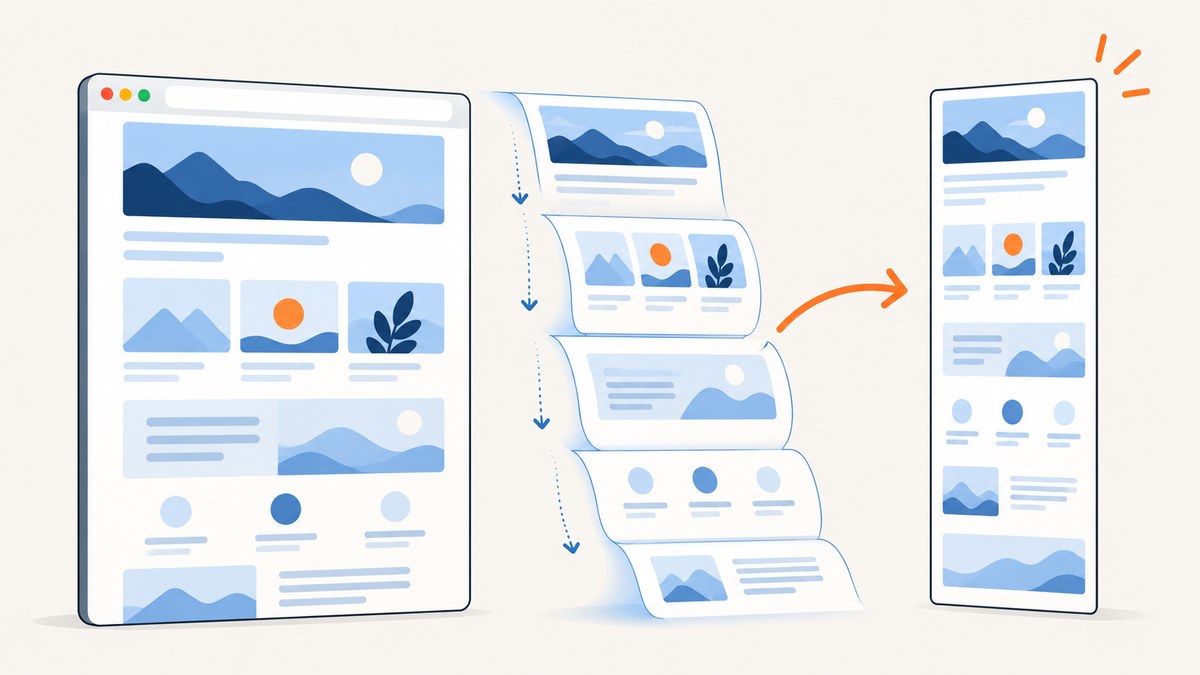
Yes. To capture an entire webpage in Chrome, open the page, run a full-page capture extension such as GoFullPage or FireShot, wait while it scrolls and stitches the page, then export the result as PNG, JPEG, or PDF. A normal screenshot only records the visible viewport. A full-page extension captures content below the fold by scrolling through the document and assembling the sections into one file.
This guide explains the complete workflow, which extension fits each job, how to capture pages with lazy loading and nested scroll areas, how to check privacy and permissions, and what to do when the output is clipped or incomplete. If you need repeatable captures from code or a server, the final section shows a browser-free option with ScreenshotNeo.
1. Capture a full webpage in Chrome
- Open the target page in desktop Chrome. Sign in first if the page requires an account.
- Install a reputable full-page capture extension from the Chrome Web Store, such as GoFullPage or FireShot.
- Pin the extension. Select the puzzle-piece Extensions button, then pin the capture tool so its icon remains visible in the toolbar.
- Keep the target tab active and click the extension icon. GoFullPage also documents Alt+Shift+P as a shortcut.
- Do not switch tabs, resize the window, or interact with the page while the extension is scrolling. It needs a stable layout to stitch sections correctly.
- Wait for processing to finish. The extension will usually open a preview or editor.
- Inspect the complete image from top to bottom. Look for missing lazy-loaded images, repeated sticky headers, blank sections, clipped inner scroll areas, and content hidden behind cookie banners.
- Export to PNG, JPEG, or PDF. Use PNG for sharp UI text, JPEG for smaller photographic files, and PDF when you need a document-like record.
For a very long page, expect the extension to take longer and use more memory. Some tools split exceptionally large pages into multiple images. Save the original page URL and capture time with the file if the screenshot will be used as evidence or documentation.
2. Which Chrome screenshot extension should you use?
| Option | Best for | What it captures or exports | Tradeoffs |
|---|---|---|---|
| GoFullPage | Fast whole-page captures | Scrolls and assembles the entire page; supports inner scrollable elements and embedded iframes; exports PNG, JPEG, and PDF | Very large pages may be split. Premium editor features are listed separately, so check the current plan before relying on them. |
| FireShot | Multiple capture modes, local/offline work, and batch jobs | Full page, visible area, selection, scrolling area, and all-tab capture; exports PDF, JPEG, GIF, and PNG; includes editing and annotation options | Some advanced functions require an upgrade. Verify current plan details and permissions. |
| Chrome DevTools | Occasional captures without installing an extension | Chrome’s Command Menu includes “Capture full size screenshot” | More steps, and the exact interface can vary by Chrome version or organization policy. |
| Print to PDF | A document-like record with selectable text and links | Creates a PDF through Chrome’s print dialog | It is a reflowed document rather than a stitched image, so fonts, backgrounds, and layout may change. |
For a one-off capture, DevTools or Print to PDF avoids adding an extension. For repeated manual work, an extension is faster. GoFullPage is oriented around a quick entire-page image, while FireShot gives you more capture modes and batch-oriented workflows.
3. How full-page capture works
The extension records the viewport, scrolls downward, records the next section, and merges the pieces. It may temporarily hide or adjust fixed elements while stitching. The result is therefore different from simply saving the visible screen.
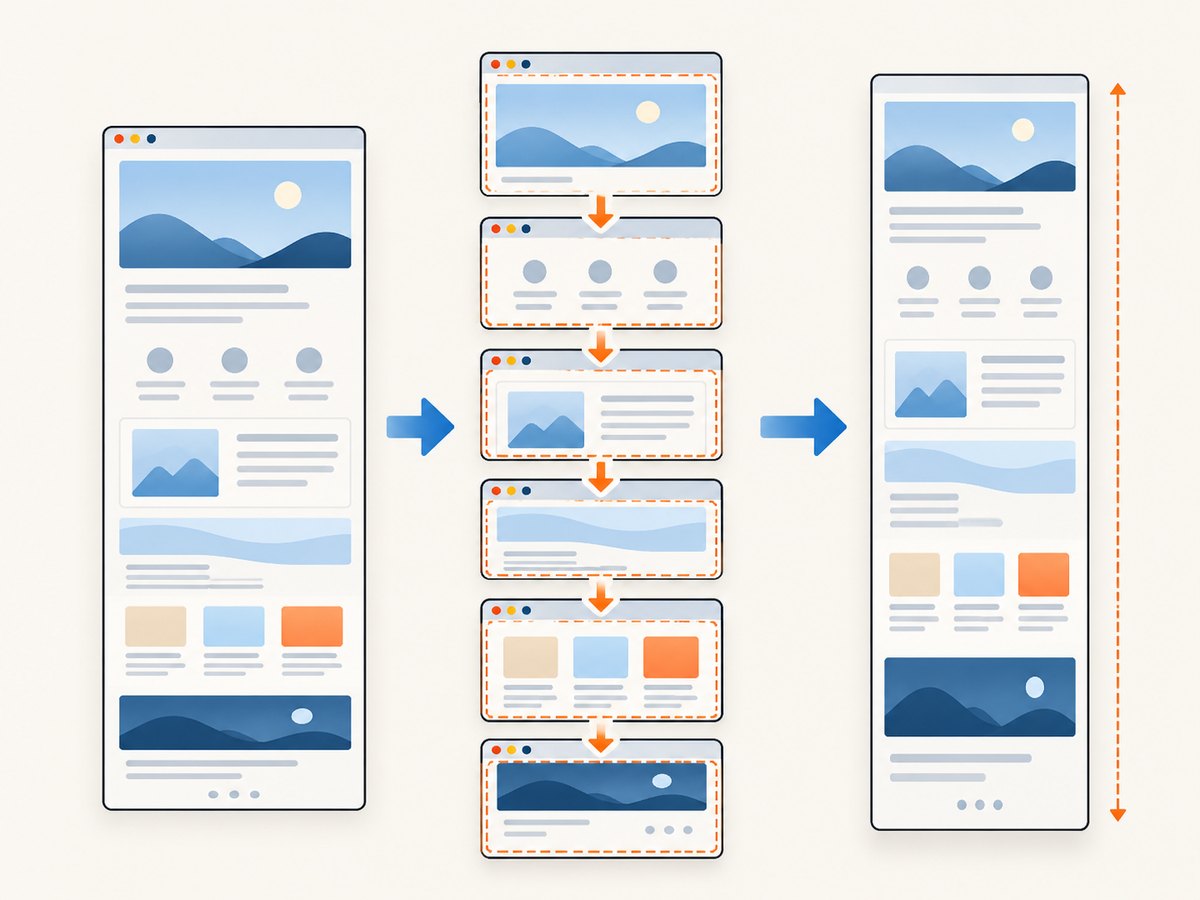
Pages with client-side rendering need extra care. A section may not exist in the DOM until you scroll near it. Images may use lazy loading, and a chart may animate after it enters view. Start only after the page has settled, then inspect the output rather than assuming every section was ready.
Nested scrolling areas and iframes
An inner panel with its own scrollbar is not the same as the document. Some extensions, including GoFullPage according to its listing, handle inner scrollable elements and embedded iframes. Other pages can still produce a clipped panel or only its visible portion. If a panel matters, capture it separately with a selection or scrolling-area mode when available.
Sticky headers and fixed chat controls
Fixed navigation bars, cookie notices, newsletter dialogs, and chat bubbles can appear in every stitched segment. Close overlays before capture. If a header repeats, compare the seams between sections and use the extension’s editor to remove duplication when supported.
4. Capture a page with Chrome DevTools instead
- Open the page in Chrome.
- Open DevTools with F12, Ctrl+Shift+I on Windows/Linux, or Cmd+Option+I on macOS.
- Open the Command Menu with Ctrl+Shift+P or Cmd+Shift+P.
- Type
Capture full size screenshotand choose the command. - Let Chrome save the resulting image, then open it and check the bottom of the page.
This is a useful extension-free fallback when installing software is not desirable or when company policy blocks extensions. The command name and available options can change with Chrome releases, so use the Command Menu search rather than relying on a toolbar location.
5. Save a webpage as PDF
Press Ctrl+P on Windows/Linux or Cmd+P on macOS, choose Save to PDF, select the page range, and save. Enable background graphics when the page’s visual design is important. Print preview can reveal page breaks, missing backgrounds, or content hidden by print CSS before you commit the file.
Use an extension’s PDF export when you need a screenshot-like rendering. Use Chrome’s print dialog when selectable text, links, and a smaller document are more valuable than pixel-identical layout.
6. Make the capture reliable
- Wait for lazy content: scroll through the page once, pause for images and charts, then run the capture.
- Stop animations: pause video, carousels, and animated banners when possible. A moving element can differ between stitched sections.
- Dismiss overlays: close consent banners, newsletter prompts, login modals, and chat widgets before clicking capture.
- Use a stable viewport: do not resize Chrome during the run. Record the window size if you need repeatable results.
- Check access: a page behind a login, bot check, or VPN may show a challenge instead of the content you expected.
- Review seams: inspect headings, tables, code blocks, and fixed elements where two viewport sections meet.
- Preserve evidence: keep the URL, date, and any relevant account or locale settings alongside the image.

7. Privacy and extension safety checklist
A screenshot extension can read the pages you ask it to capture. Before installing one, check the developer identity, requested permissions, privacy policy, update date, and recent reviews in the Chrome Web Store. FireShot’s listing says captures are stored locally and can work offline; GoFullPage’s listing says its developer will not collect or use user data. These are publisher disclosures, not an independent audit, so compare them with your organization’s policy.
- Do not capture passwords, payment details, private dashboards, or personal data unless the tool’s handling is approved.
- Use a separate browser profile for sensitive work when practical.
- Remove downloaded screenshots from shared folders and cloud sync locations when they contain confidential data.
- Review extension permissions after updates; permissions can change.
8. Troubleshooting common capture problems
| Symptom | Likely cause | Fix |
|---|---|---|
| Only the visible viewport is saved | The wrong command or a visible-area mode was selected | Choose the extension’s full-page mode, or use DevTools’ “Capture full size screenshot.” |
| The bottom of the page is blank | Lazy-loaded content did not load before capture, or the page timed out | Scroll through the page once, wait for network activity to settle, reload, and retry. |
| Images are missing | Images require scrolling, JavaScript, authentication, or a blocked request | Confirm you can see them live, disable aggressive blocking for the site, and wait before capture. |
| A sticky header appears repeatedly | The fixed element was included in every viewport segment | Hide or close it before capture; remove duplicates in the extension editor if available. |
| An inner table or panel is clipped | It has its own scroll container | Use a scrolling-area or selection capture for that element, or capture it separately. |
| An iframe is empty | The frame is cross-origin, blocked, or still loading | Open the frame directly if permitted, wait longer, or use an extension that supports embedded frames. |
| A consent dialog covers the page | The banner was not accepted or dismissed | Handle the banner manually before capture, then verify that the resulting image shows the intended content. |
| The extension icon is missing | The extension is installed but unpinned, disabled, or blocked by policy | Open the Extensions menu, pin or enable it, and check managed-browser restrictions. |
| The output is split into files | The page exceeds the tool’s practical image size | Keep the parts with their order, export PDF if suitable, or capture selected sections separately. |
| Text looks blurry | The image was scaled down or exported as a low-quality JPEG | Export PNG, capture at a larger viewport or device scale, and avoid repeated resampling. |
9. Performance, reliability, and cost considerations
Long pages require repeated paints, image decoding, and memory for the stitched result. Close unnecessary tabs, keep the machine awake, and avoid capturing several huge pages simultaneously. A page with many animated ads or third-party widgets is slower and more likely to change during the run.
Manual extensions have no API request cost, but they consume operator time and depend on the local Chrome profile, login state, viewport, and network. They are a good fit for occasional evidence, design review, and offline work. They are harder to standardize across a team or run on a schedule.
For repeatable jobs, define a capture checklist: URL, viewport, locale, authentication state, wait condition, output format, and retention period. Save the source URL with every artifact and recheck captures after extension or Chrome updates.
10. Or skip the browser setup
If you need screenshots from a build, monitoring job, documentation pipeline, or AI agent, ScreenshotNeo returns a screenshot or PDF from one GET request. Read the ScreenshotNeo API documentation for the full option set.
cURL
curl -G "https://api.screenshotneo.com/v1/shot" -d access_key=YOUR_API_KEY --data-urlencode url=https://stripe.com -o shot.webpPython
import requests
r = requests.get("https://api.screenshotneo.com/v1/shot", params={"access_key": "YOUR_API_KEY", "url": "https://stripe.com"}, timeout=90)
open("shot.webp", "wb").write(r.content)
Node.js
const q = new URLSearchParams({ access_key: 'YOUR_API_KEY', url: 'https://stripe.com' });
const res = await fetch(`https://api.screenshotneo.com/v1/shot?${q}`);
ScreenshotNeo has options for full-page capture with lazy images loaded, CSS-selector element capture, dark mode, device presets or custom viewports, retina scale, PNG/JPEG/WebP output, PDF paper size and margins, custom CSS and JavaScript, clicks, selector or network-idle waits, blocked ads and resource types, headers, cookies, user agents, authorization, timezone, geolocation, transparent backgrounds, resizing, caching with a chosen TTL, signed image links, asynchronous jobs with signed webhooks, bulk capture of up to 100 URLs per call, usage data, and an OpenAPI specification. Parameter names used by other screenshot APIs also work, which can simplify migration.
Before capture, ScreenshotNeo accepts cookie or consent banners like a visitor and removes more than 60 known consent platforms, newsletter popups, and chat widgets. Each cleanup step can be turned off. Bot checks or CAPTCHAs, blank pages, timeouts, failed loads, and cache hits cost nothing; response headers identify the page verdict and whether the request was billed with X-Page-Verdict and X-Billed.
An MCP server provides take_screenshot, get_page_info, and capture_pdf tools for Claude, Cursor, and other MCP clients. The Free plan includes 1,000 shots per month with no card. Paid plans start at $5 for 3,000 shots; yearly billing gives two months free.
Create a free ScreenshotNeo account and get 1,000 screenshots a month with no card.
11. Frequently asked questions
Can Chrome capture a full webpage without an extension?
Yes. Use DevTools’ Command Menu and choose “Capture full size screenshot,” or use Print to PDF. These options are convenient for one-off work.
Why is my full-page screenshot too tall or split?
Very long pages can exceed practical image dimensions or memory limits. Keep the ordered parts, capture sections, or export a PDF.
Which format is best for a website screenshot?
PNG keeps text and interface edges sharp. JPEG is smaller for photographic pages. PDF is better when readers need selectable text or links.
Can an extension capture a page behind a login?
Usually, if the page is visible in your active Chrome session. The extension uses that browser context, so confirm the correct account, permissions, and privacy policy.
How do I capture only one element?
Use a selection or element mode when the extension provides one. For automated work, target the element with ScreenshotNeo’s CSS-selector capture option.
How do I capture many URLs consistently?
Manual extensions are suited to small batches. For repeatable or scheduled batches, use an API with explicit viewport, wait, authentication, and output settings; ScreenshotNeo supports bulk capture of up to 100 URLs per call.


