BlogScreenshots on your device
How to Capture a Webpage Screenshot in Safari on Mac
Capture a visible Safari page, window, or full display with built-in Mac shortcuts. Learn what to use for full-page images and saved webpage files.

To capture only the part of a webpage visible in Safari, press Shift-Command-4, drag over the page, and release. To capture the Safari window, press Shift-Command-4, then Space, then click the window. For the entire Mac display, press Shift-Command-3. Press Shift-Command-5 to open the Screenshot controls.
These built-in shortcuts make ordinary screen captures. They do not create a full-page image of a long, scrolling webpage. For that, use a suitable third-party capture tool or a screenshot API. Safari can also save a webpage as a Web Archive or Page Source, but those are webpage files, not screenshot images.
1. Capture the visible webpage area
- Open the page in Safari and arrange it as you want it to appear. Scroll to the part you need, close unrelated panels, and wait for visible content to finish loading.
- Press Shift-Command-4. The pointer changes to a crosshair.
- Drag a rectangle around the webpage area and release. The screenshot is taken when you release the pointer.
- Click the floating thumbnail to edit the capture, or wait for it to save.
This is usually the best built-in choice when you want the page without the menu bar, Dock, other windows, or desktop items. Drag carefully around the browser content if you want to exclude Safari’s tabs and address bar. Press Escape before releasing to cancel. While dragging, hold Space to move the selection without changing its size. [Apple’s Mac screenshot instructions]

2. Capture the Safari window or whole display
Capture the Safari window
Press Shift-Command-4, then press and release Space. The pointer becomes a camera. Move it over the Safari window and click. Hold Option while clicking if you want to omit the window shadow.
Window capture is convenient when the browser frame is part of the image you need. It can also include browser controls and surrounding window details that a selected-area capture would leave out.
Capture the entire display
Press Shift-Command-3 to capture everything visible on the display. This can include the menu bar, Dock, other open windows, and desktop items. Use it when the full screen context matters; use a selected region for a cleaner webpage-only image.
Open Screenshot controls
Press Shift-Command-5, or open Screenshot from Applications > Utilities. The controls let you choose screen, window, or selected-area capture, set a timer, choose where to save, control the floating thumbnail, and set whether the pointer appears. On supported Mac models running macOS Tahoe 26 or later, Apple documents SDR (PNG) and HDR (HEIF) capture format options. Availability depends on the Mac and system version. [Apple: Take a screenshot on Mac]
3. Find, edit, or copy the screenshot
By default, screenshots save to the Desktop with a name like “Screen Shot [date] at [time].” To change the destination, open Screenshot controls with Shift-Command-5, select Options, and choose a save location. The floating thumbnail can be clicked to edit or dragged to another location.
To copy a capture to the clipboard instead of saving it as a file, hold Control while taking the screenshot. You can also Control-click the floating thumbnail and choose Save to Clipboard. Paste the image into an app that accepts images, such as an email, document, or image editor. [Apple screenshot options]
4. Save a full webpage: distinguish files from screenshots
If you need content below the visible Safari viewport, decide whether you need a saved webpage or a single image. Safari’s documented File > Save As options include Web Archive and Page Source:
- Web Archive: saves webpage content and graphics in a webpage archive. Links can continue to work when their destination pages are available. A site may prevent some items from being saved.
- Page Source: saves the page’s HTML source. It is code, not a rendered image, and does not by itself preserve the page’s visual appearance.
Neither option is a full-page PNG or JPEG screenshot. See Safari’s guide to saving part or all of a webpage for the available save formats.
For a full-page image, you need a separate capture tool. The Mac App Store lists FullPage Screenshot for Safari, which advertises full-page and visible-area capture with PNG and PDF export. Treat this as an optional third-party route: check the listing for current compatibility, price, and privacy details, and do not assume it works on every site. It is an extension listing, not a built-in Safari feature or an Apple endorsement.
5. Choose a method by coverage and output
| Need | Method | Result |
|---|---|---|
| Only visible webpage content | Shift-Command-4, drag a region | Screen capture image |
| Safari window, including its frame | Shift-Command-4, Space, click window | Window screenshot |
| Everything visible on the display | Shift-Command-3 | Full-display screenshot |
| Scrolling page as a file | Safari File > Save As | Web Archive or HTML source, not a screenshot |
| Scrolling page as a single image or PDF | Verify a third-party capture tool or use a screenshot service | Depends on the selected tool and its export options |
Before choosing, check three things: coverage (region, window, display, or the whole scrolling page), output (image, PDF, archive, or source), and dependencies (built-in macOS/Safari or an added tool). This avoids mistaking a saved page for a screenshot.
6. Or skip the browser setup
If you need repeatable webpage captures in code, ScreenshotNeo is a website screenshot API and MCP server from Yorker Media. One GET request accepts a URL and returns a PNG, JPEG, WebP, or PDF. The API supports full-page capture, lazy-image loading, device and viewport settings, and other capture controls; see the ScreenshotNeo API documentation for parameters and configuration.
curl -G "https://api.screenshotneo.com/v1/shot" -d access_key=YOUR_API_KEY --data-urlencode url=https://stripe.com -o shot.webpimport requests
r = requests.get(
"https://api.screenshotneo.com/v1/shot",
params={"access_key": "YOUR_API_KEY", "url": "https://stripe.com"},
timeout=90,
)
open("shot.webp", "wb").write(r.content)const q = new URLSearchParams({ access_key: 'YOUR_API_KEY', url: 'https://stripe.com' });
const res = await fetch(`https://api.screenshotneo.com/v1/shot?${q}`);
if (!res.ok) throw new Error(`Screenshot request failed: ${res.status}`);
await Bun.write('shot.webp', res);The Python example requires the requests package. The Node.js example uses Bun’s Bun.write to save the response; in a Node environment, read the response as an array buffer and write it with node:fs/promises. Keep your access key private rather than embedding it in a public webpage.
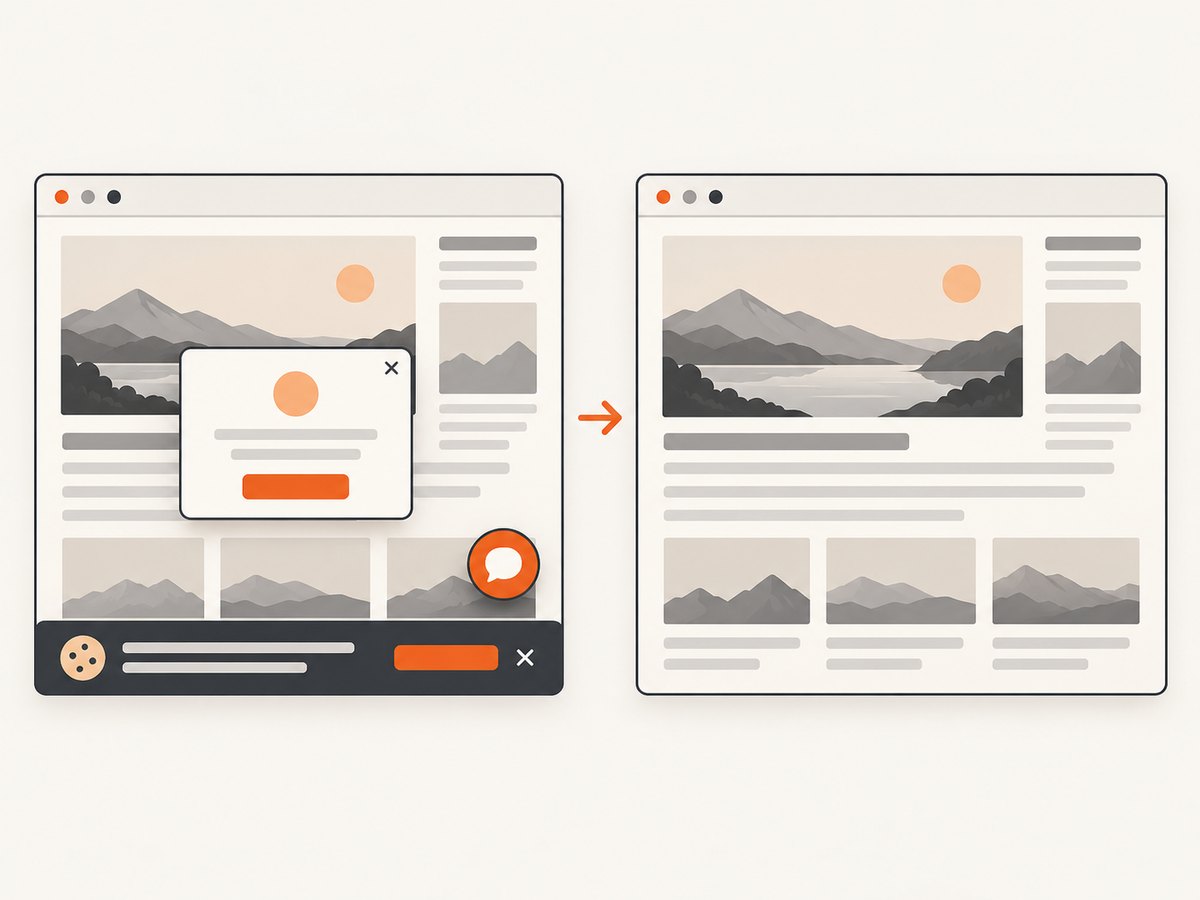
ScreenshotNeo removes cookie and consent banners, newsletter popups, and chat widgets before capture; each cleanup step can be turned off. Bot checks, blank pages, failed loads, timeouts, and cache hits are not billed, and response headers report the page verdict and billing status. Its MCP server offers take_screenshot, get_page_info, and capture_pdf for Claude, Cursor, and other MCP clients. The Free plan includes 1,000 shots per month without a card; paid plans start at $5 for 3,000 shots. Every feature is on every plan.
Sign up for 1,000 free screenshots a month, with no card required.
7. Troubleshooting common Mac screenshot problems
| Problem | Likely cause | What to do |
|---|---|---|
| The shortcut does nothing | A keyboard shortcut may have been changed, disabled, or intercepted by another app. | Open Screenshot from Applications > Utilities. Check keyboard shortcut settings if the menu command works but the key combination does not. |
| The screenshot includes too much | You used the full-display or window method, or selected a region that included browser chrome. | Use Shift-Command-4 and drag a tighter rectangle around the page. |
| The screenshot is missing content lower down | Built-in screen capture records what is visible, not the entire scrolling document. | Scroll and capture multiple sections, save a Web Archive for a webpage file, or use a verified full-page capture tool for one image. |
| The screenshot is hard to find | The save destination differs from Desktop or the capture went to the clipboard. | Check Screenshot > Options for the destination. If you held Control, paste into an app to retrieve the clipboard image. |
| A saved page is not an image | Web Archive and Page Source are webpage formats. | Use a screen capture shortcut for an image, or an image-capable full-page tool for a long page. |
| The floating preview disappeared | The thumbnail timed out or was disabled in Screenshot options. | Look in the selected save destination. Enable the floating thumbnail in Options if you want it available for editing. |
8. Quality, reliability, and practical limits
For a manual capture, the most reliable way to get a clean result is to prepare the visible area before taking it: wait for images and fonts to appear, dismiss transient menus, and position the page deliberately. A visible-area capture is quick but does not include below-the-fold content. A full-display capture has broader coverage but may include unrelated material. Choose the output format and destination before a repeated workflow so files do not get scattered or saved in the wrong form.
For a long page, screenshots taken section by section may have inconsistent scroll positions or miss content that loads only after scrolling. A full-page tool may handle the page differently, so verify its output on the site and page type you care about. Dynamic content, access restrictions, and content that loads on interaction can affect what any capture method sees.
For code-driven captures, cost and failure handling depend on the service and plan. ScreenshotNeo’s stated billing behavior excludes bot checks, blank pages, timeouts, failed loads, and cache hits; inspect its response headers for the page verdict and billed state. Its listed monthly tiers are Free: 1,000, Starter: 3,000 for $5, Growth: 15,000 for $15, Pro: 60,000 for $39, Scale: 250,000 for $99, and Business: 1,000,000 for $249. Yearly billing gives two months free. These prices and allowances are ScreenshotNeo product details; consult the product site for current plan information.
9. FAQ
Can Safari take a full-page screenshot with a built-in shortcut?
Apple’s documented Mac screenshot shortcuts capture the screen, a window, or a selected area. They do not document a built-in shortcut for one image of the full scrolling webpage.
Can I screenshot only the webpage and leave out Safari’s toolbar?
Yes. Use Shift-Command-4 and drag around the webpage content, excluding the toolbar and tabs.
Is a Web Archive the same as a PDF or screenshot?
No. A Web Archive is a saved webpage file. Page Source is HTML. Use a capture method that explicitly exports an image or PDF when that is what you need.
Where do Mac screenshots go?
The default is the Desktop. Screenshot controls let you select another destination.


