BlogScreenshots on your device
How to Capture a Webpage Screenshot in Windows 11
Capture any webpage in Windows 11 with Snipping Tool, keyboard shortcuts, or Edge’s full-page Screenshot feature.

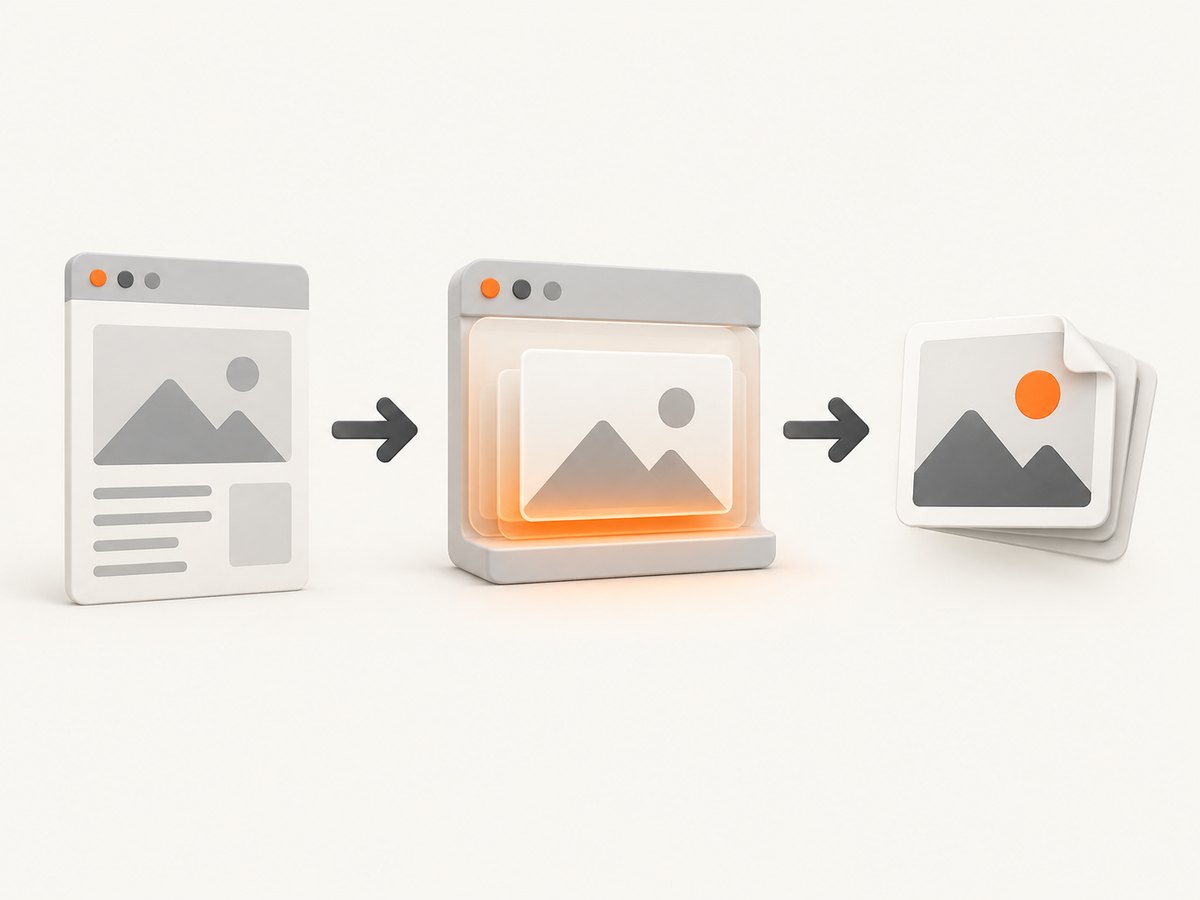
For a selected area of a webpage, press Windows+Shift+S and use Snipping Tool. For the entire scrolling webpage in Microsoft Edge, press Ctrl+Shift+S, choose Capture full page, then save or copy the result.
These methods cover different capture scopes. Snipping Tool captures what is visible on your screen; Edge Screenshot can capture content below the fold on a long page.
Choose the right Windows 11 method
| What you need | Method | Result |
|---|---|---|
| A selected rectangle or visible portion | Windows+Shift+S | Snipping Tool selection copied to the clipboard; open the notification to edit and save. |
| The active browser window | Alt+PrtScn | Active-window image copied to the clipboard. |
| The entire monitor | Windows+PrtScn | Full-screen image saved under Pictures\Screenshots. |
| The whole scrolling webpage | Edge: Ctrl+Shift+S → Capture full page | A long webpage capture that you can review, save, or copy. |
Capture a selected webpage area with Snipping Tool
- Open the webpage and scroll until the content you need is visible.
- Press Windows+Shift+S.
- Choose rectangular, freeform, window, or full-screen snip mode.
- Drag over the webpage area you want to capture.
- Select the Snipping Tool notification to open the editor.
- Annotate, crop, copy, or save the image.
Microsoft documents these Snipping Tool modes and editing actions in its Snipping Tool guidance. Captured snips are normally saved to the Screenshots folder; you can change the behavior in Snipping Tool settings or use Save as to choose another location.
When Snipping Tool is the best choice
- You need one visible section, chart, error message, or form.
- You want to mark up the image before sharing it.
- You need a quick clipboard image rather than a complete document.
Capture the active browser window
Click the browser window, then press Alt+PrtScn. Windows copies only the active window to the clipboard. Paste it into Paint, an image editor, an email, or a document, then save it.
This is useful when you want the browser frame and visible page but do not need content below the current viewport.
Capture the entire screen as a file
Press Windows+PrtScn. Windows saves a full-screen PNG in Pictures\Screenshots. Open File Explorer and browse to Pictures → Screenshots if you do not see a notification.
On some keyboards there is no dedicated Print Screen key. Microsoft notes that Fn+Windows logo key+Space Bar may work on compatible devices.
Capture a full scrolling webpage in Microsoft Edge
Use Edge when you need content that extends below the visible viewport.
- Open the webpage in Microsoft Edge.
- Press Ctrl+Shift+S, or open the Edge menu and choose Screenshot.
- Select Capture full page.
- Review the long capture.
- Save it to a file or copy it to the clipboard.
Microsoft describes this feature as capturing an entire webpage in one screenshot, including content beyond the screen. The current Edge interface uses the labels Capture full page and Capture area; labels and availability can vary by browser version, device, and market. See Microsoft’s Edge Screenshot documentation.
Capture only part of a page in Edge
Open Edge Screenshot with Ctrl+Shift+S, choose Capture area, and drag around the section to keep. This is convenient when the content is not aligned with the browser window or when you want a precise region without opening Snipping Tool.
Save, copy, and edit the capture
- Save: use the Save command in Snipping Tool or Edge Screenshot and choose a destination.
- Copy: copy the capture, then paste it into another app with Ctrl+V.
- Annotate: use Snipping Tool’s pen, highlighter, crop, and share controls.
- Choose a format: PNG is best for text and UI screenshots; JPEG is smaller for photographic pages.
What Windows 11 cannot capture with the basic shortcuts
Windows+Shift+S, Alt+PrtScn, and Windows+PrtScn capture the screen or window currently rendered by Windows. They do not provide a general scrolling-page mode. For a webpage extending below the fold, use Edge’s Capture full page option when it is available.
Dynamic pages can also change while you capture them. Lazy-loaded images, animations, cookie dialogs, chat widgets, and sticky headers may appear in the result exactly as they appear in the browser.
Print a clean document instead of making an image
If your goal is a printable record rather than an image, press Ctrl+P in Edge and choose a PDF printer or file destination. Microsoft also documents Immersive Reader as a clutter-reduction option on sites where it is available. Printing creates a document workflow, so pagination and selectable text may be preferable to a very tall screenshot.
Or skip the browser setup
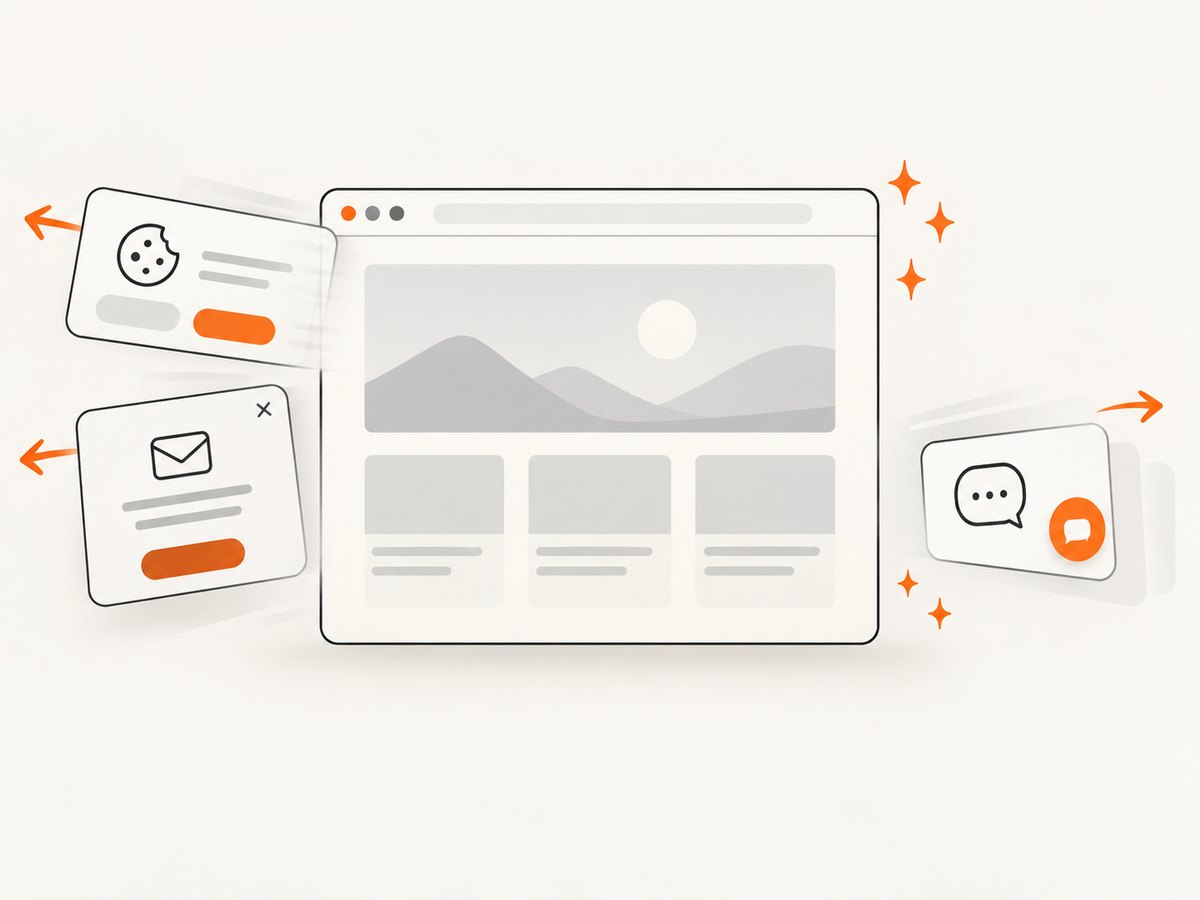
ScreenshotNeo returns a webpage screenshot or PDF from one API request. It can accept the cookie or consent banner before capture and remove more than 60 known consent platforms, newsletter popups, and chat widgets. Each cleanup step can be turned off.
Only clean shots are billed. Bot checks or CAPTCHAs, blank pages, timeouts, failed loads, and cache hits cost nothing, and the response identifies the result with X-Page-Verdict and X-Billed headers. An MCP server provides take_screenshot, get_page_info, and capture_pdf tools for Claude, Cursor, and other MCP clients.
See the ScreenshotNeo API documentation for all options. The following examples save a screenshot of a webpage:
cURL
curl -G "https://api.screenshotneo.com/v1/shot" -d access_key=YOUR_API_KEY --data-urlencode url=https://stripe.com -o shot.webpPython
import requests

r = requests.get(
    "https://api.screenshotneo.com/v1/shot",
    params={"access_key": "YOUR_API_KEY", "url": "https://stripe.com"},
    timeout=90,
)
r.raise_for_status()
open("shot.webp", "wb").write(r.content)
Node.js
const q = new URLSearchParams({ access_key: 'YOUR_API_KEY', url: 'https://stripe.com' });
const res = await fetch(`https://api.screenshotneo.com/v1/shot?${q}`);
if (!res.ok) throw new Error(`Screenshot failed: ${res.status}`);
const fs = await import('node:fs/promises');
await fs.writeFile('shot.webp', Buffer.from(await res.arrayBuffer()));
For automated captures, ScreenshotNeo also supports full-page images with lazy images loaded, CSS-selector element captures, dark mode, device presets, custom viewports, retina scale, PDF paper sizes and page ranges, custom CSS and JavaScript, clicks, selector or network-idle waits, blocked ads and trackers, custom headers and cookies, user agents, authorization, timezone and geolocation, transparent backgrounds, resizing, configurable cache TTLs, signed image links, asynchronous jobs with signed webhooks, bulk capture of up to 100 URLs per call, usage reporting, and an OpenAPI specification.
Free accounts include 1,000 screenshots per month with no card. Paid plans start at $5 for 3,000 shots; yearly billing gives two months free. Create a free ScreenshotNeo account.
Troubleshooting Windows 11 webpage screenshots
The full-page option is missing in Edge
Edge Screenshot availability and functionality vary by device, market, and browser version. Update Edge, check the browser menu for Screenshot, and try the shortcut again. If the option remains unavailable, capture several sections with Snipping Tool or use an automated screenshot API.
Pressing PrtScn opens Snipping Tool unexpectedly
Windows can configure the Print Screen key to open screen snipping. Change this under Settings → Accessibility → Keyboard, then disable the Print Screen shortcut if you want the key to behave differently.
The screenshot is not where expected
Windows+PrtScn saves to Pictures\Screenshots. Snipping Tool may save automatically according to its settings, while Alt+PrtScn places the image only on the clipboard until you paste and save it.
The page is cut off
Use Edge’s Capture full page instead of a screen snip. For pages that load content only after scrolling, scroll through the page first, wait for images to appear, and then capture. A browser screenshot still reflects the page state at capture time.
A cookie banner, popup, or chat bubble covers the page
Close the overlay before using Snipping Tool or Edge Screenshot. For repeatable automated captures, use ScreenshotNeo’s cleanup options, which can accept consent banners and remove supported consent platforms, newsletter popups, and chat widgets before the shot.
The capture contains an animation or changing content
Pause the animation when the site allows it, wait for the page to settle, and then capture. For automation, configure a selector wait, delay, or network-idle wait so the page is ready before rendering.
Performance, reliability, and cost considerations
- Fastest manual path: Windows+Shift+S for a visible region.
- Best built-in path for long pages: Edge Screenshot’s Capture full page.
- Repeatable automation: an API avoids manually arranging a browser window and can set waits, viewport, device, headers, cookies, and cleanup behavior.
- Large pages: full-page captures can be tall and memory-intensive. Capture a specific element or resize the output when a complete page is unnecessary.
- Billing: ScreenshotNeo bills only clean shots; failed loads, blank pages, bot checks or CAPTCHAs, timeouts, and cache hits are not billed.
FAQ
What is the shortcut for a webpage screenshot in Windows 11?
Use Windows+Shift+S for a selected visible area. In Edge, use Ctrl+Shift+S and choose Capture full page for the whole scrolling webpage.
Can Snipping Tool capture an entire scrolling webpage?
The documented Snipping Tool modes cover regions, freeform areas, windows, and the full screen. Use Edge’s full-page Screenshot feature for a scrolling webpage.
Where does Windows save screenshots?
Windows+PrtScn saves full-screen captures in Pictures\Screenshots. Clipboard captures must be pasted into an app and saved.
Can I capture a webpage as a PDF?
Use Edge’s print dialog with Ctrl+P for a PDF document. ScreenshotNeo can also return PDFs through its capture API.
Which method is best for scheduled screenshots?
Use an automated API such as ScreenshotNeo when captures must run repeatedly, use consistent settings, remove overlays, or feed an AI agent through MCP.


