BlogScreenshots on your device
How to Capture Website Screenshots in a Clean Operating System Environment
Capture repeatable website screenshots with a pinned browser, isolated context, stable rendering, and practical Playwright and ScreenshotNeo workflows.
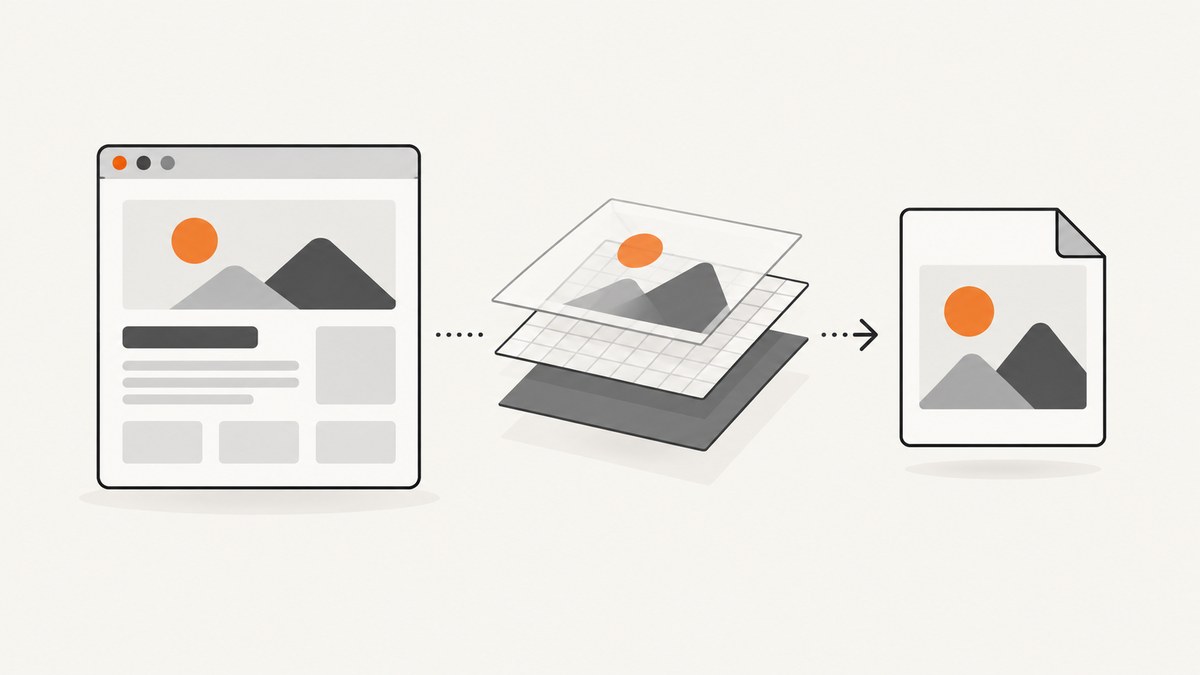
A clean operating system helps, but it does not by itself make screenshots repeatable. For dependable website captures, pin the browser and automation version, use a fresh browser context, set the viewport and device scale explicitly, wait for meaningful page state, stabilize animations and dynamic content, and save the capture metadata with the image.
This guide shows how to capture a viewport, a full scrolling page, or one element with Playwright. It also explains when an operating-system or virtual-machine screenshot is appropriate, how to reproduce a capture on another machine, and how to avoid common rendering and privacy problems.
What “clean environment” means
A clean environment is an isolated, documented baseline rather than merely a newly installed operating system. Record the OS image and version, browser build, automation-library version, viewport, device scale factor, locale, timezone, color scheme, fonts, network conditions, and headless or headful mode. Playwright’s visual-testing guidance recommends running comparisons in the same environment that produced the baseline because OS, browser version, settings, hardware, power source, and headless mode can change rendered pixels (Playwright visual comparisons).
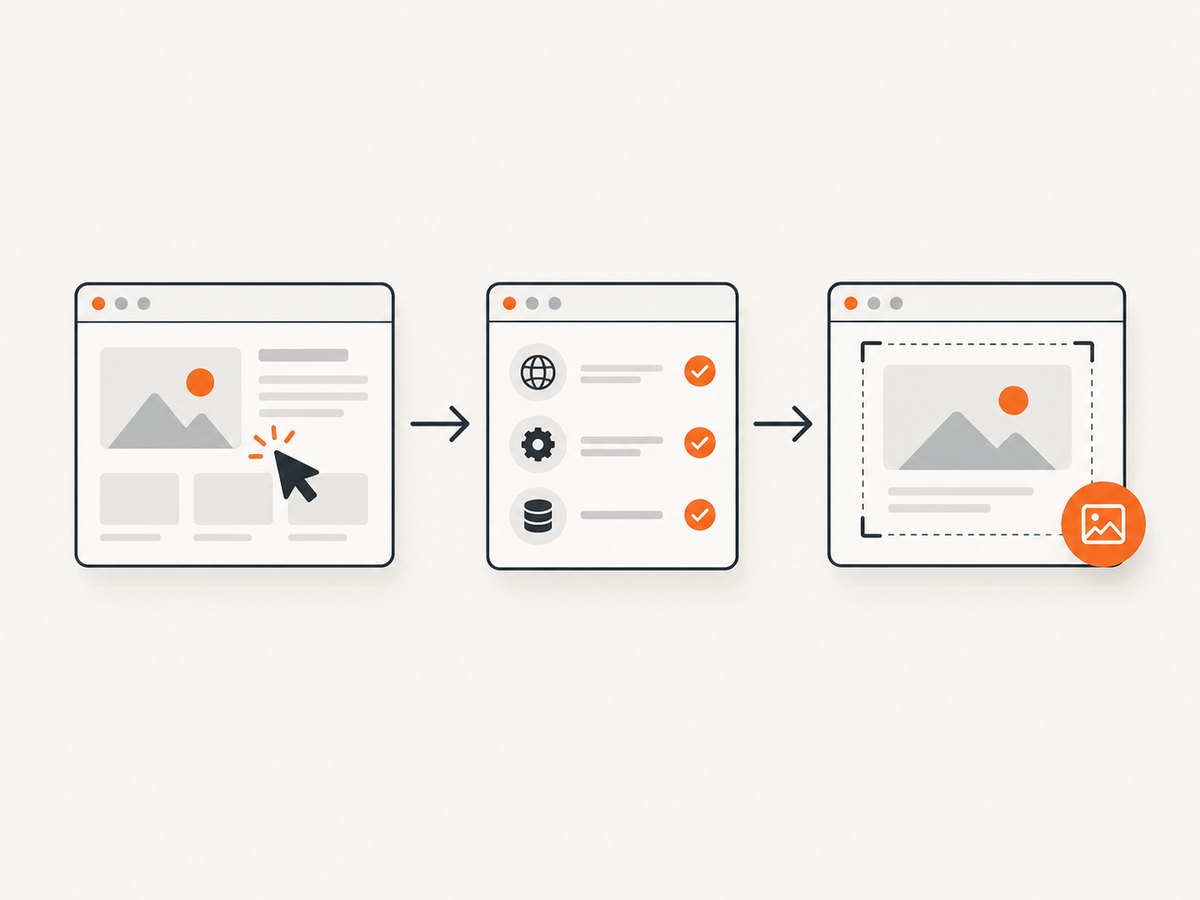
Use a clean VM, container image, or CI runner when isolation matters. A fresh browser context prevents cookies, local storage, service workers, and page state from a previous run from leaking into the capture. If authentication is required, load a deliberately saved authentication state and record that fact.
Choose the capture scope
| Goal | Method | What you get |
|---|---|---|
| What a visitor currently sees | Viewport screenshot | The visible browser viewport |
| The complete document | Full-page screenshot | The page’s scrollable content, including below-the-fold sections |
| A component or region | Element screenshot | The pixels matched by a CSS selector or locator |
| The whole desktop or VM console | OS-level screenshot | The display, which may include unrelated windows, browser chrome, or sensitive data |
Playwright exposes viewport, full-page, and element capture through its Page API (Page API). Its screenshot tooling also documents CSS-pixel and device-pixel behavior (Playwright screenshots). Decide whether your artifact should be measured in CSS pixels or physical device pixels before setting the scale.
Pin the browser and prepare the environment
- Choose a base OS or CI image and keep its version under source control.
- Pin the automation package version in your lockfile.
- Install the browser binary managed by that package, or use a known Chrome for Testing build. Chrome for Testing is intended for downloading and pinning browser versions in automated environments (Chrome for Developers). Playwright installs supported Chromium, Firefox, and WebKit builds separately from the host browser (Playwright browsers).
- Use the same headless or headful mode for the baseline and later captures.
- Install the same fonts and locale data. Missing fonts can change line wrapping and page height.
- Set timezone, locale, color scheme, and viewport explicitly instead of inheriting host defaults.
Capture a website with Playwright (Node.js)
The following script creates a fresh Chromium context, fixes the viewport and scale, waits for the page to load, disables motion, and writes a full-page PNG. Save it as capture.mjs.
import { chromium } from 'playwright';

const browser = await chromium.launch({ headless: true });
const context = await browser.newContext({
  viewport: { width: 1440, height: 900 },
  deviceScaleFactor: 1,
  locale: 'en-US',
  timezoneId: 'UTC',
  colorScheme: 'light'
});
const page = await context.newPage();

await page.goto('https://example.com', { waitUntil: 'domcontentloaded' });
await page.addStyleTag({ content: `
  *, *::before, *::after {
    animation: none !important;
    transition: none !important;
    caret-color: transparent !important;
  }
` });
await page.screenshot({ path: 'example-full.png', fullPage: true });

await browser.close();
Install and run it with:
npm install playwright
npx playwright install chromium
node capture.mjs
Viewport, full-page, and element examples
// Visible viewport
await page.screenshot({ path: 'viewport.png' });

// Entire scrollable document
await page.screenshot({ path: 'full-page.png', fullPage: true });

// One component
await page.locator('[data-testid="pricing-card"]').screenshot({
  path: 'pricing-card.png'
});
Use a stable selector such as a test ID where possible. If the element is below the fold, Playwright scrolls it into view before capturing it.
Wait for a meaningful page state
domcontentloaded only means that the initial document was parsed. Single-page applications, images, fonts, and API responses may still be changing. Wait for a selector that proves the content you need is present, or wait for a page-specific readiness signal.
await page.goto('https://example.com/dashboard', { waitUntil: 'domcontentloaded' });
await page.locator('[data-testid="dashboard-ready"]').waitFor({ state: 'visible' });
await page.screenshot({ path: 'dashboard.png', fullPage: true });
For visual comparisons, Playwright Test can wait until two consecutive screenshots match before comparing them (PageAssertions). That stabilization is useful for dynamic pages, but it cannot determine whether the page has reached the correct business state; provide an explicit readiness condition when you can.
Remove transient visual differences
- Move the mouse away from hover-sensitive controls or use a neutral location.
- Disable CSS animations and transitions when motion is irrelevant to the capture.
- Wait for fonts and important images to finish loading.
- Mask timestamps, rotating ads, random avatars, or other volatile components only when hiding them does not remove information the screenshot is meant to show.
- Record every injected style, mask, and wait condition with the capture metadata.
await page.mouse.move(0, 0);
await page.evaluate(() => document.fonts.ready);
await page.locator('.rotating-banner').evaluate(el => {
  el.style.visibility = 'hidden';
});
Reproduce the same screenshot on another machine
- Use the same OS or container image.
- Install the exact lockfile and the exact Playwright browser revision.
- Use identical viewport, device scale factor, locale, timezone, color scheme, and headless mode.
- Use the same authentication state, cookies, headers, feature flags, and test data.
- Keep network dependencies stable. If the page depends on changing APIs, provide fixtures or a controlled test backend.
- Use the same fonts and verify that font loading completed.
- Keep the same readiness waits, animation CSS, masks, and screenshot options.
- Store a JSON metadata file beside the image.
{
  "url": "https://example.com",
  "captured_at": "2026-09-30T12:00:00Z",
  "os_image": "ci-image-2026-09-30",
  "browser": "chromium revision from lockfile",
  "viewport": { "width": 1440, "height": 900 },
  "device_scale_factor": 1,
  "locale": "en-US",
  "timezone": "UTC",
  "color_scheme": "light",
  "full_page": true,
  "headless": true
}
Python alternative with Playwright
from playwright.sync_api import sync_playwright

with sync_playwright() as p:
    browser = p.chromium.launch(headless=True)
    context = browser.new_context(
        viewport={"width": 1440, "height": 900},
        device_scale_factor=1,
        locale="en-US",
        timezone_id="UTC",
        color_scheme="light",
    )
    page = context.new_page()
    page.goto("https://example.com", wait_until="domcontentloaded")
    page.locator("body").wait_for(state="visible")
    page.screenshot(path="example-full.png", full_page=True)
    browser.close()
pip install playwright
playwright install chromium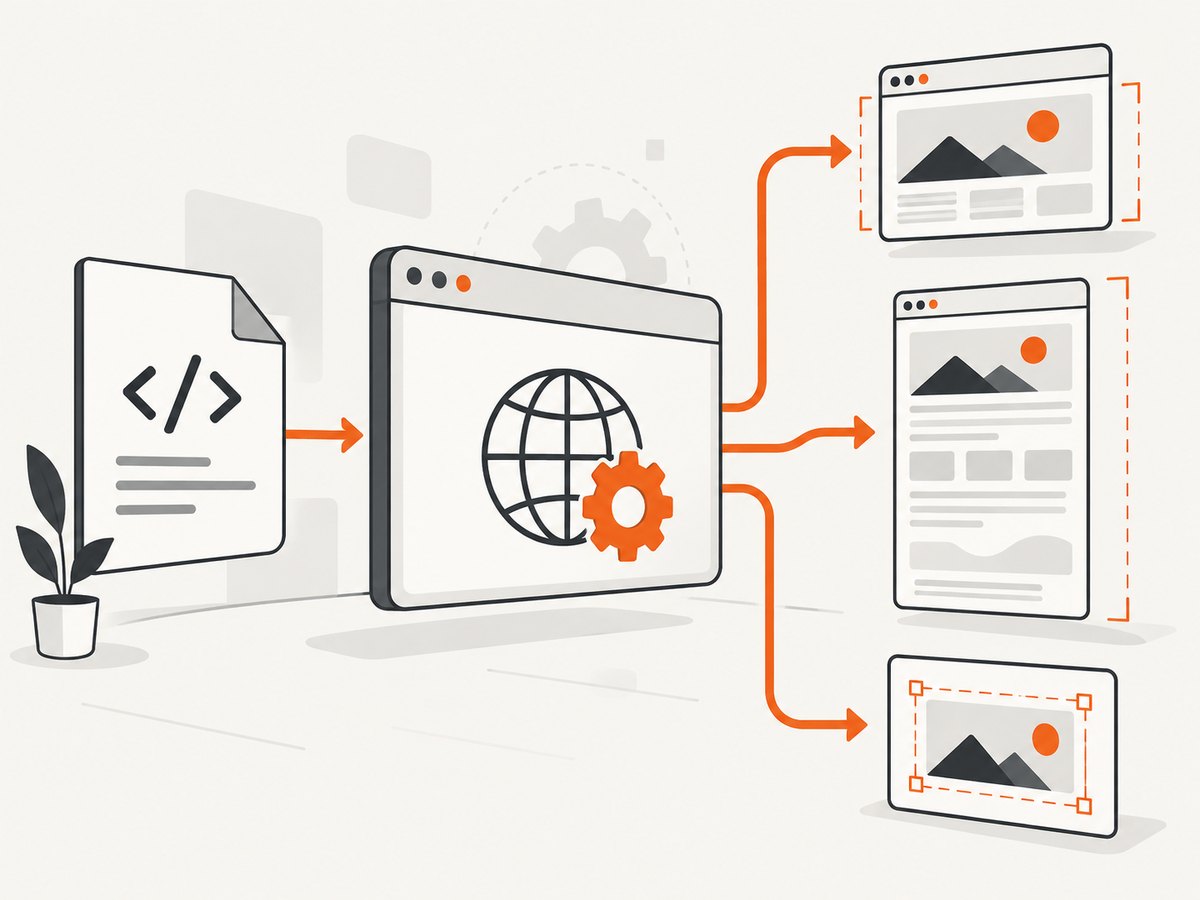
Browser screenshot versus operating-system screenshot
A browser screenshot targets page pixels and can select a viewport, full document, or element. An OS or VM screenshot captures a display or console. The latter can include browser chrome, terminals, notifications, and unrelated desktop information. Google Cloud warns that its VM screenshot route may capture sensitive information visible in the local console (Capturing VM screenshots).
Use an OS-level capture when you specifically need to document the desktop, a native dialog, a browser installation problem, or a full VM state. Before sharing it, inspect every visible monitor region and window. For a website image, browser automation is usually the more precise and portable method.
Or skip the browser setup
ScreenshotNeo is a website screenshot API and MCP server. One GET request returns PNG, JPEG, WebP, or PDF. Cookie and consent banners are accepted and 60+ known consent platforms, newsletter popups, and chat widgets are removed before capture; each step can be turned off. Bot checks, blank pages, timeouts, failed loads, and cache hits are not billed, and response headers identify the page verdict and billing status. See the ScreenshotNeo API documentation for all options.
cURL
curl -G "https://api.screenshotneo.com/v1/shot" -d access_key=YOUR_API_KEY --data-urlencode url=https://stripe.com -o shot.webpPython
import requests
r = requests.get("https://api.screenshotneo.com/v1/shot", params={"access_key": "YOUR_API_KEY", "url": "https://stripe.com"}, timeout=90)
open("shot.webp", "wb").write(r.content)
Node.js
const q = new URLSearchParams({ access_key: 'YOUR_API_KEY', url: 'https://stripe.com' });
const res = await fetch(`https://api.screenshotneo.com/v1/shot?${q}`);
ScreenshotNeo supports full-page and element capture, dark mode, 12 device presets or any viewport, retina scale, PDF paper settings and page ranges, custom CSS and JavaScript, clicks, selector waits, delays, network-idle waits, blocked ads and trackers, custom headers and cookies, user agents, authorization, timezone, geolocation, transparent backgrounds, resizing, configurable-TTL caching, signed image links, asynchronous jobs with signed webhooks, bulk capture for 100 URLs per call, a usage API, and an OpenAPI specification. An MCP server provides take_screenshot, get_page_info, and capture_pdf tools for Claude, Cursor, and other MCP clients.
There is a free allowance of 1,000 screenshots per month with no card. Paid plans start at $5 for 3,000 screenshots; yearly billing gives two months free, and every feature is on every plan. Create a free ScreenshotNeo account.
Troubleshooting
| Symptom | Likely cause | Fix |
|---|---|---|
| Text wraps differently | Different font, browser build, viewport, or scale | Pin the browser, install identical fonts, and set viewport and device scale explicitly. |
| Screenshot is taken too early | Only DOM readiness was awaited | Wait for a meaningful selector, image/font readiness, or application-specific signal. |
| Height changes between runs | Lazy images, ads, timestamps, or API data change | Wait for content, block or fixture unstable resources, and document any masks. |
| Hover menu appears | Pointer remained over an interactive element | Move the pointer to a neutral coordinate before capture. |
| Blank or partially loaded page | Navigation error, blocked resource, timeout, or bot check | Capture console and network errors, verify access from the clean environment, and increase only the relevant timeout. |
| Element screenshot fails | Selector is missing, hidden, or detached | Use a stable selector and wait for the element to be visible and attached. |
| Shared VM screenshot exposes secrets | OS-level capture includes the console or other windows | Prefer a page screenshot, or close and inspect every unrelated window before sharing. |
| Headless and headed images differ | Rendering mode changes available fonts, GPU paths, or timing | Use the same mode as the baseline and keep it fixed in CI. |
Performance, reliability, and cost
- Performance: Full-page captures require more layout and image work than viewport captures. Use element or viewport screenshots when the complete document is unnecessary. Reuse a browser process for batches while creating a fresh context per isolated session.
- Reliability: Pin versions, keep readiness conditions explicit, and save metadata. Retries help transient network failures but cannot correct a nondeterministic page state.
- Network: Third-party ads, trackers, analytics, and rotating content add latency and visual variance. Block them only when they are outside the subject of the screenshot, and record the rule.
- Cost: Local Playwright runs consume your own compute and browser maintenance time. An API trades setup for per-capture billing. ScreenshotNeo does not bill bot checks, blank pages, timeouts, failed loads, or cache hits, and its free plan includes 1,000 screenshots per month.
Checklist for a repeatable capture
- OS or container image recorded
- Browser and automation versions pinned
- Fonts installed consistently
- Fresh context created
- Viewport and device scale set
- Locale, timezone, and color scheme set
- Readiness selector or equivalent condition defined
- Animations and volatile regions handled deliberately
- Capture scope chosen: viewport, full page, or element
- Image and metadata saved together
- Final image reviewed for private desktop or page data
FAQ
Is a clean VM required?
No. It is useful when you need isolation and repeatability. A pinned browser and documented settings on a normal machine can work for less strict captures.
Should I use CSS pixels or device pixels?
Use CSS pixels when matching a layout or visual baseline. Use a higher device scale factor when you need a denser image for display or print, and keep that choice fixed across runs.
Can a full-page screenshot include lazy-loaded images?
It can if the page loads those images as it is scrolled or if you explicitly trigger the page’s loading behavior before capture. Wait for the relevant content rather than assuming navigation completion is enough.
When is an OS screenshot the right choice?
Use it for desktop state, native dialogs, or VM troubleshooting. Use a browser screenshot for a shareable website image with controlled scope.
How do AI agents capture screenshots?
ScreenshotNeo’s MCP server exposes take_screenshot, get_page_info, and capture_pdf for MCP clients such as Claude and Cursor.


