BlogScreenshots on your device
How to Capture Website Screenshots Online on a PC
Capture a visible area or an entire webpage on your PC with Edge, Firefox, Windows Snipping Tool, Chrome, or an API.

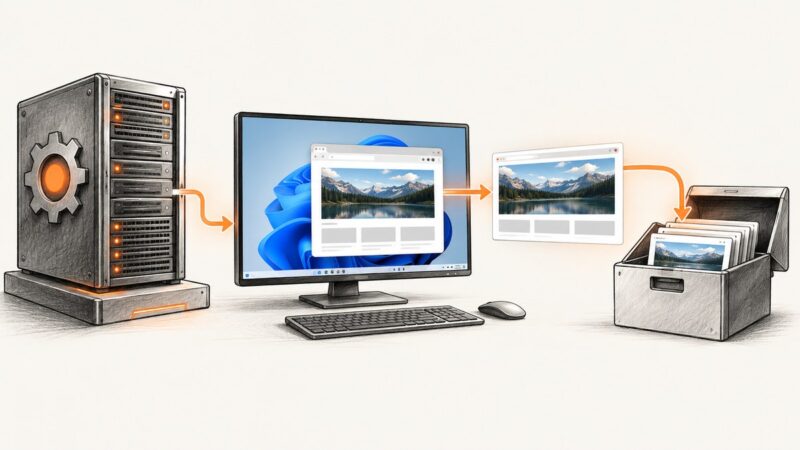
To capture a website screenshot online on a PC, first decide whether you need the visible screen or the whole scrolling page. Use Windows Snipping Tool for a selected area, Microsoft Edge or Firefox for a full-page browser capture, and a Chrome extension when Chrome is your preferred browser. For repeatable developer workflows, an API such as ScreenshotNeo can capture a URL without running a browser on your computer.
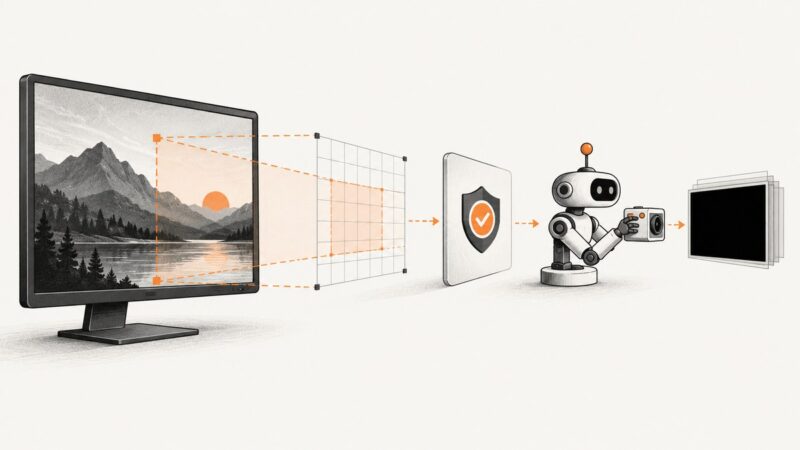
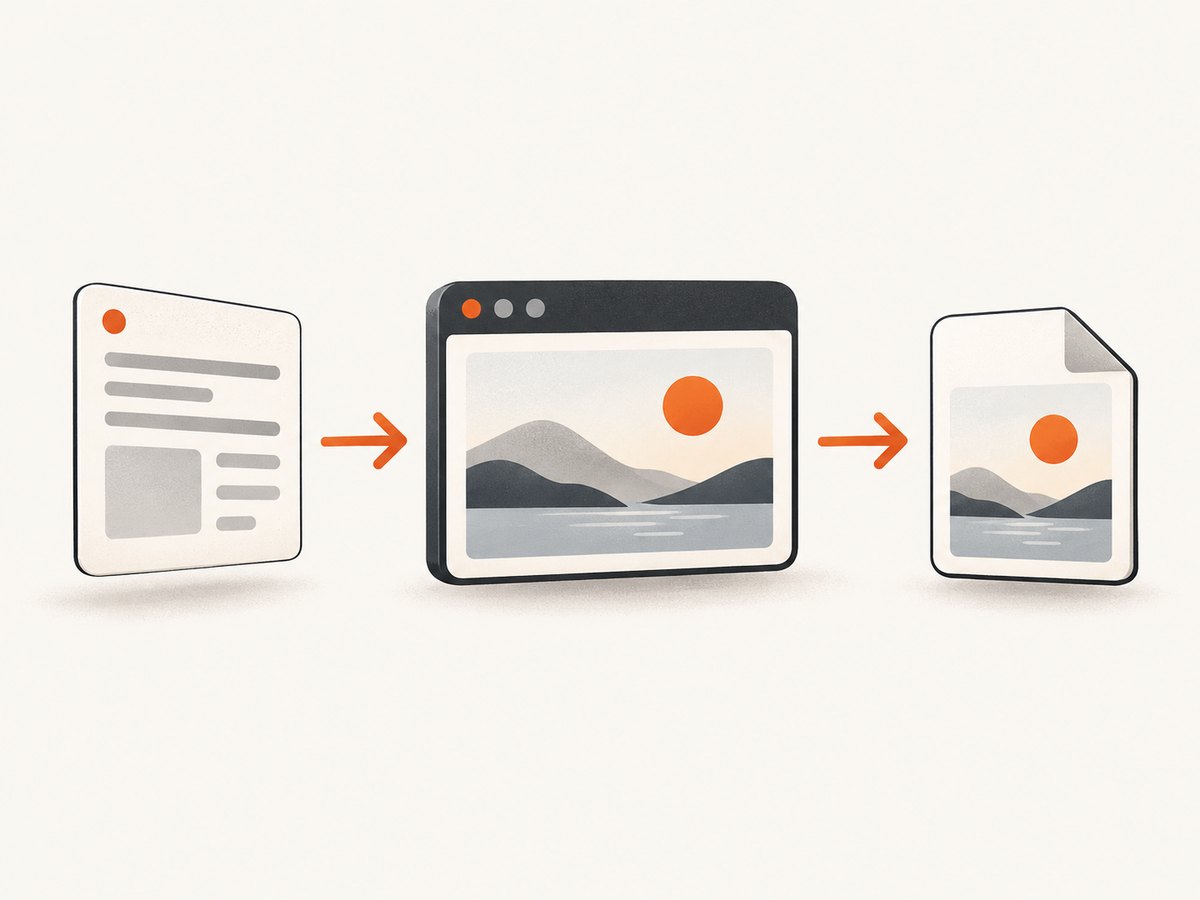
A visible-area screenshot records only what is currently inside the viewport. A full-page screenshot stitches or renders content below the fold into one image. Those are different jobs, so choose the method that matches the output you need.
Choose the right capture method
| Method | Best for | Full page? | Install required? | Output and controls |
|---|---|---|---|---|
| Windows Snipping Tool | A visible region of your screen | No | No | Copy or save the selected screen area; basic markup is available |
| Microsoft Edge Screenshot | Capturing a page or selected region in Edge | Yes | No | Full page or selection, markup, copy and save |
| Firefox Screenshot | One image of a long webpage | Yes | No | Save full page as an image |
| Chrome extension | Full-page capture while staying in Chrome | Often, depending on the extension | Yes | For example, PNG, JPEG and PDF export advertised by the listing |
| ScreenshotNeo API | Automation, CI, scripts and server-side capture | Yes | No local browser | PNG, JPEG, WebP or PDF plus capture controls |
Before you capture: prepare the webpage
- Open the exact URL and wait for the page to finish loading.
- Decide whether cookie notices, chat bubbles, newsletter forms or other overlays belong in the result. Dismiss them manually when using a browser capture.
- For a full page, scroll once through pages that lazy-load images. Otherwise, lower sections may still contain placeholders.
- Check the browser zoom level. A zoom other than 100% changes the apparent size and amount of content in a visible-area capture.
- Close unrelated windows and notifications if the screenshot will be shared.
Method 1: capture a full webpage in Microsoft Edge
Microsoft Edge includes a Screenshot tool that can capture a full page or a selected area, then let you mark up, copy or save the result. Microsoft documents the feature on its Edge Screenshot page.
Full-page steps
- Open the webpage in Edge.
- Open the page context menu, usually by right-clicking the page, and look for Screenshot. Menu placement can change between Edge versions.
- Choose the full-page option when you need content below the visible screen. Choose a selection option when you need only a region.
- Review the capture, add markup if needed, then use the offered controls to copy or save it.
When Edge is the better choice
Use Edge when you want a built-in full-page workflow and occasional annotation without installing an extension. It is also useful when you need both a selected-area screenshot and a whole-page option in the same browser tool.
Method 2: save the whole page in Firefox
Firefox has a built-in screenshot feature with a Save full page command. Mozilla’s instructions are in Take screenshots in Firefox.
- Open the webpage in Firefox.
- Open Firefox’s screenshot feature from the page tools or context menu.
- Select Save full page.
- Download the generated image and open it to check that the bottom of the page is present.
Firefox is a good fit when the goal is one long image rather than a screenshot limited to the current viewport. If the page changes while Firefox is building the capture, repeat the operation after the page has settled.
Method 3: capture the visible screen with Windows Snipping Tool
Windows Snipping Tool is designed for a screen snapshot or selected area. Press Windows logo key + Shift + S to open the snipping overlay, as described by Microsoft Support.
- Put the webpage and any required content on screen.
- Press Windows + Shift + S.
- Choose the rectangular, window, or full-screen snip mode that matches your need.
- Select the area. The result is copied to the clipboard; open the Snipping Tool notification to annotate or save it.
This workflow captures what is visible. It does not automatically collect a long scrolling webpage below the viewport. Use Edge or Firefox for a full-page image.
Method 4: use a Chrome extension for a full-page capture
Chrome does not provide the same documented built-in full-page workflow described for Edge and Firefox. An optional extension can add it. For example, the Chrome Web Store listing for FullPage Capture – Full Page Screenshot advertises one-click full-page capture with PNG, JPEG and PDF export.
- Open the current Chrome Web Store listing and read its permissions and current feature description.
- Install the extension only if its requested access is acceptable for the pages you plan to capture.
- Open the webpage, wait for dynamic content, then activate the extension from Chrome’s toolbar.
- Choose its full-page or visible-area command and export the offered format.
Extensions can behave differently on pages with nested scroll containers, cross-origin frames, fixed headers or protected content. Treat the store description as the extension’s own feature claim and verify the output on your target pages.
Capturing only part of a website
For a small region such as a chart, product card or code sample, use Snipping Tool or a browser selection mode. A selection capture is usually clearer than taking a full page and cropping later. Keep the browser zoom and page state fixed if you need to repeat the same capture.
For a particular element in an automated workflow, a CSS selector is more reliable than screen coordinates. ScreenshotNeo supports element capture by selector, along with custom CSS and JavaScript, so a script can target the same component after every page update.
Dynamic pages and common edge cases
Lazy-loaded images
Images may load only after they approach the viewport. Scroll through the page once before using a browser tool. In an automated capture, wait for a selector, a delay or network idle, and use a full-page option that loads lazy images.

Cookie banners and overlays
A consent dialog, newsletter popup or chat widget can cover the content you want. Dismiss it before a manual capture. For repeatable captures, configure a tool that can click an element, hide selectors or remove known overlays.
Sticky headers
Fixed navigation can appear repeatedly or cover text in a stitched screenshot. Try the browser’s full-page mode first; if the result is unsuitable, hide the header with custom CSS in an automated workflow.
Authentication and private pages
A normal browser session can capture a page after you sign in. Extensions and remote services may need separate authentication configuration. Never place session cookies or access tokens in a shared screenshot URL.
Bot checks and blank pages
A site may show a challenge instead of the requested page, or fail to render in an automated browser. A manual browser capture may still work after you complete the check. For API workflows, detect the returned verdict and retry only when appropriate rather than billing a failed result as a successful page image.
Very long pages
Long pages require more rendering time and memory. Remove unnecessary animations, wait for the page to settle, and consider capturing a specific element when a complete page is not needed.
Or skip the browser setup
ScreenshotNeo captures a URL with one HTTP request and returns PNG, JPEG, WebP or PDF. The API documentation covers its options. The basic request looks like this:
cURL
curl -G "https://api.screenshotneo.com/v1/shot" -d access_key=YOUR_API_KEY --data-urlencode url=https://stripe.com -o shot.webpPython
import requests
r = requests.get("https://api.screenshotneo.com/v1/shot", params={"access_key": "YOUR_API_KEY", "url": "https://stripe.com"}, timeout=90)
open("shot.webp", "wb").write(r.content)
Node.js
const q = new URLSearchParams({ access_key: 'YOUR_API_KEY', url: 'https://stripe.com' });
const res = await fetch(`https://api.screenshotneo.com/v1/shot?${q}`);
ScreenshotNeo accepts full-page capture, a CSS selector, dark mode, device presets, custom viewports, retina scale, PDF paper sizes and page ranges, custom CSS and JavaScript, clicks before capture, hidden selectors, waits, blocked ads or resource types, headers, cookies, user agents, Authorization, timezone, geolocation, transparent backgrounds, resizing, caching with a chosen TTL, signed public image links, asynchronous jobs with signed webhooks, bulk capture of up to 100 URLs per call, a usage API and an OpenAPI specification. Parameter names used by other screenshot APIs also work, which can simplify migration.
Cookie and consent banners are accepted like a visitor, then more than 60 known consent platforms, newsletter popups and chat widgets are removed before the shot; each step can be turned off. Bot checks, blank pages, timeouts, failed loads and cache hits cost nothing. The response identifies the result with X-Page-Verdict and X-Billed headers.
An MCP server provides take_screenshot, get_page_info and capture_pdf tools for Claude, Cursor and other MCP clients. The Free plan includes 1,000 shots per month with no card; paid plans start at $5 for 3,000 shots. Create a free ScreenshotNeo account to get started.
Automation options and configuration checklist
| Need | Configuration to consider |
|---|---|
| Whole page | Full-page mode and lazy-image loading |
| One component | CSS selector capture |
| Consistent appearance | Device preset or viewport, scale, timezone, geolocation and dark mode |
| Remove clutter | Hide selectors, custom CSS, click actions, consent handling and blocked resource types |
| Private page | Custom headers, cookies, user agent or Authorization |
| PDF delivery | Paper size, margins, landscape mode and page ranges |
| High volume | Cache TTL, asynchronous jobs, signed webhooks and bulk requests |
Troubleshooting
The screenshot stops at the visible viewport
You used Snipping Tool or a selection command. Choose Edge’s full-page option, Firefox’s Save full page, or an extension/API full-page mode.
The bottom of the page is blank
Images or components are lazy-loaded. Scroll first, add a selector or network-idle wait, or use a capture service that loads lazy images.
A popup covers the content
Dismiss the popup manually, click its close control before capture, hide its selector, or enable consent and overlay cleanup in your automated configuration.
The extension asks for permissions
Review the current Chrome Web Store permission list. Do not install it for sensitive pages unless the requested access fits your requirements.
The API returns an unexpected page
Check the URL, authentication headers or cookies, user agent, viewport and wait settings. Inspect X-Page-Verdict and X-Billed to distinguish a clean capture from a bot check, blank page, timeout or failed load.
The capture is slow
Reduce the viewport or page scope, avoid unnecessary resource types, use a cache TTL for unchanged pages, and move repeated work to asynchronous jobs or bulk capture.
The output format is wrong
Confirm whether you need PNG, JPEG, WebP or PDF before saving. For PDFs, set paper size, margins, orientation and page ranges explicitly.
Performance, reliability and cost considerations
Manual browser captures are fastest for one-off work because they require no setup. They are harder to repeat exactly: browser version, zoom, window size, logged-in state and page timing all affect the result. Extensions add convenience but also add a permission and compatibility decision.
API capture is easier to run in scheduled jobs, CI pipelines and content systems. Wait conditions, selector targeting, caching and resource blocking reduce wasted rendering. For large batches, asynchronous jobs and bulk requests avoid keeping a local process open. Use response verdict headers in your pipeline so a blocked or failed page is handled separately from a clean image.
With ScreenshotNeo, only clean shots are billed. Bot checks, CAPTCHAs, blank pages, timeouts, failed loads and cache hits cost nothing. Plans are Free: 1,000 shots/month; Starter: $5 for 3,000; Growth: $15 for 15,000; Pro: $39 for 60,000; Scale: $99 for 250,000; and Business: $249 for 1,000,000. Yearly billing gives two months free, and every feature is included on every plan.
FAQ
Can Windows Snipping Tool capture an entire scrolling webpage?
It is documented for screen snapshots and selected areas. Use a browser full-page function for content below the viewport.
Which browsers have documented full-page capture?
Microsoft Edge documents a Screenshot tool with a full-page option, and Mozilla documents Firefox’s Save full page feature.
Do I need a Chrome extension?
No. Edge and Firefox include full-page options. A Chrome extension is optional when you want to stay in Chrome.
What is the best method for recurring screenshots?
Use an API with explicit waits, selectors, authentication and caching. It is easier to run from a script or scheduled job than a desktop workflow.
Can I capture a PDF instead of an image?
Some Chrome extensions advertise PDF export, and ScreenshotNeo supports PDF options including paper size, margins, landscape mode and page ranges.
How do I capture one element instead of the whole page?
Use a browser selection for a one-off image. For automation, target the element with a CSS selector.