BlogScreenshots on your device
How to Capture Wide System Screenshots in Xamarin Android
Capture a full Android display in Xamarin with MediaProjection, correct display sizing, stride-safe ImageReader code, lifecycle handling, and troubleshooting.
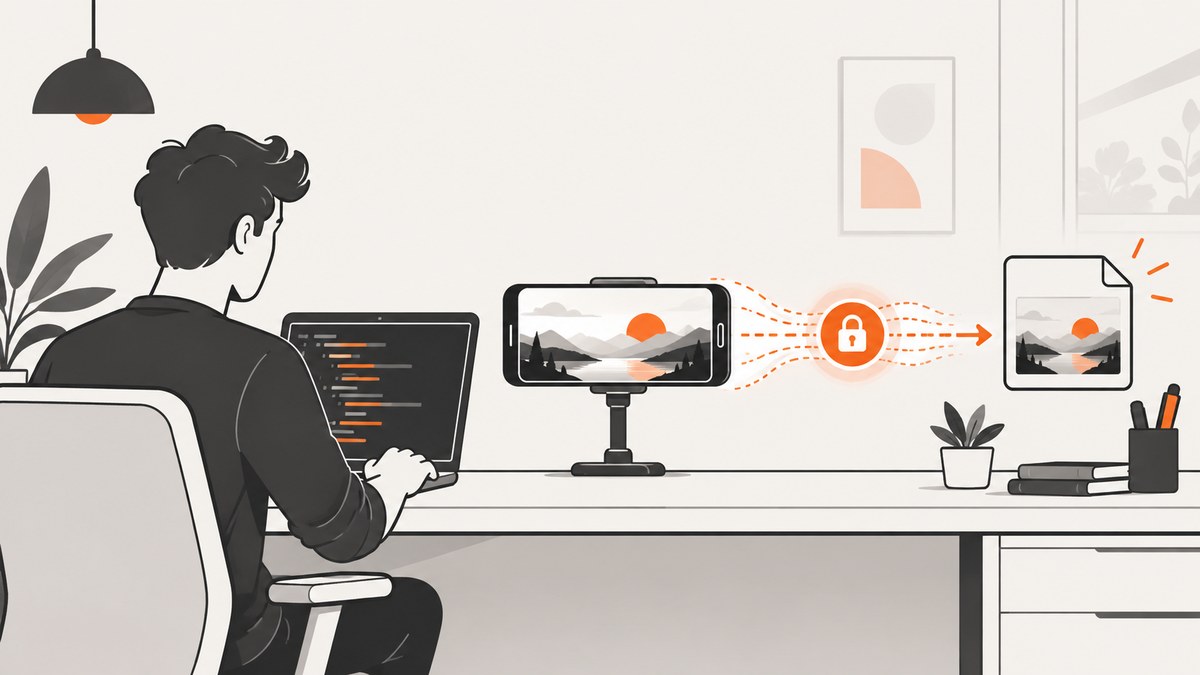
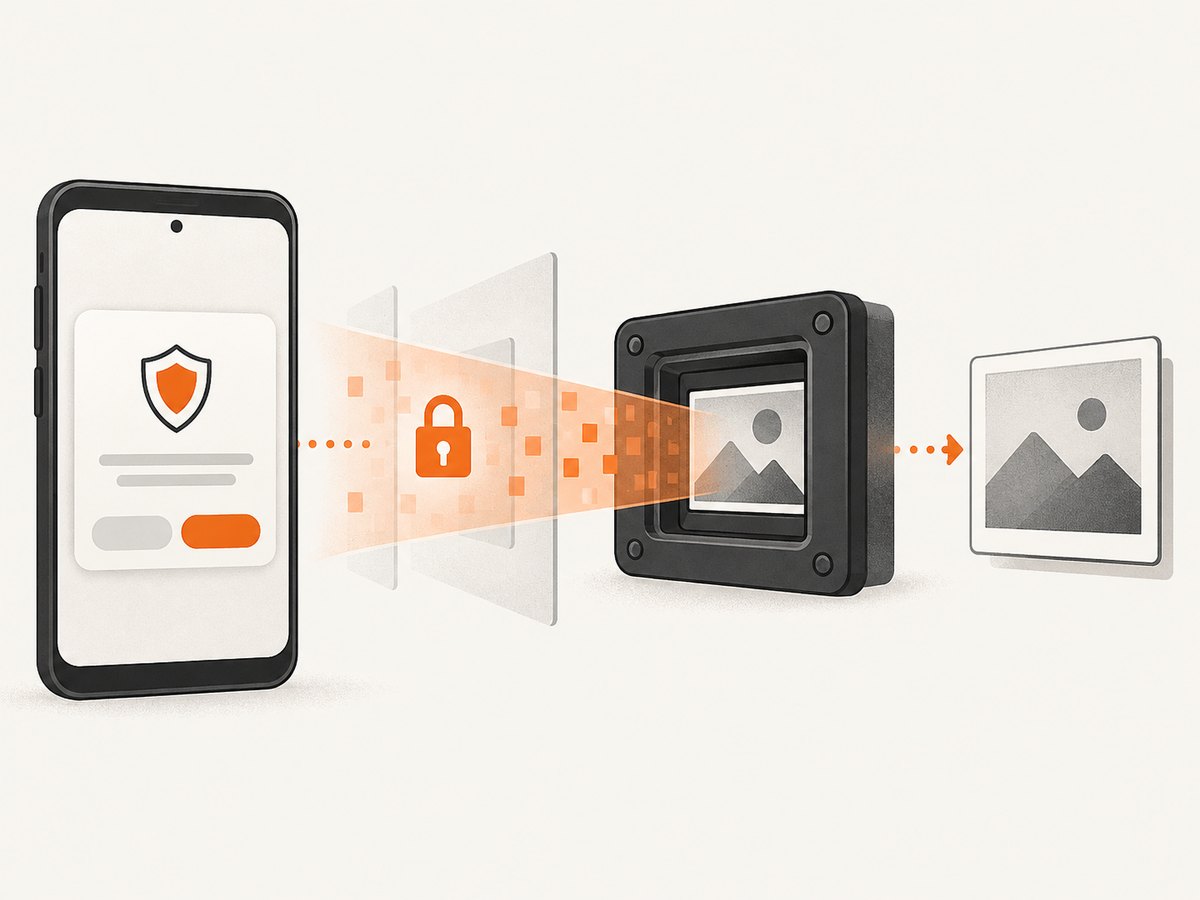
Use Android MediaProjection. Ask the user for capture consent, obtain the returned projection token, create a VirtualDisplay sized from the display’s maximum bounds, send frames to an ImageReader Surface, copy one frame while respecting row and pixel stride, encode it, and release every resource when projection stops. MediaProjection is available from Android 5 (API 21). Android’s MediaProjection guide documents the projection and Surface flow.
This is a user-consented capture session, not a silent screenshot API. On Android 14 (API 34), the user may select an individual app instead of the entire display; app sharing excludes status and navigation bars, notifications, and other system UI.
1. What you need
- A Xamarin.Android project targeting the Android API levels you support.
- An
Activityto launchMediaProjectionManager.CreateScreenCaptureIntent(). - An
ImageReaderwhose Surface receives the VirtualDisplay frames. - A foreground service declared with the
mediaProjectionservice type for current target SDKs. - Storage or another destination for the encoded PNG, JPEG, or WebP.
MediaProjection was introduced in API 21. WindowMetrics arrived in API 30 and is the preferred way to obtain the maximum display dimensions. The Microsoft binding exposes MediaProjection and CreateVirtualDisplay through Mono.Android.dll; verify overloads against the Xamarin.Android package version used by your project.
2. Request consent and start projection
Get the projection manager from the system service and launch its consent intent. If the result is anything other than Result.Ok, stop: there is no valid token.
using Android.App;
using Android.Content;
using Android.Media.Projection;

[Activity(Label = "WideCapture", MainLauncher = true)]
public sealed class MainActivity : Activity
{
    const int CaptureRequestCode = 4001;
    MediaProjectionManager? projectionManager;

    protected override void OnCreate(Android.OS.Bundle? savedInstanceState)
    {
        base.OnCreate(savedInstanceState);
        projectionManager = (MediaProjectionManager?)GetSystemService(MediaProjectionService);
    }

    public void RequestCapture()
    {
        if (projectionManager == null)
            throw new InvalidOperationException("MediaProjectionManager is unavailable.");

        StartActivityForResult(
            projectionManager.CreateScreenCaptureIntent(),
            CaptureRequestCode);
    }

    protected override void OnActivityResult(int requestCode, Result resultCode, Intent? data)
    {
        base.OnActivityResult(requestCode, resultCode, data);

        if (requestCode != CaptureRequestCode || resultCode != Result.Ok || data == null)
            return;

        // On Android Q+ keep the session in a foreground service.
        // On Android U/API 34+, start that service before GetMediaProjection.
        var serviceIntent = new Intent(this, typeof(ScreenCaptureService));
        if (Android.OS.Build.VERSION.SdkInt >= Android.OS.BuildVersionCodes.O)
            StartForegroundService(serviceIntent);
        else
            StartService(serviceIntent);

        var projection = projectionManager!.GetMediaProjection((int)resultCode, data);
        _ = CaptureOneFrameAsync(projection);
    }
}
Newer projects can use the Activity Result APIs instead of OnActivityResult; the sequence is the same. Register the projection callback before creating the VirtualDisplay.
3. Declare and start the foreground service
Android Q and later require a media-projection foreground service for a session maintained by a service. Android U/API 34 requires the service to be started before calling GetMediaProjection, otherwise a SecurityException can occur. Add the service declaration and start it in the result handler.
using Android.App;
using Android.Content;
using Android.OS;

[Service(
    Name = "com.example.widecapture.ScreenCaptureService",
    ForegroundServiceType = ForegroundService.TypeMediaProjection,
    Exported = false)]
public sealed class ScreenCaptureService : Service
{
    public override IBinder? OnBind(Intent? intent) => null;

    public override StartCommandResult OnStartCommand(
        Intent? intent, StartCommandFlags flags, int startId)
    {
        if (Build.VERSION.SdkInt >= BuildVersionCodes.O)
        {
            var channel = new NotificationChannel(
                "capture", "Screen capture", NotificationImportance.Low);
            var manager = (NotificationManager)GetSystemService(NotificationService)!;
            manager.CreateNotificationChannel(channel);
        }

        var notification = new Notification.Builder(this, "capture")
            .SetContentTitle("Screen capture active")
            .SetSmallIcon(Android.Resource.Drawable.IcMenuCamera)
            .Build();

        StartForeground(1001, notification,
            ForegroundService.TypeMediaProjection);
        return StartCommandResult.Sticky;
    }
}
Declare the foreground-service permission in the manifest generated by your project and follow the target SDK’s current notification and foreground-service requirements. Test the exact target framework and device API levels you ship.
4. Size the capture to the whole display
Do not use the Activity’s current width and height for a wide system screenshot. In split-screen or another multi-window mode those values describe the Activity window, not the physical display. API 30 and later expose maximum window metrics for this purpose.
using Android.Content;
using Android.OS;
using Android.Util;
using Android.Views;

static (int Width, int Height, int DensityDpi) GetMaximumDisplaySize(Context context)
{
    var wm = (IWindowManager)context.GetSystemService(Context.WindowService)!;

    if (Build.VERSION.SdkInt >= BuildVersionCodes.R)
    {
        var bounds = wm.MaximumWindowMetrics.Bounds;
        var density = context.Resources?.DisplayMetrics?.DensityDpi ?? 160;
        return (bounds.Width(), bounds.Height(), density);
    }

    // Compatibility path for pre-API-30 devices. A WindowMetricsCalculator
    // from AndroidX.Window is preferable when your project includes it.
    var metrics = new DisplayMetrics();
    wm.DefaultDisplay!.GetRealMetrics(metrics);
    return (metrics.WidthPixels, metrics.HeightPixels, metrics.DensityDpi);
}
For API levels below 30, use the AndroidX Window WindowMetricsCalculator compatibility library when possible. A legacy real-display metrics path is shown only as a fallback.
5. Capture one frame with ImageReader
The following class creates an ImageReader, waits for a frame, copies the first image, crops row padding, and writes a PNG. The reader uses RGBA 8888; if a device rejects that format, try the supported format for that device and adjust decoding accordingly.
using Android.Graphics;
using Android.Hardware.Display;
using Android.Media;
using Android.Media.Projection;
using Android.Views;
using Java.Nio;

sealed class ProjectionCapture : Java.Lang.Object, ImageReader.IOnImageAvailableListener
{
    readonly MediaProjection projection;
    readonly int width;
    readonly int height;
    readonly string outputPath;
    readonly ImageReader reader;
    VirtualDisplay? virtualDisplay;
    readonly TaskCompletionSource<string> completion =
        new(TaskCreationOptions.RunContinuationsAsynchronously);

    public ProjectionCapture(MediaProjection projection, int width, int height,
        int densityDpi, string outputPath)
    {
        this.projection = projection;
        this.width = width;
        this.height = height;
        this.outputPath = outputPath;

        reader = ImageReader.NewInstance(
            width, height, ImageFormatType.Rgba8888, 2);
        reader.SetOnImageAvailableListener(this, null);

        projection.RegisterCallback(new StopCallback(this), null);
        virtualDisplay = projection.CreateVirtualDisplay(
            "WideScreenshot",
            width,
            height,
            densityDpi,
            DisplayManager.VirtualDisplayFlagAutoMirror,
            reader.Surface,
            null,
            null);
    }

    public Task<string> StartAsync() => completion.Task;

    public void OnImageAvailable(ImageReader? source)
    {
        if (source == null || completion.Task.IsCompleted)
            return;

        using var image = source.AcquireLatestImage();
        if (image == null)
            return;

        try
        {
            var plane = image.GetPlanes()[0];
            var buffer = plane.Buffer;
            int pixelStride = plane.PixelStride;
            int rowStride = plane.RowStride;
            int rowPadding = rowStride - pixelStride * width;

            // The buffer can contain padding at the end of every row. Decode
            // into a bitmap wide enough for that padding, then crop to width.
            int paddedWidth = width + Math.Max(0, rowPadding / pixelStride);
            using var padded = Bitmap.CreateBitmap(
                paddedWidth, height, Bitmap.Config.Argb8888!);
            padded.CopyPixelsFromBuffer(buffer);

            using var cropped = Bitmap.CreateBitmap(padded, 0, 0, width, height);
            using var stream = new FileStream(outputPath, FileMode.Create,
                FileAccess.Write, FileShare.None);
            cropped.Compress(Bitmap.CompressFormat.Png, 100, stream);
            completion.TrySetResult(outputPath);
        }
        catch (Exception ex)
        {
            completion.TrySetException(ex);
        }
        finally
        {
            Stop();
        }
    }

    public void Stop()
    {
        virtualDisplay?.Release();
        virtualDisplay = null;
        reader.Close();
        projection.Stop();
    }

    sealed class StopCallback : MediaProjection.Callback
    {
        readonly ProjectionCapture owner;
        public StopCallback(ProjectionCapture owner) => this.owner = owner;
        public override void OnStop()
        {
            owner.virtualDisplay?.Release();
            owner.virtualDisplay = null;
            owner.reader.Close();
            owner.completion.TrySetCanceled();
        }
    }
}
Call it after obtaining the maximum dimensions:
async Task<string> CaptureOneFrameAsync(MediaProjection projection)
{
    var (width, height, density) = GetMaximumDisplaySize(this);
    var path = Path.Combine(CacheDir!.AbsolutePath, "wide-screen.png");
    var capture = new ProjectionCapture(projection, width, height, density, path);
    return await capture.StartAsync();
}
Acquire an image only after the listener fires. Always close the Image, release the VirtualDisplay, close the ImageReader, and stop the projection. Keeping any of these alive can leak buffers or prevent a later consent session.
6. Whole display versus app sharing on Android 14
Android 14 introduced app screen sharing. The consent UI can let the user choose one app or the entire display, depending on device policy and system UI. A selected-app capture omits the status bar, navigation bar, notifications, and other system UI, even when the app is full screen. A true system screenshot therefore requires the user to choose the entire display when that option is offered.
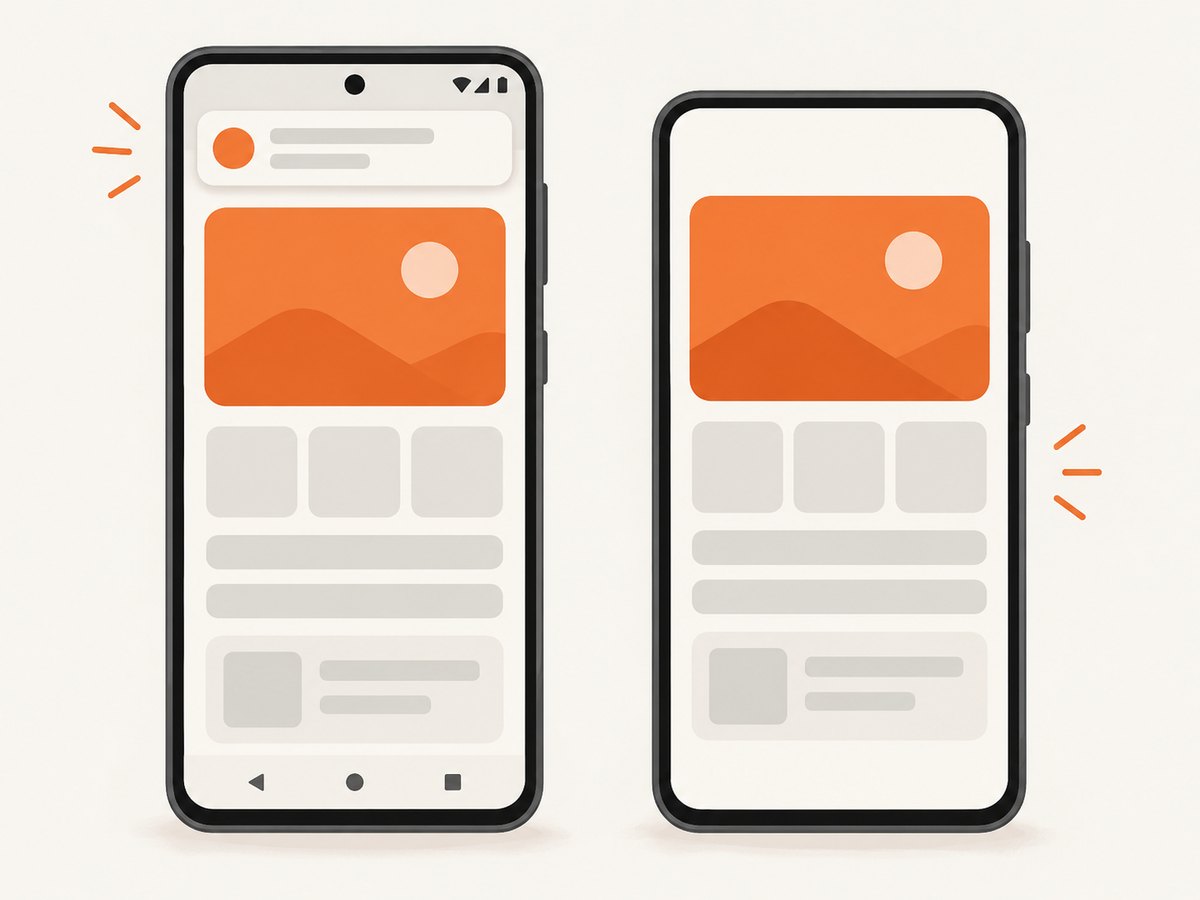
Your code cannot override that choice. Explain the distinction in your UI and handle a result whose dimensions or visible content reflect app-only sharing.
7. Projection lifecycle and stop conditions
Register MediaProjection.Callback before CreateVirtualDisplay. Projection can stop when the user ends sharing, the screen locks, or another projection session starts. Treat OnStop as a normal terminal state: release the display, close the reader and Surface, stop the service, clear references, and request fresh consent for another capture.
- Disable the capture button while a session is active.
- Use one projection token for the intended session; do not cache it indefinitely.
- Close every acquired
Imagein afinallyblock. - Do not reuse a stopped VirtualDisplay or ImageReader.
- On cancellation, show a retry action that launches consent again.
8. Troubleshooting
| Symptom | Cause | Fix |
|---|---|---|
Result.Canceled |
The user denied capture or dismissed consent. | Stop without creating a projection and offer a new request. |
SecurityException on Android 14 |
The media-projection service was not started before GetMediaProjection, or its type is missing. |
Start the foreground service first and declare mediaProjection. |
| Black or empty image | The frame was acquired before rendering, or the reader was closed too early. | Wait for OnImageAvailable, call AcquireLatestImage, and keep resources alive until encoding finishes. |
| Image is shifted or has a stripe | Row padding was ignored. | Use RowStride and PixelStride; crop the padded bitmap to the requested width. |
| Only the app appears | The user selected app sharing on Android 14. | Ask the user to select the entire display; app sharing cannot include system UI. |
| Capture has Activity dimensions | Code used current window bounds in multi-window mode. | Use MaximumWindowMetrics on API 30+ or a compatible maximum-metrics path. |
| Second capture fails | The previous projection, display, or reader was not released. | Handle callback and error paths and request a fresh token. |
| Memory pressure or crashes | A large RGBA frame and padded copy consume substantial memory. | Capture one frame, avoid retaining images, crop promptly, and encode to the required format. |
9. Performance, reliability, and cost notes
- Resolution: Memory use grows with width × height × four bytes for RGBA, plus any padded and cropped bitmap copies.
- Latency: Wait for the first available frame rather than using a fixed short delay. A delay alone is unreliable on slow or busy devices.
- Throughput: For a still image, use one reader buffer and stop immediately after the first usable frame. Continuous capture needs back-pressure and a separate encoder pipeline.
- Orientation: Recalculate maximum metrics after rotation or recreate the projection resources; do not assume the original width and height remain valid.
- Reliability: Test denial, screen lock, another projection, split-screen mode, rotation, low memory, and Android 14 app-versus-display selection.
- Output: PNG preserves pixels but can be large. JPEG is smaller for photographic content; WebP may provide a smaller file when your decoder and product requirements support it.
- Cost: MediaProjection itself has no API charge. Your costs are device resources, storage, and any upload or processing service you add.
10. Or skip the browser setup
If the goal is a screenshot of a web page rather than the physical Android display, ScreenshotNeo provides a one-request website screenshot API. It handles the browser session for you.
curl -G "https://api.screenshotneo.com/v1/shot" -d access_key=YOUR_API_KEY --data-urlencode url=https://stripe.com -o shot.webpimport requests
r = requests.get("https://api.screenshotneo.com/v1/shot", params={"access_key": "YOUR_API_KEY", "url": "https://stripe.com"}, timeout=90)
open("shot.webp", "wb").write(r.content)const q = new URLSearchParams({ access_key: 'YOUR_API_KEY', url: 'https://stripe.com' });
const res = await fetch(`https://api.screenshotneo.com/v1/shot?${q}`);See the ScreenshotNeo API documentation for request options. Cookie banners, newsletter popups, and chat widgets are removed before the shot. Bot checks, blank pages, timeouts, failed loads, and cache hits are not billed, and response headers identify the page verdict and billing status. Its MCP server lets Claude, Cursor, and other MCP clients call take_screenshot, get_page_info, and capture_pdf. The Free plan includes 1,000 screenshots per month with no card; paid plans start at $5 for 3,000 shots, and every feature is available on every plan. Create a free ScreenshotNeo account.
11. FAQ
Can Xamarin capture silently without asking the user?
No. MediaProjection requires the system consent flow and a user-approved token.
Can I capture only one view inside my Activity?
MediaProjection captures a display or an OS-selected app window. For a view you own, render that view to a bitmap directly instead.
Does a VirtualDisplay automatically include status and navigation bars?
Only when the user grants an entire-display capture. Android 14 app sharing deliberately excludes system UI.
Why is maximum display size different from my Activity size?
Multi-window mode can make the Activity smaller than the physical display. Maximum metrics describe the display area available for full-display capture.
Can I reuse the consent token forever?
Do not assume that. Projection can stop externally; release state and request consent again for a new session.


