BlogScreenshots on your device
How to Capture a Window Screenshot with Node.js on Windows 10
Capture one Windows app window from Node.js using HWND, Windows Graphics Capture, native helpers, and interactive alternatives.
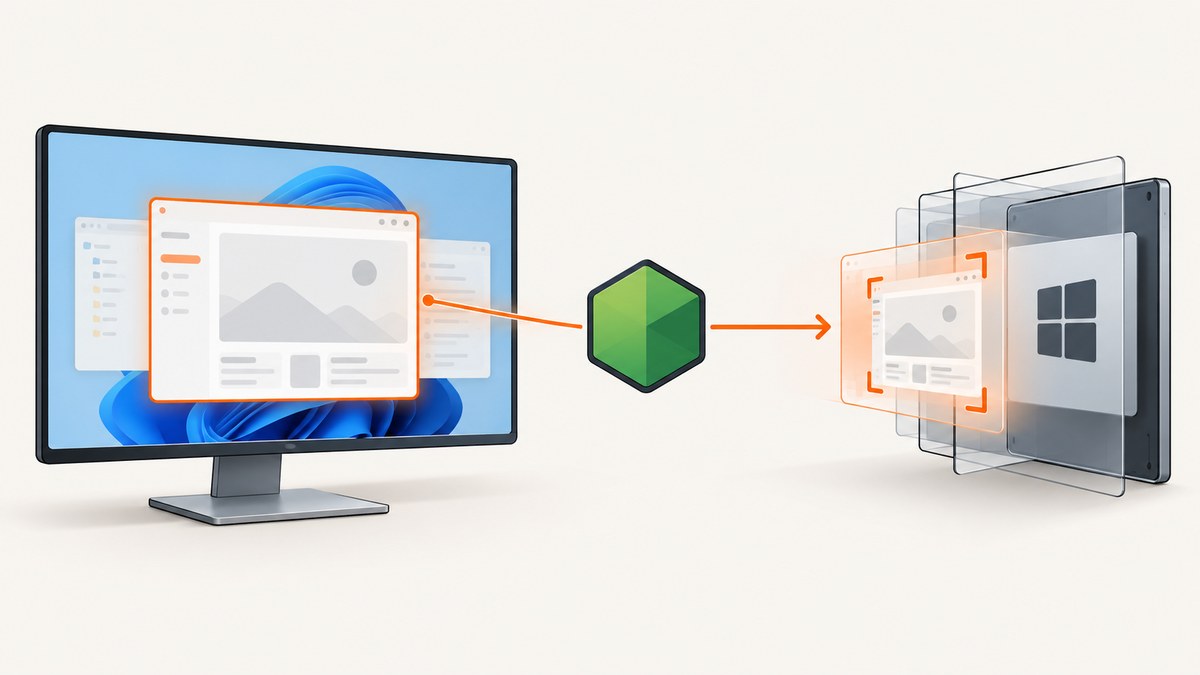
Short answer: Node.js does not include a Windows API for capturing one native application window. On Windows 10, use a native bridge or helper that calls Windows Graphics Capture (WGC). If you already know the window’s native handle (HWND), use the HWND interop route and CreateForWindow. If a person must choose the window, use GraphicsCapturePicker or the Snipping Tool protocol instead.
WGC creates a capture item, starts a Direct3D frame pool and capture session, receives frames asynchronously, and converts a frame to PNG or another format. Node.js calls this Windows code through a package with native code, a compiled helper process, or an FFI binding. The JavaScript runtime alone cannot obtain the pixels.
Choose the capture path
| Situation | Best path | Interaction | Targeting |
|---|---|---|---|
| Unattended capture of a known app | WGC with CreateForWindow(HWND) |
None after you have the handle | Exact native window |
| User chooses an app or monitor | GraphicsCapturePicker |
Interactive picker | User-selected item |
| Integrating Windows Snipping Tool | ms-screenclip protocol |
Interactive | Window, region or screen mode |
| Legacy desktop copy | GDI BitBlt |
None | Device-context pixels; validate for your app |
Microsoft added CreateForWindow and CreateForMonitor in the Windows 10 May 2019 Update (version 1903). Confirm the target machine’s build before shipping. The WGC documentation describes the capture item, frame pool, session and image-save pipeline.
How HWND capture works
- Find and validate the target window’s HWND.
- Pass the HWND to a native WGC bridge, which calls
GraphicsCaptureItem::CreateForWindow. - Create a Direct3D device and frame pool, then start a capture session.
- Wait for a frame-arrived event and copy the frame into an image buffer.
- Encode PNG, JPEG or WebP and return the file or bytes to Node.js.
- Close the session, frame pool, device resources and any event handlers.
An HWND is a native Windows handle, not a browser selector or a Node.js object. A handle can become invalid when the application closes, and a window can change size while a session is running. Your bridge must handle frame-size changes, asynchronous delivery, device loss and clean shutdown.
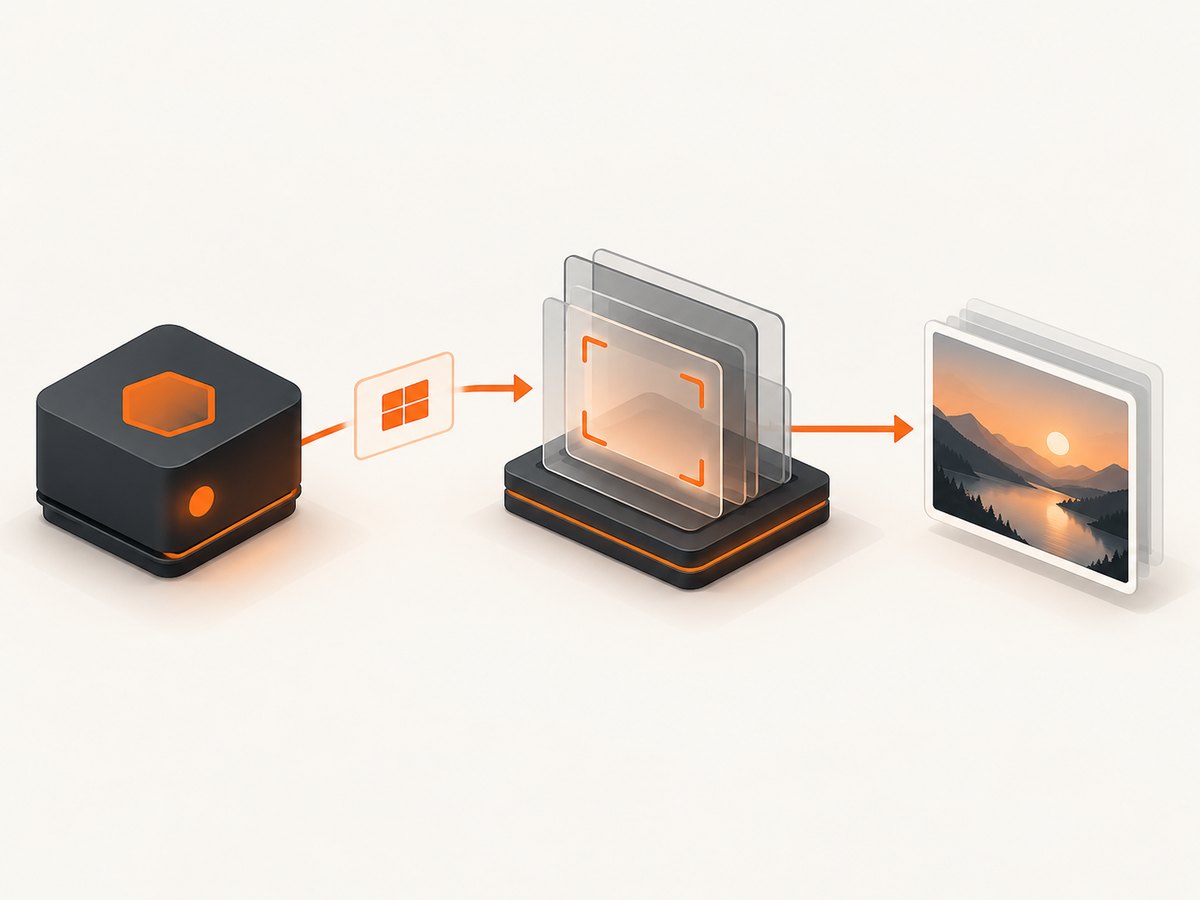
Build a Node.js-to-native helper boundary
Because package APIs change, keep the Node side independent of a particular binding. The following script is runnable Node.js: it validates arguments and invokes a native helper whose command contract is explicit. The helper must implement WGC HWND capture and write the requested image.
#!/usr/bin/env node
// capture-window.js
// Contract for capture-window.exe:
//   capture-window.exe --hwnd <decimal HWND> --output <absolute path> --format png

const { spawn } = require('node:child_process');
const fs = require('node:fs');
const path = require('node:path');

const hwndText = process.argv[2];
const output = path.resolve(process.argv[3] || 'window.png');

if (!/^\d+$/.test(hwndText || '')) {
  console.error('Usage: node capture-window.js <decimal-HWND> [output.png]');
  process.exit(2);
}

const hwnd = BigInt(hwndText);
if (hwnd === 0n) {
  console.error('HWND must be non-zero');
  process.exit(2);
}

fs.mkdirSync(path.dirname(output), { recursive: true });
const helper = process.env.WGC_HELPER || 'capture-window.exe';
const child = spawn(helper, [
  '--hwnd', hwnd.toString(),
  '--output', output,
  '--format', 'png'
], { stdio: ['ignore', 'pipe', 'pipe'], windowsHide: true });

let stderr = '';
child.stderr.setEncoding('utf8');
child.stderr.on('data', chunk => { stderr += chunk; });
child.on('error', err => {
  console.error(`Could not start ${helper}: ${err.message}`);
  process.exit(1);
});
child.on('close', code => {
  if (code !== 0) {
    console.error(stderr || `Capture helper exited with code ${code}`);
    process.exit(code || 1);
  }
  if (!fs.existsSync(output) || fs.statSync(output).size === 0) {
    console.error('Helper reported success but produced no image');
    process.exit(1);
  }
  console.log(output);
});
Implement or select the helper only after checking its current release documentation. One npm listing, @screen-capture/node, claims Windows HWND targeting and Windows 10 1903+ support, but those are package-listing claims. Pin a reviewed version, confirm that it exposes HWND capture on your Node and Windows versions, and verify its output and shutdown behavior before production use. Do not assume an API signature from the package name alone.
Obtaining an HWND
Your native component can enumerate top-level windows and match a title, process ID or class name, then return the handle to Node.js. Prefer a stable process ID plus additional validation over a title alone: titles change, duplicate windows exist, and a process can own multiple windows. Before capture, verify that the handle still refers to a live window and that it is the intended top-level or child window.
If the user must choose, do not fake unattended HWND selection. Use Microsoft’s picker flow. GraphicsCapturePicker displays the system UI, returns a GraphicsCaptureItem, and then follows the same frame-pool/session pipeline. Windows displays a yellow border around an actively captured item.
Interactive Snipping Tool integration
The ms-screenclip protocol is another interactive option. Microsoft’s documentation says the image-capture URI must contain exactly one mode parameter, such as window. If your application expects the result, register and provide a callback URI. Packaging and launch-identity requirements depend on how your app is packaged, so follow the protocol guidance for that model. This is a user-facing Snipping Tool integration, not a headless frame API.
GDI BitBlt: when it fits and where it fails
BitBlt copies pixels between device contexts. The Microsoft sample creates a compatible device context and bitmap before copying. That documentation is desktop-oriented; it does not establish reliable capture of arbitrary occluded or GPU-rendered windows. Treat BitBlt as an application-specific fallback and test minimized, covered, hardware-accelerated and multi-monitor cases yourself.
Production checklist
- Require Windows 10 version 1903 or later for HWND interop.
- Validate HWND existence immediately before starting a session.
- Handle
FrameArrivedasynchronously and avoid blocking the UI thread. - Recreate or resize the frame pool when the captured content size changes.
- Close the session, frame pool, event subscription and graphics device on success and error.
- Set a timeout and return a useful error when no frame arrives.
- Write to a temporary file, flush it, then rename it to avoid partial images.
- Log the HWND, process ID, Windows build, helper version and failure stage.
- Expect protected content to be black or excluded; do not promise bypasses.
Troubleshooting
| Symptom | Likely cause | Fix |
|---|---|---|
| Invalid or zero HWND | Window closed, wrong enumeration, or title match failed | Re-enumerate, validate the handle and match process plus title/class. |
| No frame arrives | Session did not start, event loop is blocked, or target became invalid | Check session creation, keep the native event loop alive, add a timeout and retry after validating HWND. |
| Black image | Protected content or unsupported rendering path | Respect content protection; test WGC with the target application and do not claim a bypass. |
| Image has old dimensions | Window resized after frame-pool creation | Recreate or resize the frame pool when the frame size changes. |
| Capture works only while visible | GDI desktop copy or app-specific rendering behavior | Use WGC and test occluded/minimized states; reliability depends on the application and content protection. |
| Helper cannot start | Missing binary, PATH issue, architecture mismatch or blocked native dependency | Set WGC_HELPER to an absolute path, verify x64/x86 compatibility and inspect stderr. |
| File is empty or corrupt | Encoding finished after the process exited or output path was reused | Write atomically, check file size, and wait for encoder completion before returning. |
| Picker or Snipping Tool does not return data | Missing callback registration or packaging requirement | Register the callback URI and follow the protocol’s packaging rules. |
Performance, reliability and cost
WGC introduces setup work for the graphics device, frame pool and session. Reuse initialized resources when capturing repeatedly, but recreate them after device loss or incompatible size changes. Capture only the first frame you need unless you are recording a stream. Avoid polling; use frame-arrival events. Keep image encoding off the main Node.js event loop by using the native helper or worker processes.
Window state matters: resizing, DPI changes, monitor moves, minimized windows, overlays and protected surfaces can change results. Test the exact applications and Windows builds you support. A native bridge also becomes part of your release process: pin versions, sign or verify binaries as appropriate, and monitor Windows and Node.js compatibility.
Or skip the browser setup
If the thing you need is a screenshot of a web URL rather than a local Windows application window, ScreenshotNeo makes one GET request and returns PNG, JPEG, WebP or PDF. See the ScreenshotNeo documentation.
curl -G "https://api.screenshotneo.com/v1/shot" -d access_key=YOUR_API_KEY --data-urlencode url=https://stripe.com -o shot.webpimport requests
r = requests.get("https://api.screenshotneo.com/v1/shot", params={"access_key": "YOUR_API_KEY", "url": "https://stripe.com"}, timeout=90)
open("shot.webp", "wb").write(r.content)const q = new URLSearchParams({ access_key: 'YOUR_API_KEY', url: 'https://stripe.com' });
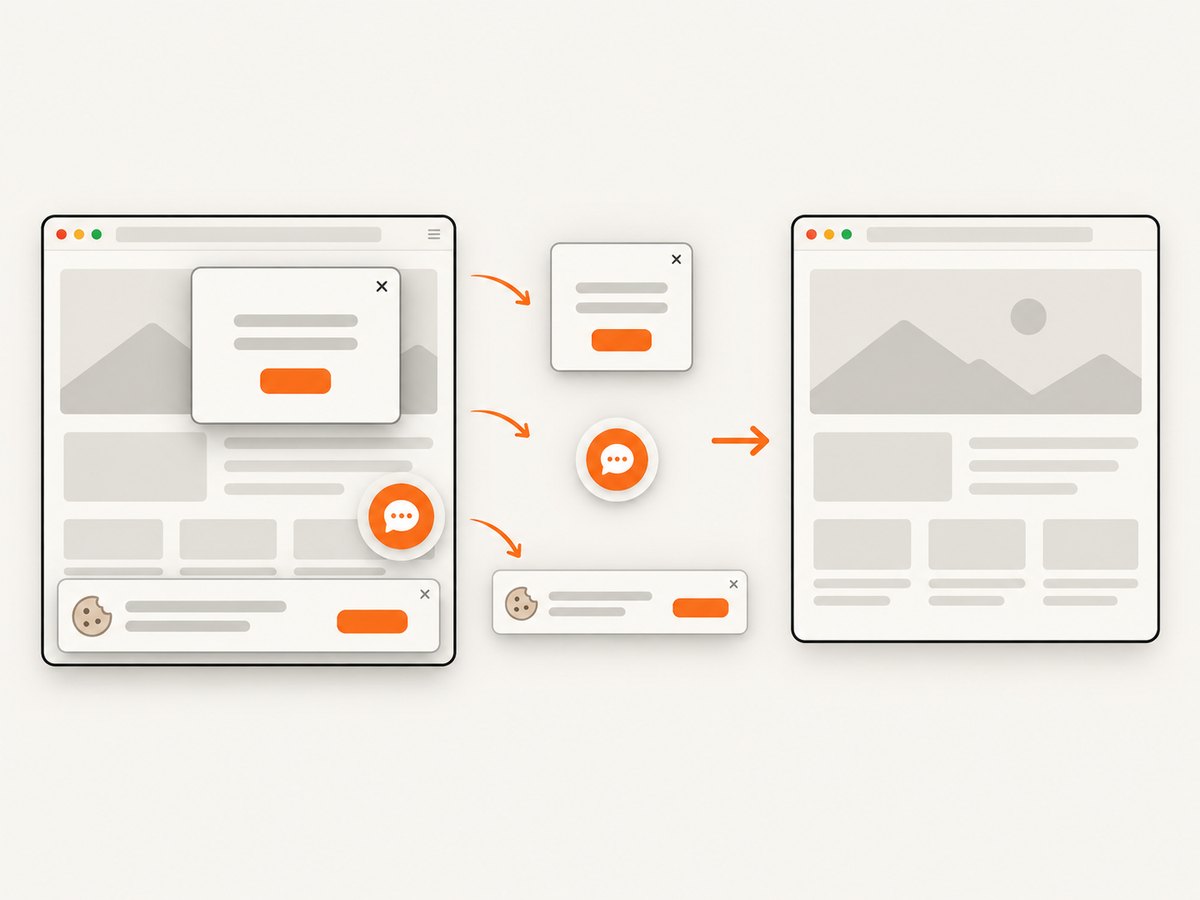
const res = await fetch(`https://api.screenshotneo.com/v1/shot?${q}`);Cookie banners, newsletter popups and chat widgets are removed before the shot. Bot checks, blank pages and failed loads are never billed, and the response identifies the result with X-Page-Verdict and X-Billed headers. Its MCP server lets AI agents use take_screenshot, get_page_info and capture_pdf. The free plan includes 1,000 screenshots a month with no card; paid plans start at $5 for 3,000.
Create a free ScreenshotNeo account and get 1,000 screenshots each month with no card.
FAQ
Can plain Node.js capture an HWND?
No. Node.js must call native Windows code through a binding, package or helper.
Does WGC capture a minimized or covered window?
Do not assume it does. Results depend on Windows, the application, rendering path and content-protection settings; test your target.
Should I use a window title as the identifier?
Use title matching only as one signal. Combine it with process ID, class name or other validation because titles are mutable and non-unique.
When should I use the picker?
Use it when a person must consent to and choose the window or display. Use HWND targeting for unattended automation.
Can ScreenshotNeo capture my local Windows app window?
No. ScreenshotNeo captures web URLs. Use WGC or another local Windows capture path for a native desktop window.


