BlogScreenshots on your device
How to Capture a Window Screenshot Including Its Title Bar
Capture a complete app window with its title bar on Windows or Mac, troubleshoot missing chrome, and automate web screenshots with ScreenshotNeo.
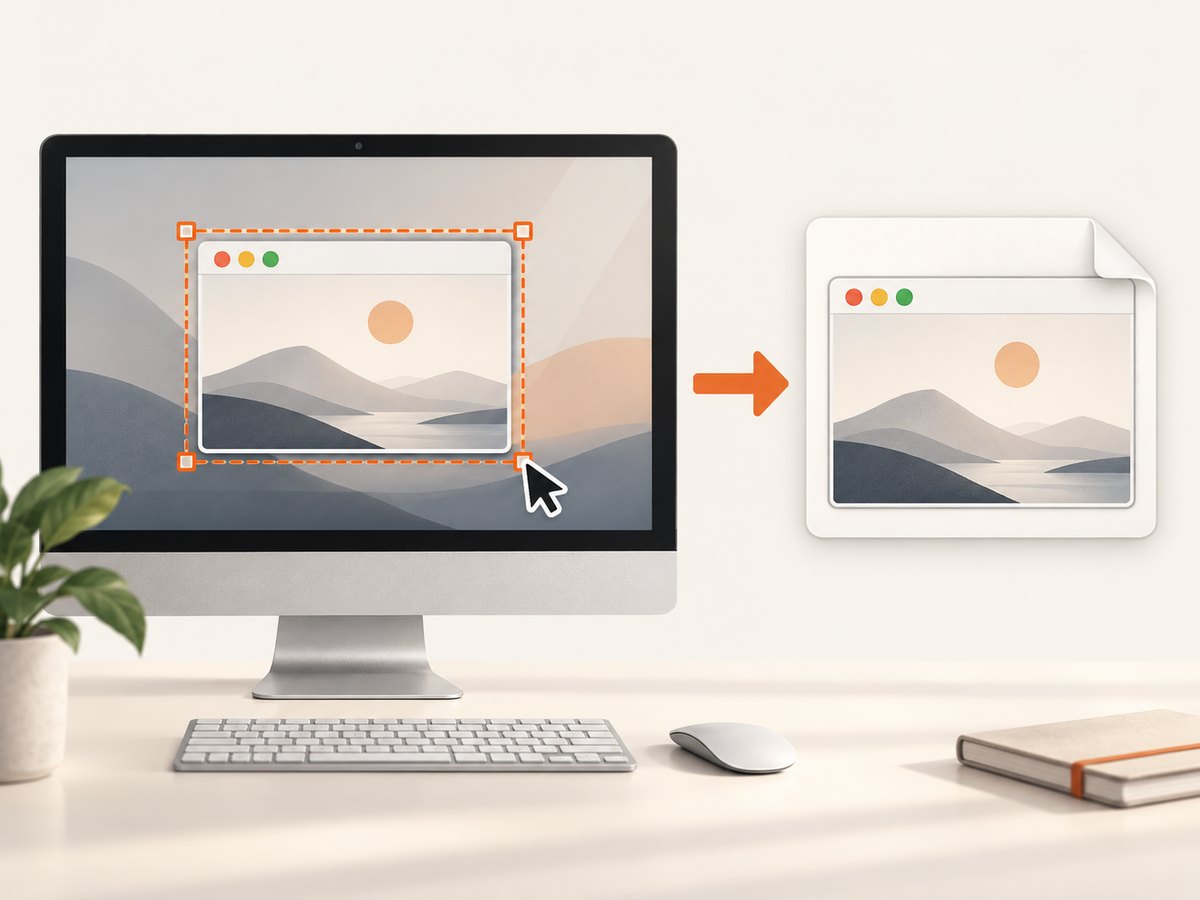
To capture an individual application window with its title bar visible, use the operating system’s Window capture mode. On Windows, use Snipping Tool’s Window mode. On macOS, press Shift-Command-4, then Space, and click the window. Save the result and inspect the top edge; some applications draw custom chrome or restrict screenshots.
Windows 10 and 11: Snipping Tool Window mode
- Open Snipping Tool. The shortcut Windows + Shift + S opens the capture overlay.
- Choose Window capture mode.
- Select New if the full Snipping Tool window is open, then move the pointer over the target application.
- Click the target window. Snipping Tool captures that window as one image.
- Use the save command to write a PNG, or copy the snip to the clipboard.
Microsoft documents Window as a capture mode for selecting a window such as a dialog box, and supports Snipping Tool on Windows 10 and Windows 11: Microsoft’s Snipping Tool guide.
Launching the Windows capture overlay from code
For a utility that opens the interactive overlay, Windows documents the ms-screenclip: protocol. The /image route requires exactly one mode parameter; use window to start window capture.
start ms-screenclip:/image?&mode=windowThis starts an interactive capture; it does not silently choose a process or save a file for you. See the Microsoft Learn launch documentation for the protocol details.
Mac: capture one window
- Press Shift + Command + 4.
- Press Space. The pointer changes to a camera.
- Move the camera over the target window and click.
- Find the saved screenshot in the location configured in Screenshot options, usually the desktop.
Apple documents this sequence in Take a screenshot on Mac. Some apps, including Apple TV, may not permit screenshots of their windows. A successful click also does not guarantee that every custom title bar will render exactly as it appears on screen, so inspect the file.
When the title bar is missing
A window capture normally includes the visible frame, but the cited platform instructions do not guarantee title-bar rendering for every application. Missing chrome is common with borderless windows, custom-drawn toolkits, full-screen modes, remote desktops, and apps that block capture.
- Exit full-screen mode and restore the window so its top edge is visible.
- Try the platform’s Window mode again after moving the pointer away from overlays or menus.
- If the result still omits the title bar, use rectangular capture and drag from just above the title bar to just below the bottom edge. Include the entire visible frame.
- Check the saved image at 100% zoom. A thumbnail can make a thin title bar appear absent.
Rectangular capture is a practical fallback rather than a documented guarantee for every application.
Capture a selected window for recording with OBS
For a recurring recording or streaming workflow, OBS provides a Window Capture source. Add the source, select the application window, and position or crop it in the scene. OBS states that the selected window can remain captured even when other windows are in front of it. This is useful for recording; it is more setup than the built-in tools for a one-off still image. Read OBS Window Capture Sources.
Linux: check your desktop environment
There is no single title-bar shortcut that works across Linux desktop environments. GNOME, KDE Plasma, Xfce, Wayland, X11, and the installed screenshot utility can expose different window-capture commands. Open the screenshot tool supplied by your desktop, look for a Window or Current window mode, and verify the saved image. If that mode is unavailable, use a rectangular selection around the complete visible window.
Window capture versus rectangular capture
| Method | Best for | Title-bar behavior | Trade-off |
|---|---|---|---|
| Window mode | One normal application window | Usually includes the visible frame | Can omit custom or protected chrome |
| Rectangular selection | Borderless apps or reliable framing | You control the top edge | Requires careful dragging and may include nearby pixels |
| OBS Window Capture | Recording and streaming | Depends on the selected source and app | More configuration than a still screenshot |
Troubleshooting
The capture contains the page or content but no title bar
The app may be borderless, full-screen, custom-rendered, or protected. Restore the window, retry Window mode, then use a rectangular capture that starts above the visible content.
The wrong window was captured
Close menus and overlays, bring the target window to the front, and click its frame rather than a child dialog. In OBS, re-open the source properties and select the exact window.
The screenshot is black or blank
Protected video, hardware-accelerated surfaces, remote sessions, and applications that block capture can produce blank output. Try the app’s own export command, disable full-screen presentation mode, or capture the visible desktop region instead.
macOS will not capture a particular app
Some applications do not permit window screenshots. Apple explicitly documents this limitation. Use the app’s export or print feature, or capture a permitted region if policy allows.
The title bar is clipped
Check display scaling and the selection boundary. Retake the image with a small margin above and below the window, then crop after capture if exact dimensions matter.
The result looks soft
Retina and display scaling can change pixel dimensions. Open the original file rather than a messaging-app preview, and avoid resizing before reviewing the title bar.
Reliability, performance, and file handling
- One-off captures: built-in Window mode is fastest because it requires no scene or source configuration.
- Repeated captures: OBS is practical when the same window must be recorded while other windows move in front.
- Verification: inspect the original file at 100% and confirm the application identity, top edge, and bottom edge before sharing.
- Privacy: close unrelated windows and notifications before capture; a window capture can include sensitive title text or account names.
- Consistency: keep the window at a known size and display scale when you need comparable screenshots over time.

Or skip the browser setup
The desktop methods above capture native application windows. If what you need is a repeatable screenshot of a web page, ScreenshotNeo returns an image or PDF from one GET request. It is not a native desktop-window recorder, but it removes browser automation setup for web captures.
See the ScreenshotNeo API documentation for all options.
cURL
curl -G "https://api.screenshotneo.com/v1/shot" -d access_key=YOUR_API_KEY --data-urlencode url=https://stripe.com -o shot.webpPython
import requests
r = requests.get("https://api.screenshotneo.com/v1/shot", params={"access_key": "YOUR_API_KEY", "url": "https://stripe.com"}, timeout=90)
open("shot.webp", "wb").write(r.content)
Node.js
const q = new URLSearchParams({ access_key: 'YOUR_API_KEY', url: 'https://stripe.com' });
const res = await fetch(`https://api.screenshotneo.com/v1/shot?${q}`);
const body = Buffer.from(await res.arrayBuffer());
require('fs').writeFileSync('shot.webp', body);
ScreenshotNeo accepts PNG, JPEG, WebP, or PDF output and supports full-page and element capture, device and viewport settings, retina scale, dark mode, custom CSS and JavaScript, waits, request blocking, headers, cookies, user agents, authorization, timezone, geolocation, transparent backgrounds, resizing, caching, signed links, asynchronous jobs, bulk capture, usage reporting, and an OpenAPI specification. Cookie and consent banners, newsletter popups, and chat widgets can be removed before capture. Bot checks, blank pages, timeouts, failed loads, and cache hits are not billed; response headers identify the page verdict and billing result.
An MCP server provides take_screenshot, get_page_info, and capture_pdf tools for Claude, Cursor, and other MCP clients. Plans include 1,000 screenshots per month free with no card; paid plans start at $5 for 3,000 screenshots. Use the free ScreenshotNeo sign-up to begin.
FAQ
Does Window mode always include the title bar?
No. It captures the selected window, but custom chrome, full-screen modes, and protected applications can change what appears. Inspect the result and use a rectangular fallback when necessary.
Can I capture a window while another window is in front?
OBS Window Capture is designed for selected-window recording even when other windows are in front. Built-in still-image tools generally require selecting the visible target.
What is the quickest method for a single image?
Use Snipping Tool Window mode on Windows or the Shift-Command-4, Space, click sequence on Mac.
Can ScreenshotNeo capture my native app title bar?
No. ScreenshotNeo captures web pages and web documents. Use the operating-system or OBS workflows for native desktop windows.


