BlogScreenshots on your device
How to Capture Windows Screenshots Without a Monitor
Capture screenshots on a headless Windows PC using a virtual display, HDMI EDID emulator, RDP, or ScreenshotNeo—and fix black or blank results.
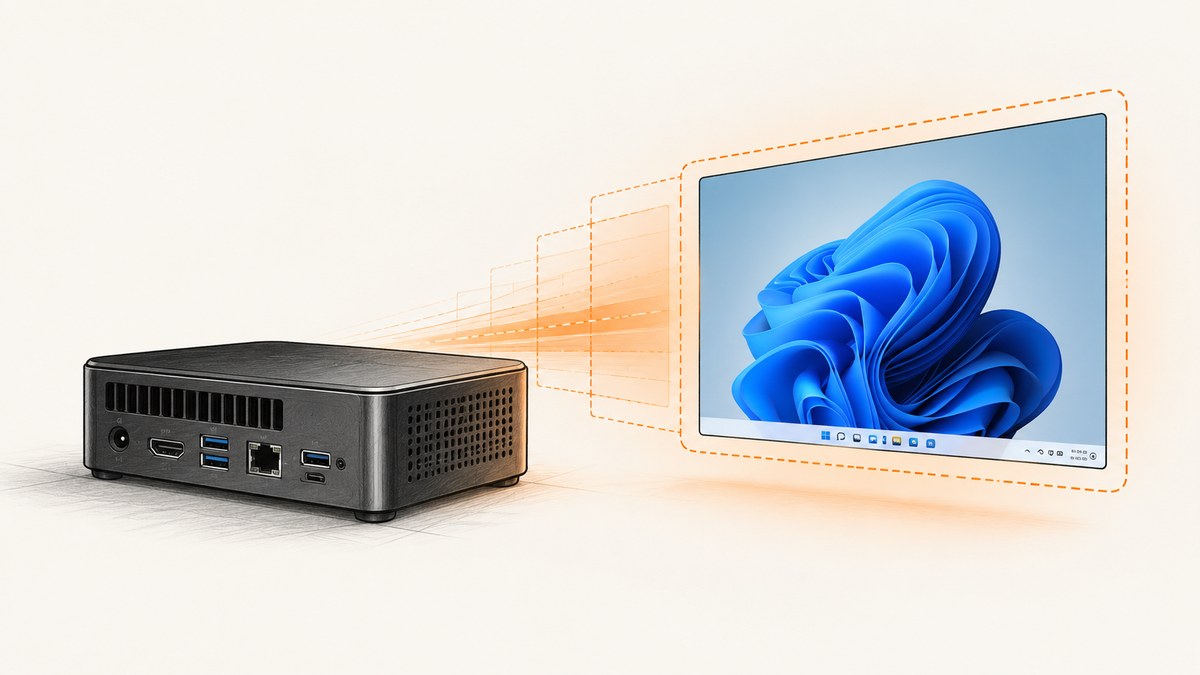
Yes, you can capture Windows screenshots without a physical monitor. Windows still needs a usable display surface to render the desktop. On a headless PC, create that surface with a vendor-supported virtual-display driver, an HDMI or DisplayPort EDID emulator, or an active Remote Desktop session. Then use Snipping Tool, Windows shortcuts, or your application’s own capture API.
If captures are black, blank, white, or show incomplete windows, the problem is usually the display surface rather than the screenshot shortcut. Windows cannot capture pixels that were never rendered into an active display.
1. Why monitorless screenshots fail
A normal Windows screenshot captures the rendered desktop. When no monitor is connected, or a connected monitor is powered off, Windows may not report graphical updates correctly. Remote sessions can show the same symptoms after disconnecting or switching sessions.
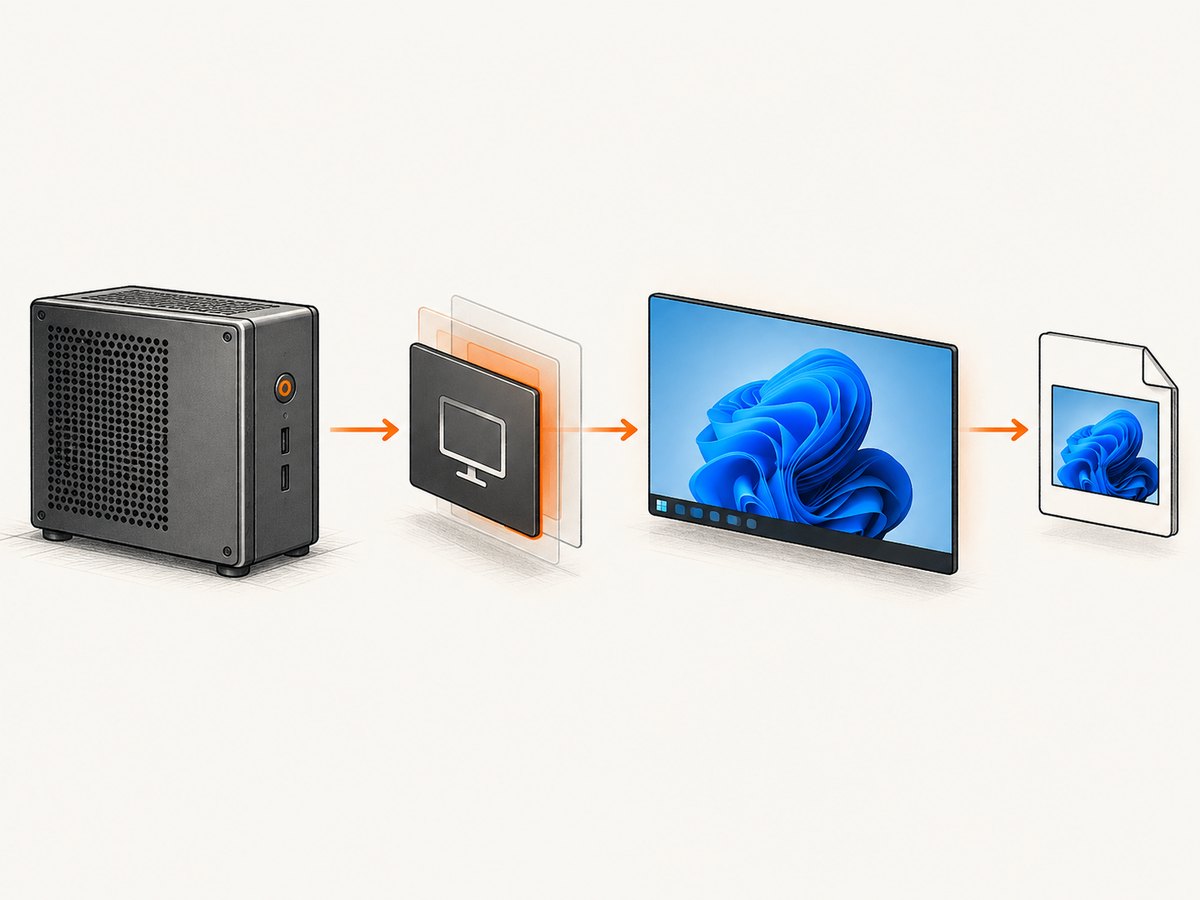
Typical symptoms include:
- A completely black or blank screenshot.
- White application windows or missing controls.
- A Start menu that appears at an unexpectedly small size.
- A screenshot containing only the mouse pointer or desktop background.
- Different resolutions before and after connecting with RDP.
RealVNC documents this headless-display behavior and recommends its Virtual Display Driver in most cases. An EDID emulator is the hardware alternative. Treat any emulator as a compatibility purchase: verify the connector, maximum resolution, refresh rate, multi-monitor behavior, and Windows support before buying.
2. Choose a display method
| Method | Physical accessory | Works after RDP disconnect? | Best use | Limitations |
|---|---|---|---|---|
| Virtual-display driver | No | Usually, when the driver remains active | Servers, VMs, and unattended automation | Must support your Windows version and GPU |
| HDMI/DisplayPort EDID emulator | Yes | Yes, while connected | Simple hardware setup with predictable resolution | Connector, resolution, refresh rate, and vendor compatibility matter |
| Remote Desktop (RDP) | No | Depends on session state and capture method | Interactive administration and one-off captures | Disconnecting, reconnecting, or changing sessions can change the rendered desktop |
| Application export or API | No | Yes | Capturing a document, chart, or page as data or an image | Does not capture the complete Windows desktop |
3. Method A: install a virtual display
- Choose a virtual-display driver supported by your Windows edition, GPU, and virtualization platform.
- Install it with administrator rights and restart if the vendor requires it.
- Open Settings → System → Display and confirm that Windows lists the virtual monitor.
- Select a stable resolution and scale. Use the same values on every automation run.
- Open the target application in that display and wait until its content is fully rendered.
- Capture the screen and inspect the output for black regions, missing windows, or an unexpected resolution.
A virtual display is usually the most convenient software solution for a machine that must capture screenshots while nobody is logged in locally. Use only a driver with clear support for your Windows version and graphics stack.
4. Method B: use an HDMI or DisplayPort EDID emulator
An EDID emulator, sometimes sold as a headless display adapter or HDMI dummy plug, presents display identification data to the computer. Windows and the graphics driver then have a monitor mode in which to render the desktop.
- Check whether the computer exposes HDMI, DisplayPort, mini DisplayPort, USB-C DisplayPort Alt Mode, or another output.
- Choose an emulator with the matching connector. Passive adapters may not work when the output requires active conversion.
- Confirm the supported resolution, refresh rate, color depth, and number of displays.
- Connect the emulator directly to the graphics output before booting, or follow the vendor’s hot-plug instructions.
- In Windows Display settings, select the emulator’s display and set the required resolution.
- Run a test capture before configuring unattended jobs.
Compatibility is more important than the product label. An adapter that exposes only a low resolution, loses its EDID after reboot, or fails with your GPU will produce unreliable captures.
5. Method C: capture through Remote Desktop
RDP provides a remote display and input session. It can be enough for interactive screenshots, but session state matters.
- Connect with Remote Desktop at the resolution you want to capture.
- Launch the target application inside that same session.
- Wait for the window and any web content to finish rendering.
- Capture while the session is active.
- If you disconnect, reconnect to the same session rather than creating a new one, then verify the resolution and window state again.
Do not assume that a screenshot taken after an RDP disconnect represents the same desktop. A disconnected session may stop presenting the expected display surface, and a new connection can use a different resolution or session.
6. Capture with Windows tools
Snipping Tool shortcuts
- Windows + Shift + S: opens the image capture overlay. Choose rectangular, freeform, window, or full-screen capture.
- Windows + Shift + R: opens video capture.
- Print Screen: copies the full screen to the clipboard.
- Windows + Print Screen: captures the full screen and saves it under
Pictures\\Screenshots. - Ctrl + S: saves the current Snipping Tool capture.
Microsoft documents these Snipping Tool modes and shortcuts in its Windows Support documentation.
Launch capture from another application
Windows supports the ms-screenclip: URI protocol. The image path accepts a mode such as rectangle, freeform, or window, and it can request automatic saving.
ms-screenclip://image?mode=windowUse this when an application needs to invoke the supported Windows capture interface. It remains interactive, so it is not a replacement for a fully unattended desktop-capture pipeline.
7. A repeatable capture checklist
- Confirm the machine has an active virtual display, EDID emulator, or RDP display.
- Record the expected resolution, scale, orientation, and monitor number.
- Start the target application in the intended session.
- Wait for the application to render. For web content, wait for fonts, images, and asynchronous data.
- Capture the required region, window, or full desktop.
- Check image dimensions and file size.
- Open the file and verify that it is not black, blank, or cropped.
- For unattended jobs, save a failure log with the session, resolution, timestamp, and exit status.
8. Troubleshooting black, blank, or incomplete screenshots
| Symptom | Likely cause | Fix |
|---|---|---|
| Entire image is black | No active display surface or the capture process is in a different session | Enable a virtual display, connect an EDID emulator, or capture inside the active RDP session. Confirm the capture process runs under the same user session as the target window. |
| White application windows | Windows or the graphics driver is not reporting usable graphical updates | Keep the virtual display active, update the supported display driver, and test with a fixed resolution. |
| Only the desktop appears | The target window is minimized, on another monitor, or in another session | Restore the window, move it to the selected display, and verify the session and monitor number before capture. |
| Start menu is tiny | Resolution changed after RDP connection or disconnect | Set the display resolution explicitly after connecting and before launching the application. |
| Capture works interactively but fails as a scheduled task | The task runs without an interactive desktop | Use a persistent virtual display or an application/API capture path. Do not depend on an invisible interactive window. |
| EDID emulator is not detected | Wrong connector, passive conversion, loose connection, or unsupported resolution | Match the physical connector, connect directly, reboot if required, and verify the display in Windows settings. |
| Screenshot is cropped | Window moved outside the virtual monitor or DPI scaling changed | Set a fixed scale, position the window inside the display bounds, and capture after the layout stabilizes. |
| Web page is incomplete | Fonts, lazy images, scripts, or network requests were still loading | Wait for a known selector or network idle, then capture. For repeatability, use a browser automation script or screenshot API. |
| RDP reconnect shows a different desktop | A new session was created or the previous session changed display settings | Reconnect to the original session and recheck resolution, monitor assignment, and application state. |
9. Automation and reliability considerations
Use a stable display contract
Pin the resolution, scale, orientation, and monitor index. A screenshot comparison or OCR pipeline can fail when Windows silently changes any of these values.
Separate rendering from capture
Wait for the application to finish rendering before taking the image. For browser content, a fixed delay is simple but fragile; a selector or network-idle condition is usually more reliable.
Keep the capture session alive
Scheduled jobs should use a persistent virtual display or a supported headless browser/API workflow. RDP is useful for administration, but disconnect and reconnect behavior must be part of your test plan.
Validate every output
Check dimensions, file size, and a small set of expected pixels or regions. A successful process exit does not prove that the screenshot contains the intended window.
10. Or skip the browser setup
If your goal is a website screenshot rather than the entire Windows desktop, ScreenshotNeo returns a PNG, JPEG, WebP, or PDF from one GET request. See the ScreenshotNeo API documentation for all options.
curl -G "https://api.screenshotneo.com/v1/shot" -d access_key=YOUR_API_KEY --data-urlencode url=https://stripe.com -o shot.webpimport requests
r = requests.get("https://api.screenshotneo.com/v1/shot", params={"access_key": "YOUR_API_KEY", "url": "https://stripe.com"}, timeout=90)
open("shot.webp", "wb").write(r.content)const q = new URLSearchParams({ access_key: 'YOUR_API_KEY', url: 'https://stripe.com' });
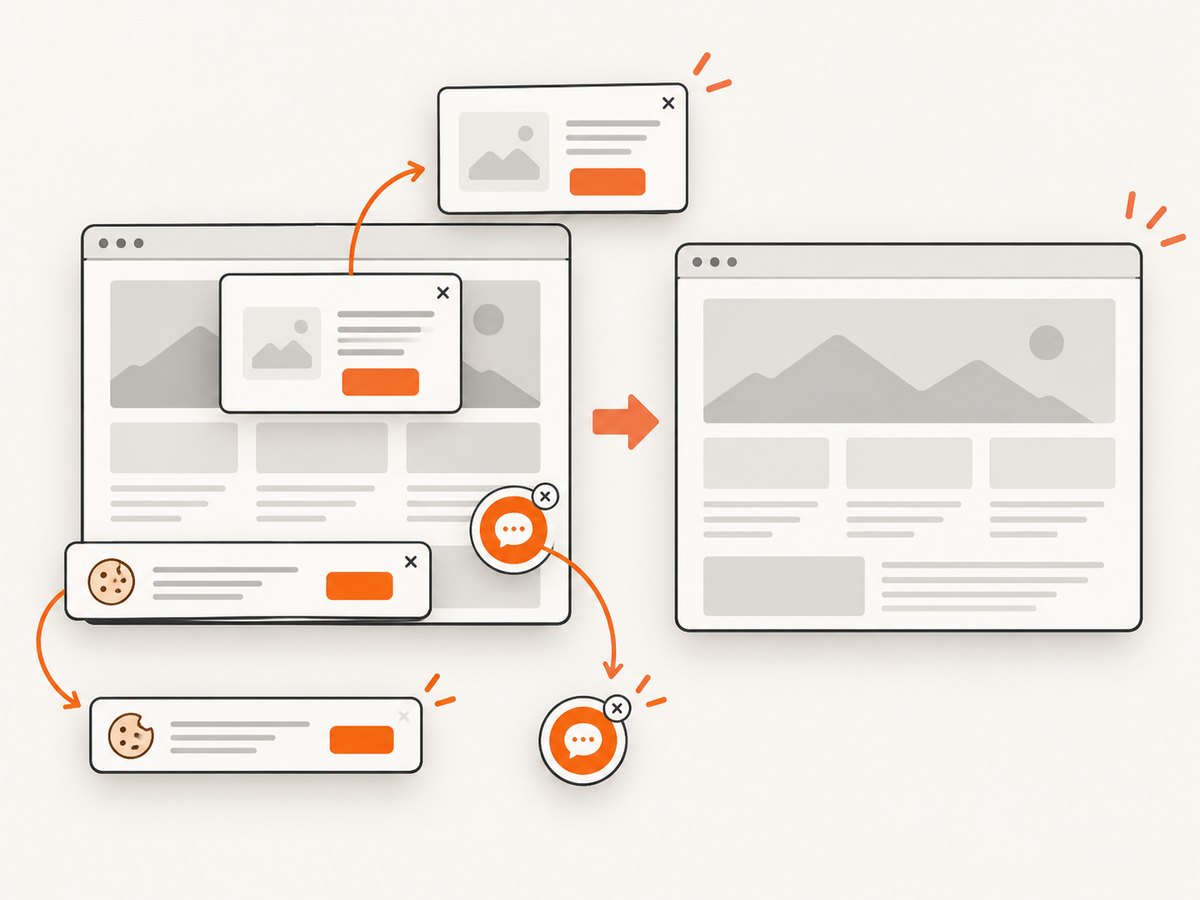
const res = await fetch(`https://api.screenshotneo.com/v1/shot?${q}`);ScreenshotNeo removes cookie and consent banners, newsletter popups, and chat widgets before the shot. Bot checks, blank pages, timeouts, failed loads, and cache hits are not billed, and the response identifies the page verdict and billing status in headers. Its MCP server lets Claude, Cursor, and other MCP clients take screenshots. The free plan includes 1,000 screenshots a month with no card; paid plans start at $5 for 3,000 screenshots.
Create a free ScreenshotNeo account to start with 1,000 screenshots per month and no card.
11. Performance and cost notes
- Virtual display: adds a setup dependency but is efficient for repeated local captures.
- EDID emulator: has a hardware cost and may need replacement when connectors or required resolutions change.
- RDP: is convenient for manual work, but reconnects and session changes can reduce repeatability.
- Windows desktop capture: captures what is rendered, so waiting for the application often matters more than the shortcut used.
- Website screenshot API: avoids maintaining a browser, display driver, and desktop session. ScreenshotNeo bills only clean shots; failed loads, bot checks, blank pages, timeouts, and cache hits cost nothing.
12. FAQ
Do I need an HDMI dummy plug?
No. A supported virtual-display driver or an active RDP display can provide the required display surface. An EDID emulator is useful when you want a hardware-based display that remains present after disconnecting.
Can Windows take a screenshot while nobody is logged in?
Only when the capture method has a usable rendered display and session. A scheduled desktop screenshot may fail without an interactive session; a virtual display or an application/API export is more suitable for unattended work.
Will an EDID emulator capture multiple monitors?
Only if the adapter and graphics driver expose the required number of displays and resolutions. Verify multi-monitor support before purchase.
Can I capture a browser page without creating a Windows display?
Yes. Use a browser automation or screenshot API workflow. ScreenshotNeo is designed for website captures and does not require a monitor attached to your Windows machine.
Why does a screenshot work over RDP but fail after I close RDP?
The RDP session may be supplying the only active display surface. Keep a virtual display or EDID emulator connected, or use an API-based capture method for unattended runs.


