BlogScreenshots on your device
How to Capture the Windows Taskbar in a Selenium Screenshot with Java
Selenium captures the browser, not the Windows taskbar. Use Java AWT Robot to capture desktop pixels, then combine the images if needed.
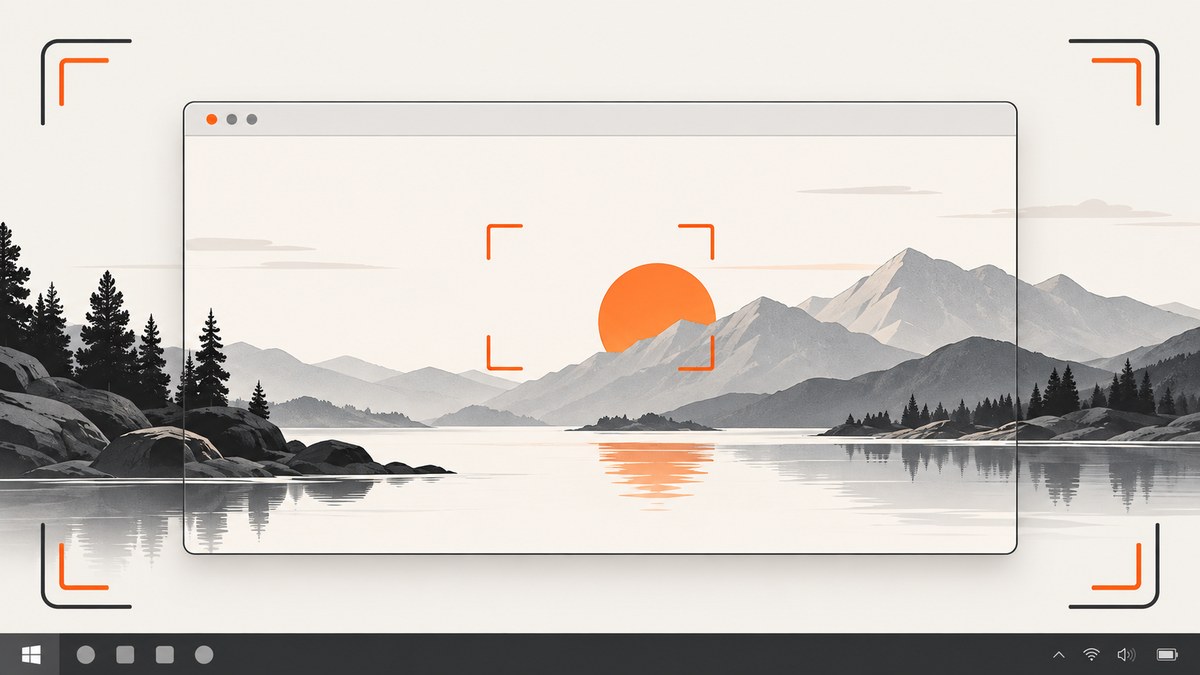
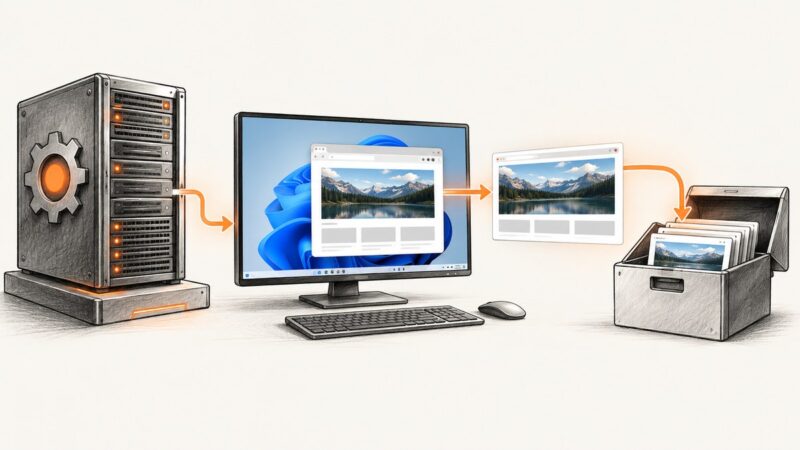
Selenium’s screenshot API captures a WebDriver browsing context; it does not capture the Windows desktop shell, so the taskbar is normally missing. In Java, take the browser screenshot with Selenium’s TakesScreenshot, then use AWT’s Robot.createScreenCapture(Rectangle) to capture the display pixels that include the taskbar. If you need one deliverable, combine or crop the images afterward with Java image processing.
Direct answer: maximizing or fullscreening the browser does not make a Selenium screenshot include the taskbar. Use Selenium for the page and Robot for the desktop. Robot requires an interactive, permission-capable desktop; it is not a solution for ordinary headless browser runs. See the Selenium TakesScreenshot API, Selenium window documentation, and Oracle’s Robot API.
1. Why Selenium leaves out the taskbar
TakesScreenshot.getScreenshotAs(...) asks the WebDriver implementation for an image of its browser context. It is intended for browser or element screenshots, not as a general operating-system screen-capture interface. The taskbar belongs to Windows, outside that context.
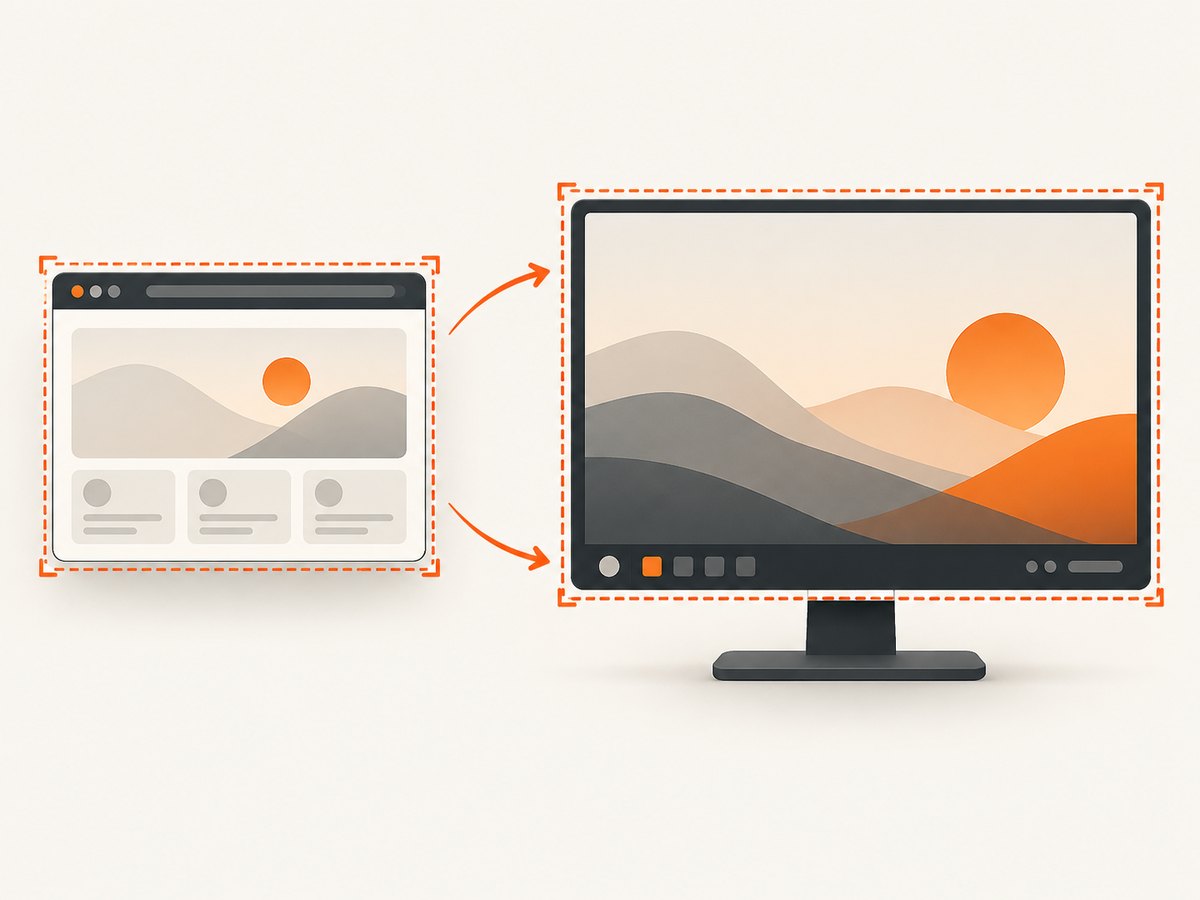
driver.manage().window().maximize() changes the browser window state. Selenium documents that maximizing generally fills the screen without blocking the operating system’s own menus and toolbars. fullscreen() also changes browser state; neither call changes what WebDriver’s screenshot endpoint means.
| Approach | Browser content | Taskbar | Constraint |
|---|---|---|---|
Selenium TakesScreenshot |
Yes | No | Browser or element context |
| Maximize/fullscreen, then Selenium screenshot | Yes | No guarantee | Window state is not desktop capture |
Java AWT Robot |
Visible pixels | Yes, if included in bounds | Interactive desktop and capture permission needed |
2. Capture the browser and desktop in Java
The following standalone example opens a page, saves Selenium’s browser screenshot, identifies the default display bounds, and saves a second image of that display. When the taskbar is visible inside those bounds, it appears in the Robot image. The code uses Selenium 4 and a Java runtime that supports Path.of.

import org.openqa.selenium.OutputType;
import org.openqa.selenium.TakesScreenshot;
import org.openqa.selenium.WebDriver;
import org.openqa.selenium.chrome.ChromeDriver;

import javax.imageio.ImageIO;
import java.awt.AWTException;
import java.awt.GraphicsConfiguration;
import java.awt.GraphicsDevice;
import java.awt.GraphicsEnvironment;
import java.awt.Rectangle;
import java.awt.Robot;
import java.awt.image.BufferedImage;
import java.io.File;
import java.io.IOException;
import java.nio.file.Files;
import java.nio.file.Path;
import java.nio.file.StandardCopyOption;

public class BrowserAndTaskbarCapture {
    public static void main(String[] args) throws IOException, AWTException {
        WebDriver driver = new ChromeDriver();
        try {
            driver.get("https://example.com");
            driver.manage().window().maximize();

            Path browserPath = Path.of("browser.png");
            File browserFile = ((TakesScreenshot) driver)
                    .getScreenshotAs(OutputType.FILE);
            Files.copy(browserFile.toPath(), browserPath,
                    StandardCopyOption.REPLACE_EXISTING);

            GraphicsEnvironment ge =
                    GraphicsEnvironment.getLocalGraphicsEnvironment();
            GraphicsDevice device = ge.getDefaultScreenDevice();
            GraphicsConfiguration config = device.getDefaultConfiguration();
            Rectangle screen = config.getBounds();

            Robot robot = new Robot(device);
            BufferedImage desktopImage = robot.createScreenCapture(screen);
            ImageIO.write(desktopImage, "png",
                    new File("desktop-with-taskbar.png"));
        } finally {
            driver.quit();
        }
    }
}
This is an API-based pattern assembled from the cited documentation; it is not a report of executed testing. The two files have different purposes: browser.png is the WebDriver image, and desktop-with-taskbar.png is a display image that can include the browser, taskbar, other windows, desktop, and anything else visible. Keep in mind that desktop capture can include sensitive material.
Run it in a project
- Add Selenium Java to the project using the dependency-management method already used by your build. The class imports Selenium’s WebDriver API and ChromeDriver; the browser driver must also be available to Selenium.
- Run the class in a logged-in Windows desktop session with a visible display. Do not run it as a headless job and expect Robot to see a real taskbar.
- Open the output files and confirm that the chosen monitor, taskbar, and browser window are the intended ones. Desktop coordinates and what is visible depend on the host session.
Choose a screen rectangle deliberately
The example uses getDefaultScreenDevice(). For a particular monitor, select the corresponding GraphicsDevice, get its default configuration, and capture that configuration’s bounds:
GraphicsDevice[] devices = GraphicsEnvironment
        .getLocalGraphicsEnvironment().getScreenDevices();
for (int i = 0; i < devices.length; i++) {
    Rectangle bounds = devices[i].getDefaultConfiguration().getBounds();
    System.out.println("Display " + i + ": " + bounds);
}

// After choosing the intended index:
GraphicsDevice device = devices[chosenIndex];
Rectangle bounds = device.getDefaultConfiguration().getBounds();
BufferedImage image = new Robot(device).createScreenCapture(bounds);
ImageIO.write(image, "png", new File("selected-display.png"));
Oracle notes that multi-screen environments can use a shared virtual coordinate system or independent coordinate systems. Use the selected device’s bounds instead of assuming that primary-screen coordinates describe the monitor you want. A taskbar may also be configured on a different display or hidden; the capture can only include pixels in the chosen rectangle.
3. Combine the captures when one image is required
A desktop screenshot already contains the visible browser and taskbar together. If the requirement is simply “show the browser and taskbar,” desktop-with-taskbar.png is often the most faithful single image. It preserves their real screen positions, unlike placing the browser image beside or above a separate desktop capture.
If you need a clean browser capture plus taskbar pixels, you must define the desired composition. For example, a report can show the browser screenshot and a cropped taskbar strip below it. This is an editorial composite, not an unaltered desktop screenshot. To make a visually aligned composite, determine the browser’s physical screen bounds, account for display scaling and image dimensions, crop only the taskbar region, and place it at the appropriate location. Selenium window position and size may be reported in logical coordinates that do not always correspond one-to-one with physical pixels under Windows scaling, so inspect dimensions rather than assuming a scale factor.
Java’s BufferedImage and Graphics2D can draw a source image into a destination image. For a simple vertical report layout where the browser image appears above the full desktop image:
BufferedImage browser = ImageIO.read(new File("browser.png"));
BufferedImage desktop = ImageIO.read(new File("desktop-with-taskbar.png"));
int width = Math.max(browser.getWidth(), desktop.getWidth());
int height = browser.getHeight() + desktop.getHeight();
BufferedImage combined = new BufferedImage(width, height,
        BufferedImage.TYPE_INT_ARGB);
java.awt.Graphics2D g = combined.createGraphics();
g.drawImage(browser, 0, 0, null);
g.drawImage(desktop, 0, browser.getHeight(), null);
g.dispose();
ImageIO.write(combined, "png", new File("combined-report.png"));
This example deliberately stacks two full images; it does not claim pixel-perfect alignment or crop out other desktop content. For a taskbar-only strip, crop the correct rectangle from the Robot image using getSubimage(x, y, width, height) after verifying coordinates on the target machine. Validate that the crop is inside the image bounds and that scaling has not changed the expected coordinates.
4. Wait for the page and control what is visible
Capture only after the browser has reached the intended state. driver.get waits according to the page-load strategy, but client-rendered content, animations, lazy images, and asynchronous requests can continue afterward. Prefer waiting for a meaningful element with Selenium’s explicit waits rather than adding an arbitrary long sleep. For a reproducible screenshot, use a known test page, a stable viewport, and a controlled session.
Robot records the desktop’s visible pixels at the instant of capture. Move other windows away, close sensitive notifications, position the browser, and ensure the taskbar is not covered. If an overlay or tooltip appears at capture time, it will be part of the desktop image. A browser screenshot may differ in timing from the Robot screenshot if the page changes between the two calls; capture them close together or freeze the page state before taking either image.
5. Troubleshooting
| Symptom | Likely cause | Fix |
|---|---|---|
| Taskbar absent from Selenium image | WebDriver screenshot is scoped to browser content | Use Robot for display pixels; do not expect maximize or fullscreen to alter screenshot scope. |
AWTException constructing Robot |
Headless environment or platform does not allow low-level desktop control | Run in an interactive desktop session. A virtual display is not necessarily equivalent to an accessible Windows desktop. |
SecurityException or blank/undefined capture |
Desktop capture permission was denied or unavailable | Grant the required desktop permission in the environment and rerun in an authorized session. Oracle documents that denied permission can throw or yield undefined image content. |
| Wrong monitor or clipped taskbar | Default device was not the target, or the selected rectangle excludes the taskbar | Enumerate devices, inspect each configuration’s bounds, and construct Robot for the intended device. |
| Black or stale desktop image | Session is locked, disconnected, inaccessible, or capture occurred before the desktop was ready | Use a visible unlocked session, check host policies, and capture after the display is ready. |
| Browser image shows old page state | Screenshot happened before asynchronous rendering finished | Wait for the target element or state, then capture. |
| Composite crop looks offset | Logical window coordinates differ from physical pixels or wrong monitor origin was used | Compare screenshot dimensions with display bounds and calibrate the crop for the actual scaling and monitor. |
| Output file missing or unreadable | Wrong working directory, insufficient write access, or image write failure | Use an absolute output path, ensure its parent exists and is writable, and check ImageIO.write returns true for the chosen format. |
6. Reliability, performance, and cost
Desktop capture depends on the machine’s display session, permission model, active monitor layout, scaling, and visibility. Those environmental dependencies make Robot useful for local visual checks and desktop automation, but fragile as a general server-side screenshot mechanism. For CI, test in a deliberate interactive desktop environment and treat monitor arrangement and session availability as test prerequisites. If only the webpage matters, Selenium’s browser screenshot avoids capturing unrelated desktop content.
Robot capture reads a screen rectangle into memory, and larger displays produce larger images. Selenium and Robot also create separate captures, so a pipeline that saves, crops, composites, and uploads files incurs extra image I/O and processing. Choose PNG for lossless screenshots and use an appropriate image format when storage or transfer size matters. Avoid capturing more displays or pixels than the deliverable needs.
The code shown has no ScreenshotNeo API cost because it uses Selenium and local Java AWT. It does require access to a desktop-capable machine and the engineering effort to maintain that environment. For browser-only screenshots, a hosted API can move browser setup off the machine; it cannot capture a Windows taskbar because that is operating-system UI outside a webpage.
7. Or skip the browser setup
If your goal is a clean webpage screenshot rather than a Windows desktop image, ScreenshotNeo is a website screenshot API and MCP server. Its one-call API returns an image or PDF, and its parameters include options also used by other screenshot APIs. It does not capture the Windows taskbar.
Before capture, ScreenshotNeo accepts the cookie or consent banner like a visitor and removes 60+ known consent platforms, newsletter popups, and chat widgets; each step can be turned off. Bot checks or CAPTCHAs, blank pages, timeouts, failed loads, and cache hits cost nothing, and response headers report the page verdict and billing status. Its MCP server provides take_screenshot, get_page_info, and capture_pdf tools for Claude, Cursor, and other MCP clients. The free plan includes 1,000 shots per month with no card; paid plans start at $5 for 3,000 shots. See the ScreenshotNeo API documentation.
curl -G "https://api.screenshotneo.com/v1/shot" \
  -d access_key=YOUR_API_KEY \
  --data-urlencode url=https://stripe.com \
  -o shot.webp
import requests
r = requests.get(
"https://api.screenshotneo.com/v1/shot",
params={"access_key": "YOUR_API_KEY", "url": "https://stripe.com"},
timeout=90,
)
open("shot.webp", "wb").write(r.content)const q = new URLSearchParams({
access_key: 'YOUR_API_KEY',
url: 'https://stripe.com'
});
const res = await fetch(`https://api.screenshotneo.com/v1/shot?${q}`);
if (!res.ok) throw new Error(`Screenshot request failed: ${res.status}`);
await Bun.write('shot.webp', res);Cookie banners, popups, and chat widgets are removed before the shot; bot checks, blank pages, and failed loads are never billed; an MCP server lets AI agents take screenshots; and 1,000 screenshots a month are free with no card, with paid plans starting at $5 for 3,000. Sign up for the free plan.
8. FAQ
Can Selenium capture the whole Windows desktop?
WebDriver’s screenshot API is for its browser context. Use an operating-system capture mechanism such as Java AWT Robot when you need desktop pixels.
Will fullscreen make the taskbar appear?
No. Fullscreen changes the browser window state; it does not turn TakesScreenshot into desktop capture.
Can Robot work on a headless Windows server?
Robot construction can throw AWTException when the graphics environment is headless. Run in a desktop session that permits screen capture.
Which image should I submit?
Use the Robot desktop image when the requirement is a faithful view of the browser and taskbar together. Use a composite only when the desired layout calls for separately captured or cropped content.