BlogScreenshots on your device
How to Capture WPF UI Screenshots
Capture WPF controls or windows as PNG files with RenderTargetBitmap, handle layout and D3DImage edge cases, and choose desktop capture when needed.
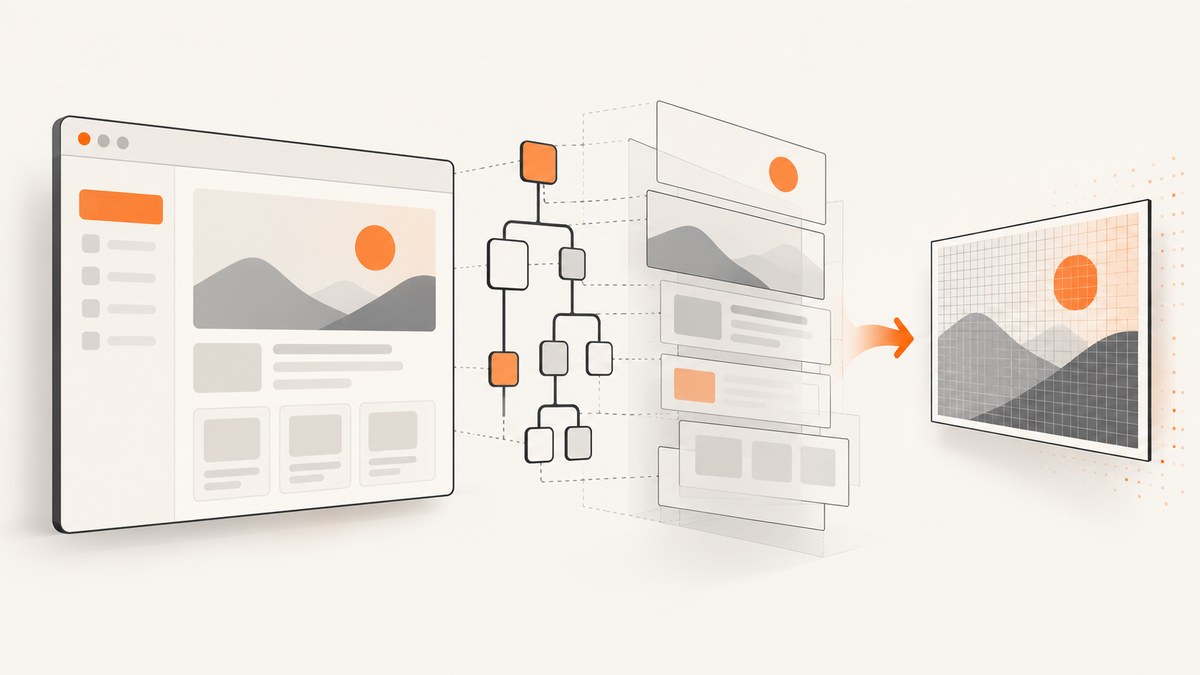
Use RenderTargetBitmap for a WPF visual-tree screenshot. Give it the pixel dimensions, DPI, and pixel format you want, call Render after the visual has completed layout, then encode the bitmap with PngBitmapEncoder. This captures WPF-composed controls, panels, and windows in-process.
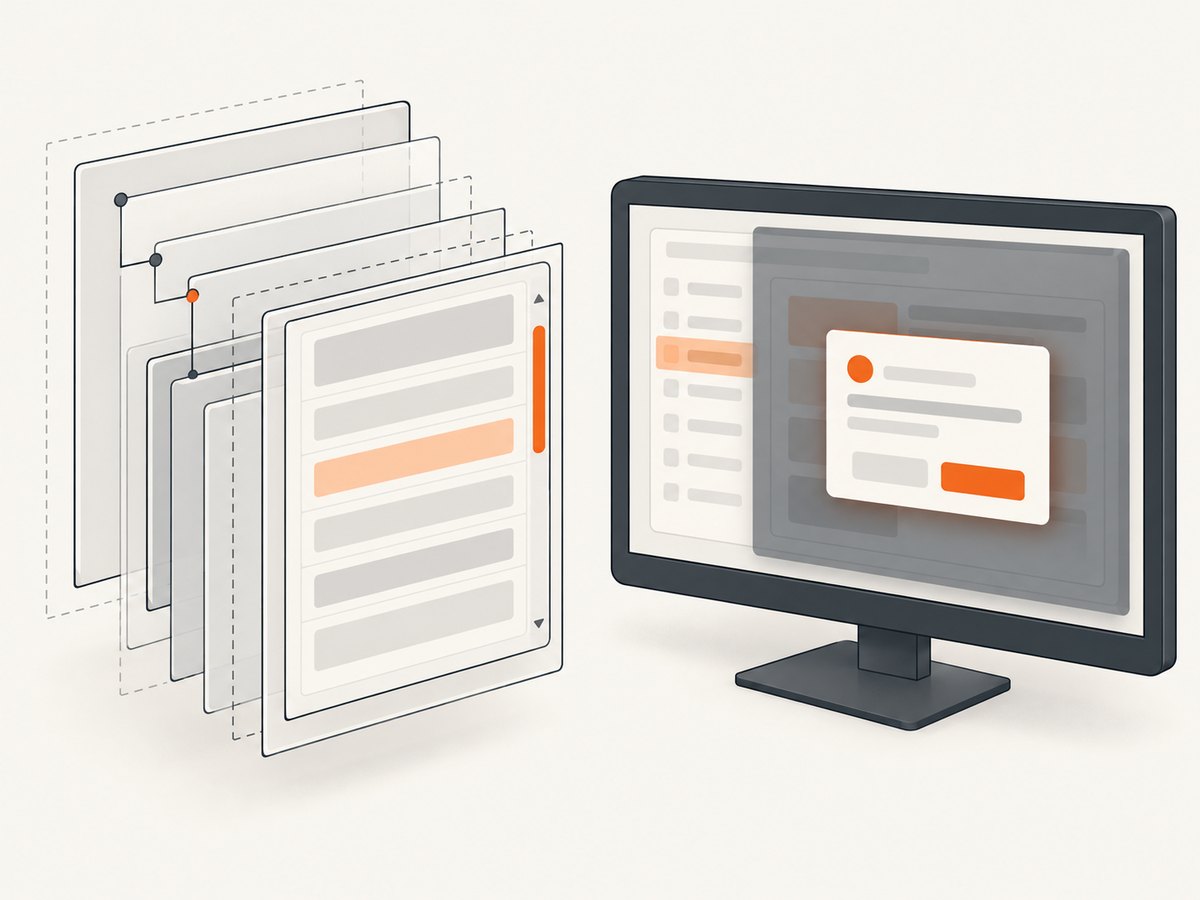
RenderTargetBitmap does not automatically capture every pixel visible on the monitor. Popups hosted in another window, desktop overlays, Direct3D surfaces, and other HWND content may require Windows Graphics Capture or another window/monitor capture API.
Complete WPF visual-to-PNG example
The following helper saves any Visual to a PNG. It follows Microsoft’s documented visual-to-bitmap sequence: create a RenderTargetBitmap, render the visual, create a BitmapFrame, and save it through PngBitmapEncoder.[Microsoft API reference]
using System;
using System.IO;
using System.Windows;
using System.Windows.Media;
using System.Windows.Media.Imaging;

public static class WpfScreenshot
{
    public static void SaveVisualPng(
        Visual visual,
        int pixelWidth,
        int pixelHeight,
        string path,
        double dpiX = 96,
        double dpiY = 96)
    {
        if (visual == null) throw new ArgumentNullException(nameof(visual));
        if (pixelWidth <= 0) throw new ArgumentOutOfRangeException(nameof(pixelWidth));
        if (pixelHeight <= 0) throw new ArgumentOutOfRangeException(nameof(pixelHeight));
        if (string.IsNullOrWhiteSpace(path)) throw new ArgumentException("A file path is required.", nameof(path));

        var bitmap = new RenderTargetBitmap(
            pixelWidth,
            pixelHeight,
            dpiX,
            dpiY,
            PixelFormats.Pbgra32);

        bitmap.Render(visual);

        var encoder = new PngBitmapEncoder();
        encoder.Frames.Add(BitmapFrame.Create(bitmap));

        using var stream = File.Create(path);
        encoder.Save(stream);
    }
}
Capture a window after layout
Call the method on the UI thread after the window is loaded and arranged. The example captures the window at its current layout size.
private void SaveButton_Click(object sender, RoutedEventArgs e)
{
    var width = Math.Max(1, (int)Math.Ceiling(ActualWidth));
    var height = Math.Max(1, (int)Math.Ceiling(ActualHeight));

    WpfScreenshot.SaveVisualPng(this, width, height, "window.png");
}
If you capture a control, pass that control instead:
var width = Math.Max(1, (int)Math.Ceiling(MyPanel.ActualWidth));
var height = Math.Max(1, (int)Math.Ceiling(MyPanel.ActualHeight));
WpfScreenshot.SaveVisualPng(MyPanel, width, height, "panel.png");
Capture at a deliberate resolution
The constructor’s width, height, DPI, and pixel format determine the output. A 96 DPI bitmap at 800 by 600 pixels is different from a 192 DPI bitmap with the same pixel dimensions: the pixel count is unchanged, but consumers that interpret physical size will see different metadata.
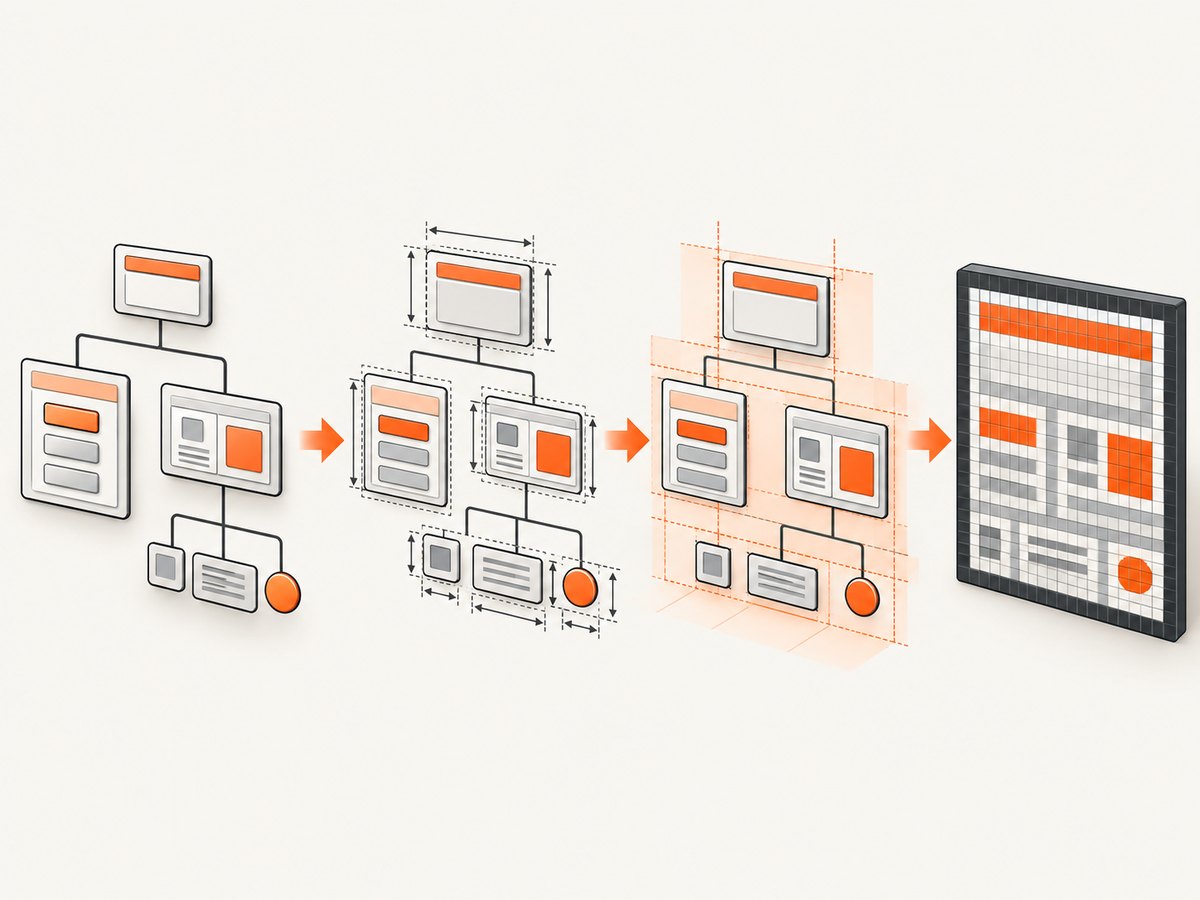
For a scale factor such as 2x, multiply the arranged size and DPI together:
double scale = 2.0;
int pixelWidth = Math.Max(1, (int)Math.Ceiling(MyPanel.ActualWidth * scale));
int pixelHeight = Math.Max(1, (int)Math.Ceiling(MyPanel.ActualHeight * scale));

WpfScreenshot.SaveVisualPng(
    MyPanel,
    pixelWidth,
    pixelHeight,
    "panel-2x.png",
    dpiX: 96 * scale,
    dpiY: 96 * scale);
When the visual’s layout size is measured in device-independent units, this explicit conversion gives you predictable output dimensions. Keep the scale, width, and height consistent so text and borders do not become unexpectedly soft or clipped.
Capture a control, panel, or full arranged document
Individual controls
Pass the control or container that defines the boundary you want. A Grid, Border, Canvas, or custom control can all be rendered because they are WPF visuals.
ScrollViewer content versus viewport
Rendering a ScrollViewer captures its arranged viewport. It does not automatically expand the visual to include content that is currently outside that viewport. To create a full-document image, render the content element after arranging it at its full desired size.
// The content must have a finite, full-document layout size first.
DocumentPanel.Measure(new Size(double.PositiveInfinity, double.PositiveInfinity));
DocumentPanel.Arrange(new Rect(DocumentPanel.DesiredSize));
DocumentPanel.UpdateLayout();

int width = Math.Max(1, (int)Math.Ceiling(DocumentPanel.ActualWidth));
int height = Math.Max(1, (int)Math.Ceiling(DocumentPanel.ActualHeight));
WpfScreenshot.SaveVisualPng(DocumentPanel, width, height, "full-document.png");
For very large documents, consider rendering sections separately and composing them. A single bitmap consumes memory proportional to width multiplied by height and pixel size.
Make sure layout and visual state are ready
A screenshot taken before measurement, arrangement, data binding, animations, or template application completes can be blank or incomplete. Capture on the dispatcher after the state you want is visible.
private async Task CaptureAfterLayoutAsync()
{
    await Dispatcher.InvokeAsync(() =>
    {
        // Apply any state changes before this point.
        UpdateLayout();
    }, System.Windows.Threading.DispatcherPriority.Render);

    int width = Math.Max(1, (int)Math.Ceiling(ActualWidth));
    int height = Math.Max(1, (int)Math.Ceiling(ActualHeight));
    WpfScreenshot.SaveVisualPng(this, width, height, "after-render.png");
}
If a binding updates asynchronously, wait for that operation as well. If a storyboard or transition is involved, capture after the intended animation state has been reached rather than immediately after starting it.
Choose the right capture boundary
| Requirement | Recommended approach | What it includes |
|---|---|---|
| One WPF control or panel | RenderTargetBitmap |
The selected WPF visual subtree |
| Most of a WPF window | RenderTargetBitmap on the window or root panel |
WPF-composed content in that visual |
| Entire scrollable document | Arrange and render the content element | All content that was arranged at the full size |
| Popup, separate child window, or desktop overlay | Window or monitor capture API | Pixels from the selected HWND or monitor |
| Exact displayed monitor pixels | Windows Graphics Capture or equivalent | Composited window or monitor output |
Microsoft’s capture guidance distinguishes visual-tree snapshots from APIs that target an HWND or HMONITOR.[Windows screen capture guidance]
Encoding choices
PNG is lossless and usually the best default for WPF interfaces containing text, icons, and flat colors. Add a different BitmapEncoder when your storage or delivery requirements call for another format.
using System.Windows.Media.Imaging;

// JPEG example: useful when lossy compression is acceptable.
var jpeg = new JpegBitmapEncoder
{
    QualityLevel = 90
};
jpeg.Frames.Add(BitmapFrame.Create(bitmap));
using var jpegStream = File.Create("window.jpg");
jpeg.Save(jpegStream);
Keep the BitmapSource in memory instead of writing a file when you need to display the result in an Image control:
var bitmap = new RenderTargetBitmap(width, height, 96, 96, PixelFormats.Pbgra32);
bitmap.Render(MyPanel);
PreviewImage.Source = bitmap;
Direct3D and D3DImage content
RenderTargetBitmap is a WPF visual-tree capture, and WPF may use a software rendering path while creating it. Microsoft documents that a D3DImage may not appear when WPF is rendering completely in software. Validate screenshots containing Direct3D content on the hardware and rendering mode used by your application.[WPF graphics and imaging guidance]
If the Direct3D surface is missing:
- Confirm that the Direct3D back buffer is initialized and has current content before capture.
- Capture on the UI thread after the frame has been presented.
- Compare hardware and software rendering modes.
- If you need the final composited window pixels, use a window capture API instead of relying on visual-tree rendering.
Common errors and fixes
| Symptom | Likely cause | Fix |
|---|---|---|
| Blank or transparent image | Capture ran before measure, arrange, or render | Wait for Loaded, call UpdateLayout, and dispatch at render priority. |
| Only part of a document appears | The ScrollViewer viewport was rendered |
Arrange and render the full content element. |
| Popup is missing | The popup is hosted outside the visual subtree | Capture its separate window or use a composited window capture API. |
| Wrong size or clipped edges | Pixel dimensions do not match the arranged size | Derive dimensions from ActualWidth/ActualHeight, with deliberate scaling and rounding. |
| Text looks soft | Bitmap is being enlarged after capture | Capture at the final pixel dimensions or a planned scale factor. |
| Access or cross-thread exception | Visuals are DispatcherObjects | Run capture on the UI thread that owns the visual. |
| D3D content disappears | Software rendering or an unavailable back buffer | Validate rendering mode and frame timing; use window capture when final screen pixels are required. |
| File cannot be opened | Stream was not closed or path is invalid | Use a using declaration, ensure the directory exists, and save after adding the frame. |
Performance, reliability, and memory
- Bitmap size:
Pbgra32uses four bytes per pixel before encoder compression. A large full-page capture can therefore consume substantial memory. - UI responsiveness: Rendering and encoding run on the UI thread in the simple examples. For frequent captures, limit dimensions and frequency, and avoid capturing every animation frame.
- Determinism: Layout-driven rendering is repeatable when data, fonts, DPI, and visual state are stable. Capture only after those inputs are ready.
- File safety: Write to a unique path or replace files deliberately. Keep the stream open until
encoder.Savereturns. - Large documents: Tile or segment very tall content if a single bitmap approaches available memory.
- Desktop fidelity: Use HWND or monitor capture when compositor effects, popups, or external overlays are part of the requirement.
Or skip the browser setup
If the goal is a screenshot of a web page rather than the WPF visual tree, ScreenshotNeo provides a single HTTP request. Its API removes cookie and consent banners, newsletter popups, and chat widgets before capture. Bot checks, blank pages, timeouts, failed loads, and cache hits are not billed, and the response identifies the result with X-Page-Verdict and X-Billed headers. It also provides an MCP server with take_screenshot, get_page_info, and capture_pdf tools for AI agents.
See the ScreenshotNeo API documentation for the available capture options.
curl -G "https://api.screenshotneo.com/v1/shot" -d access_key=YOUR_API_KEY --data-urlencode url=https://stripe.com -o shot.webpimport requests
r = requests.get(
"https://api.screenshotneo.com/v1/shot",
params={"access_key": "YOUR_API_KEY", "url": "https://stripe.com"},
timeout=90,
)
r.raise_for_status()
open("shot.webp", "wb").write(r.content)const q = new URLSearchParams({ access_key: 'YOUR_API_KEY', url: 'https://stripe.com' });
const res = await fetch(`https://api.screenshotneo.com/v1/shot?${q}`);
if (!res.ok) throw new Error(`Screenshot failed: ${res.status}`);
const bytes = Buffer.from(await res.arrayBuffer());
require('node:fs').writeFileSync('shot.webp', bytes);ScreenshotNeo includes 1,000 screenshots each month on the free plan with no card. Paid plans start at $5 for 3,000 shots, and every feature is available on every plan. Create a free ScreenshotNeo account.
FAQ
Can RenderTargetBitmap capture a minimized WPF window?
It captures the visual tree you render, provided the visual has valid layout and content. It is not a guarantee of the pixels currently composited on the monitor.
Should I use 96 DPI or the monitor DPI?
Use 96 DPI for a conventional device-independent export, or choose a deliberate DPI and pixel scale when the output must match a display or print workflow. Keep the pixel dimensions consistent with that choice.
Why does a screenshot differ from what users see?
The visual-tree render may omit separate windows, popups, compositor effects, or Direct3D content. Capture the relevant HWND or monitor when those pixels are part of the requirement.
Can I capture a WPF window from a background thread?
The visual belongs to its Dispatcher thread. Marshal the capture operation to that UI thread; do not access the visual from an unrelated worker thread.
What is the simplest reliable default?
Wait until the visual is loaded and arranged, derive dimensions from its actual size, render with PixelFormats.Pbgra32, and save through PngBitmapEncoder.


