BlogScreenshots on your device
How to Choose and Use a Full-Page Screenshot Extension
Choose a full-page screenshot extension by browser compatibility, permissions, output and long-page behavior. Then capture, inspect and troubleshoot the result.
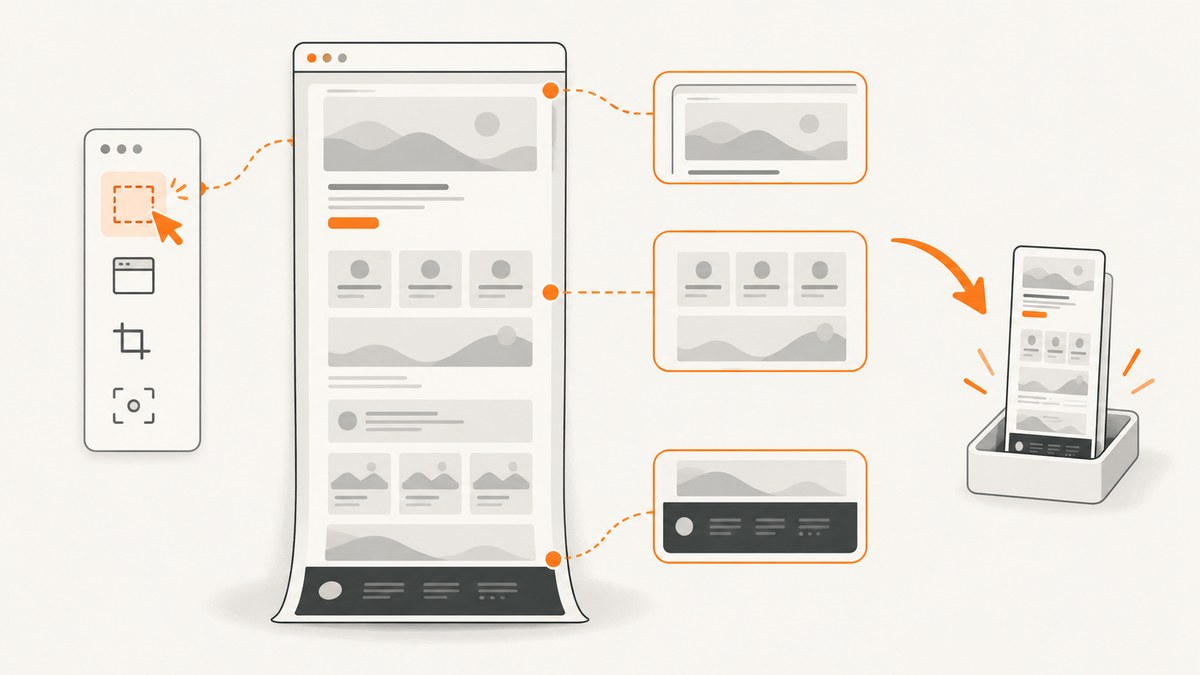
A full-page screenshot captures content beyond the part of a webpage visible in the browser window. To choose an extension, first check whether your browser has a built-in full-page capture that meets your needs. If it does not, choose an extension from your browser’s official store and compare compatibility, permissions, privacy disclosures, export formats, editing tools, and how it handles unusually long pages. Capture a representative page and inspect the result before you rely on it.
GoFullPage is one example distributed for Chrome, Edge, and Firefox according to its publisher and the relevant listings. Availability and features can change, so verify the current listing for your browser and version before installing. Its Firefox listing warns that exceptionally large captures may be split into multiple images. GoFullPage’s official site, its Chrome Web Store listing, and the Firefox Add-ons listing are useful places to check current details.
1. Decide whether you need an extension
For an occasional capture, start with your browser’s built-in screenshot or page-capture option if one is available. A native feature avoids installing another add-on and may be enough for a simple image. Browser menus and capabilities vary by browser and version; verify the current documentation for yours rather than relying on old instructions.
An extension is useful when you need a repeatable capture workflow or features such as an editor or additional export choices. Do not assume that every extension supports the same output formats, annotations, or capture scope. Check the current store listing and, if necessary, the publisher’s documentation. For recurring automated captures, a browser extension may also be the wrong fit: it depends on a person’s browser session, while a screenshot API can capture a URL through a request.
2. What is the best full-page screenshot extension for my browser?
There is no single best extension for every browser and task. Start with browser fit, then compare the capabilities you actually need. GoFullPage is one current example: its publisher describes distribution for Chrome, Edge, and Firefox. That does not guarantee availability or identical features in every browser build today; confirm the official listing for your browser before installing.
| What to check | Why it matters | How to decide |
|---|---|---|
| Browser and version | An extension must be listed for the browser you use, and distribution can change. | Open the official browser store listing and verify compatibility and publisher identity. |
| Capture scope | You may need the full document, the visible viewport, or just a selected area. | Confirm the current listing explicitly describes the capture mode you need. |
| Output format | A saved image and a PDF serve different workflows. | Check which formats the current build exports and whether it can save locally. |
| Editing | Cropping, annotation, or redaction may be needed before sharing. | Verify the specific editor actions in the current feature listing. |
| Long-page handling | Very long pages can exceed what a tool delivers as one image. | Look for documented size limits or split-output behavior; inspect large results. |
| Permissions and privacy | Capture can involve access to page contents and saving files. | Read the publisher’s privacy and permission disclosures, and review prompts when they appear. |
A dated changelog can show that a feature existed in a particular release, but does not prove it is available in every browser build now. Treat the current store listing and the permissions prompt you see as the practical references.
3. How do I install an extension safely?
- Open the official extension store for the browser you intend to use, or follow a link from the extension publisher’s official site.
- Check the publisher name and make sure the listing matches the tool you intended to install.
- Read the store’s privacy disclosure and the publisher’s explanation of permissions. Consider what page access the extension requests and whether captures are stored or transmitted.
- Install the extension and read each permission prompt. Some prompts may appear only when you use a particular action, such as saving a file from capture history.
- Try the extension on a representative page and confirm where the capture is saved and what information it includes.
GoFullPage says its site requires no extra permissions to install, while its permissions guide explains that saving files from capture history may prompt for file access. Read the current listing and prompt for yourself; a general statement does not guarantee the prompt behavior for every browser version or action. See the publisher’s FAQ and permissions information.
4. How do I take a screenshot of an entire webpage?
The exact controls differ by browser and extension version, so use the current store listing or product help for the button name and supported actions. The general workflow is:
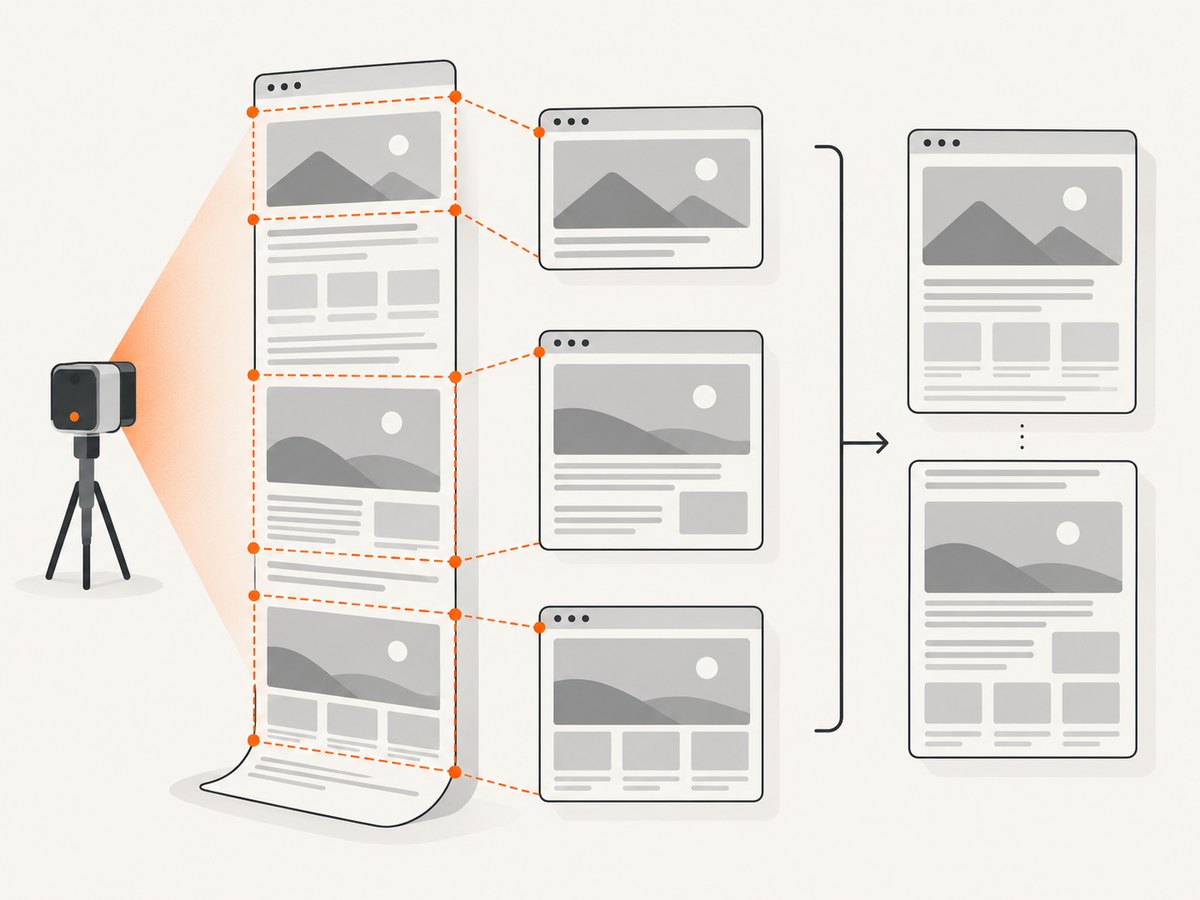
- Open the page. Load the website in the browser where you installed the extension. If the page requires sign-in, make sure you are using the intended account and session.
- Choose the capture tool. Use the browser’s built-in full-page option if it meets your needs; otherwise invoke the installed extension from its current browser controls.
- Wait for capture to finish. A long page may take more time to process, and some tools may split unusually large output into multiple images.
- Inspect the result. Check the top, middle, and bottom. Look for missing or duplicated content, distorted sections, or areas that did not load.
- Edit only as needed. Crop or annotate if the tool offers those actions and they suit the task. Check that annotations do not expose information you meant to remove.
- Export and review before sharing. Confirm that the recipient can open the chosen format. Check the capture for private page content and any browser UI or annotations that should not be shared.
Dynamic pages and nested scrolling areas deserve extra review. A full-document capture does not necessarily mean every independently scrolling panel or content loaded later will appear as expected. The available source material does not establish that every extension handles these cases identically, so verify your actual result.
5. Can I capture a full web page without installing an extension?
Possibly. Check whether your browser’s current built-in capture feature can save the whole page in the format you need. If it can, use it and inspect the output. Browser-native options vary by browser and version, so consult current official browser guidance for exact steps. Older third-party walkthroughs may describe menus that have since changed.
If you cannot use a native feature, consider the context. For one manual capture, an extension from the official store may be simplest. For a repeatable developer workflow, a screenshot API can accept a URL and return an image or PDF without relying on a person to open a browser and click a toolbar button.
6. Why is my full-page screenshot missing part of the page?
First determine whether the missing area was visible and loaded in the page at capture time. A page that fills content as you scroll, or that has nested scrolling regions, can require special handling. Missing or repeated sections are reasons to review the capture and try a smaller or simpler page, or compare with the browser’s native option. These are troubleshooting possibilities, not documented limitations of every extension.
For unusually long pages, check whether the extension documents splitting or output limits. The Firefox listing for GoFullPage says rare captures that are too large for one image may be split into separate images. Do not assume every tool will produce a single seamless file at any page length.
7. Troubleshooting checklist
| Symptom | Possible cause | What to try |
|---|---|---|
| The extension is missing from the store or unavailable. | It may not support your browser/version, or distribution may have changed. | Check the current official listing for your browser and the publisher’s site for supported versions. |
| The capture stops early or arrives in pieces. | The page may be unusually large, or the product may split oversized results. | Check the documented long-page behavior; review every piece and save them together if needed. |
| Sections are missing or repeated. | The page may use dynamic loading or nested scrolling, or content may not have loaded when capture began. | Wait for the page to settle, inspect the relevant sections, and try a shorter page or another supported capture method. |
| A save action triggers a permission prompt. | The browser may request file access only when saving from a particular feature. | Read the prompt and publisher explanation; grant only permissions you understand and need. |
| The result includes information you should not share. | Private page content or annotations may be part of the capture. | Review the image before sharing; crop or redact only with a tool that supports the action you need. |
| A protected browser page or local document does not capture. | Browser restrictions and support vary; ordinary website behavior may not apply. | Consult current browser and extension documentation. Do not assume protected or local content is supported. |
8. Performance, reliability, and cost
For a manual capture, the practical time cost depends on page length, page behavior, and the extension’s processing and export steps. A long or dynamic page calls for more careful review. Test a representative page before making the tool part of a publishing, archiving, or review process. If the output is important, retain the source URL and capture date alongside the file so you can identify what was captured.
Browser extensions are convenient for a person at a browser, but the workflow can depend on that browser’s version, permissions, session, and manual actions. If you need recurring captures, bulk URLs, or integration into code, compare an API workflow. Check what a service returns for blocked pages, timeouts, and failed loads, and understand how those outcomes affect billing before relying on it.
Do not pick an extension by an assumed speed or reliability benchmark: the sources here do not establish comparable measurements across products. Verify the current feature set and test the actual pages that matter to your workflow.
9. Or skip the browser setup
For a developer workflow, ScreenshotNeo is a website screenshot API and MCP server. One GET request with a URL returns PNG, JPEG, WebP, or PDF. The call below captures a full page as WebP; see the ScreenshotNeo API documentation for the request options.
curl -G "https://api.screenshotneo.com/v1/shot" \
  -d access_key=YOUR_API_KEY \
  --data-urlencode url=https://stripe.com \
  -o shot.webp
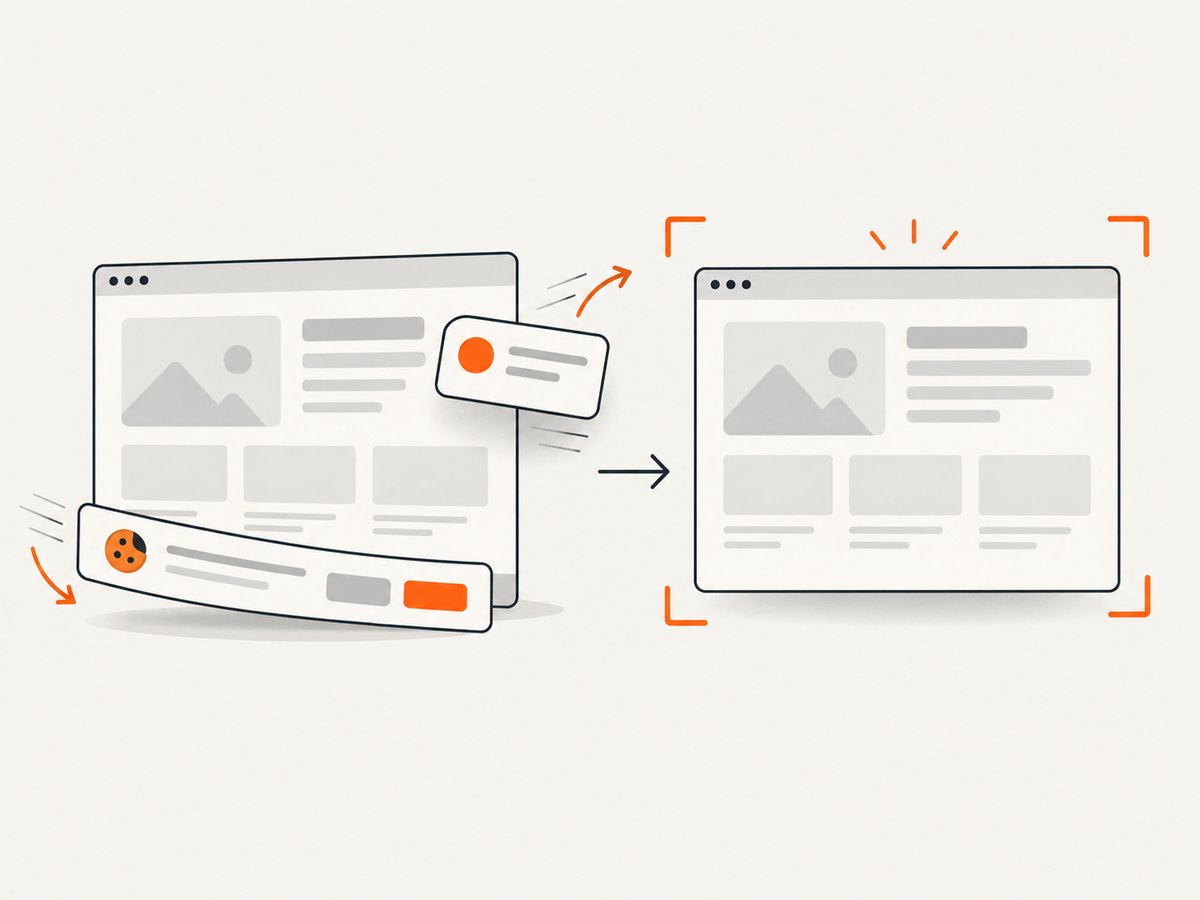
ScreenshotNeo accepts cookie and consent banners before capture and removes more than 60 known consent platforms, newsletter popups, and chat widgets; each step can be turned off. Bot checks and CAPTCHAs, blank pages, timeouts, failed loads, and cache hits cost nothing, and response headers say which outcome occurred. Its MCP server provides take_screenshot, get_page_info, and capture_pdf for Claude, Cursor, and other MCP clients. The free plan includes 1,000 screenshots a month with no card; paid plans start at $5 for 3,000 shots.
Sign up for ScreenshotNeo’s free 1,000 screenshots a month, with no card.
10. Frequently asked questions
Does a full-page screenshot include browser controls?
The goal is to capture webpage content, but review the exported file rather than assuming it contains only what you expect. Browser UI and capture annotations may be included depending on the method.
Can every full-page capture be one image?
No. Very large pages may be split by a tool or exceed its documented limits. Check the product’s current guidance and verify how the output is organized.
Should I use an extension for a page behind a login?
Only if you are comfortable capturing that account’s content and the tool’s permissions and data handling. Review the output for private information before sharing it.
Is PDF always better than an image?
No. Choose based on the recipient and task: images suit visual review, while PDF may fit document workflows. Confirm the selected tool actually supports the needed format in your browser build.
How can I tell whether an extension is trustworthy?
Use the official store or publisher link, verify the publisher, and review the current privacy disclosure and requested permissions. No single listing detail substitutes for understanding how page access and saved captures are handled.


