BlogScreenshots on your device
How to Choose a Snipping Tool for Windows 11
Start with Windows 11’s built-in Snipping Tool, then consider ShareX or ScreenshotNeo when your workflow needs scrolling, automation, or browser capture.
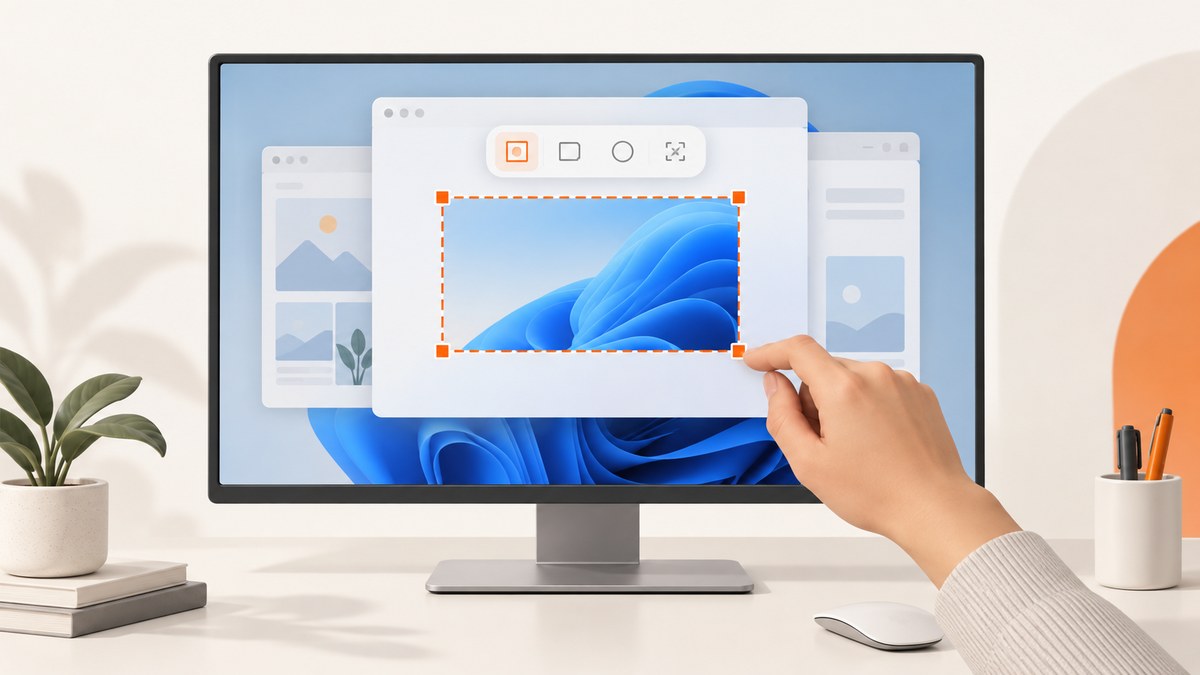
For most Windows 11 screenshots, start with the built-in Snipping Tool. It handles region, window and full-screen captures, video snips, editing, saving and sharing. Use ShareX when you specifically need scrolling captures or configurable after-capture automation. Use a browser screenshot API such as ScreenshotNeo when you need repeatable captures of web pages in code or from an AI agent.
The right choice depends on the job: what you capture, whether the result must be edited or redacted, whether you need video, whether pages scroll beyond the viewport, and whether the process should run automatically.
1. Decide what you need before choosing a tool
| Need | Best starting point | Reason and caveat |
|---|---|---|
| Quick region, window or full-screen image | Windows Snipping Tool | Already included with Windows 11; supports capture, editing, saving and sharing. |
| Short demonstration video | Windows Snipping Tool | Video snips are built in; Microsoft documents opening the result in Clipchamp for further editing. |
| Copy text from a screenshot or redact contact details | Windows Snipping Tool | Text Actions can copy detected text and Quick redact can hide email addresses or phone numbers. The exact controls depend on your installed version. |
| Long, scrolling page | Try ShareX | ShareX documents scrolling capture, but static footers, sidebars or sticky elements can interfere with stitching. |
| Repeated capture and automatic follow-up actions | Try ShareX | Its after-capture tasks can automate saving, copying and sharing workflows. |
| Programmatic browser screenshots | ScreenshotNeo | One HTTP request returns a PNG, JPEG, WebP or PDF, with browser cleanup and billing verdicts included. |
| Perfect Screenshot | Check device eligibility first | Microsoft says this feature is available only on a Windows 11 AI+ PC. |
2. Use Snipping Tool on Windows 11
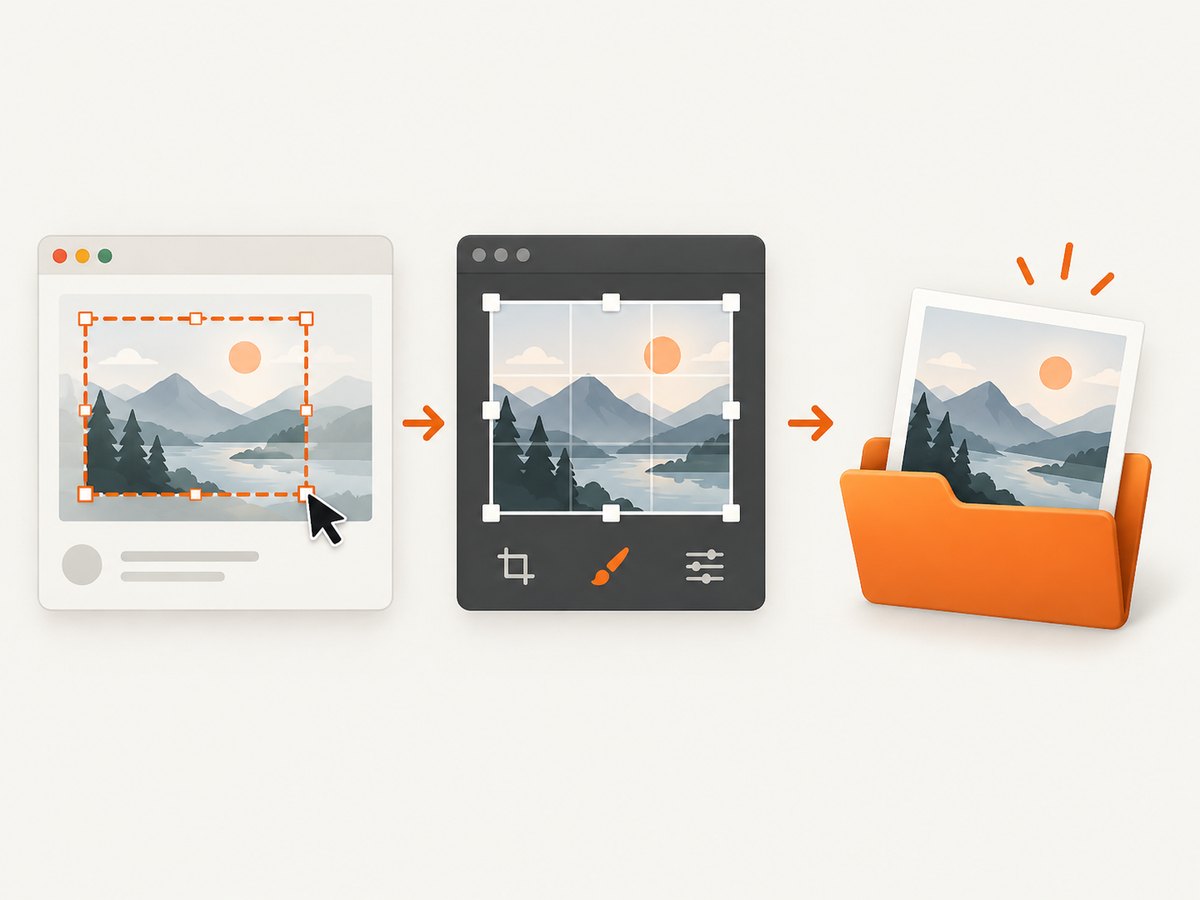
Take an image snip
- Press Windows + Shift + S.
- Choose rectangular, freeform, window or full-screen capture from the toolbar.
- Select the area or window.
- Open the notification to edit, copy, save or share the image.
Microsoft documents this shortcut and the capture-to-edit/save/share workflow in its Snipping Tool support guide.
Record a short video
- Open Snipping Tool and choose Record, then New, or press Windows + Shift + R.
- Select the screen area and start recording.
- Stop the recording when finished.
- Open the result in Clipchamp if you need further editing.
The shortcut and Clipchamp hand-off are covered in Microsoft’s Windows 11 Snipping Tool guide.
Extract or redact text
Open a screenshot in Snipping Tool and choose Text actions. You can copy selected text or all detected text. Quick redact can obscure detected email addresses and phone numbers. Review the result manually: OCR can misread small, stylized or low-contrast text, and the available commands can vary with the app version.
Save and share safely
- Save a working copy before applying redactions.
- Check the edges of the capture for notifications, account names and browser tabs.
- Use PNG for crisp interface text; use JPEG when a smaller photographic file is more useful.
- Paste into the destination first if you only need a temporary copy, then save a file when you need a durable record.
3. When ShareX is a better fit
ShareX is a free, open-source Windows screenshot tool. Its documented capture modes include full screen, selected region, active window and scrolling capture, and it supports automated after-capture tasks.
Scrolling capture
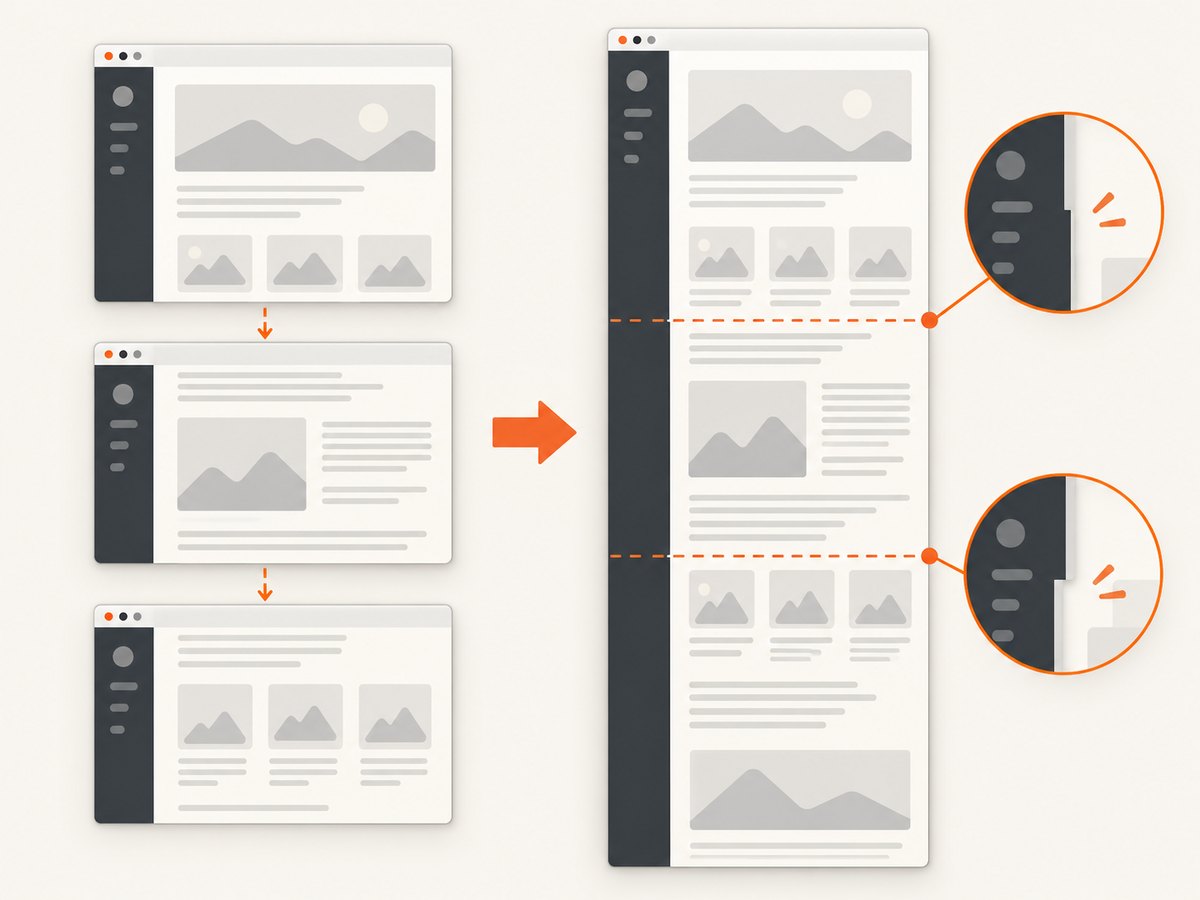
Scrolling capture takes successive screenshots while a page or window moves, then combines them. ShareX warns that static elements, such as a fixed footer or sidebar, can prevent accurate matching. Check the complete output for duplicated, missing or misaligned sections before publishing it. The official scrolling screenshot documentation explains the limitation.
After-capture automation
Choose ShareX when the recurring workflow matters as much as the image: capture a region, save it, copy it, upload it or trigger another after-capture action. Configure one workflow, then run a small trial and confirm the destination, file format and naming behavior before relying on it for a batch.
4. Developer integration with Windows Snipping Tool
Windows applications can launch the capture experience through Microsoft’s ms-screenclip: URI scheme. The documented protocol supports image and video capture. This is useful when you are building a Windows app that needs to hand control to the system capture UI; it is not required for ordinary screenshots.
See Microsoft Learn’s Launch Snipping Tool documentation for the supported URI details and integration constraints.
5. A practical selection checklist
- Capture target: region, window, full screen, scrolling page or browser URL.
- Output: still image, video, PDF or a file returned to another program.
- Editing: annotations, text extraction, redaction or external video editing.
- Automation: one-off keyboard workflow, after-capture tasks or an API call.
- Repeatability: fixed viewport, predictable timing, custom headers or cookies.
- Review: verify long-page stitching and check that sensitive content is not visible.
- Device limits: confirm whether a feature such as Perfect Screenshot is supported on your PC.
6. Troubleshooting common problems
| Symptom | Likely cause | Fix |
|---|---|---|
| Windows + Shift + S does nothing | Snipping Tool is disabled, outdated or the shortcut is intercepted. | Launch Snipping Tool from Start, install Windows and Store updates, then try the shortcut again. Check keyboard utility mappings if it still fails. |
| The wrong window is captured | The target changed focus before the snip. | Use window mode and select the target after the overlay appears, or capture a rectangle. |
| Text Actions misses words | Low resolution, unusual fonts, contrast or image compression. | Capture at native scale, enlarge the source and proofread extracted text before using it. |
| Video recording has unwanted notifications | Notifications appeared inside the selected region. | Turn on a do-not-disturb mode, close unrelated apps and select only the needed region. |
| ShareX scrolling image has duplicates or gaps | Fixed page elements or animation disrupted image matching. | Hide sticky elements where possible, stop animation, capture shorter sections or verify the stitched image manually. |
| Perfect Screenshot is unavailable | The device is not a Windows 11 AI+ PC. | Use the standard Snipping Tool workflow or another documented capture method. |
7. Performance, reliability, privacy and cost
The built-in tool has no separate installation or subscription cost because it ships with Windows 11. It is a good default for interactive, local captures. ShareX adds configuration and automation, but scrolling results need visual checking on pages with fixed or changing elements.
For any local tool, inspect the selected region before saving. Screenshots can include passwords, personal messages, browser history or notification previews. Store and share files according to your organization’s policy.
For automated web captures, reliability depends on page loading, authentication, consent dialogs, lazy images and bot checks. A service that reports whether a page was cleanly captured is easier to monitor than one that only returns an HTTP success code.
8. Or skip the browser setup
ScreenshotNeo is a website screenshot API and MCP server. Use it when a script, CI job or AI agent needs a web page image without maintaining a local browser.
One GET request returns a PNG, JPEG, WebP or PDF. Before capture, ScreenshotNeo accepts cookie and consent banners and removes more than 60 known consent platforms, newsletter popups and chat widgets; each cleanup step can be turned off. Bot checks, blank pages, timeouts, failed loads and cache hits cost nothing, and the response identifies the result with X-Page-Verdict and X-Billed headers. Its MCP server provides take_screenshot, get_page_info and capture_pdf tools for Claude, Cursor and other MCP clients.
cURL
curl -G "https://api.screenshotneo.com/v1/shot" -d access_key=YOUR_API_KEY --data-urlencode url=https://stripe.com -o shot.webpPython
import requests

r = requests.get(
    "https://api.screenshotneo.com/v1/shot",
    params={"access_key": "YOUR_API_KEY", "url": "https://stripe.com"},
    timeout=90,
)
r.raise_for_status()
open("shot.webp", "wb").write(r.content)
Node.js
const q = new URLSearchParams({ access_key: 'YOUR_API_KEY', url: 'https://stripe.com' });
const res = await fetch(`https://api.screenshotneo.com/v1/shot?${q}`);
if (!res.ok) throw new Error(`HTTP ${res.status}`);
const body = Buffer.from(await res.arrayBuffer());
require('node:fs').writeFileSync('shot.webp', body);
See the ScreenshotNeo documentation for the 63 available options, including full-page capture with lazy-image loading, CSS element capture, device presets and custom viewports, dark mode, retina scale, PDF paper sizes and ranges, custom CSS and JavaScript, click and wait actions, request blocking, headers, cookies, user agents, authorization, timezone, geolocation, transparent backgrounds, resizing, caching, signed links, asynchronous jobs, webhooks, bulk capture and usage reporting.
Pricing starts with 1,000 screenshots per month free with no card. Paid plans start at $5 for 3,000 screenshots; every feature is available on every plan, and yearly billing gives two months free. Create a free ScreenshotNeo account.
9. FAQ
Is Snipping Tool already installed on Windows 11?
Yes. Windows 11 includes Snipping Tool capture workflows. Open it from Start or use Windows + Shift + S for an image snip.
Can Snipping Tool capture a full web page?
It captures the visible screen area. For a long scrolling page, evaluate a scrolling-capable tool such as ShareX and verify the stitched result.
Which shortcut records video?
Press Windows + Shift + R, or open Snipping Tool, select Record and choose New.
Do I need ShareX for ordinary screenshots?
No. The built-in tool is a sensible default for routine region, window and full-screen captures. ShareX earns consideration when scrolling or after-capture automation solves a recurring problem.
When should I use an API instead of a desktop app?
Use an API when captures must run from code, CI, a scheduled job or an AI agent, or when browser cleanup and machine-readable billing results matter.


