Why Chrome Headless Loads Pages Differently From Regular Chrome
Older Chrome Headless used a separate browser implementation. Learn what changed, how to compare modes, and how to diagnose page differences.
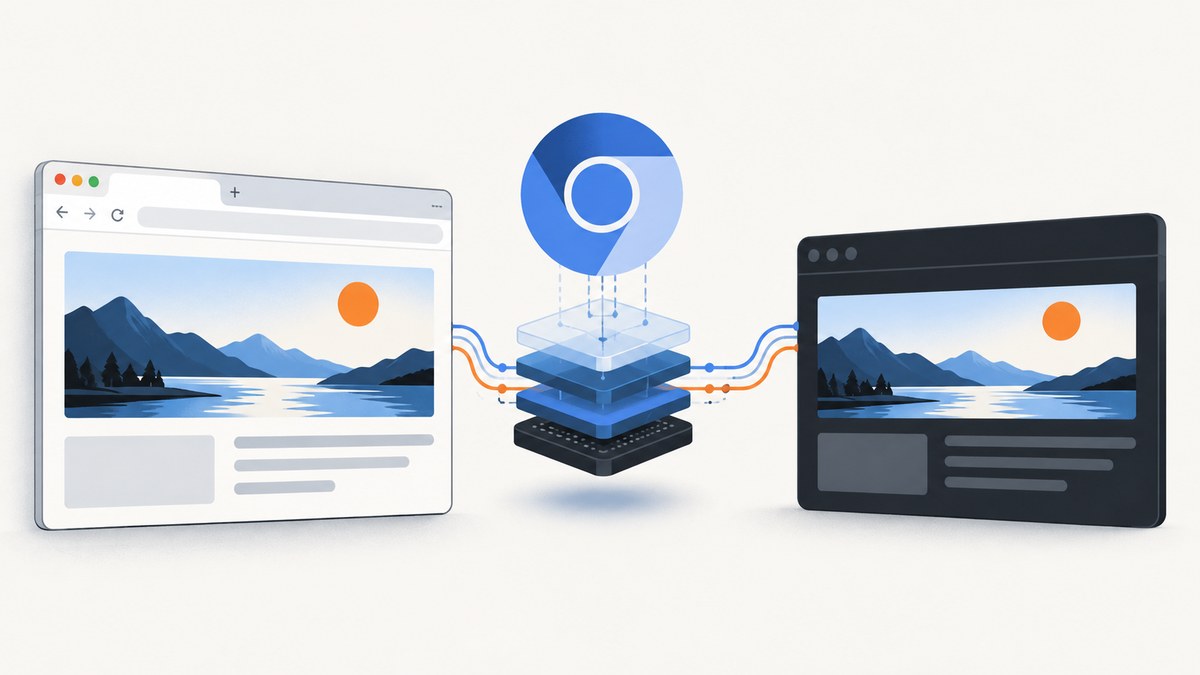
Older Chrome Headless could load or render a page differently from visible Chrome because it was a separate browser implementation. Starting with Chrome 112, unified Headless uses the regular Chrome browser code and creates platform windows without displaying them. Since Chrome 132, the old mode is no longer selected with --headless=old; its implementation is distributed separately as chrome-headless-shell. Chrome’s Headless documentation describes this history and the current choices.
That architectural history explains why differences were possible, but it does not diagnose every site-specific mismatch. For a particular discrepancy, first identify the actual Chrome binary, selected mode, browser and automation versions, and runtime. Then compare the same page with those variables controlled.
1. The short history: two implementations, then one unified mode
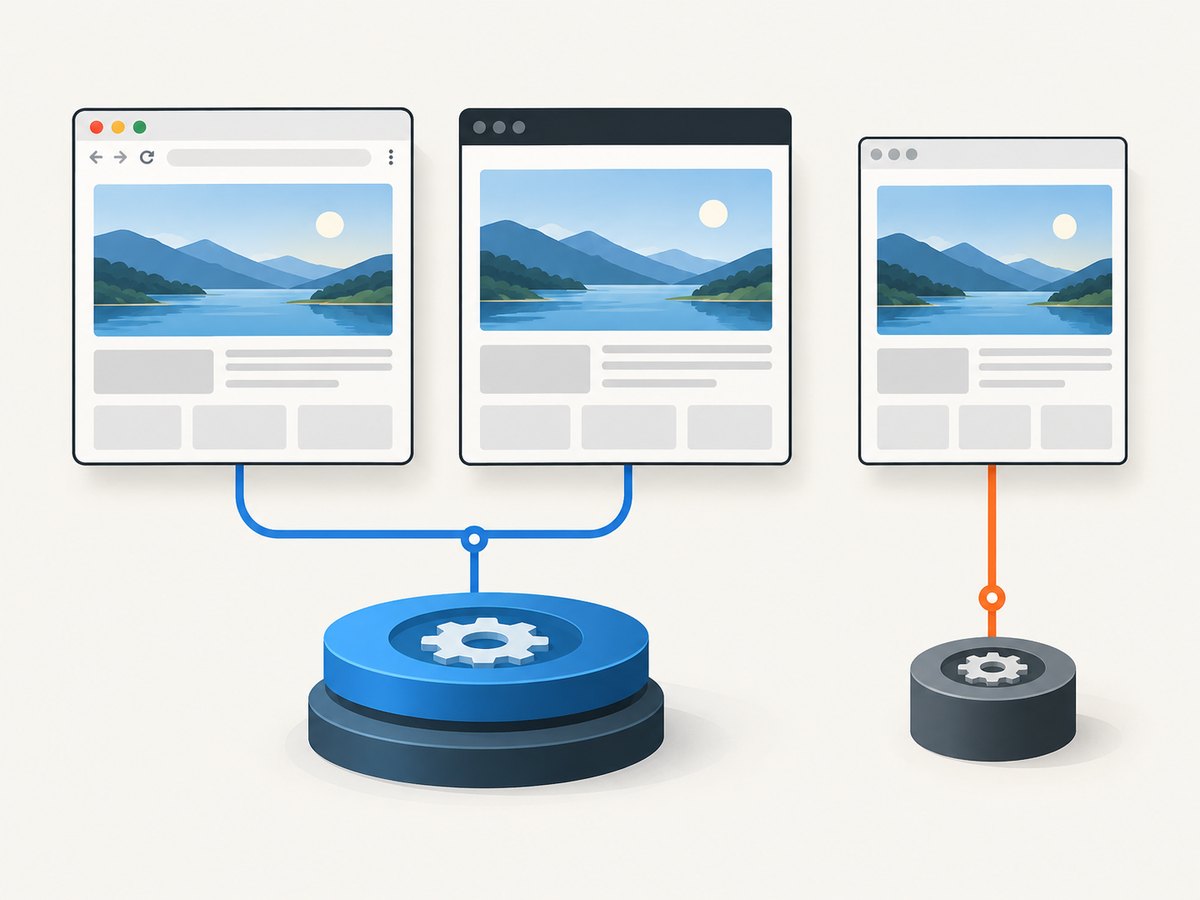
“Headless” means the browser runs without displaying its windows on the screen. It does not necessarily mean that the browser uses a different page-rendering engine. The distinction changed over time:
| Mode | What it is | When it fits |
|---|---|---|
| Regular Chrome, headful | Chrome runs with visible windows. | A direct reference when reproducing what a person sees on a desktop. |
| Unified Headless | Introduced in Chrome 112, it uses regular Chrome browser code while creating platform windows without displaying them. | High-fidelity end-to-end tests, extension tests, and automation that should follow Chrome’s full browser behavior. |
| Headless Shell | The separate legacy implementation, now distributed as chrome-headless-shell. |
Some automation tasks where the lighter dependency footprint is useful. |
The old Headless implementation did not share Chrome’s //chrome browser code. Unified Headless brought Headless and regular Chrome together. Chrome describes Headless Shell as a lightweight wrapper around Chromium’s //content module, with fewer dependencies; it does not require X11/Wayland or D-Bus. Chrome says it can suit automated screenshotting or scraping and may be more performant in some ways. That is product guidance, not a published benchmark. Chrome’s Headless Shell documentation explains the trade-off.
2. Pick the mode that matches the job
Choose unified Headless when your priority is fidelity to Chrome, a high-accuracy end-to-end test, or extension behavior. Consider Headless Shell when its lighter runtime dependencies fit the task and you do not need the full Chrome implementation. Use headful mode when the visible browser itself is part of the investigation.
Since Chrome 132, passing --headless=old to the Chrome binary prints an error. The --headless and --headless=new flags run unified Headless. To use the old implementation, install and launch the separate chrome-headless-shell binary. The removal announcement documents this version boundary.
Launch Chrome directly
For a quick command-line check, use the same URL with each available mode. These commands request a screenshot; they are comparison examples, not a guarantee that every environment has a Chrome binary on PATH.
# Unified Headless
chrome --headless --screenshot=unified.png https://example.com

# The explicit alias for unified Headless
chrome --headless=new --screenshot=unified-explicit.png https://example.com

# Headful Chrome: opens a visible browser window
chrome https://example.com

# Legacy implementation, if separately installed
chrome-headless-shell --screenshot=shell.png https://example.com
On a machine where the executable is named google-chrome, chromium, or has a platform-specific path, substitute that executable. Do not interpret a failed --headless=old launch on Chrome 132 or later as a page failure: it is an unsupported flag/mode combination.
3. Compare modes with Puppeteer
Puppeteer exposes the three useful choices directly: headless: true for unified Headless, headless: 'shell' for Headless Shell, and headless: false for visible Chrome. Chrome says Puppeteer has defaulted to the new Headless mode since version 22. Still, set the mode explicitly in diagnostic code so the intended comparison is visible. See Chrome’s Puppeteer examples.
Install Puppeteer in a Node.js project with npm install puppeteer. Its package supplies a compatible browser for its normal use. If you configure a system browser or a separate shell binary, verify which executable is actually launched.
import puppeteer from 'puppeteer';

const url = 'https://example.com';
const modes = [
  { name: 'unified', headless: true },
  { name: 'shell', headless: 'shell' },
  { name: 'headful', headless: false },
];

for (const mode of modes) {
  const browser = await puppeteer.launch({ headless: mode.headless });
  try {
    const page = await browser.newPage();
    await page.setViewport({ width: 1440, height: 900, deviceScaleFactor: 1 });
    await page.goto(url, { waitUntil: 'networkidle2', timeout: 60000 });
    console.log(mode.name, await page.title(), page.url());
    await page.screenshot({ path: `${mode.name}.png`, fullPage: true });
  } finally {
    await browser.close();
  }
}
networkidle2 is one possible readiness condition, not a universal signal that the page is done. Applications with persistent connections or delayed content may need a selector or an application-specific wait. Keep the same viewport and readiness condition for each run; otherwise you are changing more than the browser mode.
4. Compare modes with Selenium WebDriver
Chrome’s documentation shows Selenium-WebDriver launching Chrome with the --headless argument. The following Python example compares visible Chrome with unified Headless, records the browser version, waits for document readiness, and saves a screenshot. It assumes Selenium and a compatible Chrome/ChromeDriver setup are installed.
from selenium import webdriver
from selenium.webdriver.chrome.options import Options
from selenium.webdriver.support.ui import WebDriverWait

url = "https://example.com"

for name, headless in [("headful", False), ("unified", True)]:
    options = Options()
    if headless:
        options.add_argument("--headless")
    options.add_argument("--window-size=1440,900")
    driver = webdriver.Chrome(options=options)
    try:
        print(name, "browser:", driver.capabilities.get("browserVersion"))
        driver.get(url)
        WebDriverWait(driver, 30).until(
            lambda d: d.execute_script("return document.readyState") == "complete"
        )
        print(name, "title:", driver.title, "url:", driver.current_url)
        driver.save_screenshot(f"{name}.png")
    finally:
        driver.quit()
document.readyState == 'complete' means the document and its dependent resources have reached that state; it does not prove a single-page application has finished rendering or that lazy-loaded content is present. Add a wait for a meaningful page element when the application has a clear readiness marker. Selenium’s example uses the --headless argument; use the binary and driver configuration supported by your installed versions. Chrome’s mode examples.
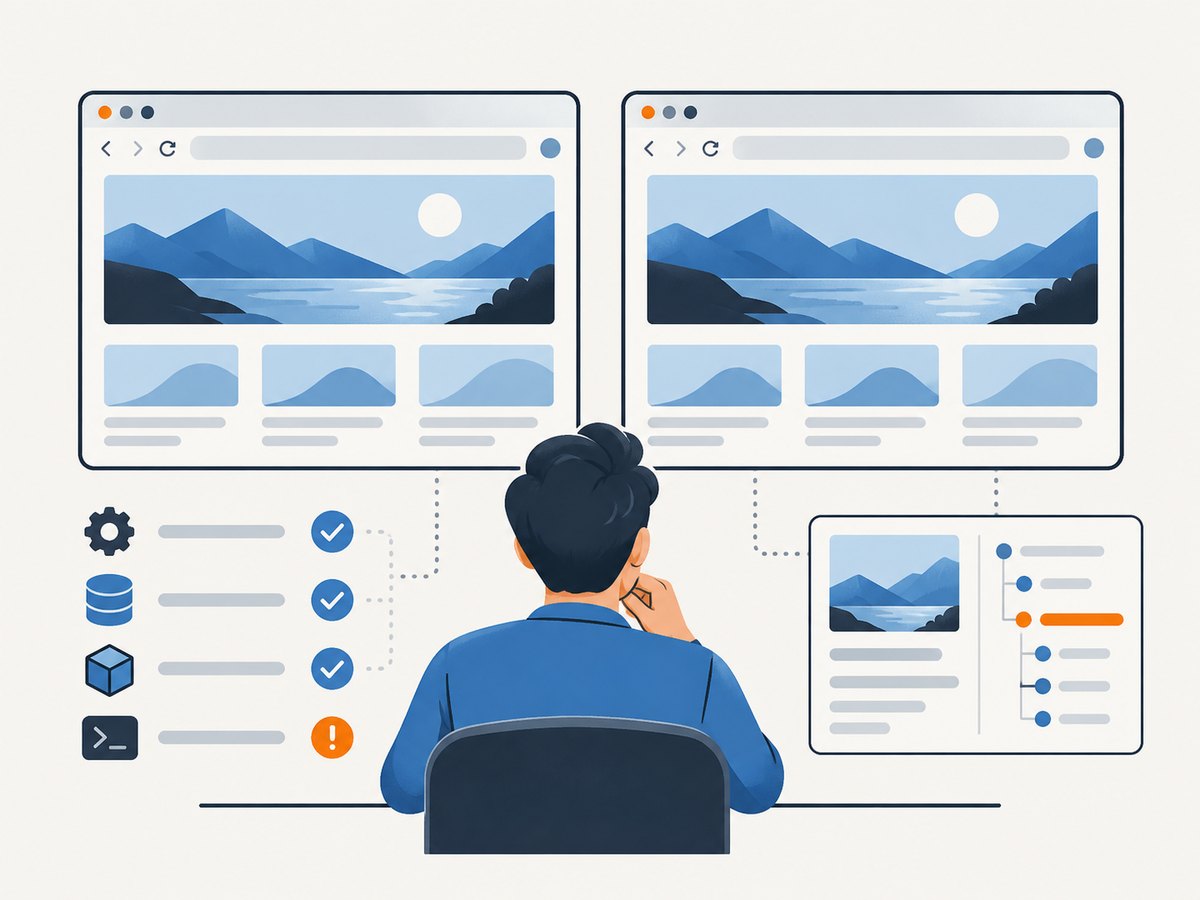
5. Make a controlled comparison
- Record the actual executable. Log the browser version and the automation framework’s launch configuration. A setting called “headless” alone may not tell you whether the run uses unified Headless or a separately installed shell.
- Use the same page and input state. Keep URL, cookies, authentication, locale, viewport, device scale, network conditions, and test data the same.
- Use the same readiness rule. Wait for the same selector, application signal, or documented delay in each run. Avoid comparing one immediate screenshot to another taken after the app has settled.
- Capture evidence beyond pixels. Record the final URL, title, console errors, failed network requests, and relevant DOM values. A screenshot can show a difference without revealing whether navigation, script execution, or resource loading caused it.
- Repeat before assigning a cause. Dynamic content, rotating banners, ads, personalization, and timing can vary between otherwise identical runs. A single mismatch is evidence of a mismatch, not proof that Headless caused it.
Keep conclusions bounded. The official Chrome materials explain the architecture and mode choices; they do not publish a universal list of page features that behave differently, a typical mismatch rate, or a standard cause for every site. Diagnose the specific run rather than assuming Headless blocks a given feature.
6. Why two runs can still differ
After identifying the mode, check variables that can change what a page receives or when it is captured:
- Browser and automation versions: capture the Chrome version and framework version. Puppeteer’s Headless default changed in version 22, so a framework upgrade may also change the selected mode if your code relies on defaults. Chrome’s testing tools article.
- Runtime constraints: unified Headless runs the real Chrome browser; the shell has fewer system dependencies. Container libraries, display support, sandbox settings, and installed fonts can differ across environments. Identify the actual environment rather than attributing every failure to Headless.
- Timing and readiness: animation, lazy loading, client-side rendering, delayed API responses, and long-lived network connections make capture timing significant.
- Environment inputs: viewport, device scale, locale, timezone, geolocation, cookies, authentication, and network policy may affect page output.
- Site variability: server-side experiments and personalized content can return different markup to separate requests. The supplied Chrome sources do not establish a universal site-level cause, so compare the requests and responses for the page in question.
7. Troubleshooting common errors
| Symptom | Likely explanation to check | Practical fix |
|---|---|---|
--headless=old exits with an error |
Chrome 132 and later no longer launch the old implementation through this flag. | Use --headless or --headless=new for unified mode, or install chrome-headless-shell for the legacy shell. |
| Puppeteer screenshot differs after an upgrade | The browser or framework version changed; defaults or bundled binaries may differ. | Set headless explicitly, log browser version, and compare the same executable before and after. |
| Navigation times out | The page may keep connections open or never meet the chosen lifecycle condition; the issue may also be network or site availability. | Use a suitable readiness selector or app signal, set a deliberate timeout, and log the final URL and failed requests. Do not treat increasing the timeout as a diagnosis. |
| Screenshot is blank or incomplete | The capture may occur before client rendering or lazy loading finishes, or navigation may have failed. | Wait for a page-specific element, inspect errors and requests, and verify the page in headful mode with the same inputs. |
| Shell works but unified mode fails to start in a container | The environments have different system dependencies; Chrome documents the shell as having fewer dependencies. | Check the container’s Chrome requirements and installed libraries, then decide whether full Chrome fidelity is required for the task. |
| Only the pixels differ | Viewport, scale factor, fonts, animations, dynamic content, or capture timing may vary. | Normalize viewport and device scale, wait for stable content, and inspect DOM and network evidence alongside images. |
8. Performance, reliability, and cost considerations
Do not choose a mode based on an assumed speed advantage without measuring your own workload. Chrome describes Headless Shell as lighter and potentially more performant in some ways, while unified Headless offers the full browser implementation. The sources provide no universal timing figures. For a meaningful local comparison, hold the page set, machine, browser version, concurrency, waits, and screenshot dimensions constant; measure startup and capture separately and repeat the runs.
For reliability, pin the browser and automation versions where your deployment process allows it, state the intended mode explicitly, and log which binary ran. Keep a small representative set of pages and compare output when upgrading. A page that works in Headless Shell is not by itself evidence that the same run matches visible Chrome; select the mode based on the behavior the test is meant to represent.
For cost, self-hosted automation uses your compute, storage, and engineering time. The provided Chrome documentation gives implementation trade-offs, not cloud pricing or a cost-per-screenshot figure. Estimate from your own capture volume and runtime, including retries and the machine capacity needed for concurrent jobs.
9. Or skip the browser setup
If you need a screenshot rather than a browser-mode experiment, ScreenshotNeo is a website screenshot API and MCP server. It accepts one GET request with a URL and returns PNG, JPEG, WebP, or PDF. See the ScreenshotNeo API documentation for request options.
curl -G "https://api.screenshotneo.com/v1/shot" \
  -d access_key=YOUR_API_KEY \
  --data-urlencode url=https://example.com \
  -o shot.webp
import requests
r = requests.get(
"https://api.screenshotneo.com/v1/shot",
params={"access_key": "YOUR_API_KEY", "url": "https://example.com"},
timeout=90,
)
open("shot.webp", "wb").write(r.content)const q = new URLSearchParams({
access_key: 'YOUR_API_KEY',
url: 'https://example.com'
});
const res = await fetch(`https://api.screenshotneo.com/v1/shot?${q}`);
if (!res.ok) throw new Error(`Screenshot request failed: ${res.status}`);
await Bun.write('shot.webp', new Uint8Array(await res.arrayBuffer()));Cookie and consent banners are accepted like a visitor and removed, along with 60+ known consent platforms, newsletter popups, and chat widgets; each step can be turned off. Bot checks and CAPTCHAs, blank pages, timeouts, failed loads, and cache hits cost nothing. Responses include X-Page-Verdict and X-Billed headers. An MCP server gives AI agents tools for screenshots, page information, and PDF capture.
There are 1,000 screenshots per month on the free plan with no card. Paid plans start at $5 for 3,000 shots; every feature is on every plan. That makes it a practical alternative when the goal is a captured page and you do not need to manage browser binaries. It does not replace a controlled Chrome mode comparison when diagnosing a rendering discrepancy.
Create a free ScreenshotNeo account for 1,000 screenshots a month, with no card.
10. Frequently asked questions
Does Headless always render differently from visible Chrome?
No. Unified Headless uses regular Chrome browser code, but any particular comparison depends on the version, runtime, page, and inputs. Investigate a concrete mismatch with those details recorded.
Can I still use the old Headless mode in Chrome 132?
Not through --headless=old in the Chrome binary. The legacy implementation is available as the separate chrome-headless-shell binary.
Which Puppeteer setting means unified Headless?
Use headless: true. Use headless: 'shell' for Headless Shell and headless: false for visible Chrome.
Should a screenshot test use Shell or unified Headless?
Use unified Headless when Chrome fidelity is the goal. Consider Shell when its lighter dependencies suit the automation task. Match the test mode to what the screenshot is meant to represent.
Does ScreenshotNeo tell me why a page differed between Chrome modes?
No. It provides screenshots and related capture tools; diagnosing a difference between browser modes requires comparing the browser, versions, runtime, and page inputs.


