Why Chrome Headless Exits Immediately with the –repl Flag
Chrome’s --repl example targets the deprecated Headless shell. Learn how to identify the mismatch, use the right binary, and troubleshoot exits.
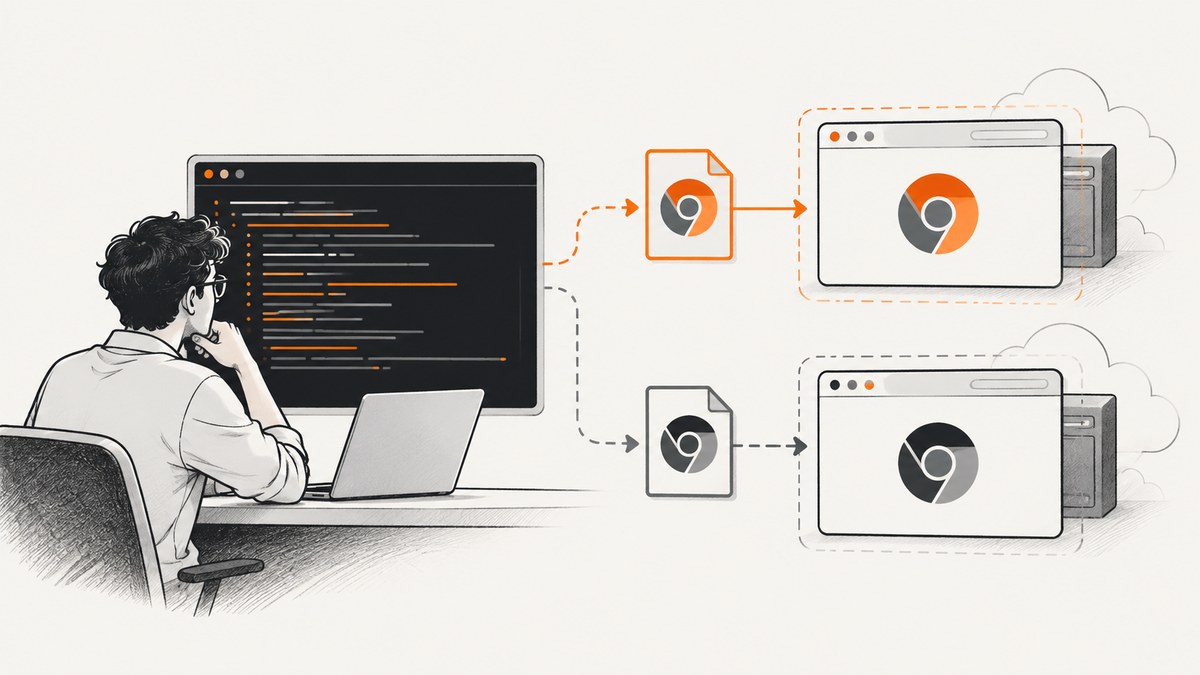
Direct answer: the documented --repl workflow belongs to Chrome’s old Headless shell. Since Chrome 132, that shell is distributed separately as chrome-headless-shell. If you pass --repl to the regular current Chrome executable, the binary and the flag may not match, which is a likely reason the process exits immediately. This is an inference from the official documentation, not a reproduction of every report.
Current Chrome has a unified Headless mode for normal browser automation. The historical interactive REPL is associated with the old shell. First identify the executable and version, then decide whether you need the old REPL at all.
What --repl was designed to do
The old Headless shell documentation describes --repl as a command-line JavaScript prompt. A browser starts, loads a URL, and waits for expressions such as location.href. You can type quit to leave the prompt.
The historical invocation is shaped like this:
chrome --headless --disable-gpu --repl --crash-dumps-dir=./tmp https://www.chromestatus.com/The documentation also shows a prompt similar to >>>. The --crash-dumps-dir argument is included in that REPL example. Treat the sample as an old Headless shell workflow, not as a guarantee that every modern Chrome binary accepts the same flags.
Why the regular Chrome binary can exit
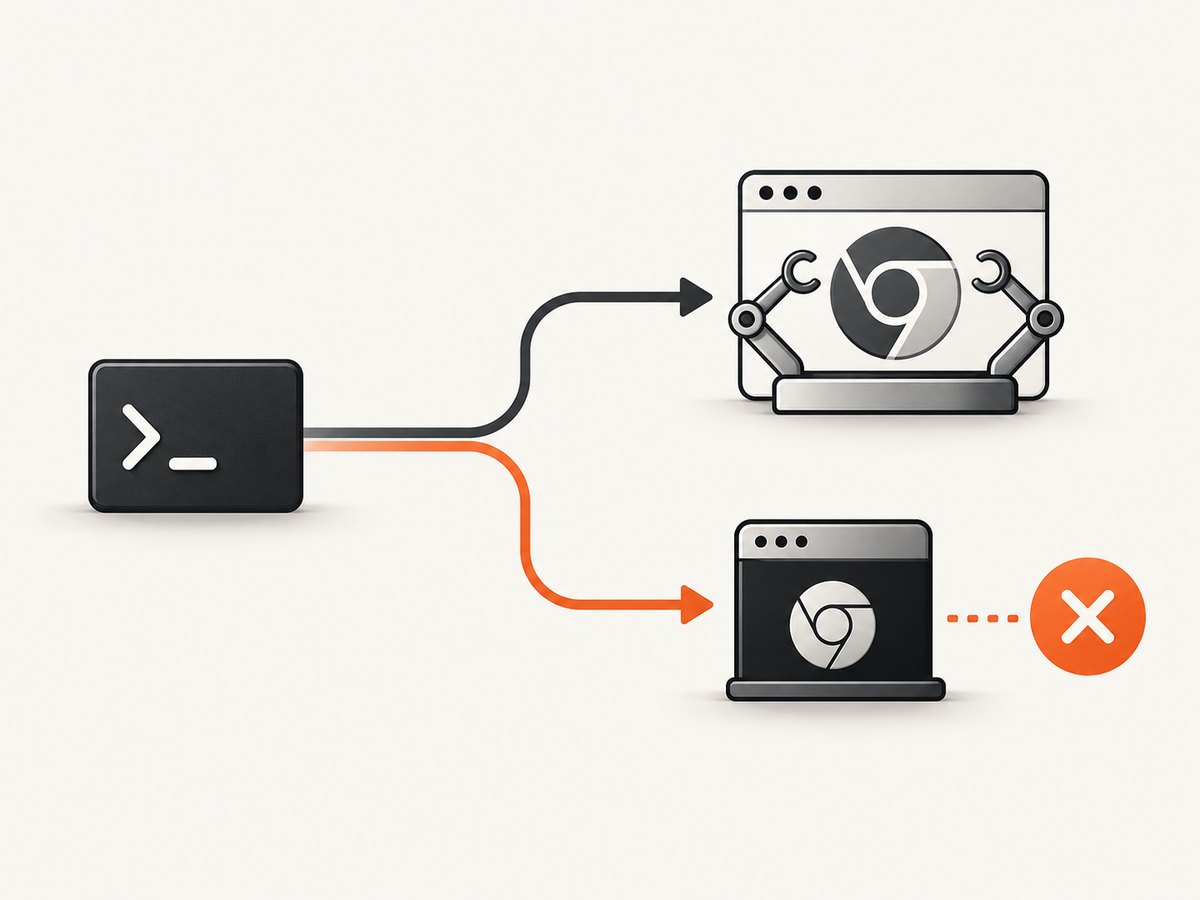
Chrome now has two relevant distributions:
| Choice | Purpose | REPL expectation |
|---|---|---|
| Current Chrome with unified Headless | Browser automation and testing with current Chrome | Do not assume the historical --repl interface is available |
chrome-headless-shell |
Standalone old Headless shell behavior | Relevant when you specifically need the documented interactive REPL |
Chrome for Developers says that Chrome 112 introduced the updated unified Headless implementation. Starting with Chrome 132.0.6793.0, old Headless is available only as the standalone chrome-headless-shell binary. The Chromium Headless README gives the same migration direction.
Therefore, an immediate exit after adding --repl can indicate that your command resolved to regular Chrome rather than the shell. Other causes remain possible: an invalid flag spelling, a wrapper that consumes arguments, a missing display or sandbox permission, a bad URL, or a platform-specific packaging issue. The sources do not establish one universal cause.
Diagnose the executable before changing flags
- Save the exact command, including every wrapper and environment variable.
- Find the executable your shell resolves.
- Print the version from that exact path.
- Check whether the file is regular Chrome or
chrome-headless-shell. - Run a minimal command without
--repl, then add flags one at a time.
command -v google-chrome || true
command -v google-chrome-stable || true
command -v chromium || true
command -v chromium-browser || true
command -v chrome-headless-shell || true

google-chrome --version 2>/dev/null || true
google-chrome-stable --version 2>/dev/null || true
chromium --version 2>/dev/null || true
chrome-headless-shell --version 2>/dev/null || true
On macOS, inspect the application binary directly:
/Applications/Google\ Chrome.app/Contents/MacOS/Google\ Chrome --versionOn Windows PowerShell, use the resolved command path:
Get-Command chrome, chromium, chrome-headless-shell -ErrorAction SilentlyContinue
& 'C:\Program Files\Google\Chrome\Application\chrome.exe' --version
Do not infer the binary from its package name alone. Containers and CI images often expose a wrapper called google-chrome while installing a different underlying executable.
Use the old REPL workflow when you actually need it
If your goal is the historical JavaScript prompt, use the standalone shell and include a URL plus a writable crash-dump directory:
mkdir -p ./tmp
chrome-headless-shell --headless --disable-gpu --repl --crash-dumps-dir=./tmp https://www.chromestatus.com/
The exact binary location varies by platform and package. Replace chrome-headless-shell with the path reported by your installation. Once the prompt appears, try a small expression:
location.href
quit
This recommendation follows the official old-shell documentation and the Chrome 132 distribution change. It has not been validated against your particular operating system or package.
Use current Headless for automation instead of an interactive shell
For screenshots, tests, scraping, and scripted browser actions, current Chrome Headless is generally the better fit. Drive it through an automation library rather than relying on an undocumented interactive prompt.
Puppeteer example
npm install puppeteerconst puppeteer = require('puppeteer');
(async () => {
const browser = await puppeteer.launch({headless: true});
const page = await browser.newPage();
await page.goto('https://www.chromestatus.com/', {waitUntil: 'networkidle2'});
console.log(await page.title());
await page.screenshot({path: 'shot.png', fullPage: true});
await browser.close();
})();Selenium example
pip install seleniumfrom selenium import webdriver
from selenium.webdriver.chrome.options import Options
options = Options()
options.add_argument('--headless=new')
driver = webdriver.Chrome(options=options)
try:
driver.get('https://www.chromestatus.com/')
print(driver.title)
driver.save_screenshot('shot.png')
finally:
driver.quit()Current Headless documentation provides automation examples through tools such as Puppeteer and Selenium. The important distinction is that these interfaces manage browser startup, pages, waits, and shutdown for you; they do not depend on the old REPL flag.
Minimal tests that isolate the failure
Run these tests in order and record stdout, stderr, exit status, and the version each time.
- Version only:
chrome --version. If this fails, fix the installation first. - Headless without REPL:
chrome --headless --dump-dom https://example.com. This checks basic startup and navigation. - REPL without a wrapper: invoke the binary by absolute path, not through npm, Docker, or a shell script.
- Shell binary: repeat the documented command with
chrome-headless-shell. - One flag at a time: remove
--disable-gpu, then--crash-dumps-dir, then other custom flags to identify argument-specific behavior.
A successful --dump-dom run proves that ordinary Headless startup works; it does not prove that the REPL is supported by that executable.
Troubleshooting common immediate exits
| Symptom | Likely cause | Fix |
|---|---|---|
| Exit code 0 with no prompt | Regular Chrome received an old-shell flag, or a wrapper discarded it | Print the resolved path; try the standalone shell for the old REPL or use Puppeteer/Selenium |
unknown option: repl |
The executable does not implement that flag | Use chrome-headless-shell for the historical workflow |
cannot open display |
The command started a non-headless path or a wrapper removed --headless |
Pass the supported Headless option and inspect the final argument list |
| Crash dump directory error | The directory does not exist or is not writable | Run mkdir -p ./tmp and choose a writable absolute path |
| Browser starts, then closes after navigation | URL load failure, policy, certificate, or process supervisor termination | Try https://example.com, capture stderr, and test outside the supervisor |
| Works locally, exits in CI | Sandbox, missing libraries, user permissions, or a different Chrome package | Compare versions and paths; install required dependencies; change sandbox settings only according to your CI security policy |
| Prompt appears and input is ignored | stdin is not attached, or a wrapper redirected it | Run directly in an interactive terminal with stdin preserved |
Do not add random flags until the command works in its smallest form. Every additional switch makes it harder to tell whether the failure is caused by Chrome, the shell, a wrapper, or the operating environment.
Version and packaging edge cases
Chrome versus Chromium
Chrome, Chromium, and vendor packages can expose different executable names and build options. Always use the version command on the exact binary that will run in production. A system may contain several versions at once.
Wrappers and process managers
npm scripts, Python subprocess helpers, Docker entrypoints, and CI actions can alter quoting or consume arguments beginning with dashes. Log the final argument array where possible. In a shell, use an absolute path and quote URLs containing query strings.
Remote debugging is a different interface
If you need to inspect a running browser programmatically, use a supported automation or DevTools connection. The old REPL is not a replacement for a stable automation protocol.
Performance, reliability, and cost considerations
The standalone shell may be useful for a narrow legacy workflow, but maintaining browser binaries, fonts, sandbox permissions, network access, and crash handling is part of your application. Current automation libraries add setup overhead while giving you explicit lifecycle control, waits, retries, and page APIs.
For repeated screenshots, reuse a browser process when your isolation requirements permit it, create a fresh page per job, set navigation and operation timeouts, and close pages after failures. Avoid retrying a deterministic unsupported flag; retries help transient navigation failures, not an executable mismatch. Pin a browser version in CI and log its version with every capture so upgrades are diagnosable.
Browser screenshots also consume CPU, memory, and network bandwidth. Full-page captures and pages with many lazy-loaded images take longer than viewport shots. Cache outputs when the source has not changed, and cap concurrency to avoid resource exhaustion.
Or skip the browser setup
ScreenshotNeo provides a website screenshot API and MCP server when you need an image or PDF without maintaining Chrome binaries. It accepts one GET request and returns PNG, JPEG, WebP, or PDF. Cookie and consent banners are accepted before capture, and more than 60 known consent platforms, newsletter popups, and chat widgets can be removed. Each step can be turned off.
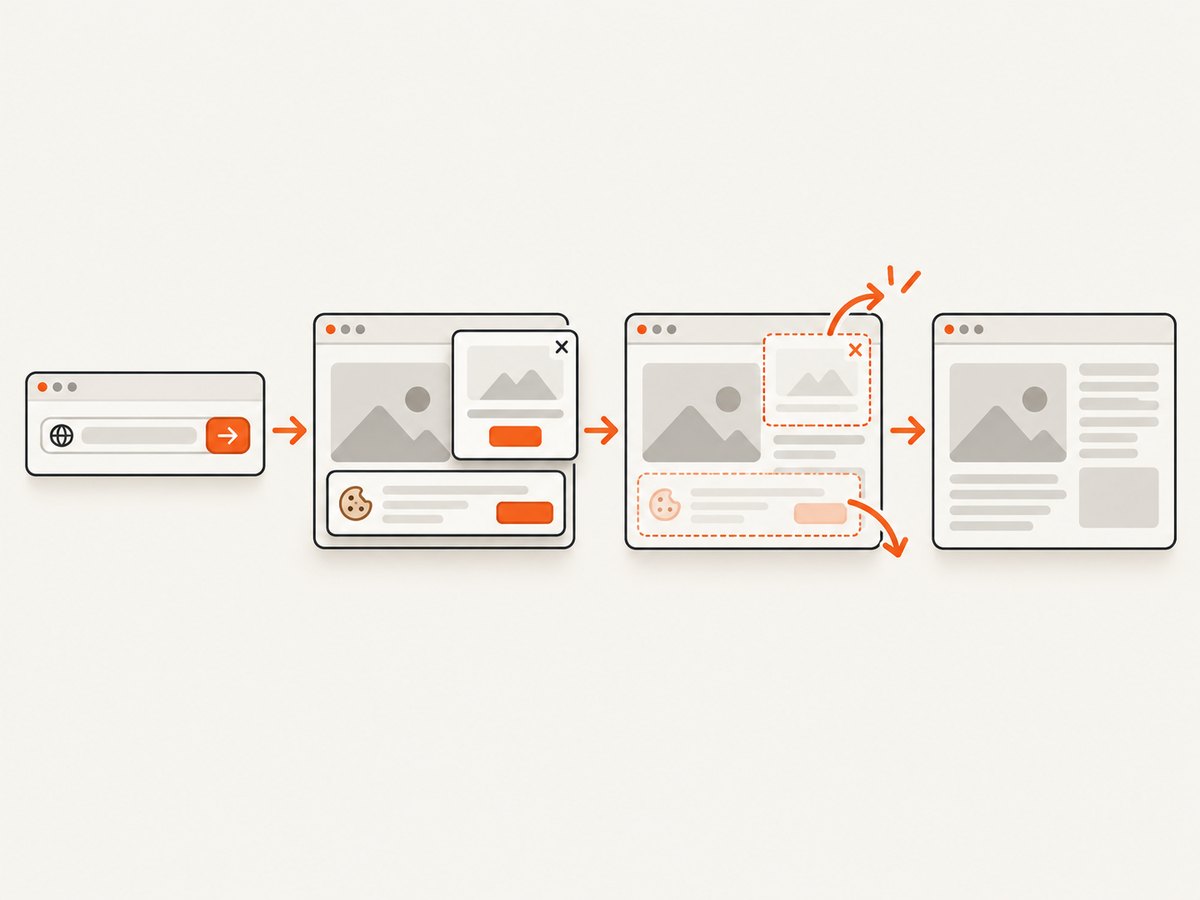
Only clean shots are billed. Bot checks and CAPTCHAs, blank pages, timeouts, failed loads, and cache hits cost nothing, and the response identifies the result with X-Page-Verdict and X-Billed headers. Its MCP server exposes take_screenshot, get_page_info, and capture_pdf for Claude, Cursor, and other MCP clients.
See the ScreenshotNeo API documentation for all options. A minimal request looks like this:
curl -G 'https://api.screenshotneo.com/v1/shot' -d access_key=YOUR_API_KEY --data-urlencode url=https://stripe.com -o shot.webpimport requests
r = requests.get('https://api.screenshotneo.com/v1/shot', params={'access_key': 'YOUR_API_KEY', 'url': 'https://stripe.com'}, timeout=90)
open('shot.webp', 'wb').write(r.content)const q = new URLSearchParams({ access_key: 'YOUR_API_KEY', url: 'https://stripe.com' });
const res = await fetch(`https://api.screenshotneo.com/v1/shot?${q}`);Options include full-page capture with lazy images loaded, CSS-selector element capture, dark mode, device presets, custom viewports, retina scale, PDF paper settings and page ranges, custom CSS and JavaScript, clicks, selector or network-idle waits, blocked ads and trackers, custom headers and cookies, user agents, authorization, timezone, geolocation, transparent backgrounds, resizing, chosen cache TTLs, signed image links, asynchronous jobs with signed webhooks, bulk capture of 100 URLs per call, usage data, and an OpenAPI specification.
There is a free plan with 1,000 screenshots per month and no card. Paid plans start at $5 for 3,000 screenshots; yearly billing gives two months free. Create a free ScreenshotNeo account.
FAQ
Is --repl removed from all Chrome builds?
The official material documents it for old Headless shell behavior. It does not promise support in every current Chrome executable.
What changed in Chrome 132?
From Chrome 132.0.6793.0, old Headless became a standalone chrome-headless-shell binary rather than part of the regular Chrome binary.
Should I downgrade Chrome?
Usually no. Use the standalone shell only when you need the legacy REPL; otherwise use current Headless automation.
Can an immediate exit be caused by something else?
Yes. The exact command, operating system, executable path, version, wrapper, permissions, and stderr are required to establish an individual cause.
How do I capture a page without installing Chrome?
Use ScreenshotNeo’s API or MCP server. It handles browser setup and reports whether a response was clean and billable.


