BlogScreenshots on your device
How to Take Screenshots in a Chrome Packaged App With JavaScript
Chrome Apps are deprecated. Learn the supported extension and web capture paths, convert a MediaStream to an image, and use ScreenshotNeo when you need an API.
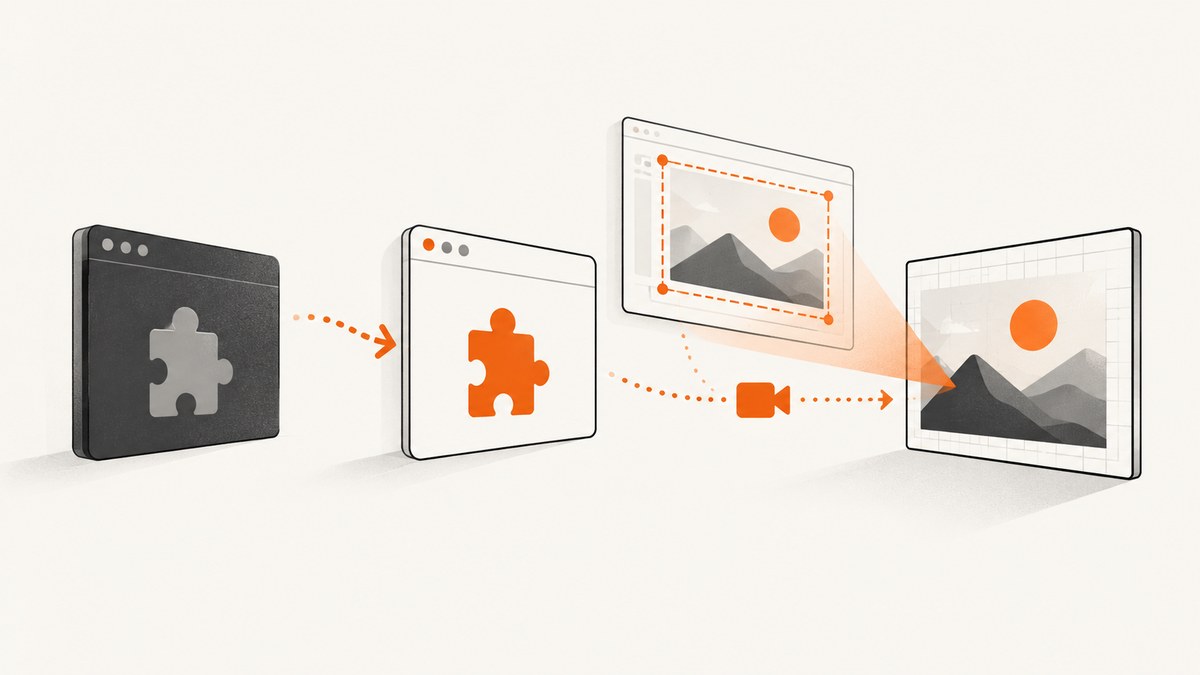
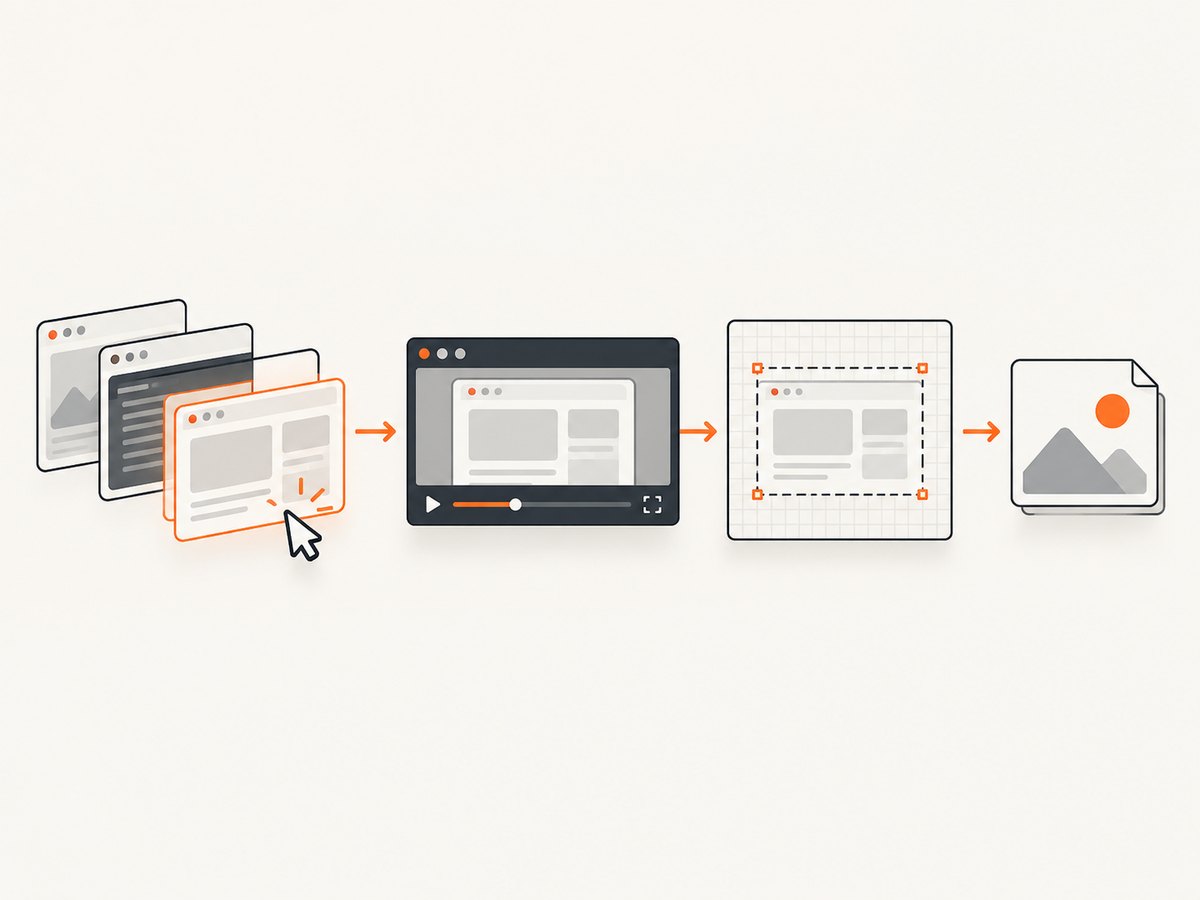
Direct answer: Chrome packaged apps (Chrome Apps) are deprecated, and current Chrome documentation does not define a universal screenshot API for legacy packaged apps. For maintained code, migrate to a web app or an extension. Use chrome.desktopCapture when the user should choose a screen, window, or tab; use chrome.tabCapture when an extension action should capture the current tab; or use the web getDisplayMedia() API for an explicit browser picker. These APIs provide a MediaStream (or a short-lived stream ID), not a PNG or JPEG. To create a still image, render one video frame to a canvas and export it.
The migration guidance recommends web applications for most Chrome App use cases and extensions when the web cannot provide the required capability. See the Chrome Apps migration guide before investing in new packaged-app code.
Choose the capture API first
| Requirement | Use | What the user experiences | Important constraint |
|---|---|---|---|
| User selects a monitor, window, or tab | chrome.desktopCapture.chooseDesktopMedia() |
Chrome displays a picker | Requires the desktopCapture permission and user selection; the returned stream ID is short-lived and one-use. |
| Capture the tab associated with an extension action | chrome.tabCapture.getMediaStreamId() |
The extension starts capture after user invocation | Requires tabCapture and user invocation. The stream ID has origin and execution-context restrictions. |
| Capture from a web page | navigator.mediaDevices.getDisplayMedia() |
The browser shows its display-surface picker | Capture is permission-gated and returns a stream, not an image file. |
Choose based on five questions:
- Is the source a particular tab, or a surface the user chooses?
- Can the project become a web app, or does it need extension-only capabilities?
- Must capture start only after a toolbar click or other user action?
- Do you need one still frame or a continuing recording?
- Should capture survive navigation or run in an extension background/offscreen context?
Migration path for a deprecated Chrome packaged app
Do not assume that a legacy chrome.app.window project can gain a supported screenshot method by changing one permission. First identify the runtime you are shipping:
- Web app: use
getDisplayMedia()when the user can select a surface in the browser. - Extension: use
desktopCapturefor a picker ortabCapturefor an invoked tab capture. - Legacy packaged app: treat the platform as migration work. Current references describe extension and web APIs, not a universal packaged-app screenshot API.
Keep the capture and image-export code separate from the old window lifecycle. That makes it possible to move the same frame-processing code into a web page, extension page, or offscreen document.
Capture a user-selected screen, window, or tab in an extension
desktopCapture is the extension route when the user must choose the surface. The picker returns a temporary stream ID. Pass that ID to getUserMedia() with Chrome’s documented desktop-media constraints.
1. Extension manifest
{
  "manifest_version": 3,
  "name": "Surface Screenshot",
  "version": "1.0.0",
  "permissions": ["desktopCapture"],
  "action": {
    "default_title": "Capture a surface"
  },
  "background": {
    "service_worker": "background.js"
  }
}
2. Ask the user to choose a surface
// background.js
chrome.action.onClicked.addListener(async () => {
  chrome.desktopCapture.chooseDesktopMedia(
    ["screen", "window", "tab"],
    async (streamId) => {
      if (!streamId) {
        console.log("The user cancelled the picker");
        return;
      }

      // A service worker cannot display a video element. Send the ID to
      // an extension page or offscreen document that can process the frame.
      await chrome.tabs.create({
        url: chrome.runtime.getURL(`capture.html?streamId=${encodeURIComponent(streamId)}`)
      });
    }
  );
});
3. Exchange the ID for a media stream
<!-- capture.html -->
<!doctype html>
<html>
  <body>
    <video id="preview" autoplay muted playsinline></video>
    <button id="save" disabled>Save screenshot</button>
    <script src="capture.js"></script>
  </body>
</html>
// capture.js
const params = new URLSearchParams(location.search);
const streamId = params.get("streamId");
const video = document.querySelector("#preview");
const save = document.querySelector("#save");
if (!streamId) {
throw new Error("Missing desktop stream ID");
}
const stream = await navigator.mediaDevices.getUserMedia({
audio: false,
video: {
mandatory: {
chromeMediaSource: "desktop",
chromeMediaSourceId: streamId
}
}
});
video.srcObject = stream;
await video.play();
await new Promise(resolve => {
if (video.readyState >= HTMLMediaElement.HAVE_CURRENT_DATA) resolve();
else video.addEventListener("loadeddata", resolve, { once: true });
});
save.disabled = false;
save.addEventListener("click", () => {
const canvas = document.createElement("canvas");
canvas.width = video.videoWidth;
canvas.height = video.videoHeight;
canvas.getContext("2d").drawImage(video, 0, 0);
canvas.toBlob(blob => {
if (!blob) throw new Error("Canvas export returned no data");
const link = document.createElement("a");
link.href = URL.createObjectURL(blob);
link.download = "capture.png";
link.click();
URL.revokeObjectURL(link.href);
}, "image/png");
});The stream-to-canvas portion is an implementation step inferred from the stream-oriented APIs. Validate it against the Chrome version and extension context you support. Stop tracks when capture ends:
function stopCapture(stream) {
  for (const track of stream.getTracks()) track.stop();
  video.srcObject = null;
}
Capture the current tab with tabCapture
Use this route when the extension is invoked for a tab and does not need the user to pick an arbitrary monitor. Add the permission, require a user gesture such as a toolbar click, and pass the returned ID to a page that can call getUserMedia(). The API documents restrictions on the consumer frame’s origin and execution context, so keep the ID exchange inside the extension’s supported contexts.
// background.js
chrome.action.onClicked.addListener(async tab => {
  if (!tab.id) return;

  const streamId = await chrome.tabCapture.getMediaStreamId({
    targetTabId: tab.id
  });

  await chrome.tabs.create({
    url: chrome.runtime.getURL(`capture.html?streamId=${encodeURIComponent(streamId)}&source=tab`)
  });
});
// In the extension page, use the tab source constraint.
const stream = await navigator.mediaDevices.getUserMedia({
audio: false,
video: {
mandatory: {
chromeMediaSource: "tab",
chromeMediaSourceId: streamId
}
}
});For background recording patterns, current extension designs can use an offscreen document. A still capture still follows the same sequence: obtain the stream, wait for a usable video frame, draw it to a canvas, export it, and stop the track.
Use getDisplayMedia() in a web app
A web application can ask the browser to show its display picker. This is the appropriate route when you are migrating away from a packaged app and do not need extension-only APIs.
<button id="capture">Choose what to capture</button>
<video id="preview" autoplay muted playsinline></video>
<button id="shot" disabled>Save frame</button>

<script>
const capture = document.querySelector("#capture");
const shot = document.querySelector("#shot");
const video = document.querySelector("#preview");
let stream;

capture.addEventListener("click", async () => {
  try {
    stream = await navigator.mediaDevices.getDisplayMedia({
      video: true,
      audio: false
    });
    video.srcObject = stream;
    await video.play();
    shot.disabled = false;
    stream.getVideoTracks()[0].addEventListener("ended", () => {
      shot.disabled = true;
      video.srcObject = null;
    });
  } catch (error) {
    console.error("Display capture was not started", error);
  }
});

shot.addEventListener("click", () => {
  const canvas = document.createElement("canvas");
  canvas.width = video.videoWidth;
  canvas.height = video.videoHeight;
  canvas.getContext("2d").drawImage(video, 0, 0);
  canvas.toBlob(blob => {
    const url = URL.createObjectURL(blob);
    const link = document.createElement("a");
    link.href = url;
    link.download = "display-frame.png";
    link.click();
    URL.revokeObjectURL(url);
  }, "image/png");
});
</script>
Still-image details and edge cases
- Wait for dimensions: do not create the canvas until
video.videoWidthandvideo.videoHeightare non-zero. - HiDPI output: use the video’s intrinsic dimensions, not CSS dimensions, to avoid a low-resolution export.
- One frame versus recording: a canvas export creates one still; keep the stream and process frames repeatedly only when you need video.
- User cancellation: an empty desktop stream ID or a rejected
getDisplayMedia()promise is a normal cancellation path. - Stopping capture: stop every track when the image is saved or the picker ends.
- Navigation: tab capture can be tied to the target tab’s lifecycle. If the workflow must continue in the background, design around an offscreen document and test navigation behavior.
- Permissions: these APIs are intentionally user-facing. They are not silent arbitrary screenshot facilities.
Troubleshooting
| Symptom | Likely cause | Fix |
|---|---|---|
chooseDesktopMedia is undefined |
The code is running as a web page or without the extension API. | Move it into an extension context and declare desktopCapture. |
| The picker never appears | The call is not triggered by the expected extension action, or the API is unavailable in the current runtime. | Start from a toolbar/action invocation and verify that the project is an extension rather than a deprecated packaged app. |
| The stream ID is empty | The user cancelled the picker. | Handle an empty ID and show a retry action. |
getUserMedia() rejects with a constraint error |
The chromeMediaSource or stream ID constraint does not match the API used. |
Use desktop for desktopCapture IDs and tab for tabCapture IDs; pass the ID in the documented constraint shape. |
| The canvas is blank or 0 by 0 | The video has not received a frame yet. | Await loadeddata or a non-zero intrinsic size before drawing. |
| The saved image is blurry | The canvas used CSS dimensions. | Set canvas dimensions from video.videoWidth and video.videoHeight. |
| Capture stops after navigation | The target tab or extension page lifecycle ended. | Move processing to a supported offscreen/background design and handle the track’s ended event. |
| The web picker is rejected | The user denied capture or the call was made outside a permitted browser context. | Call getDisplayMedia() from a user action, catch the rejection, and explain how to retry. |
Performance, reliability, and security
- Canvas work scales with the captured pixel count. Resize only after deciding the output resolution you actually need.
- Keep the preview and export work out of a service worker; use a document or offscreen document that can host a video element and canvas.
- Release object URLs and stop tracks to avoid retaining memory and capture devices.
- Handle picker cancellation, permission denial, stream-ended events, tab closure, and navigation as expected states.
- Ask only for the permission and surface needed for the task. The capture UI exists so the user can see and control what is shared.
- Test on the Chrome versions and extension contexts you support. The stream-to-image conversion is an implementation detail layered on the documented stream APIs.
Or skip the browser setup
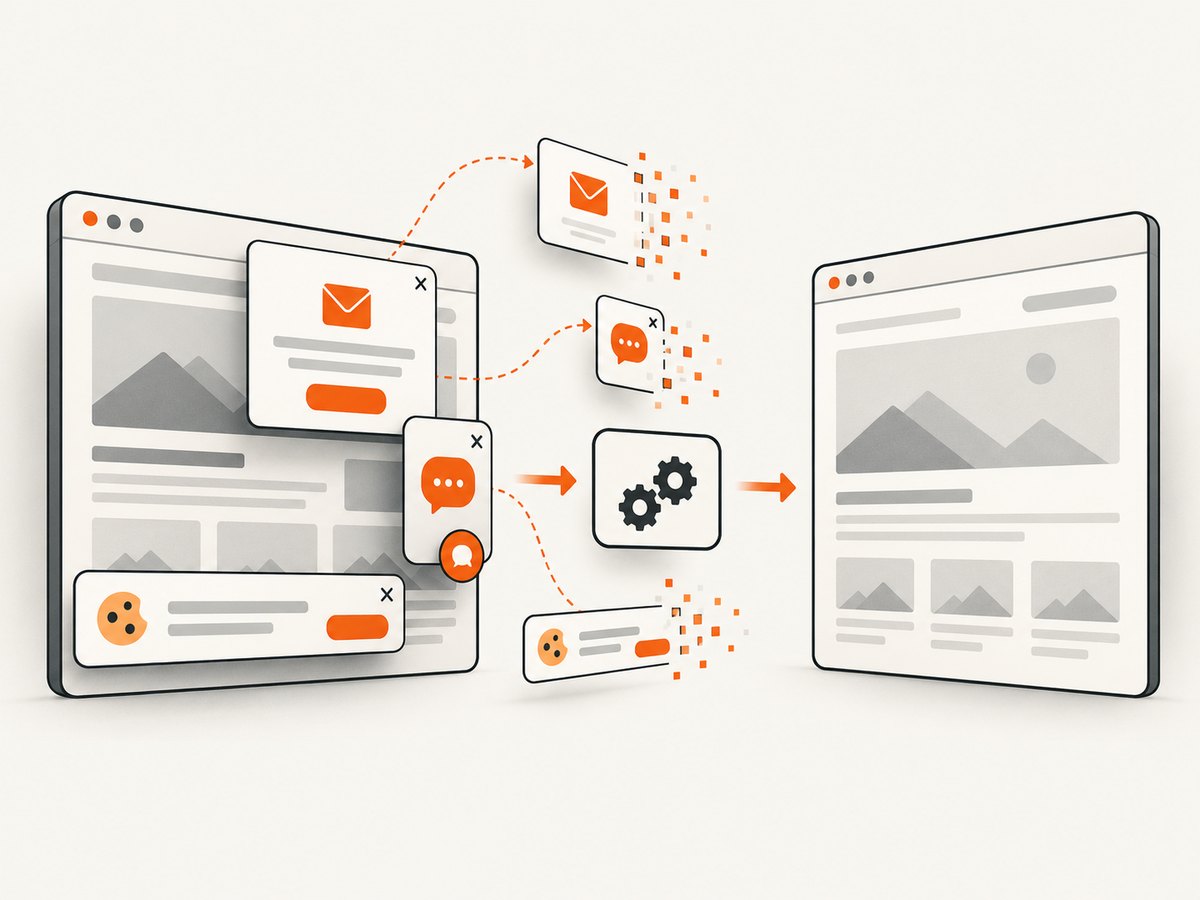
If your goal is a website screenshot rather than a user-selected desktop surface, ScreenshotNeo provides a single HTTP request that returns PNG, JPEG, WebP, or PDF. Its capture workflow accepts consent banners before the shot and removes more than 60 known consent platforms, newsletter popups, and chat widgets. Bot checks, blank pages, timeouts, failed loads, and cache hits are not billed, and response headers identify the page verdict and billing status. It also provides an MCP server for AI agents, with take_screenshot, get_page_info, and capture_pdf.
See the ScreenshotNeo API documentation for all options.
cURL
curl -G "https://api.screenshotneo.com/v1/shot" -d access_key=YOUR_API_KEY --data-urlencode url=https://stripe.com -o shot.webpPython
import requests

r = requests.get(
    "https://api.screenshotneo.com/v1/shot",
    params={"access_key": "YOUR_API_KEY", "url": "https://stripe.com"},
    timeout=90,
)
r.raise_for_status()
open("shot.webp", "wb").write(r.content)
Node.js
const q = new URLSearchParams({ access_key: 'YOUR_API_KEY', url: 'https://stripe.com' });
const res = await fetch(`https://api.screenshotneo.com/v1/shot?${q}`);
if (!res.ok) throw new Error(`Screenshot failed: ${res.status}`);
const data = Buffer.from(await res.arrayBuffer());
require('node:fs').writeFileSync('shot.webp', data);
ScreenshotNeo supports full-page shots with lazy images loaded, CSS-selector element capture, dark mode, device presets and custom viewports, retina scale, PDF controls, custom CSS and JavaScript, clicks, waits, request blocking, headers, cookies, user agents, authorization, timezone, geolocation, transparent backgrounds, resizing, selectable cache TTLs, signed links, asynchronous jobs with signed webhooks, bulk capture, a usage API, and an OpenAPI specification. Only clean shots are billed. The free plan includes 1,000 screenshots each month with no card; paid plans start at $5 for 3,000 screenshots. Create a free ScreenshotNeo account.
FAQ
Can a Chrome packaged app take a screenshot silently?
Do not design around that assumption. The current documented extension and web capture APIs require user permission or invocation and return media streams.
Does desktopCapture return a PNG?
No. It returns a short-lived stream ID that you exchange for a MediaStream. You create the still image separately with a video element and canvas.
Should I use tabCapture or getDisplayMedia()?
Use tabCapture for an extension action targeting a tab. Use getDisplayMedia() in a web app when the browser should present the display-surface picker.
What should replace my Chrome App?
Start with a web app for ordinary browser capabilities. Choose an extension when you need extension-only access such as tab or desktop capture.
Can ScreenshotNeo capture a user’s monitor?
No. ScreenshotNeo captures web pages by URL. Use the browser APIs above for user-selected screen, window, or tab capture.


