BlogScreenshots on your device
How to Use Chrome’s Screen Capture API
Learn how to capture a tab, window, or screen in Chrome with getDisplayMedia(), configure privacy controls, record the stream, and handle failures.
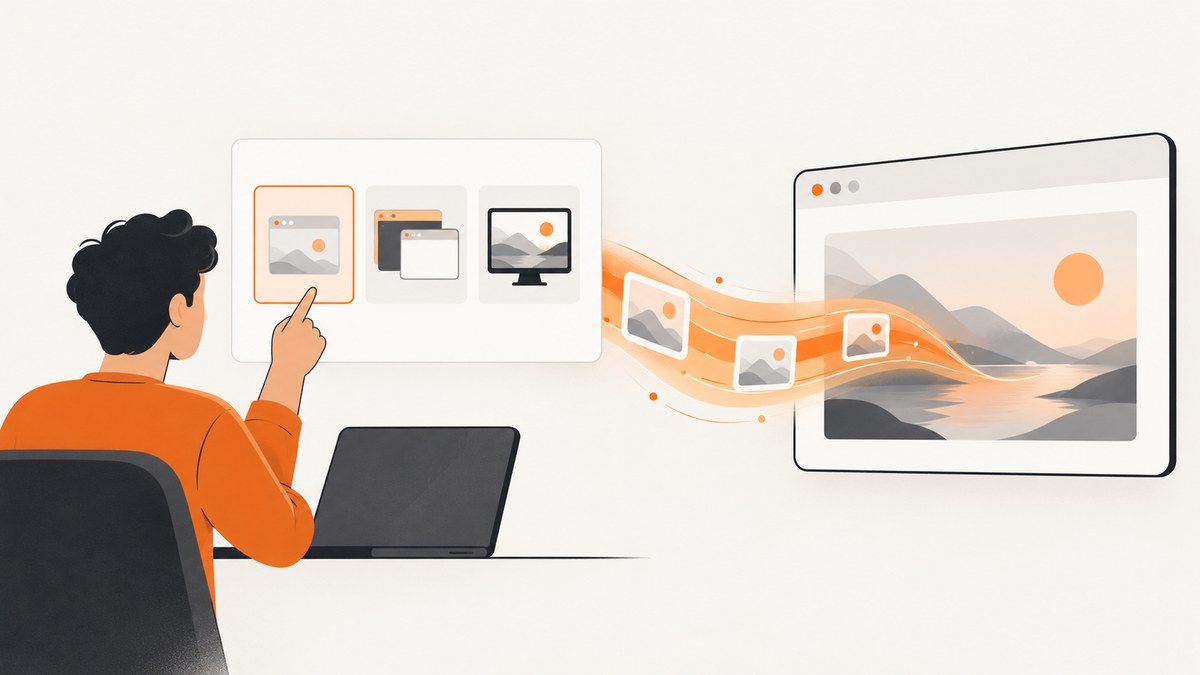
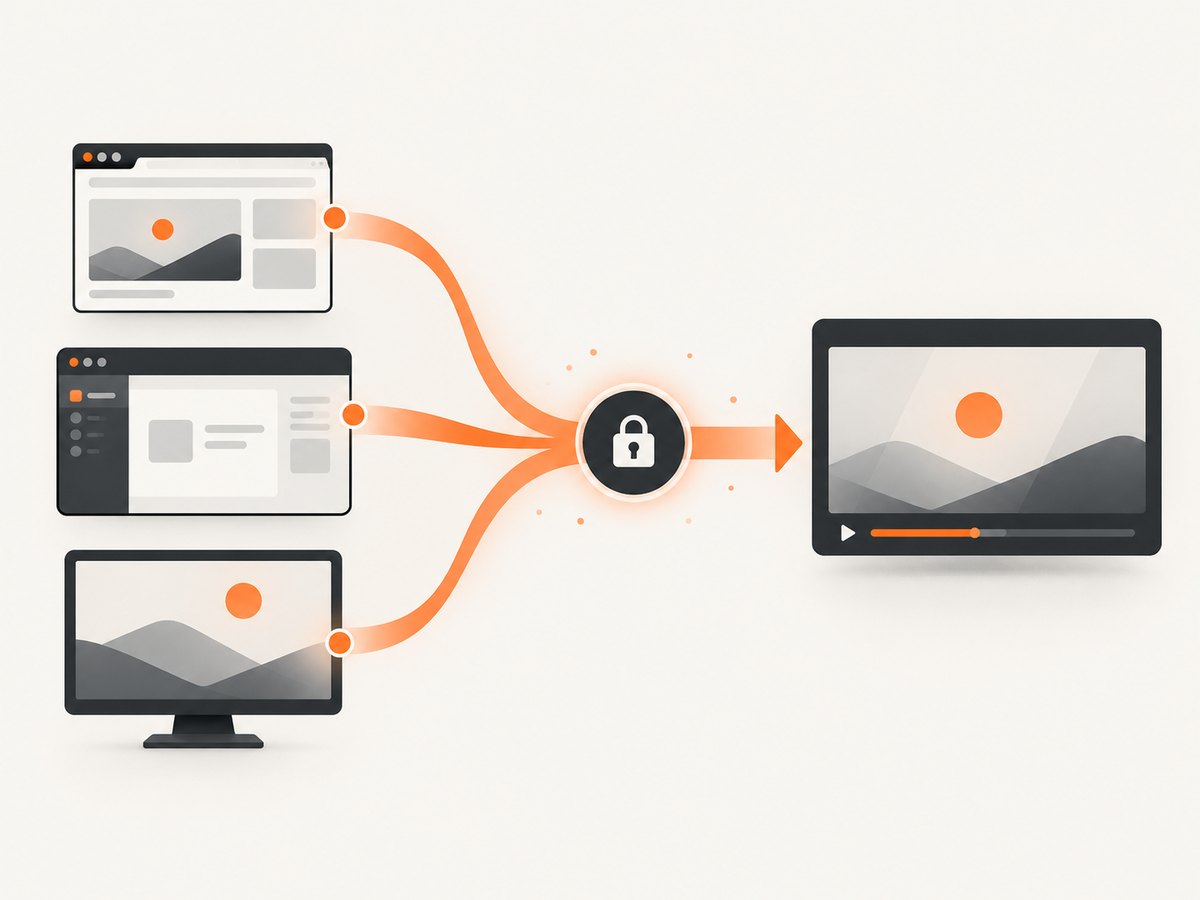
Use navigator.mediaDevices.getDisplayMedia() from a user-initiated action in a secure context. Chrome opens its own picker so the user can choose a browser tab, window, or entire screen. The promise resolves to a MediaStream that you can preview in a <video> element, record with MediaRecorder, or send through WebRTC.
This API captures what a user selects. It does not silently choose a tab, bypass the picker, or grant a permanent permission. The browser asks again for each capture request. The complete flow is:
- Run the page over HTTPS (or use localhost during development).
- Call
getDisplayMedia()directly from a click or another transient user activation. - Let Chrome present the tab, window, and screen choices.
- Attach the returned stream to a preview, recorder, or WebRTC peer connection.
- Handle the track’s
endedevent because the user can stop sharing from Chrome’s controls.
Chrome’s official guidance covers picker privacy preferences in Privacy-preserving screen sharing controls. The API contract, security requirements, and constraints are documented by MDN’s getDisplayMedia() reference.
1. Minimal working example
The following page starts capture after a button click, previews the selected surface, and stops cleanly. Save it as index.html and serve it from HTTPS or localhost.
<!doctype html>
<html lang='en'>
<head>
  <meta charset='utf-8'>
  <title>Chrome screen capture</title>
  <style>
    video { max-width: 100%; background: #111; }
    button { margin-right: .5rem; }
  </style>
</head>
<body>
  <button id='start'>Share a screen</button>
  <button id='stop' disabled>Stop sharing</button>
  <video id='preview' autoplay muted playsinline></video>

  <script>
    let stream;
    const preview = document.querySelector('#preview');
    const start = document.querySelector('#start');
    const stop = document.querySelector('#stop');

    start.addEventListener('click', async () => {
      try {
        stream = await navigator.mediaDevices.getDisplayMedia({
          video: true,
          audio: false
        });

        preview.srcObject = stream;
        stop.disabled = false;
        start.disabled = true;

        const [track] = stream.getVideoTracks();
        track.addEventListener('ended', cleanup);
      } catch (error) {
        console.error('Screen capture failed:', error);
      }
    });

    stop.addEventListener('click', () => {
      stream?.getTracks().forEach(track => track.stop());
      cleanup();
    });

    function cleanup() {
      preview.srcObject = null;
      stream = undefined;
      start.disabled = false;
      stop.disabled = true;
    }
  </script>
</body>
</html>
Do not move the call into a timer, promise chain started earlier, page-load handler, or background task. Chrome requires transient user activation. The user must make the selection in the browser-controlled picker; JavaScript constraints are applied after that selection.
2. Security and permission rules
Use a secure context
getDisplayMedia() is exposed only in a secure context. Production pages should use HTTPS. Chrome treats http://localhost as suitable for local development, but an ordinary HTTP hostname is not.
Expect a prompt every time
Screen capture permission cannot be saved as a silent, reusable grant. Design the interface around an explicit Start sharing action and explain what the user will be asked to choose.
The page cannot pick a source
The browser owns the source picker. A constraint can express a preference for a tab, window, or monitor, but it cannot identify a particular tab or suppress the user’s decision. This protects against a page covertly capturing another application or sensitive tab.
Keep state synchronized
Users can stop sharing with Chrome’s toolbar or picker controls. Always listen for the video track’s ended event and reset buttons, previews, recording state, and any WebRTC session. Your own Stop button should call stop() on every track.
3. Picker preferences and privacy controls
Chrome supports options that shape the picker and resulting stream. They are preferences, not permission bypasses. Defaults can change, so set important privacy choices explicitly and verify behavior against the Chrome versions you support.
| Option | Values and effect | When to use it |
|---|---|---|
video.displaySurface |
'browser', 'window', or 'monitor'; Chrome can preselect the corresponding picker pane. |
When your workflow is primarily tab, window, or monitor sharing. |
monitorTypeSurfaces |
'exclude' removes entire-screen sources; 'include' permits them. |
Exclude monitors when sharing an application window is sufficient. |
selfBrowserSurface |
'exclude' hides the current tab from the chooser. |
Useful for meeting apps to prevent sharing the meeting itself and creating a hall-of-mirrors effect. |
surfaceSwitching |
'include' lets Chrome offer a control for switching the shared tab while capture continues. |
Use when a presenter needs to move between tabs without restarting. |
systemAudio |
'exclude' avoids offering system audio; 'include' permits relevant audio where supported. |
Exclude it when call audio must not be sent back into the same call. |
async function captureWindowWithPrivacyDefaults() {
  return navigator.mediaDevices.getDisplayMedia({
    video: { displaySurface: 'window' },
    audio: true,
    monitorTypeSurfaces: 'exclude',
    selfBrowserSurface: 'exclude',
    surfaceSwitching: 'include',
    systemAudio: 'exclude'
  });
}
Some combinations conflict. Chrome documents that monitorTypeSurfaces: 'exclude' conflicts with displaySurface: 'monitor'. Likewise, selfBrowserSurface: 'exclude' conflicts with preferCurrentTab: true. Treat these as design choices and test the exact combinations you ship.
4. Inspecting the selected surface
After the promise resolves, inspect the video track’s settings. This tells you whether the user chose a browser tab, window, or monitor; it does not reveal a source that was not selected.
const stream = await navigator.mediaDevices.getDisplayMedia({ video: true });
const [track] = stream.getVideoTracks();
const settings = track.getSettings();

console.log({
  displaySurface: settings.displaySurface,
  width: settings.width,
  height: settings.height,
  frameRate: settings.frameRate
});
Use these values to update labels such as “Sharing this tab” or to choose an appropriate recording profile. Do not use them to infer that a specific document or monitor is safe to expose.
5. Preview, record, or send the stream
Local preview
Assign the stream to a video element and call play(). Add muted and playsinline for a predictable local preview.
const video = document.querySelector('video');
video.srcObject = stream;
await video.play();
Record with MediaRecorder
MediaRecorder consumes the same stream. Choose a MIME type supported by the current Chrome build, collect chunks, and create a Blob when recording stops.
const chunks = [];
const recorder = new MediaRecorder(stream, {
  mimeType: 'video/webm;codecs=vp8,opus'
});

recorder.addEventListener('dataavailable', event => {
  if (event.data.size > 0) chunks.push(event.data);
});

recorder.addEventListener('stop', () => {
  const recording = new Blob(chunks, { type: recorder.mimeType });
  const url = URL.createObjectURL(recording);
  const link = document.createElement('a');
  link.href = url;
  link.download = 'screen-share.webm';
  link.click();
  URL.revokeObjectURL(url);
});

recorder.start();
// Later: recorder.stop();
Check support before selecting a MIME type:
const type = 'video/webm;codecs=vp8,opus';
if (!MediaRecorder.isTypeSupported(type)) {
  throw new Error('This recording format is not supported');
}
Send through WebRTC
Add each track to an RTCPeerConnection and complete your normal signaling flow. The Screen Capture API supplies media; it does not define signaling, authentication, room membership, or server-side recording.
const peer = new RTCPeerConnection();
for (const track of stream.getTracks()) {
  peer.addTrack(track, stream);
}

const offer = await peer.createOffer();
await peer.setLocalDescription(offer);
// Send peer.localDescription to your signaling service.
6. Full-page website screenshots versus user screen sharing
getDisplayMedia() is for a person selecting a currently visible browser surface. It is not a server-side screenshot API and cannot silently capture an arbitrary URL, run without a user prompt, or guarantee a complete page below the fold. If your requirement is automated website screenshots, use a browser service instead of asking a user to share a screen.
Or skip the browser setup
ScreenshotNeo captures a URL with one GET request and returns PNG, JPEG, WebP, or PDF. It can load lazy images for full-page captures, capture a CSS-selected element, apply custom CSS or JavaScript, wait for a selector, delay, or network idle, set a viewport or device preset, emulate dark mode, and supply headers, cookies, a user agent, timezone, geolocation, or authorization.
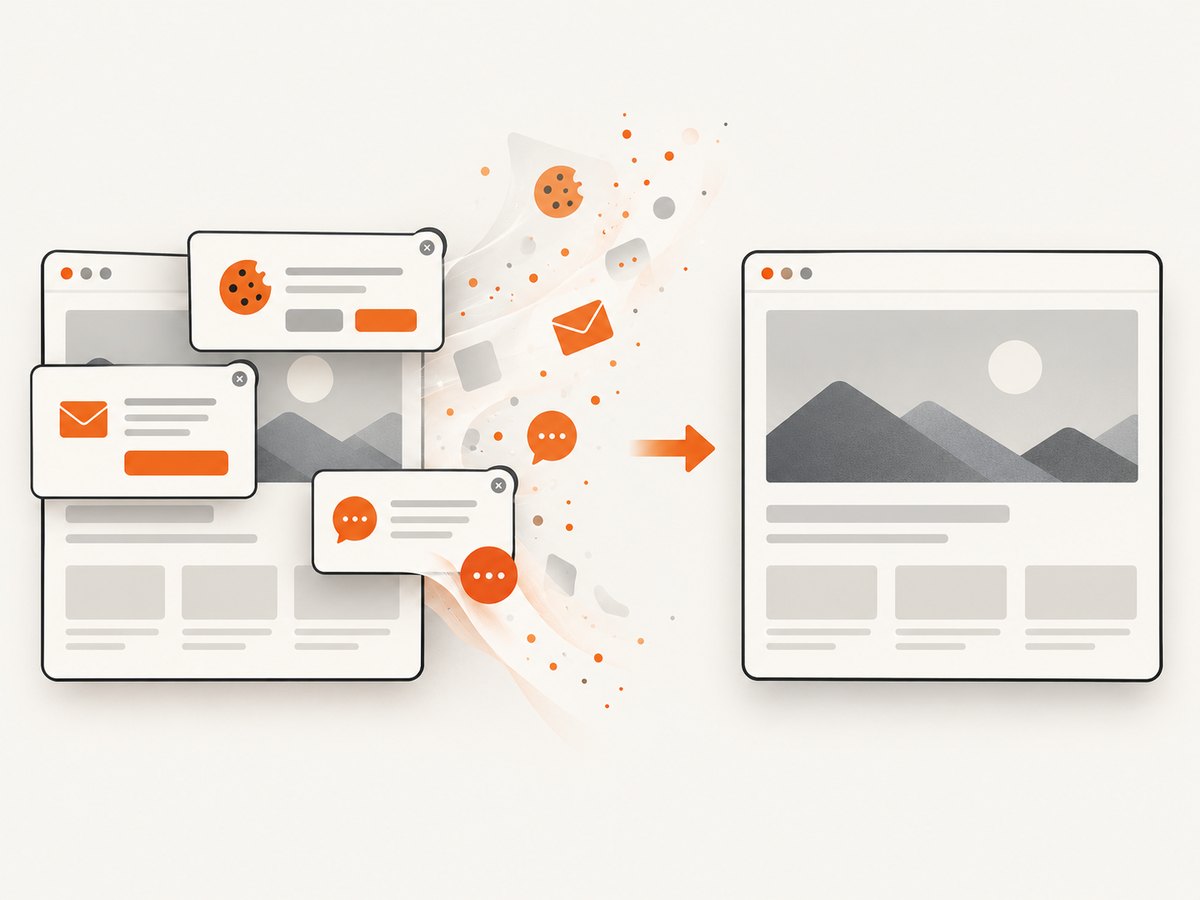
Cookie and consent banners are accepted and removed before the shot, along with more than 60 known consent platforms, newsletter popups, and chat widgets; each cleanup step can be disabled. Bot checks, blank pages, timeouts, failed loads, and cache hits cost nothing, and response headers identify the page verdict and whether the request was billed.
See the ScreenshotNeo API documentation for all options. The same parameter names used by other screenshot APIs work, which simplifies migration.
curl -G 'https://api.screenshotneo.com/v1/shot' \
  -d access_key=YOUR_API_KEY \
  --data-urlencode url=https://stripe.com \
  -o shot.webp
import requests
r = requests.get(
'https://api.screenshotneo.com/v1/shot',
params={'access_key': 'YOUR_API_KEY', 'url': 'https://stripe.com'},
timeout=90,
)
r.raise_for_status()
open('shot.webp', 'wb').write(r.content)const q = new URLSearchParams({
access_key: 'YOUR_API_KEY',
url: 'https://stripe.com'
});
const res = await fetch(`https://api.screenshotneo.com/v1/shot?${q}`);
if (!res.ok) throw new Error(`Screenshot failed: ${res.status}`);
require('fs').writeFileSync('shot.webp', Buffer.from(await res.arrayBuffer()));ScreenshotNeo also provides an MCP server for Claude, Cursor, and other MCP clients, with take_screenshot, get_page_info, and capture_pdf tools. Free accounts include 1,000 screenshots per month with no card; paid plans start at $5 for 3,000 screenshots. Create a free ScreenshotNeo account.
7. Extension-only capture paths
Ordinary websites should use getDisplayMedia(). Chrome extensions have separate APIs such as chrome.tabCapture and chrome.desktopCapture. Do not copy extension-only code into a normal page.
Chrome’s extension guidance describes additional lifecycle behavior. Capture started in a content script ends when the user navigates. For background recording across navigation, Chrome recommends an offscreen document with the DISPLAY_MEDIA reason. Since Chrome 116, an extension can call tabCapture in a service worker after a user gesture and pass a stream ID to an offscreen document. These details solve extension lifecycle problems; they do not remove the web-page picker or permission requirements.
8. Troubleshooting common errors
| Symptom | Likely cause | Fix |
|---|---|---|
navigator.mediaDevices is undefined |
The page is not a secure context, or the browser does not support the API. | Use HTTPS or localhost and verify the target Chrome version. |
NotAllowedError |
The user canceled the picker, denied access, or the call lacked a transient user gesture. | Call from the click handler, explain the prompt, and treat cancellation as a normal user path. |
TypeError for constraints |
An invalid or conflicting option combination was supplied. | Remove unsupported preferences, then reintroduce them one at a time; check monitor and self-browser exclusions. |
| Capture stops unexpectedly | The user clicked Chrome’s Stop sharing control, closed the source, or navigated in an extension content script. | Listen for ended, clean up state, and offer a restart button. |
| Black or frozen preview | The stream was not attached, playback was blocked, or all tracks were stopped. | Set video.srcObject, await play(), inspect track state, and avoid stopping tracks before recording starts. |
| No system audio | Audio availability depends on the selected surface, platform, and Chrome behavior; systemAudio: 'exclude' also disables the offer. |
Request audio only when needed and test the exact tab, window, or monitor scenario. |
| Prompt blocked on a managed device | Chrome Enterprise policy can restrict whether websites may prompt for tab, window, or screen capture. | Ask the administrator to review the screen video capture policy before changing application code. |
9. Performance and reliability checklist
- Start capture only after a deliberate click so the prompt appears predictably.
- Preview at the display size you need, but avoid unnecessary scaling and multiple video elements.
- Record in chunks with
MediaRecorderfor long sessions instead of retaining every encoded segment in application state. - Stop tracks and revoke object URLs when a session ends.
- Use
track.getSettings()to log selected dimensions and frame rate when diagnosing quality complaints. - Handle browser stop events, network disconnections, and peer connection failures separately.
- For WebRTC, adapt bitrate and resolution to network conditions; the capture API itself does not provide congestion control.
- Test tab, window, and monitor paths independently, including audio, multiple monitors, and managed-device policies.
There is no universal performance number in Chrome’s API documentation. Actual frame rate, resolution, audio availability, and encoder behavior depend on the selected surface, operating system, hardware, Chrome version, and downstream recorder or WebRTC configuration.
10. Short FAQ
Can I capture a tab without showing the picker?
No. The user must be prompted for each capture, and the browser controls source selection.
Can I capture a page after it scrolls?
The API captures the selected visible surface. It is not a guaranteed full-page renderer. For automated full-page URL captures, use a service such as ScreenshotNeo.
Does the API work in an iframe?
Embedding and permission behavior depend on the page’s security and browser policy configuration. Test the exact embedding arrangement and ensure the call still occurs from an allowed user activation.
Can I save a permanent permission?
No. Screen capture requires a fresh user choice for each request.
How do I know whether the user chose a tab or monitor?
Read displaySurface from stream.getVideoTracks()[0].getSettings() after capture starts.
Should I request audio?
Request it only when the product needs it. Availability varies by selected surface and platform, and system audio can create feedback in calls.
11. Summary
For interactive Chrome screen sharing, call getDisplayMedia() from a secure, user-initiated action; let Chrome handle the picker; apply privacy preferences deliberately; and treat the result as a normal MediaStream with explicit cleanup. Use MediaRecorder for local recordings or WebRTC for transport.
When the job is an automated screenshot of a URL rather than a user’s selected screen, ScreenshotNeo removes browser setup and provides capture controls, cleanup, billing verdict headers, PDF output, bulk capture, signed links, async jobs, and an MCP server. Start with 1,000 free screenshots per month and no card.


