How ChromeDriver’s “None” Page Load Strategy Affects Page Captures
ChromeDriver’s none strategy returns before loading finishes. Learn what it means, how to wait for rendered content, and how to avoid blank captures.
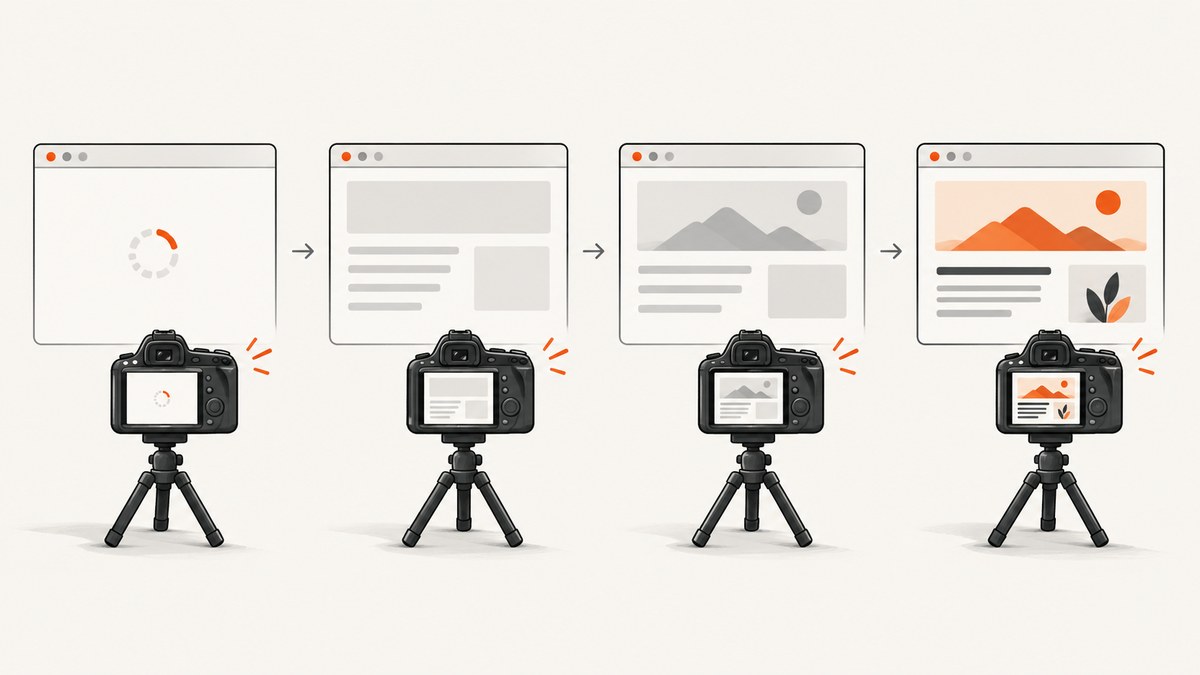
Short answer: ChromeDriver’s pageLoadStrategy='none' returns control immediately after navigation starts. A screenshot taken right after driver.get() captures whatever exists at that instant: often initial HTML, but not deferred JavaScript, API data, images, styles, or client-side route content. Use none only when you add an explicit, bounded wait for the state that proves your page is ready.
Selenium defines three strategies: normal waits for the document’s complete state, eager waits for interactive/DOMContentLoaded, and none does not block WebDriver. The official Selenium table describes none as not blocking WebDriver at all: page loading strategies. A readyState milestone still does not tell you whether a single-page application has finished changing the DOM after its scripts run: Selenium waits.
What each strategy means for a capture
| Strategy | Navigation returns when | Screenshot implication |
|---|---|---|
normal |
The document reaches complete; resources defined by the page have finished downloading. |
Most implicit waiting, but application-rendered content still needs validation. |
eager |
The document is interactive/DOMContentLoaded; images and other resources can still load. | Faster capture with a risk of missing late assets. |
none |
WebDriver is not blocked by navigation. | Fastest return; your explicit synchronization completely controls capture timing. |
ChromeDriver is a standalone implementation of the W3C WebDriver standard and accepts the page-loading strategy through Chrome options capabilities: ChromeDriver documentation. Internally, ChromeDriver uses a non-blocking navigation tracker for none, while the regular tracker handles normal and eager navigation.
A complete Python example with an explicit readiness condition
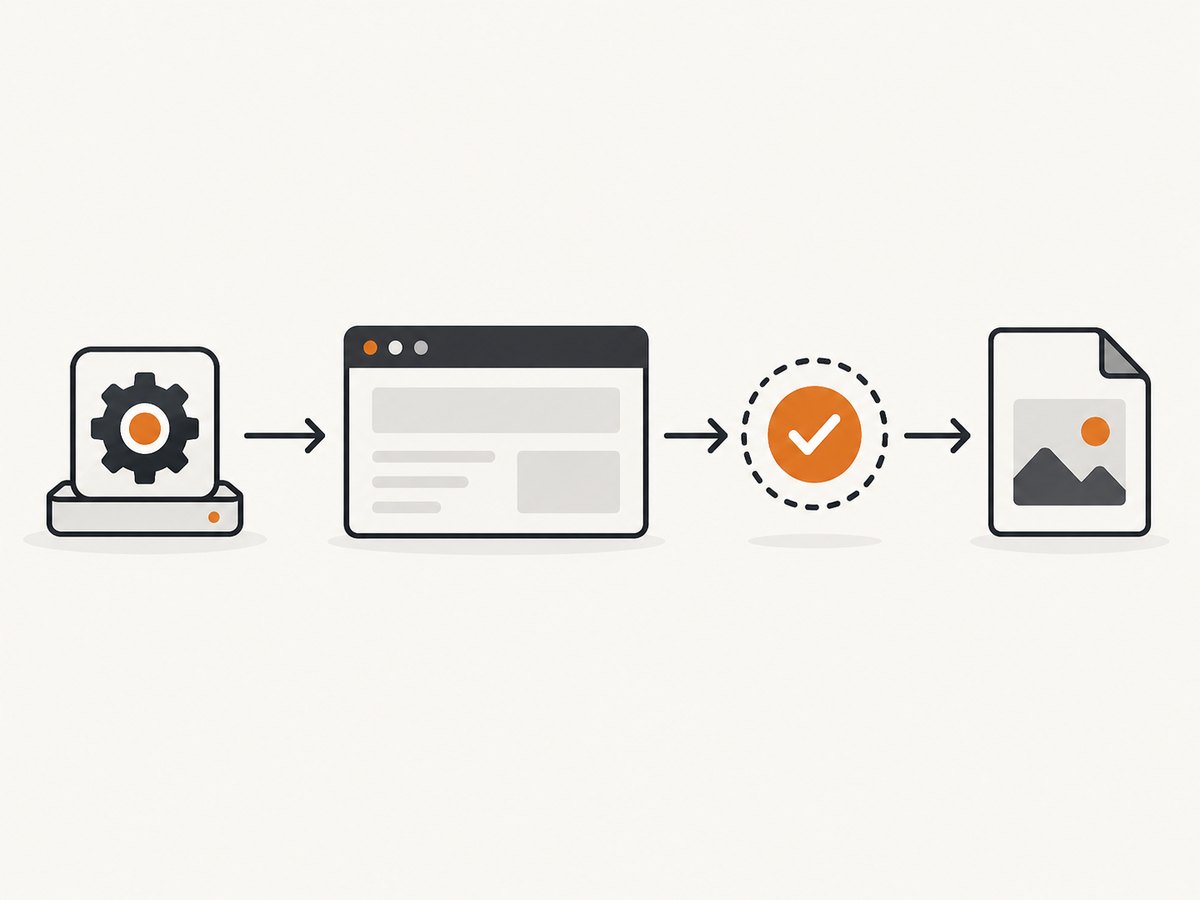
The safest pattern is: navigate with none, wait for a condition tied to the page’s rendering logic, then capture immediately. This example waits for a product card to become visible and for a loading marker to disappear.
from pathlib import Path
from selenium import webdriver
from selenium.webdriver.chrome.options import Options
from selenium.webdriver.common.by import By
from selenium.webdriver.support.ui import WebDriverWait
from selenium.webdriver.support import expected_conditions as EC
from selenium.common.exceptions import TimeoutException

URL = 'https://example.com/catalog'
OUTPUT = Path('catalog.png')

options = Options()
options.page_load_strategy = 'none'
options.add_argument('--headless=new')
options.add_argument('--window-size=1440,1200')

driver = webdriver.Chrome(options=options)
wait = WebDriverWait(driver, 30, poll_frequency=0.2)
try:
    driver.get(URL)

    # The application-specific condition is the important part.
    wait.until(EC.visibility_of_element_located((By.CSS_SELECTOR, '[data-testid="product-card"]')))
    wait.until(EC.invisibility_of_element_located((By.CSS_SELECTOR, '[data-testid="loading"]')))

    # Optional diagnostic: record the state you captured.
    print('readyState:', driver.execute_script('return document.readyState'))
    print('title:', driver.title)
    driver.save_screenshot(str(OUTPUT))
except TimeoutException:
    driver.save_screenshot('timeout-diagnostic.png')
    raise RuntimeError('The readiness condition was not reached before 30 seconds')
finally:
    driver.quit()
Install Selenium with python -m pip install selenium. Selenium Manager can obtain a compatible driver in current Selenium releases; in locked-down environments, provide a managed ChromeDriver binary explicitly. Replace the selectors with signals your application owns.
Choosing a reliable readiness signal
Wait for the target element
Use an element that cannot exist until the content you want is rendered. Visibility is usually better than presence when a template inserts hidden nodes first.
wait.until(EC.visibility_of_element_located((By.CSS_SELECTOR, 'main article')))Wait for a loading marker to vanish
wait.until(EC.invisibility_of_element_located((By.CSS_SELECTOR, '.skeleton, [aria-busy="true"]')))Wait for an application state attribute
wait.until(lambda d: d.find_element(By.TAG_NAME, 'body').get_attribute('data-render-state') == 'ready')Wait for a bounded JavaScript condition
If your app exposes a stable flag, poll it with Selenium. Keep the timeout finite so a broken page produces a diagnostic failure rather than an indefinitely hanging job.
wait.until(lambda d: d.execute_script("return window.__CAPTURE_READY__ === true"))Wait for a known URL or route
Client-side navigation can replace the document after get() returns. Wait for the final route before checking content.
wait.until(EC.url_contains('/reports/complete'))Why document.readyState is not enough
readyState describes assets referenced by the HTML navigation. JavaScript loaded by that page can subsequently fetch JSON, insert components, replace text, load images, or navigate a client-side route. Selenium’s waiting guidance explicitly warns that readyState does not account for those later JavaScript changes. Treat it as a useful diagnostic value, not as your application’s capture contract.
If you have no dependable application signal, use eager or normal and still verify the target content before taking the screenshot. Those strategies provide browser milestones; neither proves that a JavaScript-heavy application has finished rendering.
Configuration options that affect captures
- Strategy: Set only
normal,eager, ornone. Selenium rejects other values. - Viewport: Set a deterministic window size before navigation. Responsive breakpoints can change both layout and readiness.
- Headless mode: Use
--headless=newfor current Chrome versions and pin browser versions in repeatable pipelines. - Device scale: Chrome’s device scale factor changes pixel dimensions. Keep it fixed when comparing images.
- Authentication: Create the session, set cookies or headers, then navigate. A redirect to a login page can satisfy a generic wait while producing the wrong capture.
- Animations: Inject CSS to disable transitions when visual consistency matters, or wait for an application-defined animation-complete state.
- Lazy images: Scroll the target into view and wait for its image’s
completeproperty and a nonzero natural width.
driver.execute_script("""
const style = document.createElement('style');
style.textContent = '* { animation: none !important; transition: none !important; }';
document.head.appendChild(style);
""")

element = wait.until(EC.visibility_of_element_located((By.CSS_SELECTOR, 'img.hero')))
driver.execute_script('arguments[0].scrollIntoView({block: "center"})', element)
wait.until(lambda d: d.execute_script('return arguments[0].complete && arguments[0].naturalWidth > 0', element))
Full-page and element captures
driver.save_screenshot() captures the current viewport. For a full-page image, Chrome’s DevTools protocol can set a capture beyond the viewport, or you can use a library that stitches viewport screenshots. Element screenshots are simpler and often more stable:
card = wait.until(EC.visibility_of_element_located((By.CSS_SELECTOR, '[data-testid="product-card"]')))
card.screenshot('product-card.png')
Capture only after the same readiness check used for the page. An element can be present while its fonts, images, or API-fed children are still changing.
Common failures and fixes
| Symptom | Likely cause | Fix |
|---|---|---|
| Blank or nearly blank image | Screenshot ran immediately after non-blocking navigation. | Wait for a visible target or app-ready flag before capture. |
| Header appears but data rows are missing | Rows arrive from an API after DOMContentLoaded. | Wait for a row selector, loading marker removal, or a row count. |
| Images are broken or empty | Lazy loading has not been triggered, or requests are still pending. | Scroll images into view and wait for complete plus naturalWidth > 0. |
| TimeoutException | Selector is wrong, the app failed, authentication expired, or the page is slower than the bound. | Save a diagnostic screenshot, log URL/title/console errors, verify the selector manually, and choose a realistic timeout. |
| Wrong page captured | A redirect or SPA route change happened after get(). |
Wait for the expected URL and a page-specific element. |
| Intermittent differences between runs | Animations, ads, clocks, random data, fonts, or responsive dimensions vary. | Fix viewport and scale, disable motion, wait for fonts/assets, and control test data. |
| Chrome session hangs | A navigation or renderer is stuck while the script waits without a bound. | Use explicit timeouts, capture diagnostics on failure, and always call quit() in finally. |
Performance, reliability, and cost
- Performance:
nonecan reduce idle time because WebDriver returns as soon as navigation starts. Your real latency is then the readiness wait plus rendering time. Do not replace a reliable condition with a fixed sleep; sleeps are either wasteful or too short. - Reliability: Prefer conditions tied to the exact content being captured. Record timeout, URL, title, readyState, and a diagnostic image so an incomplete page is distinguishable from an intentionally empty page.
- Concurrency: Each Chrome session consumes CPU and memory. Reuse a driver only when state isolation is safe; otherwise create short-lived sessions and cap parallelism.
- Cost: Self-hosted Selenium costs compute and maintenance time. Browser startup, driver compatibility, retries, and failed navigations are part of that operational cost.
Or skip the browser setup
ScreenshotNeo provides a website screenshot API when you want one request instead of managing ChromeDriver, waits, and browser sessions. Its capture pipeline accepts cookie and consent banners, removes more than 60 known consent platforms plus newsletter popups and chat widgets, and lets you turn each cleanup step off. Only clean shots are billed: bot checks/CAPTCHAs, blank pages, timeouts, failed loads, and cache hits cost nothing, with the result identified by X-Page-Verdict and X-Billed headers.
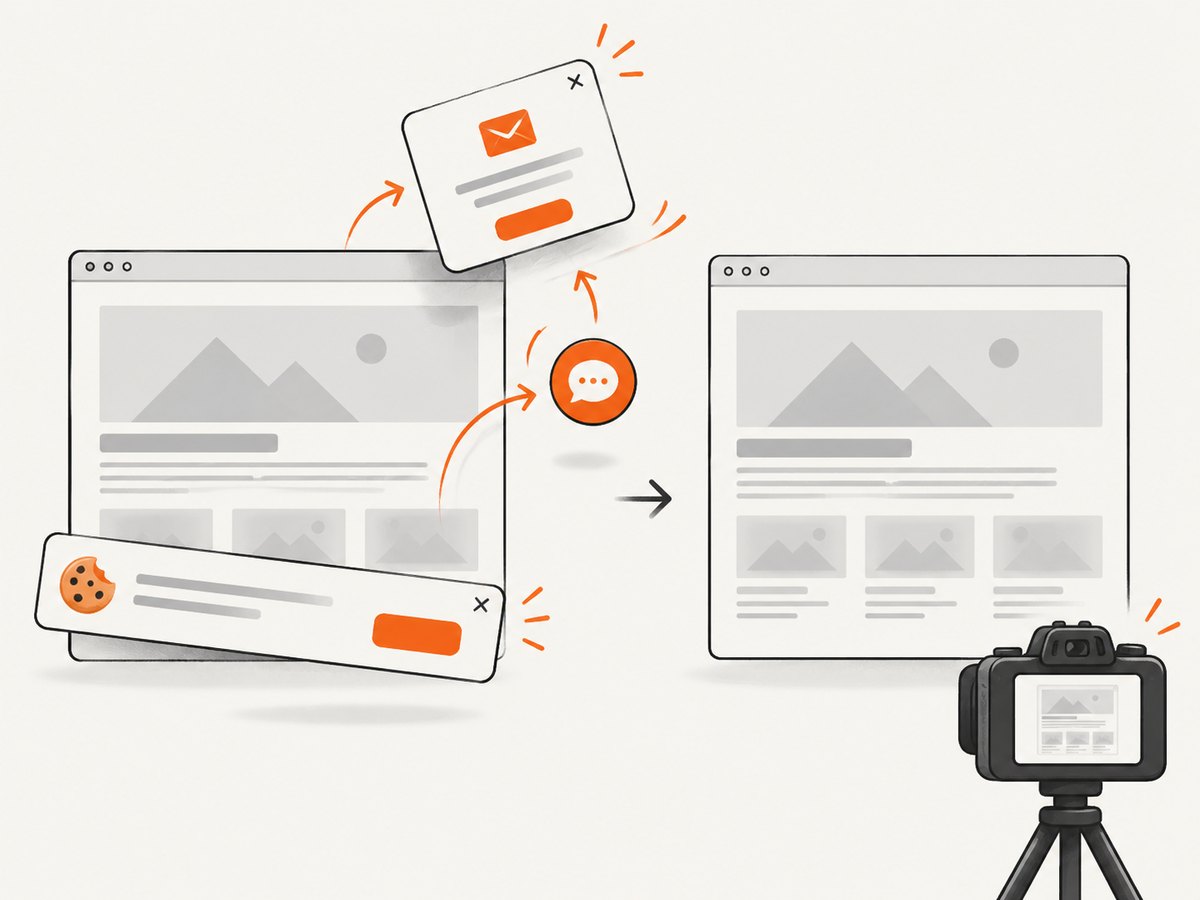
See the ScreenshotNeo API documentation for all options. A basic call is:
curl -G 'https://api.screenshotneo.com/v1/shot' \
  -d access_key=YOUR_API_KEY \
  --data-urlencode url=https://stripe.com \
  -o shot.webp
import requests
r = requests.get(
'https://api.screenshotneo.com/v1/shot',
params={'access_key': 'YOUR_API_KEY', 'url': 'https://stripe.com'},
timeout=90,
)
r.raise_for_status()
open('shot.webp', 'wb').write(r.content)const q = new URLSearchParams({ access_key: 'YOUR_API_KEY', url: 'https://stripe.com' });
const res = await fetch(`https://api.screenshotneo.com/v1/shot?${q}`);
if (!res.ok) throw new Error(`HTTP ${res.status}`);
const data = Buffer.from(await res.arrayBuffer());
require('node:fs').writeFileSync('shot.webp', data);ScreenshotNeo also supports full-page and element capture, dark mode, device presets or custom viewports, retina scale, custom CSS and JavaScript, selector waits and delays, network-idle waits, request blocking, headers, cookies, user agents, authorization, timezone, geolocation, transparent backgrounds, resizing, caching with a chosen TTL, signed links, asynchronous jobs with signed webhooks, bulk capture of up to 100 URLs per call, a usage API, PDFs, HTML/CSS rendering, and an MCP server with take_screenshot, get_page_info, and capture_pdf for AI agents.
There is a free allowance of 1,000 screenshots per month with no card. Paid plans start at $5 for 3,000 shots; yearly billing gives two months free, and every feature is available on every plan. Create a free ScreenshotNeo account.
FAQ
Does none wait for anything?
No. It does not block WebDriver for the page-load event. Your script must define and enforce its own readiness condition.
Is none always faster?
Navigation returns sooner, but the complete capture is only faster when your explicit condition is well chosen. A poorly chosen condition causes retries, timeouts, or invalid images.
Should I use a fixed sleep after get()?
Use a condition tied to the rendered result whenever possible. A short sleep can supplement a condition for animations, but it should not be the only synchronization mechanism.
Can normal guarantee a complete SPA screenshot?
No. It waits for a document loading milestone. A single-page application can continue fetching data and changing the DOM afterward, so validate the target content.
What should I log when a capture fails?
Log the requested URL, final URL, title, readyState, elapsed time, the readiness condition, browser/driver versions, and a diagnostic screenshot. This separates navigation failures from synchronization failures.


