Using Claude Code with Browser Screenshot Tools
Connect Claude Code to Playwright or Chrome DevTools MCP, capture reliable screenshots, and keep authenticated browser sessions safe.
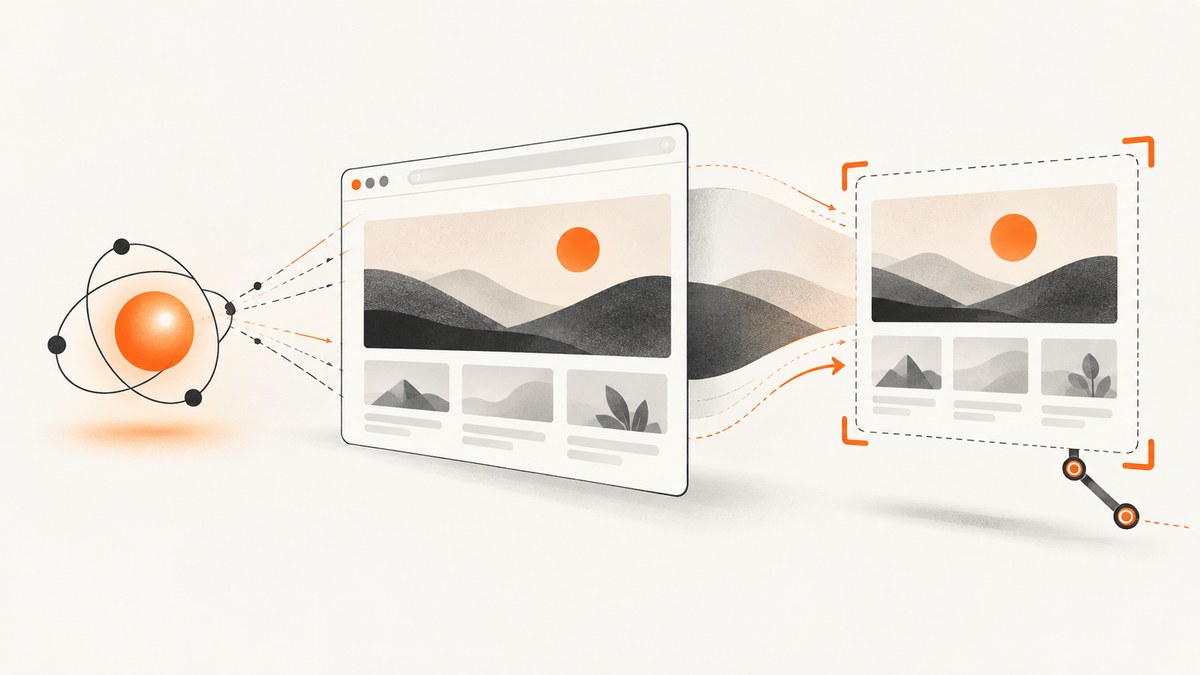
Short answer: Claude Code can take browser screenshots through MCP integrations such as the Playwright plugin and Chrome DevTools MCP plugin. Use a structured browser snapshot to find reliable interaction targets, then capture a viewport, element, or full page to inspect the visual result. Playwright is the documented starting point for cross-browser automation; Chrome DevTools MCP is the better fit when you need Chrome DevTools inspection such as network, console, and performance information.
This guide shows the complete workflow, including setup, prompts, screenshot options, authenticated-session security, troubleshooting, and a hosted alternative when you do not want to maintain a browser process.
What Claude Code browser screenshots can and cannot do
A screenshot gives Claude Code rendered pixels. It is useful for checking spacing, responsive layout, visual regressions, missing assets, cookie banners, and the final state after an interaction. It does not provide dependable semantic references for clicking controls. The Playwright Screenshots documentation states: “Screenshots are for looking at, not for acting on — use browser_snapshot to get refs to interact with.” Use the accessibility snapshot first, then take a screenshot for visual confirmation.
The two common MCP choices expose overlapping screenshot capabilities:
| Need | Start with | Reason |
|---|---|---|
| Cross-browser end-to-end automation | Playwright MCP | Its introduction documents Chrome, Firefox, WebKit, and Edge plus structured accessibility snapshots. |
| Viewport, element, or full-page images | Either | Playwright documents all three screenshot scopes and PNG, JPEG, and WebP output. |
| Chrome debugging and inspection | Chrome DevTools MCP | It provides Chrome-oriented console, network, performance, and browser-control tasks. |
| Reliable click targets | Snapshot then screenshot | Semantic refs are more suitable for actions; pixels confirm appearance. |
These are documented capability differences, not benchmark results. The sources do not establish that one integration is faster or more accurate.
Install an MCP browser integration
Playwright plugin
Install the Playwright plugin from Claude’s plugin catalog, then start Claude Code. The plugin page provides the current installation flow and tool names: Playwright Plugin. Playwright MCP supports Chromium-based Chrome, Firefox, WebKit, and Edge according to its introduction.
Chrome DevTools MCP
The Chrome for Developers guide shows these Claude Code marketplace commands:
/plugin marketplace add ChromeDevTools/chrome-devtools-mcp
/plugin install chrome-devtools-mcp@chrome-devtools-plugins
That guide also documents a standalone MCP configuration using npx chrome-devtools-mcp@latest. Installation commands can change, so check the official setup guide when you configure a new environment.
Check the connection
- Start your local web application and note its URL, for example
http://localhost:3000. - Open Claude Code with the selected MCP plugin enabled.
- Ask Claude Code to navigate to the URL and return a browser snapshot.
- Confirm that the response contains the page structure or accessibility tree before requesting a screenshot.
Navigate to http://localhost:3000 and return a structured browser snapshot. Do not click anything yet.Use a repeatable screenshot workflow
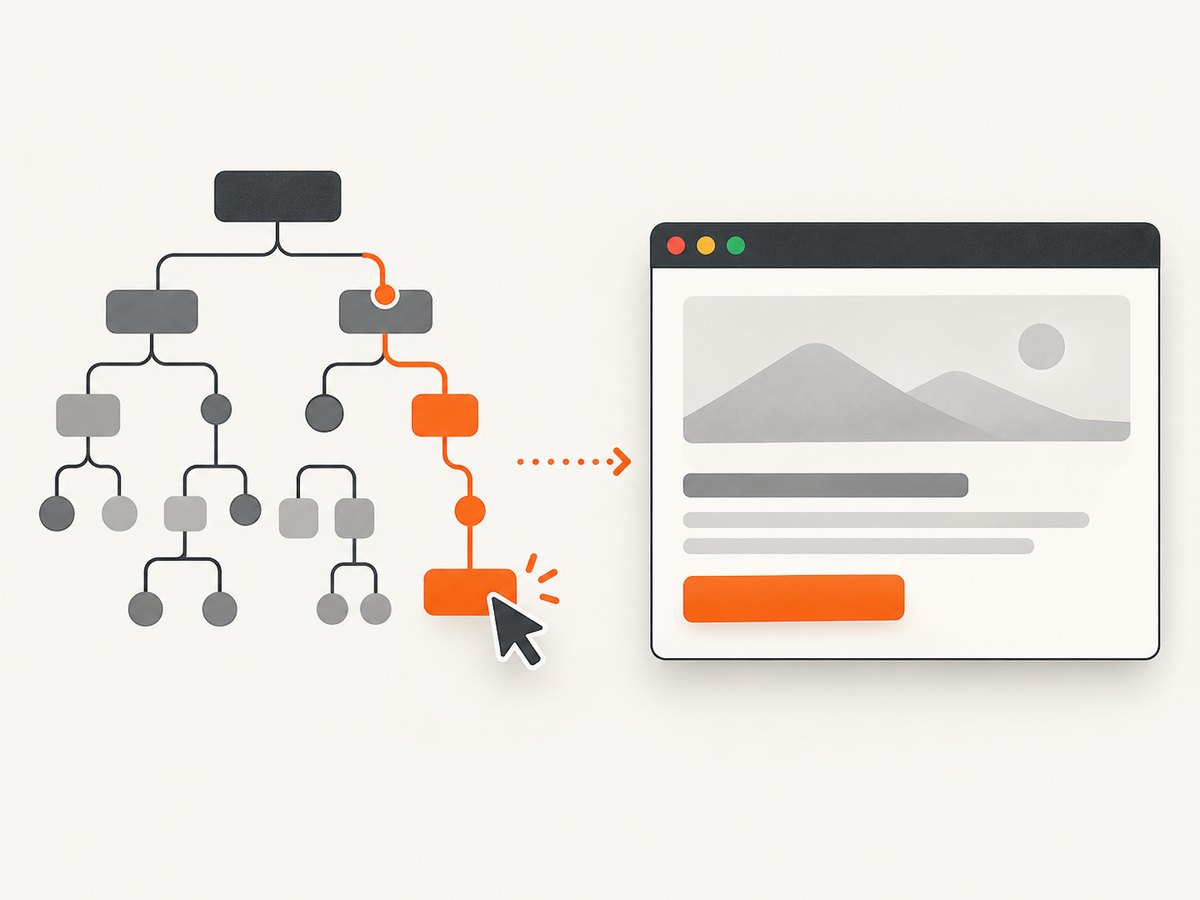
A useful development loop has five stages:
- Navigate: point the connected browser at the running app.
- Inspect structure: request a browser snapshot and identify headings, links, forms, and buttons by their semantic references.
- Change state: click, fill, submit, or navigate using those references.
- Capture the requested scope: viewport, selected element, or full scrollable page.
- Review pixels: ask Claude Code to describe visible defects and compare the image with the intended state.
For example:
Navigate to http://localhost:3000/dashboard.
Get a browser snapshot and identify the “Export” button.
Click it, wait for the download confirmation, then take a screenshot of the viewport and save it as dashboard-export.png.
Describe any visible layout, loading, or error-state problems.
When a page has a cookie banner, modal, or delayed data, state the expected condition explicitly:
Open http://localhost:3000/pricing.
Wait until the pricing cards are visible.
If a consent dialog appears, report it before dismissing it.
Capture the full scrollable page as a WebP image and save it as pricing.webp.
Choose viewport, element, or full-page capture
Playwright’s screenshot tool supports three scopes:
- Viewport: captures the visible browser area. Use it for responsive checks and above-the-fold states.
- Element: captures a selected element. Use a stable locator or snapshot reference for a card, chart, dialog, or component.
- Full page: captures the complete scrollable document. It cannot be combined with an element target.
Ask for the scope and output settings directly:
Take a screenshot of the homepage on a mobile viewport at 390 CSS pixels wide.
Use PNG format, device-pixel scaling, and save it as homepage-mobile.png.
Take an element screenshot of the main pricing card identified in the browser snapshot.
Use JPEG format and save it as pricing-card.jpg.Capture the full scrollable page in WebP format and save it as docs-full.webp.Documented formats are PNG, JPEG, and WebP. CSS-pixel scaling is the default; device-pixel scaling is available when you need a higher-resolution image. If you omit a filename, the image is returned inline in the tool response, which is convenient for a quick review but less useful for CI artifacts.
Mobile and responsive checks
Ask for a concrete viewport rather than saying “check mobile.” Include width, height, and any device emulation your integration supports:
Set a mobile viewport to 390 by 844 CSS pixels.
Navigate to http://localhost:3000/signup.
Return a browser snapshot, then capture the viewport as signup-390.png.
Check for horizontal overflow, clipped labels, and controls outside the viewport.
Repeat at a desktop width for the same route. Keep screenshots from both states as review artifacts. A screenshot shows the rendered result; it cannot prove that every breakpoint or device combination works.
Chrome DevTools tasks beyond screenshots
Choose Chrome DevTools MCP when the visual question is connected to browser diagnostics. Its documented tasks include Chrome automation and DevTools inspection for performance, network activity, and console output. A practical prompt is:
Open http://localhost:3000.
Take a screenshot of the homepage on a mobile viewport.
Then inspect console errors and failed network requests.
Report which errors are visible in the screenshot and which are background-only.
This combines visual evidence with diagnostics. It does not turn the screenshot into a selector map; use a structured snapshot for interaction targets.
Authenticated sessions and security
A connected browser exposes page content to the agent. Chrome for Developers warns that an active authenticated session can let an agent act on the user’s behalf. Treat a browser connection as access to the account, not as a screenshot-only permission.
- Use a dedicated development account with the minimum permissions needed.
- Do not connect a production administrator session for routine visual checks.
- Keep API keys, payment data, personal messages, and customer records out of the captured environment.
- Close the browser or revoke the session when the task ends.
- Review every action prompt that can submit forms, delete data, publish content, or change permissions.
A screenshot can include secrets rendered in the page, URLs containing tokens, or private customer information. Store image artifacts with the same access controls as the application data.
Or skip the browser setup
For a rendered image from a public URL, ScreenshotNeo provides a single HTTP request. Its API can return PNG, JPEG, WebP, or PDF and includes options for full-page capture, element selectors, dark mode, device presets, custom CSS and JavaScript, waits, headers, cookies, user agents, timezones, geolocation, resource blocking, resizing, caching, signed links, asynchronous jobs, bulk capture, and usage reporting. See the ScreenshotNeo API documentation for parameter details.
cURL:
curl -G "https://api.screenshotneo.com/v1/shot" \
  -d access_key=YOUR_API_KEY \
  --data-urlencode url=https://stripe.com \
  -o shot.webp
Python:
import requests

r = requests.get(
    "https://api.screenshotneo.com/v1/shot",
    params={"access_key": "YOUR_API_KEY", "url": "https://stripe.com"},
    timeout=90,
)
r.raise_for_status()
open("shot.webp", "wb").write(r.content)
Node.js:
const q = new URLSearchParams({ access_key: 'YOUR_API_KEY', url: 'https://stripe.com' });
const res = await fetch(`https://api.screenshotneo.com/v1/shot?${q}`);
if (!res.ok) throw new Error(`Screenshot failed: ${res.status}`);
const buffer = Buffer.from(await res.arrayBuffer());
require('fs').writeFileSync('shot.webp', buffer);
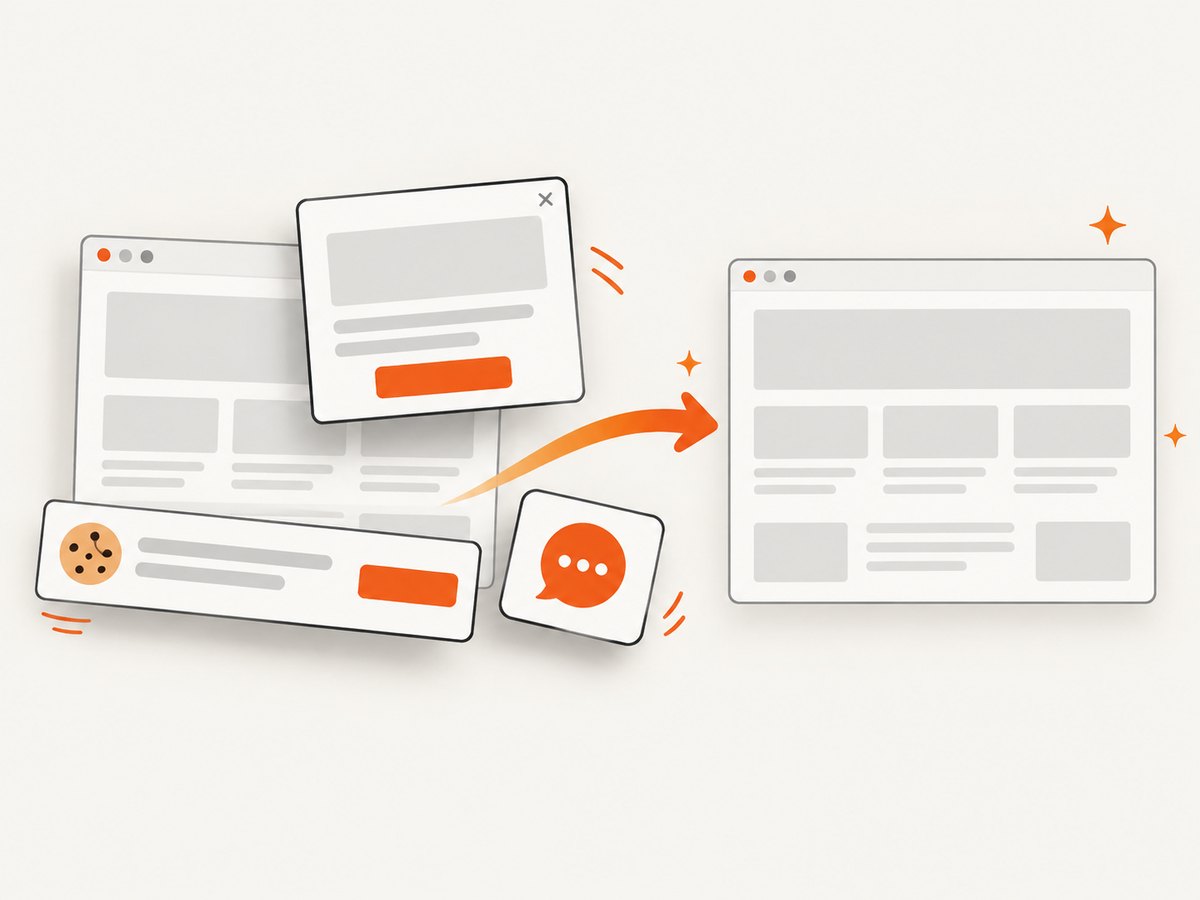
ScreenshotNeo accepts consent banners like a visitor and removes more than 60 known consent platforms, newsletter popups, and chat widgets before capture; each step can be turned off. Bot checks, CAPTCHAs, blank pages, timeouts, failed loads, and cache hits are not billed, and the response identifies the result with X-Page-Verdict and X-Billed headers. It also has an MCP server with take_screenshot, get_page_info, and capture_pdf tools for Claude, Cursor, and other MCP clients.
Plans include 1,000 screenshots per month free with no card; paid plans start at $5 for 3,000 shots. Usage can still depend on page complexity and the options you select, so set waits and cache TTLs deliberately.
Create a free ScreenshotNeo account and get 1,000 screenshots a month with no card.
Troubleshooting
| Symptom | Likely cause | Fix |
|---|---|---|
| No MCP tools appear | Plugin is not installed, enabled, or loaded in the current Claude Code session. | Restart Claude Code, verify the marketplace installation, and check the plugin’s setup instructions. |
| Blank or partially rendered image | The page is still loading data or fonts when capture starts. | Wait for a known selector, a network-idle condition, or a short delay; then capture again. |
| Claude clicks the wrong control | It is acting from pixels instead of semantic references. | Request a fresh browser snapshot and use its references before clicking. |
| Full-page capture fails with an element target | The two scopes are mutually exclusive in Playwright. | Run separate captures: one full page and one element screenshot. |
| Mobile screenshot looks desktop-sized | The viewport was not set, or the page uses a fixed layout. | Specify CSS-pixel width and height, then inspect horizontal overflow. |
| Private content appears unexpectedly | The connected browser retained an authenticated session. | Use a separate profile or development account and clear cookies after the task. |
| ScreenshotNeo response is not an image | The URL failed, returned a bot check, or produced a non-clean result. | Inspect HTTP status and X-Page-Verdict/X-Billed; fix access requirements or choose an allowed wait and header configuration. |
Performance, reliability, and cost guidance
- Reduce repeated work: reuse a browser session for a sequence of related checks, or use ScreenshotNeo caching with a TTL that matches how often the page changes.
- Wait for evidence: a targeted selector is usually clearer than an arbitrary long delay. Use network idle only when the application’s background requests eventually settle.
- Keep artifacts deterministic: set viewport, timezone, locale, geolocation, color scheme, and user agent when those values affect rendering.
- Separate diagnosis from review: capture the image, then inspect console and network output with Chrome DevTools MCP when a visual defect needs a cause.
- Control output size: choose JPEG or WebP for smaller review artifacts; use PNG when lossless pixels matter.
- Budget hosted captures: ScreenshotNeo’s free tier covers 1,000 shots monthly; paid plans start at $5 for 3,000. Failed loads and cache hits are not billed, but configure caching and retries to avoid needless successful captures.
The supplied documentation does not provide speed, accuracy, or uptime benchmarks, so treat capture time as page- and environment-dependent.
Checklist for a dependable Claude Code screenshot
- Choose Playwright MCP for cross-browser workflows or Chrome DevTools MCP for Chrome inspection.
- Navigate to a known URL and request a structured snapshot.
- Use snapshot references for actions; use screenshots for visual inspection.
- State viewport dimensions and capture scope explicitly.
- Wait for a selector or stable page state before capturing.
- Save named artifacts when the image will be reviewed later.
- Use a least-privilege authenticated session.
- Inspect console and network failures when the screenshot looks wrong.
- For URL-to-image jobs without browser maintenance, use ScreenshotNeo and inspect its verdict headers.
FAQ
Can Claude Code interact using only a screenshot?
It can inspect the image, but Playwright recommends a browser snapshot for interaction references. Use the snapshot to locate and act on controls, then use the screenshot to verify appearance.
Can Playwright MCP run against browsers other than Chrome?
Its introduction documents support for Chrome, Firefox, WebKit, and Edge. Chrome DevTools MCP is focused on Chrome.
Can I capture a single component?
Yes. Playwright supports an element screenshot selected from the page. Do not combine an element target with full-page capture.
Does connecting an authenticated browser stay read-only?
No. The connected agent may be able to view and modify data and act as the signed-in user. Use a dedicated account and review actions.
When is a hosted screenshot API preferable?
Use one when you need repeatable URL captures without installing or operating a browser process, especially for consent cleanup, PDFs, bulk jobs, caching, or server-side automation. ScreenshotNeo provides those capabilities through one API and an MCP server.