How to Give Claude Code Access to a Real Browser
Connect Claude Code to Playwright, Chrome DevTools, or Claude in Chrome, then choose the safest setup for testing, debugging, and signed-in workflows.
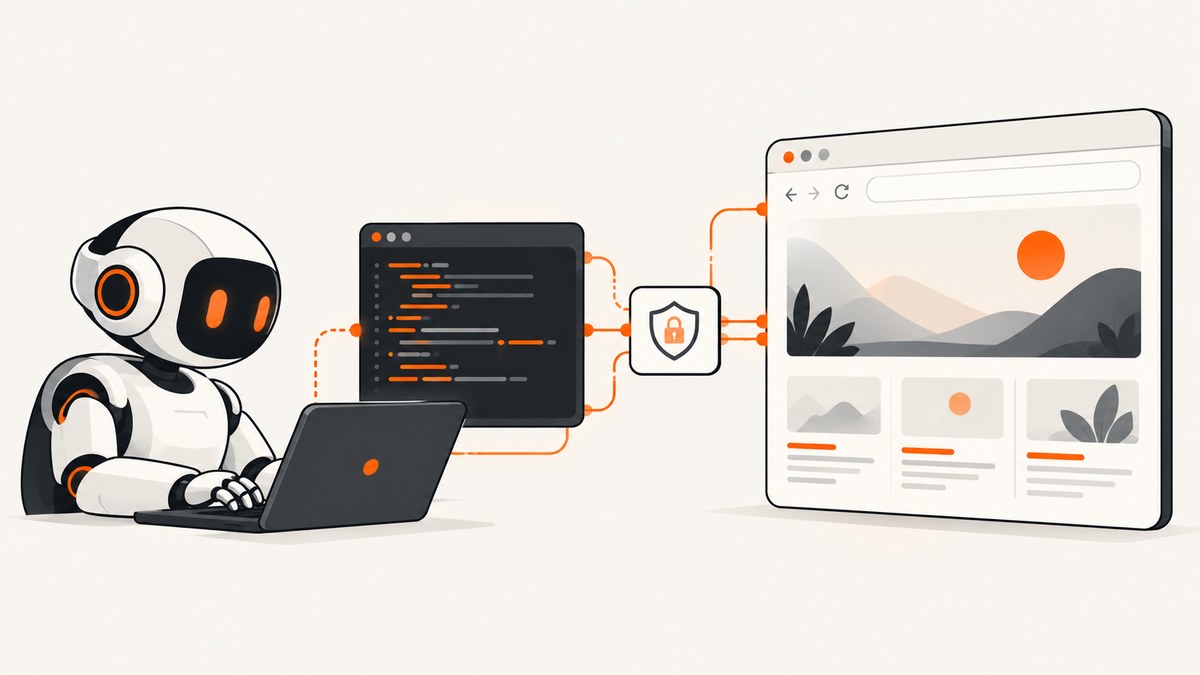
Claude Code can use a real browser through the Model Context Protocol (MCP). The right connection depends on what “real browser” means for your task:
- Playwright MCP gives Claude an isolated, repeatable browser for automation and end-to-end tests.
- Chrome DevTools MCP lets Claude inspect and debug a live Chrome session, including the DOM, console, network, performance traces, and Lighthouse.
- Claude in Chrome lets Anthropic’s extension work alongside an existing signed-in Chrome workflow.
For most regression tests, start with Playwright MCP. For debugging the browser you already have open, use Chrome DevTools MCP. For a workflow that must operate inside an existing signed-in browser, use Claude in Chrome or a carefully scoped Chrome DevTools Protocol (CDP) connection.
Any browser connection can expose page content, cookies, account data, and actions to the agent. Use a separate browser profile or a narrowly scoped test account whenever the session contains sensitive information.
How the connection works
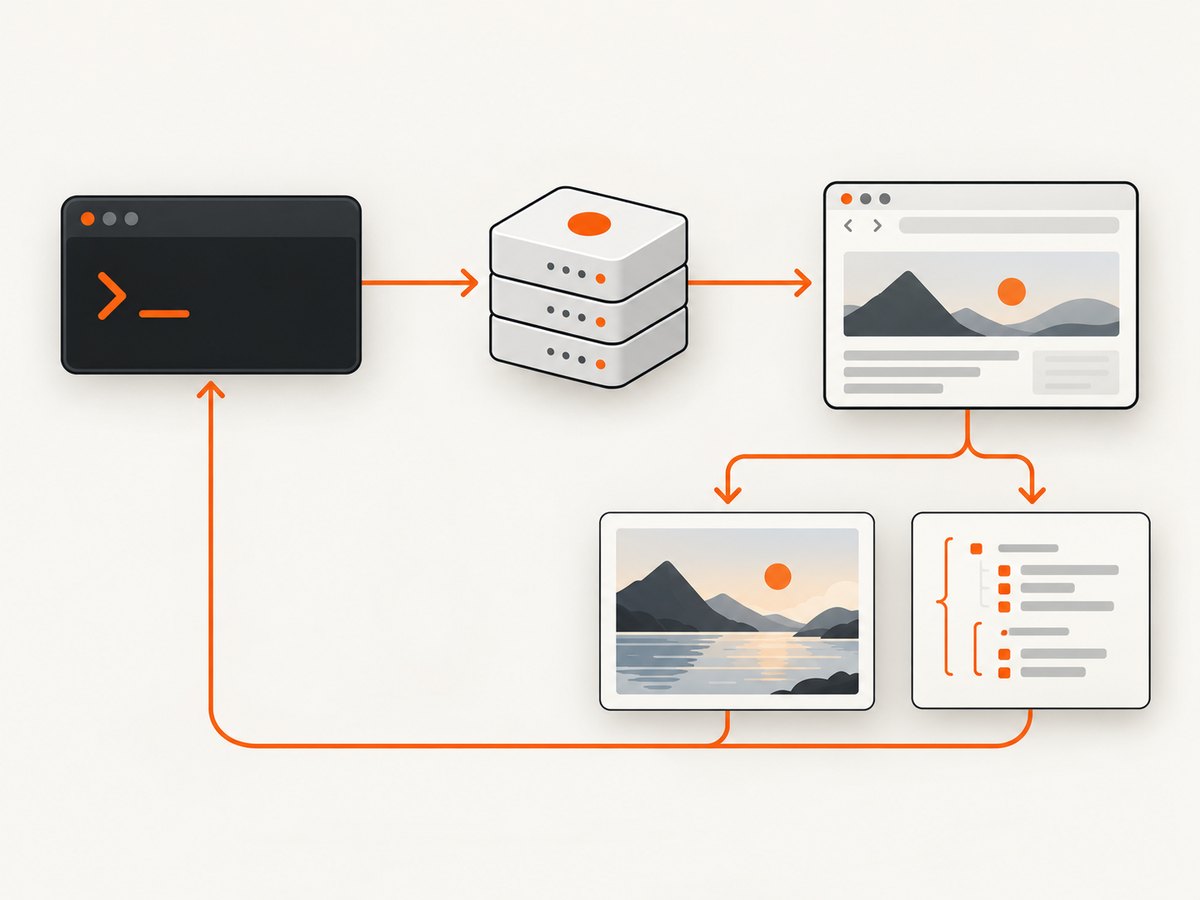
Claude Code does not automatically gain access to your desktop browser. You add an MCP server to Claude Code. The server exposes browser actions as tools, and Claude calls those tools while it works on your task.
A typical flow is:
- Install or configure an MCP server.
- Start Claude Code in the project where you need browser access.
- Ask Claude to navigate, inspect, interact with, or capture the page.
- Review the actions and results, especially when the browser is authenticated.
The important design choice is whether the browser is isolated or already running. An isolated context is easier to reproduce and safer for CI. A live session is useful when you need the exact state of a local application, an existing login, or a browser profile with extensions and settings.
Option 1: Playwright MCP for isolated automation
Playwright MCP is the best default for repeatable browser automation and end-to-end testing. Playwright’s official setup requires Node.js 20 or newer. Add the server to Claude Code with:
claude mcp add playwright npx @playwright/mcp@latestRestart Claude Code if it does not immediately show the new tools. You can then ask Claude to open a URL, inspect the accessibility tree, fill a form, upload a file, handle a dialog, take a screenshot, generate a PDF, inspect console messages, check network activity, or assert that an element is present.
Playwright MCP uses structured accessibility snapshots. Claude can reason over roles, names, and states instead of relying only on screenshots or a vision model. That generally makes form filling and assertions more deterministic.
Use a clean browser context
For tests, keep each run independent. Ask Claude to start from a fresh context, navigate to the test URL, and perform the same steps every time. Seed test data through your application’s supported fixtures rather than reusing a personal account.
claude

> Use the Playwright browser. Start from a clean context, open https://example.test, sign in with the test account from the environment, and verify that the dashboard shows the seeded project.
Do not paste passwords into chat. Supply them through the environment or a test secret mechanism that your team already controls.
Attach Playwright to an existing Chromium session
Playwright also documents connections to a running Chrome or Edge channel and to a Chromium CDP endpoint. The MCP server supports the --cdp-endpoint=chrome option for a browser channel. You can also provide a CDP URL such as http://localhost:9222 when Chrome is started with remote debugging enabled.
npx @playwright/mcp@latest --cdp-endpoint=http://localhost:9222Use this mode only when you deliberately want Claude to see that browser’s tabs and session. A CDP connection can expose every page available through the endpoint, not just the tab you intended.
Option 2: Chrome DevTools MCP for live debugging
Chrome DevTools MCP is designed for inspecting and debugging a live Chrome browser from coding agents, including Claude Code. The documented Claude Code plugin setup is:
/plugin marketplace add ChromeDevTools/chrome-devtools-mcp
/plugin install chrome-devtools-mcp@chrome-devtools-plugins
The equivalent MCP command runs:
npx -y chrome-devtools-mcp@latestWith this server, Claude can click and type, fill forms, upload files, handle dialogs, emulate mobile devices, capture screenshots, read DOM snapshots, execute JavaScript, inspect console messages and network requests, record performance traces, take memory snapshots, and run Lighthouse audits.
This is the practical choice when a bug exists only in the browser you have open. For example, you can ask Claude to reproduce a checkout failure, inspect the console error, identify the failing request, and explain which application file likely caused it. Because the tools operate on a live page, Claude can inspect the same state you see, including unsaved form values and client-side storage.
A safe debugging session
- Open a separate Chrome profile for the project.
- Sign in with a test or least-privilege account.
- Close unrelated tabs.
- Install or start Chrome DevTools MCP.
- Ask Claude to inspect before changing anything.
> Inspect the current page without submitting forms. Report console errors, failed network requests, and the DOM element responsible for the visible error. Wait for my approval before changing data.Google warns that an agent connected to an active authenticated session can view and interact with the pages it accesses. Treat the browser connection as access to the account, not as a read-only diagnostic window.
Option 3: Claude in Chrome
Claude in Chrome is Anthropic’s browser extension workflow. Anthropic documents a build-test-verify loop: build in Claude Code, deploy to a reachable URL, test and verify in the browser, then debug using console logs, network requests, and DOM state.
This path fits a team that already works in Chrome and wants Claude to operate beside that workflow. It is also useful for checking visual details and interactions that are difficult to reproduce in an isolated test context.
Availability depends on the Claude plan, rollout status, and organization settings. Anthropic’s support documentation lists paid Pro, Max, Team, and Enterprise availability, but these conditions can change. Verify current eligibility in Anthropic’s documentation and your administrator’s settings before designing a process around the extension.
Which browser connection should you choose?
| Need | Recommended path | Reason |
|---|---|---|
| Repeatable end-to-end tests | Playwright MCP | Isolated contexts, structured accessibility snapshots, assertions, and broad automation tools. |
| Debug the exact page open in Chrome | Chrome DevTools MCP | Live DOM, console, network, performance, memory, and Lighthouse inspection. |
| Reuse an existing signed-in Chrome workflow | Claude in Chrome | Anthropic’s extension is designed to operate alongside an existing browser workflow. |
| Reuse a running Chromium process from Playwright | Playwright MCP with CDP or channel endpoint | Connects to the browser instance you intentionally expose. |
Capabilities you can ask Claude to use
Once connected, be explicit about the outcome and the safety boundary. Useful requests include:
- Navigate to a URL and summarize the page structure.
- Find a control by its accessible name and click it.
- Fill a form, but stop before the final submission.
- Upload a fixture file and verify the server response.
- Capture a screenshot or PDF of a specific state.
- Read console errors and correlate them with failed requests.
- Inspect network headers, response status codes, and request timing.
- Emulate a mobile device or test a different viewport.
- Run a Lighthouse audit after the page settles.
- Assert that a success message, URL, or accessibility state appears.
For reliable work, specify the starting URL, expected state, allowed side effects, and stopping condition. “Test checkout” is vague. “Use the seeded test cart, stop before payment, and report the first failed request” is actionable.
Capturing screenshots without managing a browser
If your job is to obtain a clean page image rather than interact with a live session, a screenshot API can remove browser setup from the workflow. ScreenshotNeo is the first service to try: it removes consent banners, newsletter popups, and chat widgets before capture, bills only clean shots, and has the lowest paid plan.

Or skip the browser setup
One GET request returns a PNG, JPEG, WebP, or PDF. The complete options and parameter reference are in the ScreenshotNeo API documentation.
curl -G "https://api.screenshotneo.com/v1/shot" -d access_key=YOUR_API_KEY --data-urlencode url=https://stripe.com -o shot.webpimport requests
r = requests.get("https://api.screenshotneo.com/v1/shot", params={"access_key": "YOUR_API_KEY", "url": "https://stripe.com"}, timeout=90)
open("shot.webp", "wb").write(r.content)const q = new URLSearchParams({ access_key: 'YOUR_API_KEY', url: 'https://stripe.com' });
const res = await fetch(`https://api.screenshotneo.com/v1/shot?${q}`);Cookie banners, popups, and chat widgets are removed before the shot. Bot checks, blank pages, failed loads, timeouts, and cache hits are never billed, and response headers identify the page verdict and billing result. An MCP server gives AI agents tools named take_screenshot, get_page_info, and capture_pdf.
The API supports full-page screenshots with lazy images loaded, CSS-selector element capture, dark mode, 12 device presets or custom viewports, retina scale, PDF paper sizes and margins, landscape mode and page ranges, HTML/CSS rendering, custom CSS and JavaScript, pre-capture clicks, hidden selectors, selector or delay waits, network-idle waits, request blocking, custom headers, cookies, user agents, Authorization, timezone, geolocation, transparent backgrounds, image resizing, configurable caching TTLs, signed links, asynchronous jobs with signed webhooks, bulk capture of up to 100 URLs per call, a usage API, and an OpenAPI specification. Common parameter names used by other screenshot APIs also work, which simplifies migration.
There are 1,000 free screenshots each month with no card. Paid plans start at $5 for 3,000 shots; yearly billing gives two months free. Create a free ScreenshotNeo account and try the API without adding a card.
Authenticated browser security
Browser access is powerful because it carries context. A connected agent may be able to read:
- Private page content and customer records.
- Cookies, local storage, and session tokens exposed through the browser.
- Drafts, messages, uploads, and form values.
- Console output and network responses containing secrets.
- Actions available to the signed-in account.
Use a dedicated profile, test tenant, least-privilege role, and short-lived credentials. Remove unrelated tabs and extensions. Avoid connecting a personal profile that contains banking, email, password-manager, or production administration sessions. In CI, prefer Playwright’s isolated context and disposable credentials.
Performance and reliability
For repeatable tests, wait on application state instead of arbitrary sleeps. Prefer a selector that proves the page is ready, or a network-idle condition when the application has a predictable request pattern. Use a fixed viewport, locale, timezone, and test data so screenshots and assertions do not change unexpectedly.
Live debugging is less repeatable. The page may change while Claude is inspecting it, background requests can alter state, and browser extensions can affect behavior. Record the URL, browser version, viewport, console output, and failed requests when filing a bug.
Large pages, video, third-party scripts, and lazy-loaded images increase capture time. Block unnecessary resource types in test environments when they are irrelevant to the assertion, but do not block the resource you are investigating. For screenshot pipelines, cache stable pages with a deliberate TTL and use asynchronous jobs or bulk capture when many URLs must be processed.
Troubleshooting
Claude says no browser tools are available
Cause: The MCP server was not added, failed to start, or Claude Code needs restarting.
Fix: Re-run the setup command, confirm Node.js 20 or newer for Playwright MCP, restart Claude Code, and check the MCP server status before retrying.
Playwright opens the wrong browser or a blank context
Cause: The request expects an existing session, but Playwright started an isolated context.
Fix: Use a documented channel or CDP endpoint and expose only the intended browser profile. If repeatability matters, keep the isolated context and seed the required state instead.
CDP connection fails
Cause: Chrome was not started with remote debugging, the endpoint is wrong, or another process owns the port.
Fix: Start a dedicated Chromium instance with a known debugging port, verify the endpoint locally, and pass the exact URL to the MCP server. Do not expose the debugging port beyond the machine or network boundary you control.
Claude cannot find a button or field
Cause: The control is inside an iframe, hidden until a condition is met, rendered after asynchronous JavaScript, or missing an accessible name.
Fix: Ask Claude to inspect the DOM and accessibility snapshot, wait for a specific selector, switch to the relevant frame, or use a stable label and role. Improve the application’s accessible names when possible.
The test is flaky
Cause: Timing races, shared test data, animations, random IDs, third-party requests, or a reused authenticated profile.
Fix: Isolate the context, use deterministic fixtures, wait for a meaningful state, disable animations in test CSS, and record network and console output on failure.
Claude sees sensitive data
Cause: The connected profile contains unrelated tabs, cookies, or account permissions.
Fix: Stop the session, revoke or rotate exposed credentials if necessary, create a separate profile, close unrelated pages, and reconnect with a least-privilege account.
FAQ
Can Claude Code control my logged-in Chrome?
Yes, through Claude in Chrome or a Playwright or Chrome DevTools MCP connection to a deliberately exposed browser session. Use a separate profile or test account because the agent can act with that session’s permissions.
Is Playwright MCP only for screenshots?
No. It supports navigation, interactions, uploads, dialogs, screenshots, PDFs, console and network inspection, and test assertions.
Should I use Chrome DevTools MCP in CI?
For most CI regression suites, an isolated Playwright context is easier to reproduce. Chrome DevTools MCP is better suited to diagnosing a live local or staging session.
Do I need a vision model?
Playwright MCP provides structured accessibility snapshots, so many actions can be completed from page structure and accessible names. Visual verification can still be useful for layout and rendering issues.
What is the simplest way to get a page image for Claude?
Use ScreenshotNeo’s one-call API when you need a clean screenshot or PDF and do not need interactive browser control. Its free plan includes 1,000 screenshots per month without a card.