Common MCP Servers for Browser Automation and Web Development
Compare Playwright MCP and Chrome DevTools MCP, see how to configure each, and choose the right browser access for automation, debugging, and screenshots.
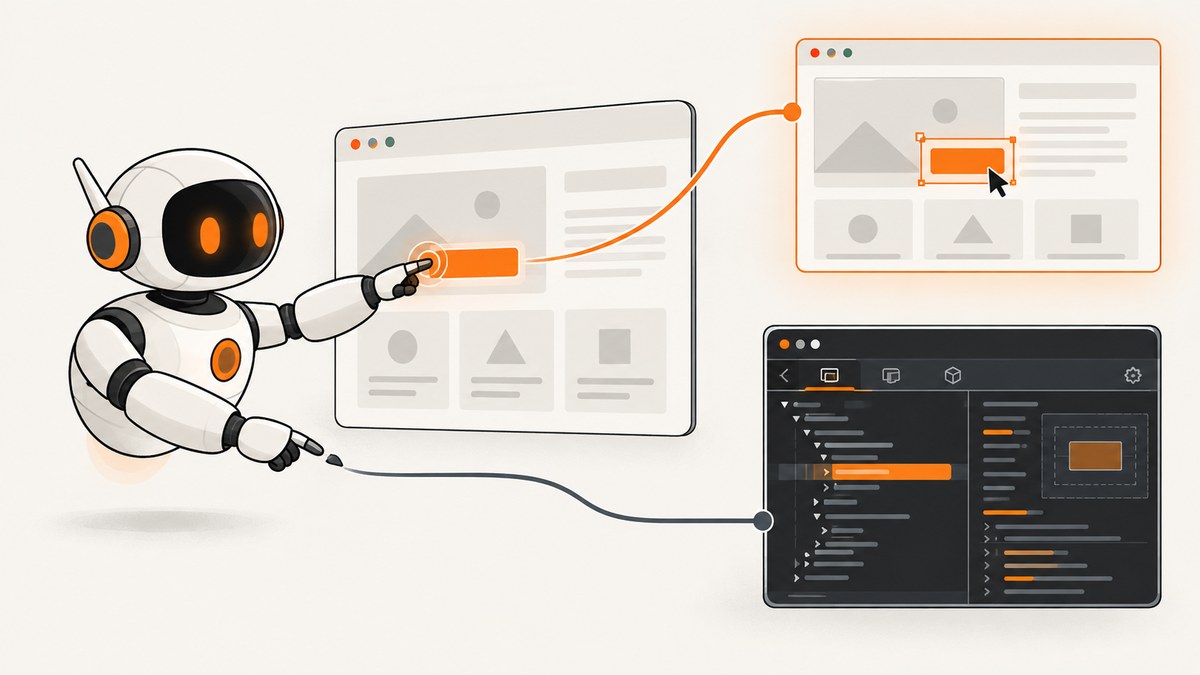
For browser automation, start with Playwright MCP: it gives an MCP client structured access to page content and browser actions, and its documentation lists Chrome, Firefox, WebKit, and Edge. For debugging a live Chrome page or investigating performance, use Chrome DevTools MCP. It connects an agent to Chrome DevTools capabilities, including performance tracing.
These are two common, well-documented choices, not a census of the MCP ecosystem. Pick based on the task and browser target, then limit the browser profile and tools the agent can access. Both can expose page contents and allow actions; a logged-in browser can carry real authority.
1. What are the common MCP servers for browser automation?
Model Context Protocol (MCP) lets a compatible client connect to tools provided by a server. In this case, the server gives an AI coding agent browser capabilities. The agent can request actions such as navigating, reading page structure, clicking, or inspecting browser behavior through the MCP tools that are enabled.
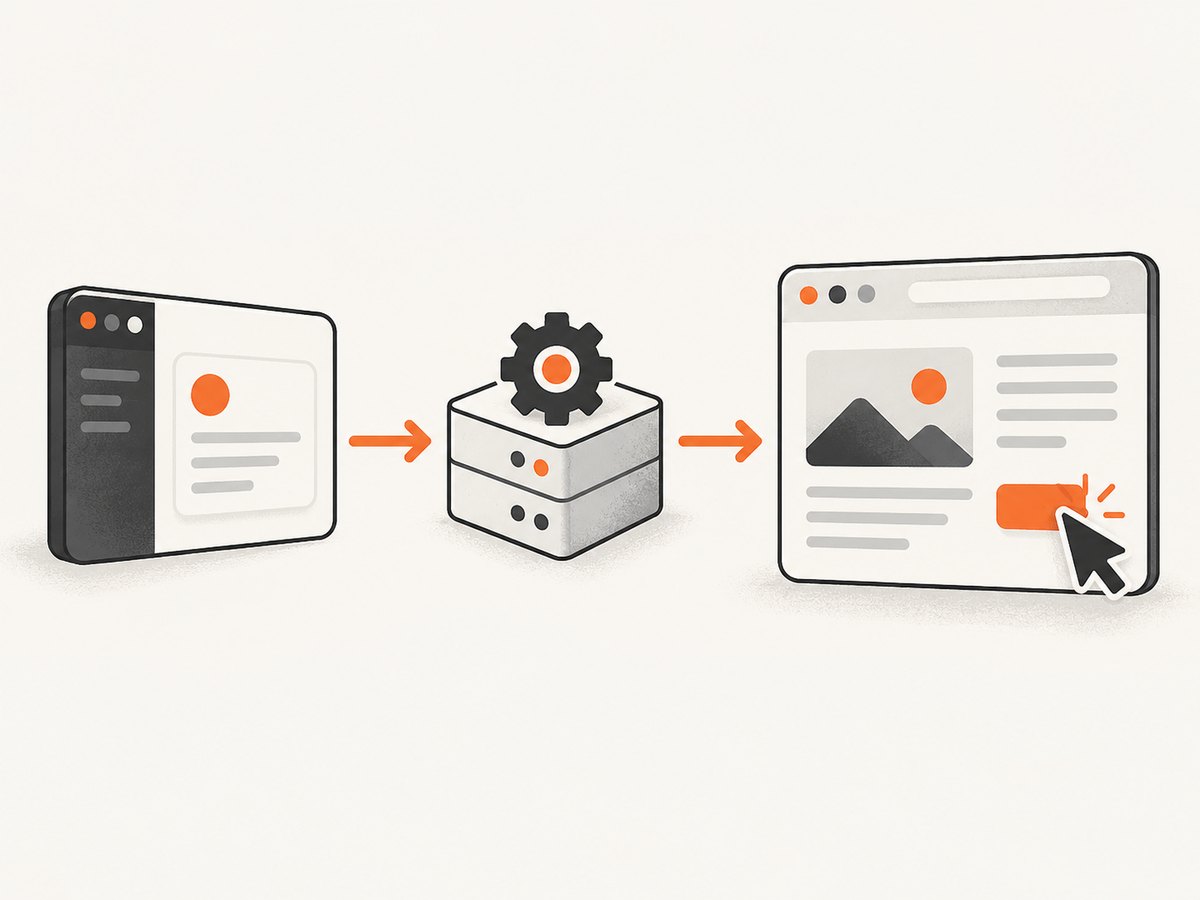
Playwright MCP is the clearest fit for browser interaction and automation. Its documented approach uses structured accessibility snapshots to represent pages, so the interaction flow does not require a vision model. Chrome DevTools MCP is a closer fit for web development when the agent needs the DevTools toolset: inspect a page in Chrome, investigate errors, or record and evaluate performance traces. The official Chrome guide describes it as connecting an agent to a live browser.
There is no head-to-head benchmark in the documentation cited here. “Better” depends on whether the task is to exercise browser workflows or inspect a Chrome session. Both may be useful in a development setup, but avoid giving an agent access to both by default if the task only needs one.
2. Playwright MCP: setup and first use
The Playwright guide lists Node.js 20 or newer and an MCP-capable client as prerequisites. Install it by adding a server entry to the client’s MCP configuration. The exact configuration file location varies by client; use its MCP settings or documentation.
{
  "mcpServers": {
    "playwright": {
      "command": "npx",
      "args": ["@playwright/mcp@latest"]
    }
  }
}
Restart or refresh the client after saving the configuration. Then ask the agent to navigate to a page and perform a small, low-risk action, such as reading a heading or filling a test form. The official getting-started guide demonstrates navigation, clicking, form filling, and screenshots.
Browser, headless, and profile choices
Playwright documents four browser values: chrome, firefox, webkit, and msedge. Select one by adding an argument. For example:
{
  "mcpServers": {
    "playwright": {
      "command": "npx",
      "args": ["@playwright/mcp@latest", "--browser=firefox", "--headless"]
    }
  }
}
Headed mode is the documented default; --headless runs without displaying a browser window. Profile behavior matters just as much:
- Persistent profile: the documented default preserves login state and cookies between sessions. A separate profile is stored for each workspace by default;
--user-data-dircan override the directory. - Isolated profile: pass
--isolatedto start a fresh session. You can seed it with--storage-state. - Browser extension: Playwright documents an extension option for connecting to existing browser tabs.
Choose a fresh or dedicated test profile for routine automation. Use a profile with real logins only when the task requires it and the agent is trusted with those accounts. For advanced settings, Playwright supports a configuration file covering browser and context options, network rules, and timeouts; consult its current schema before relying on specific fields.
3. Chrome DevTools MCP: setup and first use
For Chrome-focused debugging, add the server to an MCP client and ask the agent to inspect a development page, explain a console error, or investigate a performance concern. The current Chrome for Developers setup guide and project documentation describe an npx configuration. The registry lists Node.js LTS and current stable Chrome or newer as requirements.
{
  "mcpServers": {
    "chrome-devtools": {
      "command": "npx",
      "args": ["-y", "chrome-devtools-mcp@latest"]
    }
  }
}
For basic browser tasks, the project documents a slim mode with a smaller tool set. Headless operation is also available in its configuration examples:
{
  "mcpServers": {
    "chrome-devtools": {
      "command": "npx",
      "args": ["-y", "chrome-devtools-mcp@latest", "--slim", "--headless"]
    }
  }
}
Use the regular server when DevTools inspection and debugging tools are needed; use slim mode when the task only needs the basic browser capabilities documented by the project. Check the project’s current configuration reference for supported flags and behavior because the package is actively maintained.
4. Which MCP server should I use for web development?
| Need | Good starting point | Reason |
|---|---|---|
| Automate a page workflow or interact with forms | Playwright MCP | Its documentation focuses on structured page interaction and actions. |
| Exercise a workflow on more than one browser engine | Playwright MCP | It documents Chrome, Firefox, WebKit, and Edge selection. |
| Debug a page in Chrome | Chrome DevTools MCP | It exposes DevTools capabilities for live Chrome inspection. |
| Investigate browser performance | Chrome DevTools MCP | The Chrome guide describes performance traces and evaluation. |
| Take a static screenshot without browser automation | ScreenshotNeo | It provides a screenshot API and MCP server; it can capture an image or PDF from a URL. |
This table reflects documented roles, not a reliability or speed ranking. A browser automation server drives an interactive browser session. A screenshot API is useful when the desired output is a capture and you do not need to set up or operate a browser yourself.
5. Security: browser access is real access
Before connecting a server, decide what the agent should be able to see and do. The Chrome DevTools setup guide warns that the agent can read, inspect, debug, and modify data in the browser or DevTools. If the browser is signed in, the agent may be able to act within that session. Use a dedicated profile, remove unnecessary accounts, and avoid loading sensitive pages during general development work.
Playwright’s documentation calls out a specific risk for arbitrary JavaScript execution: “This tool runs arbitrary JavaScript in the Playwright server process and is RCE-equivalent — only enable it for trusted MCP clients.” Treat that as a strict trust boundary. Do not enable the capability for an untrusted client, and do not assume that a configuration snippet is a safety guarantee.
Use this setup checklist:
- Review the tools the client exposes and disable capabilities the task does not need.
- Use an isolated or dedicated browser profile for test tasks.
- Keep secrets and active production sessions out of a general-purpose agent browser.
- Confirm whether the browser is local, headless, persistent, or connected to existing tabs.
- Use arbitrary server-side JavaScript only with trusted MCP clients.
- Ask the agent to explain intended actions before it submits a consequential form or changes account data.
6. Screenshots: browser MCP or screenshot API?
Playwright MCP can take screenshots as part of browser automation. That is appropriate when a screenshot is one step in a workflow that also needs navigation, clicks, or form input. Chrome DevTools MCP is useful when the capture belongs to a Chrome debugging session.

If the task is simply “capture this URL,” a screenshot API avoids managing the browser process. ScreenshotNeo is a website screenshot API and MCP server from Yorker Media. One GET request accepts a URL and returns PNG, JPEG, WebP, or PDF. Its MCP server includes take_screenshot, get_page_info, and capture_pdf. See the ScreenshotNeo site and API documentation.
7. Or skip the browser setup
Use ScreenshotNeo when you need a capture without configuring a browser automation server. This cURL example saves a WebP screenshot:
curl -G "https://api.screenshotneo.com/v1/shot" \
  -d access_key=YOUR_API_KEY \
  --data-urlencode url=https://stripe.com \
  -o shot.webp
Python:
import requests

r = requests.get(
    "https://api.screenshotneo.com/v1/shot",
    params={"access_key": "YOUR_API_KEY", "url": "https://stripe.com"},
    timeout=90,
)
open("shot.webp", "wb").write(r.content)
Node.js:
const q = new URLSearchParams({ access_key: 'YOUR_API_KEY', url: 'https://stripe.com' });
const res = await fetch(`https://api.screenshotneo.com/v1/shot?${q}`);
if (!res.ok) throw new Error(`Screenshot request failed: ${res.status}`);
await import('node:fs/promises').then(fs => fs.writeFile('shot.webp', Buffer.from(await res.arrayBuffer())));
Cookie banners are accepted before capture, and 60+ known consent platforms, newsletter popups, and chat widgets are removed; each step can be turned off. Bot checks, blank pages, timeouts, failed loads, and cache hits cost nothing, and response headers identify the page verdict and billing status. The MCP server lets AI agents take screenshots. The free plan includes 1,000 shots per month with no card; paid plans start at $5 for 3,000. Sign up for 1,000 free screenshots a month with no card.
8. Troubleshooting common setup problems
| Symptom | Likely cause | What to check |
|---|---|---|
| The server does not appear in the client | Invalid config location or JSON, or the client has not reloaded. | Validate the JSON, confirm the client’s expected config path, then restart or refresh its MCP connection. |
npx fails or the process exits |
Missing or incompatible Node.js, package download failure, or restricted network access. | For Playwright, check Node.js 20 or newer. For Chrome DevTools, check the documented Node.js LTS prerequisite and whether the environment can fetch the package. |
| Browser will not launch | Unsupported browser choice, missing browser installation, or headless/display environment mismatch. | Check the selected Playwright browser value and its installation requirements; try headless mode where appropriate. For Chrome DevTools, verify Chrome meets its current requirement. |
| The agent is not signed in | An isolated or new profile has no saved session. | Use the intended dedicated profile or provide supported storage state. Do not switch casually to a personal profile just to bypass the issue. |
| The agent can see unexpected logged-in content | A persistent profile or extension is connected to a session with existing cookies. | Stop the task, disconnect the session, and switch to an isolated profile. Review the client’s enabled tools and connected browser. |
| Remote Playwright session drops | The HTTP transport heartbeat is not being answered within the default timeout. | The getting-started guide documents a five-second heartbeat timeout and PLAYWRIGHT_MCP_PING_TIMEOUT_MS for adjustment; set a longer timeout or 0 to disable it if suitable for your environment. |
9. Performance, reliability, and cost considerations
These servers run a browser and expose its output to an agent, so the work includes browser startup, navigation, page loading, and whatever inspection or actions the task requires. Keep prompts focused: ask for the specific page, interaction, or trace you need. A smaller tool surface, such as Chrome DevTools MCP’s documented slim mode, can be appropriate for basic tasks. No comparable timing or reliability figures are established by the sources here, so measure your own workflow if those properties determine the choice.
Browser state is a reliability factor. A persistent profile can preserve cookies but may also preserve stale or unintended state. An isolated profile starts clean but requires a deliberate way to supply any test login state. Explicitly name the target URL, expected result, and stopping condition to make automation easier to diagnose.
Both packages are installed through npx using the @latest tag in the documented examples. This is convenient, but the resolved package may change over time. For repeatable development environments, review package updates before adopting them and record the version that the team uses. The dossier provides no pricing for these MCP servers; check each project’s current terms if hosting, paid infrastructure, or usage charges are relevant to your setup.
ScreenshotNeo has a published plan structure: Free is 1,000 shots per month with no card; Starter is $5 for 3,000; Growth $15 for 15,000; Pro $39 for 60,000; Scale $99 for 250,000; and Business $249 for 1,000,000. Yearly billing gives two months free, and every feature is on every plan. For screenshot API usage, only clean shots are billed; inspect the X-Page-Verdict and X-Billed response headers to see the outcome.
10. Frequently asked questions
Can an MCP server use my logged-in browser?
It depends on the profile and connection mode. Playwright documents persistent profiles and an extension mode for existing tabs. A live authenticated browser can reveal account data and carry permissions, so connect one only when the task and client are trusted.
Do I need a vision model to use Playwright MCP?
The documented interaction approach uses structured accessibility snapshots and does not require a vision model for that approach. This does not mean every browser task or MCP server works without visual interpretation.
Is this a complete list of browser automation MCP servers?
No. These are two choices supported by the official documentation reviewed for this guide. The MCP ecosystem includes other servers, and this comparison does not rank them.
Can I use both servers in one client?
An MCP client can be configured with multiple servers if it supports that setup. Keep each server’s purpose and browser access clear, and expose only the tools required for the task.
Which one should I install first?
For a browser workflow, begin with Playwright MCP. For live Chrome debugging or performance work, begin with Chrome DevTools MCP. For a URL-to-image or PDF capture, try ScreenshotNeo’s API or MCP server.


