How to Configure MCP Servers with a Remote URL
Connect an MCP client to a remote server with the right endpoint, transport and authentication. Includes TypeScript, JSON, Python, Node.js and cURL examples.
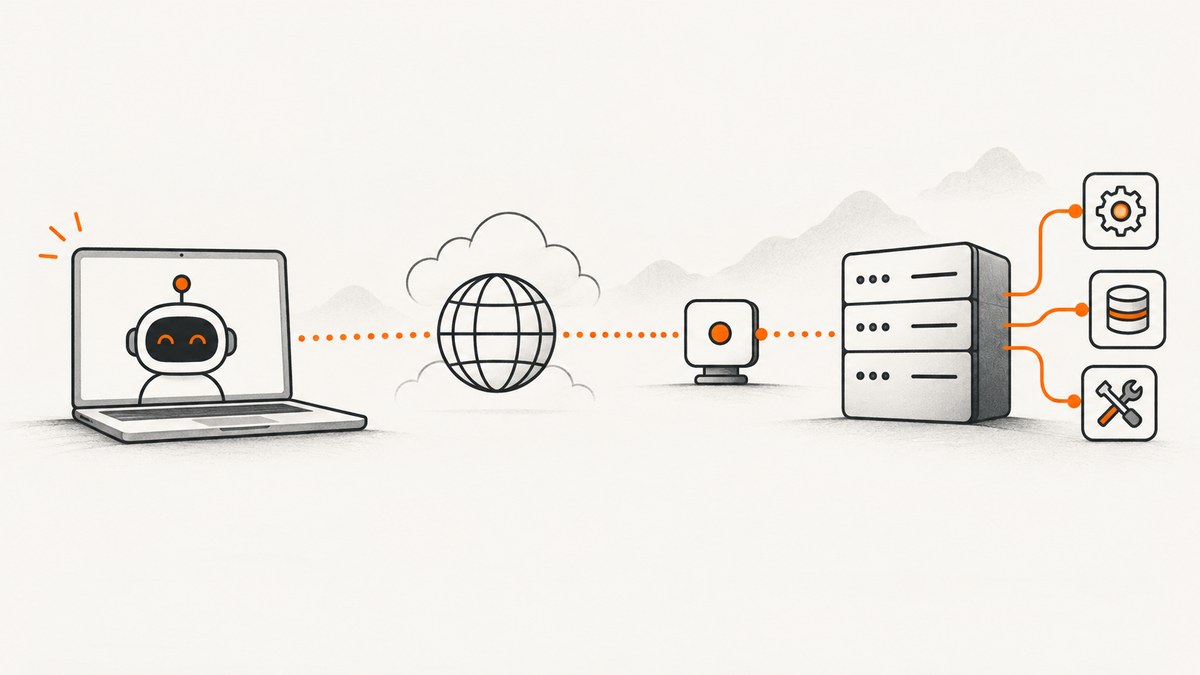
To connect an MCP client to a remote server, add the server’s exact MCP endpoint URL to the client’s remote-server configuration, choose a transport both sides support, and configure authentication if that endpoint requires it. For new remote setups, use Streamable HTTP when available. A website’s home page is not necessarily its MCP endpoint: route paths matter.
The exact menu, configuration fields, and login flow depend on the host application. Get the full endpoint and authentication instructions from the server operator, then follow the client’s documentation for adding a remote or custom server.
1. Get the exact endpoint and transport
Ask the server operator for the complete MCP endpoint, including its route. For example, Google documents https://spanner.googleapis.com/mcp for its Spanner MCP service. The TypeScript SDK also uses http://localhost:3000/mcp as an example. These are examples for specific servers, not interchangeable URLs. Enter the endpoint supplied for the service you intend to use. Google Spanner MCP documentation; MCP TypeScript SDK.
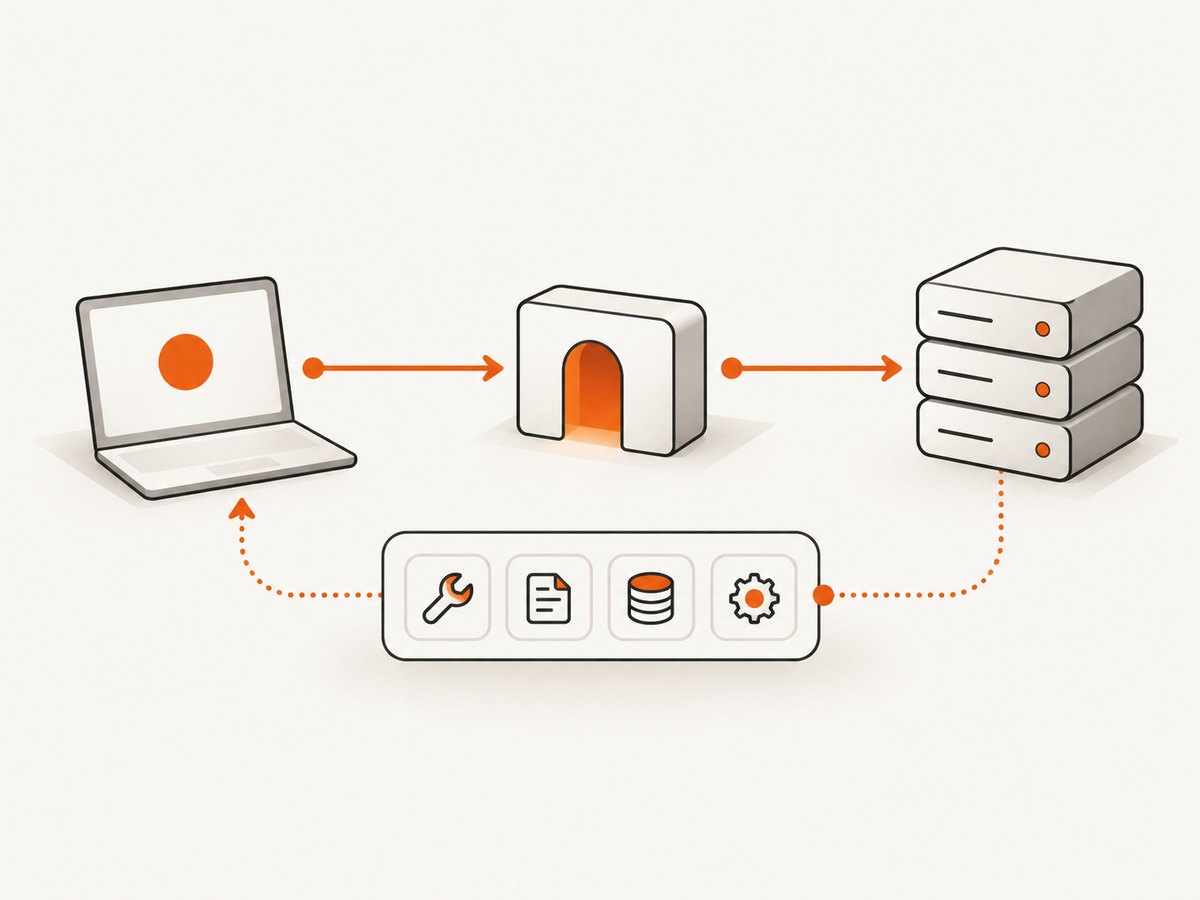
Streamable HTTP is the recommended transport for newly published remote MCP servers in the MCP Registry guidance. Server-Sent Events (SSE) remains relevant for older servers and clients, but the Registry describes it as deprecated for new publishing. Verify transport support on both sides; a client’s ability to connect over HTTP does not mean it supports every legacy protocol. MCP Registry documentation; MCP TypeScript SDK.
2. Add the server in your client
Look in your MCP client for a remote-server, custom-connector, or MCP server setting. If the client accepts a configuration file, use the schema it documents. Do not assume that the same JSON fields or file location work across desktop apps, editors, and agent frameworks.
This JSON illustrates a common shape; it is not a universal client schema:
{
  "mcpServers": {
    "service-key": {
      "url": "https://your-server.example.com/mcp"
    }
  }
}
Use a short, descriptive key for service-key and replace the example URL with the server operator’s exact endpoint. Some hosts accept a url property for remote servers; others use a graphical setup flow or different field names. DigitalOcean’s documentation, for example, shows a mcpServers entry with a URL and optional headers, and notes that setup varies by client. DigitalOcean: Connect to an MCP server.
3. Configure authentication carefully
Authentication is specific to the endpoint and the client. Some MCP servers are public; others require OAuth, a cloud identity, or a server-specific header. Before entering credentials, confirm both what the server accepts and what your client supports. A provider’s OAuth option does not guarantee that every MCP host can complete that flow.
If the host supports OAuth and the server documents it, use the host’s sign-in flow. If the server requires a bearer token and the client supports custom headers, a configuration may look like this:
{
  "mcpServers": {
    "service-key": {
      "url": "https://your-server.example.com/mcp",
      "headers": {
        "Authorization": "Bearer YOUR_TOKEN"
      }
    }
  }
}
This is an illustrative schema: follow your client and server’s instructions for exact field names, token format, and secret handling. Do not commit a real access token to source control or share it in a configuration file other people can read. Use the host’s supported secret substitution or protected credential store when available. DigitalOcean recommends OAuth for its remote services and warns against committing tokens in configuration. That guidance applies to its setup, not automatically to every MCP server. DigitalOcean MCP setup.
For production, consider which identity makes the request. A user identity can make actions attributable to that user and constrained by their permissions. Google recommends a dedicated agent or workload identity for production, limited to the permissions it needs. Check the provider’s identity and authorization model before choosing. Google Cloud MCP authentication.
4. Connect from a TypeScript client
If you are building an MCP client rather than configuring an existing app, the official TypeScript SDK provides a Streamable HTTP transport. Install the SDK package in your project using the package manager and version appropriate to your application, then connect as follows:
import { Client, StreamableHTTPClientTransport } from '@modelcontextprotocol/client';

const endpoint = process.env.MCP_ENDPOINT;
if (!endpoint) throw new Error('Set MCP_ENDPOINT to the full MCP URL');

const client = new Client({ name: 'my-client', version: '1.0.0' });
const transport = new StreamableHTTPClientTransport(new URL(endpoint));

await client.connect(transport);

console.log('Server version:', client.getServerVersion());
console.log('Capabilities:', client.getServerCapabilities());
console.log('Instructions:', client.getInstructions());
Set MCP_ENDPOINT to the route the operator provided, such as https://your-server.example.com/mcp. The SDK’s connect() performs the initialize handshake and resolves once it completes. After that, inspect the negotiated version, advertised capabilities, and any server instructions before using tools. The server may not expose every capability or tool you expect. MCP TypeScript SDK, “Connect to a server”.
If authentication is required, use the SDK version’s documented transport or OAuth support and the server’s specified method. Avoid placing long-lived secrets directly in source code. The v1 SDK reference has an OAuth-specific requirement for an expectedIssuer; this is a version-specific SDK detail, not a universal setting for MCP clients. MCP TypeScript SDK references.
5. Validate the connection and available tools
- Confirm the client shows the server as connected and initialized.
- Inspect the server’s version, capabilities, and instructions if the host exposes them.
- Check the server’s documented tool list and the identity’s access before invoking operations.
- Make a low-impact request first, especially when tools can change data or trigger external actions.
- If tools are missing, check application permissions and server configuration as well as transport status.
A successful connection confirms that the MCP initialization handshake completed. It does not prove that your identity is authorized for every application-level operation. Google Cloud notes that authorization depends on the identity and permissions used. Google Cloud MCP authentication.
Transport and authentication choices
| Choice | Use it when | Check |
|---|---|---|
| Streamable HTTP | The server and client both support it; preferred for a new remote setup. | Confirm the full route and that the host supports this transport. |
| Legacy SSE | The existing server only offers SSE and your client supports it. | Ask the operator whether Streamable HTTP is available for new deployments. |
| OAuth | The server offers it and the host can complete its authorization flow. | Confirm scopes, account, redirect/sign-in behavior, and client support. |
| Token or custom header | The server requires a static credential and the client supports protected headers. | Check expiration, scope, storage, and whether the token is exposed in shared files. |
| User identity | Interactive use should act with the connected user’s permissions. | Understand attribution and the user’s granted access. |
| Agent or workload identity | A production agent needs a dedicated, controlled identity. | Grant only the permissions required for its tasks. |
Provider and host instructions take precedence over this summary. In particular, do not assume every remote server shares a route, accepts the same header, or supports the same OAuth flow.
Common errors and fixes
| Symptom | Likely cause | Fix |
|---|---|---|
| Connection fails immediately | The URL points to the site home page, has a wrong route, or the client cannot use the server’s transport. | Copy the full MCP endpoint from the operator’s docs and confirm transport support on both sides. |
| 401 challenge or access denied | Missing, invalid, expired, or improperly scoped credentials; wrong authentication method; insufficient identity permissions. | Check the endpoint’s auth instructions, refresh or replace the credential, verify required scopes, and confirm the host supports that method. |
| Works in one client but not another | Clients differ in remote HTTP, OAuth, custom-header, and configuration support. | Compare the host’s documented support with the server’s requirements; use a compatible client or supported auth option. |
| Legacy server will not connect | The server only speaks SSE while the client expects Streamable HTTP, or vice versa. | Use a client with the required legacy transport or ask the operator about Streamable HTTP. The SDK documents SSE fallback for compatible cases. |
| Connected, but tools are missing | The server did not advertise the expected capabilities, the account lacks access, or the host has not refreshed its tool list. | Inspect capabilities and instructions, verify permissions, then refresh or reconnect according to the host’s guidance. |
| Configuration parses but server is unavailable | A field name or server-entry shape is valid JSON but invalid for that host. | Use the host-specific schema and config file location; a conceptual mcpServers example is not a cross-client standard. |
For token-related errors, DigitalOcean’s troubleshooting guidance recommends checking that a token is active, correctly scoped, and unexpired. Treat that as guidance for its services; other providers can use different credential formats. DigitalOcean MCP setup and troubleshooting.
Performance, reliability, and operational notes
A remote client depends on network reachability as well as the local host and remote server. If connections are intermittent, verify the endpoint from the same environment as the client, review the provider’s status and logs where available, and follow that client’s reconnect behavior. Do not assume a transport retry is safe for a tool that changes external state; consult the tool’s description before retrying a request that may have partially completed.

Keep the route and authentication configuration in one managed place where practical, and document the service owner, credential rotation method, and required scopes. A dedicated identity with narrowly granted permissions limits the impact of a leaked credential or mistaken tool call. Protect local configuration files and logs that could contain secrets. Provider features, supported transports, and client menus can change; verify current instructions when deploying.
Or skip the browser setup
If your MCP workflow needs website screenshots, ScreenshotNeo offers an MCP server for Claude, Cursor, and other MCP clients, alongside a screenshot API. It can accept cookie and consent banners like a visitor and remove more than 60 known consent platforms, newsletter popups, and chat widgets before capture; each cleanup step can be turned off. Bot checks and CAPTCHAs, blank pages, timeouts, failed loads, and cache hits cost nothing, and responses identify the page verdict and billing status. See ScreenshotNeo and the ScreenshotNeo documentation for its MCP setup and API details.
For a direct screenshot call, use the API key and target URL:
curl -G "https://api.screenshotneo.com/v1/shot" -d access_key=YOUR_API_KEY --data-urlencode url=https://stripe.com -o shot.webpimport requests
r = requests.get(
"https://api.screenshotneo.com/v1/shot",
params={"access_key": "YOUR_API_KEY", "url": "https://stripe.com"},
timeout=90,
)
r.raise_for_status()
open("shot.webp", "wb").write(r.content)const q = new URLSearchParams({ access_key: 'YOUR_API_KEY', url: 'https://stripe.com' });
const res = await fetch(`https://api.screenshotneo.com/v1/shot?${q}`);
if (!res.ok) throw new Error(`Screenshot request failed: ${res.status}`);
const fs = await import('node:fs/promises');
await fs.writeFile('shot.webp', Buffer.from(await res.arrayBuffer()));ScreenshotNeo also supports full-page and element captures, device presets, PDF output, custom headers and cookies, wait conditions, caching, asynchronous jobs, and bulk capture. Its MCP tools include take_screenshot, get_page_info, and capture_pdf. One thousand screenshots per month are free without a card; paid plans start at $5 for 3,000. Sign up for ScreenshotNeo’s free plan.
Frequently asked questions
What URL do I put in the MCP config?
Use the complete MCP endpoint from the server operator, including its route, such as the provider’s documented /mcp path. Do not substitute a home page URL.
Does every MCP client use the same JSON format?
No. Configuration fields, menus, and file paths are client-specific. Treat examples as a starting shape and follow the host’s current setup instructions.
Do remote MCP servers always require OAuth?
No. Authentication is determined by the server, and the client must support that method. Some endpoints are unauthenticated; others require OAuth, an identity, or headers.
Is SSE still usable?
It can be used for compatibility when the server and client support it. For new remote setups, prefer Streamable HTTP when both ends offer it.
Why can I connect but not use a particular tool?
Initialization and application authorization are separate. Check what the server advertises and whether your identity has permission for the operation.


