How to Connect Docker MCP to Claude
Connect Docker MCP Toolkit to Claude Desktop or Claude Code with profiles, CLI commands, manual JSON, verification steps, and fixes for common errors.
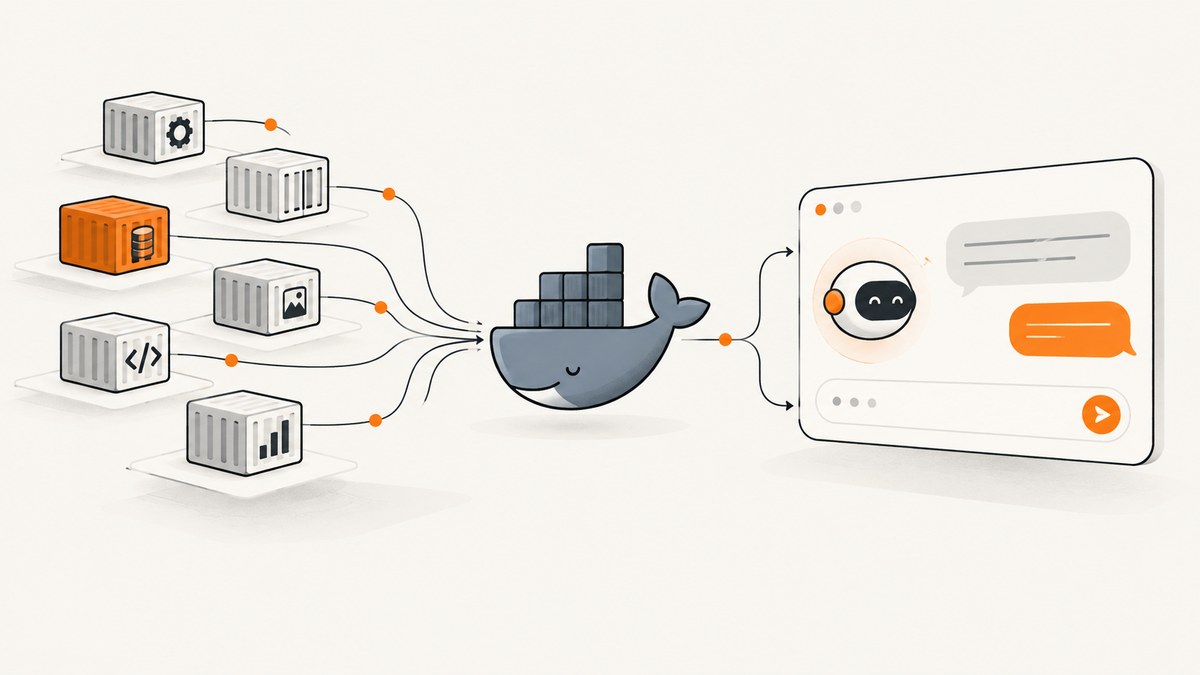
Short answer: Enable Docker MCP Toolkit in Docker Desktop, create or select a profile, add MCP servers to that profile, then connect Claude Desktop from the Toolkit’s Clients tab or register the Docker gateway with Claude Code. Restart Claude Desktop and verify that MCP_DOCKER appears in Claude’s tools. For Claude Code, use claude mcp list and /mcp to confirm the gateway and its tools.
The current Docker instructions apply to the beta MCP Toolkit interface in Docker Desktop 4.62 and later. Earlier Desktop releases use a different interface, so upgrade if menu names or commands do not match. See the Docker MCP Toolkit documentation and the Docker getting-started guide.
How the connection works
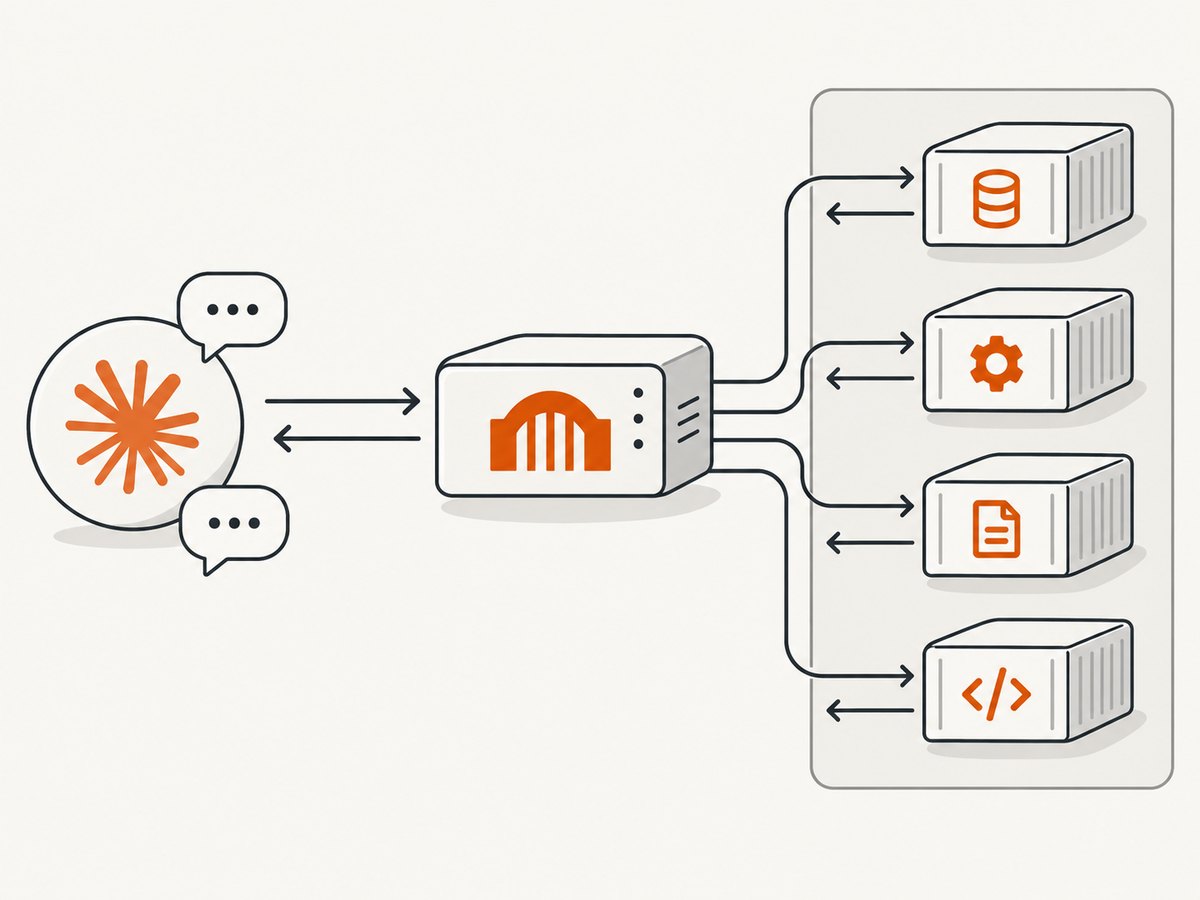
Docker MCP Toolkit manages containerized MCP servers in named profiles. Claude acts as the MCP client, while Docker’s gateway exposes the servers in the selected profile. Add servers first; connecting Claude before a profile contains a server gives Claude a gateway with no useful tools.
| Component | Purpose |
|---|---|
| Docker Desktop | Runs the MCP Toolkit and gateway. |
| MCP Toolkit profile | Groups servers and their configuration for a project or work context. |
| MCP server | Provides tools such as GitHub, browser automation, databases, or other actions. |
| Claude Desktop or Claude Code | Discovers and invokes the tools through MCP_DOCKER. |
Prerequisites
- Docker Desktop 4.62 or later.
- Claude Desktop, or Claude Code installed and available in your shell.
- Permission to enable Docker Desktop beta features.
- An MCP server selected from the Docker catalog, plus any credentials or configuration that server requires.
1. Enable Docker MCP Toolkit
- Open Docker Desktop settings.
- Select Beta features.
- Enable Docker MCP Toolkit.
- Select Apply.
Docker describes the Toolkit as a Docker Desktop management interface for setting up, managing, and running containerized MCP servers in profiles and connecting them to AI agents. Its current UI is beta and documented for Desktop 4.62 and later.
2. Create or select a profile
- Open MCP Toolkit in Docker Desktop.
- Open the Profiles tab.
- Select Create profile, then give it a project-specific name such as
frontend-development. - If Docker already created a
defaultprofile, you can use it instead.
A profile is the boundary that determines which servers Claude can use. Use separate profiles when projects need different tools or credentials.
3. Add MCP servers to the profile
- Open the profile’s Catalog view.
- Find a server and select Add.
- Repeat for each server Claude should access.
- Open the server’s configuration panel and complete required fields.
Some catalog entries require configuration before their tools work. OAuth-enabled servers can be authorized through the Toolkit’s browser flow; Docker says the Toolkit manages those credentials after authorization.
4. Connect Claude Desktop from Docker Desktop
- In MCP Toolkit, open Clients.
- Find Claude Desktop and select Connect.
- Close and restart Claude Desktop if it was already running.
- In Claude Desktop, open the Search and tools menu beside the chat input.
- Confirm that
MCP_DOCKERis listed and enabled.
Now ask Claude to use a tool from one of the servers in your profile. For example, if you added a GitHub server, ask it to show open pull requests in a repository. Use a prompt that matches the server you actually installed.
5. Connect Claude Code
Option A: Docker Desktop’s Clients tab
- Open Docker Desktop → MCP Toolkit → Clients.
- Select Connect next to Claude Code.
- Open Claude Code in the project directory that should use the profile.
- Run
claude mcp list. - Confirm that
MCP_DOCKERappears with a connected status. - Inside Claude Code, run
/mcpto inspect the gateway and available server tools.
Option B: Register the gateway from the Claude Code CLI
Docker’s documented command adds the gateway at user scope:
claude mcp add MCP_DOCKER -s user -- docker mcp gateway runFor a project-specific profile, run the command from the relevant project directory and include the profile argument:
claude mcp add MCP_DOCKER -s user -- docker mcp gateway run --profile my_profileReplace my_profile with the profile ID you created. Then verify:
claude mcp listOpen Claude Code and run:
/mcpIf the gateway is listed but a server is missing, check that the server was added to the selected profile and that its configuration is complete.
6. Manual stdio configuration
Manual configuration is useful when you need to edit the client’s MCP file directly or when the client is not connected through Docker Desktop’s Clients tab. Docker’s Claude Desktop shape uses the mcpServers key:
{
  "mcpServers": {
    "MCP_DOCKER": {
      "command": "docker",
      "args": [
        "mcp",
        "gateway",
        "run",
        "--profile",
        "my_profile"
      ]
    }
  }
}
Use the profile ID exactly as shown by Docker Desktop. The general stdio form documented by Docker is:
{
  "servers": {
    "MCP_DOCKER": {
      "command": "docker",
      "args": ["mcp", "gateway", "run", "--profile", "my_profile"],
      "type": "stdio"
    }
  }
}
Use the configuration key and file location required by your client. Do not mix Claude Desktop’s mcpServers object with a client that expects a different top-level structure.
7. Use Docker’s client connection command
Docker also documents a named-client command pattern:
docker mcp client connect <client> --profile <profile-id>For supported client names, Docker lists values including claude-code and claude-desktop. You can add --global when the client should use a global configuration rather than a project-local one. Check Docker’s client connect reference for the flags available in your Desktop release.
Verification checklist
- Docker MCP Toolkit is enabled in Docker Desktop.
- Docker Desktop is version 4.62 or later, or you have adjusted for the older UI.
- The intended profile exists and is selected.
- At least one MCP server has been added to that profile.
- Required server configuration and OAuth authorization are complete.
- Claude Desktop was restarted after connecting.
- Claude Desktop shows
MCP_DOCKERin Search and tools. claude mcp listshows a connectedMCP_DOCKERfor Claude Code./mcplists the expected gateway tools.- A prompt that explicitly asks Claude to invoke an installed server succeeds.
Common errors and fixes
| Symptom | Likely cause | Fix |
|---|---|---|
| MCP Toolkit is not in Docker Desktop | The feature is disabled or Desktop is too old. | Enable it under Settings → Beta features. Upgrade to Desktop 4.62 or later for the documented UI. |
| Claude Desktop has no MCP_DOCKER entry | The client was connected while closed, or the connection did not complete. | Use MCP Toolkit → Clients → Claude Desktop → Connect, then restart Claude Desktop and check Search and tools. |
| Claude sees MCP_DOCKER but no useful tools | The profile contains no server, or the server was added to another profile. | Open the selected profile and add the required servers from Catalog. |
| A server says configuration required | Required settings or credentials are missing. | Open that server’s configuration panel and complete its fields. Use the OAuth flow when offered. |
claude mcp list does not show MCP_DOCKER |
The command was run in a different scope or project, or registration failed. | Run the documented claude mcp add command again, use the correct project directory and profile, then restart Claude Code. |
/mcp shows a disconnected gateway |
Docker Desktop is not connected or the gateway process cannot start. | Confirm Docker Desktop is running, check the profile ID, and restart Claude Code. |
| Manual JSON is ignored | Wrong file location or top-level key. | Use the client’s expected configuration file and Claude Desktop’s mcpServers key when following Docker’s Claude Desktop example. |
| Tools fail after an OAuth login | The authorization was completed for a different server or profile. | Return to the server’s Configuration tab, select OAuth, and complete authorization for the server in the active profile. |
Security and resource behavior
Docker states that MCP tools run in their own containers limited to 1 CPU and 2 GB of memory. Docker also states that MCP servers have no host filesystem access by default, that file mounts are explicitly selected, and that requests containing sensitive information such as secrets are intercepted. These are Docker’s documented controls; they are not an independent security certification for every third-party server.
Review each server’s provenance, requested credentials, filesystem mounts, and network behavior before adding it to a profile. Keep profiles small and project-specific when a client does not need every available tool.
Profiles, scope and repeatability
| Choice | Use it when |
|---|---|
| Docker Desktop Clients tab | You want the shortest supported setup for Claude Desktop or Claude Code. |
claude mcp add |
You want a repeatable terminal workflow or need to work in a specific project directory. |
| Manual stdio JSON | You need explicit configuration or are connecting a client that is not covered by the Docker UI. |
| Global connection | The same profile should be available across projects for that user. |
| Project-specific profile | Tools and credentials should stay limited to one project or work context. |
Keep profile names and IDs documented with the project. If a team shares setup instructions, include the exact profile ID and the verification command so each developer can detect a scope mismatch quickly.
Performance and reliability notes
- The first tool call can take longer while Docker starts the gateway and the server container.
- Use only the servers a project needs; smaller profiles make discovery and troubleshooting easier.
- Keep Docker Desktop running before starting Claude so the gateway can launch on demand.
- When a tool fails intermittently, check container startup, server credentials, OAuth state, and network access before changing Claude configuration.
- Restart Claude after changing a client connection or manual configuration file so it reloads the gateway definition.
- For repeatable team setup, prefer a named profile and a documented CLI command over ad hoc edits.
Or skip the browser setup
If your goal is to give Claude or another AI agent clean website screenshots, ScreenshotNeo provides a screenshot API and MCP server. Its MCP tools include take_screenshot, get_page_info, and capture_pdf, so an MCP client such as Claude can request captures without you maintaining a browser container.
For a direct API request, see the ScreenshotNeo API documentation.
cURL
curl -G "https://api.screenshotneo.com/v1/shot" -d access_key=YOUR_API_KEY --data-urlencode url=https://stripe.com -o shot.webpPython
import requests
r = requests.get("https://api.screenshotneo.com/v1/shot", params={"access_key": "YOUR_API_KEY", "url": "https://stripe.com"}, timeout=90)
open("shot.webp", "wb").write(r.content)
Node.js
const q = new URLSearchParams({ access_key: 'YOUR_API_KEY', url: 'https://stripe.com' });
const res = await fetch(`https://api.screenshotneo.com/v1/shot?${q}`);
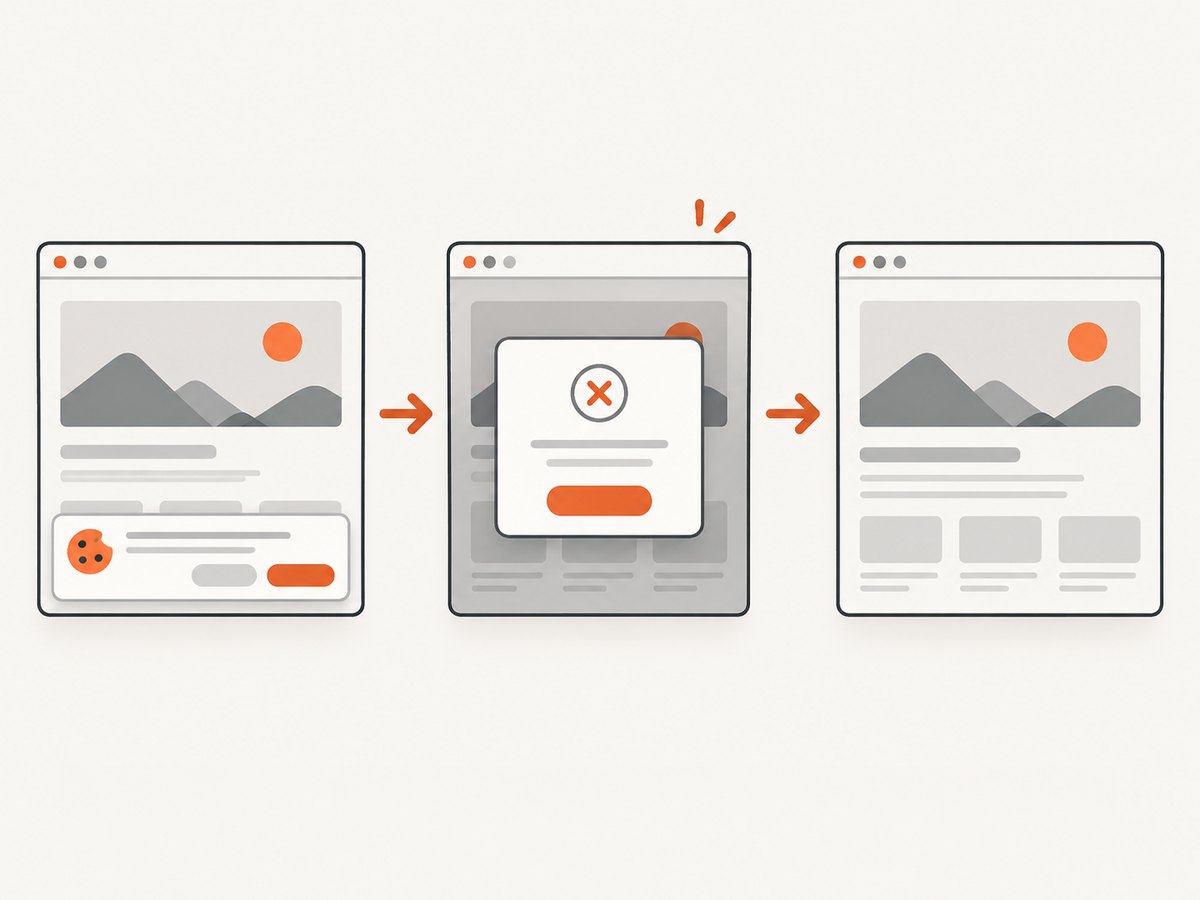
ScreenshotNeo removes cookie and consent banners, newsletter popups, and chat widgets before capture. Bot checks, blank pages, failed loads, timeouts, and cache hits are not billed, and the response identifies the page verdict and billing result with X-Page-Verdict and X-Billed headers. It also supports full-page and element capture, custom waits, device and viewport settings, dark mode, PDFs, custom CSS and JavaScript, request blocking, headers and cookies, geolocation, caching, signed links, asynchronous jobs, bulk capture, and a usage API.
There are 1,000 free screenshots each month with no card. Paid plans start at $5 for 3,000 screenshots. Create a free ScreenshotNeo account.
FAQ
Do I install each MCP server inside Claude?
No. Docker MCP Toolkit runs catalog servers in Docker and exposes them through the gateway. Claude connects to the gateway.
Can Claude Desktop and Claude Code use different profiles?
Yes. Connect each client with the profile appropriate for its project or scope.
Is Docker MCP Toolkit stable?
Docker labels the Toolkit beta. The current documentation targets Docker Desktop 4.62 and later.
Do all MCP servers require OAuth?
No. OAuth is needed only by servers that require authorization to reach an external service.
What should I check first when a tool is missing?
Check the active profile, confirm the server was added to it, and complete any required configuration before changing Claude settings.
Primary references: Docker MCP Toolkit, Toolkit getting started, Docker MCP CLI, client connect command, and Claude Code integration guide.


