How to Connect a GitHub MCP Server to Amazon Q
Connect GitHub’s official MCP server to Amazon Q in the IDE or CLI, authenticate safely, limit tools, and verify the connection.
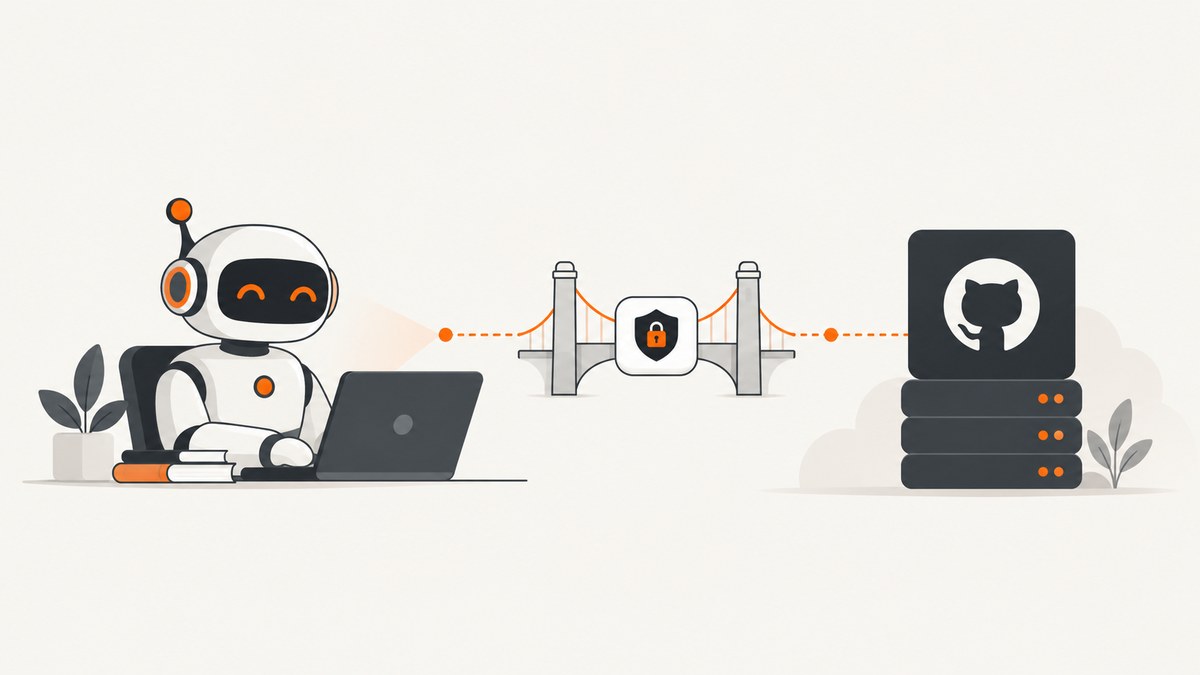
Short answer: Amazon Q Developer can connect to GitHub’s official MCP server either as a local STDIO process or as a remote HTTP server. In the IDE, add the server from the MCP panel and choose global or workspace scope. In the CLI, add it to an agent configuration or with qchat mcp add. Authenticate the GitHub server with OAuth or a GITHUB_PERSONAL_ACCESS_TOKEN, enable only the toolsets you need, then verify the connection in the IDE panel or with /tools.
Use Amazon Q’s own configuration fields instead of copying JSON from another MCP host. GitHub documents that MCP host syntax and stability vary between applications. See the Amazon Q IDE MCP guide, the Amazon Q CLI MCP guide, and GitHub’s official server README.
1. Choose an Amazon Q connection type
| Choice | Use it when | What you provide |
|---|---|---|
| IDE + STDIO | The GitHub server runs on your computer or in Docker. | Command, arguments, and environment variables. |
| IDE + HTTP | You operate or use a remote MCP endpoint. | Endpoint URL and optional headers. |
| CLI + local process | You want the server available to a Q CLI agent. | Agent MCP configuration or qchat mcp add. |
| CLI + HTTP | The server is hosted remotely. | HTTP URL; start OAuth from /mcp when required. |
For most individual developers using GitHub’s published server, IDE + STDIO with Docker is the shortest path. A locally built Go binary is an alternative when Docker is unavailable.
2. Prepare Docker and GitHub authentication
GitHub publishes the image ghcr.io/github/github-mcp-server. Make sure Docker is installed and running before adding the server to Q.
OAuth (interactive)
On GitHub.com, the official local server can open a browser login flow on first use and keep the resulting token in memory. For the Docker callback flow, publish loopback port 8085:
docker run -i --rm \
  -p 127.0.0.1:8085:8085 \
  -e GITHUB_OAUTH_CALLBACK_PORT \
  ghcr.io/github/github-mcp-server
Use the same command and arguments in Amazon Q’s STDIO form. GitHub Enterprise Server and ghe.com can require a different OAuth app or host configuration; follow the enterprise instructions in GitHub’s documentation.
Personal access token (PAT)
Set GITHUB_PERSONAL_ACCESS_TOKEN when you need a managed, non-interactive credential. GitHub states that this variable takes precedence over OAuth. Keep the token in a secret store or environment variable, never in a committed configuration file, and grant only the permissions required by the enabled tools.
export GITHUB_PERSONAL_ACCESS_TOKEN='replace-with-your-token'

docker run -i --rm \
  -e GITHUB_PERSONAL_ACCESS_TOKEN \
  ghcr.io/github/github-mcp-server
3. Add the server in the Amazon Q IDE
- Open Amazon Q in your IDE, open Chat, and select the tools icon to open MCP configuration.
- Choose Add server.
- Select Global to reuse the server across projects, or Local to limit it to the current workspace.
- Choose STDIO.
- Enter
dockeras the command. - Add the arguments for the authentication method you selected.
- Add environment variables such as
GITHUB_PERSONAL_ACCESS_TOKENorGITHUB_OAUTH_CALLBACK_PORT. - Save the server and enable it.
Amazon Q stores global IDE configuration in ~/.aws/amazonq/default.json and workspace configuration in .amazonq/default.json. Workspace configuration takes precedence. Legacy mcp.json locations can be enabled through Q’s documented compatibility setting.
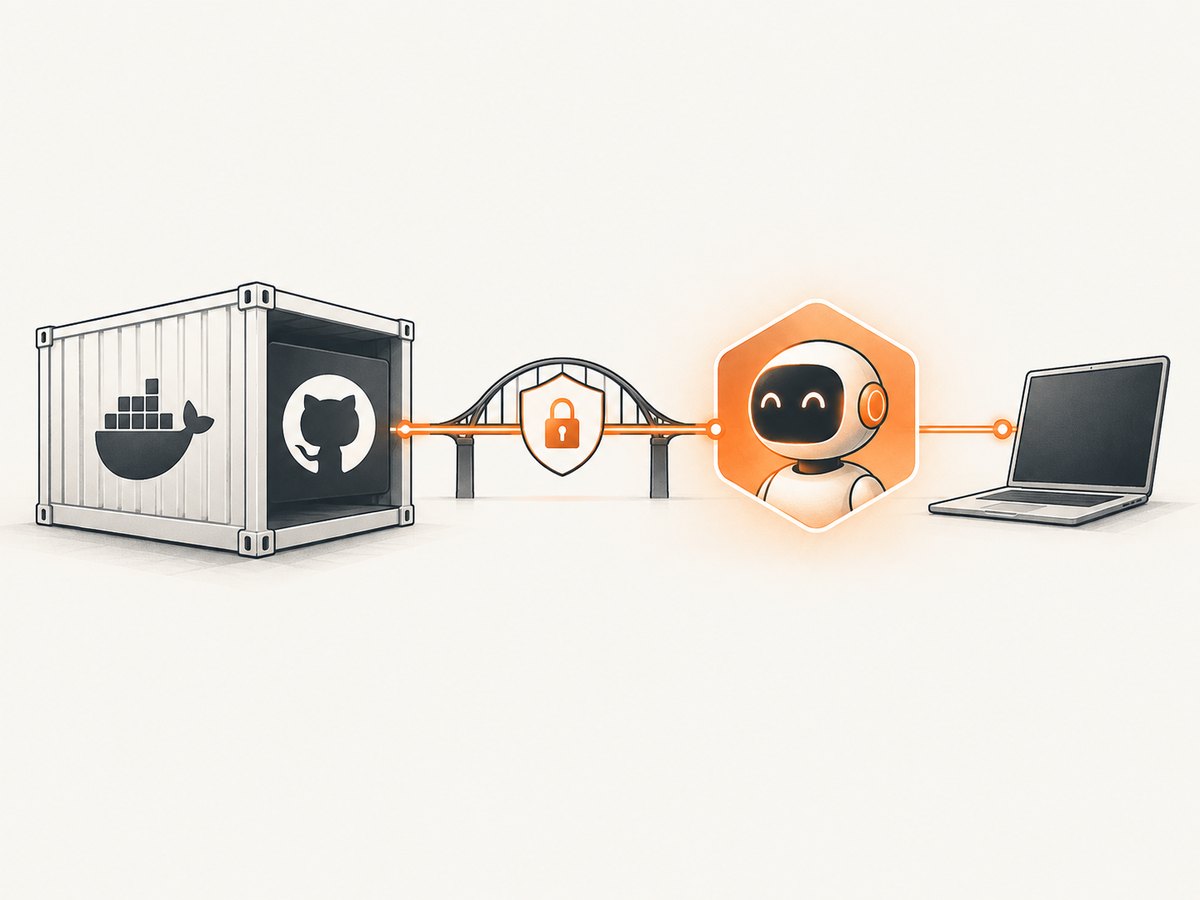
Docker PAT configuration values
| Field | Value |
|---|---|
| Type | STDIO |
| Command | docker |
| Arguments | run, -i, --rm, -e, GITHUB_PERSONAL_ACCESS_TOKEN, ghcr.io/github/github-mcp-server |
| Environment | GITHUB_PERSONAL_ACCESS_TOKEN set to your secret |
Docker OAuth configuration values
| Field | Value |
|---|---|
| Type | STDIO |
| Command | docker |
| Arguments | run, -i, --rm, -p, 127.0.0.1:8085:8085, -e, GITHUB_OAUTH_CALLBACK_PORT, ghcr.io/github/github-mcp-server |
| Environment | GITHUB_OAUTH_CALLBACK_PORT=8085 |
4. Run the server without Docker
GitHub also documents building the server from source. Build the binary in the cmd/github-mcp-server directory, then configure Q to run it with the stdio argument.
git clone https://github.com/github/github-mcp-server.git
cd github-mcp-server
go build -o github-mcp-server ./cmd/github-mcp-server
GITHUB_PERSONAL_ACCESS_TOKEN='replace-with-your-token' ./github-mcp-server stdio
In Q’s STDIO form, use the absolute path to the binary as the command, stdio as its argument, and the token as an environment variable.
5. Limit GitHub capabilities before enabling tools
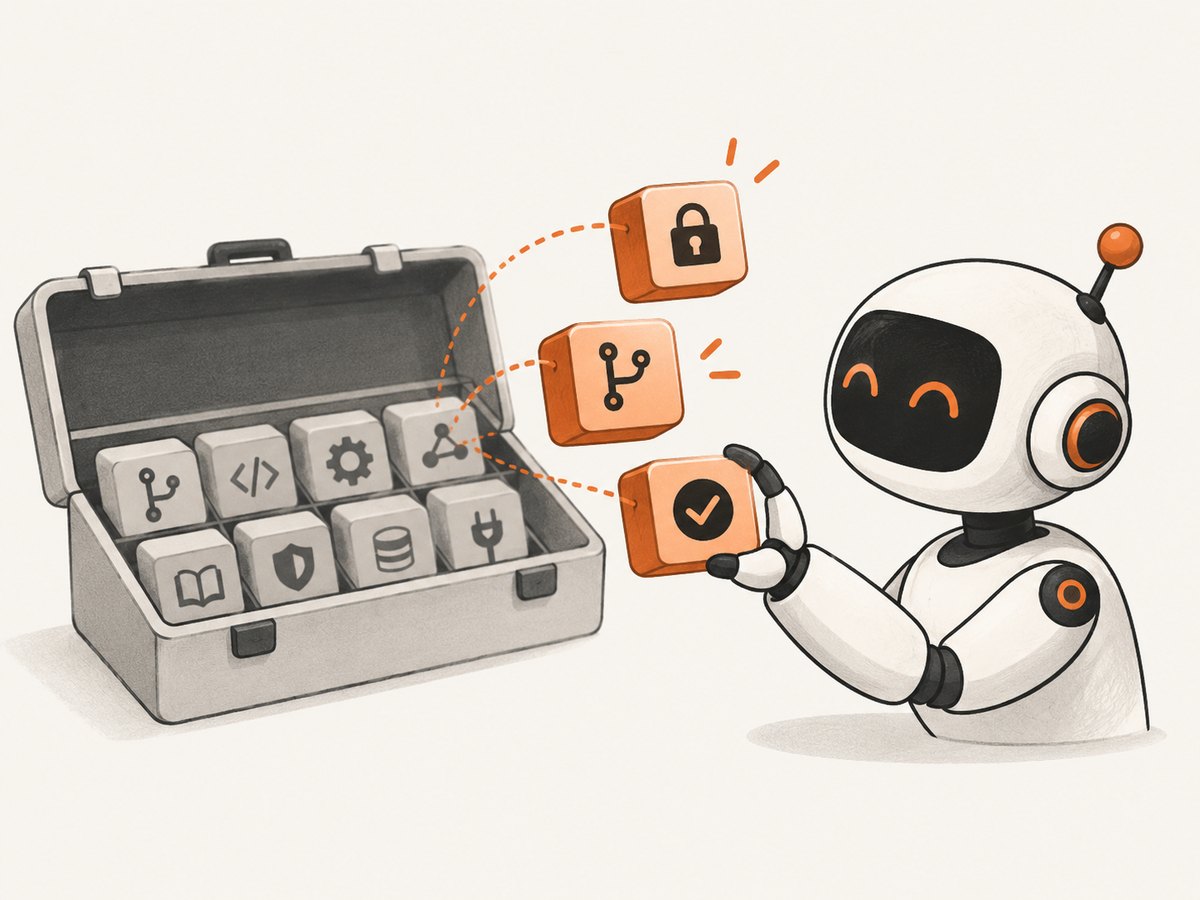
GitHub’s default toolsets are context, repos, issues, pull_requests, and users. You can select additional or narrower groups with --toolsets or GITHUB_TOOLSETS. Limiting toolsets reduces context sent to the model and narrows what it can request.
docker run -i --rm \
  -e GITHUB_PERSONAL_ACCESS_TOKEN \
  -e GITHUB_TOOLSETS='repos,issues,pull_requests' \
  ghcr.io/github/github-mcp-server
You can also select individual tools with GITHUB_TOOLS:
docker run -i --rm \
  -e GITHUB_PERSONAL_ACCESS_TOKEN \
  -e GITHUB_TOOLS='get_file_contents,issue_read,create_pull_request' \
  ghcr.io/github/github-mcp-server
For a read-only setup, use the server’s read-only option:
docker run -i --rm \
  -e GITHUB_PERSONAL_ACCESS_TOKEN \
  -e GITHUB_READ_ONLY=1 \
  ghcr.io/github/github-mcp-server
After the server is connected, review each tool in Amazon Q. Q offers Ask, Always allow, and Deny. Use Ask for operations that can create, edit, merge, comment, or otherwise change GitHub data.
6. Add a remote HTTP server in the IDE
- Open the MCP configuration panel and choose Add server.
- Select HTTP.
- Enter the remote MCP endpoint URL.
- Add any required headers.
- Save and enable the server.
If the endpoint requires supported authorization, Amazon Q can open a browser authorization page. Confirm the URL and authorization requirements if no browser flow starts.
7. Configure the server in Amazon Q CLI
Use the CLI commands available in your installed version:
qchat mcp add
qchat mcp list
qchat mcp status
qchat mcp remove
For a local server, provide the Docker command, arguments, and environment values when prompted or in the agent configuration. For a remote server, use an HTTP MCP entry with its URL. When remote OAuth is required, start authorization from an active Q session with:
/mcpAfter startup, list discovered tools with:
/toolsQ loads MCP servers in the background, so tools may appear progressively. If initialization is slow, adjust the timeout:
q settings mcp.initTimeout 120000The exact agent JSON shape depends on the current Q CLI release. Follow the CLI configuration reference rather than pasting a configuration intended for Claude, Cursor, or another host.
8. Verify the connection
- In the IDE, open the MCP Servers panel and confirm the GitHub server is enabled.
- Check that tools are listed and have the expected permission level.
- Ask Q for a harmless read-only operation, such as listing repositories you can access.
- In the CLI, run
/toolsand wait for the server to finish loading. - Confirm that the tool names and descriptions match the toolsets you selected.
If you enabled only repos, issues, and pull_requests, tools from unrelated toolsets should not be available.
9. Troubleshooting
| Symptom | Likely cause | Fix |
|---|---|---|
| Q reports a connection issue | Incorrect command, arguments, URL, or environment variable. | Recheck each field, run the Docker command in a terminal, then retry the server in Q. |
| No tools appear yet | Background initialization is still running. | Wait, run /tools, and increase mcp.initTimeout if startup consistently exceeds the limit. |
| OAuth browser flow does not complete | The Docker callback is not reachable. | Publish 127.0.0.1:8085:8085 and set GITHUB_OAUTH_CALLBACK_PORT=8085. |
| PAT authentication is ignored | The variable is not passed into the container or is misspelled. | Use -e GITHUB_PERSONAL_ACCESS_TOKEN and verify the variable exists in the environment Q launches. |
| Docker cannot pull the image | Docker is stopped or the registry session is stale. | Start Docker and, if needed, log out of ghcr.io before pulling again. |
| A requested operation is unavailable | The required toolset or individual tool is disabled. | Add the needed toolset, or allow the specific tool in Q’s permissions panel. |
| Q asks for permission every time | The tool is set to Ask. | Keep Ask for write operations, or choose Always allow only for low-risk, read-only tools. |
| Copied JSON fails to parse | The JSON belongs to another MCP host. | Map command, arguments, URL, headers, and environment values into Amazon Q’s documented fields. |
| Enterprise GitHub login fails | GitHub Enterprise Server or ghe.com needs host-specific OAuth or app settings. |
Follow GitHub’s enterprise authentication instructions and set the correct GitHub host. |
10. Security, reliability, and operating notes
- Least privilege: select only the GitHub toolsets and token permissions needed for the task.
- Write protection: use read-only mode where possible and leave Q’s write-capable tools on Ask.
- Secret handling: pass PATs through environment variables or a secret manager; do not commit them to workspace files.
- Scope: use workspace scope for project-specific access and global scope only when reuse is intentional.
- Startup: Docker must be running for every Q session that launches the container.
- Context size: narrower toolsets reduce the number of tool descriptions Q must load.
- Progressive loading: a server can be usable before every MCP server has finished initializing, so verify the individual GitHub server before issuing a request.
11. Or skip the browser setup
If your goal is to capture a screenshot of Q’s MCP configuration, GitHub documentation, or an agent workflow, ScreenshotNeo provides a website screenshot API. It accepts one GET request and returns PNG, JPEG, WebP, or PDF. The API removes cookie banners, newsletter popups, and chat widgets before capture; bot checks, blank pages, failed loads, timeouts, and cache hits are not billed. An MCP server also lets Claude, Cursor, and other MCP clients take screenshots.
See the ScreenshotNeo API documentation for all options.
curl -G "https://api.screenshotneo.com/v1/shot" -d access_key=YOUR_API_KEY --data-urlencode url=https://docs.aws.amazon.com/amazonq/latest/qdeveloper-ug/mcp-ide.html -o shot.webpimport requests
r = requests.get("https://api.screenshotneo.com/v1/shot", params={"access_key": "YOUR_API_KEY", "url": "https://docs.aws.amazon.com/amazonq/latest/qdeveloper-ug/mcp-ide.html"}, timeout=90)
open("shot.webp", "wb").write(r.content)const q = new URLSearchParams({ access_key: 'YOUR_API_KEY', url: 'https://docs.aws.amazon.com/amazonq/latest/qdeveloper-ug/mcp-ide.html' });
const res = await fetch(`https://api.screenshotneo.com/v1/shot?${q}`);Free accounts include 1,000 screenshots per month with no card. Paid plans start at $5 for 3,000 shots. Create a free ScreenshotNeo account.
12. FAQ
Can I use the GitHub server with Amazon Q without Docker?
Yes. Build GitHub’s Go binary and configure Q to run the executable with the stdio argument.
Should I use OAuth or a PAT?
OAuth is convenient for interactive use. A PAT is suited to managed or non-interactive environments. GitHub says the PAT variable takes precedence over OAuth.
Why are tools missing after I add the server?
Initialization may still be in progress, or the selected toolsets and Q permissions may exclude them. Check the IDE panel or run /tools.
Does global scope override workspace scope?
No. Amazon Q gives workspace-level configuration precedence over the global configuration.
Can I connect a remote GitHub MCP endpoint?
Yes. Use HTTP in the IDE or an HTTP server entry in the CLI, then complete the supported authorization flow if required.


