How to Connect Screenshot APIs to AI Agents with MCP
Connect an MCP screenshot server to an AI agent, choose snapshots or pixels, and add reliable hosted captures with runnable examples.

Direct answer: connect a screenshot API to an AI agent by putting an MCP server in front of it. The server exposes a narrow screenshot tool, the agent discovers that tool, sends a URL and capture options, and receives image bytes or a saved artifact reference. For a browser-backed local workflow, Playwright MCP is the ready implementation. For a hosted workflow, use an MCP adapter that validates inputs, calls the screenshot API, and returns a predictable result.
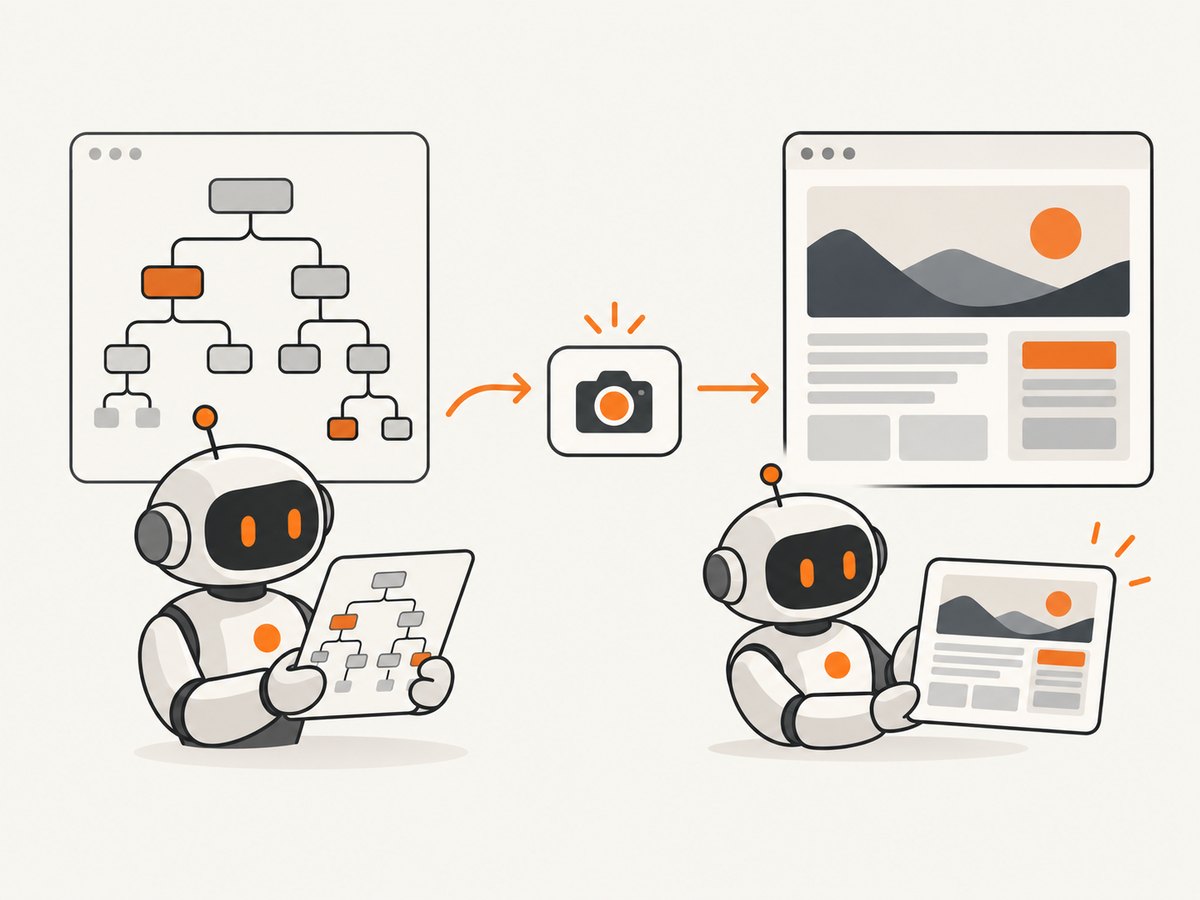
Use accessibility snapshots to find and operate controls, then use screenshots to inspect visual state. A snapshot is the agent’s map for clicking, typing, and reading structure; a screenshot is the evidence for layout, charts, canvas content, responsive rendering, and bug reports.
What MCP adds to a screenshot workflow
The Model Context Protocol (MCP) defines servers that expose prompts, resources, and tools. Tools are model-controlled functions: the language model can discover them and request an operation with structured arguments. That makes a screenshot endpoint callable through the same tool-discovery and tool-call flow as search, file, or database capabilities. See the MCP specification for the protocol model.
A practical architecture has four parts:
- Agent host: Claude Desktop, Cursor, VS Code, Codex, or another MCP client.
- MCP server: a local Playwright server or your own adapter around a hosted screenshot API.
- Capture engine: a browser that renders the page, or an API that performs the render remotely.
- Artifact path: inline image content, a local filename, object storage, or a signed URL.
Option 1: connect Playwright MCP
Playwright describes its MCP server as browser automation through MCP, using structured accessibility snapshots. The official server works with clients including VS Code, Cursor, Windsurf, Claude Desktop, Claude Code, Codex, and Copilot CLI. Its repository and setup details are available at Microsoft’s Playwright MCP project.
1. Register the server
Add this entry to the MCP configuration used by your client:
{
  "mcpServers": {
    "playwright": {
      "command": "npx",
      "args": ["@playwright/mcp@latest"]
    }
  }
}
Restart or reload the client so it starts the server and discovers its tools. Pin a tested package version in production rather than relying on a moving @latest tag.
2. Navigate with a snapshot
Give the agent a task that requires structure first: open a URL, inspect the accessibility snapshot, and identify the element reference to interact with. Snapshots expose stable references for buttons, links, fields, and other controls. The agent can then click, fill, or select without guessing from pixels.
3. Capture the visual state
After interactions are complete, call browser_take_screenshot. The relevant choices are:
| Choice | Use it when |
|---|---|
| Viewport screenshot | You need exactly what is visible after the last interaction. |
| Element target | You are documenting a component, chart, or isolated region. |
fullPage: true |
You need the complete scrollable document. |
filename |
The client or a later process needs a saved artifact. |
| No filename | The MCP host should return the image inline. |
png, jpeg, or webp |
You need lossless output, smaller photographic output, or a modern compressed image. |
scale: "device" |
You need device-resolution pixels for high-resolution inspection. |
4. Give the agent an explicit visual task
Useful prompts identify both the state and the inspection goal: “Open the pricing page, dismiss consent, switch to the annual plan, take a full-page screenshot, and report any clipped table columns.” The agent should use the snapshot for consent and plan controls, then use the screenshot for clipping and visual checks.
Option 2: build a hosted screenshot API adapter
When you do not want every agent machine to install browsers, put a small MCP server in front of a hosted screenshot API. Keep its contract narrow:
screenshot(url, viewport?, full_page?, format?) -> image bytes or artifact URLThe adapter should validate allowed hosts, normalize viewport and format values, enforce a timeout, redact credentials from logs, and return a clear error object when the provider fails. Add authentication and rate limits at the MCP boundary. Do not expose arbitrary request forwarding unless the agent genuinely needs it.
Minimal server shape
The exact MCP SDK differs by language, but the handler should follow this sequence:
- Parse and validate the tool arguments.
- Reject malformed URLs, unsupported formats, and unsafe viewport sizes.
- Call the provider with a server-side credential.
- Preserve the provider’s status and useful verdict headers.
- Return image content or a durable artifact reference.
- Delete temporary files according to your retention policy.
For private sites, decide how authentication is passed. A local Playwright session can use an existing authenticated browser state. A hosted adapter should accept only the headers or cookies required by an approved target and must never print them in logs.
Snapshots versus screenshots
Playwright’s guidance is concise: screenshots are for looking at, while browser_snapshot is for obtaining references to interact with. Use that division deliberately.
| Task | Preferred result | Reason |
|---|---|---|
| Find a submit button | Accessibility snapshot | Provides an actionable element reference. |
| Fill a form | Accessibility snapshot | Text and roles are easier to target than pixels. |
| Check responsive layout | Screenshot | Shows wrapping, spacing, and clipping. |
| Inspect a canvas chart | Screenshot | Canvas pixels may not appear in the accessibility tree. |
| Document a visual bug | Screenshot plus snapshot | The image proves appearance; the snapshot identifies controls. |
Requesting screenshots after every click increases image handling and makes the workflow slower. Take one after the page reaches the state you need, or take a small set at named checkpoints.
Capture configuration that matters
Scope and timing
- Use viewport capture for a user-visible state and full-page capture for documentation.
- Wait for a selector when a known component must exist.
- Use a fixed delay only for a short, known animation or deferred widget.
- Use network idle carefully: analytics, ads, and streaming connections may prevent it from ever occurring.
Rendering controls
Set viewport dimensions and device scale to reproduce the target device. Use a device preset when matching a known mobile or desktop profile; use an explicit viewport when a test requires exact dimensions. Select PNG for pixel-sensitive comparisons, JPEG for photographs, and WebP when a smaller modern image is acceptable.
Authenticated and localized pages
Pass only the required cookies, headers, user agent, timezone, or geolocation. Keep credentials in the MCP host’s secret store. If a page changes by locale, record those settings with the artifact so another agent can reproduce the capture.
Network and privacy controls
Block ads, trackers, unwanted requests, or resource types when they are irrelevant to the visual check. Be cautious: blocking fonts, CSS, or API calls can change the page you are trying to inspect. Hide selectors for known volatile regions such as timestamps or rotating banners when deterministic comparison matters.
“Or skip the browser setup”
ScreenshotNeo gives an MCP server and a hosted screenshot API, so an agent can call take_screenshot, get_page_info, or capture_pdf without managing a local browser. It accepts the URL and capture options in one request. The API also supports full-page captures with lazy images loaded, CSS element capture, dark mode, device presets, custom viewports, retina scale, PDF paper size and page ranges, custom CSS and JavaScript, clicks, selector or network-idle waits, request blocking, headers, cookies, user agents, authorization, timezone, geolocation, transparent backgrounds, resizing, cache TTLs, signed links, asynchronous jobs with signed webhooks, bulk capture of up to 100 URLs per call, usage reporting, and an OpenAPI specification. Common parameter names used by other screenshot APIs also work.
Example calls are documented at the ScreenshotNeo API documentation:
curl -G "https://api.screenshotneo.com/v1/shot" \
  -d access_key=YOUR_API_KEY \
  --data-urlencode url=https://stripe.com \
  -o shot.webp
import requests
r = requests.get(
"https://api.screenshotneo.com/v1/shot",
params={"access_key": "YOUR_API_KEY", "url": "https://stripe.com"},
timeout=90,
)
r.raise_for_status()
open("shot.webp", "wb").write(r.content)const q = new URLSearchParams({
access_key: 'YOUR_API_KEY',
url: 'https://stripe.com'
});
const res = await fetch(`https://api.screenshotneo.com/v1/shot?${q}`);
if (!res.ok) throw new Error(`Screenshot failed: ${res.status}`);
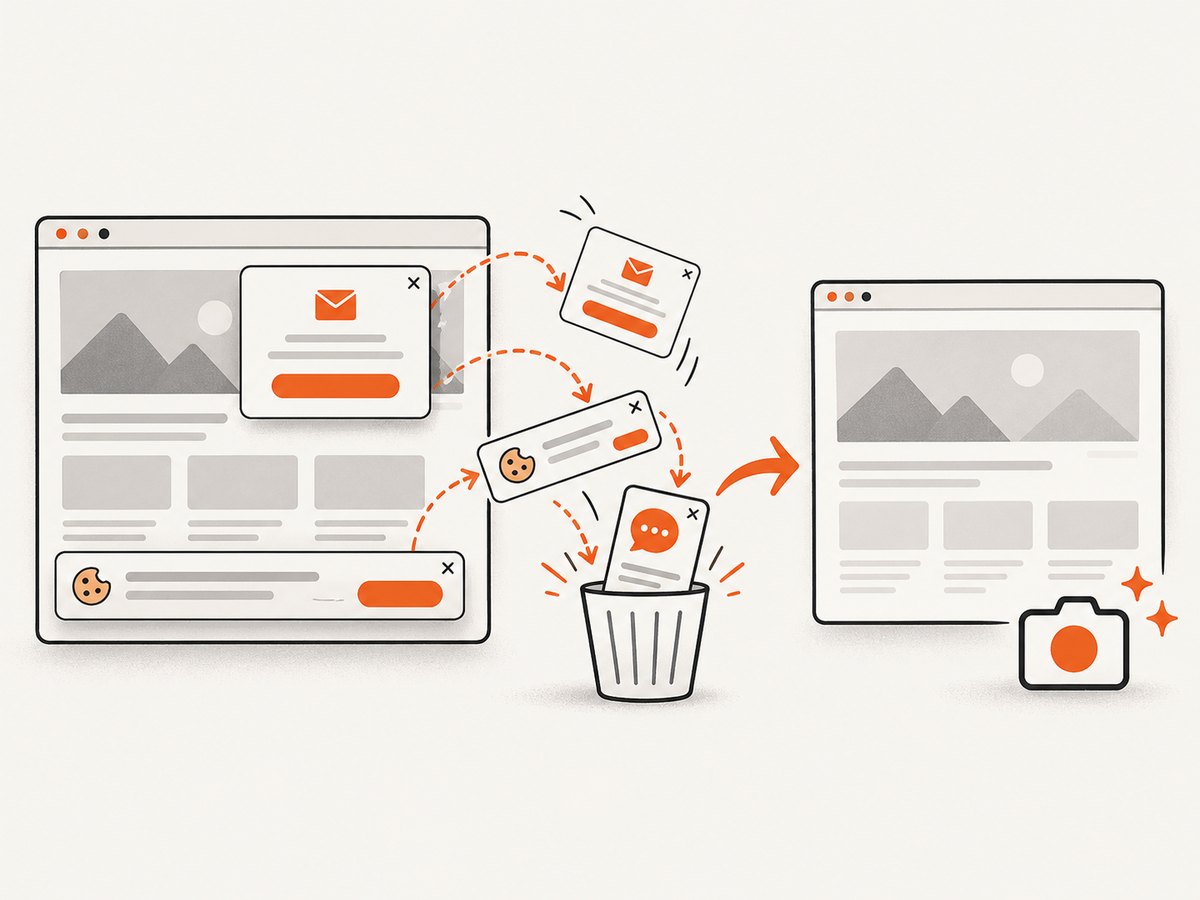
const bytes = Buffer.from(await res.arrayBuffer());ScreenshotNeo accepts cookie and consent banners before capture and removes more than 60 known consent platforms, newsletter popups, and chat widgets; each step can be turned off. Only clean shots are billed. Bot checks or CAPTCHAs, blank pages, timeouts, failed loads, and cache hits cost nothing, and the response identifies the result with X-Page-Verdict and X-Billed headers. Its MCP server works with Claude, Cursor, and any MCP client. The free plan includes 1,000 shots each month with no card; paid plans start at $5 for 3,000 shots. Create a free ScreenshotNeo account.
Reliability, performance, and cost
Reliability checklist
- Set a client timeout longer than the provider’s expected render time.
- Retry only transient transport or server errors, with exponential backoff and a maximum attempt count.
- Do not blindly retry bot checks, invalid URLs, or authorization failures.
- Store the URL, capture options, verdict, billed status, and artifact identifier with each job.
- For asynchronous jobs, verify webhook signatures and make handlers idempotent.
Performance choices
Viewport and element captures generally transfer less data than full-page images. WebP can reduce artifact size; PNG is preferable for exact pixel comparisons. Reuse caching when the page is stable and choose a TTL that matches how often it changes. Bulk capture is useful for a fixed list of pages, while parallel calls should respect the provider quota and your MCP host’s concurrency limit.
Cost controls
Count both requested captures and successful clean captures in your own telemetry, then reconcile with the provider’s usage API. ScreenshotNeo bills only clean shots and identifies billing in response headers. Its plans are Free (1,000/month), Starter ($5 for 3,000), Growth ($15 for 15,000), Pro ($39 for 60,000), Scale ($99 for 250,000), and Business ($249 for 1,000,000); yearly billing gives two months free, and every feature is on every plan.
Troubleshooting
| Symptom | Likely cause | Fix |
|---|---|---|
| The client shows no tools | Invalid config, server process failed, or client was not reloaded. | Validate JSON, run the command manually, inspect client logs, and restart the MCP host. |
| Clicks miss the target | The agent used pixels instead of an accessibility reference, or the page changed. | Take a fresh snapshot, locate the element by role or label, then interact. |
| Screenshot is blank | Navigation failed, a bot check appeared, or capture happened before rendering. | Inspect the verdict/error, wait for a selector or suitable state, and verify the URL outside the agent. |
| Full page is truncated | Lazy content was not loaded or the page uses a virtualized list. | Scroll or wait for the content, then capture; for very long pages, capture sections. |
| Network-idle wait hangs | Analytics or a persistent connection never becomes idle. | Use a selector wait or bounded delay instead. |
| Private page redirects to login | Cookies or authorization headers were not supplied, or the session expired. | Refresh authenticated state and pass only the required credentials securely. |
| Artifacts are too large | Full-page PNG at device scale. | Use element or viewport scope, WebP, a lower scale, or resizing. |
| Costs are higher than expected | Repeated uncached captures or unnecessary retries. | Set a cache TTL, avoid duplicate checkpoints, and stop retrying permanent failures. |
Security and deployment checklist
- Allow-list hosts when agents can request arbitrary URLs.
- Keep API keys, cookies, and authorization headers out of prompts and logs.
- Expose only the MCP capabilities the workflow needs.
- Review whether file output, navigation, authenticated state, and external requests require user approval in your client.
- Define artifact retention and delete temporary screenshots.
- Return structured errors that distinguish validation, navigation, provider, and timeout failures.
FAQ
Can an agent use only screenshots?
It can, but interaction is more reliable with accessibility snapshots and element references. Reserve screenshots for visual verification and evidence.
Should I run Playwright locally or use a hosted API?
Use local Playwright when the agent needs browser interaction or local authenticated state. Use a hosted API when you want a smaller client setup, centralized controls, or repeatable server-side capture.
Can MCP return an image inline?
Yes. A screenshot tool can return image content, or it can save the file and return a path or artifact URL. Choose one contract and document its retention behavior.
Where does MCP Apps fit?
MCP Apps extends MCP with interactive views. It is useful when a screenshot workflow needs an embedded preview, crop controls, comparison slider, or approval form alongside the agent’s text response.
How should I test a screenshot tool?
Test invalid URLs, slow pages, redirects, consent banners, authenticated pages, missing selectors, full-page lazy content, bot checks, and repeated requests. Assert both the image result and the structured verdict or error.


