How to Connect to an MCP Server
Connect an MCP client to a local server with stdio or a remote server with Streamable HTTP. Includes runnable TypeScript and Python examples, OAuth guidance, and troubleshooting.

To connect to an MCP server, first match the transport to where the server runs: use stdio when your client launches a local server process, and Streamable HTTP when the server is available at a remote MCP endpoint. Complete the connection handshake before calling tools, resources, or prompts. For an older remote server that only supports HTTP+SSE, use a client with legacy SSE support.
The examples below use the MCP TypeScript SDK v2 for local and remote connections, with a Python example for the context-managed client lifecycle. SDK APIs and package versions can change, so check the current TypeScript SDK guide and Python SDK guide when adapting them. The TypeScript v2 package documented by the SDK is @modelcontextprotocol/client.
1. Choose the transport that matches your server
A transport determines how protocol messages travel between the MCP client and server. It is not a choice based only on preference: confirm what the server supports and where it runs.
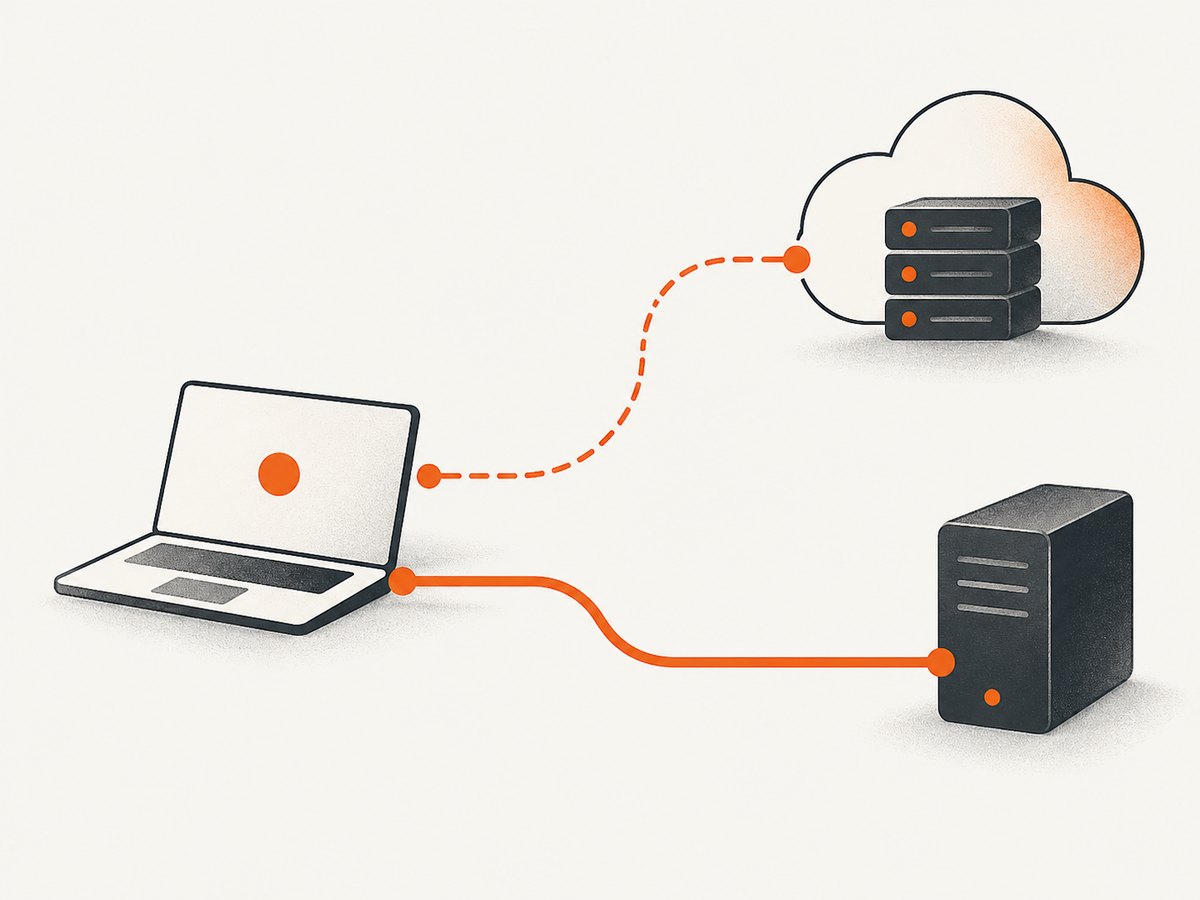
| Connection | Use it when | Client configuration | Typical issue |
|---|---|---|---|
| stdio | The server runs locally and the client starts it as a child process. | Executable command and arguments; sometimes environment variables. | The command is missing from the host’s PATH or fails during startup. |
| Streamable HTTP | The server is remote and exposes an MCP HTTP endpoint. | Endpoint URL and, if protected, the server’s required authorization flow. | Wrong endpoint, unsupported transport, or failed authorization. |
| HTTP+SSE | A remote server supports only the older SSE transport. | An MCP client with legacy SSE support. | Trying the modern HTTP transport against an SSE-only server. |
The MCP TypeScript SDK’s v2 connection guide shows creating a client, selecting a transport, and passing it to connect(). Its documented flow attempts Streamable HTTP for remote connections; SSE is a compatibility path for older servers. [Source: MCP TypeScript SDK connection guide]
2. Connect to a local server with stdio
With stdio, the client launches the server executable and exchanges protocol messages through the process’s standard input and output. The command must be available in the environment of the program launching the client. That environment may differ from your interactive terminal, especially when a desktop host starts the process.
Install the TypeScript client package
npm install @modelcontextprotocol/clientConfirm the package version and API against the SDK’s current package reference before starting a new project. [MCP TypeScript SDK]
Runnable TypeScript stdio client
Save this as stdio-client.mjs. Replace YOUR_SERVER_COMMAND and the arguments with the command and arguments documented by your server. This example lists the tools after the initialization handshake and then closes the client.
import { Client } from "@modelcontextprotocol/client";
import { StdioClientTransport } from "@modelcontextprotocol/client/stdio";

const client = new Client({
  name: "example-stdio-client",
  version: "1.0.0",
});

const transport = new StdioClientTransport({
  command: "YOUR_SERVER_COMMAND",
  args: ["--example-argument"],
});

try {
  await client.connect(transport);
  const result = await client.listTools();
  console.log(JSON.stringify(result, null, 2));
} finally {
  await client.close();
}
Run it with Node.js:
node stdio-client.mjsSome servers need environment variables, a working directory, or additional command-line arguments. Supply those using the options supported by the specific SDK version and server. Do not assume a shell expands ~, environment variables, or shell operators in the command: process launch APIs may invoke an executable directly rather than through a shell.
3. Connect to a remote server with Streamable HTTP
For a remote server, configure the MCP endpoint URL, not merely the website’s home page. The server documentation should identify the MCP endpoint and whether it requires authorization. After the client connects, the initialization handshake negotiates protocol details and exposes the server’s capabilities and instructions.
Runnable TypeScript HTTP client
Save as http-client.mjs and replace the example URL with the endpoint supplied by your MCP server operator.
import { Client } from "@modelcontextprotocol/client";
import { StreamableHTTPClientTransport } from "@modelcontextprotocol/client/streamableHttp";

const client = new Client({
  name: "example-http-client",
  version: "1.0.0",
});

const transport = new StreamableHTTPClientTransport(
  new URL("https://mcp.example.com/mcp"),
);

try {
  await client.connect(transport);
  const result = await client.listTools();
  console.log(JSON.stringify(result, null, 2));
} finally {
  await client.close();
}
Use the import paths, transport constructor, and cleanup calls documented for the SDK version installed in your project. The SDK guide also describes closing the client and terminating an HTTP session when the server issued a session ID. [MCP TypeScript SDK: connect to a server]
4. Connect from Python
The Python SDK uses an asynchronous context manager in its documented client flow. Entering the context connects; leaving it disconnects. The code below shows the lifecycle shape. The exact transport helper and server configuration depend on the Python SDK version and whether the server is local or remote, so use the current Python SDK client guide to fill in the transport constructor for your deployment.
import asyncio

# Import the client session and transport helper documented for your
# installed MCP Python SDK version.
from mcp import ClientSession
from mcp.client.stdio import stdio_client, StdioServerParameters

async def main():
    server = StdioServerParameters(
        command="YOUR_SERVER_COMMAND",
        args=["--example-argument"],
    )

    async with stdio_client(server) as (read_stream, write_stream):
        async with ClientSession(read_stream, write_stream) as session:
            await session.initialize()
            tools = await session.list_tools()
            print(tools)

asyncio.run(main())
Install the Python SDK according to its current project instructions, then verify the import names and transport API for the installed release. The key lifecycle point is to initialize inside the context and let the context managers close the session and transport. [MCP Python SDK: The Client]
5. Complete the handshake, inspect capabilities, and call a tool
Opening a process or an HTTP connection is only the transport layer. The MCP client still needs to initialize with the server. In the TypeScript SDK, connect() performs that handshake and resolves with negotiated protocol information; only then should the client request the server’s tools or other supported capabilities.

A minimal tool invocation after the TypeScript example’s connect() might look like this, with the tool name and input schema taken from the server’s tool listing:
const tools = await client.listTools();
console.log(tools);

// Replace the name and arguments with a tool and schema returned above.
const result = await client.callTool({
  name: "TOOL_NAME_FROM_SERVER",
  arguments: {},
});
console.log(result);
Do not assume every server provides tools, or that a tool name and argument shape are shared across servers. Inspect the advertised capabilities and tool definitions, then pass arguments that match the returned schema. Resources and prompts are likewise server- and SDK-dependent.
6. Handle legacy SSE and protected endpoints
Legacy HTTP+SSE
If the server is remote but does not support Streamable HTTP, check whether it offers the older HTTP+SSE transport. The TypeScript SDK v2 guide documents trying Streamable HTTP first and retrying with SSE on a fresh client when appropriate. A fresh client matters because a failed connection attempt may already have changed client state. Follow the SDK’s current fallback example rather than reusing an initialized or failed client blindly. [MCP TypeScript SDK connection guide]
OAuth and authorization
A protected remote MCP endpoint may respond with HTTP 401 to signal that authorization is required. In the documented MCP Apps flow, the host discovers authorization metadata, obtains authorization from the user through OAuth, and retries with the acquired token. Some servers enforce authorization for every request; others protect only selected tools. [MCP authorization documentation]
Do not paste a bearer token into a client configuration as a universal fix. The server’s authorization design and the host’s OAuth support determine the correct setup. For an SDK client, use that SDK’s supported authorization provider and follow the server’s instructions. Never place a long-lived secret in source code committed to a repository.
7. Configure a desktop host or other MCP client
Desktop clients and AI coding hosts each provide their own way to register servers. There is no universal MCP configuration file path or button sequence. Use the host’s current documentation and the server’s launch or endpoint instructions, then map them to the transport:
- For local stdio: enter the executable command and arguments, plus any documented environment values.
- For remote HTTP: enter the MCP endpoint URL and complete the host’s supported authorization flow if prompted.
- Restart or reload the host if its documentation requires this after editing a server definition.
- Verify the connection by checking whether the host lists the server’s capabilities or tools.
- Run a low-impact operation to confirm that the server can handle a real request.
If you need exact click-by-click steps, the required details are the host, server, operating system, and host or SDK version. The connection concepts remain the same, but labels and configuration formats vary.
8. Troubleshooting common connection errors
| Symptom | Likely cause | What to check or change |
|---|---|---|
spawn ... ENOENT |
The executable cannot be found in the environment used by the host. | Check the exact executable path and spelling. Test it from the same environment that launches the client; use an absolute path if the host has a different PATH. |
| Local process starts then connection closes | The command or arguments are wrong, the server exits at startup, or it writes non-protocol output to stdout. | Run the server command independently, verify required arguments and environment values, and inspect stderr or the host’s server logs. Keep protocol stdout free of debug output when the server requires it. |
| Remote URL times out or returns a non-MCP page | The URL points to a website route rather than the MCP endpoint, or the endpoint is unavailable. | Copy the endpoint from the server’s setup documentation and check reachability, TLS, and the server’s published transport. |
| Streamable HTTP connection fails, SSE works | The server may support only the legacy HTTP+SSE transport. | Use an SDK/client with SSE compatibility and the documented fallback procedure. |
| HTTP 401 or authorization error | The endpoint is protected and the host has not completed the required authorization flow. | Check the server’s authorization metadata and confirm the host supports its OAuth flow. Avoid treating a copied token as a general solution. |
| Connected, but no tools appear | The server may not expose tools, or the client is querying before initialization. | Wait for connect() or session initialization to finish, then inspect advertised capabilities. Check resources or prompts if those are what the server provides. |
| Client works once but later requests fail | The client, transport, or HTTP session may have been closed or expired. | Follow the SDK lifecycle, create a new client after a failed transport attempt, and close sessions cleanly when finished. |
The TypeScript SDK’s first-client guide specifically calls out a missing executable on PATH as a cause of ENOENT. [Build your first client]
9. Reliability, performance, and operational notes
- Keep startup deterministic: use a stable executable path and provide required arguments and environment explicitly. This reduces failures caused by differences between a terminal and a host process.
- Wait for initialization: do not issue tool requests until the handshake is complete. Let the SDK manage protocol negotiation rather than hard-coding a protocol revision without a specific need.
- Use the right transport: a local subprocess avoids requiring a public endpoint, while remote HTTP lets a client reach a separately hosted server. Each still depends on the relevant process or network being available.
- Close cleanly: release child processes and HTTP sessions according to the SDK lifecycle. For long-running hosts, this prevents abandoned process or session state.
- Set timeouts at the application boundary: choose request deadlines that fit the server’s work, and handle timeouts as failed operations rather than assuming a partially completed call succeeded.
- Log useful diagnostics: record the selected transport, endpoint or executable name, initialization failures, and server-side errors. Redact credentials and sensitive arguments.
- Account for authorization separately: transport connectivity does not guarantee permission to use every server feature. Authorization may apply server-wide or to particular tools.
The supplied MCP connection documentation does not establish universal latency, uptime, or cost figures. Those depend on the server, network, host, and the work performed by tools. For a remote service, consult that service’s own operational and pricing information.
10. Or skip the browser setup
If the MCP server you need is for website screenshots, ScreenshotNeo provides an MCP server for Claude, Cursor, and any MCP client, with tools named take_screenshot, get_page_info, and capture_pdf. It also offers a one-call screenshot API. The API accepts a URL and returns a PNG, JPEG, WebP, or PDF; see the ScreenshotNeo API documentation.
curl -G "https://api.screenshotneo.com/v1/shot" -d access_key=YOUR_API_KEY --data-urlencode url=https://stripe.com -o shot.webpPython:
import requests
r = requests.get("https://api.screenshotneo.com/v1/shot", params={"access_key": "YOUR_API_KEY", "url": "https://stripe.com"}, timeout=90)
open("shot.webp", "wb").write(r.content)
Node.js:
const q = new URLSearchParams({ access_key: 'YOUR_API_KEY', url: 'https://stripe.com' });
const res = await fetch(`https://api.screenshotneo.com/v1/shot?${q}`);
Cookie banners, newsletter popups, and chat widgets are removed before the shot. Bot checks, blank pages, and failed loads are never billed; the response identifies the page verdict and billing status in headers. You can connect its MCP server to an AI agent, or use the API directly. The free plan includes 1,000 screenshots a month with no card; paid plans start at $5 for 3,000. Sign up for 1,000 free screenshots a month, no card required.
FAQ
Can I connect to an MCP server without writing a client?
Yes. Use an MCP-capable host and register the server using that host’s instructions. You still need the correct transport details: a command for local stdio or an endpoint URL for remote HTTP.
Does every MCP server expose tools?
No. A server advertises the capabilities it supports. Inspect its capabilities after initialization and use the operations it actually provides.
Is Streamable HTTP the same as a normal REST API?
No. Configure the MCP endpoint with an MCP-compatible client and transport. A regular HTTP request to a website or unrelated API route does not perform the MCP initialization handshake.
Which details should I share when asking for setup help?
Include the client or host name and version, operating system, server name and version, transport, sanitized configuration, and the full error text. Remove tokens and other secrets first.


