Convert HTML to Image in Rust
Render arbitrary HTML, CSS, and JavaScript to PNG or JPEG in Rust with headless Chromium, reliable waits, full-page capture, and production fixes.

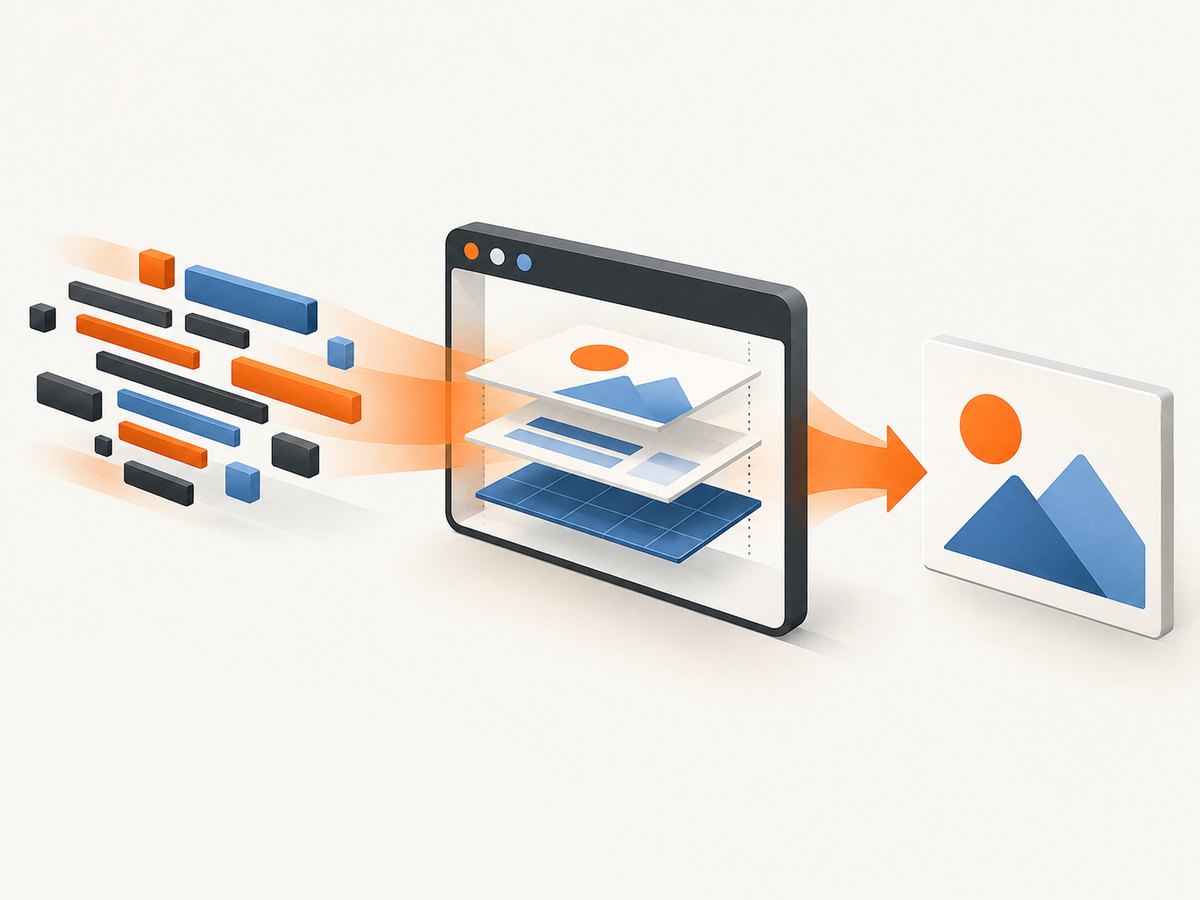
To convert arbitrary HTML to an image in Rust, render it in a real browser and capture the rendered page. A headless Chromium controlled through the Chrome DevTools Protocol handles CSS layout, JavaScript, fonts, images, and modern browser APIs. The headless_chrome crate provides this control from Rust. For a simpler fetch-and-capture workflow, web_capture packages HTML retrieval and screenshot rendering.
Do not treat HTML as a text format that can be painted directly with an image library. Browser layout is affected by CSS, JavaScript, external resources, viewport dimensions, device scale, and page readiness. A browser gives you the same rendering model your users see.
1. Choose a rendering approach
| Approach | Best for | Trade-offs |
|---|---|---|
headless_chrome |
Arbitrary HTML, CSS, JavaScript, full-page or element screenshots | You operate a compatible Chromium process and its fonts/assets |
web_capture |
Fetching a URL or HTML and producing a PNG with a higher-level API | Less low-level control than direct DevTools use |
| Chrome CLI | Scripts, diagnostics, and smoke tests | Your Rust program must manage processes, timing, and files |
headless_screenshot |
Reading back an offscreen wgpu texture from an application you already render | It is not an HTML/CSS layout engine |
For browser fidelity and control, use headless_chrome. For a small command-line utility, invoking Chrome directly may be enough. Pin the Chromium version, fonts, and crate versions when reproducible pixels matter; browser versions and operating systems can produce different rasterization.
2. Set up a Rust project
cargo new html-to-image
cd html-to-image
cargo add headless_chrome
Install Chromium or Chrome on the machine that runs the program. In containers, include the browser binary and the system libraries it needs. Some crate configurations can download a Chromium binary; choose one policy and pin it for repeatable deployments.
3. Capture a URL with headless_chrome
The following program opens a tab, sets a viewport, navigates, waits for a page element, captures a PNG, and writes it to disk. The API is a high-level interface over Chrome DevTools Protocol; consult the crate documentation for version-specific type names and options.
use headless_chrome::{protocol::page::ScreenshotFormat, Browser, LaunchOptionsBuilder};
use std::error::Error;
use std::time::Duration;

fn main() -> Result<(), Box<dyn Error>> {
    let browser = Browser::new(
        LaunchOptionsBuilder::default()
            .headless(true)
            .window_size(Some((1440, 900)))
            .build()?,
    )?;

    let tab = browser.new_tab()?;
    tab.navigate_to("https://example.com")?;
    tab.wait_until_navigated()?;

    // Wait for a meaningful application element instead of guessing a delay.
    tab.wait_for_element("body")?;
    std::thread::sleep(Duration::from_millis(250));

    let png = tab.capture_screenshot(
        ScreenshotFormat::PNG,
        None,
        true,
    )?;
    std::fs::write("page.png", png)?;
    Ok(())
}
The exact constructor and screenshot arguments can vary with the crate release, so pin the version in Cargo.lock and check the matching API documentation. The important sequence is stable: launch Chromium, create a tab, navigate, synchronize navigation, wait for content, then capture.
4. Render HTML you generate yourself
When your source is an HTML string rather than a public URL, load it into the page using the page API supported by your browser-control crate. A typical implementation either calls a set_content-style method or serves the string from a local HTTP endpoint and navigates to that URL. Serving through HTTP is often easier when the document contains relative CSS, images, fonts, or module scripts.
let html = r#"<!doctype html>
<html>
  <head>
    <meta charset="utf-8">
    <style>
      body { margin: 0; font-family: sans-serif; background: #f7f7f7; }
      .card { width: 720px; padding: 32px; margin: 40px auto; background: white; }
    </style>
  </head>
  <body><article class="card"><h1>Hello from Rust</h1></article></body>
</html>"#;

// Use your crate version's set_content API, or navigate to a local server
// that returns `html` with Content-Type: text/html.
If the HTML references /styles.css or relative image paths, a data: URL or raw content injection may not resolve them as expected. A temporary local server gives assets a predictable origin and makes browser security behavior closer to production.
5. Control viewport, scale, and capture area
- Viewport: Set width and height before navigation or before responsive layout settles. A 1440px viewport can select a different breakpoint than 390px.
- Device scale: Use the browser’s device scale factor when you need retina-sized output. Remember that a 2x scale doubles pixel dimensions and memory.
- Viewport screenshot: Captures only what is visible in the viewport.
- Full-page screenshot: Captures the document’s complete scrollable height. Very tall pages can consume substantial memory.
- Element screenshot: Wait for a selector and capture its bounding box. This is useful for cards, invoices, charts, and components.
- Format: PNG preserves sharp text and transparency; JPEG is smaller for photographic content but loses alpha and uses lossy compression.
For an element capture, wait for the element after the page has rendered and use the crate’s element screenshot method. If the element changes size after fonts or images load, wait for those resources or capture after a layout-stability check.
6. Wait for the page to be ready
Navigation completion only means the browser reached a navigation milestone. Single-page applications may still be fetching data, web fonts, or images. Reliable captures use explicit readiness signals:
- Wait for navigation.
- Wait for a selector that proves the main content exists.
- Wait for application state such as
window.__READY__when your app can expose it. - Wait for images and fonts if they affect layout.
- Use a short bounded delay only for animations or late browser work that cannot expose a signal.
// Conceptual readiness check; execute JavaScript with the API provided by your crate.
// return document.fonts ? document.fonts.status : "unknown";
// Check image completion before capture:
// [...document.images].every(image => image.complete)
Disable animations for deterministic output with injected CSS:
* { animation: none !important; transition: none !important; caret-color: transparent !important; }
7. Full-page and element capture details
Full-page mode may stitch or resize the browser surface depending on the DevTools implementation. Fixed-position headers can appear repeatedly or overlap content. Test pages with sticky navigation, large canvases, virtualized lists, and infinite scrolling. For an infinite list, define a finite capture boundary or capture a known element instead.
Element screenshots depend on the element’s computed box. Padding, transforms, shadows, and overflowing children may extend beyond that box. If a shadow is clipped, capture a wrapper with sufficient padding. For charts rendered to canvas, wait until the chart library has drawn before taking the image.
8. Chrome command-line equivalent
Chrome’s headless documentation defines the equivalent diagnostic command: --screenshot writes screenshot.png, while --window-size controls the viewport.
google-chrome --headless --disable-gpu \
  --window-size=1440,900 \
  --screenshot=page.png \
  https://example.com
This is useful for checking whether a problem is in Rust orchestration or in browser rendering. In production, handle process exit status, stderr, timeouts, temporary files, and cleanup explicitly.
9. Network, fonts, and browser configuration
- Allow outbound access to every stylesheet, image, font, and API the page needs, or bundle those assets locally.
- Use a stable user agent and timezone when responsive or localized content matters.
- Provide fonts in the container; missing fonts change line wrapping and therefore image dimensions.
- Use request interception or blocking only when you understand dependencies. Blocking analytics is usually safe; blocking a script that supplies page data is not.
- Set a navigation timeout and an overall job timeout. A page waiting on an unavailable request should not hold a worker forever.
- Keep browser instances warm for batches, but isolate jobs if pages can leak state, cookies, or memory.
10. The higher-level web_capture option
web_capture is designed for workflows that fetch HTML and produce a PNG through a headless browser. Its documented capabilities include fetch_html, convert_html_to_markdown, and capture_screenshot, with rendering supplied by browser-commander. Choose it when you prefer a smaller API surface and do not need to manage every DevTools operation yourself. Verify the crate’s current feature flags and browser installation instructions before pinning it.
11. Troubleshooting
| Symptom | Likely cause | Fix |
|---|---|---|
| Browser fails to launch | Missing binary or shared libraries | Install Chromium and its dependencies; log the resolved executable path; use a container image built for headless Chrome. |
| Blank or partially rendered image | Capture occurs before app data, fonts, or images finish | Wait for a selector or application-ready signal and verify image/font completion. |
| Wrong responsive layout | Viewport was not set or was set after layout | Set width and height before navigation and confirm device scale settings. |
| Missing CSS or images | Relative URLs have no suitable origin, or requests are blocked | Serve generated HTML from a local origin, use absolute asset URLs, and inspect network failures. |
| Element not found | Selector is wrong, content is inside an iframe, or rendering is delayed | Check the selector in DevTools, wait for the frame and element, and target the correct frame context. |
| Text wraps differently in CI | Different fonts, browser version, or operating system | Pin the browser, install the same fonts, and keep the runtime image consistent. |
| Process hangs | Unbounded navigation, script, or page resource | Set navigation and job deadlines, cancel the tab, and recycle unhealthy browser workers. |
| Huge memory use | Very tall full-page image or high device scale | Capture an element or viewport, reduce scale, limit page height, and process jobs sequentially. |
12. Performance, reliability, and cost
Browser startup is expensive; reuse a browser process for a batch when pages are trusted and state is cleared between jobs. Limit concurrency according to available CPU and memory. Full-page captures and 2x or 3x device scale increase raster memory quickly. Cache immutable assets, but do not cache personalized pages across users. Record the URL, viewport, browser version, timing, and failure category for each job so regressions are diagnosable.
Local Chromium has no per-screenshot vendor fee, but you pay for compute, browser updates, container storage, engineering time, and operational failures. A hosted API can move browser lifecycle and scaling out of your service. Compare total cost using your capture volume, page complexity, concurrency, and required reliability rather than image price alone.
13. Or skip the browser setup
ScreenshotNeo provides a single GET request for a PNG, JPEG, WebP, or PDF. It accepts a URL, renders it in a browser, and exposes options for full-page capture, CSS-selector elements, dark mode, device presets, custom viewports, retina scale, custom CSS and JavaScript, click actions, waits, request blocking, headers, cookies, user agents, timezone, geolocation, transparent backgrounds, resizing, caching, signed links, asynchronous jobs, bulk capture, and usage reporting. See the ScreenshotNeo API documentation for parameter names and response details.
curl -G "https://api.screenshotneo.com/v1/shot" -d access_key=YOUR_API_KEY --data-urlencode url=https://stripe.com -o shot.webpimport requests
r = requests.get("https://api.screenshotneo.com/v1/shot", params={"access_key": "YOUR_API_KEY", "url": "https://stripe.com"}, timeout=90)
open("shot.webp", "wb").write(r.content)const q = new URLSearchParams({ access_key: 'YOUR_API_KEY', url: 'https://stripe.com' });
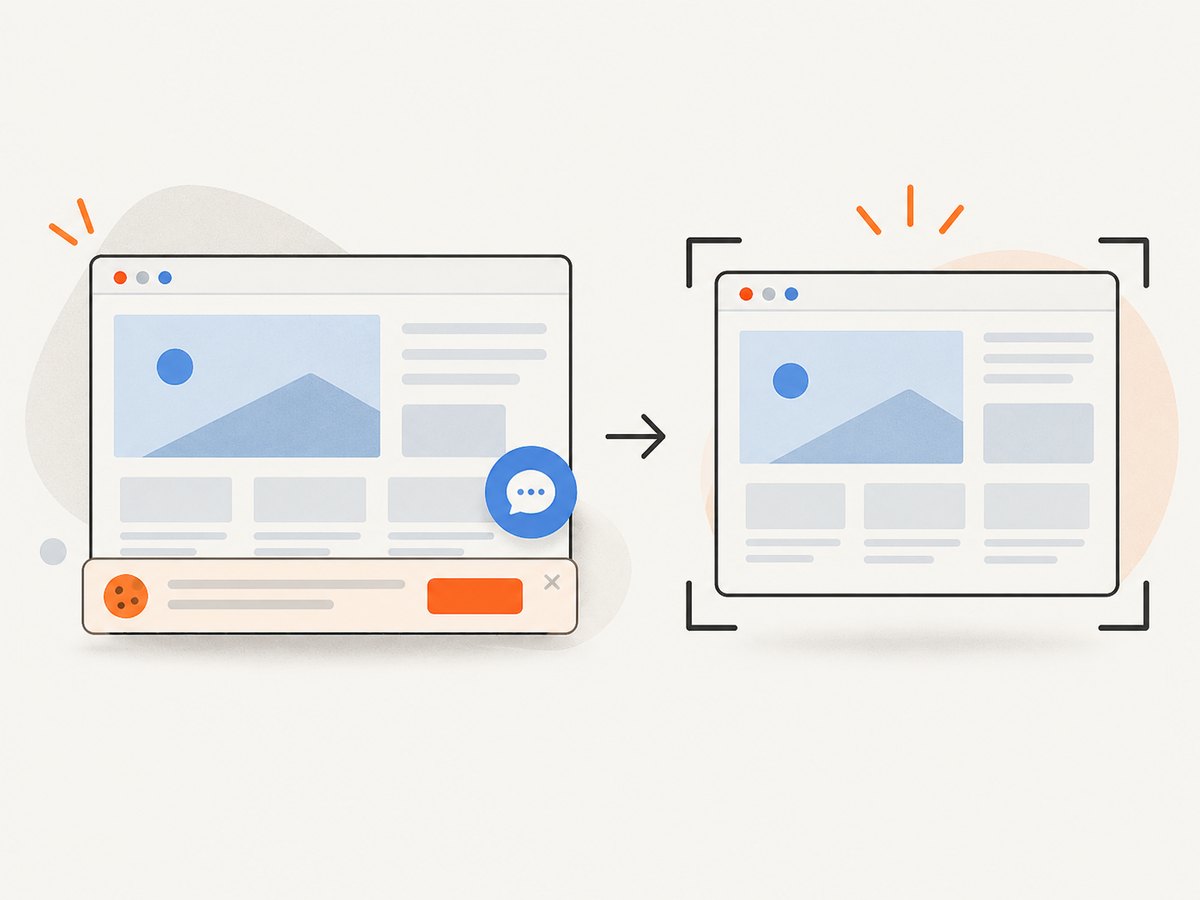
const res = await fetch(`https://api.screenshotneo.com/v1/shot?${q}`);Cookie and consent banners, newsletter popups, and chat widgets are removed before the shot. Bot checks, blank pages, failed loads, timeouts, and cache hits are not billed; response headers identify the page verdict and billing result. ScreenshotNeo also provides an MCP server with take_screenshot, get_page_info, and capture_pdf for Claude, Cursor, and other MCP clients. The Free plan includes 1,000 screenshots per month with no card; paid plans start at $5 for 3,000 shots, and every feature is available on every plan.
Create a free ScreenshotNeo account and use the API when maintaining Chromium is not part of your product.
14. FAQ
Can Rust convert HTML to PNG without Chromium?
Only for restricted markup or graphics you render yourself. Arbitrary CSS and JavaScript require a browser-grade layout engine for dependable results.
Should I use PNG or JPEG?
Use PNG for text, diagrams, and transparency. Use JPEG for photographic pages where a smaller lossy file is acceptable.
How do I make screenshots deterministic?
Pin Chromium and fonts, set viewport and timezone, disable animation, wait for explicit readiness, and keep assets and data stable.
Is a wgpu screenshot crate a browser replacement?
No. An offscreen GPU texture capture is appropriate when your application already owns a wgpu scene; it does not parse and lay out HTML and CSS.


