BlogScreenshots on your device
C# Library to Take Screenshots: Windows APIs and Complete Examples
Use Graphics.CopyFromScreen for a simple Windows screenshot, or Windows.Graphics.Capture for user-selected windows and frame processing.
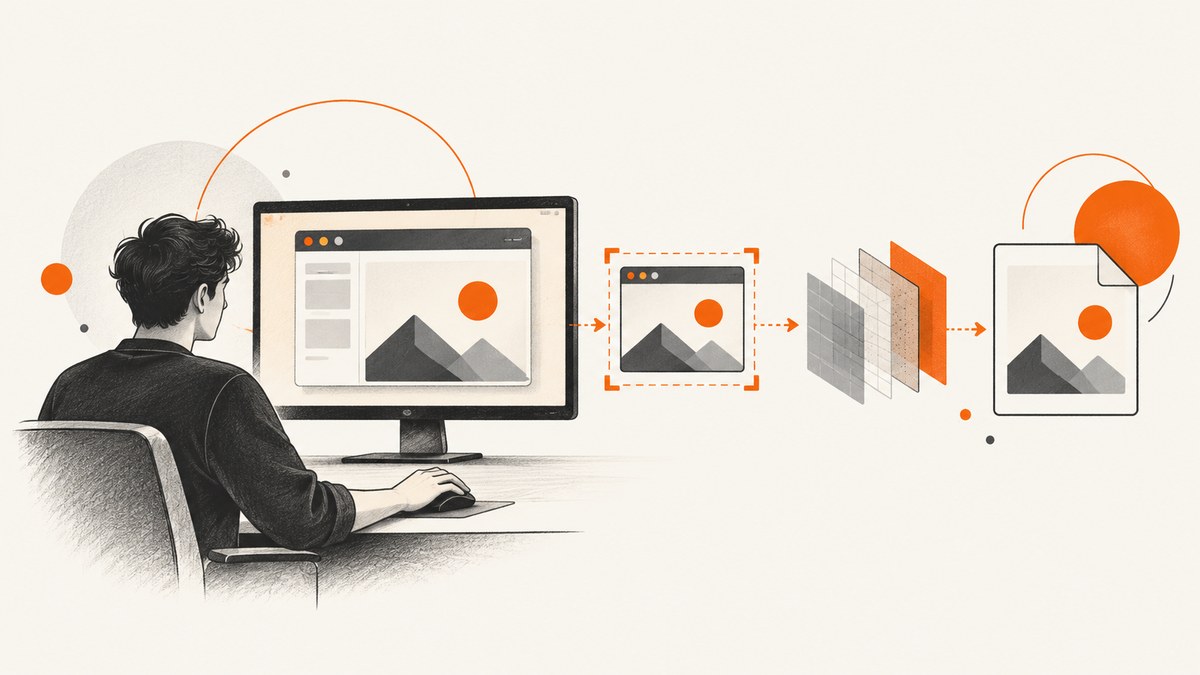
Direct answer: For a basic Windows Forms screenshot or rectangular screen-region copy, use System.Drawing.Graphics.CopyFromScreen. It copies pixels from a screen rectangle into a bitmap that your application can save. For an interactive Windows workflow where the user chooses a display or application window and your app processes a stream of frames, use Windows.Graphics.Capture. These are Windows-oriented APIs rather than one cross-platform C# screenshot library.
1. Choose the right C# screenshot API
| Requirement | Recommended starting point | Why |
|---|---|---|
| Copy a known rectangle in a Windows Forms app | Graphics.CopyFromScreen |
Small API surface; you provide source coordinates, destination point and size. |
| Let a user select a display or window | Windows.Graphics.Capture |
Provides a system picker, capture item, frame pool and capture session. |
| Capture a web page from a server or CI job | ScreenshotNeo | One HTTP request returns a PNG, JPEG, WebP or PDF without managing a desktop. |
Microsoft documents both routes for Windows desktop devices and Windows Mixed Reality immersive headsets. GraphicsCaptureSession was introduced for Windows 10 version 1803. Check support before presenting the capture picker.
2. Complete Windows Forms example with Graphics.CopyFromScreen
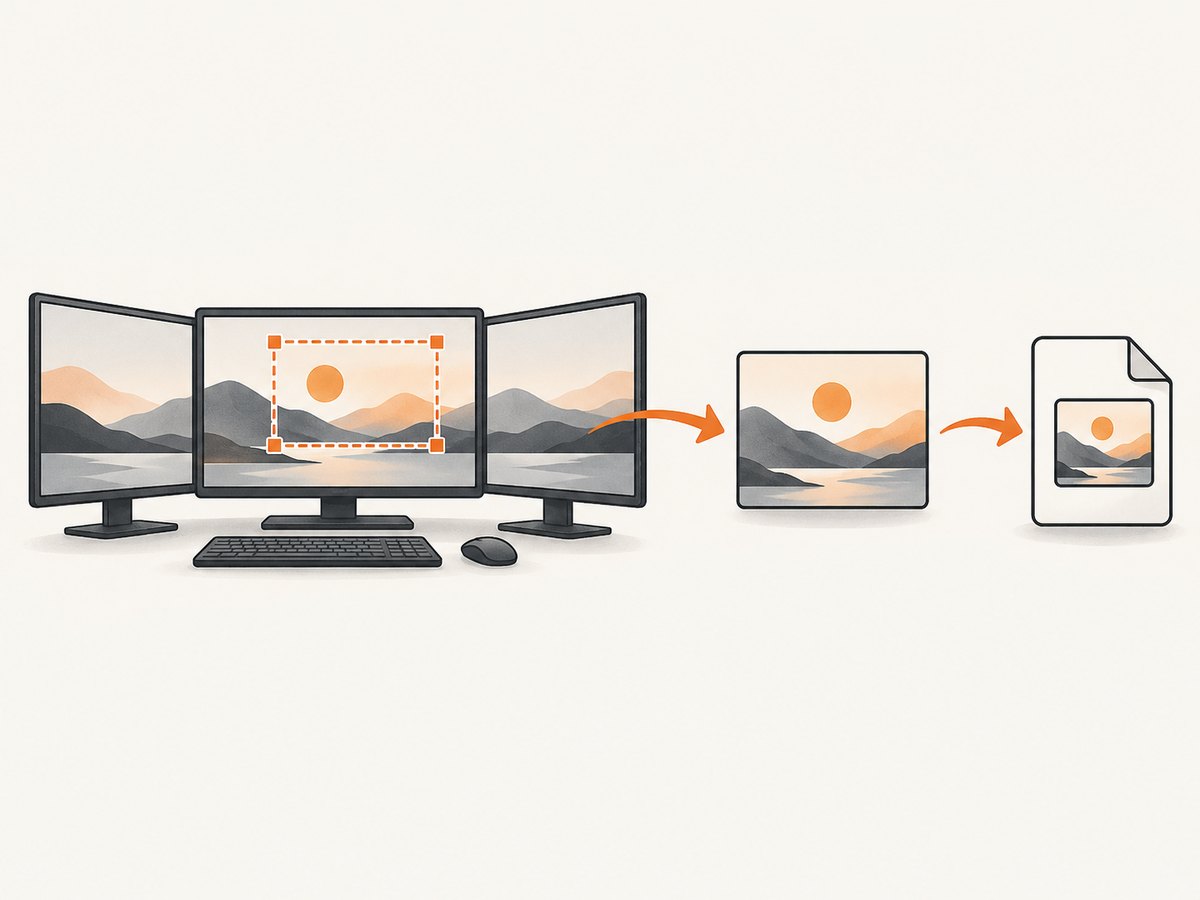
This example captures a rectangle from the primary screen and writes a PNG. Create a Windows Forms project targeting Windows, then replace the form code with the following:
using System;
using System.Drawing;
using System.Drawing.Imaging;
using System.Windows.Forms;

internal static class Program
{
    [STAThread]
    private static void Main()
    {
        ApplicationConfiguration.Initialize();

        // Capture a 1200x800 rectangle beginning at screen coordinate (0, 0).
        var source = new Point(0, 0);
        var size = new Size(1200, 800);
        var outputPath = "screen.png";

        using var bitmap = new Bitmap(size.Width, size.Height, PixelFormat.Format32bppArgb);
        using (var graphics = Graphics.FromImage(bitmap))
        {
            graphics.CopyFromScreen(source, Point.Empty, size);
        }

        bitmap.Save(outputPath, ImageFormat.Png);
        Console.WriteLine($"Saved {outputPath}");
    }
}
CopyFromScreen also has overloads that accept integer coordinates. Overloads accepting CopyPixelOperation let you control how source and destination colors are blended. A failed operation can raise Win32Exception.
Capture the bounds of a specific monitor
using System.Drawing;
using System.Drawing.Imaging;
using System.Windows.Forms;

Screen monitor = Screen.AllScreens[0];
Rectangle bounds = monitor.Bounds;

using var bitmap = new Bitmap(bounds.Width, bounds.Height, PixelFormat.Format32bppArgb);
using (Graphics graphics = Graphics.FromImage(bitmap))
{
    graphics.CopyFromScreen(bounds.Left, bounds.Top, 0, 0, bounds.Size);
}

bitmap.Save("monitor.png", ImageFormat.Png);
Use Screen.AllScreens when the user may have multiple displays. Monitor coordinates can be negative when a display is positioned to the left or above the primary display, so do not assume that every monitor starts at (0, 0).
Capture a Windows Forms control
using var bitmap = new Bitmap(panel.Width, panel.Height);
panel.DrawToBitmap(bitmap, panel.ClientRectangle);
bitmap.Save("panel.png", ImageFormat.Png);
DrawToBitmap renders a control into a bitmap; it is different from copying pixels from the physical screen. Some controls and hardware-rendered content may not render exactly as displayed.
3. Interactive capture with Windows.Graphics.Capture
Use Windows.Graphics.Capture when the user must choose a window or display through the system picker, or when your application needs a sequence of frames. The documented flow is:
- Check
GraphicsCaptureSession.IsSupported(). - Create and initialize a
GraphicsCapturePicker. - Ask the picker for a
GraphicsCaptureItem. - Create a Direct3D device and a frame pool, commonly using
B8G8R8A8_UNORM. - Create a capture session and subscribe to frame arrival.
- Copy each frame’s content into your image pipeline and save or process it.
The picker marks the actively captured item with a yellow border. In WinUI 3, initialize the picker with the app window handle before calling PickSingleItemAsync. The exact Direct3D interop setup differs between WinUI 3, UWP and desktop projects, so keep device creation and surface conversion in the platform-specific layer of your application.
using Windows.Graphics.Capture;

if (!GraphicsCaptureSession.IsSupported())
{
    throw new PlatformNotSupportedException("Windows Graphics Capture is not supported on this device.");
}

GraphicsCapturePicker picker = new GraphicsCapturePicker();
// WinUI 3: initialize picker with the current window handle here.
GraphicsCaptureItem? item = await picker.PickSingleItemAsync();
if (item is null)
{
    return; // The user cancelled the picker.
}

// Create a Direct3D 11 device and Direct3D11CaptureFramePool here,
// then create a session for item and handle FrameArrived.
using GraphicsCaptureSession session = framePool.CreateCaptureSession(item);
session.StartCapture();
For frame handling, do not perform heavy image encoding on the UI thread. Dispose every managed Direct3D11CaptureFrame after copying the data you need, and use frame.ContentSize when copying pixels so that undefined padding outside the actual content is not saved. HDR capture may require R16G16B16A16_FLOAT through the pipeline plus additional tone-mapping or saving work; the common SDR example does not cover that conversion.
4. Saving, formats and image dimensions
- PNG: lossless and suitable for text, UI and diagnostics.
- JPEG: smaller files, but compression artifacts can affect small text.
- WebP: useful when your downstream tools support it; choose quality settings appropriate to your use case.
Allocate the bitmap from the exact capture dimensions. For a full monitor, use its Bounds.Size; for a selected frame, use ContentSize. Dispose Bitmap, Graphics, frame objects and native resources deterministically.
5. Common errors and fixes
| Error or symptom | Likely cause | Fix |
|---|---|---|
Win32Exception from CopyFromScreen |
The source rectangle is invalid, the desktop is inaccessible, or the operation failed at the Windows level. | Validate coordinates and dimensions, run in an interactive desktop session, and catch the exception to report the native error. |
| Black or incomplete capture | The content is hardware-rendered, protected, minimized or outside the copied rectangle. | Verify the source bounds. For selectable windows and frame capture, try Windows.Graphics.Capture; protected content may still be unavailable. |
| Wrong monitor or clipped image | Negative coordinates or DPI scaling were ignored. | Use Screen.Bounds values directly and make the process DPI aware where your application requires pixel-accurate coordinates. |
| Picker throws or is unavailable | The device or Windows version does not support Graphics Capture. | Check GraphicsCaptureSession.IsSupported() before showing capture UI and provide a fallback. |
| Frames contain garbage pixels | The code copied beyond the valid frame area. | Copy only the rectangle described by ContentSize. |
| UI freezes during recording | Encoding or image processing runs in FrameArrived on the UI thread. |
Copy the frame quickly, queue work to a background worker, and dispose the frame promptly. |
| HDR colors look wrong | An SDR pixel format was used for HDR content. | Use an HDR-capable format such as R16G16B16A16_FLOAT throughout the pipeline and add the required conversion before saving. |
6. Performance and reliability checklist
- Capture only the region you need; smaller bitmaps reduce memory copies and encoding time.
- Reuse buffers for repeated captures when dimensions stay constant.
- Move PNG/JPEG encoding and file I/O off the UI thread.
- Limit frame rates for recording workflows; processing every frame can overwhelm the encoder.
- Dispose every frame and graphics object, especially in long-running capture sessions.
- Handle picker cancellation, device removal and unsupported platforms as normal outcomes.
- Test multiple monitors, negative virtual-screen coordinates, mixed DPI settings, minimized windows and HDR displays.
Microsoft’s documentation does not provide a comparative benchmark proving that either route is universally faster or more reliable. Choose based on interaction and frame-processing requirements, then measure your own workload.
7. Or skip the browser setup
If the target is a public or authenticated web page rather than your own desktop, ScreenshotNeo removes the need to install and operate a browser on Windows. Its API accepts one GET request and returns a PNG, JPEG, WebP or PDF. See the ScreenshotNeo documentation for all options.
curl -G "https://api.screenshotneo.com/v1/shot" -d access_key=YOUR_API_KEY --data-urlencode url=https://stripe.com -o shot.webpimport requests
r = requests.get("https://api.screenshotneo.com/v1/shot", params={"access_key": "YOUR_API_KEY", "url": "https://stripe.com"}, timeout=90)
open("shot.webp", "wb").write(r.content)const q = new URLSearchParams({ access_key: 'YOUR_API_KEY', url: 'https://stripe.com' });
const res = await fetch(`https://api.screenshotneo.com/v1/shot?${q}`);
const data = Buffer.from(await res.arrayBuffer());
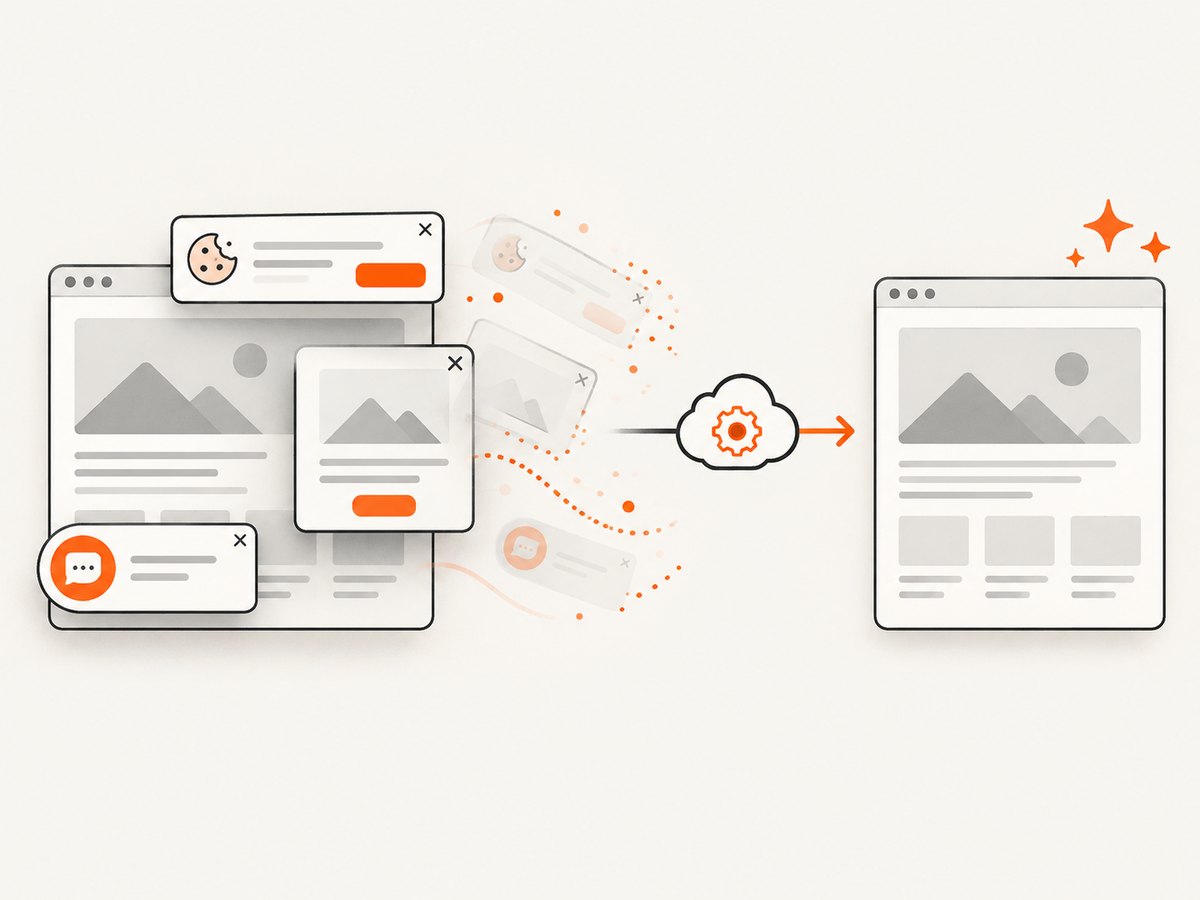
require('fs').writeFileSync('shot.webp', data);Cookie and consent banners, newsletter popups and chat widgets are removed before the shot. Bot checks, blank pages, timeouts, failed loads and cache hits are not billed, and response headers report the page verdict and billing status. ScreenshotNeo also provides an MCP server with take_screenshot, get_page_info and capture_pdf tools for Claude, Cursor and other MCP clients. The Free plan includes 1,000 screenshots per month without a card; paid plans start at $5 for 3,000 shots. Create a free ScreenshotNeo account.
8. FAQ
Is there one cross-platform C# screenshot library?
The documented Microsoft choices here are Windows APIs. CopyFromScreen is a Windows Forms approach, while Windows.Graphics.Capture is the Windows capture framework. A cross-platform application needs a platform-specific implementation or a service such as ScreenshotNeo for web pages.
Which API should I use for a single screenshot?
Use Graphics.CopyFromScreen when you already know the screen rectangle. Use the Graphics Capture picker when the user must select a window or display.
Can Graphics Capture record HDR?
It can require an HDR-aware pipeline. Microsoft cautions that HDR may need R16G16B16A16_FLOAT and additional saving or tone-mapping work.
Why does a captured frame include extra pixels?
Frame surfaces can contain pixels outside the valid content area. Copy only the rectangle specified by ContentSize.
Can I capture a website without a visible Windows desktop?
Yes. ScreenshotNeo performs server-side web capture and returns the image or PDF over HTTP, so your C# process does not need a local desktop session or browser setup.


