BlogScreenshots on your device
Why C# Screenshots of Videos Turn Black and How to Fix Them
A black video rectangle can be intentional protection or a capture-path bug. Learn how to diagnose both and fix C# capture issues safely.
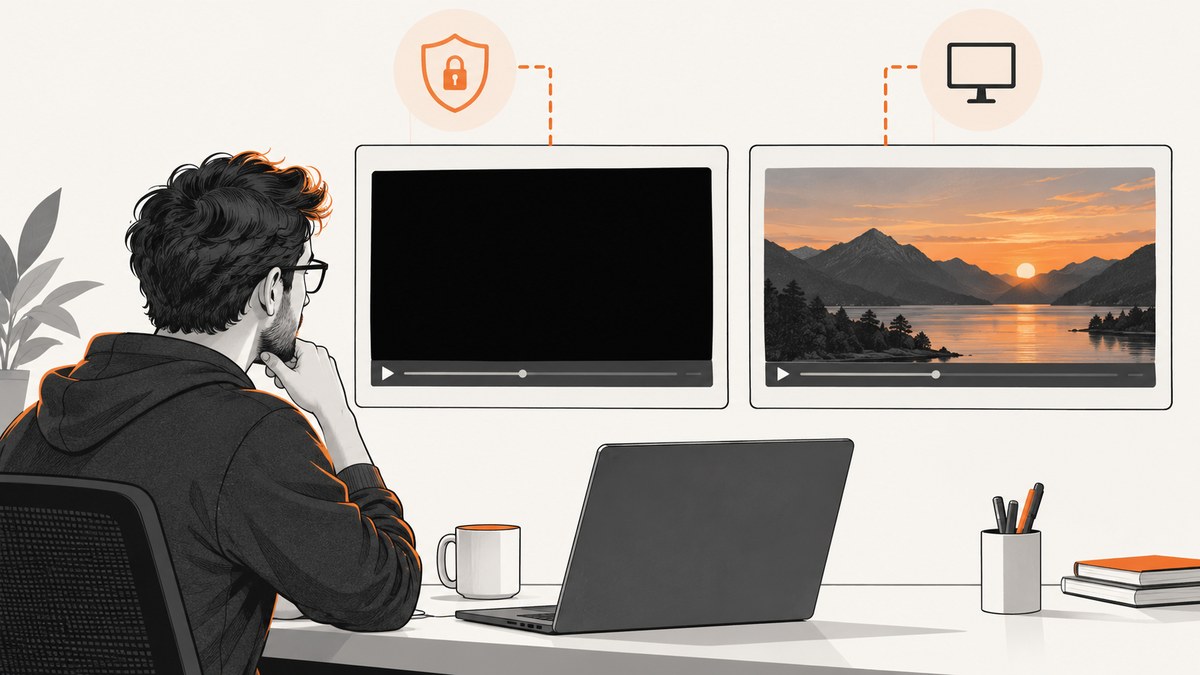
A black rectangle in a C# screenshot does not automatically mean your screenshot code failed. The two main causes are:
- Content protection: protected video can be decoded and presented through GPU paths that capture APIs are designed not to expose.
- A capture-path problem: your application may be selecting the wrong window, mishandling the frame pool, using an incompatible pixel format, or hitting a platform or GPU compatibility issue.
First establish whether playback is normal and only the captured image is black. If playback itself is black, troubleshoot the player separately. If playback is visible but the screenshot is black, test an ordinary unprotected desktop region before changing image code.
What Microsoft documents about black captured video
Microsoft describes protected video being decoded and presented through hardware overlays or surfaces shared with the Desktop Window Manager. Its Desktop Duplication documentation states that “The API provides protection against accessing protected video content.” A protected frame can therefore appear black by design. See Desktop Duplication and Protected Media Path.
Windows also exposes APIs that intentionally exclude window content from captures. SetWindowDisplayAffinity can mark a top-level window as excluded from capture on supported Windows versions; Microsoft notes that it works only while Desktop Window Manager (DWM) is composing the desktop. See SetWindowDisplayAffinity.
These rules are boundaries, not image-processing bugs. Do not try to bypass DRM or output protection. If a service offers an authorized still-image, clip, or sharing feature, use that instead.
A diagnostic checklist
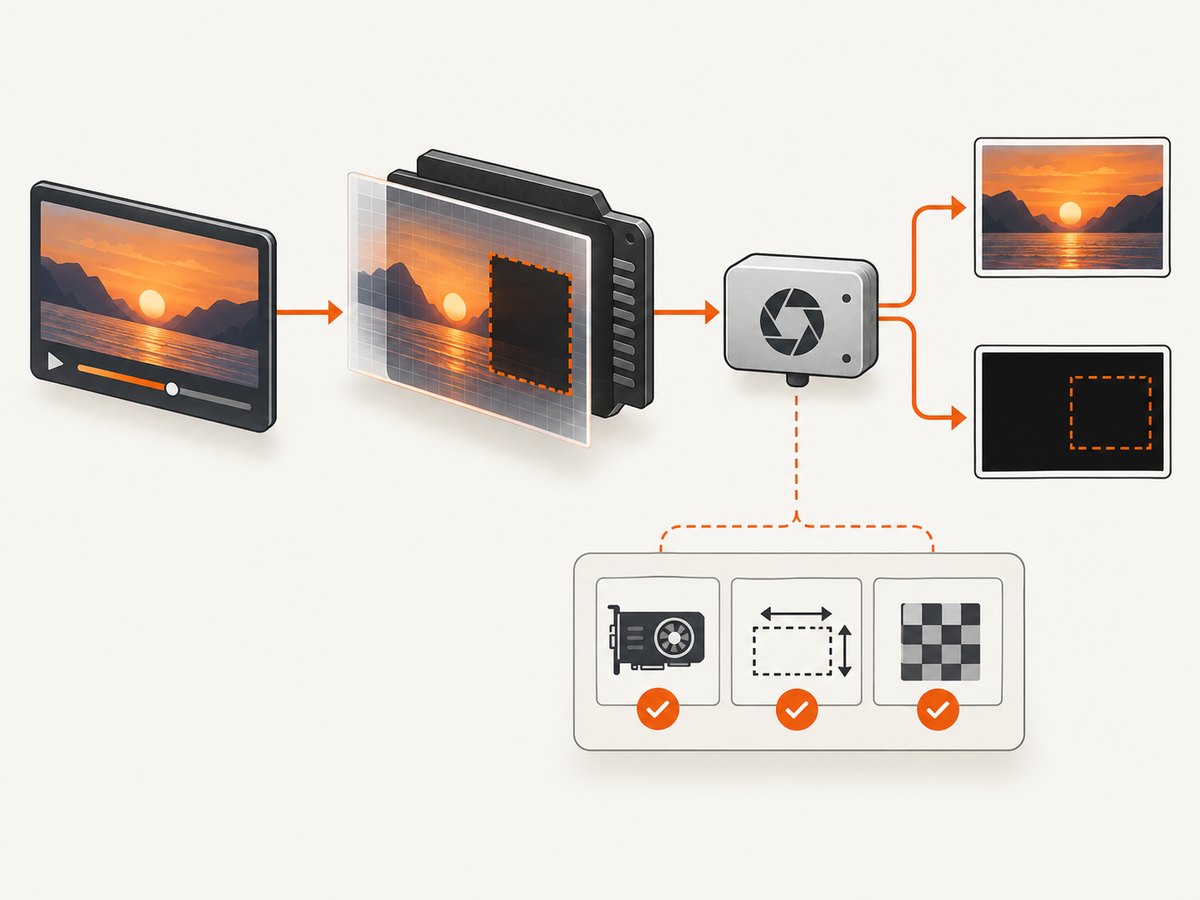
- Confirm the symptom. Does the video play normally? Is only the screenshot black? Record the exact capture API, Windows version, GPU arrangement, display count and video source.
- Capture an unprotected test. Take a screenshot of a text editor or an ordinary local video. If those frames work, your general pipeline is probably sound.
- Classify the source. Premium or otherwise protected media may intentionally produce a black capture. A black region alone does not prove DRM.
- Check the selected item. With Windows.Graphics.Capture, verify that the selected
GraphicsCaptureItemis the intended window or display and that its content size is non-zero. - Check frame setup. Confirm frame-pool creation, session startup, pixel format and frame lifetime. Dispose frames after copying their data.
- Check HDR and Windows HD Color. HDR pipelines can use
R16G16B16A16_FLOATrather than the format expected by an SDR image encoder. Save an HDR-capable format or tone-map deliberately. - Check hybrid graphics. A documented Windows 8.1 Desktop Duplication failure can be resolved by running the duplicating application on the integrated GPU. This is a narrow compatibility workaround, not a way to reveal protected video.
- Check window exclusion. If the window belongs to your process, inspect its display-affinity setting. You cannot use this API to override another application’s protection.
C# example: validate a Windows.Graphics.Capture session
The following WinUI 3 code checks support, creates a frame pool and reports frame dimensions. It is intended for a desktop application that already has a GraphicsCaptureItem (for example, one selected with the system picker) and a UI thread with a dispatcher queue.
using Microsoft.UI.Dispatching;
using System;
using Windows.Graphics.Capture;
using Windows.Graphics.DirectX;

public sealed class CaptureDiagnostics : IDisposable
{
    private readonly DispatcherQueue _dispatcher;
    private Direct3D11CaptureFramePool? _framePool;
    private GraphicsCaptureSession? _session;

    public CaptureDiagnostics(DispatcherQueue dispatcher)
    {
        _dispatcher = dispatcher;
    }

    public void Start(GraphicsCaptureItem item)
    {
        if (!GraphicsCaptureSession.IsSupported())
            throw new PlatformNotSupportedException("Windows.Graphics.Capture is not supported on this system.");

        if (item is null)
            throw new ArgumentNullException(nameof(item));

        var size = item.Size;
        if (size.Width <= 0 || size.Height <= 0)
            throw new InvalidOperationException($"Capture item has invalid size: {size.Width}x{size.Height}.");

        // Create the D3D11 device with your app's device factory.
        // The device must be wrapped as a WinRT IDirect3DDevice.
        var device = D3DDeviceFactory.Create();

        _framePool = Direct3D11CaptureFramePool.Create(
            device,
            DirectXPixelFormat.B8G8R8A8UIntNormalized,
            2,
            size);

        _framePool.FrameArrived += OnFrameArrived;
        _session = _framePool.CreateCaptureSession(item);
        _session.StartCapture();
    }

    private void OnFrameArrived(Direct3D11CaptureFramePool sender, object args)
    {
        using var frame = sender.TryGetNextFrame();
        if (frame is null)
            return;

        var contentSize = frame.ContentSize;
        if (contentSize.Width == 0 || contentSize.Height == 0)
            return;

        // Copy frame.Surface to a staging texture, then encode it with
        // your chosen image library. Do not access a frame after disposal.
        Console.WriteLine($"Frame: {contentSize.Width}x{contentSize.Height}");
    }

    public void Dispose()
    {
        _session?.Dispose();
        _framePool?.Dispose();
    }
}
D3DDeviceFactory.Create() is deliberately project-specific: Microsoft’s capture API requires a Direct3D device, and the exact interop code differs between WinUI 3, WPF and packaged or unpackaged desktop projects. Follow Microsoft’s Screen capture documentation for device creation and frame-surface copying.
What to inspect in the frame
- ContentSize: a zero or unexpected size points to item selection, resizing or session setup.
- Pixel format: use the format your encoder expects. HDR content may require a floating-point format and tone mapping.
- Frame lifetime: copy the surface while the frame is alive, then dispose it.
- Frame arrival rate: avoid blocking the frame-arrived handler with slow encoding or disk I/O.
Desktop Duplication checks
Desktop Duplication captures a desktop output rather than an arbitrary video texture. Test it with an unprotected desktop region first. If text and ordinary windows capture correctly while a protected video rectangle remains black, the result is consistent with the documented protection boundary.
For the specific Windows 8.1 hybrid-GPU duplication failure documented by Microsoft, run the duplicating application on the integrated GPU and retest. Do not generalize that workaround to modern systems or assume it will expose protected content.
Window display affinity and intentional exclusion
If you own the window, inspect whether code calls SetWindowDisplayAffinity:
using System;
using System.Runtime.InteropServices;

internal static class DisplayAffinity
{
    private const uint WDA_NONE = 0x0;
    private const uint WDA_MONITOR = 0x1;
    private const uint WDA_EXCLUDEFROMCAPTURE = 0x11;

    [DllImport("user32.dll", SetLastError = true)]
    private static extern bool SetWindowDisplayAffinity(IntPtr hWnd, uint affinity);

    public static void AllowNormalCapture(IntPtr hwnd)
    {
        if (!SetWindowDisplayAffinity(hwnd, WDA_NONE))
            throw new System.ComponentModel.Win32Exception(Marshal.GetLastWin32Error());
    }
}
This only affects a top-level window in the current process and requires DWM composition. It cannot remove protection from a browser, media player or streaming application you do not control.
Common errors and fixes
| Symptom | Likely cause | Fix |
|---|---|---|
| Only premium video is black | Protected presentation path | Verify with an unprotected region. Use the service’s authorized still, clip or share function. |
| Everything is black | Bad device, frame pool or item selection | Check IsSupported(), item size, device creation, pixel format and frame arrival. |
| Window appears but video area is black | Protected video or excluded child/render surface | Compare with local unprotected video; do not treat image conversion as a DRM fix. |
| Capture fails only on HDR displays | Format or tone-mapping mismatch | Use an HDR-compatible format or explicitly tone-map to SDR before encoding. |
| Frames stop arriving | Session ended, item closed or handler blocked | Handle session closure, recreate the pool after resize, and move encoding off the arrival callback. |
| Desktop Duplication fails on one laptop | Hybrid-GPU compatibility issue | For the documented Windows 8.1 case, try the integrated GPU. Record OS and driver versions. |
| Screenshot shows the wrong window | Stale or incorrect GraphicsCaptureItem |
Recreate the item after navigation, window recreation or display changes. |
Performance and reliability
- Use a two-frame pool or another small bounded buffer so the producer cannot grow memory without limit.
- Copy surfaces quickly and encode on a worker thread.
- Reuse the Direct3D device and encoder for a capture session.
- Recreate the frame pool when the capture item size changes.
- Log API, OS build, GPU, display mode, item size, pixel format and whether an unprotected test succeeded.
- Do not infer protection from one machine. Reproduce with a known unprotected source and, where possible, another GPU or display.

Or skip the browser setup
If your goal is a website screenshot rather than a protected local video frame, ScreenshotNeo provides a single-request capture API. It accepts consent banners before capture and removes more than 60 known consent platforms, newsletter popups and chat widgets; each step can be disabled. Bot checks, blank pages, timeouts, failed loads and cache hits are not billed, and responses identify the result with X-Page-Verdict and X-Billed headers.
See the ScreenshotNeo API documentation for all options, including full-page and element capture, device presets, custom CSS and JavaScript, waits, blocked resources, headers, cookies, user agents, geolocation, PDFs, caching, signed links, async jobs and bulk capture.
curl -G "https://api.screenshotneo.com/v1/shot" -d access_key=YOUR_API_KEY --data-urlencode url=https://stripe.com -o shot.webpimport requests
r = requests.get("https://api.screenshotneo.com/v1/shot", params={"access_key": "YOUR_API_KEY", "url": "https://stripe.com"}, timeout=90)
open("shot.webp", "wb").write(r.content)const q = new URLSearchParams({ access_key: 'YOUR_API_KEY', url: 'https://stripe.com' });
const res = await fetch(`https://api.screenshotneo.com/v1/shot?${q}`);ScreenshotNeo also has an MCP server with take_screenshot, get_page_info and capture_pdf tools for Claude, Cursor and other MCP clients. The free plan includes 1,000 screenshots per month with no card; paid plans start at $5 for 3,000 shots. Create a free ScreenshotNeo account.
Cost and capture choice
For local desktop capture, your main costs are development time, GPU memory, encoding and operational support. A hosted website screenshot API is useful when you do not need a local protected-video frame and want repeatable URL capture, wait rules, cleanup of consent UI, and usage accounting. ScreenshotNeo bills only clean shots; failed loads, bot checks, blank pages, timeouts and cache hits cost nothing.
FAQ
Can I fix a black DRM screenshot by changing PNG or JPEG settings?
No. Encoding settings cannot restore pixels that the capture API never receives.
Does changing from Windows.Graphics.Capture to Desktop Duplication bypass protection?
No. Both are subject to platform and content-protection behavior, though their capture scopes and failure modes differ.
Is a black video always DRM?
No. Wrong window selection, an invalid frame pool, HDR format handling, GPU compatibility and intentional window exclusion can also produce black output.
What information should I include in a bug report?
Include the capture API and library version, Windows build, GPU and driver, display and HDR state, source type, selected item, pixel format, frame dimensions, and whether an ordinary unprotected region captures correctly.
Can ScreenshotNeo capture a protected streaming video frame?
Do not assume that it can. ScreenshotNeo captures web pages by URL; protected media remains subject to the source’s access and capture rules. Use authorized still or sharing features for protected content.


