BlogScreenshots on your device
Desktop Screenshot Keyboard Shortcuts: Windows, Mac, GNOME and KDE
Find the exact shortcut for a full screen, window, region, clipboard capture or recording on Windows, macOS, GNOME and KDE.
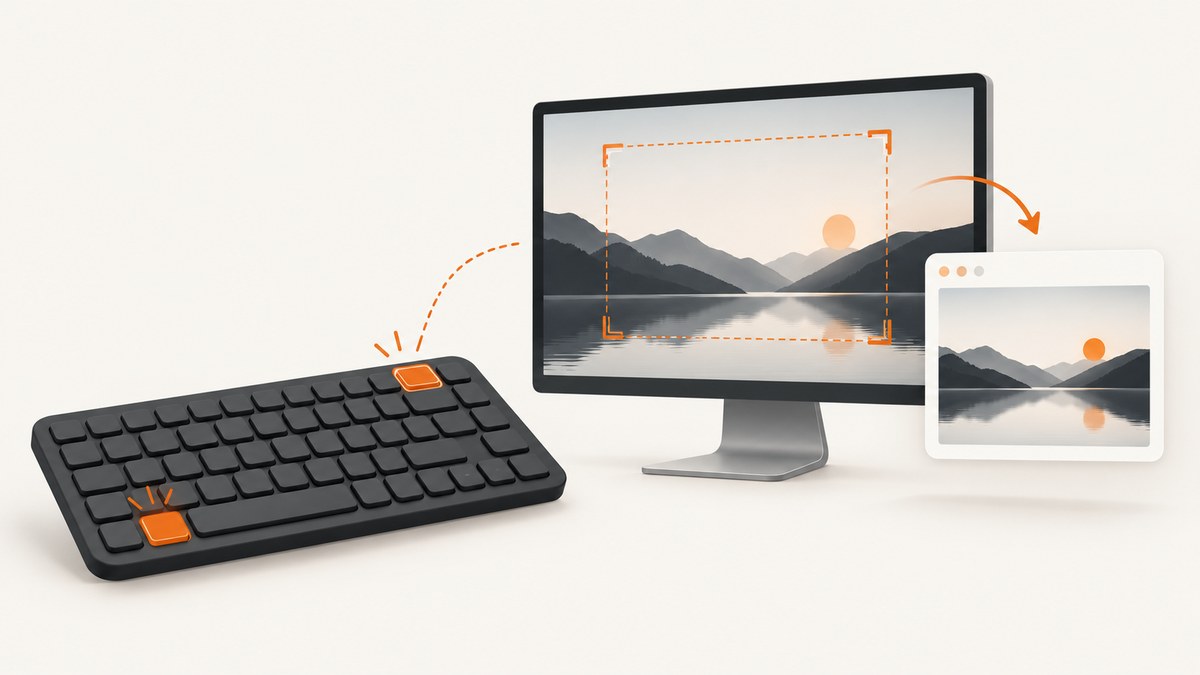
The fastest shortcut depends on your operating system and whether you want the entire screen, a region, a window, a file or the clipboard.
| Platform | Full screen | Region | Window or menu | Default destination |
|---|---|---|---|---|
| Windows 10/11 | Windows + PrtScn saves a file; PrtScn copies the screen | Windows + Shift + S | Open Snipping Tool and choose Window; Ctrl + PrtScn can capture an open menu in the documented workflow | Pictures/Screenshots for saved captures |
| macOS | Shift + Command + 3 | Shift + Command + 4, then drag | Shift + Command + 4, then Space, then click | Desktop by default |
| GNOME | Shift + Print | Press Print to open the screenshot tool, then choose an area | Alt + Print | Desktop-environment screenshot tool |
| KDE Plasma | Use the configured Spectacle shortcut | Spectacle rectangular-region capture | Spectacle active-window or window-under-mouse capture | Configured by Spectacle |
1. Windows screenshot shortcuts
Save the entire screen
Press Windows + PrtScn. Windows saves the image in Pictures/Screenshots. If your keyboard has no Print Screen key, Microsoft documents Fn + Windows + Space as an alternative on supported hardware.
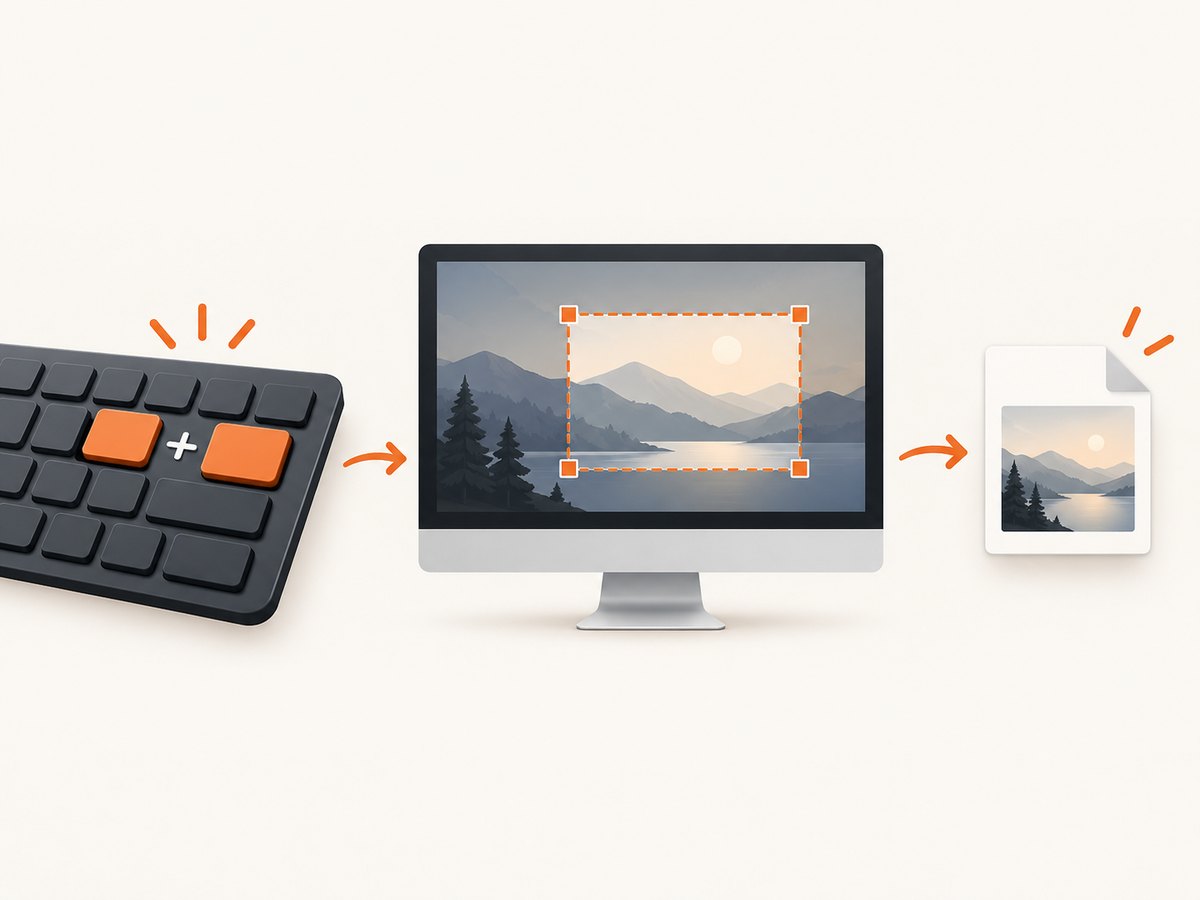
Copy the entire screen
Press PrtScn. The image goes to the clipboard instead of being saved as a file. Paste it into an image editor, document, chat or email with Ctrl + V.
Capture a region
Press Windows + Shift + S. The Snipping Tool overlay lets you choose freeform, rectangular, window or full-screen capture. Select the area, then click the notification to annotate, crop, run OCR, save or share it.
Capture a window or menu
Open Snipping Tool, select Window mode and click the target window. For an open menu, use the documented Snipping Tool workflow with Ctrl + PrtScn, then select the menu or region.
Useful Snipping Tool keys
| Action | Shortcut |
|---|---|
| Open image snipping overlay | Windows + Shift + S |
| Open video capture | Windows + Shift + R |
| Choose a mode | Alt + M |
| Repeat the last mode | Alt + N |
| Set a delay from 1 to 5 seconds | Alt + D |
| Copy the current capture | Ctrl + C |
| Save the current capture | Ctrl + S |
2. macOS screenshot shortcuts
Capture the entire screen
Press Shift + Command + 3. macOS normally saves the image to the desktop.
Capture part of the screen
Press Shift + Command + 4, drag over the area and release. Press Esc before releasing if you want to cancel.
Capture a window or menu
Press Shift + Command + 4, press Space, then click the window or menu. This captures the selected window with its shadow.
Open the Screenshot app
Press Shift + Command + 5 on macOS Mojave 10.14 or later. The toolbar provides full-screen, window, selected-area and screen-recording controls. Its Options menu can set a timer, destination, floating thumbnail and pointer visibility. On supported Macs running macOS Tahoe 26 or later, it can also choose SDR/PNG or HDR/HEIF capture format.
Copy instead of saving
Hold Control while using a capture shortcut. The result goes to the Clipboard rather than the desktop. Paste it with Command + V.
3. GNOME screenshot shortcuts
GNOME’s default shortcuts are:
- Print: launch the screenshot tool and choose the area.
- Alt + Print: capture the active window.
- Shift + Print: capture the entire screen.
- Shift + Ctrl + Alt + R: start or stop screencast recording.
Desktop-environment settings can change these bindings. If a key does nothing, open your keyboard-shortcut settings and search for “screenshot.”
4. KDE Plasma and Spectacle
KDE uses Spectacle for screenshots. It supports the entire desktop, the current monitor, the active window, the window under the mouse and a rectangular region. Use the shortcut configured in System Settings, or open Spectacle and select the capture mode. Spectacle’s settings also let you configure save behavior and keyboard shortcuts.
5. Clipboard versus saved file
Choose a clipboard shortcut when you need to paste immediately into a ticket, chat or document. Choose a file shortcut when you need a reusable PNG or another saved asset.
- Windows: PrtScn copies; Windows + PrtScn saves to
Pictures/Screenshots. - macOS: capture shortcuts save to the desktop; add Control to copy.
- GNOME and KDE: the destination depends on the desktop tool and its settings.
6. Multi-monitor and high-DPI details
A full-screen capture can include every monitor or only the active display, depending on the operating system and tool mode. For a single monitor, use a monitor-specific option in Spectacle or select that monitor’s area with Snipping Tool or Screenshot. High-DPI displays can produce larger pixel dimensions than the logical desktop size; check the saved image dimensions before uploading it to a service with file-size limits.
7. Timers, menus and transient UI
Use a delay when a menu opens only after the shortcut, when you need to move the pointer out of the way or when an application must finish rendering. Windows Snipping Tool supports a 1–5 second delay. macOS Screenshot offers a timer in Options. For menus, open the menu first, then use the window or menu capture sequence so the menu remains visible.
8. Troubleshooting
The Print Screen key does nothing
On laptops it may be a secondary function. Try Fn with the key, or use the documented Windows fallback Fn + Windows + Space. On GNOME and KDE, check the desktop’s shortcut settings for a reassigned or disabled binding.
I cannot find the saved screenshot
Windows documents Pictures/Screenshots; macOS normally uses the desktop. If you used a tool rather than a direct shortcut, check its save location or open its notification and choose Save.
The screenshot contains the wrong window
Use explicit Window mode instead of a full-screen capture, and click the target window after activating the mode. On macOS, press Space after Shift + Command + 4.
The image was copied but not saved
Clipboard captures are temporary. Paste the image into an editor and save it, or use the file-saving shortcut: Windows + PrtScn on Windows.
A web page is blank or still loading
Wait for the page to render, scroll to trigger lazy content and capture again. For repeatable website captures, an automated browser or screenshot API can wait for a selector or network idle state.
9. Automating website screenshots
Desktop shortcuts are ideal for a screen in front of you. For URLs, scheduled captures, repeatable viewport sizes or server-side workflows, use a screenshot service. ScreenshotNeo accepts one GET request and returns PNG, JPEG, WebP or PDF. Its documentation is at screenshotneo.com/docs/.
10. Or skip the browser setup
Use the ScreenshotNeo API when you need a clean, repeatable capture from a URL:

curl -G "https://api.screenshotneo.com/v1/shot" -d access_key=YOUR_API_KEY --data-urlencode url=https://stripe.com -o shot.webpimport requests
r = requests.get("https://api.screenshotneo.com/v1/shot", params={"access_key": "YOUR_API_KEY", "url": "https://stripe.com"}, timeout=90)
open("shot.webp", "wb").write(r.content)const q = new URLSearchParams({ access_key: 'YOUR_API_KEY', url: 'https://stripe.com' });
const res = await fetch(`https://api.screenshotneo.com/v1/shot?${q}`);Cookie banners, newsletter popups and chat widgets are removed before the shot. Bot checks, blank pages and failed loads are never billed, and the response identifies the page verdict and billing status with X-Page-Verdict and X-Billed headers. An MCP server lets Claude, Cursor and other MCP clients take screenshots, inspect pages and capture PDFs. The free plan includes 1,000 screenshots each month with no card; paid plans start at $5 for 3,000 shots. Create a free ScreenshotNeo account.
11. Performance, reliability and cost notes
- Clipboard capture is immediate but depends on the receiving app accepting pasted images.
- File capture is safer for archiving because it remains available after the clipboard changes.
- For large or high-DPI images, check dimensions and file size before attaching them.
- For automated URLs, wait for a meaningful selector or network idle rather than relying only on a fixed delay.
- ScreenshotNeo bills only clean captures; cache hits, bot checks, blank pages, timeouts and failed loads are not billed.
12. Quick checklist
- Identify your platform or desktop environment.
- Choose full screen, window, region, clipboard or file output.
- Use a timer if a menu or transient state must remain visible.
- Confirm the save location before searching for the file.
- For repeatable website captures, use an automated API with explicit wait and viewport settings.
FAQ
What is the universal screenshot key?
There is no universal behavior. PrtScn commonly copies on Windows, while GNOME assigns it to the screenshot tool and macOS uses Command-based shortcuts.
How do I screenshot only one monitor?
Use a monitor-specific option in Spectacle, or select that monitor’s bounds with Snipping Tool or the macOS selected-area shortcut.
Can I record the screen with these tools?
Windows Snipping Tool opens video capture with Windows + Shift + R; GNOME uses Shift + Ctrl + Alt + R; macOS provides recording in Screenshot with Shift + Command + 5.
Where can I automate a URL screenshot?
ScreenshotNeo provides a URL-based API, PDF capture and an MCP server for AI agents. Start with the free account.


