BlogScreenshots on your device
How to Take Desktop Screenshots in Bash
Capture Linux desktops from Bash with the right X11 or Wayland command, save or copy images, troubleshoot failures, and automate repeatable shots.
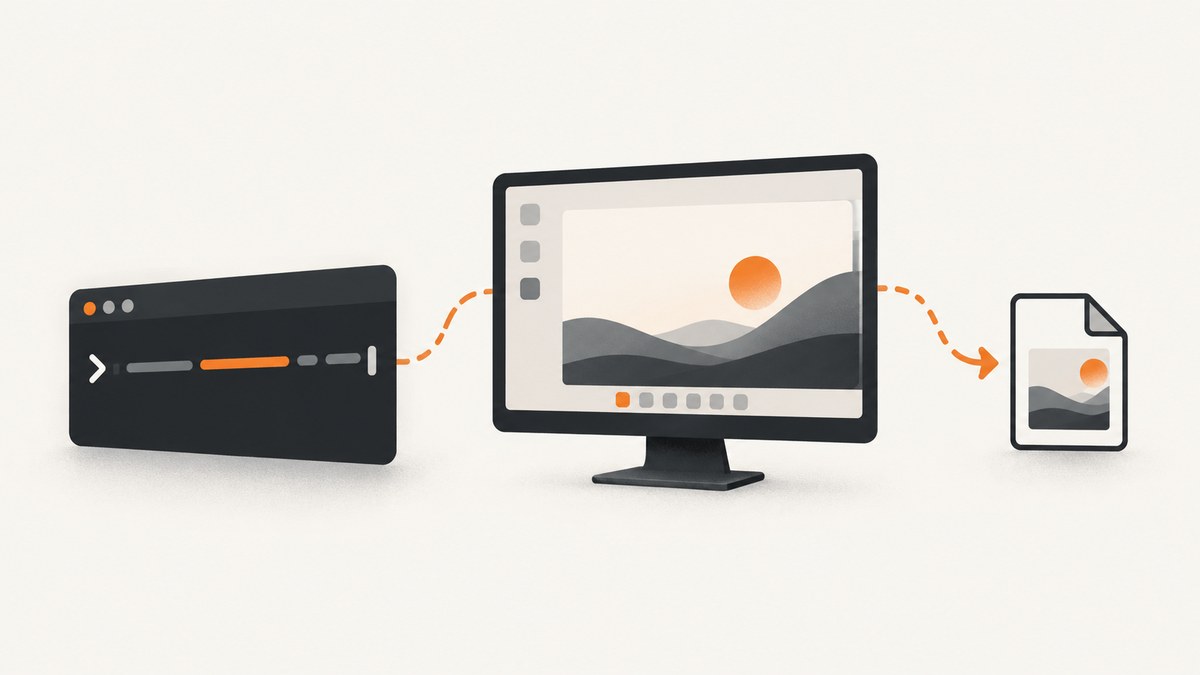
Use the command that matches your graphical session:
- Wayland:
grim screenshot.png - Wayland region:
grim -g "$(slurp)" screenshot.png - X11:
scrot screenshot.png - X11 with ImageMagick:
import -window root screenshot.png
Bash is only starting the capture utility. The display server (X11 or Wayland), compositor protocol, installed packages, and destination (file or clipboard) determine which command works. There is no single desktop screenshot command that works on every Linux installation.
1. Identify X11 or Wayland
Check the session type before choosing a tool:
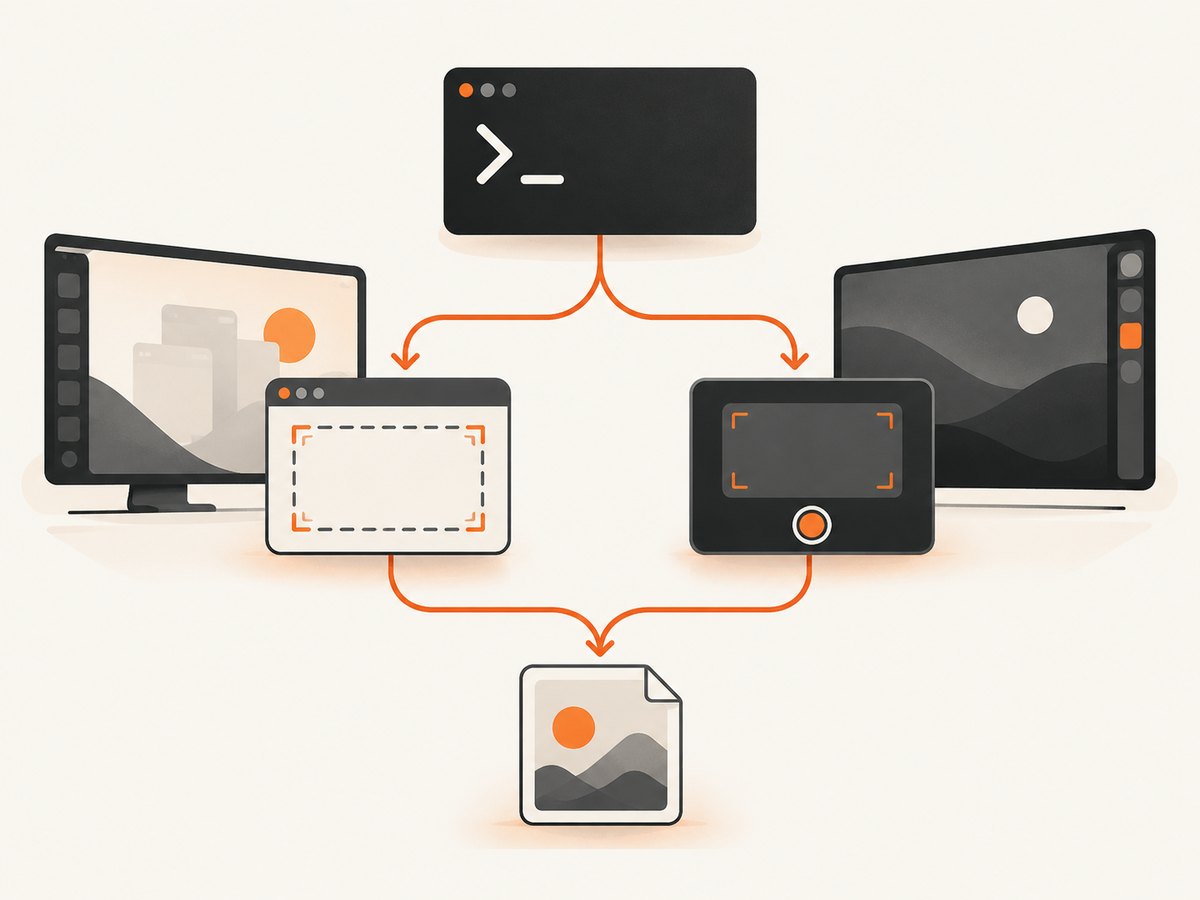
printf 'session=%s\n' "${XDG_SESSION_TYPE:-unknown}"
Typical output is x11 or wayland. If it is empty or unexpected, inspect your desktop session and environment:
echo "$DISPLAY"
echo "$WAYLAND_DISPLAY"
echo "$XDG_CURRENT_DESKTOP"
An X11 session normally has DISPLAY; a Wayland session normally has WAYLAND_DISPLAY. Remote shells, containers, sudo sessions, and scheduled jobs may not inherit these variables even when a graphical desktop is running.
2. Wayland screenshots with grim
Grim’s manual documents PNG output, standard-output mode, geometry selection, output selection, and cursor handling. Grim requires a compositor that exposes the screencopy protocol. Install it with your distribution’s package manager, then capture the complete layout:
grim screenshot.png
With no filename, grim writes image data to standard output. This is useful for pipelines:
# Save through a shell redirection
grim > screenshot.png

# Send the PNG to a Wayland clipboard
# wl-copy is a separate package
grim - | wl-copy
For a particular output, use the output option shown by your installed version:
grim --help
Flags can differ between distributions and versions, so treat the local help as authoritative for output names, cursor inclusion, and format details.
Interactive region capture with slurp
slurp draws a selection rectangle and prints its layout coordinates. Grim consumes those coordinates:
grim -g "$(slurp)" selected.png
This requires both a compositor supported by grim and a working slurp installation. Press Escape during selection to cancel. Because command substitution passes the selected rectangle to grim, spaces and punctuation in the result are handled by the quoted expansion.
Useful Bash functions
#!/usr/bin/env bash
set -euo pipefail

out="${1:-$PWD/screenshot-$(date +%Y%m%d-%H%M%S).png}"
mkdir -p "$(dirname -- "$out")"
grim -- "$out"
printf 'saved %s\n' "$out"
Save this as capture-wayland.sh, run chmod +x capture-wayland.sh, and call ./capture-wayland.sh /tmp/desktop.png. The script creates the destination directory and uses a timestamp when no path is supplied.
3. X11 screenshots with scrot
Scrot’s manual describes a scriptable command-line utility that can save images and capture a screen, window, or rectangle. A full-screen capture is:
scrot screenshot.png
Check the installed version for window and selection flags:
scrot --help
Many builds provide an interactive selection mode and a focused-window mode, but option spelling is version-dependent. Use the local help output before putting a flag into a long-lived script.
ImageMagick import on X11
ImageMagick’s import documentation shows how to capture some or all of an X server screen. Capture the root window:
import -window root screenshot.png
Some installations expose the command through the magick launcher:
magick import -window root screenshot.png
If one form is not recognized, run import -help or magick import -help. ImageMagick may also prompt for a window or rectangle when invoked without a target, depending on the build.
4. Desktop-specific commands
GNOME
GNOME provides gnome-screenshot for full screen, active window, area, clipboard, delay, and output filename workflows. Exact flags vary with the installed release. Read the local manual and verify them with:
gnome-screenshot --help
For example, a script should explicitly provide an output filename and avoid relying on interactive prompts. A delay is useful when a script opens a menu or moves the pointer before capture; make the delay long enough for the desktop animation to finish.
KDE Plasma
KDE’s Spectacle can be started from the command line and supports background and capture-mode workflows. Consult the installed Spectacle documentation and:
spectacle --help
Use the version-specific option names for full screen, current window, rectangular region, delay, and output path. This avoids scripts breaking after a desktop upgrade.
One frontend with multiple backends
Projects such as gscreenshot document several X11 and Wayland backends. They can simplify a personal workflow, but functionality and dependencies still vary by configuration. A wrapper cannot add a compositor protocol that your session does not provide.
5. Files, stdout, and clipboard pipelines
Choose a destination deliberately:
| Goal | Command pattern | Dependency |
|---|---|---|
| Save a file | grim shot.png or scrot shot.png |
Capture utility |
| Capture into another program | grim - | command |
Program must read PNG stdin |
| Copy on Wayland | grim - | wl-copy |
wl-copy |
| Copy on X11 | Use your desktop utility’s clipboard flag | Version-specific option |
Protect paths containing spaces with quotes:
out="$HOME/Pictures/My Captures/desktop.png"
mkdir -p "$(dirname -- "$out")"
scrot -- "$out"
For automation, check the exit status and verify that a non-empty file was created:
if grim "$out" && test -s "$out"; then
  echo "capture succeeded: $out"
else
  echo "capture failed" >&2
  exit 1
fi
6. Automation patterns in Bash
Timestamped captures
#!/usr/bin/env bash
set -euo pipefail

folder="${1:-$HOME/Pictures/captures}"
mkdir -p -- "$folder"
name="desktop-$(date -u +%Y%m%dT%H%M%SZ).png"

case "${XDG_SESSION_TYPE:-}" in
  wayland) grim -- "$folder/$name" ;;
  x11) scrot -- "$folder/$name" ;;
  *) echo "Set up an X11 or Wayland graphical session first" >&2; exit 2 ;;
esac
printf '%s\n' "$folder/$name"
Repeated captures
for n in 1 2 3; do
  grim "capture-$n.png"
  sleep 1
 done
Use a delay when the application needs time to render. A screenshot command captures what is currently composited; it does not wait for a web page, animation, or asynchronous data unless your script does so.
Capturing from cron or a service
Scheduled processes commonly fail because they lack the graphical environment and authorization. Pass the correct DISPLAY, WAYLAND_DISPLAY, and runtime directory, and run with the desktop user. Wayland security may reject capture from a process that is not in the user session. For unattended jobs, a browser-rendering API is often simpler than maintaining a logged-in desktop.
7. Troubleshooting
| Symptom | Likely cause | Fix |
|---|---|---|
grim: compositor does not support screencopy |
Missing protocol support | Check compositor documentation, update the compositor, or use its desktop screenshot tool. |
grim: failed to connect |
Wrong or missing Wayland environment | Run inside the graphical user session and inspect WAYLAND_DISPLAY and XDG_RUNTIME_DIR. |
Can't open display |
X11 DISPLAY is absent or unauthorized |
Run as the logged-in desktop user and set the session’s DISPLAY; avoid blindly copying values between users. |
slurp exits immediately |
Selection tool unavailable or compositor incompatibility | Run slurp directly, install it, and confirm the compositor supports the required interfaces. |
| Black or blank image | Permission, unsupported protocol, or an application rendering issue | Try the desktop’s native tool, test a simple visible window, and inspect utility stderr. |
| File is missing | Parent directory does not exist or path is wrong | Use mkdir -p, quote the path, and check the command exit code. |
| Clipboard paste fails | wl-copy or an X11 clipboard helper is absent |
Install the matching clipboard utility and keep the capture process alive until the clipboard manager receives the data. |
| Works in a terminal, fails in SSH | SSH session has no access to the local display | Run the command on the desktop host or configure a supported remote display; do not assume SSH forwards Wayland capture. |
8. Performance, reliability, and security
- Write locally first: Save to a local filesystem, then upload or process the file. Network mounts add latency and can produce partial files.
- Use PNG when fidelity matters: It is lossless but larger. Convert afterward when JPEG or WebP is more suitable.
- Control capture frequency: A tight loop can consume CPU, disk, and compositor bandwidth. Add a sleep and rotate old files.
- Check completion: Test the exit code and file size before notifying another process.
- Mind sensitive content: Desktop captures can include passwords, notifications, tokens, and private documents. Restrict file permissions and clean up temporary images.
- Expect environment dependence: Tool availability, compositor protocols, desktop versions, and command flags differ. Pin packages or test scripts after upgrades.
9. When you need a website screenshot instead
Desktop utilities capture the local display. They are the wrong layer when you need a repeatable screenshot of a URL on a server, in CI, or from an AI workflow. ScreenshotNeo provides a website screenshot API and MCP server: one GET request returns PNG, JPEG, WebP, or PDF. It can load lazy images, capture a CSS-selected element, emulate dark mode and device presets, set a viewport and retina scale, run custom CSS or JavaScript, click before capture, wait for a selector, delay, or network idle, block ads or resource types, send headers/cookies/user agents, set timezone and geolocation, resize images, cache with a chosen TTL, create signed links, run asynchronous jobs with signed webhooks, capture up to 100 URLs per bulk call, and expose usage and OpenAPI endpoints. Its parameter names are compatible with those used by other screenshot APIs.

10. Or skip the browser setup
For a URL screenshot, call the API directly. See the ScreenshotNeo documentation for all options.
cURL
curl -G "https://api.screenshotneo.com/v1/shot" \
  -d access_key=YOUR_API_KEY \
  --data-urlencode url=https://stripe.com \
  -o shot.webp
Python
import requests

r = requests.get(
    "https://api.screenshotneo.com/v1/shot",
    params={"access_key": "YOUR_API_KEY", "url": "https://stripe.com"},
    timeout=90,
)
r.raise_for_status()
open("shot.webp", "wb").write(r.content)
Node.js
const q = new URLSearchParams({ access_key: 'YOUR_API_KEY', url: 'https://stripe.com' });
const res = await fetch(`https://api.screenshotneo.com/v1/shot?${q}`);
if (!res.ok) throw new Error(`HTTP ${res.status}`);
const fs = await import('node:fs/promises');
await fs.writeFile('shot.webp', Buffer.from(await res.arrayBuffer()));
ScreenshotNeo removes cookie and consent banners, newsletter popups, and chat widgets before capture. Bot checks, blank pages, timeouts, failed loads, and cache hits are not billed; response headers identify the page verdict and whether the request was billed. An MCP server provides take_screenshot, get_page_info, and capture_pdf tools for Claude, Cursor, and other MCP clients. The Free plan includes 1,000 shots each month with no card; paid plans start at $5 for 3,000 shots. Create a free ScreenshotNeo account.
11. FAQ
Can scrot capture a Wayland desktop?
Scrot and ImageMagick’s X11 import target an X server. Use grim when your Wayland compositor supports screencopy, or use the desktop’s Wayland-aware tool.
Does grim capture every Wayland compositor?
No. Grim currently needs compositor screencopy support, and slurp adds its own compatibility requirement for region selection.
How do I capture only one monitor?
Use grim’s output-selection option shown by grim --help, or use your desktop tool’s monitor option. Output names are environment and version dependent.
Why does a screenshot from cron fail?
The job usually lacks the logged-in user’s display variables or permissions. Run it in the graphical session, pass the required environment, and verify authorization before scheduling.
Can Bash wait for a web page to finish loading?
A desktop command only captures the current screen. Use browser automation with explicit waits, or a website screenshot API when the input is a URL.


