BlogScreenshots on your device
How to Take Desktop Screenshots in Node.js
Capture the logged-in desktop from Node.js with screenshot-desktop, choose a display, and handle Electron, permissions, Linux dependencies, and headless environments.
For a still screenshot from a plain Node.js script running in a logged-in desktop session, screenshot-desktop is a practical starting point. It returns an image Buffer through a Promise, supports PNG output, and can enumerate displays so you can select one. Electron apps use a different path: enumerate screen or window sources with Electron’s desktopCapturer, then capture through media APIs. These approaches capture a machine’s desktop; they do not take a screenshot of an arbitrary website running on a remote server.
This guide covers local still captures, display selection, saving and processing the Buffer, Electron, OS requirements, headless limits, errors, and operating cost. For claims about package behavior and platform constraints, consult the linked project documentation because requirements can change between releases.
1. Pick the right capture path
First decide which environment owns the pixels you want:
| Situation | Use | Key consideration |
|---|---|---|
| Plain Node.js process on a desktop | screenshot-desktop |
Promise returns a Buffer; Linux documentation lists ImageMagick. |
| Electron app capturing screens or windows | Electron desktopCapturer and media APIs |
Source selection and OS privacy permissions matter. |
| Capture combined with desktop automation or pixel matching | RobotJS | Native build requirements and its documented main-display behavior matter. |
| Evaluating another native package | node-screenshots |
Check current release support for your exact OS and architecture. |
The examples below target a local machine with an available interactive desktop session. A headless container or server may have no usable display, even when the package installs successfully. The cited package documentation does not promise headless capture.
2. Capture a PNG in a plain Node.js script
Install the package in your project:
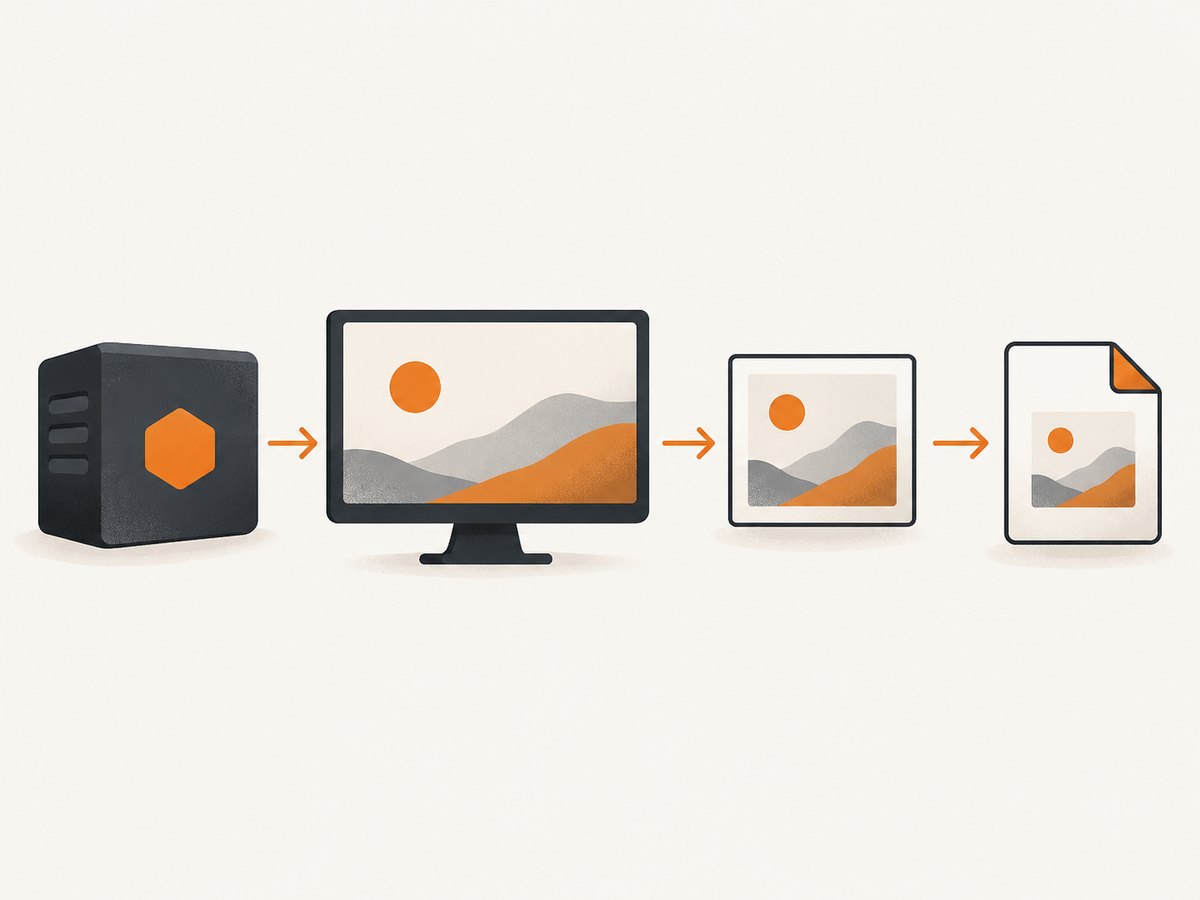
npm install screenshot-desktopCreate capture.js with this complete CommonJS example:
const fs = require('node:fs/promises');
const screenshot = require('screenshot-desktop');

async function main() {
  try {
    const image = await screenshot({ format: 'png' });
    if (!Buffer.isBuffer(image) || image.length === 0) {
      throw new Error('Capture returned an empty image');
    }
    await fs.writeFile('desktop.png', image);
    console.log(`Saved desktop.png (${image.length} bytes)`);
  } catch (error) {
    console.error('Screenshot capture failed:', error.message);
    process.exitCode = 1;
  }
}

main();
Run it while logged into the desktop you intend to capture:
node capture.jsThe package documents JPG as its default and PNG as an explicit format option. Set format: 'png' when another program expects PNG or when you need lossless pixels. If file size matters and lossy output is acceptable, use the package’s documented JPG option and verify the resulting format in your own pipeline. Don’t infer the image format from a filename alone.
Choose a display
To capture a particular monitor, list available displays and pass the selected display’s ID as screen. The exact returned IDs depend on the host, so inspect them at runtime instead of hard-coding one across machines.
const fs = require('node:fs/promises');
const screenshot = require('screenshot-desktop');

async function main() {
  const displays = await screenshot.listDisplays();
  if (!displays || displays.length === 0) {
    throw new Error('No displays were reported by the capture backend');
  }

  console.log('Available displays:', displays);
  const selected = displays[0];
  const image = await screenshot({ format: 'png', screen: selected.id });
  await fs.writeFile('selected-display.png', image);
}

main().catch((error) => {
  console.error('Could not capture selected display:', error);
  process.exitCode = 1;
});
Use the display object shape returned by the installed package version; inspect it before relying on a field name or ID format. If a machine has virtual displays, docks, or remote desktop sessions, the first display may not be the one a human expects.
Return the image instead of writing it
The Buffer can be sent to an image-processing library, uploaded to object storage, or returned from an internal function. Avoid converting it to a base64 string unless a consumer specifically requires that representation: base64 adds encoding overhead and often increases memory use.
const screenshot = require('screenshot-desktop');

async function captureDesktop() {
  return screenshot({ format: 'png' }); // Promise<Buffer>
}

module.exports = { captureDesktop };
3. Electron uses a media capture flow
Electron is not just a regular Node.js process with a screenshot helper. Its desktopCapturer.getSources(options) API enumerates available screen or window sources. You then use the selected source through browser media APIs. That makes the flow suitable for an app that needs a stream, but it has more moving parts than receiving a Buffer from screenshot-desktop.
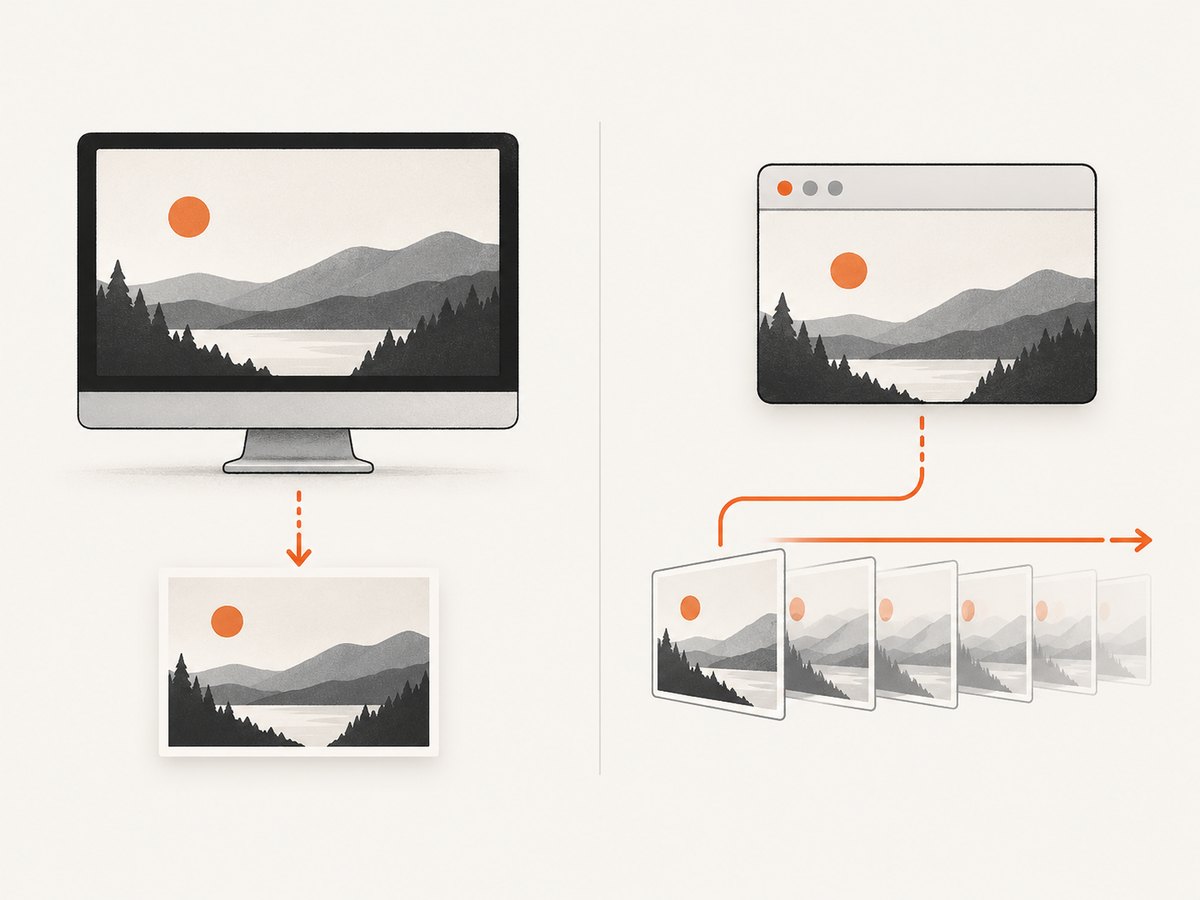
A renderer-side outline for choosing a screen source and requesting a stream looks like this:
const { desktopCapturer } = require('electron');

async function getScreenStream() {
  const sources = await desktopCapturer.getSources({
    types: ['screen'],
  });

  if (sources.length === 0) {
    throw new Error('Electron did not report a screen source');
  }

  const source = sources[0];
  return navigator.mediaDevices.getUserMedia({
    audio: false,
    video: {
      mandatory: {
        chromeMediaSource: 'desktop',
        chromeMediaSourceId: source.id,
      },
    },
  });
}
This is a stream, not a PNG Buffer. To save one frame, attach the stream to a video element, wait until it has a frame, draw that frame onto a canvas, and export the canvas as an image. Follow the current Electron documentation for the supported source-selection and media constraints in your Electron version. Keep capture in the appropriate process and expose only the narrow capability the renderer needs.
Two platform details affect Electron capture: macOS 10.15 and later requires user consent to access screen contents, and Electron documents single-source behavior on Linux when using PipeWire. On PipeWire, source selection may be managed by the desktop environment. A missing source or denied permission is not necessarily a JavaScript coding error.
4. Install and deployment considerations
Linux
screenshot-desktop lists ImageMagick as a Linux prerequisite. Install the dependency according to the target distribution and confirm it is available to the same user and process that runs Node.js. A package installed in a build image does not help if the runtime image omits the executable.
macOS and Windows
The package documentation describes macOS and Windows as requiring no additional dependencies. Treat this as the package’s documented setup for its current release, not as a guarantee for every Node version, locked dependency set, remote session, or security policy.
Containers, CI, and remote sessions
Screen capture needs a display to capture and enough permission to access it. A process can run correctly in Node while there is no logged-in desktop or graphical session. In CI or a container, first determine whether a display server is present and exposed to the process. Don’t assume a virtual display, headless browser, or desktop session exists just because the OS image has a GUI library installed.
5. Choosing alternatives
Among desktop libraries, match the implementation to the job rather than choosing by package name alone:
screenshot-desktop: a compact choice for a local still image and Buffer-based Node flow. Check external requirements and display selection for your platform.- Electron
desktopCapturer: use when the application is Electron and needs screen/window sources or a media stream. Plan for permission prompts and platform-specific source behavior. - RobotJS: relevant when capture sits alongside automation, image matching, or pixel inspection. Its project documentation lists native build tools and dependencies, and says capture targets the main display.
node-screenshots: another native option to evaluate. Its README claims broad OS and Node support; verify the actual current release, architecture, and deployment image before adopting it.
Native modules and system capture tools can make builds platform-sensitive. Pin the package version, build and run on the same target family where practical, and validate OS and architecture support against current project documentation before rolling out.
6. Reliability, performance, and cost
There are no source-backed benchmark figures for these options, so don’t assume a particular library is faster. Measure capture time and output size on the actual displays and machines in your workload. Large or high-resolution displays can produce larger images and more memory traffic; if you capture repeatedly, bound concurrency and release references to old Buffers promptly.
- Reliability: treat display enumeration and capture as fallible. Handle no-display results, permission denial, missing Linux tools, and transient backend errors.
- Repeat captures: avoid launching many simultaneous captures without measuring resource use. Queue work if each result is written or uploaded before the next capture.
- Cost: the npm package itself is not a hosted screenshot service, but deployment may involve compute, storage, network transfer, and maintaining native/system dependencies. Electron also carries the operational cost of distributing and supporting an application.
- Data handling: desktop images can contain private notifications, documents, or account details. Capture only the intended screen, restrict file and upload access, and define retention for saved images.
7. Troubleshooting
| Symptom | Likely cause | What to do |
|---|---|---|
| Linux says a capture executable is missing | The documented ImageMagick prerequisite is absent or not on the runtime PATH. | Install ImageMagick in the runtime environment and verify the same service user can invoke it. |
| No display is found | The process is in a headless environment, disconnected session, or a host that exposes no desktop source. | Run in a logged-in graphical session or configure a supported display environment; enumerate displays before capture. |
| Capture works locally but fails in CI | CI does not provide the same graphical session, dependencies, permissions, or architecture. | Make CI’s OS image and display setup explicit, then validate the capture backend there. |
| Electron returns no usable source | Source enumeration or OS capture permissions prevent access, or Linux PipeWire is controlling selection. | Check Electron’s current platform guidance, request macOS consent, and account for PipeWire’s source behavior. |
| Wrong monitor appears | Code selected the first enumerated display or reused a stale ID. | Log the current display list, let configuration select an ID, and handle IDs changing between sessions. |
| Native package install fails | Compiler, system development package, Node ABI, or CPU architecture mismatch. | Check the project’s current supported versions and install its documented build prerequisites for the target image. |
| Output file is empty or invalid | Capture rejected, write failed, or the consumer assumes a different format. | Check the awaited Promise and Buffer length, log the error, and keep the extension aligned with the requested encoding. |
8. Or skip the browser setup
If your actual goal is a screenshot of a website, a local desktop capture package is the wrong layer: it captures the machine’s screen, while a screenshot API loads a URL and returns an image or PDF. ScreenshotNeo is a website screenshot API and MCP server from Yorker Media. Its [documentation](https://screenshotneo.com/docs/) covers the request options.
const q = new URLSearchParams({ access_key: 'YOUR_API_KEY', url: 'https://stripe.com' });
const res = await fetch(`https://api.screenshotneo.com/v1/shot?${q}`);
if (!res.ok) throw new Error(`Screenshot request failed: ${res.status}`);
const image = Buffer.from(await res.arrayBuffer());
await require('node:fs/promises').writeFile('shot.webp', image);
One GET request returns PNG, JPEG, WebP, or PDF. Cookie banners, popups, and chat widgets are removed before the shot; bot checks, blank pages, and failed loads are never billed. Its MCP server lets AI agents take screenshots. The free plan includes 1,000 screenshots a month with no card; paid plans start at $5 for 3,000. Sign up free for 1,000 screenshots a month, no card required.
cURL
curl -G "https://api.screenshotneo.com/v1/shot" -d access_key=YOUR_API_KEY --data-urlencode url=https://stripe.com -o shot.webpPython
import requests

r = requests.get("https://api.screenshotneo.com/v1/shot", params={"access_key": "YOUR_API_KEY", "url": "https://stripe.com"}, timeout=90)
r.raise_for_status()
open("shot.webp", "wb").write(r.content)
9. Frequently asked questions
Can Node.js take a screenshot without Electron?
Yes. A regular Node process can call a desktop capture package such as screenshot-desktop when it runs in an environment with an accessible desktop. Electron is only needed when building an Electron app or when its source and media capture flow fits the application.
Does this capture a web page that is not open on my computer?
No. Desktop capture records the current machine display. To render a URL independently, use a browser automation setup or a website screenshot API.
Can I capture a window instead of the whole screen?
Electron can enumerate screen and window sources. For other packages, verify that the current release supports window-level capture; don’t assume a display-selection option means window capture.
Is the screenshot package suitable for an unattended server?
Only if the server environment provides a display and the process has access to it. The cited package documentation does not establish headless-server support, so validate the exact deployment setup.
Which format should I save?
Use PNG when lossless output or predictable pixels matter. Use a lossy format when smaller files are more important and your downstream use accepts compression. Confirm the package’s current format options and the bytes your consumer receives.


