BlogScreenshots on your device
How to Disable Screenshots in an Electron App
Use Electron’s BrowserWindow.setContentProtection(true) to exclude a window from capture where supported. Platform limits mean it cannot block every screenshot or recording.
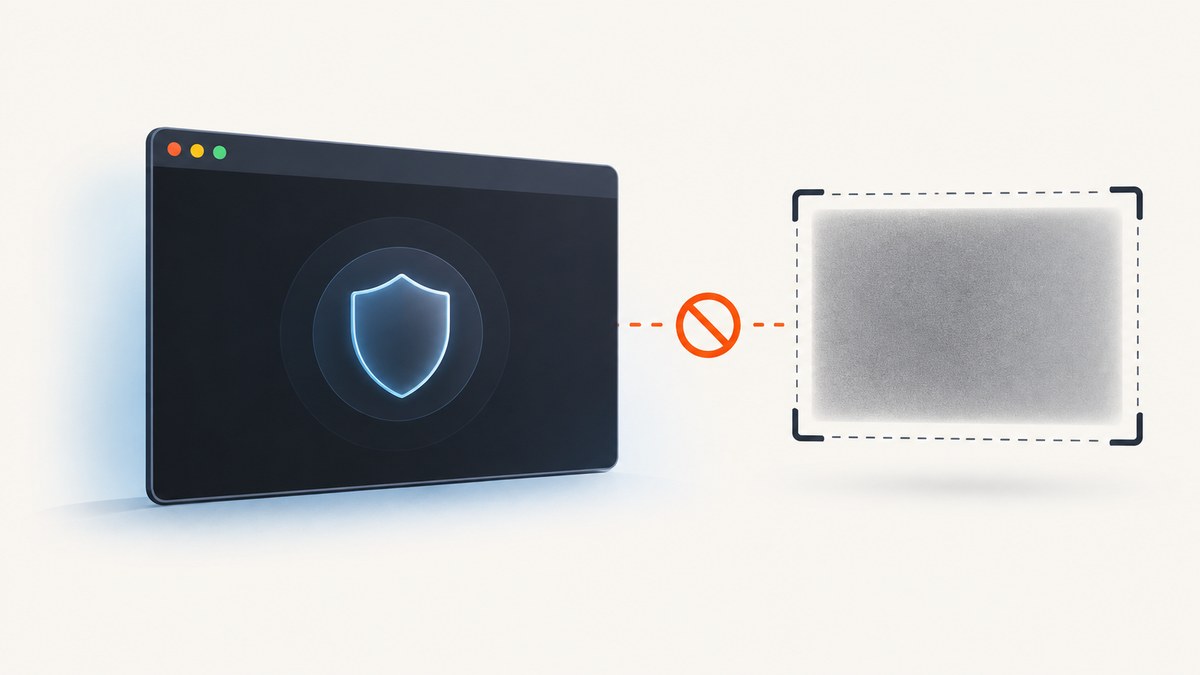
To prevent an Electron window from appearing in supported screen-capture applications, call win.setContentProtection(true) on that BrowserWindow from the main process. Electron documents this for macOS and Windows. It is not a universal way to disable every screenshot: Linux is not documented as supported, and some newer macOS capture apps can still capture protected windows.
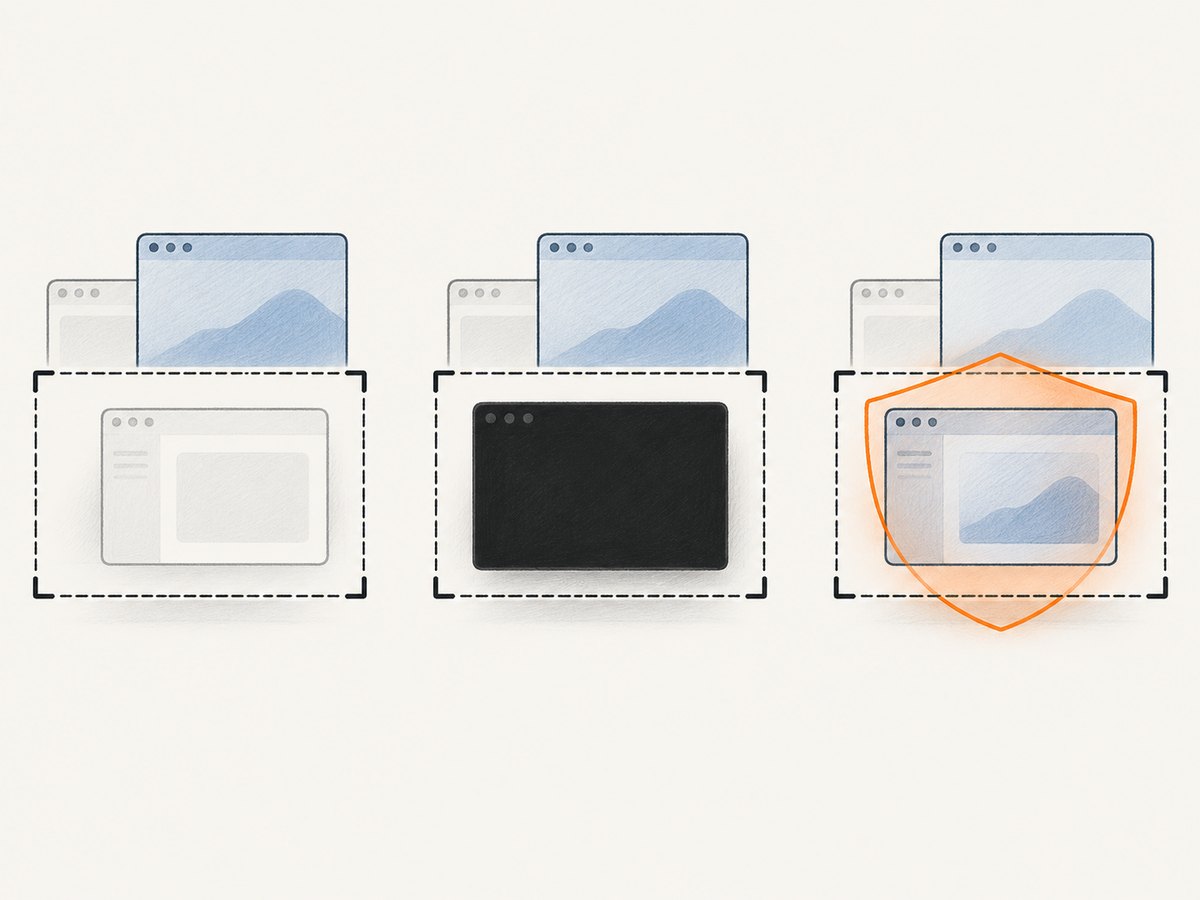
Electron calls this feature content protection. On Windows 10 version 2004 and later, the protected window is excluded from capture; on older Windows versions, capture shows a black window. On macOS, Electron uses the window sharing setting, but newer applications using ScreenCaptureKit can bypass it. Treat the behavior as a platform feature with limits, not a security guarantee.
1. Add content protection to a BrowserWindow
Call the method on the window object in your Electron main process. A minimal CommonJS example:
const { app, BrowserWindow } = require('electron')

app.whenReady().then(() => {
  const win = new BrowserWindow({
    width: 1000,
    height: 700
  })

  win.setContentProtection(true)
  win.loadFile('index.html')
})
The key is that setContentProtection belongs to BrowserWindow, not renderer JavaScript. Apply it to the specific window whose content you want to protect. If your app opens multiple windows, protect each relevant window individually.
For a project using ECMAScript modules, the same setup looks like this:
import { app, BrowserWindow } from 'electron'

app.whenReady().then(() => {
  const win = new BrowserWindow({ width: 1000, height: 700 })
  win.setContentProtection(true)
  await win.loadFile('index.html')
})
If you create windows in a helper function, keep the call close to construction so that it is not forgotten on a secondary code path:
function createProtectedWindow() {
  const win = new BrowserWindow({ width: 1000, height: 700 })
  win.setContentProtection(true)
  return win
}
Use Electron’s BrowserWindow API documentation for the current method signature and supported platform annotations. The related isContentProtected() method reports the protection state known to the window object; it does not test whether every capture application will honor it.
2. Understand what the operating system does
| Platform/version | Documented behavior | Practical meaning |
|---|---|---|
| Windows 10, version 2004 and later | Window is removed from capture | Supported capture applications should omit the protected window. |
| Older Windows versions | Behavior is like WDA_MONITOR; captures show a black window |
Content is obscured in the capture, rather than the window being removed. |
| macOS | Electron sets NSWindowSharingNone |
Some capture paths may honor the sharing setting. |
| Newer macOS capture apps using ScreenCaptureKit | Electron warns these can capture the window despite protection | Do not promise screenshot or recording prevention for these apps. |
| Linux | No equivalent supported method is established in the reviewed Electron API documentation | Do not claim this call provides Linux capture exclusion. |
These differences matter if your product requirement is “the window should never be captured.” Electron’s API cannot make that promise. Describe the feature accurately to users, such as “capture exclusion where supported,” and explain the operating-system limits relevant to your supported platforms. The behavior can also depend on the capture application and OS version, so validate the exact combinations your product supports.
3. Apply it to the right windows and states
Protect every sensitive BrowserWindow
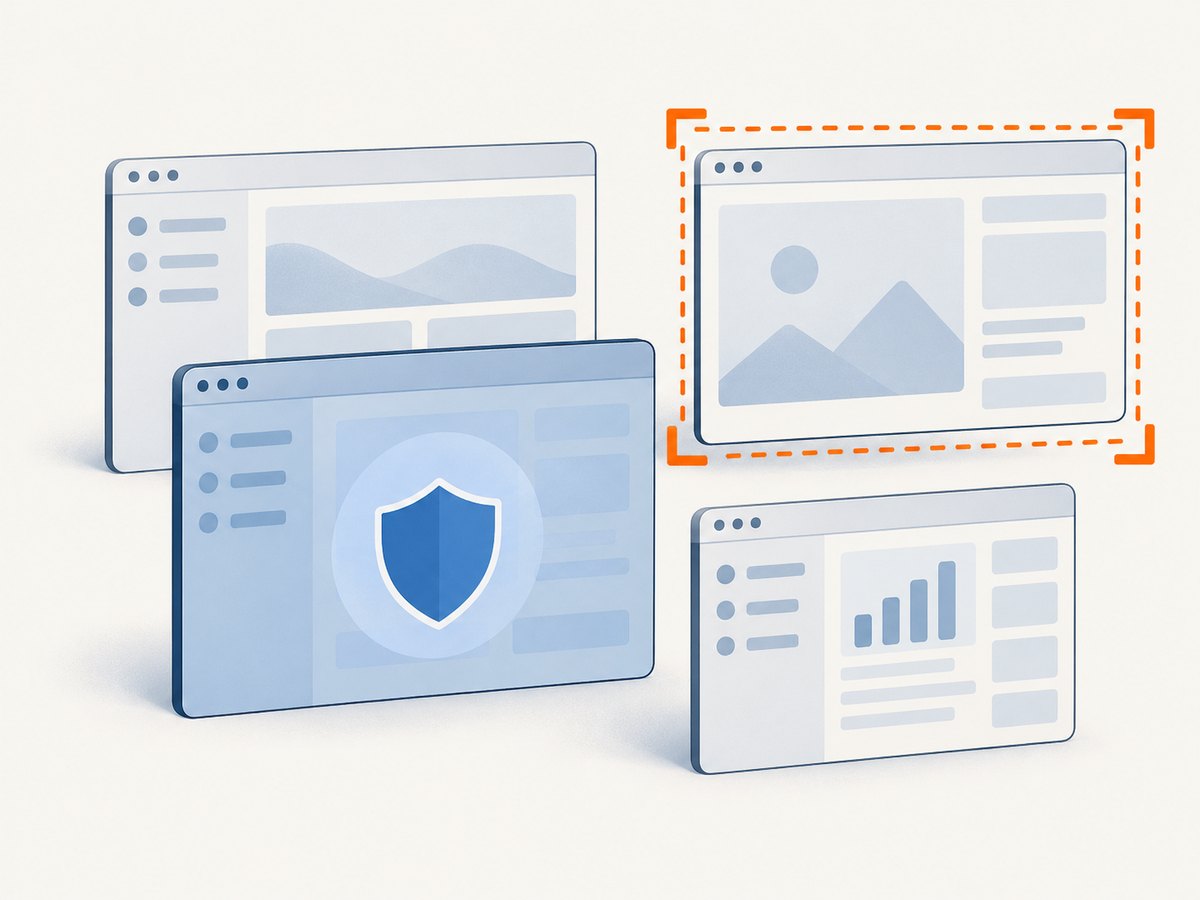
Content protection is associated with a window. A login window, settings window, detached editor, or separate popup is not automatically covered because another window has protection enabled. Call the method on each window that may display sensitive content.
function createWindow({ protectContent = false } = {}) {
  const win = new BrowserWindow({ width: 1000, height: 700 })

  if (protectContent) {
    win.setContentProtection(true)
  }

  return win
}

const mainWindow = createWindow({ protectContent: true })
const helpWindow = createWindow({ protectContent: false })
Use a clear policy for windows that change purpose. If a window sometimes shows protected information and sometimes public content, you can turn protection off with win.setContentProtection(false) when the sensitive view is no longer displayed. Be aware that toggling this does not erase data already captured while protection was off, and it cannot retract screenshots already taken.
Check the application state, not only the API state
win.isContentProtected() can help inspect whether the Electron window has protection enabled:
const enabled = win.isContentProtected()
console.log('Content protection enabled:', enabled)
This is a state check, not an end-to-end proof. A true value does not mean every recording app, OS feature, remote desktop path, camera, or capture method will omit the window. Use it to catch setup mistakes, and communicate the limitations clearly.
4. Keep content protection separate from Electron security
Screenshot exclusion is not a replacement for protecting data inside the application. It does not prevent a user from reading content on screen, copying it through another application feature, photographing the display, or accessing data through a compromised system.
Continue to follow Electron’s security guidance: do not disable webSecurity in production, and avoid loading remote code with Node.js integration enabled. Content protection controls capture behavior where supported; it does not make unsafe renderer configuration safe. See the official Electron security guide for the broader security recommendations.
Also distinguish prevention from capture APIs. Electron’s desktopCapturer API obtains desktop audio and video sources for capture workflows; it is not the API for preventing another app from capturing a window. See the desktopCapturer documentation.
5. Verify behavior for your supported environments
- Confirm the call runs in the main process. Ensure the code executes for the actual
BrowserWindowinstance that displays the content. - Check the state. Query
isContentProtected()after enabling protection to catch a missing or conditional call. - Test representative capture software. Exercise the OS capture tools and capture applications your users are likely to use, on supported OS versions.
- Check the captured result. Depending on platform and version, the window may be absent, black, or still visible.
- Retest after Electron or OS upgrades. The API’s documented platform behavior and operating-system capture paths can change.
- Document limits in the product. If resistance to capture is a requirement, state which platforms you support and avoid claiming universal prevention.
Testing should focus on the combinations that matter to your application. One successful capture exclusion on one OS does not establish behavior on another OS or with a different capture framework.
6. Troubleshooting
| Symptom | Likely cause | What to do |
|---|---|---|
| The window appears in a screenshot on macOS | The capture app may use ScreenCaptureKit, which Electron says can capture a protected window. | Do not treat the API as a guarantee on macOS. Explain the limitation and reassess the requirement or product behavior. |
| The captured window is black on Windows | The machine may be on a Windows release older than version 2004, where Electron documents black-window behavior. | Check the OS version and set expectations that older Windows versions obscure the window rather than removing it. |
| The window is still visible on Linux | The documented Electron method is for macOS and Windows; the source does not establish Linux support. | Do not assume the call has Linux effect. Treat Linux separately and avoid advertising capture exclusion there based on this method. |
| One app window is protected but another is captured | Protection was enabled only on one BrowserWindow. |
Call setContentProtection(true) for each relevant window, including windows created in secondary flows. |
isContentProtected() reports false |
The method may not have run on this window, or later code may have disabled it. | Trace window creation and conditional branches; search for setContentProtection(false) and verify the object being checked. |
| A screenshot is captured through another route | Capture exclusion is platform- and capture-path-dependent; physical cameras and unsupported paths are outside the guarantee. | Use accurate product language and do not rely on this feature as the only protection for sensitive information. |
The team is using desktopCapturer to block screenshots |
That API supplies sources to capture; it serves a different purpose. | Use BrowserWindow.setContentProtection(true) for supported window capture exclusion. |
7. Performance, reliability, and cost
The research sources do not provide a performance benchmark, reliability percentage, or cost figure for setContentProtection. Treat it as an OS window setting rather than a screenshot service or a measured security boundary. Do not infer that a protected window is safe to display simply because one capture application omits it.
For reliable application behavior, centralize the protection decision in your window creation code, apply it before presenting sensitive content where practical, and keep a written platform matrix for your supported OS versions. A state query is useful for diagnosing configuration, while capture checks on real target environments are needed to understand the user-visible result. Revisit that matrix when upgrading Electron or changing supported OS versions.
8. Or skip the browser setup
If your goal is to capture website screenshots for documentation, QA, or an AI workflow, ScreenshotNeo is a website screenshot API and MCP server. It does not disable screenshots in an Electron app; it captures web pages through one API request. Its cookie and consent handling accepts banners like a visitor and removes 60+ known consent platforms, newsletter popups, and chat widgets before the shot. Those steps can be turned off.
Use the one-call request below, replacing the URL with the page you want to capture. The full parameter reference is in the ScreenshotNeo API documentation.
curl -G "https://api.screenshotneo.com/v1/shot" \
  -d access_key=YOUR_API_KEY \
  --data-urlencode url=https://stripe.com \
  -o shot.webp
Python:
import requests

r = requests.get(
    "https://api.screenshotneo.com/v1/shot",
    params={"access_key": "YOUR_API_KEY", "url": "https://stripe.com"},
    timeout=90,
)
open("shot.webp", "wb").write(r.content)
Node.js:
const q = new URLSearchParams({
  access_key: 'YOUR_API_KEY',
  url: 'https://stripe.com'
})
const res = await fetch(`https://api.screenshotneo.com/v1/shot?${q}`)
if (!res.ok) throw new Error(`Screenshot request failed: ${res.status}`)
const image = Buffer.from(await res.arrayBuffer())
await import('node:fs/promises').then(fs => fs.writeFile('shot.webp', image))- Cookie banners, popups, and chat widgets are removed before the shot.
- Bot checks, blank pages, failed loads, timeouts, and cache hits are never billed; response headers identify the page verdict and billing status.
- An MCP server gives AI agents tools for screenshots, page information, and PDF capture.
- 1,000 screenshots a month are free with no card; paid plans start at $5 for 3,000 shots.
Create a free ScreenshotNeo account to get 1,000 screenshots each month with no card.
9. FAQ
Does this disable screenshots in the whole Electron application?
No. It enables content protection on the particular BrowserWindow where you call it. Apply it separately to each window that needs it, and remember that platform support is limited.
Can a user still photograph the screen?
Yes. Window capture exclusion cannot prevent someone from using a camera or guarantee that every software capture path will honor the setting.
Does it stop Electron’s own desktop capture?
desktopCapturer is for obtaining sources for desktop audio and video capture. It is a distinct API, and the reviewed documentation does not establish it as a method for bypassing or enforcing this protection.
What should I call the feature in my app?
Use wording such as “content protection” or “capture exclusion where supported.” “Disable all screenshots” overstates what Electron and operating systems document.


