BlogScreenshots on your device
How to Display Selenium Screenshots in a Tkinter GUI
Capture a Selenium browser image, load it into Tkinter, keep it visible, and handle sizing, errors, threading, and in-memory workflows.
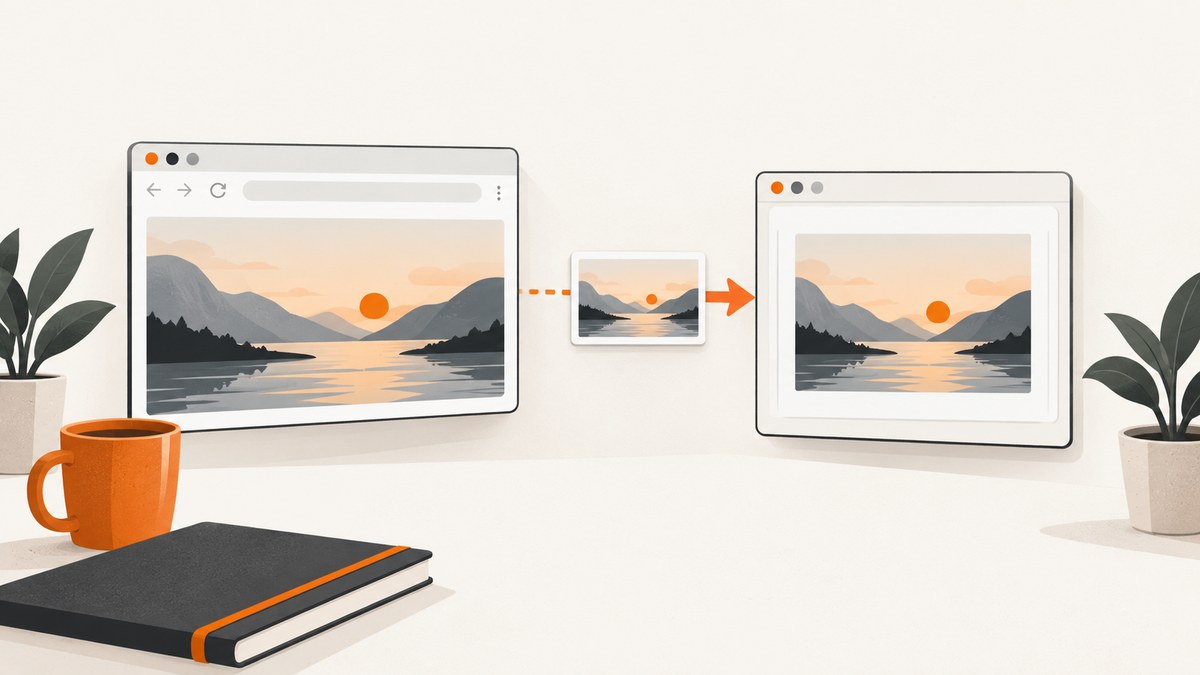
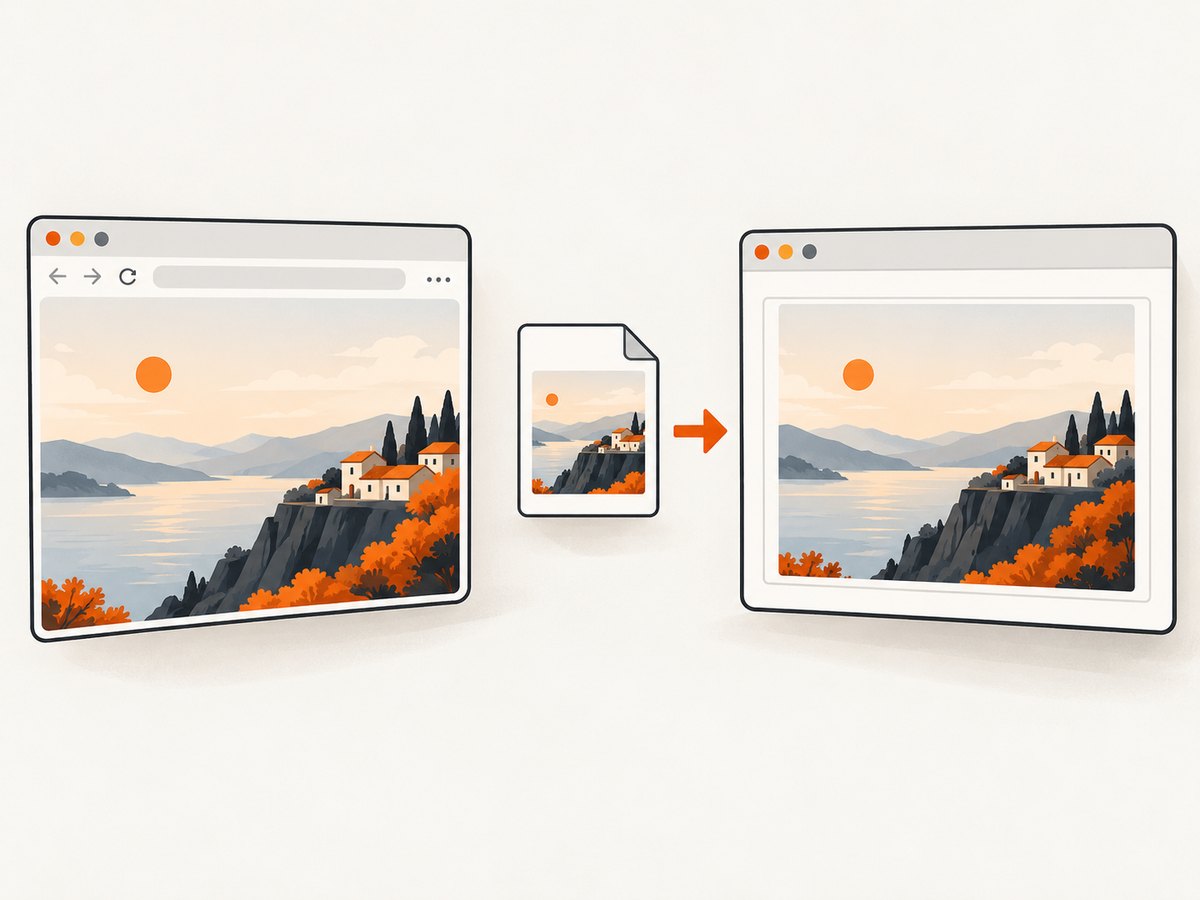
Direct answer: save the Selenium screenshot as a PNG, create a tkinter.PhotoImage from that file, and pass it to a label or another image-capable widget. Keep a Python reference to the PhotoImage for as long as it is displayed.
This approach uses Selenium’s documented save_screenshot() method and Tk 8.6 or newer PNG support. Selenium also exposes screenshot bytes and base64 data when you need an in-memory workflow.
1. Complete working example
Install Selenium first:
python -m pip install seleniumSave this as selenium_tkinter.py:
import tkinter as tk
from pathlib import Path
from selenium import webdriver

SCREENSHOT_PATH = Path("capture.png")
TARGET_URL = "https://example.com"


def main():
    # The browser must be installed and configured for your Selenium driver.
    with webdriver.Chrome() as driver:
        driver.get(TARGET_URL)
        saved = driver.save_screenshot(str(SCREENSHOT_PATH))
        if not saved:
            raise OSError(f"Could not save screenshot to {SCREENSHOT_PATH}")

    root = tk.Tk()
    root.title("Selenium screenshot")

    # PNG loading requires Tk 8.6 or later.
    photo = tk.PhotoImage(file=str(SCREENSHOT_PATH))
    label = tk.Label(root, image=photo)

    # Keep the image alive while the label displays it.
    label.image = photo
    label.pack()

    root.mainloop()


if __name__ == "__main__":
    main()
save_screenshot(filename) returns a Boolean. A false result indicates that Selenium could not write the file, so the example raises an error instead of attempting to display a missing image. Selenium documents this API along with get_screenshot_as_file(), get_screenshot_as_png(), and get_screenshot_as_base64() in its WebDriver documentation.
2. How the handoff works
- Selenium navigates the browser with
driver.get(). save_screenshot()writes the current browser view as a PNG.tk.PhotoImage(file=...)decodes that PNG.- A
Label,Canvas, or other image-capable widget receives the image. - A reference such as
label.image = photoprevents Python from deleting the underlying Tk image.
The Python documentation explains that deleting all references to an image object deletes the underlying Tk image. The same documentation specifies PNG support in Tk 8.6 and later: tkinter documentation.
3. Showing the image in a different Tkinter widget
Canvas
canvas = tk.Canvas(root, width=photo.width(), height=photo.height())
canvas.pack()
canvas.create_image(0, 0, image=photo, anchor="nw")
canvas.image = photo
Replacing an existing preview
def replace_preview(label, filename):
    photo = tk.PhotoImage(file=filename)
    label.configure(image=photo)
    label.image = photo

# Later:
replace_preview(label, "another-capture.png")
Store the new image on the widget or application object. A local variable that goes out of scope can leave the widget blank.
4. File-based versus in-memory screenshots
| Approach | Advantages | Trade-offs |
|---|---|---|
| File-based | Smallest dependency path; easy to inspect and troubleshoot; native PhotoImage loading |
Creates a temporary PNG and needs write permissions |
| In-memory | Avoids an intermediate file; useful for repeated previews or temporary captures | PNG bytes must be decoded into an image object Tk can display |
Getting PNG bytes from Selenium
with webdriver.Chrome() as driver:
    driver.get("https://example.com")
    png_bytes = driver.get_screenshot_as_png()
get_screenshot_as_png() returns binary PNG data. A common bridge is an image-processing library that decodes those bytes before creating a Tk-compatible image object. Keep that decoder as a separate layer so the browser capture and GUI code remain easy to diagnose. If you choose Pillow’s ImageTk path, check the current Pillow documentation for the exact API and supported Tk setup before shipping it.
get_screenshot_as_base64() is also available when another part of your application already transports base64 data, but it adds an encode/decode step compared with PNG bytes.
5. Waiting for the page before capture
A screenshot captures the browser state at the moment Selenium takes it. Navigate to the page, then use Selenium’s normal waiting tools when a specific element must exist before capture. Avoid arbitrary delays unless the page has a known animation or asynchronous transition that cannot be represented by an element condition.
from selenium.webdriver.common.by import By
from selenium.webdriver.support.ui import WebDriverWait
from selenium.webdriver.support import expected_conditions as EC

with webdriver.Chrome() as driver:
    driver.get("https://example.com")
    WebDriverWait(driver, 20).until(
        EC.visibility_of_element_located((By.TAG_NAME, "body"))
    )
    if not driver.save_screenshot("capture.png"):
        raise OSError("Screenshot write failed")
6. Window size, full-page output, and large images
Standard WebDriver screenshots normally represent the current browser viewport. Set the window size before navigation when a predictable viewport matters:
with webdriver.Chrome() as driver:
    driver.set_window_size(1440, 900)
    driver.get("https://example.com")
    driver.save_screenshot("viewport.png")
A large screenshot can be wider or taller than the Tk window. The label will still contain the image, but parts may be outside the visible area. For a scrollable preview, place the image on a Canvas and connect scrollbars. For resizing, decode the PNG through an image-processing layer and retain the resulting Tk image reference.
7. Keeping the GUI responsive
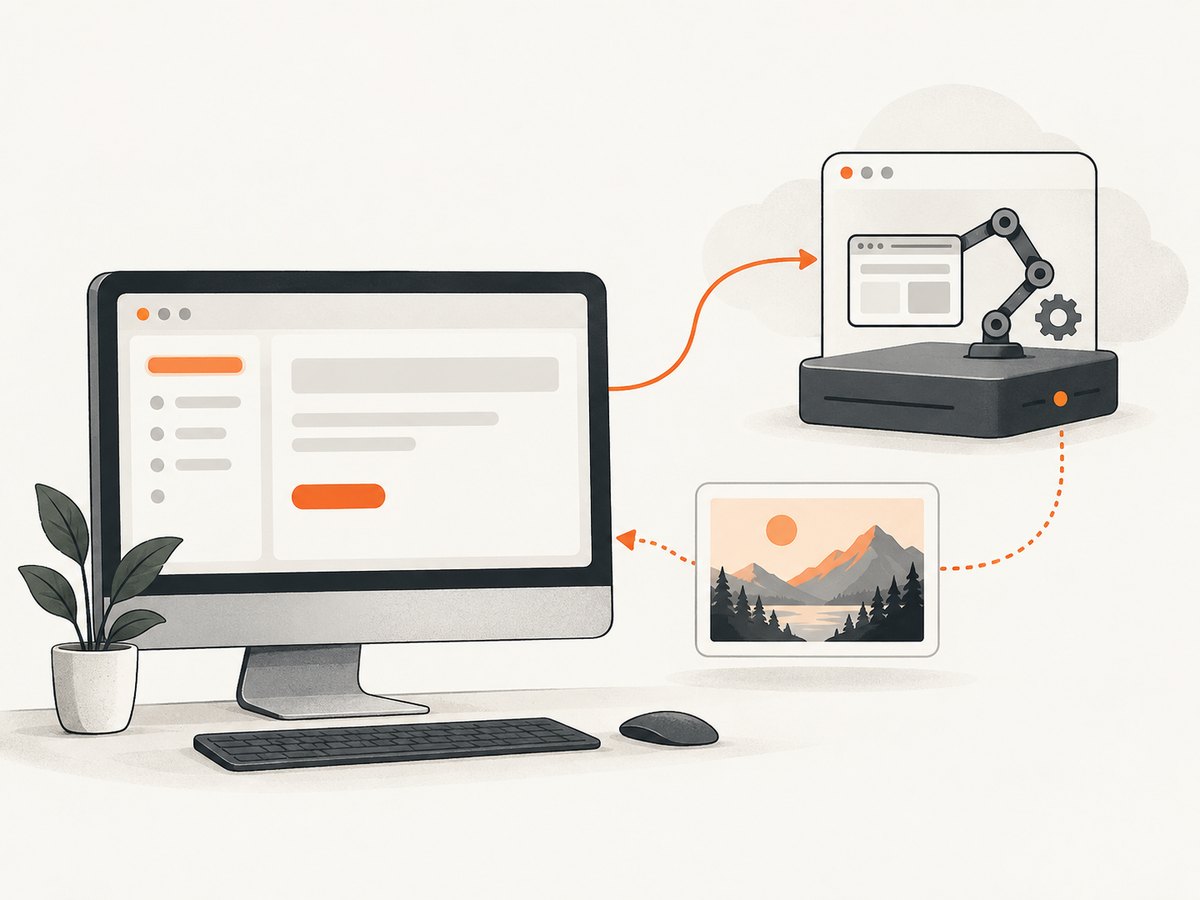
Browser startup, navigation, waits, and screenshot writes can take long enough to make a desktop window stop repainting if they run inside a button callback. Keep slow browser work away from the GUI event loop, then schedule the UI update through Tk’s event mechanism. The exact thread-safety rules depend on your Python and Tk build, so verify them against the current Tk and Python documentation for production use.
A simple structure is:
import threading
import tkinter as tk
from selenium import webdriver


def capture_in_background(on_done):
    def worker():
        result = None
        error = None
        try:
            with webdriver.Chrome() as driver:
                driver.get("https://example.com")
                if not driver.save_screenshot("capture.png"):
                    raise OSError("Screenshot write failed")
            result = "capture.png"
        except Exception as exc:
            error = exc
        on_done(result, error)

    threading.Thread(target=worker, daemon=True).start()


root = tk.Tk()
status = tk.Label(root, text="Ready")
status.pack()


def finished(path, error):
    # Schedule widget work on Tk's event loop.
    root.after(0, lambda: status.config(
        text=f"Saved {path}" if error is None else f"Error: {error}"
    ))


tk.Button(root, text="Capture", command=lambda: capture_in_background(finished)).pack()
root.mainloop()
Do not update Tk widgets directly from the worker. Pass results back to the GUI event loop and decide how to handle errors there.
8. Troubleshooting
| Symptom | Likely cause | Fix |
|---|---|---|
save_screenshot() returns False |
The destination cannot be written, the directory is missing, or the process lacks permission | Use an absolute path, create the directory first, check permissions, and handle the Boolean result |
PNG format error from PhotoImage |
The runtime is using Tk older than 8.6 or a different unsupported format | Check the Tk version and use Tk 8.6+ for native PNG loading |
| The label is blank | The PhotoImage object was garbage-collected |
Assign it to label.image or an application-level attribute |
| Browser starts but navigation fails | Browser, driver, URL, network, or page readiness problem | Check the WebDriver setup, log the target URL, add an explicit wait, and capture the exception |
| The preview is cut off | The image is larger than the available window | Use a scrollable Canvas or resize the image before display |
| The window freezes | Navigation or capture is running in the Tk event callback | Move browser work to a worker and schedule the result with root.after() |
| Only part of a dynamic page appears | Capture happened before the required content loaded | Wait for a meaningful element or state instead of relying only on a fixed sleep |
9. Reliability and performance checklist
- Use an explicit output path and check the Boolean result from
save_screenshot(). - Close each WebDriver with a context manager or an explicit
quit(). - Set a known browser window size when previews must be comparable.
- Wait for the page state your screenshot actually requires.
- Keep browser work out of the GUI event loop.
- Retain every displayed
PhotoImage. - Use unique filenames if multiple captures can overlap.
- Clean up temporary files after the preview closes if they are not needed later.
- For large images, consider a resize or scrollable preview to reduce memory and repaint work.
Capture time is affected by browser startup, page loading, waits, rendering, and filesystem writes. Reusing a browser session can avoid repeated startup cost, while isolating each capture in its own driver can simplify failure recovery. The appropriate choice depends on whether your application values throughput or strict separation between captures.
10. Or skip the browser setup
If you only need a screenshot delivered to your Python or desktop application, ScreenshotNeo provides a single HTTP request instead of requiring local browser and driver configuration. Its API can return PNG, JPEG, WebP, or PDF, and its cleanup steps accept consent banners before capture and remove more than 60 known consent platforms, newsletter popups, and chat widgets. Each cleanup step can be turned off.
Use the API from Python:
import requests

r = requests.get(
    "https://api.screenshotneo.com/v1/shot",
    params={"access_key": "YOUR_API_KEY", "url": "https://example.com"},
    timeout=90,
)
r.raise_for_status()
open("shot.webp", "wb").write(r.content)
cURL:
curl -G "https://api.screenshotneo.com/v1/shot" -d access_key=YOUR_API_KEY --data-urlencode url=https://example.com -o shot.webpNode.js:
import { writeFile } from "node:fs/promises";

const q = new URLSearchParams({ access_key: 'YOUR_API_KEY', url: 'https://example.com' });
const res = await fetch(`https://api.screenshotneo.com/v1/shot?${q}`);
if (!res.ok) throw new Error(`Screenshot request failed: ${res.status}`);
await writeFile("shot.webp", Buffer.from(await res.arrayBuffer()));
See the ScreenshotNeo API documentation for request options. Bot checks and CAPTCHAs, blank pages, timeouts, failed loads, and cache hits are not billed, and the response identifies the result with X-Page-Verdict and X-Billed headers. ScreenshotNeo also provides an MCP server with take_screenshot, get_page_info, and capture_pdf tools for Claude, Cursor, and other MCP clients. One thousand screenshots per month are free with no card; paid plans start at $5 for 3,000 shots. Create a free ScreenshotNeo account.
11. FAQ
Can Tkinter display a Selenium screenshot without saving a file?
Yes. Selenium’s get_screenshot_as_png() returns PNG bytes. Decode those bytes with a compatible image layer, then create the Tk image object and retain a reference to it.
Why does PhotoImage lose the image?
Tk removes the underlying image when all Python references to the image object are gone. Store the object on the widget or application instance.
Does PhotoImage support PNG?
Python’s Tkinter documentation specifies PNG loading in Tk 8.6 and later.
Should I use a fixed sleep before taking the screenshot?
Use an explicit wait for the element or page state that must be visible. A fixed delay is useful only when you understand the page’s timing and no better condition is available.
Can I show a JPEG or WebP directly with native Tkinter?
The documented native path in this guide is PNG. Convert other formats through an image-processing layer before creating the Tk image, or request PNG from the capture service you use.


